

Microsoft has released the November 2025 non‑security preview update for Windows 11 (KB5070311), a Release Preview flight that delivers focused UI polish, device-specific Copilot+ refinements, and a reliability fix for an LSASS instability — and administrators should treat it as an optional, test‑first package rather than a production push.
Windows servicing in 2025 continues the pattern Microsoft has used for several cycles: publish optional, non‑security preview LCUs to Release Preview/Insider rings to field‑test quality and UX changes, then fold validated fixes into the monthly mainstream cumulative (Patch Tuesday) releases. KB5070311 was seeded to Release Preview in mid‑November 2025 and maps to OS builds 26100.7296 (24H2) and 26200.7296 (25H2). These preview builds primarily deliver incremental user‑facing polish plus targeted platform reliability patches; several visible features remain server‑gated and appear gradually depending on device entitlement and OEM driver support.
This preview is optional (non‑security). For most home users the recommended route remains: wait for the mainstream cumulative (if the change matters to you) or install the preview only on non‑critical machines. For imaging and enterprise scenarios, Microsoft provides offline MSU installers and explicit DISM/PowerShell commands to integrate the packages into images or apply them to air‑gapped systems. Follow the documented ordering and SSU (Servicing Stack Update) guidance when using offline installers.
KB5070311 is a compact, quality‑focused preview that continues Microsoft’s 2025 approach of staged feature enablement and targeted reliability work. For enthusiasts and Release Preview testers it offers useful UX tweaks and device‑specific Copilot+ upgrades to test; for administrators it is a pilot‑worthy package that must be handled with traditional change‑control discipline — verify SSU implications, confirm SafeOS updates match your media, and coordinate driver support before broad adoption.
Conclusion: apply thoughtfully, test comprehensively, and treat preview LCUs like software under test — not automatic production patches.
Source: Microsoft - Message Center December 1, 2025—KB5070311 (OS Builds 26200.7309 and 26100.7309) Preview - Microsoft Support
 Background / Overview
Windows servicing in 2025 continues the pattern Microsoft has used for several cycles: publish optional, non‑security preview LCUs to Release Preview/Insider rings to field‑test quality and UX changes, then fold validated fixes into the monthly mainstream cumulative (Patch Tuesday) releases. KB5070311 was seeded to Release Preview in mid‑November 2025 and maps to OS builds 26100.7296 (24H2) and 26200.7296 (25H2). These preview builds primarily deliver incremental user‑facing polish plus targeted platform reliability patches; several visible features remain server‑gated and appear gradually depending on device entitlement and OEM driver support.This preview is optional (non‑security). For most home users the recommended route remains: wait for the mainstream cumulative (if the change matters to you) or install the preview only on non‑critical machines. For imaging and enterprise scenarios, Microsoft provides offline MSU installers and explicit DISM/PowerShell commands to integrate the packages into images or apply them to air‑gapped systems. Follow the documented ordering and SSU (Servicing Stack Update) guidance when using offline installers.
What KB5070311 delivers — feature and fix summary
Headline user-facing items
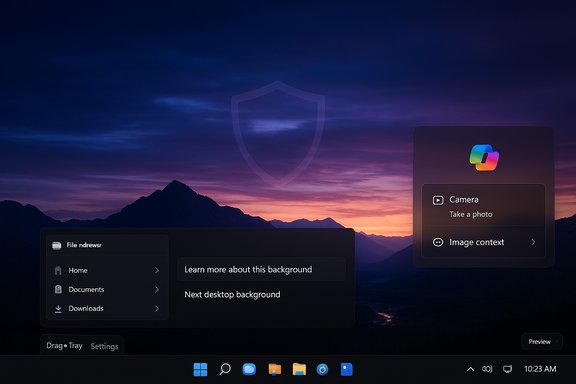
- Desktop Spotlight improvements: two new context actions — Learn more about this background and Next desktop background — appear when Windows Spotlight is used as the desktop wallpaper, reducing friction for users who like the Spotlight images.
- Drag Tray enhancements and a supported toggle: the Drag Tray (the new multi‑file sharing UX introduced in earlier previews) receives usability polish — better multi‑file drops, smarter suggested targets, and a user‑accessible on/off toggle under Settings > System > Nearby sharing so organizations can opt out if necessary.
- File Explorer dark‑mode polish: copy/move/confirm/delete dialogs and other previously bright surfaces now respect dark mode more consistently, lowering the visual jolt during file operations.
- Keyboard backlight improvements: HID keyboard illumination is made smarter on supported hardware to conserve battery and provide clearer key illumination in low light, subject to OEM driver support.
Copilot+ and camera/AI refinements
- Windows Studio Effects expanded to alternate cameras: on supported Copilot+ PCs, Studio Effects can now be enabled for alternate cameras (for example, external USB webcams or a laptop’s rear camera) when the device has the required on‑device NPU and OEM driver support. These changes are device‑gated and rely on OEM drivers and hardware entitlements being present. Expect the capability to be visible only after Microsoft’s server‑side gating and vendor driver updates are in place.
- Click‑to‑Do and Copilot context refinements: tweaks to image and table context behavior aim to reduce false positives and improve invocation accuracy on Copilot+ devices, but visibility is again dependent on gating and hardware support.
Reliability and security‑adjacent fixes
- LSASS stability fix: the package addresses an LSASS (Local Security Authority Subsystem Service) instability that could cause an access‑violation style crash affecting sign‑in reliability — an operationally important fix for environments where sign‑on consistency matters.
- Smaller fixes and telemetry‑driven adjustments: a collection of corrections across Widgets, OneDrive icon handling, pen haptics, Smart Card/Windows Hello interactions, and minor performance improvements. These are typical preview‑pack items intended to reduce noise before mainstream inclusion.
Installation options and precise commands
Microsoft documents two principal ways to install catalog MSUs for preview/LCU packages: (1) place all required MSU files in the same folder and let DISM discover dependencies, or (2) install each MSU sequentially in the exact order listed by the KB. Both approaches are supported for applying KB5070311 to running systems or offline images.Method 1 — Install all MSU files together (recommended for offline batch installs)
- Download all MSU files referenced by the KB and place them in one folder (for example, C:\Packages).
- From an elevated Command Prompt, run:
DISM /Online /Add‑Package /PackagePath:C:\Packages\Windows11.0‑KB5070311‑x64.msu - Or from an elevated PowerShell prompt:
Add‑WindowsPackage ‑Online ‑PackagePath "C:\Packages\Windows11.0‑KB5070311‑x64.msu" - Reboot when the installer requests it.
Method 2 — Install MSU files individually, in order
When the KB lists more than one MSU, Microsoft sometimes provides an explicit file order. For KB5070311 the documented ordered sequence is:- windows11.0‑kb5043080‑x64_…msu (prerequisite)
- windows11.0‑kb5070311‑x64_…msu (target preview LCU)
- DISM /Online /Add‑Package /PackagePath:C:\Packages\windows11.0‑kb5043080‑x64.msu
- DISM /Online /Add‑Package /PackagePath:C:\Packages\windows11.0‑kb5070311‑x64.msu
- Add‑WindowsPackage ‑Online ‑PackagePath "C:\Packages\windows11.0‑kb5043080‑x64.msu"
- Add‑WindowsPackage ‑Online ‑PackagePath "C:\Packages\windows11.0‑kb5070311‑x64.msu"
Applying to mounted images (image servicing)
To inject the MSU into a mounted image, run:- DISM /Image:mountdir /Add‑Package /PackagePath:Windows11.0‑KB5070311‑x64.msu
- Add‑WindowsPackage ‑Path "C:\offline" ‑PackagePath "Windows11.0‑KB5070311‑x64.msu" ‑PreventPending
Dynamic Update / SafeOS guidance for installation media
When updating Windows installation media (ISOs or mounted install.wim/winre.wim), Microsoft’s Dynamic Update guidance matters:- Use Dynamic Update packages that match the same month as the KB. If the SafeOS Dynamic Update or Setup Dynamic Update for the same month is not available, Microsoft’s guidance is to use the most recently published version — but administrators should prefer matching months whenever possible to reduce mismatch between recovery tooling and the running OS.
- SafeOS Dynamic Updates (WinRE/WinPE) are persistent for images: when you inject a SafeOS DU into a WinRE image it typically cannot be removed; it becomes part of that recovery image. For that reason, update install media in a controlled pipeline and retain golden copies of original media for rollback.
- When refreshing media, verify that the SSU packaged with any LCU is compatible with your deployment tooling; mismatched SSUs can cause offline servicing failures. Test the refreshed media in a lab before broad use.
Critical operational notes (risks, caveats, and verification)
SSU permanence and rollback constraints
Servicing Stack Updates (SSUs) are often bundled with LCUs in catalog MSUs. An SSU portion of a combined package cannot be cleanly uninstalled like an LCU; rollbacks typically require image restores or full reimaging. Treat combined SSU+LCU installs as persistent changes and plan rollback strategies accordingly.Server‑side gating, device entitlements, and OEM driver dependencies
Many Copilot+ features and some UI changes in preview packages are server‑gated — installing the binary is a necessary but not always sufficient step for feature visibility. Actual exposure depends on Microsoft’s enablement flags, OEM driver support (notably for NPUs, cameras, and keyboard firmware), and region/hardware entitlements. Administrators should coordinate with device OEMs for driver and firmware updates before broad deployment. Any claim that installing KB5070311 will enable specific Copilot+ behavior on all devices should be treated with caution until validated on representative hardware.Potential functional regressions from preview packages
Optional preview updates exist to find regressions early. While KB5070311 contains a valuable LSASS fix and quality improvements, preview installs can occasionally introduce unrelated regressions in storage, driver stacks, or specialty hardware. For production fleets, follow a pilot‑then‑stage rollout model and monitor for telemetry or helpdesk spikes.Image size and bandwidth planning
Offline MSU packages (catalog MSUs) are large — multi‑gigabyte ranges are common when SSUs are bundled. Plan bandwidth, cache storage, and disk space accordingly for enterprise distribution. Prefer Windows Update (express/differential delivery) for unmanaged endpoints as it reduces download size and installation churn.Verification steps to confirm successful installation
After installing the MSU(s), verify:- Check the OS build (winver) to confirm expected build strings (for Release Preview: 26100.7296 / 26200.7296 as the preview flight).
- Inspect Windows Update history in Settings to see the KB entry listed.
- For offline image injections, use DISM /Get‑ImageInfo or reagentc /info to confirm WinRE/SafeOS versions if those were updated.
Testing checklist — what to validate in your pilot ring
Before broad deployment, validate these items across representative hardware and workload profiles:- Sign‑in reliability and LSASS behavior (verify sign‑on occurs without unexpected logouts or access‑violation events).
- File Explorer dialog dark‑mode consistency and copy/move dialog behavior.
- Drag Tray behavior and the new Settings toggle (verify that disabling the Drag Tray actually hides it and that file drops work predictably).
- Copilot+ camera features on supported hardware — test enabling Windows Studio Effects on alternate/external cameras and observe performance and battery impact.
- Keyboard backlight behavior on laptops with HID backlight support; confirm OEM driver interaction.
- Imaging flows: update ISO/WinRE images with matching Dynamic Update packages and test OOBE, cloud re‑install, and Reset this PC flows.
Deployment recommendations (concise)
- Home users / consumers: install via Windows Update only if comfortable experimenting; otherwise wait for the mainstream cumulative. Always back up critical data before applying preview updates.
- IT administrators:
- Add KB5070311 to a controlled pilot ring that includes hardware representative of your fleet.
- Validate third‑party agents (EDR/AV), storage drivers, Autopilot/OOBE flows, and provisioning scripts.
- Use DISM folder installation to apply multiple MSUs in offline contexts and inject matching SafeOS Dynamic Updates into install media.
- Keep a tested rollback plan (image restore, golden media).
- Coordinate with OEMs to obtain driver/firmware updates for Copilot+ experiences and camera/keyboard fixes.
- Imaging and air‑gapped environments: use the Microsoft Update Catalog MSU files, verify package SHA‑256 hashes at download, and apply SSUs first where specified. Inject SafeOS DUs into recovery images and retain original golden copies for rollback.
Critical analysis — strengths and potential risks
Strengths
- Quality‑first approach: KB5070311 delivers practical polish (Spotlight context menu, dark‑mode dialog fixes) that reduces daily friction for users and helpdesk load. These incremental improvements can materially improve user experience without a disruptive, large‑scale feature switch.
- Targeted reliability fix: The LSASS stability correction addresses a core sign‑in reliability issue; fixing LSASS is operationally important and justifies testing in secure pilot rings.
- Improved control: The addition of a supported toggle for the Drag Tray shows Microsoft is responsive to user feedback and provides admins a documented way to opt out of behavior that may conflict with production workflows.
Risks and caveats
- Preview nature and regression risk: Optional previews exist to catch regressions; deploying preview LCUs widely in production increases risk of unforeseen side effects. Maintain pilot rings and rollback paths.
- Server gating and misaligned expectations: Many claims around Copilot+ features presume device entitlement, OEM driver updates, and Microsoft’s server flags. Administrators should not assume presence of a feature solely because the MSU is installed. Validate end‑to‑end on target hardware.
- SSU permanence: Bundled SSUs reduce uninstall flexibility; inadvertent SSU installs complicate rollback plans. Plan around image restores and golden media rather than relying on uninstall.
- SafeOS and recovery image permanence: Injected SafeOS updates become part of WinRE images and are not trivially removable; preserve original recovery media and test thoroughly.
- Bandwidth and storage cost: Offline MSU packages are large; moving large installers across WANs or storing multiple month’s update sets in cache is not trivial. Use Windows Update express delivery for unmanaged endpoints when feasible.
Final checklist and pragmatic next steps
- If you manage devices: add KB5070311 to your test ring; validate critical workflows listed in the testing checklist.
- For imaging teams: download the MSU(s), verify SHA‑256 hashes, update install media with matching Dynamic Update packages, and preserve golden images.
- Back up critical systems and ensure restore images are available before installing previews in production.
- Coordinate with OEMs for driver/firmware updates on Copilot+ hardware if you plan to test camera or keyboard backlight changes.
- Monitor telemetry and helpdesk volumes for at least 7–14 days after pilot installs before approving broader rollout.
KB5070311 is a compact, quality‑focused preview that continues Microsoft’s 2025 approach of staged feature enablement and targeted reliability work. For enthusiasts and Release Preview testers it offers useful UX tweaks and device‑specific Copilot+ upgrades to test; for administrators it is a pilot‑worthy package that must be handled with traditional change‑control discipline — verify SSU implications, confirm SafeOS updates match your media, and coordinate driver support before broad adoption.
Conclusion: apply thoughtfully, test comprehensively, and treat preview LCUs like software under test — not automatic production patches.
Source: Microsoft - Message Center December 1, 2025—KB5070311 (OS Builds 26200.7309 and 26100.7309) Preview - Microsoft Support
