

Microsoft is explicit: if your PC doesn’t meet Windows 11’s system requirements, installing the OS is “not recommended” — and if you proceed you assume the risk of compatibility problems, potentially lose entitlement to updates, and may forfeit warranty protections from your device maker. This isn’t a scare headline; it’s now baked into Microsoft’s support guidance and the upgrade flow, and it changes the calculus for anyone considering a registry tweak or third‑party tool to force Windows 11 onto older hardware.
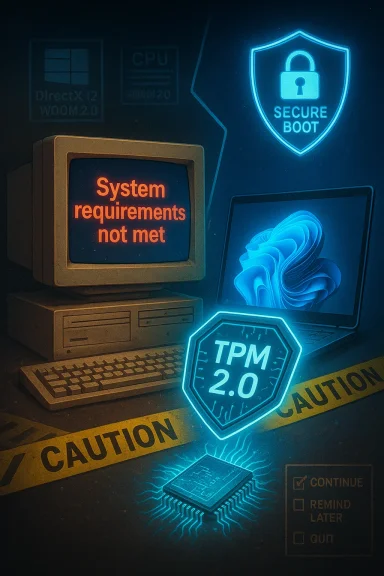
Windows 11 launched with a stricter set of hardware checks than previous Windows upgrades, and that choice remains the single biggest driver of confusion and controversy. At the top of the list are a few small‑sounding technical requirements — TPM 2.0, UEFI with Secure Boot, a DirectX 12–capable GPU with a WDDM 2.0 driver and a supported CPU lineup — that together exclude a large population of otherwise functioning laptops and desktops built before roughly 2018.
Those requirements served two purposes for Microsoft: a baseline for security primitives (TPM 2.0, Secure Boot) and a foundation for performance and driver stability (DirectX 12 / WDDM 2.0 and modern CPU features). Over time Microsoft has hardened its messaging: a support article and the installer now explicitly warn users when their device is ineligible, and require acknowledgement of the risks before proceeding.
Tradeoffs and consequences:
For most users the prudent choice is conservative: stay on a supported OS, or move to hardware that meets the requirements. If you choose to circumvent those checks, do so with full awareness of the tradeoffs — back up everything, understand your warranty position, and be prepared to restore or replace the system if things go wrong. The road beyond the warning is doable for technically comfortable users, but it’s not a shortcut to a risk‑free upgrade: it’s a deliberate trade of convenience for control, and one that should be treated as such.
Source: AOL.com https://www.aol.com/lifestyle/microsoft-doesnt-recommend-windows-11-190000149.html
 Background
Windows 11 launched with a stricter set of hardware checks than previous Windows upgrades, and that choice remains the single biggest driver of confusion and controversy. At the top of the list are a few small‑sounding technical requirements — TPM 2.0, UEFI with Secure Boot, a DirectX 12–capable GPU with a WDDM 2.0 driver and a supported CPU lineup — that together exclude a large population of otherwise functioning laptops and desktops built before roughly 2018.Those requirements served two purposes for Microsoft: a baseline for security primitives (TPM 2.0, Secure Boot) and a foundation for performance and driver stability (DirectX 12 / WDDM 2.0 and modern CPU features). Over time Microsoft has hardened its messaging: a support article and the installer now explicitly warn users when their device is ineligible, and require acknowledgement of the risks before proceeding.
What Microsoft requires — the essentials
Here are the core minimums every Windows 11 PC is expected to meet:- Processor: 64‑bit compatible CPU with 1 GHz or faster and two or more cores — a compatible processor from the supported CPU lists is required.
- RAM: 4 GB minimum.
- Storage: 64 GB or more.
- System firmware: UEFI, Secure Boot capable.
- TPM: Trusted Platform Module (TPM) version 2.0.
- Graphics: Compatible with DirectX 12 or later and a WDDM 2.0 driver.
- Display: 720p or higher, greater than 9 inches diagonally.
What the warning actually means in practical terms
Microsoft’s installer now includes a clear, non‑negotiable disclaimer when it detects unsupported hardware. That warning lays out three practical consequences:- You may experience compatibility issues, including app crashes, driver failures, degraded performance, and missing features.
- Your PC will not be guaranteed to receive updates, including security updates. Microsoft’s support documentation makes this explicit for devices that don’t meet the minimum requirements.
- If installing Windows 11 damages your hardware due to incompatibility, the manufacturer warranty may not cover those damages.
Why Microsoft is strict: security and reliability
There are three technical reasons Microsoft drew a firm line on Windows 11 eligibility:- Hardware roots of trust (TPM 2.0)
TPM 2.0 provides hardware‑backed key storage and cryptographic operations used by BitLocker, Windows Hello for Business, Credential Guard and other features. A hardware TPM reduces the attack surface compared with purely software‑based key storage. - Secure Boot and firmware expectations
UEFI with Secure Boot helps ensure only signed, trusted boot components run during startup. This is a foundational control for combating certain classes of boot‑time malware and rootkits. - Modern driver and graphics stack expectations
DirectX 12 and WDDM 2.0 drivers introduce driver model changes that help deliver consistent graphics and power behavior. Older driver stacks were a frequent cause of instability in previous Windows releases; Microsoft’s bar is partially an attempt to reduce that class of systemic failures.
Common ways people try to get Windows 11 running on older hardware — and the tradeoffs
When a hard requirement blocks an upgrade, creative workarounds quickly appear. The most common approaches people use to bypass Windows 11 checks are:- Registry edits during installation (creating entries like AllowUpgradesWithUnsupportedTPMOrCPU or using a LabConfig key) to skip CPU/TPM/Secure Boot checks.
- Custom installer media created by third‑party tools (for example, a USB created with a utility that strips out checks).
- Third‑party bypass utilities that modify installer behavior or trick the installer into thinking a requirement is met.
- Workarounds in-place (scripts or patched update paths that allow upgrades via Windows Update).
Tradeoffs and consequences:
- Updates not guaranteed. Microsoft’s policy states unsupported installs aren’t guaranteed to receive updates, including security updates.
- Stability and feature gaps. Drivers for older chipsets and GPUs may never be updated to support new driver models, leading to crashes, poor battery life, and feature loss.
- Security exposure. Without the targeted updates and without a TPM‑protected key store, the system is less resistant to certain classes of attack.
- Warranty/legal risk. OEMs may decline warranty claims where damage is linked to unsupported OS installs.
- Malware risk. Popular bypass tools have been copied and redistributed with malicious payloads; using third‑party installers increases risk significantly unless you can verify integrity and provenance.
Real‑world symptoms you’re likely to see on unsupported machines
When Windows 11 runs on borderline hardware, these are the most commonly reported problems:- Sluggish UI interactions; longer wake/resume times and higher CPU usage for everyday tasks.
- Higher thermal output and worse battery life on laptops because power management drivers are not optimised for the new kernel/graphics stacks.
- GPU/graphics issues in apps and games that rely on WDDM 2.x features.
- Missing security features: BitLocker hardware encryption and certain virtualization‑based protections may be degraded or unavailable.
- Incompatibility with software that expects the modern APIs or hardware virtualization features (container engines, certain AI inference libraries, or pro video toolchains).
- A persistent “System requirements not met” watermark and Settings notification.
The legal and support landscape: updates and warranties
Two technical/legal points are crucial:- Updates
Microsoft’s support guidance is clear: devices that do not meet Windows 11 minimum system requirements are not guaranteed to receive updates, including security updates. That means even if you successfully install the OS today, a later cumulative update or feature update may be refused, blocked, or may fail in ways Microsoft will not take responsibility for. - Manufacturer warranty
Microsoft’s advisory explicitly says damages resulting from compatibility issues are not covered under the manufacturer warranty. Actual warranty decisions are still in the OEM’s hands — some vendors take a pragmatic stance and will support troubleshooting regardless of OS, while others may strictly limit coverage if a non‑supported OS is detected. If your machine is under service contract, contact the manufacturer to understand their policy before forcing an install.
Practical options if your PC is ineligible
If your PC fails the compatibility check, you have several sensible choices depending on budget, technical comfort, and risk tolerance:- Option A — Stay on Windows 10 (recommended for most users who need stability)
Windows 10 received extended servicing through October 14, 2025. If your workflow runs fine on Windows 10 and you want predictable security updates and vendor support, staying put and planning a hardware refresh is often the least risky path. - Option B — Upgrade hardware where possible
On some desktop systems, adding or enabling a TPM module, switching to UEFI, or replacing an older motherboard and CPU is viable. On laptops this is rarely practical. - Option C — Buy a new Windows 11–capable PC
That’s the perennial industry recommendation: modern hardware ensures compatibility with all features (and often adds AI accelerators or NPUs for new Copilot+ capabilities). - Option D — Use alternative OS options
Consider Linux distributions or lightweight OSes for older hardware; they can extend a device’s useful life with better performance than an unsupported Windows 11 installation in many cases. - Option E — Proceed with a forced install only after careful preparation
If you must run Windows 11 on the device, take these preparatory steps: - Create a full image backup of the current system (disk‑level image).
- Export any activation keys and create recovery media.
- Make a list of essential device drivers and vendor support links so you can reinstall drivers if needed.
- Understand that the official rollback path is time‑limited (the built‑in “Go back” option is available only for 10 days after upgrade, beyond which you’ll need your backup image to restore the prior OS).
- Be prepared to move to a clean Windows 10 image if instability occurs.
If you’re tempted to bypass checks: checklist and caution
If you choose to bypass compatibility checks, keep the following in mind:- Never assume all updates will work. Plan for manual update management and be willing to block feature updates.
- Avoid unverified third‑party tools. Bypass utilities and installer images are frequent malware targets; confirm the authenticity of any download and scan it with multiple reputable anti‑malware tools.
- Expect driver gaps. Older chipset vendors may never provide WDDM 2.0 drivers; that can permanently limit graphics features and performance.
- Prepare recovery options. Have a tested disk image and a USB recovery tool ready before you begin.
- Check your OEM’s warranty terms. If warranty service is critical, get confirmation from the vendor on how they will treat a non‑supported OS before proceeding.
Strengths of Microsoft’s policy — what it buys you
While the new minimums upset many users with older hardware, there are clear strengths in Microsoft’s approach:- Stronger baseline security. Hardware TPM and Secure Boot make it easier to guarantee hardware‑backed protections across the installed base.
- Cleaner driver surface. Targeting a modern driver model reduces the number of legacy driver scenarios that cause BSODs and instability.
- Predictable feature set. With a baseline of hardware capabilities, Microsoft can enable new features (including advanced AI experiences) without needing to support dozens of legacy permutations.
- Clearer enterprise controls. Enterprises can enforce and manage compliance more predictably when the platform baseline is stable.
Risks and downsides — who loses and how
That said, the approach creates real downsides:- Device obsolescence. Many otherwise perfectly functional PCs are classified as “ineligible,” forcing replacements earlier than typical hardware failure cycles would require.
- Cost and e‑waste implications. Encouraging hardware replacement at scale risks higher consumer cost and environmental impact.
- Fragmentation of user experience. A two‑tier world (supported vs unsupported installs) risks inconsistent feature availability and complicates troubleshooting.
- Third‑party bypass ecosystem. Stricter rules incentivize risky third‑party tools and scripts that can expose users to malware or unstable installs.
- Support ambiguity. Even when an install “works,” the lack of guaranteed updates and the risk of warranty denial leave customers without clear recourse if problems emerge.
How to decide: a short decision tree
- Does your workflow require guaranteed security updates and vendor support?
- Yes → Do not install Windows 11 on unsupported hardware. Stay on supported Windows 10 installations where practical, or buy compatible hardware.
- No → Continue to next question.
- Is your device a laptop or integrated system (non‑upgradeable)?
- Laptop / integrated → Upgrading components is unlikely. Consider staying with Windows 10, switching OS, or buying a new machine.
- Desktop with replaceable parts → Investigate adding or enabling TPM/UEFI support or replacing the motherboard/CPU.
- Are you comfortable maintaining a manual backup and recovery plan and accepting higher risk?
- Yes → You can attempt a forced install after thorough backups and driver research.
- No → Don’t force the upgrade.
Final recommendations (practical checklist to follow)
- If you need stability and security: do not install Windows 11 on unsupported hardware. Use a supported Windows 10 install or replace the PC.
- If you plan to experiment: perform a full disk image backup and test the upgrade on a secondary device first.
- Avoid downloading bypass tools from untrusted sources; prefer community projects with clear versioning and repository history, and validate the binaries.
- Check OEM support and warranty terms before you alter the OS on a device still under contract.
- Keep your recovery plan current: export keys, create boot media, and ensure you can return to the prior state within the rollback window or via your image.
- Consider alternatives for extending device life: a lightweight Linux distribution or reinstalling and optimizing the existing Windows 10 environment may deliver better day‑to‑day experience than an unsupported Windows 11 install.
Conclusion
Microsoft’s explicit warning about installing Windows 11 on devices that don’t meet minimum requirements is more than corporate posture — it redefines the risk profile for anyone who wants the new UI or features on older hardware. The company’s insistence on TPM 2.0, Secure Boot, DirectX 12 / WDDM 2.0 and a modern CPU family is intended to raise the baseline for security and reliability, but the side effects are real: earlier hardware retirement, a cottage industry of bypass tools, and a higher chance of encountering driver and update failures.For most users the prudent choice is conservative: stay on a supported OS, or move to hardware that meets the requirements. If you choose to circumvent those checks, do so with full awareness of the tradeoffs — back up everything, understand your warranty position, and be prepared to restore or replace the system if things go wrong. The road beyond the warning is doable for technically comfortable users, but it’s not a shortcut to a risk‑free upgrade: it’s a deliberate trade of convenience for control, and one that should be treated as such.
Source: AOL.com https://www.aol.com/lifestyle/microsoft-doesnt-recommend-windows-11-190000149.html
