

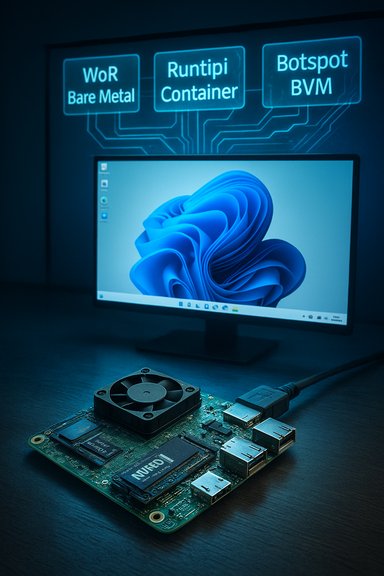
I spent a weekend putting Windows 11 on a Raspberry Pi 5 and, despite everything the headlines say about “unsupported” installs, the result was more interesting than it was outright unusable — but only under very specific constraints. The experiment that inspired this feature (a hands-on report that walks through three community-led methods — WoR, a container approach via Runtipi, and Botspot’s BVM virtual machine) shows that Windows 11 can run on the Pi 5 for light, single-purpose workflows, but that practical limitations — drivers, networking, updates, and the sheer mismatch between Windows’ expectations and an SBC’s hardware — make it a tinkerer’s toy, not a substitute for a real Windows PC.
The Raspberry Pi 5 is a significant leap from earlier models: it uses Broadcom’s BCM2712 SoC with four Cortex‑A76 cores at up to 2.4 GHz, a VideoCore VII GPU, and up to 8 GB of LPDDR4X RAM. The board is aimed at makers and embedded projects that need more CPU and GPU headroom than a Pi 4 offered. Official benchmarks and technical documentation show meaningful real-world gains — faster app launches, much better synthetic scores, and improved I/O — but it remains a low-power, Arm-based single‑board computer designed first for Linux. Windows 11, meanwhile, is a desktop OS built and tuned for x86/x64 PCs, with a growing Arm variant that remains primarily targeted at OEM Arm laptops and SoCs that ship with Microsoft and driver vendor support. Community projects have bridged the gap, producing ways to boot Windows 11 on Arm hardware that never shipped with Microsoft’s blessing. That ecosystem is noisy and fragmented: some projects focus on bare‑metal boot, others use virtualization, and others run Windows inside containers or browser‑accessible VMs.
What follows is a technical summary of the three methods that matter right now, a practical performance and reliability assessment, and clear recommendations for users who want Windows functionality without buying a full-sized Intel/AMD PC.
Concluding note: the story of Windows 11 on Raspberry Pi is still being written. Community tools like WoR, BVM, and containerized Windows in Runtipi continue to evolve, but the practical reality today is simple: yes, you can run Windows 11 on a Pi 5 well enough for a few targeted tasks — and no, it’s not a replacement for a real Windows PC. The value is in the tinkering, the learning, and the convenience of occasionally accessing a Windows app inside an already‑owned Pi.
Source: XDA I ran Windows 11 on the Raspberry Pi, and it wasn't completely terrible
 Background / Overview
The Raspberry Pi 5 is a significant leap from earlier models: it uses Broadcom’s BCM2712 SoC with four Cortex‑A76 cores at up to 2.4 GHz, a VideoCore VII GPU, and up to 8 GB of LPDDR4X RAM. The board is aimed at makers and embedded projects that need more CPU and GPU headroom than a Pi 4 offered. Official benchmarks and technical documentation show meaningful real-world gains — faster app launches, much better synthetic scores, and improved I/O — but it remains a low-power, Arm-based single‑board computer designed first for Linux. Windows 11, meanwhile, is a desktop OS built and tuned for x86/x64 PCs, with a growing Arm variant that remains primarily targeted at OEM Arm laptops and SoCs that ship with Microsoft and driver vendor support. Community projects have bridged the gap, producing ways to boot Windows 11 on Arm hardware that never shipped with Microsoft’s blessing. That ecosystem is noisy and fragmented: some projects focus on bare‑metal boot, others use virtualization, and others run Windows inside containers or browser‑accessible VMs.What follows is a technical summary of the three methods that matter right now, a practical performance and reliability assessment, and clear recommendations for users who want Windows functionality without buying a full-sized Intel/AMD PC.
How people are running Windows 11 on Raspberry Pi 5 today
1) WoR (Windows on Raspberry) — bare‑metal approach (messy, fragile)
WoR is the longstanding community project that historically made full desktop Windows (not IoT) bootable on Raspberry Pi boards. The project supplies a guided installer and supporting firmware/drivers crafted by multiple volunteers. For older Pi models WoR became the go‑to route for “native” Windows installs. However, the Pi 5 story is complicated.- The Pi 5 requires a UEFI/BIOS layer for conventional OS booting; community firmware ports (rpi5‑uefi) were developed to supply that layer and are used by WoR to boot the Windows installer.
- The Pi 5 firmware and driver situation is still fragile: the rpi5‑uefi repository was archived and marked read‑only as development stalled and hardware revisions introduced breaking changes. That means the UEFI route is brittle and not actively maintained for broad compatibility.
- Practical problems reported by testers include missing drivers (Wi‑Fi / RP1 Ethernet), RP1 peripheral issues under UEFI, and an inability to rely on Ethernet during installation unless you use specific adapters or workarounds. Tom’s Hardware and other hands‑on reports logged exactly these issues: installs can succeed, but network and driver gaps make the experience much more fragile than a PC install.
- The Pi 5 doesn’t ship with an official Microsoft UEFI port, so third‑party firmware is required. Those UEFI builds often lack stable RP1 peripheral support or are quickly broken by new EEPROM revisions.
- The bare‑metal approach forces Windows to use community drivers that are partial at best, producing crashes, poor device support, and difficulty receiving Windows Updates.
- The install process for bare‑metal WoR tricks (UEFI + custom Windows images) is long and hands‑on; slow media and the Pi’s I/O latency amplify the pain.
2) Windows as a container (Runtipi / “Windows app”) — quick, contained, limited display
An increasingly popular approach is containerizing Windows or running it in a self‑contained VM accessible through the host. Runtipi, a homeserver orchestrator built around Docker, includes an app entry that effectively launches Windows in an isolated container/VM and exposes it through the Runtipi dashboard. The appeal is simplicity: one command setup, app‑store style installs, and no need to overwrite the Pi’s primary OS. Runtipi’s app store even lists a “Windows” app that delivers a browser‑accessible Windows VM. What works, and what doesn’t- Setup is faster and cleaner than WoR. Because Windows runs inside a VM/container hierarchy on top of Raspberry Pi OS, you avoid flashing alternate firmware and keep the host stable.
- Network and audio passthrough can be more reliable (the host handles hardware drivers), and the VM’s lifecycle is managed like any other container.
- The tradeoffs are sharp: the container often runs at low resolution (e.g., 800×600 or similar), input latency can be higher, and GPU acceleration is typically unavailable or very limited. That constrains graphical apps and makes the UI feel cramped.
- For light tasks (a browser tab or a single Windows app), the container approach is surprisingly usable — but it’s not a replacement for a full‑resolution desktop or GPU‑accelerated workflows.
- When you need short‑lived access to a Windows app on an existing Pi OS host.
- For safe experimentation without repartitioning storage.
- For simple application testing and remote access use cases where display fidelity is secondary.
3) Botspot Virtual Machine (BVM) — the best balance for real use
Botspot’s BVM (Botspot Virtual Machine, often shipped via Pi‑Apps) has emerged as the most practical compromise: it runs Windows 11 Arm inside a QEMU/KVM VM, automates downloads, converts ISOs, configures drivers, and provides network and audio passthrough plus file sync and RDP access. Jeff Geerling, Tom’s Hardware, and several community write‑ups tested BVM on Pi 5 systems and found it the most usable route for daily light tasks. Why BVM stands out- BVM uses hardware virtualization (KVM) instead of slow instruction‑level emulation; performance is therefore closer to native Arm Windows on comparable hardware.
- It automates the painful bits: download, conversion, unattended setup, and driver packaging. Pi‑Apps offers an easy installer, and the BVM project includes both CLI and GUI helpers for day‑to‑day management.
- BVM also leverages Microsoft’s Prism translation layer to run x86/x64 apps on Arm where needed (translation cost is app‑dependent); it supports network and audio passthrough so RDP sessions feel reasonable. Real tests show BVM can run lightweight code editors, photo editors in modest settings, and basic productivity apps as long as the host is not heavily loaded.
- The VM needs at least 4 GB of host RAM (8 GB is much safer), a fast SSD/NVMe for guest storage, and active cooling for the Pi 5 under sustained load.
- GPU acceleration for 3D or gaming is still not realistic; expect the VM to handle 2D apps and web browsing, not AAA games or heavy video editing.
- Windows updates and large system upgrades remain tricky on community‑configured Arm installs — expect manual intervention if Windows Update borks the guest drivers.
Performance: what to expect in real use
- Light productivity and single‑app workflows (Notepad++, VS Code, some photo editors like Darktable in low‑ish resolution) are achievable in both the BVM and container approaches on a Pi 5 with 8 GB of RAM and a fast NVMe SSD. In BVM tests, switching to a 1080p monitor improved responsiveness noticeably versus a 4K display. Keep the host OS mostly idle while the VM runs.
- Bare‑metal WoR installs are slower and more error‑prone because of driver gaps and the lack of polished UEFI support for all Pi 5 revisions. Expect frequent crashes and driver‑related limitations if you attempt the bare‑metal route today.
- GPU‑intensive tasks (3D rendering, modern PC gaming) are not realistic. Even when contrast‑tested, a Pi 5 running Windows will be outperformed by small x86 SBCs or mini‑PCs with Intel integrated graphics.
- 8 GB Raspberry Pi 5 (4 GB is possible but fragile).
- NVMe SSD (via a supported HAT or adapter) with good random I/O.
- Active cooling and a quality power supply.
- At least 50–100 GB free for Windows images and swap space when using VMs.
Strengths, benefits and the real reasons you might try this
- Learning & experimentation: Running Windows 11 on Pi is an excellent learning project — it forces you to understand UEFI, KVM, drivers, and Arm vs x86 compatibility layers.
- Single‑app needs: If you have one Windows‑only app you must use occasionally and you want to avoid a separate PC, BVM gives you a compact solution.
- Low cost & portability: For occasional Windows apps, repurposing a Pi 5 (especially if you already own one) is cheaper than buying a new mini PC.
- Isolation: Container/VM approaches isolate Windows from the host, reducing the risk of corrupting your Pi OS installation.
Risks, caveats and the practical downsides
- Driver and hardware gaps: Third‑party UEFI and driver stacks are inherently brittle; hardware revisions and EEPROM updates on Pi 5 can break support overnight. Bare‑metal setups are particularly vulnerable.
- Stability and security: Community builds may not receive regular security updates or may break during official Windows patch cycles. Relying on these systems for sensitive work or production use is risky.
- Performance vs expectations: The novelty of “Windows on a Pi” can mask the fact that Windows itself is resource‑heavy; for anything beyond simple apps you’ll be frustrated. BVM and containers help, but they’re not magic.
- Licensing and activation: Using Windows on non‑OEM or unsupported hardware raises questions about activation and licensing. Community tools like WoR‑flasher automate downloads from Microsoft update servers and are presented as legal utilities, but licensing remains the same as any Windows installation: you need a valid license to be compliant. Botspot’s wor‑flasher project notes this explicitly.
- Unverifiable user impressions: Some claims — for example, that the Arm installer shows “an obnoxiously high number of ads and promotions” — are user observations that can be subjective and may vary by installer version; these should be treated as anecdotal unless corroborated by a consistent third‑party report. Flag these as user experience notes rather than objective technical faults. (The ad/promotional content in modern Windows installers does appear in various reports, but the scale and impact vary.
How to decide: pick your path
- If you want the most reliable, usable Windows experience in a tiny box: go x86.
- Recommendation: Radxa X4 (Intel N100) or a cheap NUC‑style mini‑PC. The Radxa X4 is a Raspberry‑Pi‑sized SBC built around the Intel N100 (Alder Lake‑N) and offers native Windows support, LPDDR5 options, NVMe, and 2.5GbE — all of which make Windows 11 runs far better than any Arm‑on‑Pi hack. For Windows‑heavy workflows, choose x86 SBCs or mini‑PCs with certified drivers.
- If you want to experiment while keeping your Pi’s Linux installation intact: use Runtipi or the containerized route.
- Use cases: remote access to a Windows app, short tests, or single‑app automation.
- Pros: minimal host disruption; easy uninstall.
- Cons: display/resolution and GPU limits.
- Sources: Runtipi’s app store and third‑party app repos list a Windows app that runs inside the Runtipi ecosystem.
- If you want the closest thing to a Windows PC experience on Pi hardware: BVM (Botspot Virtual Machine).
- Use cases: daily light productivity, dev tools, certain Windows‑only utilities.
- Requirements: 8 GB Pi 5, NVMe SSD, active cooling. Installer automation coupled with KVM makes this the most practical route.
- If you love deep DIY and debugging drivers: WoR and a UEFI port are fun, but be prepared for long nights and frequent breakages. WoR remains a significant community achievement but is not continuously maintained for the Pi 5 in a way that delivers a robust consumer‑grade experience.
Practical setup checklist (quick, actionable)
- Hardware
- Raspberry Pi 5 (8 GB recommended).
- NVMe SSD + HAT or fast USB 3.2 SSD; avoid slow microSD for VM disk images.
- Quality 5V/5A USB‑C power supply and active cooling (fan + heatsink).
- Software choices
- For BVM: Raspberry Pi OS 64‑bit, Git, and the Botspot BVM repo (install via Pi‑Apps for a GUI helper).
- For containers: install Runtipi and use the app store; be prepared to edit app env configs for memory and resolution.
- For WoR: be aware that rpi5‑uefi is archived and driver support is incomplete; only attempt if you accept troubleshooting driver gaps.
- Performance tuning
- Use a 1080p display rather than 4K for better responsiveness.
- Close all non‑essential apps on the host before booting the VM.
- Give the VM dedicated cores (via BVM config) and at least 4 GB of RAM.
- Disable visual effects in Windows for a snappier UI.
- Backup & recovery
- Snapshot VM images and keep a clean host backup — the community installers can leave systems unbootable after an update if something goes wrong.
Final assessment and recommendation
Running Windows 11 on a Raspberry Pi 5 is no longer purely proof‑of‑concept — container and VM approaches make it practically useful for niche scenarios: short‑term Windows needs, single‑task use, and experimental learning. For hobbyists and IT learners, the experience is rewarding and educational. BVM (Botspot Virtual Machine) is the strongest choice for people who want the best balance between setup simplicity and usable performance; it automates the heavy lifting, preserves the host, and gives you a working Windows 11 Arm guest with network and audio passthrough. That said, the Pi is still fundamentally an Arm, low‑power board, and Windows 11 remains a desktop operating system optimized for x86. When the goal is reliable, everyday Windows use — especially anything graphically or CPU intensive — an x86 SBC or a compact Intel/AMD mini‑PC with an Intel N‑series CPU (for example the Radxa X4 with an Intel N100) is a far better match and will save hours of tinkering and mitigate the stability and driver risks inherent to community Arm builds. If you want to experiment: start with BVM and a spare SSD. If you want a tiny Windows machine for work, buy an x86 mini‑PC. For everyone in between, the container route via Runtipi gives the lowest‑impact way to try Windows on Pi and walk away cleanly if things go sideways.Concluding note: the story of Windows 11 on Raspberry Pi is still being written. Community tools like WoR, BVM, and containerized Windows in Runtipi continue to evolve, but the practical reality today is simple: yes, you can run Windows 11 on a Pi 5 well enough for a few targeted tasks — and no, it’s not a replacement for a real Windows PC. The value is in the tinkering, the learning, and the convenience of occasionally accessing a Windows app inside an already‑owned Pi.
Source: XDA I ran Windows 11 on the Raspberry Pi, and it wasn't completely terrible
