

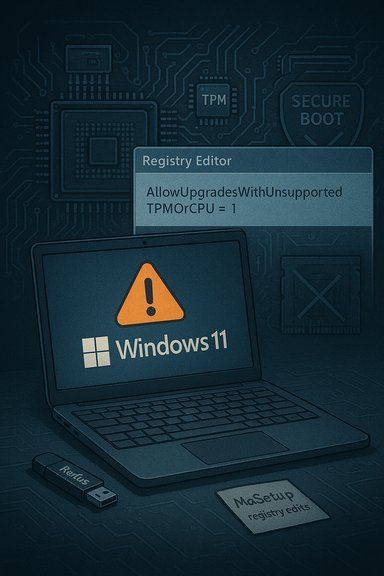
Windows 11 can be installed on many PCs that Microsoft labels “unsupported,” but doing so is a trade-off: several reliable community methods exist to bypass TPM, Secure Boot, and CPU checks — including a registry override, Rufus’s extended installer, replacing compatibility files like appraiserres.dll, or using commercial tools such as Tenorshare’s 4DDiG Partition Manager — yet each approach carries measurable security, update, and stability risks that every user must weigh before proceeding.
Background
Windows 11 introduced tighter hardware requirements than Windows 10 — notably a supported CPU list, TPM 2.0, and UEFI Secure Boot — to provide a stronger security baseline and enable features that rely on hardware roots of trust. These are documented on Microsoft’s system requirements and developer pages. Microsoft explicitly warns that installing Windows 11 on hardware that does not meet minimum requirements is unsupported: devices upgraded this way “may not be entitled to receive updates, including but not limited to security updates,” and Microsoft will not provide support for problems caused by incompatibility. That warning is central to any decision to bypass the checks. Yet the reality in the field is more nuanced. For many enthusiasts, refurbishers, IT hobbyists, and labs the immediate functional value of Windows 11 outweighs the long-term servicing uncertainties — and a handful of well-known techniques have emerged and matured since rollout. Community testing and vendor tools have produced repeatable processes for getting the OS onto older systems.What happens when you install Windows 11 on an unsupported CPU?
- Initial install may succeed if the workaround bypasses installer checks and your CPU supports required instruction sets (for example SSE4.2 / POPCNT). If the CPU lacks required instructions, installers can fail, or the OS might be unstable.
- Update entitlement is uncertain. Microsoft’s official guidance warns unsupported installs may be excluded from updates; behavior in practice has been inconsistent and can change between builds. Plan for possible manual patching.
- Hardware‑rooted security features may be weaker or unavailable. Without TPM 2.0 and Secure Boot you lose protections used by BitLocker key protection, virtualization‑based security (VBS), and certain kernel isolation mitigations. That raises measurable risk for internet‑facing or mixed‑use machines.
- Drivers and stability. OEM drivers are tested against supported Windows versions; older hardware can suffer from driver incompatibilities that cause crashes, missing devices (audio, GPU), or reduced performance.
- Warranty/support/legal considerations. OEM warranties and corporate compliance policies may not cover unsupported OS configurations — important for business or regulated environments.
Preparations: essential safety steps before you begin
Before attempting any bypass, perform the following protections. These steps are non‑negotiable for safe experimentation.- Back up your personal files to an external drive or cloud service.
- Create a full disk image (system image) that can restore the entire OS partition (Macrium Reflect, Acronis, or similar).
- Export BitLocker/TPM recovery keys and any product/license keys for critical software.
- Update your firmware/BIOS and current drivers from the OEM before changing OS versions.
- Testability: if the PC is mission‑critical, use a spare device or VM for testing first.
Four proven ways people install Windows 11 on unsupported CPUs
Each method below is presented with practical steps, what it actually does, and the attendant risks. Where a claim comes from a vendor or community source, that is flagged.Option 1 — Registry override (MoSetup / AllowUpgradesWithUnsupportedTPMOrCPU)
What it is: a simple registry DWORD that tells the in‑place Windows setup (when launched from a running Windows installation) to ignore certain CPU/TPM pre‑flight checks. This approach is commonly called the MoSetup or AllowUpgradesWithUnsupportedTPMOrCPU trick. How it works: the setup.exe invoked from an already running Windows session reads the MoSetup branch and will proceed past some compatibility gates when the DWORD is present and set to 1. This is an in‑place upgrade path (apps, settings, and files can be preserved).Step‑by‑step (in‑place upgrade):
- Create a full disk image and backup files.
- Open Regedit (Win + R → regedit).
- Navigate to HKEY_LOCAL_MACHINE\SYSTEM\Setup. If the key MoSetup does not exist, create it.
- Inside MoSetup create a new DWORD (32‑bit) value named: AllowUpgradesWithUnsupportedTPMOrCPU and set its data to 1.
- Mount an official Windows 11 ISO (right‑click → Mount) or have installation media ready.
- Run setup.exe from the mounted ISO and choose the in‑place upgrade option (keep files and apps).
- Follow prompts to complete the upgrade.
- Minimal tooling required; preserves existing environment when it works.
- This does not add missing CPU instructions. If a given build requires CPU features your silicon lacks, the install can fail or the resulting system may be unstable.
- Microsoft may change the installer behavior in future builds and the registry trick can be rendered ineffective without notice.
Option 2 — Rufus: create a modified/“extended” Windows 11 USB installer
What it is: Rufus, a widely used open‑source utility for creating bootable USB media, added an “extended installer” mode that places LabConfig‑style flags and payload edits into the USB image so Setup will skip TPM, Secure Boot, and RAM checks at boot‑time. This works for both clean installs and in‑place upgrades (if you run setup.exe from the USB while Windows is running). How it works: Rufus modifies the boot‑wim and associated installer payload to include bypass flags (or to present a Windows User Experience dialog where you explicitly opt to remove the checks). It does not emulate TPM, nor does it add CPU instruction support — it only alters the installer’s gating logic. Step‑by‑step:- Back up and create a system image.
- Download the official Windows 11 ISO from Microsoft.
- Download the latest Rufus executable from the official Rufus site.
- Insert an 8–16+ GB USB drive and run Rufus as Administrator.
- Select the ISO and click Start. When the “Windows User Experience” dialog appears, check the box labeled (wording varies): “Remove requirement for 4GB+ RAM, Secure Boot and TPM 2.0”.
- Complete the USB creation and either:
- Run setup.exe from the mounted USB inside Windows (in‑place upgrade), or
- Boot the target machine from the USB and perform a clean install.
- Rufus’s flow is widely reproducible, and the tool automates the installer modifications that otherwise require manual registry edits. Many community testers recommend Rufus as the most repeatable free method.
- Rufus does not change hardware capability (e.g., CPU microarchitecture). If a future Windows build begins enforcing instruction‑set checks at runtime, the machine may be blocked from receiving updates or fail on boot.
- Clean installs from Rufus‑modified media may still prompt the “unsupported” warning and Microsoft’s update policy applies.
Option 3 — Replace appraiserres.dll in installation payload
What it is: appraiserres.dll is part of Microsoft’s compatibility assessment used by setup and Windows Update to determine if a device meets requirements. Community projects and GitHub scripts have used replacement or modification of appraiserres.dll to bypass checks during the download/upgrade process. This approach is older and more fragile. How it works: During an in‑place upgrade or Media Creation Tool update, the installer unpacks files into a staging folder (often $WINDOWS.~BT\Sources). Replacing appraiserres.dll with a Windows 10 version or a trimmed dummy file can cause the compatibility step to pass, allowing the download/install to continue. This technique is commonly distributed via GitHub repositories and community guides. Step‑by‑step (high level):- Start a Windows 11 download via Media Creation Tool or Windows Update.
- When download stalls at a compatibility check, locate the folder C:\$WINDOWS.~BT\Sources (enable hidden items).
- Replace appraiserres.dll with a downloaded copy from a Windows 10 ISO or a GitHub release intended for this purpose.
- Re‑run the update/install process.
- Historically effective for certain upgrade sequences and versions; useful when you prefer to keep the Windows Update path.
- Microsoft has changed installer internals over time; this method can and has been patched to stop working on newer builds. Community reports show it sometimes fails on recent Insider or Patch builds.
- Replacing system DLLs is inherently risky and can corrupt the installer or cause unpredictable behavior. Use only in controlled, backed‑up environments.
- Downloading DLLs from third‑party sites is a security risk; prefer verified community repositories and always scan files.
Option 4 — Commercial tools that automate the bypass (example: Tenorshare 4DDiG Partition Manager)
What it is: Several vendors now bundle “Windows 11 bypass” flows into their partition and migration utilities. Tenorshare’s 4DDiG Partition Manager advertises an integrated Windows 11 compatibility check and a one‑click bypass for requirements, plus ISO download and bootable media creation. These are vendor features — treat them as commercial conveniences rather than official solutions. How it works (vendor claim): The product scans the PC, reports which requirements are missing, and automates the process of downloading or preparing the installation media while injecting bypass flags or modifications as needed. It may also offer partition tools (MBR→GPT) to prepare the disk for UEFI boot. Step‑by‑step (typical vendor flow):- Install the vendor’s Partition Manager and run its Windows 11 upgrade module.
- Click “Detect and Upgrade” to let the tool evaluate your PC.
- Choose language/edition and let the tool download the ISO and create bootable media.
- Use the tool’s bypass function to proceed with the upgrade.
- Minimal manual steps, integrated disk‑preparation options (MBR→GPT), and GUI convenience for non‑technical users. Vendor support and a paid license can provide peace of mind.
- These are vendor claims and should be treated cautiously. Independent verification is limited compared to community tools like Rufus or registry methods. Always test on non‑critical hardware and maintain a full image backup before use. The claim that one product is “the safest and simplest” is subjective and not universally verifiable.
Comparative analysis — strengths, limitations and realistic expectations
- Simplicity and accessibility: The registry trick wins for simplicity if you’re upgrading in‑place from Windows 10. Rufus is the most accessible for clean installs and automates the necessary payload edits. appraiserres.dll replacement is more manual and brittle; commercial tools offer GUI convenience but are vendor‑locked.
- Repeatability and supportability: Rufus’s workflow is reproducible across many test beds and widely documented by independent outlets (MakeUseOf, PCWorld). The registry trick is straightforward but fragile across Windows builds. Commercial tools may change behavior with product updates and often rely on the same underlying techniques.
- Security posture: Any method that removes TPM 2.0 or Secure Boot enforcement reduces hardware‑rooted protections. If your device is exposed to sensitive workloads, avoid bypasses and prefer hardware that meets Microsoft’s requirements. Microsoft’s update‑entitlement warning is the single most important long‑term risk.
- Update behavior: Historically, some unsupported installs have continued to receive cumulative updates; others were later blocked. Expect change and plan to handle updates manually if you accept an unsupported configuration. Create a recovery image after a successful install to speed rollback.
- CPU instruction limits: No amount of registry or installer trickery can add missing CPU instructions. If your CPU lacks SSE4.2/POPCNT and the version of Windows 11 enforces those in the kernel, your system cannot be made truly compatible by software alone. That is a hard hardware limit.
Practical post‑install checklist
- Immediately create a fresh system image after a successful install.
- Run Windows Update repeatedly until it reports fully patched (behavior may vary).
- Verify activation and link the license to a Microsoft Account for recovery.
- Check Device Manager for missing drivers and download drivers from OEM support pages.
- Re‑enable Secure Boot or firmware TPM if your hardware supports it and if the install allows it.
- Monitor update delivery for several months and maintain a rollback plan.
When to avoid bypasses
- Business or regulated environments where security or compliance matters.
- Devices that store sensitive credentials or encryption keys without hardware protection.
- Production servers, multi‑user kiosks, or machines that must remain consistently patched without manual intervention.
Final verdict and recommendation
For enthusiasts and lab use, Rufus’s extended installer and the MoSetup registry override are the most widely used, well‑documented community methods to install Windows 11 on unsupported CPUs; both have extensive third‑party guides and reproducible workflows. Rufus offers the best balance of reproducibility and automation for clean installs, while the registry trick is convenient for preserving an existing Windows 10 environment. Commercial products (for example Tenorshare’s 4DDiG Partition Manager) can simplify the process, automate disk preparation (MBR→GPT), and provide a GUI — but treat vendor claims as marketing until you verify on a test machine and retain full backups. When a vendor says a tool is the “safest” option, examine independent community reports and your own risk tolerance before paying. Above all, plan for the long term: unsupported installations are practical stopgaps, not long‑term enterprise strategies. If the device is central to your work or security posture, invest in hardware that meets Microsoft’s requirements or plan a managed migration. Microsoft’s official guidance is clear: unsupported devices are not guaranteed updates or support — that is the definitive risk that should guide any decision.Quick reference — resources and commands
- Official Windows 11 system requirements and upgrade guidance: Microsoft Support and Windows docs.
- Rufus extended installer guidance and community writeups: makeuseof.com / PCWorld / Rufus release notes.
- Registry method (MoSetup) community documentation and how‑to guides.
- appraiserres.dll community workarounds and GitHub repositories (community‑supported; fragile).
- Vendor tools (e.g., 4DDiG Partition Manager) — vendor pages and product claims; treat as paid convenience features and verify on test hardware.
Conclusion
Installing Windows 11 on an unsupported CPU is technically feasible and many people have done it successfully using registry overrides, Rufus’s extended USB creator, appraiserres.dll swaps, or commercial utilities. Each technique has clear, documented trade‑offs: reduced hardware‑rooted security, uncertain update entitlement, and possible driver or stability problems. For hobbyists and test environments the methods are powerful tools; for production machines and security‑sensitive systems they are an unacceptable long‑term strategy. Back everything up, test on expendable hardware first, and if continued security updates and vendor support matter, choose hardware that meets Microsoft’s published Windows 11 requirements.
Source: Technology Org How to Install Windows 11 on Unsupported CPU: Step-By-Step - Technology Org
