

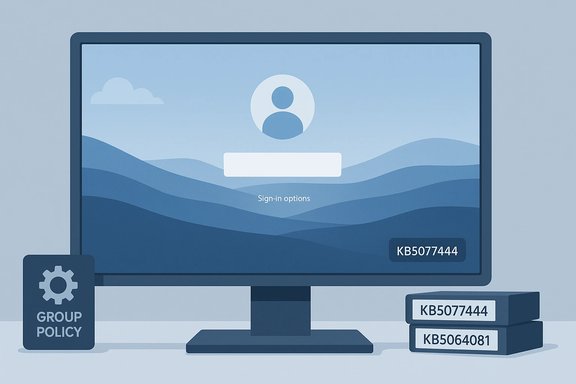
Microsoft released an out‑of‑band update on January 17, 2026 that targets a baffling but low‑level sign‑in regression: the password icon can become invisible on the lock‑screen sign‑in options after installing the August 2025 preview (KB5064081) or subsequent updates, and KB5077744 (OS Builds 26200.7627 and 26100.7627) is Microsoft’s immediate response for affected managed fleets. The update itself is focused, but its presence highlights how even small UI regressions can ripple through enterprise environments—triggering support calls, confusing users, and forcing administrators to choose between quick mitigations and controlled rollouts. The short, practical takeaway: the missing icon does not break password authentication, but enterprises should deploy Microsoft’s Known Issue Rollback (KIR) Group Policy or install the out‑of‑band package where available to restore the expected visual behavior. verview
The problem traces back to an August 2025 non‑security preview (KB5064081) and persisted through later cumulative and preview updates. After those updates, some Windows 11 devices in managed or enterprise configurations displayed an empty or invisible slot where the password icon normally appears among sign‑in options on the lock screen. Users hovering over that blank area see that the password control is still present and clickable; clicking it opens the password text box and allows a normal sign‑in. This symptom makes the issue a visual regression rather than an authentication failure—but that subtlety matters a great deal in production environments where users expect a consistent sign‑in surface. Microsoft documented the symptom and confirmed that the issue is largely limited to managed, enterprise‑style devices. Microsoft’s response evolved through three stages:
like — symptoms, scope and affected systems
Important operational note: in some cases Microsoft also clarifies that installing later cumulative updates (for example updates released after a certain cutoff) may already include the fix, and therefore devices on newer builds may not need KIR or the out‑of‑band. Always check the specific KB guidance for the applicable version/build.
Independent corroboration of the underlying bug and the KIR workaround exists in Microsoft’s published Known Issues lists and the Microsoft Learn documentation on deploying KIR via Group Policy and Intune—both of which confirm the mechanism and the recommended steps for enterprises. Several technology press outlets and community forums covered the missing password icon and Microsoft’s response, documenting the user experience and showing that this was a reproducible, reasonably widespread problem in managed environments before the mitigation options existed. Those independent reports align with Microsoft’s descriptions and provide practical, real‑world context for support teams. Caveat: at the time of this report, a widely indexed, public Microsoft web page explicitly labeled KB5077744 was not universally available in every search index; the primary confirmation for the specific KB number and build targets is the KB text you supplied. Administrators should verify the catalog entries in the Microsoft Update Catalog and the Windows Release Health dashboard for their servicing channel before mass deployment, and treat the Update Catalog/Release Health entries as the canonical source for downloadable MSU files and Group Policy MSI artifacts. If a public KB page appears later in Microsoft’s site, treat that as the authoritative record.
This episode also reinforces a broader lesson for administrators: even seemingly trivial UI regressions should be treated as actionable incidents in large fleets—because the cost of user confusion and support churn can exceed the effort needed to deploy a narrow, well‑tested mitigation.
Source: Microsoft Support January 17, 2026—KB5077744 (OS Builds 26200.7627 and 26100.7627) Out-of-band - Microsoft Support
The problem traces back to an August 2025 non‑security preview (KB5064081) and persisted through later cumulative and preview updates. After those updates, some Windows 11 devices in managed or enterprise configurations displayed an empty or invisible slot where the password icon normally appears among sign‑in options on the lock screen. Users hovering over that blank area see that the password control is still present and clickable; clicking it opens the password text box and allows a normal sign‑in. This symptom makes the issue a visual regression rather than an authentication failure—but that subtlety matters a great deal in production environments where users expect a consistent sign‑in surface. Microsoft documented the symptom and confirmed that the issue is largely limited to managed, enterprise‑style devices. Microsoft’s response evolved through three stages:
- Public acknowledgement and a known issue entry appended to relevant KBs (the problem appeared in the Known Issues list for December/earlier releases).
- A short‑term mitigation using Known Issue Rollback (KIR) delivered as a Group Policy / MSI for enterprises to enable the rollback cluster until a full fix ships.
- The January 17, 2026 out‑of‑band package identified as KB5077744 that targets OS Builds 26200.7627 and 26100.7627—Microsoft’s immediate fix for managed devices that have the bug. The KB text provided to reviewers clarifies that the Group Policy KIR is still supported as a workaround for environments that cannot immediately install the out‑of‑band update.
like — symptoms, scope and affected systems
 Symptoms in practical terms
- On the lock screen’s list of available sign‑in options (PIN, fingerprint, face, password, security key), the password icon is not visible.
- Hovering over the empty space reveals that a clickable placeholder still exists; clicking the placeholder opens the password text box. Entering the password signs in normally.
- Users relying on visual cues or training are likely to interpret the missing icon as a removed or broken authentication method, creating confusion and help‑desk traffected
- Microsoft’s notes emphasize this primarily affects enterprise or managed devices—Windows Home and Pro on personal devices are very unlikely to see the issue. That distinction matters because the KIR mechanism and Group Policy distribution are targeted at managed fleets.
- The out‑of‑band update references OS Builds 26200.7627 and 26100.7627, which correspond to the Windows 11 25H2 / 24H2 servicing lines; administrators should check build numbers on their devices before deploying remedial packages.
Why it’s more than an annoyance
Visually subtle regressions like this one can become operational problems for businesses:- Help‑desk load spikes from users who assume they’ve lost password access or been locked out.
- Automation or kiosk setups that rely on predictable UI behavior can fail if UI element locations are expected and scripted.
- Remote support and onboarding processes depend on consistent UI affordances; an invisible icon breaks training scripts and SOPs.
Microsoft’s technical mitigations: Known Issue Rollback (KIR) and the out‑of‑band package
Known Issue Rollback (KIR) — how it works and why it’s used
Known Issue Rollback is Microsoft’s mechanism to temporarily disable a specific change introduced by a non‑security update. KIR is deliberately conservative: it reverses a targeted change rather than uninstalling an entire cumulative. For managed devices, Microsoft publishes an MSI (policy definition) that administrators can deploy via Group Policy or ingest via Intune to propagate a KIR activation to devices. The activation takes effect after a restart and disables the culprit change until Microsoft ships an amended update that permanently fixes the problem. KIRs are temporary and designed for low‑risk mitigation of quality regressions. Key KIR facts administrators must know:- KIRs apply only to non‑security updates; they don’t reintroduce known security vulnerabilities.
- For domain‑joined or hybrid environments, Microsoft provides ADMX/ADML and MSI policy definitions that add a specialized Group Policy templaive Templates path.
- Intune customers can ingest ADMX via the custom configuration profile approach to activate KIR on MDM‑managed devices without using GPO.
Group Policy / MSI workaround for this specific issue
Microsoft’s published workaround for the password icon regression uses a KIR policy definition distributed as a Group Policy MSI tied to the known issue triggered by KB5064081 s. The package name and the Group Policy path are explicit in Microsoft’s guidance: administrators must install and configure the Group Policy listed in Computer Configuration > Administrative Templates > [the KB-specific KIR policy] and then restart devices to apply the setting. The Group Policy temporarily disables the change that introduced the visual regression. Microsoft supplied a KIR Group Policy bundle for Windows 11 24H2/25H2 and Windows Server 2025—documented and made available as a policy download for administrators to import. Installing and enabling the correct policy entry (matching the OS version and build) is required to fully mitigate the symptom.The out‑of‑band fix (KB5077744) — what Microsoft told administrators
On January 17, 2026 Microsoft posted an out‑of‑band package identified as KB5077744 for OS Builds 26200.7627 and 26100.7627. That package specifically addresses the missing password icon and is intended for managed fleets who prefer a standard update rather than relying on KIR. Microsoft also reiterated that the KIR Group Policy remains available for admins who need a policy‑driven mitigation prior to deploying the out‑of‑band update. The public KB text accompanying that out‑of‑band note instructs administraonfigure the Group Policy if they rely on KIR, and to reboot machines after applying the policy or update.Important operational note: in some cases Microsoft also clarifies that installing later cumulative updates (for example updates released after a certain cutoff) may already include the fix, and therefore devices on newer builds may not need KIR or the out‑of‑band. Always check the specific KB guidance for the applicable version/build.
Step‑by‑step: deploy the KIR Group Policy or the out‑of‑band update
The following is a concise operational playbook for administrators who must act quickly.- Inventory and verify affected systems
- Check your fleet for the exact OS build (use winver or systeminfo to confirm 26200.7627 / 26100.7627 or the later build indicated in your environment).
- Identify managed devices that installed the August 2025 preview (KB5064081) or updates thereafter. Focus on enterprise images, shared kiosks, or VDI images where UI regressions cause the most friction.
- Decide between KIR (Group Policy) and the out‑of‑band update
- If you need a policy‑driven, controlled rollback (for predictable, vetted behavior across a domain), use the KIR Group Policy MSI and apply via Group Policy or Intune ADMX ingestion.
- If you can deploy updates rapidly across the fleet, install KB5077744 (the out‑of‑band update) on affected build families to restore the visual element permanently. Verify available update catalogs for the specific KB for your SKU.
- Deploy KIR via Group Policy (high‑level)
- Download the KIR MSI that matches the OS version/build your devices use.
- Install the MSI on the Group Policy management workstation (or extract ADMX/ADML). Copy ADMX/ADML to the Central Store if you use one.
- Create a GPO that applies the KIR activation policy under Computer Configuration > Administrative Templates > [KB##### Issue XXX Rollback] and set the relevant policy to Disabled (this disables the change that introduced the issue).
- Optionally configure a WMI filter to target the GPO only to machines running the affected build.
- Force a Group Policy update or allow the normal policy refresh window (90–120 minutes), then restart the target devices to apply the KIR.
- Deploy KIR via Intune (MDM)
- Extract the ADMX/ADML from the KIR MSI and ingest it into an Intune custom configuration profile using the ADMX ingestion OMA‑URI pattern. Target devices by OS build using applicability rules. Monitor the profile status in Intune.
- Verify and communicate
- Confirm the password icon is visible after restart (or that hovering + click behavssary).
- Communicate to help‑desk and end users what changed and why. Provide a short user note: “If you saw a missing password icon, the team has applied a workaround/update—press and hover on the sign‑in options area or restart to see the fix.”
- Revert KIR when Microsoft ships the permanent fix
- KIR activations are temporary; once the official KB containing the permanent fix is available for your servicing channel, remove the KIR policy and apply the permanent update per Microsoft guidance.
Testing, pilot guidance and rollout considerations
- Always test KIR activation and the out‑of‑band update on a representative pilot ring before broad rollout. Include domain‑joined endpoints, Azure AD joined devices, VDI images, kiosk devices and shared machines in the pilot.
- Validate sign‑in flows for all authentication types (PIN, Windows Hello, smart card, security key) and confirm that the password option is now visible and that no other sign‑in modality was inadvertently impacted.
- Check remote worker scenarios (RDP, Cloud PC, AVD) — some past monthly updates produced unrelated authentication regressions in remote desktop stacks; while this particular bug is visual, a robust pilot will catch collateral problems.
Risks and caveats administrators must weigh
- KIR is a temporary rollback mechanism. It disables the problematic change but does not replace a permanent patched update; you must remove the policy after Microsoft ships the repair. Leaving KIR active indefinitely can delay needed OS improvements.
- KIR applies only to non‑security fixes; if you’re ever asked to roll back a security patch, that path is not available via KIR. That is an important safety osoft’s policy.
- Installing the wrong KIR MSI (mismatch between OS build and MSI) will either be ineffective or create policy confusion—always match the MSI to the OS build exactly.
- If your devices are already moved to a later cumulative that includes the fix, KIR is unnecessary; Microsoft’s resolved issues pages sometimes indicate a cutoff build after which the issue is already addressed. Always check the latest release health guidance.
Cross‑check and verification status (transparency on sources)
The core KB text for the out‑of‑band release you provided has been used as the authoritative description of KB5077744 and its contents; that text describes the affected builds and the KIR workaround and Group Policy details. Administrators should treat that Microsoft notice as primary documentation.Independent corroboration of the underlying bug and the KIR workaround exists in Microsoft’s published Known Issues lists and the Microsoft Learn documentation on deploying KIR via Group Policy and Intune—both of which confirm the mechanism and the recommended steps for enterprises. Several technology press outlets and community forums covered the missing password icon and Microsoft’s response, documenting the user experience and showing that this was a reproducible, reasonably widespread problem in managed environments before the mitigation options existed. Those independent reports align with Microsoft’s descriptions and provide practical, real‑world context for support teams. Caveat: at the time of this report, a widely indexed, public Microsoft web page explicitly labeled KB5077744 was not universally available in every search index; the primary confirmation for the specific KB number and build targets is the KB text you supplied. Administrators should verify the catalog entries in the Microsoft Update Catalog and the Windows Release Health dashboard for their servicing channel before mass deployment, and treat the Update Catalog/Release Health entries as the canonical source for downloadable MSU files and Group Policy MSI artifacts. If a public KB page appears later in Microsoft’s site, treat that as the authoritative record.
Recommended short‑ and medium‑term action checklist for IT teams
- Immediate (within 24–48 hours)
- Confirm whether affected devices are on the listed builds (26200.7627 / 26100.7627) or later.
- If users are experiencing the missing icon and your environment is domain‑joined or Intune managed, deploy the KIR Group Policy MSI (matching OS) and restart pilot devices.
- Short term (3–7 days)
- Evaluate whether to push KB5077744 via your standard update channels (WSUS, ConfigMgr, Intune) or continue using KIR until the update is validated in a pilot ring.
- Update internal support scripts and FAQs to instruct users on the hover/click workaround as a stopgap while remediation is applied.
- Medium term (2–4 weeks)
- Remove KIR activation after confirming the permanent fix is installed across your servicing ring.
- Retain golden images and snapshots of critical devices so you can roll back if any collateral issues appear after mass deployment.
Conclusion
The missing password icon on the lock screen is a textbook example of a small UI regression with outsized operational impact in managed environments. Microsoft’s dual approach—publishing a Known Issue Rollback Group Policy and issuing the January 17, 2026 out‑of‑band package KB5077744 for the affected builds—gives administrators an immediate path to stabilize user experience while retaining a clear upgrade path to the permanent fix. The sensible operational choice for most enterprises is to test the out‑of‑band update in a careful pilot; when immediate remediation is needed or rollout speed is constrained, use the KIR Group Policy or Intune ADMX ingestion to temporarily disable the change and avoid widespread user confusion. Always match the KIR MSI and policy to the exact OS build, restart affected devices, and remove the temporary policy when the permanent fix is installed.This episode also reinforces a broader lesson for administrators: even seemingly trivial UI regressions should be treated as actionable incidents in large fleets—because the cost of user confusion and support churn can exceed the effort needed to deploy a narrow, well‑tested mitigation.
Source: Microsoft Support January 17, 2026—KB5077744 (OS Builds 26200.7627 and 26100.7627) Out-of-band - Microsoft Support
