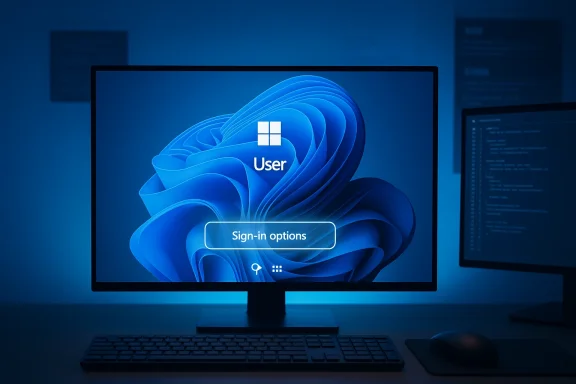
After nearly half a year of frustrated clicks, blind-hovering and bewildered help‑desk calls, Microsoft has pushed a cumulative Windows 11 update that finally restores the missing password sign‑in icon on affected lock screens — ending what many IT teams called “lock‑screen madness.” The rendering regression, introduced by an August 29, 2025 preview update, left the password button visually absent in multi‑method sign‑in scenarios, even though the underlying password control remained functional. Microsoft documents the fix as part of the January 29, 2026 optional cumulative update KB5074105 and has offered targeted mitigations for managed environments through Known Issue Rollback (KIR) and group‑policy packages earlier in January.
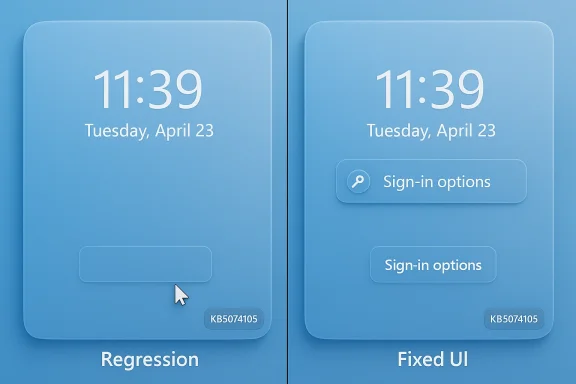
Windows 11’s lock screen presents a high‑frequency, security‑critical surface: the moment where a user proves identity and starts a session. When multiple sign‑in methods (PIN, biometrics, security keys and password) are configured, Windows typically shows a small row of icons under “Sign‑in options” that let the user pick an alternate method. On August 29, 2025 Microsoft shipped an optional, non‑security preview update — KB5064081 — that, in some device configuratird glyph in that row to fail to render. The clickable hit‑area remained; hovering the blank space revealed the concealed control, but the missing visual cue created confusion, accessibility barriers and an elevated support burden.
Microsoft publicly acknowledged the regression later in 2025, classified it as a visual/UI regression rather than an authentication failure, and published guidance and workarounds across multiple release‑health and KB pages. That official documentation repeatedly explained the awkward temporary remedy — hover and click the blank spot where the icon should appear — while engineering prepared a permanent fix. The remediation path landed in late January 2026 through a sequence of quality updates and mitigations culminating in KB5074105, which Microsoft lists as the update that resolves the missing‑icon symptom. (support.microsoft.com)
For end users (Home / Pro):
For IT admins (SCCM/WSUS/Intune-managed fleets):
This incident highlights a key tension:
Source: Forbes https://www.forbes.com/sites/daveyw...s-ends---microsoft-password-update-confirmed/
 Background / Overview
Windows 11’s lock screen presents a high‑frequency, security‑critical surface: the moment where a user proves identity and starts a session. When multiple sign‑in methods (PIN, biometrics, security keys and password) are configured, Windows typically shows a small row of icons under “Sign‑in options” that let the user pick an alternate method. On August 29, 2025 Microsoft shipped an optional, non‑security preview update — KB5064081 — that, in some device configuratird glyph in that row to fail to render. The clickable hit‑area remained; hovering the blank space revealed the concealed control, but the missing visual cue created confusion, accessibility barriers and an elevated support burden. Microsoft publicly acknowledged the regression later in 2025, classified it as a visual/UI regression rather than an authentication failure, and published guidance and workarounds across multiple release‑health and KB pages. That official documentation repeatedly explained the awkward temporary remedy — hover and click the blank spot where the icon should appear — while engineering prepared a permanent fix. The remediation path landed in late January 2026 through a sequence of quality updates and mitigations culminating in KB5074105, which Microsoft lists as the update that resolves the missing‑icon symptom. (support.microsoft.com)
What actually happened: a concise technical summary
The symptom
- On affected Windows 11 systems (notably version 24H2 and 25H2 with specific preview/cumulative servicing), the small password icon in the lock screen’s Sign‑in options could be invisible while the underlying password control remained present and clickable. Users reported seeing a blank space where the icon normally lives. Hovering that space would reveal the functional hitbox; clicking opened the password textbox.
The scope
- The issue was observed primarily on systems tht 29, 2025 preview update KB5064081, and in some subsequent cumulative or preview packages that included the same rendering change. Microsoft’s release notes and outside reporting show the symptom on both consumer and enterprise builds, though Microsoft indicated that personal devices running Windows Home or Pro are very unlikely to be impacted compared with managed fleets. (support.microsoft.com
The root cause characteristics (what Microsoft said)
- Microsoft characterized the problem as a rendering/regression introduced by earlier p than a security vulnerability or authentication failure. The firm did not publish low‑level root‑cause telemetry publicly, instead addressing the symptom through targeted rollbacks, servicing updates and a full cumulative fix.
Timeline — key dates and Microsoft actions
- August 29, 2025 — Microsoft publishes the non‑security preview update KB5064081; community reports soon surface that the password icon can disappear in some configurations.
- September–November 2025 — the issue persists across several preview and cumulative packages; Microsoft lists the symptom as a Known Issue in multiple release‑health entries while engineers investigate. Independent outlets reproduce the behavior and publish guides.
- Januaryissues an out‑of‑band update KB5078127 which, while not the final remediation for every device, documents the problem and points enterprise admins to Known Issue Rollback (KIR) mitigations and Group Policy packages for managed environments.
- January 29, 2026 — Microsoft releases optional cumulative update KB5074105 (preview) that Microsoft’s support documentation and multiple independent outlets identify as addressing the missing password icon among 32 listed fixes. Users can install KB5074105 via Settings > Windows Update (optional updates) or through managed distribution.
Microsoft’s mitigation toolkit: Known Issue Rollback, Group Policy and cumulative fixes
Microsoft used a three‑pronged approach to contain and fix the problem:- Known Issue Rollback (KIR): For managed environments that needed a rapid, conservative mitigation, Microsoft provided KIR policy packages to revert the specific change causing the rendering regression without uninstalling security fips a feature flag or configuration toggle to restore prior behavior quickly. Microsoft documented KIR use for affected Windows 11 builds and supplied Group Policy MSI downloads for enterprise deployment.
- Group Policy KIR packaging: Microsoft published Group Policy packages that administrators can deploy centrally (for example via Group Policy, Intune or SCCM) which enforce the KIR flag across a fleet. After applying the policy, a restart is usually required to apply the rollback. This path is the recommended short‑term enterprise mitigation when the update is present and a full uninstall is impractical.
- Cumulative fix in KB5074105: The more permanent resolution arrived in the January 29, 2026 preview cumulative update KB5074105, which Microsoft lists as including the lock‑screen rendering fix among other sign‑in, boot and activation fixes. The update is optional in some rings and may require explicit selection in Settings under optional updates.
How to check and install the fix (practical steps for end users and admins)
If you saw the invisible password icon or are managing affected devices, follow these practical steps.For end users (Home / Pro):
- Open Settings > Windows Update.
- Select Check for updates.
- Look under Optional updates / Preview updates for KB5074105 (or the most recent preview that lists lock‑screen fixes) and select Download and install.
- Restart when prompted.
For IT admins (SCCM/WSUS/Intune-managed fleets):
- Review your update ring strategy before deploying preview KBs to production; pilot in a small ring first.
- If devices are already impacted and you need an immediate mitigation, deploy the KIR Group Policy package for the relevant OS version (Microsoft documented a special Group Policy for Windows 033). Apply the policy and require a restart.
- Test KB5074105 in your staging ring and then roll it out to production via your normal patching pipeline once validated. Because KB5074105 is an optional preview in some release models, admins should confirm availability in their chosen channel.
Why this was more than “just a missing icon”: accessibility, trust and operational cost
On paper, this was a low‑severity bug: authentication continued to work, and affected users could still sign in by hovering the invisible hitbox. But the real damage was operational and human:- Accessibility impact: Users who rely on screen magnifiers, keyboard navigation or predictable visual targets were disadvantaged. A missing icon breaks muscle memory and assistive workflows and can be a real access barrier.
- Help‑desk load: The symptom generated outsized support traffic for an issue that was technically narrow. Calls about a “missing password” require triage and consume time away from more critical incidents. Community reporting and IT advisories emphasized short, clear remediation scripts for frontline support teams.
- Trust and update fatigue: When an optional preview update introduced a regression to a core interaction surface, it eroded confidence in preview rings and accelerated conservative policies for optional updates in production environments. Many organizations responded by tightening pilot rings and delaying optional installs until fixes were validated.
The security angle: passkeys, passwords and Microsoft’s directional messaging
Microsoft has been explicit about its push from passwords toward passkeys and Windows Hello mechanisms for years. The company and industry advocates correctly point out that passkeys are cryptographically stronger and less phishable than traditional passwords. That long‑term goal, however, does not justify sloppy update gating or lax accessibility checks. Whether the world runs on passkeys next year or in five years, the sign‑in surface must remain reliable today.This incident highlights a key tension:
- Security posture can improve by encouraging passkeys and biometrics.
- But the transition must preserve fallback paths and ccessible and visible; otherwise you create a different kind of security and operational problem — users who cannot access their devices at all or are forarounds.
Independent confirmation and cross‑checks
This fix is not just Microsoft PR. Multiple, independent outlets reproduced the bug and verified Microsoft’s remediation statements:- Microsoft’s own support documentation traces the symptom to KB5064081 and indicates the issue is addressed in KB5074105.
- BleepingComputer and other outlets reported that the January 29, 2026 preview update KB5074105 contains the fix and described the practical steps to install it.
- Tom’s Hardware, PCWorld and other reputable technical publications documented the symptom, Microsoft’s acknowledged workaround, and subsequent fixes, creating a consistent public record.
Risks and residual caveats
- Patch timing and availability: KB5074105 was published as an optional preview/preview‑class cumulative update in late January 2026. If your environment automatically defers optional updates or restricts preview channels, the fix may not be applied automatically and you’ll need to stage it intentionally. Confirm availability in your management channel before wide deployment.
- Side effects and regression risk: Any optional cumulative update that bundles servicing stack updates and LCU changes can alter uninstall behavior (SSU+LCU packaging). Microsoft notes that combined packages require DISM for LCU removal; admins should test uninstall procedures in lab environments. Rolling out KB5074105 without testing could surface unrelated edge regressions.
- Unverified internal root cause details: Microsoft’s public notes do not disclose the low‑level cered the rendering anomaly. While the symptom is fixed, vendors and independent researchers cannot independently audit the exact patch without more granular patch notes. Treat any unverified claims about “why the bug occurred” with caution.
Recommendations — concrete actions for readers
For end users:- Install KB5074105 if you experienced the missing password icon and your device permits optional preview installs. Use Settings > Windows Update and check Optional updates.
- Register and use Windows Hello PIN or biometric sign‑in where hardware permits. These methods are faster and more secure than passwords. Keep a fallback method (password or recovery key) available and documented.
- Audit devices to identify which machines installed KB5064081 or subsequent preview/cumulative packages linked to the symptom.
- If users are impacted and you need an immediate mitigation, deploy the KIR Group Policy package for your OS build (Microsoft published guidance and MSI packages for 24H2/25H2). Require a restart to apply.
- Test KB5074105 in a pilot ring, validate uninstall behavior and ensure no downstream agents or enterprise authentication middleware are affected, then stage a broader rollout.
- Tighten preview update policies: keep optional preview updates to pilot rings, expand visual and accessibility checks in CI/preflight testing, and prepare rapid‑response mitigation scripts for help‑desk teams.
Critical analysis: what this episode reveals about Microsoft’s update process
There are real‑world lessons here for platform vendors, enterprise IT and the broader ecosystem.- Preview channels are both necessary and dangerous. Preview updates let vendors iterate quickly, but if preview releases leak into broader rings without sufficient accessibility and high‑frequency UX tests, they can create disruptive regressions on core surfaces. This incident suggests coverage gaps in visual rendering and assistive‑technology checks for one of the most critical user interactions: sign‑in.
- Known Issue Rollback (KIR) is effective — and underused. Microsoft’s KIR system allowed the vendor to quarantine the change without a full uninstall of cumulative packages, which is the right tool for narrowing the scope of remediation. Enterprises should require more explicit KIR playbooks in SLAs and communication channels so IT can react more quickly.
- Transparency vs. operational calm: Microsoft documented the symptom and offered a workaround but provided limited technical detail on root cause and timeline. That’s understandable from a stability posture, but more detailed post‑mortems — with accessibility test results and timelines — would help rebuild trust and reduce speculative reporting.
Conclusion
The invisible password icon was not a security breach, but it was a significant usability and accessibility failure that rippled through support desks and enterprise operations for months. Microsoft has now produced a clear remediation path: Known Issue Rollback and Group Policy mitigations in January 2026 followed by the cumulative preview fix KB5074105 (January 29, 2026) that restores the password sign‑in icon for affected Windows 11 devices. Administrators should test and apply the update in controlled rings or deploy KIR if rapid remediation is needed; end users who experienced the issue can install KB5074105 from Optional updates and consider registering Windows Hello for a faster, more secure sign‑in experience. The deeper lesson is unavoidable: even small visual regressions on core interaction surfaces are high‑impact events, and platform vendors must bake broader accessibility and sign‑in surface checks into every release pipeline to prevent a repeat.Source: Forbes https://www.forbes.com/sites/daveyw...s-ends---microsoft-password-update-confirmed/