Windows 11 Patch Tuesday December 2025 KB5072033: Build 26200.7462

  • Thread Author
Microsoft released the final Patch Tuesday package for December 2025 — KB5072033 — and it arrives as more than a routine security rollup: it advances Windows 11 25H2 to Build 26200.7462 (and 24H2 to Build 26100.7462), ships deeper dark‑mode polish, centralizes virtualization controls in Settings, and includes a handful of gaming and graphics fixes that many users hope will calm recent AMD stability headaches.

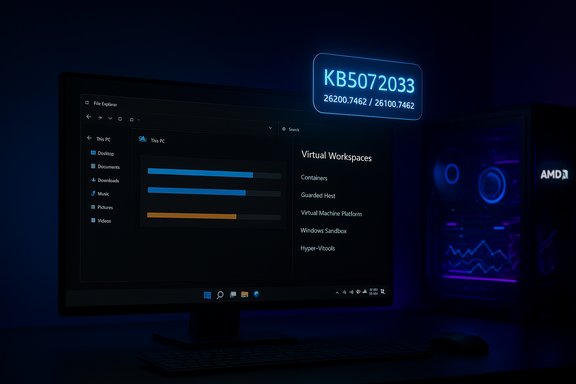
Dark blue-lit desk with a Windows File Explorer on a monitor and a glowing KB5072033 badge above.Background​

Microsoft has used the 2025 update cadence to move more visible functionality into monthly cumulative packages while gating higher‑risk or hardware‑dependent features behind staged rollouts. That enablement-style approach means a single binary can contain new capabilities that aren’t necessarily visible on every device until Microsoft flips server‑side entitlements. The December security roll (KB5072033) follows the preview and optional builds that shipped earlier in December and November (notably KB5070311), which had already introduced much of the same UX work and feature toggles to Insiders and preview channels. The December package is designated a mandatory security update but, as usual, it installs on the update schedule for systems configured to receive automatic updates. Microsoft has also made offline installers (.msu) available through the Microsoft Update Catalog for admins and power users who prefer direct downloads or offline deployment. The offline packages are large — in the multi‑gigabyte range — and administrators should plan bandwidth and deployment windows accordingly.

What KB5072033 delivers (high‑level)​

  • Advances builds to 26200.7462 (25H2) and 26100.7462 (24H2) — the formal LCU/SSU combination for December 2025.
  • Continues the File Explorer dark‑mode rollout: copy/move/delete progress dialogs and confirmation modals now respect dark theme palettes on devices that receive the feature.
  • Adjusts Search UI height to match the Start menu for improved visual parity.
  • Adds a Virtual Workspaces area to Settings > System > Advanced, consolidating Hyper‑V, Windows Sandbox, Containers and related toggles into one discoverable page.
  • Targets a set of gaming and graphics issues that had been producing GPU timeouts, driver removal messages and other instability on some AMD Radeon hardware — a change that users report is already delivering real‑world improvements when combined with recent Adrenalin drivers (more on this below).
  • Fixes numerous reliability problems (for example explorer.exe hangs tied to notifications) and improves high‑resolution/high‑refresh display behavior at app launch.
These are consumer‑facing highlights; the package also contains many security fixes and servicing stack updates necessary to keep Windows update infrastructure healthy and secure.

Deep dive: UI and usability refinements​

File Explorer dark mode — what changed​

One of the most visible changes in this rollup is broader dark‑mode coverage inside File Explorer. Historically, Explorer’s progress dialogs and some legacy Win32 confirmation modals stubbornly used light palettes, producing a jarring contrast when users ran Windows in dark theme. KB5072033 extends dark styling to these UI surfaces so:
  • Delete confirmations use a dark background and consistent foreground contrast.
  • File copy / move / progress dialogs follow the system theme and use new accent/color states (blue for normal, orange for paused, red for failed).
  • Thumbnails and some chart views receive fixes to ensure thumbnails appear consistently.
This is a genuine UX win for users who prefer dark themes; however, Microsoft and community testers previously documented a regression in a preview build that could cause a momentary white flash in Explorer when switching to or opening it in dark mode. The company flagged that issue in earlier preview notes and said it was investigating; KB5072033 is being rolled out gradually and that regression remains something to watch in early deployments. Administrators who manage fleets that rely on dark mode should pilot the update before broad deployment.

Search UI and Start menu parity​

Windows Search previously displayed at a shorter height than the Start menu in many configurations, creating an inconsistent visual rhythm for quick searches. The December cumulative aligns the Search pane height with the Start menu, delivering a cleaner and more consistent top‑level experience for users who rely on the Search flyout frequently. This is a small but noticeable polish that reduces friction for daily workflows.

Virtual Workspaces — virtualization controls in Settings​

Windows 11’s Settings app picks up a new Virtual Workspaces page under System > Advanced that centralizes toggles for:
  • Containers (Docker / Windows container apps)
  • Guarded Host
  • Virtual Machine Platform (for WSL2 and VMs)
  • Windows Hypervisor Platform (for third‑party VM hosts and Android emulators)
  • Windows Sandbox
  • Hyper‑V GUI management tools and PowerShell modules
The change is practical: Windows previously scattered these toggles between Control Panel → Optional Features and various legacy dialogs. Administrators and developers will appreciate the single control surface, and casual users gain the ability to enable Sandbox without hunting through Control Panel. Note: some of these features require hardware virtualization support (VT‑x/AMD‑V) and elevated privileges; their availability will depend on hardware and OEM firmware.

Gaming and graphics: AMD stability notes and caveats​

A recurring theme in late‑2025 telemetry and community reports was instability on certain Radeon cards — particularly on the high end (for example Radeon RX 9070 XT) — where games would trigger “GPU hung” or “driver removed” errors, and users saw black screens or timeouts in demanding titles.
Early community testing and user reports indicate that installing the December cumulative (KB5072033) together with AMD’s Adrenalin driver branch (25.11.1 and later) reduced or eliminated frequent GPU timeouts for a number of users. Multiple forum and social threads document cases where titles such as Battlefield 6, Call of Duty: Black Ops 7 and others stopped throwing driver removal errors after the Windows update was applied. Those experiences are encouraging, but the technical notes from vendors leave room for caution:
  • Microsoft’s official notes explicitly mention a fix for an issue where supported GPUs were incorrectly flagged as “unsupported,” which suggests changes in the graphics detection/compatibility stack rather than an explicit, universal GPU crash remediation. That phrasing is narrower than claiming a blanket fix for all timeout and crash scenarios.
  • AMD’s driver release notes and community feedback remain mixed: while some users report improved behavior when pairing the OS update with Adrenalin 25.11.1, others continue to report instability and advise downgrading drivers or using driver‑only installs to avoid Adrenalin UI issues. Vendor updates often require coordinated fixes across OS and driver stacks; the interaction between the OS LCU and GPU drivers can be subtle and hardware‑dependent.
Given this mixed evidence, the sensible posture for gamers and IT managers is:
  • If you’re experiencing frequent AMD driver timeouts today, test KB5072033 + the latest Adrenalin driver on a representative machine before wide rollout.
  • Maintain a rollback plan: know how to revert to a known‑good driver version (and keep DDU or vendor cleanup utilities at hand).
  • Watch vendor release notes and Microsoft’s release health pages for follow‑up KIR (Known Issue Rollback) or other emergency updates.

Deployment options and offline installers​

For users who prefer the manual path, Microsoft published the offline installers in the Microsoft Update Catalog. Offline packages make sense when:
  • You need to apply the update to multiple offline devices.
  • Windows Update is failing or throttled by bandwidth constraints.
  • You are testing the update on a small pilot ring before broad deployment.
The reported approximate sizes for the combined packages are in the multi‑gigabyte range (around 3.7–3.9 GB depending on architecture). Administrators should verify the correct package for their OS channel (25H2 vs 24H2) and architecture (x64 vs arm64) before downloading. The Update Catalog provides the .msu files and requires installation in prescribed orders if a servicing stack update is bundled; the usual guidance is to install combined SSU+LCU packages as provided by Microsoft to avoid mismatched states.
Practical installer checklist:
  • Confirm OS Version: Settings > System > About to verify 25H2 vs 24H2 and architecture.
  • Download correct .msu from Microsoft Update Catalog.
  • If deploying via DISM, follow the documented installation order (SSU then LCU), or use the combined package provided by Microsoft.
  • Reboot after install and verify boot integrity and critical services (LSASS, authentication flows, network shares, domain sign‑ins).

Enterprise considerations: Known Issue Rollbacks (KIR) and policy controls​

Microsoft has, over recent months, leaned heavily on Known Issue Rollback (KIR) mechanisms to mitigate regressions discovered after broader rollouts. KB5072033 itself is accompanied by Group Policy KIR assets in several Microsoft Support pages related to other updates, and administrators should be aware that:
  • Some vendor‑reported or enterprise issues can be mitigated using the KIR Group Policy package Microsoft publishes on the support site; these policies temporarily disable the specific change causing the problem until a fix ships.
  • IT teams should review the Windows release health dashboard and Microsoft’s KB entries before deploying KB5072033 across managed fleets, particularly where authentication flows, LSASS stability, or virtualization workloads are critical. Earlier preview notes warned that LSASS access‑violation scenarios required special attention; KB5072033 includes remediation for such stability concerns, but validation in lab and pilot rings remains essential.
Recommended enterprise rollout plan:
  • Inventory devices by hardware family and identify Copilot+ or NPU‑gated machines.
  • Pilot KB5072033 on a mix of representative hardware (desktop, laptop, high‑end GPU, and virtualized hosts).
  • Validate critical application workflows (sign‑in, VPN, disk imaging, backup/restore, remote login).
  • Confirm that virtualization hosts and nested hypervisor scenarios run as expected after the Virtual Workspaces reorganization.
  • If issues appear, consult Microsoft’s KIR assets and be prepared to apply the Group Policy rollback while awaiting a corrected update.

Risks, regressions and what to watch for​

No large cumulative update is risk‑free. The December releases (including the preview KB5070311) surfaced both meaningful improvements and visible regressions; KB5072033 continues that pattern:
  • Explorer white‑flash regression: early preview builds introduced a white flash in File Explorer when dark mode is active; Microsoft documented the problem as a known issue during the preview phase and is investigating. Although the dark‑mode coverage improves consistency, the white flash is an obvious regression for dark theme users and will be a primary validation point for pilots.
  • Cosmetic and login glitches: some users reported a white flash when powering up File Explorer or the password icon missing on the login screen after installing preview builds. These are cosmetic but can impact user experience, particularly in customer‑facing kiosks or high‑visibility desktops.
  • Driver interplay: fixes to the graphics detection stack can have unintended interactions with third‑party GPU drivers. While community reports indicate AMD stability gains for some, other users continue to experience driver timeouts and Adrenalin UI crashes — emphasizing the need to test driver + OS combinations before broadly deploying to gamers or content creators.
Flagged but unverifiable or partial claims
  • Several community posts attribute the AMD crash improvements directly to KB5072033; Microsoft’s public notes are more conservative and explicitly call out a fix for GPUs being misflagged as unsupported rather than promising a universal crash fix. Treat the large‑scale stability claims as promising but partially corroborated by community reports, not fully confirmed by vendor release notes. Proceed with measured testing.

Practical advice for end users and gamers​

  • If everything is currently stable: wait a few days and let early adopters and forums surface any serious regressions before applying KB5072033. That is especially prudent if you rely on custom GPU tuning, overclocks, or older third‑party drivers.
  • If you suffer frequent GPU crashes today: test KB5072033 on a spare or test machine together with the latest AMD driver; keep a known‑good driver package and the AMD cleanup tools available so you can rollback quickly if needed.
  • If you manage devices for a small business or lab: build a pilot ring (10–20 machines) that covers hardware diversity (AMD/NVIDIA, integrated graphics, high refresh rate monitors, ARM laptops) and validate the critical app workloads and sign‑in experiences before broad rollout.

Final verdict and summary​

KB5072033 is a consequential December cumulative: it packages important security updates and a set of practical UX improvements (Search/Start parity, File Explorer dark‑mode coverage, consolidated virtualization controls) while also touching the graphics stack in ways that appear to help some AMD users. Microsoft has made offline .msu installers available for administrators and power users who need them, but those packages are large and require correct selection by build and architecture.
Strengths:
  • Real, visible usability improvements for dark‑mode users and discoverability improvements for virtualization features.
  • A fix that addresses GPUs being mislabeled as unsupported — likely to resolve some compatibility and performance gating issues.
  • Availability of offline installers for controlled deployments.
Risks:
  • The Explorer white‑flash regression remains a user‑facing annoyance in preview channels and could affect environments where dark mode is mission‑critical.
  • Graphics stability across the ecosystem is hardware and driver dependent; the update helps some configurations but is not a universal fix. Independent testing and rollback plans are required.
Administrators and power users should pilot KB5072033 in a representative test ring, verify critical workflows (sign‑in, virtualization, GPU‑heavy apps), and be ready to use Known Issue Rollback group policies if necessary. For gamers experiencing driver timeouts today, combining KB5072033 with the latest vendor driver can help — but confirm stability in your specific titles and settings before treating the combination as a permanent fix.

Quick checklist for deployment​

  • Check your Windows version and architecture: Settings > System > About.
  • Download the correct KB5072033 .msu from the Microsoft Update Catalog if you need an offline installer.
  • Apply the package on a pilot ring covering varied hardware.
  • Validate: Explorer (dark mode), sign‑in flows, high‑refresh monitors, VMs and games.
  • If problems appear, consult Microsoft’s release health page and apply KIR Group Policy if appropriate.
KB5072033 is a useful update with tangible user experience gains and some promising signs on graphics stability, but it is also a reminder that modern OS servicing blends features, security and staged rollouts — and requires measured testing rather than blind, immediate deployment to every device.

Source: Windows Latest Windows 11 KB5072033 25H2 boosts gaming, dark UI, direct download links for offline installer (.msu)
 

Windows 11’s December 9, 2025 cumulative update (KB5072033) lands as more than a routine security roll — it packages the non‑security preview work Microsoft shipped earlier in December, finalizes a broad set of UI polishes, and includes reliability and security fixes that matter to consumers, gamers, and IT administrators alike. The update advances Windows 11 to Build 26200.7462 (25H2) and 26100.7462 (24H2), but many headline features are gate‑rolled and will appear gradually across devices.

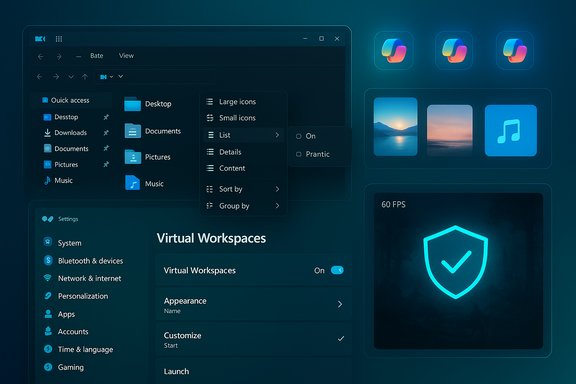
Dark blue desktop UI with folders, icons, and a Virtual Workspaces settings panel.Background / Overview​

Microsoft shipped an optional preview earlier in December (reported as KB5070311 on December 1, 2025) to allow broader validation of user‑facing polish and component updates; KB5072033 is the Patch Tuesday roll that folds those preview bits into the mandatory monthly servicing cadence. That preview introduced widespread dark‑mode coverage in File Explorer, Copilot entry points, virtualization discoverability in Settings, and gaming/graphics fixes — but also surfaced a visible rendering regression (a brief white flash in File Explorer when dark mode is enabled) that Microsoft acknowledged and later addressed in the cumulative roll. This December cumulative is delivered as a combined Servicing Stack Update (SSU) + Latest Cumulative Update (LCU). Administrators should note that SSUs are persistent and alter rollback characteristics for offline servicing, so standard imaging and rollback playbooks need to be followed carefully. Microsoft has published offline .msu packages and guidance for DISM or ordered installs for controlled deployment.

What’s new — quick inventory​

  • File Explorer: broader dark‑mode coverage (dialogs, progress bars, confirmations), a simplified compact context menu, thumbnail fixes, and assorted UX polish.
  • Taskbar & Copilot: new “Share with Copilot” button on app thumbnails and smoother hover/preview animations. Copilot Click‑to‑Do and agent‑in‑Settings receive functional improvements for Copilot+ devices.
  • Settings: redesigned About page, migration of keyboard/cursor repeat settings into Settings (Accessibility), and a new Virtual Workspaces page (Settings > System > Advanced) centralizing Hyper‑V, Sandbox, Containers, and related toggles.
  • Gaming & Graphics: Full Screen Experience (FSE) support for more Windows handhelds, a targeted fix for games incorrectly reporting “Unsupported graphics card detected,” and optimizations for display‑mode queries that reduce micro‑stutters.
  • Widgets and Sharing: dashboard badges in Widgets, default dashboard selection, improved Windows Share drag tray with multi‑file support, and OneDrive Copy link workflow improvements.
  • Device integration: a new Mobile Devices page under Bluetooth & devices to manage linked phones, camera features, and file browsing.
  • Security and platform fixes: fixes for Hyper‑V external virtual switch NIC binding loss after reboot, LSASS reliability improvements, and a security‑oriented change where PowerShell 5.1’s Invoke‑WebRequest issues a confirmation prompt before executing downloaded web content.
These items represent the visible, consumer‑facing highlights; the cumulative also contains numerous security fixes that are part of the Patch Tuesday release cadence.

Deep dive: File Explorer receives the most visible polish​

Dark mode — finally more complete​

The update expands dark‑theme coverage to legacy dialogs that historically defaulted to light palettes — copy/move/delete progress UIs, confirmation prompts (skip/overwrite), and some chart and thumbnail views now respect the system dark theme and new accent color states (blue/orange/red for normal/paused/failed). For users who prefer low‑light workflows, this is a notable visual improvement that reduces jarring contrast when invoking file operations.

The white‑flash regression and remediation​

The preview (KB5070311) inadvertently introduced a brief white flash when opening or navigating File Explorer in dark mode. Microsoft documented the regression, posted mitigation guidance, and rolled the fix into the December 9 cumulative. Multiple independent outlets and community threads confirmed the behavior and Microsoft’s acknowledgement. If File Explorer flashed after installing the preview, applying KB5072033 should eliminate that behavior. Administrators relying on dark mode for kiosks or customer‑facing terminals should validate this fix in a pilot ring before broadly deploying.

Context menu and cleanup​

The right‑click menu in Explorer is getting a more compact layout that groups similar actions and reduces visual clutter — Copy, Move to, Share, and Open are now promoted into a cleaner arrangement with tighter spacing and uniform icons. It’s a small but measurable quality‑of‑life improvement for power users who use context actions frequently.

Taskbar and Copilot: a nudge toward integrated assistance​

Share with Copilot​

A new Share with Copilot affordance appears in taskbar app thumbnails: hovering an app thumbnail exposes a small action that sends the app window to Copilot Vision for content analysis and a contextual conversation. The flow resembles screen‑sharing: Copilot inspects visible content and surfaces actions or suggested next steps. This feature remains hardware‑ and entitlement‑gated on Copilot+ devices and is subject to staged rollout.

Click‑to‑Do, agent improvements, and foreground fixes​

Copilot’s Click‑to‑Do behavior is refined so that the assistant’s window reliably comes to the foreground when data is shared — a fix for a previously reported UX bug. On Copilot+ PCs, the Settings search and recommended settings panels reflect faster agent results, and Click‑to‑Do’s common actions receive a cleaner layout. Windows Search in File Explorer shows updated placeholder text to emphasize the new search experience and — for enterprise users — Home on hover actions are enabled in some configurations.

Settings: consolidation and discoverability​

Virtual Workspaces​

Settings gains a Virtual Workspaces page (Settings > System > Advanced) that centralizes virtualization toggles — Hyper‑V, Windows Sandbox, Windows Hypervisor Platform, Containers — which were previously scattered across legacy control panels or optional features. This change improves discoverability for developers and admins and reduces the friction to enable sandboxed environments, but the actual availability depends on hardware virtualization features and firmware settings.

About and input settings migration​

The About page is redesigned to surface system details, storage links, and common configuration targets in a single view. Keyboard repeat delay/rate and cursor blink rate settings are moved from Control Panel to Settings > Accessibility, continuing Microsoft’s migration of legacy controls into the modern Settings experience. These are small changes that simplify device setup for most users while shifting some admin documentation that still references Control Panel.

Gaming, graphics, and performance optimizations​

Full Screen Experience on more handhelds​

Xbox’s Full Screen Experience (FSE) — a console‑like overlay that reduces background tasks and sets the Xbox app as the home interface — is expanding beyond the initial ASUS ROG Ally family to additional Windows handheld devices. Once enabled via Settings > Gaming > Full Screen Experience, the UI behaves like a lightweight console shell and can yield measurable memory and focus benefits on constrained handheld hardware. Availability remains staged by device and OEM.

Fix for “Unsupported graphics card detected”​

The update addresses a bug where some games incorrectly displayed “Unsupported graphics card detected” despite running supported GPUs. The change adjusts the graphics detection and compatibility stack, resolving misclassification that caused warnings in a small set of titles. Community testing suggests pairing KB5072033 with vendor driver updates (for example recent AMD Adrenalin releases) has improved stability in some configurations, though Microsoft’s notes describe the fix narrowly (misflagging), not as an explicit universal crash remediation. Test gaming workloads on representative hardware before treating the update as a silver bullet for every GPU timeout.

Display mode queries and stutter reduction​

Apps that query the full list of supported display modes — a common call on 4K and ultrawide monitors — previously caused momentary stutters during app launch. Optimization to how the system services these queries reduces micro‑freezes when launching full‑screen or borderless games and switching modes, improving perceived smoothness.

Widgets, Windows Share, and mobile device integration​

  • Widgets: dashboard icons now show numeric badges for unread alerts; a default dashboard can be pinned so the Widgets board opens to a preferred view.
  • Windows Share: the drag tray supports multi‑file sharing and exposes a toggle in Settings > System > Nearby sharing to disable the drag tray. OneDrive’s Copy link can be used directly inside the Share flow for easier cross‑app sharing.
  • Mobile Devices: Settings > Bluetooth & devices > Mobile Devices consolidates phone pairing, permissions, and features (use as connected camera, file browse in File Explorer) into a single, simple management surface. This centralization reduces scattered entry points and improves discoverability for users who link phones to PCs.

Copilot+ PC and Windows Studio Effects​

  • Copilot+ devices receive targeted agent‑in‑Settings improvements and UI polish to Click‑to‑Do flows, with faster recommended settings and inline agent options. Placeholder text in File Explorer’s search box emphasizes the semantic search capabilities on eligible devices.
  • Windows Studio Effects is extended to external USB webcams and secondary laptop cameras, enabling background blur, eye contact correction, and other camera effects beyond built‑in primary webcams. These effects can now be controlled from the camera page in Settings or the Quick Settings menu. Hardware, driver, and app compatibility still determine the full experience.

Security hardening: PowerShell and LSASS stability​

One of the more operationally relevant changes for admins is PowerShell 5.1’s Invoke‑WebRequest now prompting users with a confirmation warning before executing web content — a hardening designed to reduce unattended script‑execution risk from untrusted sources. This behavior affects automation that relies on silent web downloads in PowerShell 5.1 and may require migration of automated pipelines to PowerShell 7+ or script modifications to explicitly bypass interactive prompts in managed contexts. Separately, KB5072033 addresses LSASS reliability fixes that reduce certain crash scenarios and fixes Hyper‑V switch binding loss after host reboot, which previously left VMs without network connectivity. These fixes are important for server and virtualization operations.

Installation: practical steps and rollout notes​

  • Confirm current build: open Win + R → winver and note your OS build and servicing channel. KB5072033 targets 25H2 → 26200.7462 and 24H2 → 26100.7462.
  • Back up critical data and create a recovery point or offline image before major servicing.
  • For most home users: install via Settings → Windows Update and allow Microsoft’s staged rollout to deliver the package. Features may not appear immediately after the update; many elements are server‑entitled.
  • For enterprise offline installs: download all KB .msu files from the Microsoft Update Catalog into one folder and use DISM /Online /Add‑Package /PackagePath to let DISM discover prerequisites, or follow Microsoft’s ordered install sequence. Ensure SSU prerequisites are applied as documented.
  • Pilot ring recommendation: deploy to a small, diverse group (10–20 machines) that represent typical hardware — AMD, NVIDIA, integrated GPUs, different handhelds — and validate Explorer (dark mode), sign‑in flows, Hyper‑V networking, high‑refresh monitors, and gaming titles before broad rollout.

Critical analysis — strengths and practical risks​

Strengths​

  • Tangible UX polish: completing dark mode coverage in File Explorer and tidying the context menu removes longstanding visual inconsistencies that bugged users for years. For dark‑theme users, the improvement is immediate and appreciable.
  • Consolidation of controls: moving virtualization toggles into a single Virtual Workspaces page improves discoverability for developers and reduces friction for enabling sandbox features.
  • Operational fixes: the Hyper‑V NIC binding fix and LSASS stability work address real issues that could impact server and virtualization reliability. These are fixes with measurable operational benefit for admins.
  • Safer defaults for scripting: adding an explicit warning to PowerShell’s Invoke‑WebRequest is a pragmatic security hardening that addresses a real exploitation vector. Security teams will welcome the additional guardrail.

Risks and caveats​

  • Preview regression history: the white‑flash regression in Explorer demonstrates the risk of shipping preview bits widely before a cumulative. Although the December 9 package addresses it, the incident underscores the need for careful validation of UI rendering changes across driver/firmware permutations. Organizations should treat December preview installs cautiously and prefer Patch Tuesday for production.
  • Hardware/driver dependency: many Copilot+ experiences, Studio Effects, and the FSE gaming changes depend on OEM drivers, NPU availability, or vendor driver updates (AMD/NVIDIA). Reports of reduced GPU timeouts when pairing KB5072033 with updated GPU drivers are encouraging but anecdotal; the update primarily fixes misclassification, not every GPU timeout scenario. Test and confirm with the vendor driver matrix for critical gaming or rendering workloads.
  • Rollout unpredictability: Microsoft’s controlled feature rollout (CFR) model means binaries may be present without features appearing immediately. This reduces blast radius but complicates fleet planning because visibility and behavior can differ by account/region/OEM entitlement. Admins should not assume feature parity immediately after installing KB5072033.
  • Automation breakage: the Invoke‑WebRequest confirmation may interrupt unattended PowerShell scripts that rely on silent downloads. Organizations should audit scripts and move long‑running automation to PowerShell 7+ or test scripted bypasses in controlled fashion.

Enterprise deployment checklist​

  • Validate the new SSU is acceptable for your imaging pipeline — an SSU cannot be removed once applied. Plan images and rollback strategies accordingly.
  • Pilot the update on devices representing all major GPU vendors and handheld platforms. Confirm gaming titles, streaming, rendering, and high‑refresh monitors.
  • Test virtualization hosts for external virtual switch behavior, then validate the Hyper‑V NIC binding fix in a lab before production rollout.
  • Audit PowerShell automation that uses Invoke‑WebRequest and prepare script updates or migrate to PowerShell 7+. Document exceptions where interactive confirmation must be disabled in controlled scenarios.
  • If Explorer in dark mode is mission‑critical for a fleet (kiosks, showrooms), ensure KB5072033 resolves the earlier flash on representative hardware. If not, use Known Issue Rollback (KIR) group policy guidance until the fix is confirmed.

What to test first (priority sequence)​

  • Sign‑in flows (including Windows Hello and smart‑card paths) — check LSASS/credential stability.
  • File Explorer (dark mode) interactions — open, new tab, Home/Gallery toggles.
  • Virtualization host networking — reboot the Hyper‑V host and verify external switch bindings.
  • High‑refresh and multi‑monitor gaming workflows — launch titles that previously experienced stutters or driver removals.
  • PowerShell automation that uses web downloads.
  • Copilot Click‑to‑Do flows on Copilot+ hardware and Windows Studio Effects on external cameras.

Final verdict​

KB5072033 is a meaningful December roll that bundles necessary security servicing with a substantive set of UX and reliability updates. The update addresses dozens of small but cumulative irritants — wider dark mode coverage, Settings consolidation, Widgets badges — while fixing a few high‑impact reliability problems (Hyper‑V, LSASS, select GPU misclassification). The trade‑off is the reality of staged feature rollouts and the preview‑to‑cumulative path that briefly exposed a notable File Explorer regression. For home users and enthusiasts, installing via Windows Update on December 9, 2025 is reasonable after backing up and keeping an eye on community reports. For administrators and gamers with specialized hardware, a measured pilot followed by a phased deployment remains the safest path.

Quick reference: How to get KB5072033 now​

  • Open Settings → Windows Update.
  • Turn on “Get the latest updates as soon as they’re available.”
  • Click Check for updates and install KB5072033 when it appears.
  • For offline installs, download the .msu packages from the Microsoft Update Catalog and install via DISM or wusa in the order Microsoft prescribes.

The December 9, 2025 cumulative is a tidy capstone for the year: it consolidates months of incremental work into a single servicing package that improves polish, hardens a few risky behaviors, and repairs operational regressions. The update’s broad ambitions — UI consistency, better discoverability, initial expansion of Copilot workflows and gaming optimizations — are clear and useful. The operational advice is equally simple: validate on representative hardware, be especially careful with scripted automation that uses PowerShell 5.1, and treat preview channels as experimental rather than production releases.

Source: Windows Latest Windows 11 December 2025 update overview, everything you need to know
 

Back
Top