

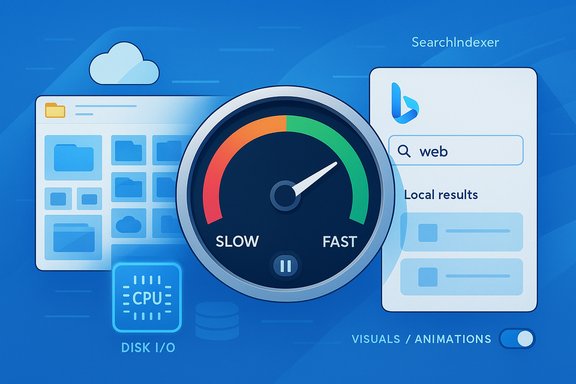
Windows 11’s defaults trade convenience and polish for background work — and two built‑in behaviors recently called out by press and researchers can meaningfully slow systems, particularly older or low‑spec machines. The first is an auto‑discovery behavior in File Explorer that can bog down folder navigation when a directory contains very large numbers of files; the second is the Start menu’s search behavior that frequently reaches for online (Bing) results before or alongside local results. Both are enabled by default and both can be mitigated — but each mitigation carries clear trade‑offs for convenience, backup coverage, or the platform’s visual experience. Recent reporting and community analysis highlight the problem, and Microsoft itself has acknowledged that certain default services and visuals can cost performance on constrained hardware.
Windows has steadily moved toward deeper cloud integration and richer UI polish over the last several releases. Those changes improved usability for many users — seamless cross‑device file access, automatic backups, and a modern, animated shell — but they also introduced additional background work and compositor activity that can compete with foreground tasks for CPU, disk, memory and network resources.
Microsoft’s official troubleshooting guidance now explicitly calls out background file syncing (OneDrive) and visual effects as easy, reversible tests to restore responsiveness on sluggish machines. Independent community tests and reporting extend that list with other behaviors — File Explorer’s extended metadata/thumb‑generation, Start menu web results, Search indexing and auto‑discovery heuristics — which can all increase latency during common activities like browsing folders or searching for files.
This article summarizes the specific problems under discussion, explains why they matter, provides practical GUI‑first mitigations (safe for most users), covers the higher‑risk registry hacks circulating in the community (with explicit cautions), and closes with measurement steps and configuration recommendations tailored to different user scenarios.
Why this happens (short technical rationale)
That admission is meaningful: rather than leaving users to guess why a PC feels slow, Microsoft points to concrete defaults that are easy to toggle. However, the company’s guidance focuses on OneDrive and animations; community reports extend the issue to Explorer auto‑discovery and Start search’s web results — areas where there are fewer first‑class UI controls and more community‑supplied Registry workarounds.
Source: Neowin These two default Windows 11 features could be making your PC performance slow
 Background / Overview
Windows has steadily moved toward deeper cloud integration and richer UI polish over the last several releases. Those changes improved usability for many users — seamless cross‑device file access, automatic backups, and a modern, animated shell — but they also introduced additional background work and compositor activity that can compete with foreground tasks for CPU, disk, memory and network resources.Microsoft’s official troubleshooting guidance now explicitly calls out background file syncing (OneDrive) and visual effects as easy, reversible tests to restore responsiveness on sluggish machines. Independent community tests and reporting extend that list with other behaviors — File Explorer’s extended metadata/thumb‑generation, Start menu web results, Search indexing and auto‑discovery heuristics — which can all increase latency during common activities like browsing folders or searching for files.
This article summarizes the specific problems under discussion, explains why they matter, provides practical GUI‑first mitigations (safe for most users), covers the higher‑risk registry hacks circulating in the community (with explicit cautions), and closes with measurement steps and configuration recommendations tailored to different user scenarios.
What Neowin and community researchers found
Auto‑discovery in File Explorer (the folder‑with‑hundreds/thousands of files problem)
Security researcher posts and community threads have shown that File Explorer can become very slow when a folder contains a very large number of files and Explorer is performing automatic discovery/metadata work. In such cases Windows attempts to enumerate content, compute thumbnails and metadata, and update overlay/status information — work that generates CPU cycles, disk I/O and sometimes network activity (for cloud‑integrated folders). Users reporting these symptoms have found folder open times and context menu responsiveness degrade dramatically.Why this happens (short technical rationale)
- File enumeration across thousands of files triggers metadata collection (timestamps, thumbnails, file type detection) and shell extension callbacks.
- Thumbnail generation and preview handlers may open or partially read files to determine content — this causes disk I/O and can push mechanical drives into long queues.
- Cloud status overlays (OneDrive/other shell integration) and search indexing can amplify the problem by adding network and index updates to the same workload.
- On low‑memory systems the extra working set can force paging and increase perceived sluggishness.
Start menu search favoring online (Bing) results
Multiple community threads and news pieces note that Windows 11’s Start search increasingly surfaces web results and online content (via Bing) very prominently, and in some cases it seems to query online indexes before fully exhausting local search. That behavior can cause:- Apparent slowness as local and remote lookups are executed.
- Distracting or unwanted web content in search results.
- Increased network usage on constrained connections when searches are frequent.
Microsoft’s position and the wider context
Microsoft has publicly acknowledged that some default features, notably cloud sync activity and visual effects, can slow down machines and has documented basic mitigation steps (pause OneDrive, reduce visual effects). Those are intended as diagnostic and reversible steps to help users determine whether defaults are the root cause of perceived slowness. The company’s guidance frames the changes as short, safe tests you can run before deeper troubleshooting.That admission is meaningful: rather than leaving users to guess why a PC feels slow, Microsoft points to concrete defaults that are easy to toggle. However, the company’s guidance focuses on OneDrive and animations; community reports extend the issue to Explorer auto‑discovery and Start search’s web results — areas where there are fewer first‑class UI controls and more community‑supplied Registry workarounds.
Practical, GUI‑first mitigations (safe, reversible, recommended)
Before editing the Registry, try these safe steps. They give immediate insight and avoid potential system instability.1. Pause OneDrive sync (when you’re doing heavy local work)
- Why: OneDrive’s sync engine performs hashing, metadata updates, thumbnail processing and uploads/downloads that can consume CPU, disk and network.
- How: Right‑click the OneDrive cloud icon in the notification area and choose Pause syncing for 2/8/24 hours. If you don’t see the icon, open the OneDrive app from Start.
- When to use: Large file copies, video editing, bulk file operations, or when File Explorer opens folders very slowly.
- Trade‑off: Pausing reduces cloud backup coverage while paused; don’t leave it paused indefinitely without an alternate backup plan.
2. Turn off or trim visual effects
- Why: Animations, transparency (Acrylic), shadows and other effects increase composition work for DWM and use GPU/CPU cycles and memory.
- How (easy): Settings > Accessibility > Visual effects (or Settings > System > About > Advanced system settings > Performance Settings) and select “Adjust for best performance” or selectively disable animations and shadows.
- When to use: Systems with integrated or older GPUs, devices with less than 8 GB RAM, or machines with sluggish UI.
- Trade‑off: Loss of polish and some UX niceties; font smoothing and specific readability features can remain enabled if desired.
3. Tame File Explorer behavior without the Registry
- Switch to a folder view that avoids thumbnails (Details view) to prevent thumbnail generation.
- Disable the preview pane and details pane in File Explorer (View > Show > uncheck Preview pane / Details pane).
- If the problem is a particular folder, compress/archive large numbers of small files or move active work files to a different folder/drive to reduce enumeration cost.
- Use Files On‑Demand (OneDrive setting) to avoid keeping large cloud libraries fully downloaded locally.
4. Turn off web results from Search through Settings (where available)
- Recent versions of Windows expose controls to limit showing web results in Start/Search. Check Settings > Privacy & Security > Searching Windows or Search settings and disable “Show web results” or similar toggles.
- If UI options are not present or you want more granularity, rely on the safe steps above first; registry changes are an advanced fallback.
Advanced options: registry tweaks and community workarounds (use with care)
Several community posts (and the Neowin piece that brought this topic wider attention) outline registry edits that change Explorer’s auto‑discovery behavior and Start search’s web results. These can work but they carry risk:- Registry edits can render parts of Windows unstable or unbootable if done incorrectly.
- Some keys are undocumented or may change across builds; what works today can break after an update.
- Registry approaches often disable features globally without offering the fine control available in GUI settings.
- Create a full system backup or at minimum export the registry hive you will edit (File > Export in Regedit).
- Create a System Restore point.
- Apply changes carefully and test. If you observe odd behavior, restore the registry or revert to the restore point.
- Explorer auto‑discovery: Users report adding a string value named FolderType (or similar) under specific Shell keys to stop Explorer from re‑classifying folders and auto‑scanning them. This prevents the per‑folder discovery heuristics that trigger extra metadata work. This is a community technique rather than an official Microsoft option and should be treated as such.
- Start search web results: Community guides show registry values and group policy settings to suppress web results and force search to prefer local indexing. The Registry/GPO approach is commonly used in enterprise to lock down web results but requires admin rights and care.
How to measure impact — make the change, then verify
Don’t rely on impressions alone. Measure before and after so you can objectively determine what helped.- Record a baseline:
- Open Task Manager and note CPU, Memory, Disk (I/O), and Network usage for the period of interest.
- In Resource Monitor, observe the disk queue length and per‑process I/O (OneDrive.exe, explorer.exe, SearchIndexer.exe).
- Optional: Use Windows Performance Recorder (WPR) + Windows Performance Analyzer for deep traces if you’re comfortable with advanced tools.
- Reproduce the slow workflow:
- Open the problematic folder (or perform the search that felt slow) and note timings.
- Run a consistent task (e.g., a bulk copy or folder open) to ensure repeatability.
- Apply mitigation:
- Pause OneDrive, disable visual effects, or change folder view to Details as appropriate.
- Re‑measure:
- Compare Task Manager/Resource Monitor metrics and subjective latency (time to open folder, time for context menus, search result latency).
- If the mitigation helps, roll out a measured plan. If not, revert and continue diagnosing (drivers, failing disk, malware, thermal throttling).
Trade‑offs and risks — what you give up when you disable defaults
- Disabling OneDrive or pausing sync reduces backup coverage and cross‑device synchronization. Relying on a paused sync as a permanent “performance fix” is risky unless you implement alternative backups.
- Turning off visual effects reduces the modern aesthetic and some UX cues (animations that indicate state changes), which can reduce clarity for some users.
- Registry changes that suppress Explorer discovery or search behavior may cause unexpected side effects after Windows updates and can be harder to reverse if you don’t keep precise backups.
- Enterprise environments should prefer Group Policy/Intune approaches and test changes on a small group before broad deployment.
Other Windows defaults that commonly affect performance (quick list)
- Startup apps: Many background programs start at boot and consume CPU/memory. Use Task Manager → Startup to disable nonessential entries.
- Search indexing: Indexing helps search responsiveness but can use CPU/disk during initial indexing. Limit indexed locations if you rarely search certain folders.
- Widgets and background services: Widgets, live tiles, and background sync for some UWP apps add constant background churn. Disable if you don’t use them.
- Search Highlights and web suggestions: These features surface online content and can be toggled off in Search/Privacy settings.
Recommendations by user profile
- Casual users with laptops (4–8 GB RAM, HDD): Start with pausing OneDrive during heavy file work, disable transparency and animations, and switch folder views to Details. Consider upgrading to an SSD and adding RAM for lasting gains.
- Power users who need sync and speed: Use Files On‑Demand, selective sync for large folders, and schedule large syncs for off‑hours. Keep visual effects minimal during performance‑sensitive work.
- IT admins: Use Intune/GPO to apply selective sync and bandwidth caps for OneDrive; use telemetry to identify fleet patterns before applying registry‑level changes. Test on pilot devices.
- Advanced users comfortable with risk: If GUI controls don’t suffice, community registry tweaks may help Explorer auto‑discovery and Start search behavior — but only after full backups, system restore points and careful testing. Document every change.
Final checklist — quick steps to try right now
- Pause OneDrive for 2 hours; test the slow action.
- Turn off animation/transparency (Settings → Accessibility/Performance).
- Change affected folders to Details view and disable the preview pane.
- Measure with Task Manager / Resource Monitor before and after.
- If you must go deeper, export the registry and create a System Restore point before any edits — proceed only if you can recover the system.
Conclusion
Windows 11’s modern defaults bring real benefits, but they also carry measurable background costs on older or lower‑spec hardware. The two behaviors at the center of recent discussion — File Explorer’s auto‑discovery when a folder contains very large numbers of files, and Start menu search that favors online results — are both enabled by default and can degrade responsiveness. Community workarounds exist and Microsoft has acknowledged related classes of issues (notably OneDrive sync and visual effects) while providing safe GUI controls to test and mitigate the impact. For most users, start with the reversible, UI‑first steps (pause OneDrive, disable animations, change folder view) and measure the effect. Treat registry hacks as advanced, last‑resort options and always back up before you edit. These measured steps let you regain snappiness where it matters while preserving the convenience that makes Windows useful to so many users.Source: Neowin These two default Windows 11 features could be making your PC performance slow
