

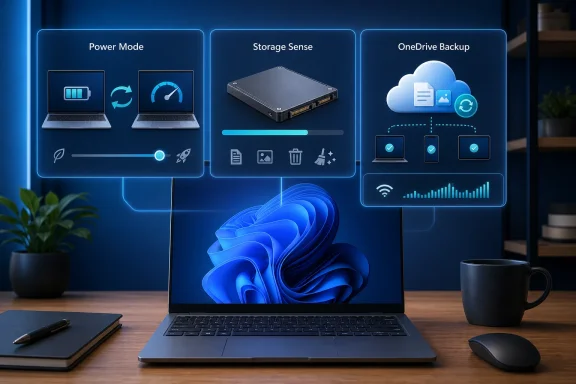
Three Windows 11 settings can have an outsized effect on how a PC feels in daily use: Power mode, Storage Sense, and OneDrive backup and sync controls. None is a magic “make my computer faster” switch, and none can compensate for failing hardware, insufficient RAM, malware, or an overloaded startup routine. Yet configured badly—or simply left unexamined—they can contribute to sluggish performance, depleted storage, shorter battery life, unexpected network activity, and a frustratingly busy new-PC experience.
The appeal of these controls is that they address three resources every Windows machine constantly balances: processor power, local storage capacity, and network bandwidth. A laptop that is conserving power too aggressively may feel slow even when its hardware is capable. A nearly full system drive can interfere with updates and normal application behavior. An unplanned cloud-sync workload can monopolize an upload connection just when a video call, game upload, or large attachment needs it.
For Windows users looking for practical Windows 11 performance settings, these are sensible places to start. The key is to match each setting to the way the PC is actually used rather than assuming that maximum performance, automatic cleanup, or universal cloud backup is always the right answer.
Windows 11 contains a vast number of options, from accent colors and animation effects to accessibility controls and privacy settings. Many are important, but they do not meaningfully alter a system’s underlying responsiveness. Power behavior, disk housekeeping, and file synchronization are different because they influence real workloads.
A modern PC is continuously making decisions about:
The same controls are less dramatic on a desktop PC with a high-end processor, abundant cooling, a large SSD, and gigabit symmetrical fiber. Even there, however, they can still prevent avoidable bottlenecks.
On many systems, it is available at:
The names commonly include:
In simple terms:
That does not mean the processor will run flat-out at all times. Modern CPUs dynamically adjust their behavior hundreds or thousands of times per second. The point is that a more performance-focused policy can give the system permission to sustain higher speeds or reach them more eagerly.
A particular laptop may show a modest improvement when moving from Balanced to Best performance, while another may show almost no difference. The outcome depends on numerous variables:
The reverse is also true: switching to Best power efficiency can considerably extend usable battery life on some machines, but it can make heavier applications feel less responsive. The right choice is workload-specific, not ideological.
Use Best performance when the PC is plugged in and handling a task where time matters, such as:
Laptop users should be especially careful when operating on battery. A high-performance mode can increase battery drain sharply and may add heat to the chassis. On compact systems, it can also make the keyboard deck and underside noticeably warmer.
It is also worth checking whether a manufacturer utility is overriding Windows. A device may show “Best performance” in Windows while the vendor application is set to a quiet or battery-saving profile. Conversely, an aggressive OEM performance profile may keep a laptop louder than expected even with Windows set to Balanced.
Storage Sense is Windows 11’s built-in automated cleanup tool. It is found under:
Its role is relatively simple: reclaim space by clearing categories of files that Windows considers safe to remove based on the options selected.
These can include:
That distinction matters. An owner who assumes automatic cleanup is running may discover that old temporary files and Recycle Bin items have accumulated for months. Conversely, an owner who enables broad cleanup rules without reviewing them may be surprised when files are removed from locations they use casually.
Storage Sense is best understood as a maintenance tool, not a substitute for deciding what should remain on a PC.
A full or nearly full system drive can lead to:
The concern is especially acute on systems with 64GB, 128GB, or 256GB drives. A few large applications, local game installations, phone backups, cloud-synced photo libraries, and Windows update files can consume the available capacity surprisingly quickly.
A practical starting point is:
A safer workflow is to treat Downloads as an inbox: sort it regularly, move important files to a deliberate folder, and then use automatic cleanup only if the folder truly contains disposable content.
That behavior can be valuable on small SSDs, particularly for users with a large OneDrive photo archive or document collection. But it carries an important usability trade-off: an online-only file generally needs an internet connection before it can be opened.
Files marked Always keep on this device are exempt from this offloading behavior. That makes the feature flexible, but it requires users to understand the difference between a file that is cloud-only, locally available, and permanently retained offline.
Consider these alternatives:
The complication is that “OneDrive” can refer to several related behaviors:
For many users, backing up Desktop, Documents, and Pictures is a strong baseline. It protects the data most likely to matter after a lost, stolen, or failed PC. But users with professional projects, local databases, virtual machines, game saves, or specialized folders should verify exactly what is and is not being synchronized.
A true resilience plan may include:
Potential symptoms include:
That does not mean OneDrive is “slowing down the PC” in every situation. It means it can compete with other tasks for resources. The sensible response is management, not blanket rejection.
This is an important distinction. The visible “placeholder” is not necessarily a full downloaded duplicate of the cloud file. In fact, Files On-Demand is often the correct answer for users who need access to a large cloud library but lack the SSD capacity to store every file locally.
File status icons in File Explorer provide a useful guide:
Open the OneDrive cloud icon in the notification area, select the settings control, and review the Sync and backup options. The exact wording can differ slightly by OneDrive version and account type, but the goal is the same: make backup choices explicit.
A practical configuration for many users is:
Recycle Bin protections and version history can help recover mistakes, but they are not a reason to treat the sync folder casually. Before removing a large folder, confirm whether it is:
Each setting has a purpose. The objective is not to turn off everything that uses resources; it is to make sure resources are being used for the work that matters.
Power mode can make a laptop feel more responsive during demanding work, but it costs battery life, heat, and often fan noise. Storage Sense can prevent temporary data and neglected files from filling the system drive, but it should be configured carefully and cannot replace deliberate storage management. OneDrive backup and Files On-Demand can protect important files and conserve SSD capacity, but they work best when backup scope, offline availability, and network behavior are explicitly controlled.
The broader lesson is that a Windows PC does not stay optimized by accident. A few well-chosen settings will not transform entry-level hardware into a workstation, but they can prevent common self-inflicted slowdowns and make the hardware already on the desk feel more capable, predictable, and productive.
The appeal of these controls is that they address three resources every Windows machine constantly balances: processor power, local storage capacity, and network bandwidth. A laptop that is conserving power too aggressively may feel slow even when its hardware is capable. A nearly full system drive can interfere with updates and normal application behavior. An unplanned cloud-sync workload can monopolize an upload connection just when a video call, game upload, or large attachment needs it.
For Windows users looking for practical Windows 11 performance settings, these are sensible places to start. The key is to match each setting to the way the PC is actually used rather than assuming that maximum performance, automatic cleanup, or universal cloud backup is always the right answer.
 Why These Settings Matter More Than Cosmetic Tweaks
Windows 11 contains a vast number of options, from accent colors and animation effects to accessibility controls and privacy settings. Many are important, but they do not meaningfully alter a system’s underlying responsiveness. Power behavior, disk housekeeping, and file synchronization are different because they influence real workloads.A modern PC is continuously making decisions about:
- How aggressively the processor should boost its speed
- How much heat, fan noise, and battery drain are acceptable
- Which files are kept locally versus in cloud storage
- When temporary data and deleted items should be removed
- Whether network bandwidth should be spent uploading or downloading files
- How much free disk space remains for applications, updates, caches, and working files
The same controls are less dramatic on a desktop PC with a high-end processor, abundant cooling, a large SSD, and gigabit symmetrical fiber. Even there, however, they can still prevent avoidable bottlenecks.
1. Power Mode: The Most Immediate Performance Lever
The Power mode control in Windows 11 is the closest thing the operating system offers to a simple, mainstream performance policy. It determines how strongly Windows prioritizes responsiveness and speed versus energy efficiency.On many systems, it is available at:
Settings > System > Power & battery > Power modeThe names commonly include:
- Best power efficiency
- Balanced
- Best performance
What Power Mode Actually Changes
Power mode is not merely a visual preference. It influences how the system responds to demand by affecting processor performance behavior and, depending on the device, related platform policies.In simple terms:
- Best power efficiency asks the PC to favor lower power consumption and reduced background activity.
- Balanced aims for a compromise between responsiveness, heat, noise, and battery runtime.
- Best performance allows the system to favor higher performance when workloads call for it.
That does not mean the processor will run flat-out at all times. Modern CPUs dynamically adjust their behavior hundreds or thousands of times per second. The point is that a more performance-focused policy can give the system permission to sustain higher speeds or reach them more eagerly.
Why Benchmark Gains Are Not Universal
It is tempting to attach a single percentage figure to a change in Power mode. That would be misleading.A particular laptop may show a modest improvement when moving from Balanced to Best performance, while another may show almost no difference. The outcome depends on numerous variables:
- Processor architecture and cooling capacity
- Laptop maker firmware and power limits
- Whether the charger is connected
- Battery charge level and battery health
- Ambient temperature
- The application being used
- The graphics processor and graphics mode
- Whether the PC is already limited by RAM, storage, or network speed
The reverse is also true: switching to Best power efficiency can considerably extend usable battery life on some machines, but it can make heavier applications feel less responsive. The right choice is workload-specific, not ideological.
A Sensible Power Mode Strategy
For most people, Balanced remains the best everyday default. It avoids the unnecessary battery drain and thermal behavior of a permanent performance setting while still allowing modern processors to boost when needed.Use Best performance when the PC is plugged in and handling a task where time matters, such as:
- Editing and exporting video
- Processing large photo collections
- Compiling code
- Running virtual machines
- Working with engineering, design, or data-analysis software
- Installing a large application or game
- Playing demanding games on a laptop
- Performing a long file compression or encryption job
- Reading and web browsing
- Writing notes or documents
- Watching locally stored or streamed video
- Traveling without easy access to a charger
- Working in classrooms, meetings, or libraries
- Handling light email and messaging tasks
Important Caveats for Desktop and Laptop Users
Desktop users should not assume that selecting Best performance creates free performance. A desktop generally has access to wall power, but it still faces thermal and acoustic limits. If the PC’s cooling is inadequate, higher sustained power can result in more fan noise and, in poor cases, thermal throttling.Laptop users should be especially careful when operating on battery. A high-performance mode can increase battery drain sharply and may add heat to the chassis. On compact systems, it can also make the keyboard deck and underside noticeably warmer.
It is also worth checking whether a manufacturer utility is overriding Windows. A device may show “Best performance” in Windows while the vendor application is set to a quiet or battery-saving profile. Conversely, an aggressive OEM performance profile may keep a laptop louder than expected even with Windows set to Balanced.
How to Test the Change Properly
Do not judge performance from a single app launch. Instead, choose one task that reflects normal use and test it under similar conditions.- Plug in the laptop if the goal is maximum performance.
- Close unnecessary apps and allow Windows Update activity to settle.
- Set the PC to Balanced and complete the task once or twice.
- Switch to Best performance.
- Repeat the same task.
- Compare completion time, system responsiveness, fan behavior, and battery impact.
2. Storage Sense: Essential Housekeeping, Not a Performance Miracle
A crowded system drive can create problems that feel like general slowness. Windows needs working room for updates, temporary files, application caches, recovery operations, browser data, and virtual memory. When the primary drive becomes critically full, routine maintenance becomes more difficult and the PC may become less reliable as well as less responsive.Storage Sense is Windows 11’s built-in automated cleanup tool. It is found under:
Settings > System > Storage > Storage SenseIts role is relatively simple: reclaim space by clearing categories of files that Windows considers safe to remove based on the options selected.
These can include:
- Temporary files
- Recycle Bin contents after a chosen retention period
- Files in the Downloads folder after a chosen retention period
- Locally available cloud files that have not been opened for a configured period
The Crucial Correction: Storage Sense Is Not Always Enabled
Storage Sense should be checked rather than assumed to be active. On a standard Windows 11 installation, it may be off until a user turns it on, though Windows can prompt for cleanup when disk space becomes low. Business-managed PCs may have a different policy configured by an IT department.That distinction matters. An owner who assumes automatic cleanup is running may discover that old temporary files and Recycle Bin items have accumulated for months. Conversely, an owner who enables broad cleanup rules without reviewing them may be surprised when files are removed from locations they use casually.
Storage Sense is best understood as a maintenance tool, not a substitute for deciding what should remain on a PC.
Why Free Space Helps
The claim that every nearly full SSD will immediately become dramatically slower needs nuance. Modern SSDs vary widely, and Windows does not require an arbitrary fixed percentage of unused space to function. Still, low free capacity is unquestionably undesirable.A full or nearly full system drive can lead to:
- Failed or delayed Windows updates
- Installation failures for applications and games
- Less room for temporary files and browser caches
- Reduced flexibility for paging and memory pressure scenarios
- Difficulties creating restore points or recovery data
- Problems downloading large files
- Less capacity for creative applications that use scratch disks
- More frequent low-storage warnings
The concern is especially acute on systems with 64GB, 128GB, or 256GB drives. A few large applications, local game installations, phone backups, cloud-synced photo libraries, and Windows update files can consume the available capacity surprisingly quickly.
Configure Storage Sense Conservatively
The safest configuration is usually conservative automation combined with periodic manual review.A practical starting point is:
- Turn on Storage Sense.
- Allow cleanup of temporary files.
- Set the Recycle Bin cleanup period according to personal preference.
- Leave the Downloads folder untouched unless it is routinely used as a disposable staging area.
- Review cloud-content options carefully before enabling automatic offloading.
- Run Storage Sense manually after a major install, upgrade, or temporary data dump.
A safer workflow is to treat Downloads as an inbox: sort it regularly, move important files to a deliberate folder, and then use automatic cleanup only if the folder truly contains disposable content.
Storage Sense and OneDrive Cloud Files
Storage Sense can make inactive OneDrive files online-only after a selected period. This does not permanently delete the files from OneDrive. Instead, it removes the local copy while leaving the cloud version visible in File Explorer.That behavior can be valuable on small SSDs, particularly for users with a large OneDrive photo archive or document collection. But it carries an important usability trade-off: an online-only file generally needs an internet connection before it can be opened.
Files marked Always keep on this device are exempt from this offloading behavior. That makes the feature flexible, but it requires users to understand the difference between a file that is cloud-only, locally available, and permanently retained offline.
When Storage Sense Cannot Solve the Problem
Storage Sense cannot remove installed games, large applications, major personal media libraries, or files held outside the cleanup categories without user action. If the system drive is full because of a 100GB game library or a collection of raw video footage, the solution is not merely to run cleanup.Consider these alternatives:
- Uninstall applications that are no longer used
- Move large personal libraries to another internal drive
- Use external storage for archival data
- Change default install locations for games and large applications
- Move the OneDrive folder to a larger drive where appropriate
- Review the Storage page’s category breakdown before deleting anything
- Upgrade the SSD when the PC supports it
3. OneDrive Backup and Sync: Useful Protection With Real Resource Costs
OneDrive is one of the most valuable features built into Windows 11 when it is configured intentionally. It can keep important files accessible across devices, preserve them through a hardware failure, and simplify the move from an old PC to a new one.The complication is that “OneDrive” can refer to several related behaviors:
- Synchronizing files stored in the OneDrive folder
- Backing up known Windows folders such as Desktop, Documents, and Pictures
- Making files online-only through Files On-Demand
- Keeping selected folders permanently available offline
- Restoring synchronized files to a newly configured PC
Backup Is Not the Same as a Complete Backup Strategy
OneDrive folder backup can protect selected files, but it should not be confused with a full system backup. It does not create a complete bootable image of Windows, installed applications, drivers, system configuration, and every local file.For many users, backing up Desktop, Documents, and Pictures is a strong baseline. It protects the data most likely to matter after a lost, stolen, or failed PC. But users with professional projects, local databases, virtual machines, game saves, or specialized folders should verify exactly what is and is not being synchronized.
A true resilience plan may include:
- OneDrive or another cloud service for active documents
- An external drive backup for large local data
- A system image or recovery approach where appropriate
- A separate copy of irreplaceable files
- Recovery codes and account security protections
How OneDrive Can Affect Perceived Performance
The sync client is designed to work quietly in the background, and on many systems it does. But cloud synchronization is still an active workload. When a new PC is configured, a large folder is added, or a substantial number of files change, OneDrive can create noticeable disk and network activity.Potential symptoms include:
- Slower uploads during video calls or online gaming
- Reduced responsiveness on low-end systems while many files are indexed or synchronized
- Increased disk activity after copying a large photo or media collection
- Battery consumption during extensive sync activity
- Confusion when a file is not yet fully uploaded
- Local disk pressure if many folders are set to stay offline
That does not mean OneDrive is “slowing down the PC” in every situation. It means it can compete with other tasks for resources. The sensible response is management, not blanket rejection.
Files On-Demand Is Often the Better Storage Choice
Files On-Demand is designed to reduce local storage use. It displays files in File Explorer even when they are stored only in OneDrive. An online-only file does not consume normal local file space until it is opened or explicitly marked for offline retention.This is an important distinction. The visible “placeholder” is not necessarily a full downloaded duplicate of the cloud file. In fact, Files On-Demand is often the correct answer for users who need access to a large cloud library but lack the SSD capacity to store every file locally.
File status icons in File Explorer provide a useful guide:
- A cloud icon generally indicates an online-only file.
- A green outlined check indicates a locally available file that can be made online-only again.
- A solid green circle with a check indicates a file set to remain on the device.
Managing OneDrive Without Disabling Its Benefits
The best approach is to decide which folders truly need cloud backup and offline availability.Open the OneDrive cloud icon in the notification area, select the settings control, and review the Sync and backup options. The exact wording can differ slightly by OneDrive version and account type, but the goal is the same: make backup choices explicit.
A practical configuration for many users is:
- Back up Documents and Pictures if they contain important personal files.
- Consider whether Desktop should be backed up, especially if it is used as a temporary dumping ground.
- Avoid syncing huge media collections unless there is enough cloud quota, upload bandwidth, and local storage planning.
- Use Choose folders to limit which OneDrive folders appear on a particular PC.
- Mark only essential work folders as Always keep on this device.
- Make older or archive folders online-only to reclaim SSD space.
- Pause syncing temporarily before a bandwidth-sensitive activity.
- Avoid moving or deleting files blindly inside synchronized folders.
The Deletion and Sync Risk
OneDrive synchronization is not an archive that automatically preserves every local deletion forever. If a synced file is deleted from the OneDrive folder, that deletion can synchronize to the cloud and other connected devices.Recycle Bin protections and version history can help recover mistakes, but they are not a reason to treat the sync folder casually. Before removing a large folder, confirm whether it is:
- A local-only folder
- A synced OneDrive folder
- A cloud-only folder
- A folder being backed up through known folder backup
- A shared work or school folder with organizational rules
A Better Three-Setting Windows 11 Tune-Up
These settings work best as part of a short, repeatable maintenance routine rather than a one-time optimization ritual.Step 1: Choose the Right Power Policy
Set Balanced for routine work. Switch to Best performance only when connected to power and performing a sustained demanding task. Switch to Best power efficiency when battery life, quiet operation, and low heat matter more than maximum speed.Step 2: Keep the System Drive Out of the Danger Zone
OpenSettings > System > Storage regularly. Enable Storage Sense with conservative cleanup rules, check the category breakdown, and do not rely on automated cleanup to manage large applications or personal files.Step 3: Review OneDrive Intentionally
Confirm which folders are being backed up, which files need offline access, and whether a major sync is consuming too much bandwidth. Use Files On-Demand to keep archive material visible without storing all of it locally.Step 4: Check the Real Bottleneck
If the PC remains slow after reviewing these settings, open Task Manager withCtrl + Shift + Esc. Look for sustained high CPU, memory, disk, or network activity. A browser tab, startup app, failing drive, background update, antivirus scan, or insufficient memory may be the true cause.Step 5: Avoid Overcorrecting
Do not leave the laptop in maximum-performance mode all day just because it feels faster in a short test. Do not configure Storage Sense to purge Downloads aggressively without a file-management habit. Do not disable cloud backup solely because a first sync was inconvenient.Each setting has a purpose. The objective is not to turn off everything that uses resources; it is to make sure resources are being used for the work that matters.
The Bottom Line
Power mode, Storage Sense, and OneDrive controls deserve more attention than their understated locations in Windows 11 Settings suggest. They influence the three fundamentals of a healthy PC experience: processing performance, available storage, and background data movement.Power mode can make a laptop feel more responsive during demanding work, but it costs battery life, heat, and often fan noise. Storage Sense can prevent temporary data and neglected files from filling the system drive, but it should be configured carefully and cannot replace deliberate storage management. OneDrive backup and Files On-Demand can protect important files and conserve SSD capacity, but they work best when backup scope, offline availability, and network behavior are explicitly controlled.
The broader lesson is that a Windows PC does not stay optimized by accident. A few well-chosen settings will not transform entry-level hardware into a workstation, but they can prevent common self-inflicted slowdowns and make the hardware already on the desk feel more capable, predictable, and productive.
References
- Primary source: PCWorld
Published: 2026-07-23T12:00:00+00:00
3 Windows settings that can make or break your PC | PCWorld
A number of Windows settings can have meaningful impacts on well your PC runs and its productivity performance. Here are my top three, and what you need to do about them.www.pcworld.com - Official source: support.microsoft.com
Change the power mode for your Windows PC - Microsoft Support
Learn how to change the power mode on your Windows PC to preserve your battery, limit notifications, and background activity.support.microsoft.com - Official source: learn.microsoft.com
PerfIncreasePolicy | Microsoft Learn
PerfIncreasePolicy specifies the algorithm used to select a new performance state when the ideal performance state is higher than the current performance state.learn.microsoft.com