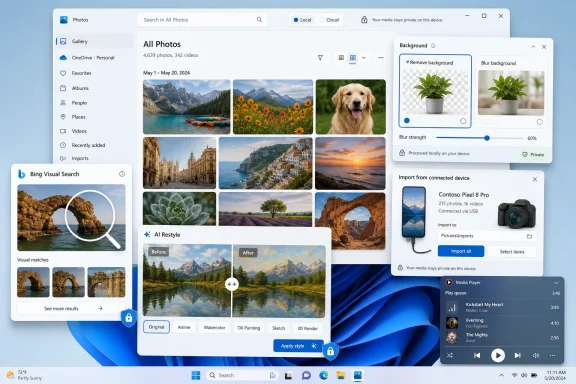
Microsoft’s Photos app in Windows 11 is now a three-part image viewer, editor, and library manager that handles local files, OneDrive, iCloud Photos, USB imports, and a growing set of AI features that expand significantly on Copilot+ PCs. That is the practical answer, but not the interesting one. The interesting answer, laid out in Paul Thurrott’s Windows 11 Field Guide and reinforced by Microsoft’s own support pages and Insider notes, is that Photos has become a miniature map of Microsoft’s entire Windows strategy. A humble default app is now where file associations, cloud storage, Apple interoperability, local AI, generative editing, and Microsoft account gravity all collide.
For years, the Windows photo viewer was judged by the simplest possible test: double-click a JPEG, show it quickly, stay out of the way. Microsoft Photos still has to pass that test, and Thurrott notes that it remains the default in-box app for a wide range of image formats, including BMP, GIF, HEIC, JPEG, PNG, RAW, and many others. But Windows 11’s Photos is no longer just a viewer. It is a front end for Microsoft’s preferred model of personal media management.
That model is hybrid by design. Your pictures may live on the PC, in OneDrive, on an iPhone through iCloud, on a removable device, or in a phone that is plugged in over USB. Photos wants to be the pane of glass across all of it, which sounds convenient until one realizes how much policy is being smuggled into the convenience. A user opens an image; Microsoft sees a workflow.
The app’s architecture makes that ambition visible. Thurrott describes three discrete experiences: the photo viewer that opens when you launch an individual file, the broader browser experience that appears when you open Photos from Start, and the editor that appears when you choose to modify an image. That split is not merely an interface quirk. It reflects Microsoft’s attempt to keep Photos lightweight enough for casual use while expanding it into something closer to a media hub.
The tension is obvious. Windows users want a fast default app that does not second-guess them. Microsoft wants a modern experience that can justify OneDrive subscriptions, cross-device integration, and the Copilot+ PC pitch. Photos is where those two impulses meet, and sometimes grind.
That behavior is easy to explain technically, but harder to defend editorially. It gives Microsoft flexibility, but it also makes Photos feel like a collection of related surfaces rather than a coherent application. The app is modern, yes, but it often behaves like several apps wearing the same icon.
This matters because default apps teach users how Windows itself is supposed to work. File Explorer, Settings, Edge, Notepad, Paint, and Photos are not just utilities; they are the front doors through which most people encounter the operating system. When Photos opens into multiple window types with different tool placement and slightly different assumptions, Microsoft is effectively asking users to learn a workflow instead of simply viewing a picture.
The defense is that the Photos app has outgrown the old viewer metaphor. A modern image app needs editing, metadata, import, cloud libraries, OCR, sharing, video handoff, and backup. But the more Photos absorbs, the more it risks becoming another Windows 11 app that hides its complexity behind clean surfaces and scattered buttons.
This is the same abstraction that has reshaped consumer computing for more than a decade. Apple Photos made the file system nearly invisible for iPhone users. Google Photos turned pictures into a cloud-native searchable archive. Microsoft, forever caught between enterprise file discipline and consumer cloud habits, has been trying to make OneDrive feel like both a folder and a service.
Photos is the Windows 11 version of that compromise. It still respects local folders, including the Pictures directory and removable storage, but it nudges users toward aggregated libraries. The navigation pane puts Gallery, Favorites, OneDrive, iCloud Photos, and This PC in the same mental space. That is useful, but it also blurs boundaries that many Windows users still care about.
The iCloud integration is particularly telling. Microsoft’s support material confirms that Photos can work with iCloud Photos when Apple’s iCloud app is installed from the Microsoft Store. This is not Microsoft surrendering to Apple’s ecosystem; it is Microsoft acknowledging the lived reality of Windows users who carry iPhones. In 2026, Windows cannot pretend the PC is the only device that matters.
Yet this interoperability comes with a management burden. Users who do not use iCloud may want to disable the iCloud Photos surface. Users who do not want screenshots or subfolders from Pictures appearing in Photos must remove those folders manually. The app is friendly, but its defaults are expansive. Microsoft’s instinct is to include first and let users prune later.
That is classic Windows. The operating system is capable of extraordinary backward compatibility and granular control, but that granularity often arrives as tedium. The user who merely wants Photos to open every common image type may face a long list of extensions. The user who wants a third-party editor or viewer must often intervene format by format, or wait for Windows to ask after a new app is installed.
The right-click “Open with” workflow remains the practical escape hatch. It is familiar, it works, and it is deeply Windows-like in both the good and bad senses. It gives control to the user, but it also reminds them that the operating system’s default-app story is still messier than it should be.
This is not a minor issue. Default apps sit at the intersection of user preference, competition policy, and platform power. Microsoft has been criticized for how Windows handles browser defaults, PDF defaults, and system app nudges. Photos is a less politically charged example, but the principle is the same: defaults matter because most users never change them.
The problem is not that these tools exist. Most of them are genuinely useful. The problem is their dispersal across corners, menus, overlays, and bottom bars. Photos is visually clean because it distributes complexity around the frame, but that means discoverability depends on mousing around and learning where Microsoft decided each action belongs.
Still, this is the part of the app that most clearly serves Windows users rather than Microsoft’s broader strategic agenda. Rotating a photo, resizing an image, printing to PDF, copying to the clipboard, and opening the containing folder are everyday PC tasks. They are not glamorous, but they are exactly what a desktop operating system should make easy.
The “Visual search with Bing” and “Scan text” features pull the viewer into more modern territory. Reverse image search is useful, though it predictably routes through Microsoft’s search stack. OCR is the more important feature. The ability to scan text in a screenshot or photo and copy it into Notepad, email, or a browser is one of those small utilities that changes how people use a PC.
Microsoft’s Photos release notes for Windows Insiders have continued to refine this area, including improvements to detected text selection and crash fixes around recognition. That matters because OCR is not a novelty feature anymore. Screenshots are now documents, receipts, error messages, license keys, and fragments of work. A photo app that cannot understand text is increasingly incomplete.
But the modern Photos editor is increasingly defined by AI. Thurrott describes generative erase for removing unwanted objects and a background tool that can blur, remove, or replace the background. These are not Copilot+ exclusive in the way some of the newer features are, and they represent the mainstreaming of editing tricks that once required dedicated software or web services.
This is where Microsoft’s strategy becomes more delicate. Some AI features are cloud-based, some are local, and some require Copilot+ hardware. Some may ask users to sign in with a Microsoft account or download an AI model. That mixture can confuse users who reasonably think “AI in Photos” is one category.
It is not one category. It is a product ladder.
At the bottom are conventional editing features available on ordinary PCs. Above that are cloud-backed generative edits that bring server-side AI into the app. Above that are Copilot+ features using local models and NPUs. At the top is Microsoft’s marketing ambition: buy the right PC, sign in, and Windows becomes an AI-native creative workstation.
That is a meaningful shift. For decades, the default Windows apps were designed to run broadly across the installed base. They might perform better on newer hardware, but they rarely made a new PC category feel functionally different in day-to-day use. Copilot+ changes that bargain. The same Photos app can now be substantially more capable depending on whether the machine has the right NPU and platform support.
Super Resolution is the cleanest example because its value is easy to understand. Old scans, low-resolution images, and compressed photos are common. A local AI upscaler that can enlarge images while preserving or enhancing detail is a practical feature, not just a demo. It gives Microsoft something concrete to point to when explaining why an NPU matters.
Restyle Image and Image Creator are flashier but more complicated. Restyle applies prompt-driven visual transformations to existing images. Image Creator generates new images from text inside Photos. These features make sense as part of the broader generative AI wave, but they also change the identity of the app. Photos is no longer merely where images are viewed and corrected; it is where images are invented.
Relight, which Thurrott identifies as new to 2026, pushes in a more specialized direction. It lets users place and configure virtual lights, adjusting position, color, brightness, softness, and intensity. That sounds powerful, but it also sounds like the kind of feature that can overwhelm casual users. Microsoft is adding pro-adjacent controls inside a consumer app and betting that presets, thumbnails, and local AI can make the complexity approachable.
The Categories feature underscores this point. As reported by Windows Central when Microsoft began testing it with Insiders, Photos can use local AI on Copilot+ PCs to group images such as screenshots, receipts, identity documents, and notes. Thurrott describes the same categories and notes that users can enable or disable image categorization in Photos settings. The feature is useful precisely because it targets the junk drawer of modern image libraries: not portraits, but evidence.
That evidence can be sensitive. Receipts reveal purchases. Identity documents reveal names, addresses, and government numbers. Notes may contain business information or personal details. A local model is the right architectural answer, but the user still needs clear controls, honest prompts, and defaults that do not feel presumptuous.
This is where the Microsoft account requirement for some AI tools becomes awkward. From Microsoft’s point of view, account sign-in enables licensing, model delivery, safety controls, service integration, and continuity. From a user’s point of view, it can feel like a gate placed in front of a feature supposedly powered by the PC they already bought.
The distinction between local processing and account-mediated access needs to be clearer across Windows. “Runs on your device” and “requires your Microsoft account” are not contradictions, but they do create trust friction. Microsoft will have to explain that friction better if it wants Copilot+ to be seen as a user benefit rather than a subscription-era leash.
This is not just a convenience feature. It is Microsoft admitting that the Windows desktop is often downstream from the smartphone. Millions of Windows users take their photos on iPhones, share them through iMessage, back them up through iCloud, and only later want to use them on a PC. If Windows cannot meet those users where their photos already live, the PC becomes less relevant.
The integration also exposes Microsoft’s changed competitive posture. In the 2000s, Windows fought to be the center of everything. In the 2020s, Windows survives by being a capable participant in ecosystems it does not control. Supporting iCloud Photos inside the default Photos app is an act of pragmatism.
But the user experience still depends on multiple pieces behaving well: Apple’s Windows app, Microsoft Photos, Store updates, cloud sync, local caching, and account authentication. When it works, it feels like Windows has finally accepted the modern world. When it fails, users are left debugging a cross-vendor chain where responsibility is hard to assign.
This is useful if OneDrive is your photo archive. It is less welcome if you see OneDrive as work storage, backup infrastructure, or something you deliberately avoid for personal media. Windows 11 often assumes that Microsoft’s cloud is the natural extension of the local PC. Photos is one of the clearest examples of that assumption.
The risk is not that OneDrive integration exists. It should exist. The risk is that Microsoft continues to blur the line between helpful integration and persistent steering. A good default app should be capable before it is promotional. The moment users feel that Photos is primarily a OneDrive acquisition surface, trust erodes.
Microsoft has the ingredients for a better balance. The app can show local folders, removable devices, iCloud Photos, and OneDrive in one place. It can let users disable unwanted sources. It can import from phones over USB without insisting that the cloud is the only sane destination. The question is whether Microsoft’s business incentives will allow that balance to hold.
Cloud-first companies often underestimate this. People still move images from cameras, SD cards, old phones, scanners, drones, field devices, and shared removable drives. Small businesses, schools, public agencies, repair shops, and families all have workflows that do not begin in OneDrive or iCloud.
The scanning delay Thurrott mentions is also real-world important. Importing from a device with thousands of photos can take time, and users need confidence that the app has not hung, duplicated content, or missed files. This is mundane engineering, but it is where trust is built.
Photos should not become so infatuated with AI that it neglects these basic ingestion workflows. The app’s strategic value to Microsoft may be Copilot+ and cloud integration, but its practical value to users is often simpler: get the photos off this device and into a folder I control.
There are reasons photo apps often prefer dark interfaces. Images stand out, glare is reduced, and editing tools can feel more professional. Adobe, Apple, and many creative apps have leaned dark for years. Microsoft may simply be following that convention.
But Windows is an operating system, not a mood board. If a user chooses a light system theme, default apps should generally respect that choice unless there is a clear reason not to. Every exception chips away at the idea that Windows settings are authoritative.
This is the sort of detail power users notice because it fits a pattern. Windows 11 is full of polished surfaces that sometimes override, reinterpret, or ignore user intent. Photos is not the worst offender, but its theme behavior captures the broader design culture: Microsoft knows what experience it wants to present, and user preference is sometimes treated as advisory.
This matters because the AI debate in Windows is too often dominated by the loudest features: generative images, restyled photos, Copilot prompts, semantic search, and branded assistants. Those features are interesting, but they are not always the ones that save time. OCR in screenshots saves time constantly.
Think of an error dialog captured by a user, a Wi-Fi password photographed on a router, a serial number on equipment, a slide from a meeting, a receipt needed for expenses, or a printed note from a whiteboard. These are not art projects. They are fragments of operational life.
Microsoft would do well to market these features less breathlessly and ship more of them. A Windows AI strategy rooted in extraction, cleanup, organization, and accessibility will age better than one rooted in novelty generation. Photos already contains both futures. The practical one is more compelling.
In managed environments, even small default apps can create governance issues. A user may open a work image, remove an object with a cloud-backed AI tool, save it elsewhere, or sync it through a personal account. Another may use OCR on a screenshot containing confidential information. A third may import media from an external device into a local folder that is silently backed up.
None of this means Photos is uniquely dangerous. It means the old boundary between “serious enterprise software” and “little in-box app” is collapsing. Microsoft is adding AI and cloud capabilities across Windows, not only in obvious places like Office, Edge, or Teams. Admins who ignore Photos because it is “just the photo app” may miss a real part of the endpoint story.
This is especially true for Copilot+ PCs. Local AI is easier to approve than cloud AI in many environments, but local processing still raises questions about indexing, retention, model behavior, auditability, and user education. The PC is becoming an inference device. Photos is one of the friendliest faces of that transformation.
Microsoft’s own public messaging tends to flatten this complexity into friendly phrases: manage photos and videos, edit images, connect OneDrive, integrate iCloud, enjoy AI features. Those descriptions are true, but they do not capture the lived experience of a user trying to understand why a feature appears on one PC and not another, or why editing opens a new window in one context and not another.
This is the documentation gap that Windows enthusiasts often fill. Microsoft builds the platform; writers like Thurrott explain the actual shape of the thing. The need for that explanation is not an indictment by itself. Powerful tools need guides. But when a default app requires a field guide chapter this involved, Microsoft should ask whether discoverability has kept pace with capability.
The larger Windows 11 pattern is similar. The OS is not lacking features. It is lacking a consistently intelligible model for how those features relate. Photos shows the progress and the confusion in miniature.
Convergence can be powerful. Users do not want ten apps for ten adjacent tasks. They want to open a photo, read text from it, fix it, crop it, share it, find where it came from, back it up, and maybe use it in a video. A unified Photos app can serve that need better than a drawer full of single-purpose utilities.
Convergence can also become bloat by another name. The more Photos does, the more important it becomes for Microsoft to make features optional, understandable, and respectful of user intent. Every cloud prompt, AI model download, account requirement, and default source should be legible. Users should never have to wonder whether a photo is local, synced, indexed, uploaded, generated, or altered.
That clarity will define whether Photos feels like a modern Windows success or another overstuffed Microsoft app. The feature list is already impressive. The trust model is the harder part.
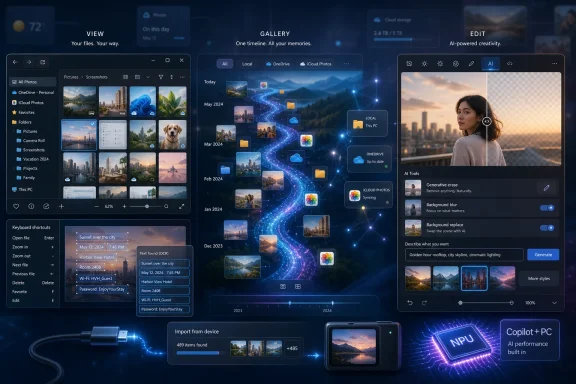 Microsoft Turns a Default Viewer Into a Platform Argument
For years, the Windows photo viewer was judged by the simplest possible test: double-click a JPEG, show it quickly, stay out of the way. Microsoft Photos still has to pass that test, and Thurrott notes that it remains the default in-box app for a wide range of image formats, including BMP, GIF, HEIC, JPEG, PNG, RAW, and many others. But Windows 11’s Photos is no longer just a viewer. It is a front end for Microsoft’s preferred model of personal media management.That model is hybrid by design. Your pictures may live on the PC, in OneDrive, on an iPhone through iCloud, on a removable device, or in a phone that is plugged in over USB. Photos wants to be the pane of glass across all of it, which sounds convenient until one realizes how much policy is being smuggled into the convenience. A user opens an image; Microsoft sees a workflow.
The app’s architecture makes that ambition visible. Thurrott describes three discrete experiences: the photo viewer that opens when you launch an individual file, the broader browser experience that appears when you open Photos from Start, and the editor that appears when you choose to modify an image. That split is not merely an interface quirk. It reflects Microsoft’s attempt to keep Photos lightweight enough for casual use while expanding it into something closer to a media hub.
The tension is obvious. Windows users want a fast default app that does not second-guess them. Microsoft wants a modern experience that can justify OneDrive subscriptions, cross-device integration, and the Copilot+ PC pitch. Photos is where those two impulses meet, and sometimes grind.
The Three-Window Design Says More Than Microsoft Intends
The oddest thing about Photos is that it is not one experience so much as three loosely related ones. Open an image from File Explorer and you get the viewer. Open Photos directly and you get a gallery with navigation, storage integrations, and import tools. Edit from the browser and the editor appears in a separate window; edit from the viewer and the editor replaces the viewer in place.That behavior is easy to explain technically, but harder to defend editorially. It gives Microsoft flexibility, but it also makes Photos feel like a collection of related surfaces rather than a coherent application. The app is modern, yes, but it often behaves like several apps wearing the same icon.
This matters because default apps teach users how Windows itself is supposed to work. File Explorer, Settings, Edge, Notepad, Paint, and Photos are not just utilities; they are the front doors through which most people encounter the operating system. When Photos opens into multiple window types with different tool placement and slightly different assumptions, Microsoft is effectively asking users to learn a workflow instead of simply viewing a picture.
The defense is that the Photos app has outgrown the old viewer metaphor. A modern image app needs editing, metadata, import, cloud libraries, OCR, sharing, video handoff, and backup. But the more Photos absorbs, the more it risks becoming another Windows 11 app that hides its complexity behind clean surfaces and scattered buttons.
The Gallery Is Microsoft’s Cloud Strategy in Thumbnail Form
The main Photos browser defaults to a Gallery view that commingles photos, images, and videos from local folders, OneDrive, and iCloud Photos if configured. Thurrott describes this as a “River” layout, a continuous visual stream rather than a strict folder-first hierarchy. That design tells users to think less about where files are stored and more about the memory or image they want.This is the same abstraction that has reshaped consumer computing for more than a decade. Apple Photos made the file system nearly invisible for iPhone users. Google Photos turned pictures into a cloud-native searchable archive. Microsoft, forever caught between enterprise file discipline and consumer cloud habits, has been trying to make OneDrive feel like both a folder and a service.
Photos is the Windows 11 version of that compromise. It still respects local folders, including the Pictures directory and removable storage, but it nudges users toward aggregated libraries. The navigation pane puts Gallery, Favorites, OneDrive, iCloud Photos, and This PC in the same mental space. That is useful, but it also blurs boundaries that many Windows users still care about.
The iCloud integration is particularly telling. Microsoft’s support material confirms that Photos can work with iCloud Photos when Apple’s iCloud app is installed from the Microsoft Store. This is not Microsoft surrendering to Apple’s ecosystem; it is Microsoft acknowledging the lived reality of Windows users who carry iPhones. In 2026, Windows cannot pretend the PC is the only device that matters.
Yet this interoperability comes with a management burden. Users who do not use iCloud may want to disable the iCloud Photos surface. Users who do not want screenshots or subfolders from Pictures appearing in Photos must remove those folders manually. The app is friendly, but its defaults are expansive. Microsoft’s instinct is to include first and let users prune later.
File Associations Remain Windows’ Most Stubborn Time Capsule
For all the AI gloss, one of the most revealing parts of the Photos experience is still file association management. Thurrott notes that users can configure Photos as the default app for individual image types through Settings, under Apps, Default apps, and Photos. He also points out the obvious pain: there is no simple “select all image types” control.That is classic Windows. The operating system is capable of extraordinary backward compatibility and granular control, but that granularity often arrives as tedium. The user who merely wants Photos to open every common image type may face a long list of extensions. The user who wants a third-party editor or viewer must often intervene format by format, or wait for Windows to ask after a new app is installed.
The right-click “Open with” workflow remains the practical escape hatch. It is familiar, it works, and it is deeply Windows-like in both the good and bad senses. It gives control to the user, but it also reminds them that the operating system’s default-app story is still messier than it should be.
This is not a minor issue. Default apps sit at the intersection of user preference, competition policy, and platform power. Microsoft has been criticized for how Windows handles browser defaults, PDF defaults, and system app nudges. Photos is a less politically charged example, but the principle is the same: defaults matter because most users never change them.
The Viewer Is Strongest When It Behaves Like a Tool, Not a Portal
The best part of Photos may still be the viewer itself. It provides rotate, delete, print, share, slideshow, save-as, copy, set-as-background, resize, and File Explorer handoff options. It includes a filmstrip for folder navigation, favorites, metadata, zoom controls, full-screen mode, and keyboard shortcuts. It is richer than the old mental model of a photo viewer without becoming uselessly bloated.The problem is not that these tools exist. Most of them are genuinely useful. The problem is their dispersal across corners, menus, overlays, and bottom bars. Photos is visually clean because it distributes complexity around the frame, but that means discoverability depends on mousing around and learning where Microsoft decided each action belongs.
Still, this is the part of the app that most clearly serves Windows users rather than Microsoft’s broader strategic agenda. Rotating a photo, resizing an image, printing to PDF, copying to the clipboard, and opening the containing folder are everyday PC tasks. They are not glamorous, but they are exactly what a desktop operating system should make easy.
The “Visual search with Bing” and “Scan text” features pull the viewer into more modern territory. Reverse image search is useful, though it predictably routes through Microsoft’s search stack. OCR is the more important feature. The ability to scan text in a screenshot or photo and copy it into Notepad, email, or a browser is one of those small utilities that changes how people use a PC.
Microsoft’s Photos release notes for Windows Insiders have continued to refine this area, including improvements to detected text selection and crash fixes around recognition. That matters because OCR is not a novelty feature anymore. Screenshots are now documents, receipts, error messages, license keys, and fragments of work. A photo app that cannot understand text is increasingly incomplete.
The Editor Has Become the AI Front Door for Ordinary Users
The Photos editor used to be easy to summarize: crop, rotate, adjust, filter, mark up, save. That core remains, and it is important that it remains. Most users do not need Photoshop; they need to straighten an image, brighten it, crop out the mess on the edge, or add a mark-up before sending it to someone else.But the modern Photos editor is increasingly defined by AI. Thurrott describes generative erase for removing unwanted objects and a background tool that can blur, remove, or replace the background. These are not Copilot+ exclusive in the way some of the newer features are, and they represent the mainstreaming of editing tricks that once required dedicated software or web services.
This is where Microsoft’s strategy becomes more delicate. Some AI features are cloud-based, some are local, and some require Copilot+ hardware. Some may ask users to sign in with a Microsoft account or download an AI model. That mixture can confuse users who reasonably think “AI in Photos” is one category.
It is not one category. It is a product ladder.
At the bottom are conventional editing features available on ordinary PCs. Above that are cloud-backed generative edits that bring server-side AI into the app. Above that are Copilot+ features using local models and NPUs. At the top is Microsoft’s marketing ambition: buy the right PC, sign in, and Windows becomes an AI-native creative workstation.
Copilot+ Turns Photos Into a Hardware Upsell
The Copilot+ PC distinction is now central to Photos. Microsoft’s business materials describe Restyle Image and Image Creator as features tied to Copilot+ PCs, using models that come with the device or can be downloaded when first used. Microsoft’s Windows Insider blog said Super Resolution uses the Copilot+ PC’s Neural Processing Unit for local enhancement, with upscaling up to 8x in preview builds. Thurrott’s guide treats these features as core to the modern Photos story, not experimental side quests.That is a meaningful shift. For decades, the default Windows apps were designed to run broadly across the installed base. They might perform better on newer hardware, but they rarely made a new PC category feel functionally different in day-to-day use. Copilot+ changes that bargain. The same Photos app can now be substantially more capable depending on whether the machine has the right NPU and platform support.
Super Resolution is the cleanest example because its value is easy to understand. Old scans, low-resolution images, and compressed photos are common. A local AI upscaler that can enlarge images while preserving or enhancing detail is a practical feature, not just a demo. It gives Microsoft something concrete to point to when explaining why an NPU matters.
Restyle Image and Image Creator are flashier but more complicated. Restyle applies prompt-driven visual transformations to existing images. Image Creator generates new images from text inside Photos. These features make sense as part of the broader generative AI wave, but they also change the identity of the app. Photos is no longer merely where images are viewed and corrected; it is where images are invented.
Relight, which Thurrott identifies as new to 2026, pushes in a more specialized direction. It lets users place and configure virtual lights, adjusting position, color, brightness, softness, and intensity. That sounds powerful, but it also sounds like the kind of feature that can overwhelm casual users. Microsoft is adding pro-adjacent controls inside a consumer app and betting that presets, thumbnails, and local AI can make the complexity approachable.
Local AI Is the Privacy Pitch, but the Account Requirement Complicates It
Microsoft’s best argument for Copilot+ Photos features is that some of them run locally. Super Resolution using the NPU is not just faster or more efficient; it is easier to defend than sending private family photos or identity documents to the cloud. On-device processing is the version of AI that skeptical Windows users are most likely to tolerate.The Categories feature underscores this point. As reported by Windows Central when Microsoft began testing it with Insiders, Photos can use local AI on Copilot+ PCs to group images such as screenshots, receipts, identity documents, and notes. Thurrott describes the same categories and notes that users can enable or disable image categorization in Photos settings. The feature is useful precisely because it targets the junk drawer of modern image libraries: not portraits, but evidence.
That evidence can be sensitive. Receipts reveal purchases. Identity documents reveal names, addresses, and government numbers. Notes may contain business information or personal details. A local model is the right architectural answer, but the user still needs clear controls, honest prompts, and defaults that do not feel presumptuous.
This is where the Microsoft account requirement for some AI tools becomes awkward. From Microsoft’s point of view, account sign-in enables licensing, model delivery, safety controls, service integration, and continuity. From a user’s point of view, it can feel like a gate placed in front of a feature supposedly powered by the PC they already bought.
The distinction between local processing and account-mediated access needs to be clearer across Windows. “Runs on your device” and “requires your Microsoft account” are not contradictions, but they do create trust friction. Microsoft will have to explain that friction better if it wants Copilot+ to be seen as a user benefit rather than a subscription-era leash.
Apple Integration Is a Concession to Reality, Not a Side Feature
The iCloud Photos surface in Windows 11 Photos deserves more attention than it usually gets. Microsoft’s support documentation says the app supports iCloud integration alongside OneDrive, while Thurrott notes that users must install Apple’s iCloud app from the Microsoft Store, sign in, and enable iCloud Photos. Once that is done, Apple-hosted photos, videos, and screenshots can appear in Microsoft’s app.This is not just a convenience feature. It is Microsoft admitting that the Windows desktop is often downstream from the smartphone. Millions of Windows users take their photos on iPhones, share them through iMessage, back them up through iCloud, and only later want to use them on a PC. If Windows cannot meet those users where their photos already live, the PC becomes less relevant.
The integration also exposes Microsoft’s changed competitive posture. In the 2000s, Windows fought to be the center of everything. In the 2020s, Windows survives by being a capable participant in ecosystems it does not control. Supporting iCloud Photos inside the default Photos app is an act of pragmatism.
But the user experience still depends on multiple pieces behaving well: Apple’s Windows app, Microsoft Photos, Store updates, cloud sync, local caching, and account authentication. When it works, it feels like Windows has finally accepted the modern world. When it fails, users are left debugging a cross-vendor chain where responsibility is hard to assign.
OneDrive Is Everywhere, Even When Photos Pretends to Be Neutral
Photos is not merely a neutral viewer of local and cloud libraries. OneDrive is woven into the navigation pane, backup prompts, storage overview, phone integration story, and gallery model. Microsoft’s Windows marketing emphasizes connecting Photos to OneDrive and backing up images and videos to the cloud. Thurrott notes that users can select multiple images in Gallery to back them up to OneDrive or perform other actions.This is useful if OneDrive is your photo archive. It is less welcome if you see OneDrive as work storage, backup infrastructure, or something you deliberately avoid for personal media. Windows 11 often assumes that Microsoft’s cloud is the natural extension of the local PC. Photos is one of the clearest examples of that assumption.
The risk is not that OneDrive integration exists. It should exist. The risk is that Microsoft continues to blur the line between helpful integration and persistent steering. A good default app should be capable before it is promotional. The moment users feel that Photos is primarily a OneDrive acquisition surface, trust erodes.
Microsoft has the ingredients for a better balance. The app can show local folders, removable devices, iCloud Photos, and OneDrive in one place. It can let users disable unwanted sources. It can import from phones over USB without insisting that the cloud is the only sane destination. The question is whether Microsoft’s business incentives will allow that balance to hold.
Importing Still Matters Because the Cloud Never Fully Won
The USB import workflow may seem quaint next to AI image generation, but it remains one of the most important functions in Photos. Thurrott describes a straightforward process: connect a phone, camera, or removable device; open Photos; click Import; select the device; wait for Photos to scan; choose new or all items; and select a destination. It is not glamorous, but it is the kind of task that makes a PC feel like a PC.Cloud-first companies often underestimate this. People still move images from cameras, SD cards, old phones, scanners, drones, field devices, and shared removable drives. Small businesses, schools, public agencies, repair shops, and families all have workflows that do not begin in OneDrive or iCloud.
The scanning delay Thurrott mentions is also real-world important. Importing from a device with thousands of photos can take time, and users need confidence that the app has not hung, duplicated content, or missed files. This is mundane engineering, but it is where trust is built.
Photos should not become so infatuated with AI that it neglects these basic ingestion workflows. The app’s strategic value to Microsoft may be Copilot+ and cloud integration, but its practical value to users is often simpler: get the photos off this device and into a folder I control.
The Default Dark Theme Is a Small Choice With a Large Smell
Thurrott notes that Photos defaults to a dark app theme even if Windows 11 is configured to use a light theme. On paper, this is a small aesthetic decision. In practice, it is another example of Microsoft’s inconsistent relationship with system-wide settings.There are reasons photo apps often prefer dark interfaces. Images stand out, glare is reduced, and editing tools can feel more professional. Adobe, Apple, and many creative apps have leaned dark for years. Microsoft may simply be following that convention.
But Windows is an operating system, not a mood board. If a user chooses a light system theme, default apps should generally respect that choice unless there is a clear reason not to. Every exception chips away at the idea that Windows settings are authoritative.
This is the sort of detail power users notice because it fits a pattern. Windows 11 is full of polished surfaces that sometimes override, reinterpret, or ignore user intent. Photos is not the worst offender, but its theme behavior captures the broader design culture: Microsoft knows what experience it wants to present, and user preference is sometimes treated as advisory.
The Best Feature May Be Text Recognition, Not Image Generation
If one feature in Photos deserves more mainstream attention, it is text scanning. Thurrott calls it “incredibly useful,” and he is right. The ability to highlight text in a photo, screenshot, or other image and copy it to the clipboard is exactly the sort of practical AI-adjacent feature that improves everyday computing without demanding a personality cult around “AI.”This matters because the AI debate in Windows is too often dominated by the loudest features: generative images, restyled photos, Copilot prompts, semantic search, and branded assistants. Those features are interesting, but they are not always the ones that save time. OCR in screenshots saves time constantly.
Think of an error dialog captured by a user, a Wi-Fi password photographed on a router, a serial number on equipment, a slide from a meeting, a receipt needed for expenses, or a printed note from a whiteboard. These are not art projects. They are fragments of operational life.
Microsoft would do well to market these features less breathlessly and ship more of them. A Windows AI strategy rooted in extraction, cleanup, organization, and accessibility will age better than one rooted in novelty generation. Photos already contains both futures. The practical one is more compelling.
The App Is Becoming a Consumer Shell for Enterprise Concerns
Photos is not usually considered an enterprise app, but IT administrators should still pay attention. The app touches cloud sync, Microsoft accounts, Apple account integration, AI model downloads, local indexing, generative editing, document categorization, and potentially sensitive image content. That is a lot of policy surface for a default consumer-facing application.In managed environments, even small default apps can create governance issues. A user may open a work image, remove an object with a cloud-backed AI tool, save it elsewhere, or sync it through a personal account. Another may use OCR on a screenshot containing confidential information. A third may import media from an external device into a local folder that is silently backed up.
None of this means Photos is uniquely dangerous. It means the old boundary between “serious enterprise software” and “little in-box app” is collapsing. Microsoft is adding AI and cloud capabilities across Windows, not only in obvious places like Office, Edge, or Teams. Admins who ignore Photos because it is “just the photo app” may miss a real part of the endpoint story.
This is especially true for Copilot+ PCs. Local AI is easier to approve than cloud AI in many environments, but local processing still raises questions about indexing, retention, model behavior, auditability, and user education. The PC is becoming an inference device. Photos is one of the friendliest faces of that transformation.
Thurrott’s Guide Reveals the App Microsoft Doesn’t Quite Know How to Explain
The striking thing about Thurrott’s walkthrough is its density. A chapter about Photos has to cover defaults, settings, three app experiences, file associations, Gallery configuration, folder removal, iCloud, OneDrive, viewer controls, OCR, editing, Designer, Clipchamp, generative erase, backgrounds, Restyle, Super Resolution, Relight, Categories, Image Creator, Favorites, imports, and USB devices. That is not a simple app.Microsoft’s own public messaging tends to flatten this complexity into friendly phrases: manage photos and videos, edit images, connect OneDrive, integrate iCloud, enjoy AI features. Those descriptions are true, but they do not capture the lived experience of a user trying to understand why a feature appears on one PC and not another, or why editing opens a new window in one context and not another.
This is the documentation gap that Windows enthusiasts often fill. Microsoft builds the platform; writers like Thurrott explain the actual shape of the thing. The need for that explanation is not an indictment by itself. Powerful tools need guides. But when a default app requires a field guide chapter this involved, Microsoft should ask whether discoverability has kept pace with capability.
The larger Windows 11 pattern is similar. The OS is not lacking features. It is lacking a consistently intelligible model for how those features relate. Photos shows the progress and the confusion in miniature.
The Real Upgrade Is Not AI, but Convergence
It is tempting to frame Photos as another example of Microsoft putting AI into everything. That is partially true, and the Copilot+ feature split makes the AI angle unavoidable. But the deeper story is convergence. Photos is where Windows image viewing, media import, cloud backup, phone integration, Apple compatibility, local search, OCR, creative editing, generative AI, and NPU acceleration converge.Convergence can be powerful. Users do not want ten apps for ten adjacent tasks. They want to open a photo, read text from it, fix it, crop it, share it, find where it came from, back it up, and maybe use it in a video. A unified Photos app can serve that need better than a drawer full of single-purpose utilities.
Convergence can also become bloat by another name. The more Photos does, the more important it becomes for Microsoft to make features optional, understandable, and respectful of user intent. Every cloud prompt, AI model download, account requirement, and default source should be legible. Users should never have to wonder whether a photo is local, synced, indexed, uploaded, generated, or altered.
That clarity will define whether Photos feels like a modern Windows success or another overstuffed Microsoft app. The feature list is already impressive. The trust model is the harder part.
The Photo App Now Carries the Weight of Windows’ Next Era
The concrete lesson from the current Photos app is that default Windows apps are no longer small. They are distribution channels for Microsoft’s platform priorities, and Photos is one of the clearest examples because its usefulness is real even when the strategy is obvious. The app can be valuable, but users should understand what kind of value they are accepting.- Photos remains a capable default image viewer, but its three separate experiences make the app feel less coherent than its polished interface suggests.
- OneDrive and iCloud integration make Windows 11 more realistic for modern users, but they also blur the boundary between local files and cloud libraries.
- Copilot+ PCs receive the most ambitious Photos features, including local AI tools such as Super Resolution, Restyle Image, Image Creator, Categories, and Relight.
- OCR and practical editing may matter more to everyday productivity than the flashier generative AI features.
- Administrators should treat Photos as part of the Windows cloud and AI surface, not merely as a harmless viewer.
References
- Primary source: thurrott.com
Published: Tue, 07 Jul 2026 20:53:06 GMT
Photos - Thurrott.com
The Photos app lets you view, edit, manage, and share photos, other images, and videos stored on your PC, phone, and cloud storage.www.thurrott.com - Official source: support.microsoft.com
Manage photos and videos with Microsoft Photos app | Microsoft Support
Learn how the Photos app for Windows lets you view photos and videos from your PC alongside those from OneDrive, and keeps them organized by date, album, or folder.support.microsoft.com - Official source: microsoft.com
Windows 11 Photos App and Clipchamp AI Video Editor | Microsoft Windows
Organize and safeguard photos with the Windows 11 Photos app. Edit multiple video and audio files at the same time with Windows 11’s new built-in Clipchamp, an AI-powered video editor.www.microsoft.com - Related coverage: windowscentral.com
Microsoft Photos ships with a Copilot plugin in Windows 11 | Windows Central
The plugin is limited to creating slideshows and setting the desktop background on your PC.www.windowscentral.com - Related coverage: techspot.com
Microsoft Photos app gets AI super resolution upscaling in Windows Insider build | TechSpot
For some time, certain smartphones have offered locally-processed AI applications to edit and enhance photos, and with the introduction of Snapdragon X Elite SoCs and other NPU-enhanced...www.techspot.com - Official source: learn.microsoft.com
Photos release notes - Windows Insider Program | Microsoft Learn
Release notes for Photos app updates in Windows Insider builds.learn.microsoft.com
- Official source: blogs.windows.com
Microsoft Photos update with super resolution begins rolling out to Windows Insiders
UPDATE 2/5/2025: We are beginning to roll out OCR support in the Photos app again to Windows Insiders on Windows 11 across all Insider Channels. We've made some improvements to the experience. The OCR button hblogs.windows.com - Related coverage: pcworld.com
Microsoft's Photos app just got a surprisingly cool AI lighting feature | PCWorld
The new AI-driven feature will only be available on Copilot+ PCs, starting with Snapdragon and coming later to Intel and AMD.www.pcworld.com - Related coverage: tomsguide.com
Microsoft is reportedly developing a dedicated OneDrive app for Windows 11 — here's what it looks like | Tom's Guide
A native OneDrive app for Windows 11 has been discovered in Microsoft Servers with several new features.www.tomsguide.com - Related coverage: techradar.com
AI-powered Photos app sorts receipts and screenshots while making low-resolution images sharper in Microsoft’s latest Copilot+ platform showcase | TechRadar
AI upscaling restores clarity to compressed and older digital photographswww.techradar.com - Official source: news.microsoft.com
- Related coverage: elluminetpress.com
- Related coverage: img1.wsimg.com
Access my icloud photos from pc
Access my icloud photos from pc. <br><br><br><br><br><br><br><br><br><br><br><center><h2>Can i access my icloud photos from my pc. &nimg1.wsimg.com