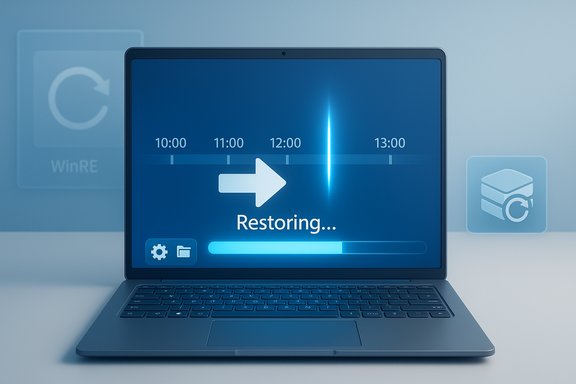
Windows 11’s new Point‑in‑Time Restore acts like a built‑in rewind button for modern Windows problems, letting you roll a machine back to an earlier, working state quickly and with far less friction than a full reinstall. This short‑term snapshot-and-restore system is powered by Volume Shadow Copy Service (VSS) and is surfaced from the Windows Recovery Environment (WinRE) so even non‑booting PCs can be brought back without a technician driving to a site. What this feature adds to the Windows toolbox is a pragmatic, low‑touch safety net for recent regressions — while also carrying clear limits that make it a complement, not a replacement, for disciplined backups.
Point‑in‑Time Restore (often abbreviated PITR) appears as part of Microsoft’s broader push to make Windows more recoverable and resilient in the face of bad updates, problematic drivers, and accidental misconfigurations. The core idea is simple: automatically capture comprehensive snapshots of the MainOS volume at regular intervals, keep a short window of those snapshots, and provide a GUI flow from WinRE to restore the system to an exact previous timestamp. In preview builds Microsoft documents this as a short‑term rescue mechanism that focuses on speed and convenience rather than long‑term archival retention. This feature fills a gap between two long‑standing recovery options:
vivetool /enable /id:55324166,59673297
After running ViveTool and rebooting, the Point‑in‑Time Restore option may become available in Settings → System → Recovery. This approach can surface preview features that are otherwise staged, but it is an unsupported method and can be risky on production systems — use it only for testing on non‑critical machines and accept that Microsoft may change flags, IDs, or behavior across builds.
However, the feature’s short retention window, dependence on local VSS storage, and destructive restore semantics mean it cannot replace disciplined backup policies, off‑device retention, and enterprise imaging workflows. Security and encryption interactions add extra operational constraints that require planning and testing.
In short: Point‑in‑Time Restore is a practical, modern rewind button for Windows 11 that addresses many day‑to‑day recovery headaches — but it must be used as part of a layered recovery and backup strategy, not as the only line of defense. Microsoft’s documentation and early hands‑on reporting make this clarity explicit: PITR is a short‑term, local safety net designed for speed, not a substitute for long‑term backup hygiene.
Source: Make Tech Easier Windows 11’s Point-in-Time Restore: A Quiet Safety Net for When Things Go Wrong - Make Tech Easier
 Background / Overview
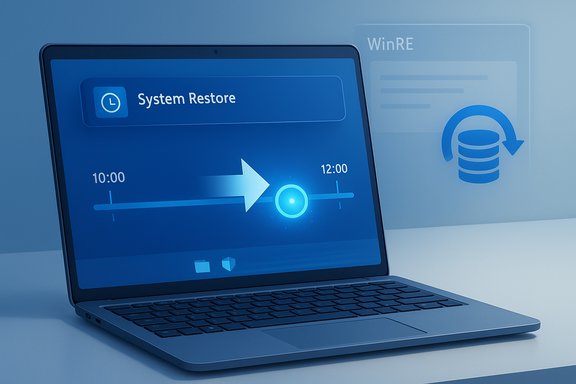
Point‑in‑Time Restore (often abbreviated PITR) appears as part of Microsoft’s broader push to make Windows more recoverable and resilient in the face of bad updates, problematic drivers, and accidental misconfigurations. The core idea is simple: automatically capture comprehensive snapshots of the MainOS volume at regular intervals, keep a short window of those snapshots, and provide a GUI flow from WinRE to restore the system to an exact previous timestamp. In preview builds Microsoft documents this as a short‑term rescue mechanism that focuses on speed and convenience rather than long‑term archival retention. This feature fills a gap between two long‑standing recovery options:- System Restore — lightweight, limited to certain system files and registry state;
- Full image / reimage — heavy, comprehensive, and time‑consuming.
How Point‑in‑Time Restore Works
The engine: Volume Shadow Copy Service (VSS)
Point‑in‑Time Restore leverages Volume Shadow Copy Service (VSS) to create consistent, block‑level snapshots of the MainOS volume while Windows is running. VSS coordinates with system components and application writers to quiesce writes briefly, create the snapshot, and then resume normal activity. Because it operates at the block level, a PITR restore rewrites changed blocks to return the entire OS volume to the captured timestamp — which can include binaries, installed applications, settings, and many local files.Scheduling, retention and storage model
Microsoft’s preview exposes configurable cadence and retention settings in Settings → System → Recovery → Point‑in‑Time Restore. The preview defaults and options documented by Microsoft are:- Default frequency: Every 24 hours (configurable to 4, 6, 12, 16, or 24 hours).
- Retention window: Default maximum retention 72 hours (options include 6, 12, 16, 24, 72 hours in preview).
- Maximum usage limit: Default 2% of disk with a floor of 2 GB and a ceiling that maps to a practical maximum (preview showed up to a 50 GB equivalent). Space is not pre‑allocated; VSS consumes free space up to the configured cap.
How restoration executes
Restores are initiated from the Windows Recovery Environment (WinRE) only. The high‑level flow is:- Boot to WinRE (Advanced Startup or automatic WinRE after repeated boot failures).
- Choose Troubleshoot → Point‑in‑Time Restore.
- Provide the BitLocker recovery key if the volume is encrypted.
- Select the timestamped restore point and confirm the data‑loss warning.
- Start the restore; Windows rewrites affected blocks and reboots into the restored state.
What PITR Fixes — The Practical Use Cases
Point‑in‑Time Restore is purpose‑built to address high‑impact, recent regressions that traditionally forced time‑consuming troubleshooting or full reimages:- Failed updates and buggy cumulative packages: If a Windows update or cumulative patch causes instability, PITR lets you roll back to a known‑good image captured before the update.
- Problematic driver installs: A new driver that breaks audio, networking, or GPU functionality is one of the classic PITR scenarios — the snapshot predates the driver and can return apps and settings to their prior state.
- Misapplied system tweaks or software installs: Experimentation that ends in system misbehavior can be undone quickly without reinstalling apps or re‑importing settings.
- Non‑booting devices: Because restore is accessible via WinRE, PITR can often recover systems that would otherwise require offline imaging or a technician.
Strengths — Why This Matters to Everyday Users and IT
- Speed and convenience: Restoring via WinRE is far less disruptive than reimaging and typically faster than manual troubleshooting. For many incidents the computer is back in minutes rather than hours.
- Broader scope than System Restore: Because PITR uses VSS at block level, it captures a fuller system state — OS, apps, settings, and many local files — making rollbacks more reliable in real‑world scenarios where classic System Restore would fail.
- Automatic and low‑maintenance: Once enabled, restore points are created automatically on a schedule, reducing the cognitive burden on users to remember manual snapshots.
- Works offline: Restore points are stored locally, so a network connection is not required to apply a snapshot from WinRE.
- Enterprise pathways planned: Microsoft documents plans to integrate PITR into Intune and management flows so admins can orchestrate recovery at scale in managed environments — though those capabilities are incremental beyond the preview.
Where Point‑in‑Time Restore Falls Short — Hard Limits and Risks
Point‑in‑Time Restore is a pragmatic safety net, but it’s not a universal cure. The following are critical limitations to keep in mind.Short retention = small window for recovery
Restore points are intentionally ephemeral. Microsoft’s preview retention defaults cap snapshots at 72 hours, and that upper bound is by design — restore points older than the retention window are automatically pruned. This means PITR can’t recover long‑tail data loss or changes made days or weeks earlier. Treat it as a fast rewind for recent mistakes, not long‑term backup.Local storage dependency and VSS fragility
All snapshots are stored in the device’s VSS diff area. If the disk fails, becomes corrupt, or VSS runs out of space, snapshots may be evicted or never created at all. The VSS storage pool is shared with other VSS consumers (classic System Restore, third‑party tools), so heavy usage or disk pressure can force older snapshots out of the pool. Administrators must monitor disk capacity and VSS usage to keep PITR reliable.Data loss and destructive rollbacks
A PITR restore rewrites blocks to match the selected timestamp; any local changes after that timestamp are lost. That includes documents, local application state, credentials, certificates, and even some secrets. Cloud‑synced data (such as OneDrive) is generally preserved if it’s been synced to the cloud, but locally‑only files and unsynced edits may be irretrievably removed. Microsoft explicitly warns of this destructive potential and emphasizes validating post‑restore security posture and app integrity.Encryption and credential complexities
Encrypted scenarios create additional constraints:- BitLocker: Restores initiated from WinRE will prompt for the BitLocker recovery key; if you don’t have the key, the restore cannot proceed. Escrowing keys is therefore essential in managed environments.
- EFS and certificates: Encrypted File System (EFS) content, certificates, and credential stores may not always survive VSS‑level rollbacks cleanly; administrators should test these scenarios before relying on PITR in production.
Not a forensic or exportable snapshot
VSS restore points used by PITR are internal artifacts and are not exportable or mountable like a disk image. That makes PITR fast but limits forensic analysis and transportable snapshots for cross‑device recovery or manufacturing a gold image from a snapshot. For those uses, full disk images or specialized backup solutions remain necessary.Edge cases it can’t fix
Firmware corruption, catastrophic hardware failure, or certain kernel‑level corruption may remain unrecoverable via PITR. Likewise, restoring across editions (Home → Pro) or SKU changes is unsupported and can lead to instability. PITR is a "surgical" fix for logical regressions, not an all‑purpose rescue tool.Enabling and Using Point‑in‑Time Restore (Preview and Practical Steps)
Where you’ll find the controls
When available on your device, PITR settings live in:- Settings → System → Recovery → Point‑in‑Time Restore
From there you can: - Toggle the feature On/Off.
- Choose snapshot frequency.
- Choose retention duration.
- Set the maximum VSS usage slider (percent of disk, min 2 GB, max equivalent).
ViveTool and experimental enabling (caveats)
Some community guides and hands‑on testers use ViveTool to force‑enable preview features on stable channels. Reported ViveTool usage to toggle PITR in early testing looks like this:vivetool /enable /id:55324166,59673297
After running ViveTool and rebooting, the Point‑in‑Time Restore option may become available in Settings → System → Recovery. This approach can surface preview features that are otherwise staged, but it is an unsupported method and can be risky on production systems — use it only for testing on non‑critical machines and accept that Microsoft may change flags, IDs, or behavior across builds.
Performing a restore from WinRE (step‑by‑step)
- Enter WinRE (Settings → System → Recovery → Advanced startup → Restart now, or WinRE may appear after repeated boot failures).
- Select Troubleshoot → Point‑in‑Time Restore.
- If prompted for BitLocker, provide the recovery key.
- Choose the restore point timestamp that best matches the time you want to return to.
- Review the warnings and confirm the operation.
- Start the restore and do not power off the PC until it completes.
- After reboot, validate critical apps, security agents, and policies.
Practical Recommendations — How to Use PITR Safely
- Treat PITR as first‑line, short‑term remediation — not as your only backup. Use it to minimize downtime for recent changes and keep conventional backups for long‑term retention or disaster recovery.
- Escrow BitLocker keys — in managed environments, ensure BitLocker recovery secrets are accessible to helpdesk or IT before you rely on WinRE restores.
- Test runbooks in a lab — simulate realistic failure scenarios (failed updates, driver regressions, EFS/BitLocker interactions) to validate expected behavior before enabling broadly.
- Tune cadence and retention thoughtfully — denser cadence gives more restore points at the cost of storage; short retention reduces disk usage but constrains your recovery window.
- Monitor disk health and VSS usage — proactively manage free space and watch for VSS errors; ensure other VSS consumers (backup agents) don’t unduly evict snapshots.
- Keep cloud syncs healthy — encourage users to sync important data to OneDrive or an enterprise backup service so cloud copies survive destructive local rollbacks.
- Avoid enabling via unsupported flags on production fleets — using tools like ViveTool is valuable for testing, but it can expose machines to preview behavior that isn’t fully supported.
Enterprise Considerations
Microsoft plans to integrate PITR with Intune and its management plane so admins can orchestrate recovery workflows for managed fleets, but preview capabilities are primarily local. For enterprises, the value proposition is clear — faster remediation, fewer onsite repairs, and lower MTTR — but the operational tradeoffs must be carefully managed:- Run pilot programs to model storage behavior under real workload conditions and to capture interactions with EDR, backup agents, and OEM drivers.
- Document recovery runbooks that include BitLocker key retrieval, post‑restore validation steps, and fallback paths (Cloud Rebuild, imaging) if PITR fails.
- Preserve long‑term backups for compliance, auditing, and ransomware response; PITR does not satisfy these requirements on its own.
- Integrate with Cloud Rebuild — for devices that cannot be restored locally, Cloud Rebuild (Microsoft’s remote reinstall/reprovision flow) is the intended fallback and rehydration path when PITR cannot recover a device.
The Bottom Line — A Quiet Safety Net, Not a Catch‑All
Point‑in‑Time Restore is one of those features that becomes most valuable when you don’t think about it — you enable it, forget it, and then rely on it when a recent change breaks your PC. For many home users, IT helpdesks, and small business environments, PITR will reduce downtime and the need for heavy‑handed reimages. Its strengths are speed, scope (broader than System Restore), and low operational overhead.However, the feature’s short retention window, dependence on local VSS storage, and destructive restore semantics mean it cannot replace disciplined backup policies, off‑device retention, and enterprise imaging workflows. Security and encryption interactions add extra operational constraints that require planning and testing.
In short: Point‑in‑Time Restore is a practical, modern rewind button for Windows 11 that addresses many day‑to‑day recovery headaches — but it must be used as part of a layered recovery and backup strategy, not as the only line of defense. Microsoft’s documentation and early hands‑on reporting make this clarity explicit: PITR is a short‑term, local safety net designed for speed, not a substitute for long‑term backup hygiene.
Final Practical Checklist
- Enable Point‑in‑Time Restore on test machines first and validate the full restore cycle.
- Escrow BitLocker recovery keys and verify retrieval procedures.
- Ensure critical files sync to OneDrive or an enterprise backup solution.
- Configure cadence and retention to balance recovery granularity with disk usage.
- Monitor VSS health and disk space; watch for VSS errors or unexpected snapshot evictions.
- Keep full disk images and off‑device backups for long‑term retention and ransomware readiness.
- Avoid using unsupported preview flags on production fleets; use ViveTool only for lab testing.
Source: Make Tech Easier Windows 11’s Point-in-Time Restore: A Quiet Safety Net for When Things Go Wrong - Make Tech Easier