

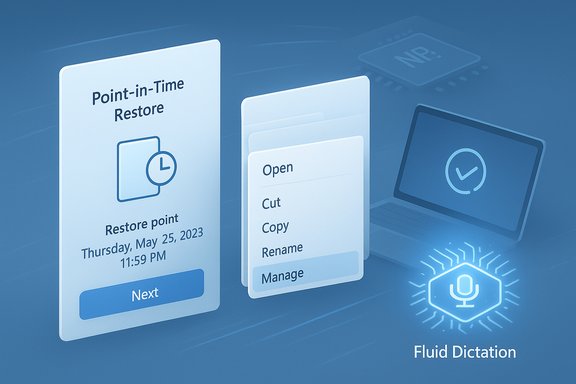
Microsoft’s latest Insider build is quietly reshaping how Windows 11 handles recovery, input, and everyday file work — and the changes are notable because they’re practical, incremental, and clearly aimed at reducing downtime while folding more on-device AI into routine tasks. Build 26220.7271 (KB5070307) arrived in both the Dev and Beta channels and bundles a group of targeted refinements: a modern Point‑in‑Time Restore (PITR) surfaced in WinRE and Settings, File Explorer context‑menu cleanup and an experimental background preload, Fluid Dictation for voice typing on NPU/Copilot+ devices, and a handful of convenience updates to the Microsoft Store and Android‑to‑PC continuity flows. These features are being enabled in stages and some are hardware‑gated, but together they reveal Microsoft’s current priorities: resilience, subsystem modernization, and on‑device AI.
Microsoft’s delivery model for Windows 11 version 25H2 continues to favor small enablement packages and server‑side gating over monolithic OS upgrades. That means a single cumulative package — in this case Build 26220.7271 — can contain many potential features that Microsoft will toggle on selectively for Insiders and device classes. The practical outcome: installing the KB doesn’t guarantee immediate feature exposure; entitlement, hardware (for example, Copilot+ NPUs), Store version, and Microsoft’s staged rollout decisions determine what appears on a given PC. That behavior is explicit in Microsoft’s Insider announcement. This flight focuses on three visible themes:
The immediate takeaway for enthusiasts is to test these features on spare machines and provide feedback through the Feedback Hub. For IT professionals, the guidance is conservative: pilot, verify retention and storage limits, ensure external backups and BitLocker recovery processes are robust, and treat PITR as a fast‑fix tool — not a replacement for disciplined backup and archive policies. The build points toward a 25H2 Windows that is more resilient, responsive, and quietly smarter — provided the staged rollouts and management controls mature as Microsoft plans.
Source: TechRepublic Microsoft Trials System Recovery Features and UI Refinements in Windows 11 - TechRepublic
 Background
Microsoft’s delivery model for Windows 11 version 25H2 continues to favor small enablement packages and server‑side gating over monolithic OS upgrades. That means a single cumulative package — in this case Build 26220.7271 — can contain many potential features that Microsoft will toggle on selectively for Insiders and device classes. The practical outcome: installing the KB doesn’t guarantee immediate feature exposure; entitlement, hardware (for example, Copilot+ NPUs), Store version, and Microsoft’s staged rollout decisions determine what appears on a given PC. That behavior is explicit in Microsoft’s Insider announcement. This flight focuses on three visible themes:- Recovery and resilience — PITR and WinRE improvements that shorten time to repair.
- Productivity and UI polish — File Explorer decluttering, Store uninstall from Library, and small taskbar/Settings fixes.
- On‑device AI — Fluid Dictation and continued NPU‑based features that keep sensitive processing local.
Point‑in‑Time Restore (PITR): a practical, short‑term rewind
What it promises
Point‑in‑Time Restore (PITR) is Microsoft’s attempt to provide a fast, local rollback that sits between classic System Restore and a full reimage. In preview, PITR appears in Settings → System → Recovery and in the Windows Recovery Environment (WinRE) under Troubleshoot → Point‑in‑time restore, and it’s presented as a way to restore a device (including OS, apps, settings, and many local files) to a prior timestamp to recover from bad updates, driver regressions, or configuration errors. The feature is now visible to Insiders in Dev and Beta, and Microsoft links to documentation for administrators and testers.How it works (technical sketch)
- PITR is built on the existing Volume Shadow Copy Service (VSS) model. VSS creates consistent, block‑level snapshots while Windows is running, coordinating with application writers to quiesce and capture a coherent copy of the MainOS volume. PITR exposes those snapshots as timestamped restore points and offers a WinRE flow to pick and roll back to a point in time. Because snapshots are local VSS objects, restores are performed on‑device and do not require cloud resources to execute.
Preview defaults and limits — what to expect (and verify)
Early preview reporting and community testing consistently describe conservative defaults designed to protect local disk capacity and avoid becoming a long‑term backup store:- Cadence: typically configurable, with preview defaults commonly set to a 24‑hour snapshot cadence. Options for more frequent captures (for example 4, 6, 12, 16, or 24 hours) are observed in the preview controls.
- Retention: many hands‑on reports from the preview community cite a short window — commonly 72 hours (3 days) — for retained restore points in client preview builds. This cap is presented as a deliberate design choice to keep PITR a short‑term safety net rather than a long retention mechanism. Because this is preview behavior, retention figures should be validated against Microsoft’s published documentation when GA details appear.
- Storage controls: restore snapshots are subject to a configurable maximum VSS usage ceiling (community reports indicate preview defaults using a small percentage of disk, often with a minimum floor such as 2 GB); administrators should confirm and tune these settings for managed fleets.
What PITR covers — and what it doesn’t
- Included: MainOS volume binaries, many installed applications, system and user settings, and many local files that live on the OS volume.
- Excluded or limited: cloud‑hosted content (OneDrive files that are stored online only), long‑term archival needs, and scenarios that require forensic preservation. PITR is emphatically not a replacement for disciplined, off‑device backups or enterprise retention policies. Restoring to an earlier point will overwrite any files created or changed after the snapshot — a real‑world risk for teams and end users who assume PITR preserves everything.
Enterprise considerations and management
Microsoft’s longer roadmap ties PITR into its management tooling (Intune, Autopatch, and Windows Backup for Organizations), allowing remote orchestration of recovery workflows in later releases. But in the earliest preview waves, remote orchestration and Intune triggers are limited; IT should plan conservative pilot programs and keep external backups, BitLocker key escrow, and recovery runbooks in place before depending on PITR for fleet remediation. Administrators must verify:- BitLocker behavior: encrypted volumes will require recovery keys during WinRE restores.
- Policy gating: when and how Intune will be able to trigger PITR or Cloud Rebuild flows for enrolled devices.
- Backup complementarity: PITR should be treated as a fast‑fix tool, not a backup replacement.
Practical guidance for testing PITR
- Create a full image backup (preferably offline or cloud‑stored) before enabling PITR on any test machine.
- Enable the Insider preview build on a non‑production device and confirm PITR appears in Settings → Recovery.
- Review and configure cadence, retention, and maximum VSS usage settings exposed in the UI or via management controls.
- Simulate a regression (driver/uninstall/patch) on the test device and perform a restore from WinRE to validate the end‑to‑end behavior, including BitLocker key prompts and post‑restore update reapplication.
- Document the restore time and any post‑restore remediation steps required for your environment.
File Explorer: declutter, grouping, and preload experiments
Reorganized context menu and the Manage file flyout
A persistent complaint since File Explorer’s modern redesign has been cluttered right‑click menus. This build reorders and groups actions for improved discoverability:- Frequently used verbs (Open, Open with, Open folder location) are pushed higher in the menu.
- Less common actions (Compress to ZIP, Copy as path, Rotate, Set as desktop background) are moved into a new Manage file flyout.
- Cloud provider actions (OneDrive sync options like Always keep on this device / Free up space) are grouped into provider‑specific flyouts.
- Send to My Phone is repositioned near cloud entries for logical grouping.
Background preloading experiment
Microsoft is “exploring preloading File Explorer in the background” to improve first‑click latency. The experiment is described as:- Instantiating lightweight Explorer UI objects and caching visual elements so the first interactive launch feels near‑instant.
- Tradeoff: a modest increase in idle memory usage in exchange for lower click‑to‑interactive latency.
- Toggleable: an option labeled Enable window preloading for faster launch times appears in Folder Options → View and can be disabled.
- Benefits: improved perceived responsiveness, especially on fast NVMe systems where UI readiness is perceptible.
- Risks: shell extension timing regressions, unpredictable behavior for badly coded third‑party Explorer extensions, and added memory pressure on low‑RAM devices. Admins should test shell integrations before enabling the preload experiment broadly.
Fluid Dictation: on‑device cleanup for voice typing
What changed
Fluid Dictation — previously available in Voice Access — is now extended to the standard voice typing experience on NPU‑equipped (Copilot+) devices. The feature uses on‑device Small Language Models (SLMs) to perform real‑time grammar correction, punctuation insertion, and filler‑word suppression, reducing manual editing after dictation. Users can activate voice typing with Windows + H and find Fluid Dictation enabled by default where supported. Microsoft emphasizes privacy because processing happens locally on NPUs rather than being sent to the cloud.Hardware and locale gating
Fluid Dictation is targeted at Copilot+ PCs — devices that ship with dedicated NPU hardware and associated Copilot+ entitlements. Initially, English locales are supported and Microsoft plans to expand language coverage in future flights. The Support documentation explains the model download and setup flow (SLMs are downloaded automatically when setting up Voice Access/Voice Typing), and the feature can be toggled off via the voice typing settings.Real‑world value and limitations
- Value: For creators, accessibility users, and note‑takers, Fluid Dictation materially reduces post‑dictation editing effort. Because it runs locally, it’s faster and preserves privacy for sensitive input contexts.
- Limitations: hardware gating excludes many older or mainstream devices; secure fields (passwords, PINs) remain disabled by design; punctuation or grammar corrections may misapply in highly technical or code snippets. Organizations should pilot across common dialects and document fallback flows for unsupported devices.
Microsoft Store: uninstall from Library and Store version gating
Microsoft added the ability to uninstall Store‑managed apps directly from the Store’s Library page — a small but useful quality‑of‑life improvement. Insiders running Microsoft Store version 22510.1401.x.x or later will see a three‑dot menu on Library entries with an Uninstall option, simplifying app management for ephemeral or test installs. Administrators should note that MDM/Intune provisioning and store‑side policies can still re‑provision apps; local uninstall does not remove management policies.Cross‑device continuity and Xbox Full Screen Experience
Android‑Windows continuity tweaks
Build 26220.7271 expands resumable app scenarios for Android phones:- vivo users can continue browsing sessions from vivo Browser on PC.
- Honor, Huawei, Oppo, Samsung and vivo users can continue online files opened in the M365 Copilot app on phone to the PC — currently limited to online files (local offline files on the phone are not supported in this phase). This is consistent with Microsoft’s long‑running push to align Android–Windows workflows and demonstrates incremental scope expansion of Phone Link / cross‑device flows.
Xbox Full Screen Experience (FSE) on PC
Xbox FSE — a controller‑first, console‑style shell — is being previewed on more Windows 11 PC form factors. The mode boots the Xbox app as a home surface, prioritizes controller navigation, and trims desktop noise for controller‑led interactions. Entry points include Task View, Game Bar settings, or Win + F11. Known preview issues include virtual keyboard behavior on non‑touch devices (the virtual keyboard is currently not shown for controller users on devices without a touchscreen). This is an explicit tradeoff to deliver a console‑like UX on living‑room and handheld PCs.Broader implications for the Windows roadmap
These changes illuminate three strategic pillars Microsoft is pursuing:- AI on‑device: Fluid Dictation and other Copilot+ experiences underscore a push to move inference onto local NPUs, improving latency and privacy while reducing cloud dependency.
- Resiliency and manageability: PITR, Quick Machine Recovery (QMR), Cloud Rebuild, and tighter WinRE tooling show Microsoft targeting measurable reductions in mean time to repair for both consumer and enterprise scenarios.
- Incremental UX modernization: File Explorer refinements and Store parity features are an acknowledgement that daily friction matters — small changes compound into noticeably better workflows.
Risks, unknowns, and verifiability notes
- PITR retention and exact storage thresholds are preview values — community testing widely reports a 72‑hour retention cap in the client preview, but Microsoft’s Insider blog intentionally links to documentation and positions PITR as a staged capability. Treat the 72‑hour number as preview behavior and verify the final GA values when Microsoft publishes product docs. Organizations should not assume long retention.
- Background preloading of File Explorer trades memory for responsiveness. On low‑RAM or battery‑sensitive devices, this may degrade battery life or cause unexpected memory pressure; test before enabling at scale.
- On‑device SLMs require NPU‑capable hardware; Fluid Dictation’s availability is therefore fragmented by device class and region. Test language coverage and accuracy across your user base.
- Store uninstall from the Library does not override MDM/Intune re‑provisioning. For managed fleets, administrators must coordinate store‑side policies and deployment rules to avoid uninstall/reinstall loops.
- Some claims circulating in community writeups — for example, precise disk‑size gating thresholds or detailed default percentages for VSS consumption — have varying reports across forums. Those implementation details should be treated as provisional until Microsoft publishes definitive management documentation. Several community captures flag these items as unverifiable in preview.
Recommendations — how IT pros and power users should approach this flight
- Pilot on non‑production hardware: Install Build 26220.7271 on dedicated test systems (or VMs where applicable) to exercise PITR, Fluid Dictation, File Explorer preload, and FSE without risking user productivity.
- Back up first: Create full disk images of any machine you use for testing; PITR is a short‑term rollback tool and should never replace external backups for business‑critical data.
- Escrow BitLocker keys: Because WinRE restores may prompt for BitLocker recovery keys, confirm your key escrow processes are solid before testing restores on encrypted devices.
- Test shell extensions and third‑party integrations: If your environment uses third‑party file‑system extensions or context‑menu handlers, validate their behavior with the File Explorer Manage file flyout and optional preloading toggled on and off.
- Validate language support for dictation: For organizations relying on dictation, test across locales and dialects and confirm the Copilot+ hardware coverage in your estate.
- Confirm management policies: For fleets managed by Intune or other MDMs, check how local uninstalls from the Store interact with provisioning and re‑deployment policies to avoid churn.
Conclusion
Build 26220.7271 is not flashy, but it’s consequential. Microsoft has prioritized fast recovery, small but meaningful productivity wins, and on‑device AI — and has done so in a cautious, staged way that fits its current enablement model. Point‑in‑Time Restore is the most strategically significant addition: when combined with future Intune orchestration and Cloud Rebuild options, it could materially reduce the need for reimaging in many incident scenarios. Fluid Dictation demonstrates that on‑device SLMs are moving from accessibility aids into mainstream productivity tooling, and the File Explorer cleanup addresses a nagging usability complaint with a measured approach.The immediate takeaway for enthusiasts is to test these features on spare machines and provide feedback through the Feedback Hub. For IT professionals, the guidance is conservative: pilot, verify retention and storage limits, ensure external backups and BitLocker recovery processes are robust, and treat PITR as a fast‑fix tool — not a replacement for disciplined backup and archive policies. The build points toward a 25H2 Windows that is more resilient, responsive, and quietly smarter — provided the staged rollouts and management controls mature as Microsoft plans.
Source: TechRepublic Microsoft Trials System Recovery Features and UI Refinements in Windows 11 - TechRepublic
