

Microsoft’s latest Insider cumulative — Windows 11 Insider Preview Build 26220.7271 (KB5070307) — landed in both the Dev and Beta channels with a quiet but meaningful set of refinements to File Explorer’s right‑click menu, an experimental background preload for Explorer windows, and a small but welcome change to the Microsoft Store: the ability to uninstall Store‑managed apps directly from the Library page. These user-facing tweaks are paired with larger platform work — point‑in‑time restore, Fluid Dictation (on‑device speech improvements), expanded Xbox Full Screen Experience, and continued staged rollouts that gate features by hardware, entitlement, and Store version.
Microsoft is delivering the 25H2 feature set as an enablement-style stream: multiple small cumulative packages contain feature binaries, while visibility is controlled server‑side through entitlements and device gating. That explains why the same build shipped to both Dev and Beta channels in this wave, and why feature availability varies between machines even when running identical build numbers. The parity window between Dev and Beta gave Insiders a short opportunity to switch channels without reinstalling; Microsoft has noted that window is temporary and will close when the Dev channel jumps ahead. This delivery model matters: installing the KB does not guarantee immediate access to every feature listed in the notes. Many items are gradual rollouts or require additional components (Copilot+ hardware, NPUs, specific Microsoft Store versions) before they appear on your device. For readers who manage multiple PCs or administer fleets, that staged activation has operational implications for testing and support.
For power users and IT pros the course of action is clear: experiment in controlled rings, validate interactions with third‑party providers and management tooling, and keep robust backups and recovery keys at hand. For mainstream users, these updates should eventually offer a smoother, faster experience — but expect a staged rollout and a few rough edges while Microsoft polishes the previews.
Source: Windows Report KB5070307 Updates File Explorer's Context Menu & Allows Uninstalling Store Apps From Library Page
 Background
Microsoft is delivering the 25H2 feature set as an enablement-style stream: multiple small cumulative packages contain feature binaries, while visibility is controlled server‑side through entitlements and device gating. That explains why the same build shipped to both Dev and Beta channels in this wave, and why feature availability varies between machines even when running identical build numbers. The parity window between Dev and Beta gave Insiders a short opportunity to switch channels without reinstalling; Microsoft has noted that window is temporary and will close when the Dev channel jumps ahead. This delivery model matters: installing the KB does not guarantee immediate access to every feature listed in the notes. Many items are gradual rollouts or require additional components (Copilot+ hardware, NPUs, specific Microsoft Store versions) before they appear on your device. For readers who manage multiple PCs or administer fleets, that staged activation has operational implications for testing and support. What landed in KB5070307 — quick snapshot
- File Explorer: context‑menu reorganization that groups less‑used file commands into a new Manage file flyout, moves cloud‑provider options under provider flyouts, reorders Open/Open with/Open Folder Location, and relocates Send to My Phone closer to cloud entries.
- File Explorer: experimental background preloading to reduce first‑launch latency, toggleable via Folder Options → View (“Enable window preloading for faster launch times”).
- Microsoft Store: uninstall Store‑managed apps directly from the Library page (requires Microsoft Store version 22510.1401.x.x or later).
- Point‑in‑time restore (PITR): a new recovery workflow appearing in WinRE and Settings for qualifying Insiders.
- Fluid Dictation: on‑device cleaning of dictation (punctuation, filler‑word removal) targeted at NPU/Copilot+ devices.
- Xbox Full Screen Experience: rolling out to additional device classes with controller‑first UX; some known issues in preview (virtual keyboard behavior).
File Explorer: context‑menu overhaul — what changed and why it matters
The new organization
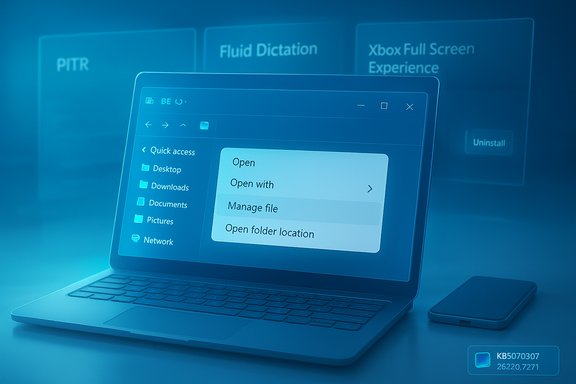
Microsoft has reorganized the desktop and File Explorer right‑click context menu to reduce top‑level clutter and group similar actions together. Key moves in this preview include:- Moving Compress to ZIP, Copy as path, Set as desktop background, Rotate right / Rotate left into a new flyout labeled Manage file (the label is experimental and may change).
- Relocating cloud‑related options (for example, Always keep on this device, Free up space) into their respective cloud provider flyouts. This consolidates cloud controls provided by OneDrive and other providers behind provider headings.
- Moving Send to My Phone closer to the cloud provider entries for a more coherent device‑to‑cloud grouping.
- Putting Open Folder Location next to Open and Open with for faster access when jumping to a file’s containing folder.
Why this matters
- Fewer clicks for common tasks: The top line of the context menu becomes less noisy, making frequent actions easier to locate visually. Power users who rely on Open/Open with will find the repositioning sensible.
- Better grouping reduces cognitive load: Cloud options and device‑related features are now logically clustered, which improves discoverability for users who rely on cloud sync providers.
- Extension and API sensitivity: Third‑party shell extensions and cloud sync clients integrate with Explorer via public APIs; changes to menu order and the introduction of flyouts may temporarily affect how extensions appear or behave. Admins and extension developers should validate integrations in test rings.
Potential downsides
- Muscle‑memory friction: Users who are accustomed to the old menu layout may be briefly disoriented.
- Shell extension regressions: Historical preview flights have shown that context‑menu reworks can expose timing and rendering bugs (scrolling crashes, submenu draw order). Microsoft lists a few known Explorer UI artifacts in the preview — Insiders should expect rough edges.
File Explorer preloading: faster launches, trade‑offs to consider
Microsoft is experimenting with preloading File Explorer in the background so the UI is ready when you open a window, which reduces the perceived time to first paint. When present, the feature is toggleable in Folder Options under the View tab (“Enable window preloading for faster launch times”).Benefits
- Improved perceived responsiveness on first open, particularly on HDD systems or devices with heavy shell initialization paths.
- Smoother UX for frequent Explorer use — fewer “partially rendered” windows or slow UI paint.
Costs and risks
- Background resource use: Preloading holds an Explorer process in memory and may consume additional RAM and occasional CPU cycles. For low‑RAM systems or battery‑sensitive mobile devices, the trade‑off might be negative.
- UI artifacts in preview: Insiders have reported visual glitches (white flashes when navigating between pages, some dark‑mode copy dialog scaling issues) associated with recent Explorer experiments. Microsoft is tracking these as known issues.
Practical guidance
- If you value faster Explorer launches and have adequate memory, keep preloading enabled.
- If you run on low RAM or need maximum battery efficiency, disable the option: File Explorer → View → Folder Options → View tab → uncheck “Enable window preloading for faster launch times.”
Microsoft Store: uninstall Store‑managed apps from Library
One of the most immediately usable refinements is the ability to uninstall Store‑managed apps directly from the Library page. If your Microsoft Store app is updated to version 22510.1401.x.x or later and you’re an Insider, you’ll see a three‑dot menu on Library entries with an Uninstall option for installed apps. This removes the friction of jumping into Settings → Apps to remove Store apps.Why this is practical
- Faster clean‑up for ephemeral apps: Trial apps, device‑managed installs, or temporary test apps can be removed faster.
- Consistency with other app stores: Desktop stores often let you remove apps from library or installed pages; parity improves usability.
Caveats for managed environments
- Store‑managed apps may be provisioned or re‑deployed by MDM/Intune policies. Uninstalling locally does not necessarily prevent re‑provisioning in managed fleets. Organizations should confirm store‑side management and provisioning rules before relying on Library uninstall as a management strategy.
Point‑in‑time restore (PITR): a faster rollback path — use with caution
PITR brings a richer rollback capability to WinRE and Settings, enabling a device to be restored to a prior full state that includes apps, settings, and user files. The feature is targeted at reducing downtime for scenarios caused by bad drivers, failed updates, or other system‑breaking events. It’s available to Insiders in this preview.What PITR does well
- Faster same‑device recovery without requiring a full reimage in many cases, reducing mean time to repair for help desks.
- Integration path for management tooling: Microsoft has indicated plans to integrate PITR with Intune and other management tooling in future releases, which will make it more powerful for enterprise remediation.
Critical caveats and data‑loss risk
- Destructive to changes after the restore point: PITR restores the system to the chosen snapshot — any changes (new files, edits, installs) after that point can be lost. It should not be treated as a substitute for regular backups. Microsoft and community reporting emphasize that PITR complements, not replaces, good backup hygiene.
- Retention and defaults matter: Early previews have modest retention defaults and disk caps; administrators must verify retention windows and configure policies appropriate for their environment. Community reporting suggests preview defaults are conservative (short retention), but these values may change before general availability.
Practical checklist before relying on PITR
- Maintain external backups for mission‑critical data.
- Verify BitLocker recovery key availability — WinRE operations can require these keys.
- Pilot PITR on non‑production machines and document retention/restore behavior.
Fluid Dictation and cross‑device app resume
Fluid Dictation adds a real‑time post‑processing layer to voice typing: grammar correction, punctuation, and filler‑word removal. Microsoft is shipping this for devices with on‑device small language models (Copilot+/NPU hardware) to reduce latency and minimize cloud exposure. This is an accessibility and productivity improvement that benefits creators, transcribers, and anyone using long‑form dictation. Cross‑device app resume is also expanding to more Android devices and apps, improving the fluidity of workflows between phone and PC for Office and other file types. The extent of this functionality depends on device support and app integration.Xbox Full Screen Experience (FSE): controller‑first sessions expanding
Windows’ Xbox Full Screen Experience is a session posture that boots the Xbox PC app as a full‑screen shell and prioritizes controller navigation and performance. In this flight Microsoft broadened the preview to more device classes. The mode can be toggled from Task View, the Game Bar, or Win + F11, and it is being rolled out behind entitlements and OEM configurations.Practical implications
- Good fit for handhelds and living‑room PCs where controller input is primary.
- Not a universal solution: The experience is device dependent and may not be available on all machines even when running the same build because of OEM tuning and gating.
Known preview issues
- Virtual keyboard omission for controller users on non‑touch devices is a documented bug in this flight; expect fixes in upcoming previews.
Enterprise and IT‑pro considerations
This preview flight is a reminder that Windows feature rollouts are increasingly staged and gated. For IT teams:- Pilot early: Use a controlled ring to test PITR, Store uninstall behavior, and Explorer preloading.
- Validate retention and policy defaults: PITR retention and storage caps are preview‑level and likely to change; verify settings before production enablement.
- Prepare recovery keys: WinRE‑driven restores may require BitLocker keys — ensure key escrow practices are in place.
- Test cloud providers and shell extensions: Reorganized context menus and provider flyouts could affect third‑party sync clients; test critical integrations.
Recommendations — practical steps for different audiences
- For Windows enthusiasts and Insiders:
- Install the build on a non‑critical device to try FSE, PITR, and Fluid Dictation.
- If you notice Explorer UI glitches, disable the preloading option in Folder Options as a first mitigation.
- For content creators and accessibility users:
- Test Fluid Dictation on NPU/Copilot+ hardware where available; compare behavior across your primary apps.
- For IT administrators:
- Pilot PITR in a managed ring, confirm retention settings, and verify BitLocker recovery processes.
- Update support documentation to account for possible non‑uniform feature availability and to include steps to disable Explorer preloading and to use Store Library uninstall where appropriate.
Strengths, tradeoffs, and a critical outlook
Strengths
- Practical UX wins: The context‑menu rework and Store Library uninstall reduce friction in everyday workflows. These frequent small wins multiply into real productivity improvements for many users.
- Modern recovery tooling: PITR and related resiliency investments are positive steps toward faster, less disruptive device repair workflows for both consumers and organizations.
- Privacy‑lean AI: On‑device Fluid Dictation shows how Microsoft is balancing AI benefits with local processing to reduce cloud telemetry exposure.
Tradeoffs and risks
- Fragmentation and gating: Server‑side enablement and hardware entitlements create uneven experiences that complicate testing, documentation, and support.
- Preview fragility: UI artifacts and known issues in Explorer and FSE highlight that these changes are not yet GA‑ready; Insiders should be prepared for regressions.
- Data‑loss risk with PITR: Misunderstanding PITR semantics can lead to lost work if users assume it acts like continuous backup. External backups remain essential.
How to try the File Explorer and Store changes today (step‑by‑step)
- Join Windows Insider Program (Dev or Beta) and install build 26220.7271 (KB5070307) via Settings → Windows Update.
- Confirm Microsoft Store version is 22510.1401.x.x or later to see Library uninstall: open Store → Library → find an installed app → three‑dot menu → Uninstall.
- To toggle Explorer preloading: open File Explorer → View → Folder Options → View tab → uncheck Enable window preloading for faster launch times if you prefer not to preload.
- To test PITR: boot into WinRE → Troubleshoot → Point‑in‑time restore (pilot on non‑production hardware and ensure BitLocker keys are available).
Conclusion
KB5070307 (Build 26220.7271) is a classic example of the incremental, user‑centric work Microsoft is doing across Windows 11: small interface cleanups that will quietly improve daily workflows, paired with larger platform investments that reshape recovery and AI on Windows. The File Explorer reorganizations and Store Library uninstall are practical and low‑risk changes that most users will appreciate once they appear on their devices. The more consequential pieces — PITR, Fluid Dictation, and Xbox FSE — require measured testing: they promise real benefits but also introduce new operational considerations and potential for preview instability.For power users and IT pros the course of action is clear: experiment in controlled rings, validate interactions with third‑party providers and management tooling, and keep robust backups and recovery keys at hand. For mainstream users, these updates should eventually offer a smoother, faster experience — but expect a staged rollout and a few rough edges while Microsoft polishes the previews.
Source: Windows Report KB5070307 Updates File Explorer's Context Menu & Allows Uninstalling Store Apps From Library Page
