

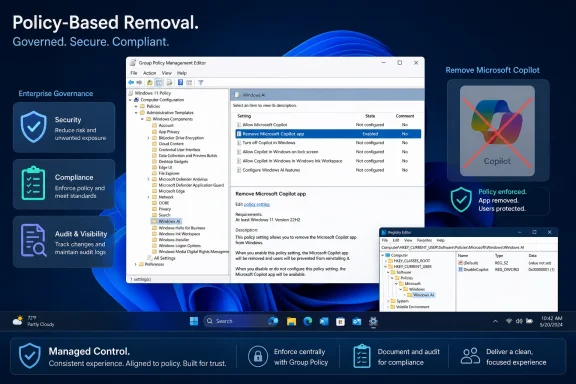
Microsoft has added a Windows 11 policy called “Remove Microsoft Copilot app,” reportedly introduced with the April 2026 update and surfaced in Group Policy under User Configuration, Administrative Templates, Windows Components, Windows AI. The setting gives Pro, Enterprise, Education, and related managed editions a supported way to remove Copilot and keep it from casually returning after servicing. For Windows users who have spent two years watching AI buttons appear faster than opt-outs, the important word is not “remove.” It is policy.
That distinction matters because Microsoft is not abandoning Copilot, and it is not suddenly recasting Windows 11 as an AI-free operating system. What it appears to be doing is acknowledging that the operating system needs a more serious consent model than “we put the button there and you can hide it later.” The new control is less a white flag in the AI wars than a grudging admission that Windows is still infrastructure, and infrastructure has to be governable.
For most of 2024 and 2025, Copilot’s Windows story was defined by placement. It appeared in the taskbar, in Edge, in Microsoft 365, in consumer apps, and eventually on keyboards through a dedicated Copilot key. The message was unmistakable: Microsoft wanted Copilot to become part of the muscle memory of PC use.
That strategy always had a weak point. Windows users are not a captive audience in the same way phone users often are, and sysadmins are even less forgiving. A feature that feels like a helpful assistant to one person can feel like an unmanaged cloud surface, a licensing ambiguity, or an unwanted workflow interruption to another.
The new Group Policy setting lands in that context. According to reporting from Windows Latest and amplified by XDA, the policy is called “Remove Microsoft Copilot app” and appears under the Windows AI branch of Group Policy. It is said to remove the desktop Copilot app and also affect Microsoft 365 Copilot app exposure, depending on how the apps were installed and used.
That is a sharp change from the earlier pattern. Microsoft previously allowed users to hide buttons, disable entry points, or remove some app-level integrations, but those controls often felt fragmented. A taskbar toggle did not settle the Microsoft 365 ribbon. A Copilot uninstall did not guarantee a future update would not put something back. A legacy “turn off” policy did not necessarily match the newer app-based Copilot model.
A proper removal policy says something different. It tells administrators that Copilot is not a sacred system component. It is an app experience that can be governed like other app experiences.
That branding sprawl created a management problem. A user might say “remove Copilot” and mean the taskbar icon. A security team might mean the consumer Copilot app that does not authenticate with Entra ID. A CIO might mean generative AI access inside Office apps. A privacy officer might mean any cloud-backed AI feature that can receive user content.
Microsoft’s older controls were never clean enough for that reality. The legacy “Turn off Windows Copilot” policy was aimed at a particular Windows Copilot experience, not the full collection of app packages and cloud-connected AI entry points Microsoft later assembled. Microsoft’s own documentation has warned that some older Copilot policy approaches are not suited to the newer Copilot experience and are headed toward near-term deprecation.
That makes the new policy more than a convenience. It is a recognition that Copilot has become an estate-management issue. The question is no longer whether Microsoft can inject an AI surface into Windows. The question is whether IT can inventory, remove, block, reinstall, and audit it with the same confidence it expects for other managed software.
Windows has been here before. Internet Explorer, OneDrive, Teams, Widgets, consumer Teams, and Outlook for Windows have all gone through variations of the same cycle: aggressive bundling first, administrative clarity later. Copilot is merely the latest product to discover that being “part of Windows” is a privilege, not a loophole.
What has changed is the packaging of inevitability. Microsoft spent much of the early Copilot era treating AI presence as a default user interface condition. Buttons appeared because Microsoft believed exposure would create habit, habit would create engagement, and engagement would justify the platform investment.
The backlash showed the limit of that theory. Users did not merely dislike Copilot in the abstract. They disliked its arrival in places where it felt unrelated to the task at hand. A Copilot prompt in a writing app may be defensible. A Copilot button in a utility app whose appeal is speed and simplicity is a harder sell. The more Microsoft spread the brand, the more the brand risked becoming visual clutter.
That is why the policy matters even if it is imperfect. It gives organizations a supported path to say no at scale. It turns Copilot from an assumption into a deployment choice. For a company that has spent years presenting Copilot as the next interface layer for work, that is a meaningful shift.
Still, this is not Microsoft giving every Windows user a friendly Settings switch labeled “Remove Copilot everywhere.” The Group Policy route is aimed at managed or more technical environments. Windows 11 Home users remain outside the normal Group Policy experience, though registry edits may approximate the same behavior. That split says plenty about Microsoft’s priorities: governance for IT first, consumer simplicity later, if ever.
For home users, Copilot is often an annoyance, a privacy concern, or a symbol of Microsoft’s tendency to reconfigure the desktop around corporate strategy. For IT departments, Copilot is a risk-management object. It touches authentication boundaries, data-handling rules, user training, licensing expectations, help-desk documentation, and regulatory review.
The consumer Copilot app is especially awkward in business environments because it is not the same thing as Microsoft 365 Copilot governed through an organization’s tenant. Microsoft has drawn distinctions between consumer and commercial experiences, including authentication behavior and intended entry points. That distinction is obvious to licensing specialists and security architects. It is not obvious to an employee who sees a Copilot icon and assumes it is approved for work documents.
That creates the classic enterprise problem: user interface ambiguity becomes compliance ambiguity. If a user pastes customer information into the wrong AI surface, the issue is not solved by saying the product name was technically different. The desktop trained the user to trust a brand, and the organization inherits the consequence.
A removal policy helps administrators close that gap. They can deploy Microsoft 365 Copilot where it is licensed, governed, and explained, while removing the consumer app from managed devices. That does not solve every AI governance problem, but it gives IT a cleaner baseline.
That approach may work, but it is not the same as a proper Settings toggle. The Registry is powerful precisely because it is not designed as a consumer preference panel. It is easy to mistype, easy to misunderstand, and easy to forget after the next round of troubleshooting.
Microsoft knows this. The company has spent years moving more configuration into Settings, reducing reliance on Control Panel, and presenting Windows as a cleaner consumer product. When the opt-out for a heavily promoted AI app requires registry surgery on Home editions, the message is not “choice.” It is “choice if you know where we buried it.”
There is also a trust issue. If users have learned that an app can come back after an update, a manual uninstall does not feel final. A registry flag may be more durable, but it remains unofficial-feeling to the average person. The right answer for consumer Windows is not a scavenger hunt through policy paths. It is a visible, reversible, plain-English control.
That does not mean Microsoft will provide one. Copilot remains central to the company’s consumer AI ambitions, and every additional opt-out risks reducing usage. But the policy’s existence makes the absence of a Home-friendly toggle harder to defend. If Copilot can be removed safely by policy, it can be removed safely by preference.
Windows users have long complained that Microsoft apps and defaults can reappear after feature updates, account transitions, new profiles, repair installs, or Store-driven provisioning. Sometimes that behavior is intentional. Sometimes it is the side effect of how modern Windows app packages are staged and provisioned. Either way, the user experience is the same: “I removed this. Why is it back?”
A policy-based removal changes that dynamic. It can tell Windows not merely to remove an app now, but to treat its presence as contrary to configuration. That is a different class of control. It moves Copilot from a one-time uninstall action to an ongoing compliance state.
For enterprises, that is the only version that matters. IT does not want to remove Copilot from 10,000 PCs today and then rediscover it after the next enablement package. It wants to define a standard image, enforce a policy, and have deviations corrected without desk-side heroics.
This is why Microsoft’s broader policy-based app removal work is relevant. The company has been building mechanisms for removing default Microsoft Store packages through policy, with timing tied to provisioning, sign-in, and OS update events. Those mechanisms are not always instantaneous, and they can vary by edition, app type, and management channel. But the direction is clear: Windows app presence is increasingly managed as policy state rather than static image composition.
Copilot is a perfect test case. If Microsoft can make its most strategically important app removable and keep it removed when policy says so, that is a win for Windows manageability. If Copilot keeps reappearing through other channels, the policy will be seen as theater.
That pattern is not an abandonment of AI. It is interface triage. Microsoft is trying to preserve the AI platform while reducing the visible friction that made users resent it.
This is a familiar product-management move. When a feature generates backlash, the first retreat is rarely architectural. Companies do not rip out the backend, cancel the roadmap, and apologize in a changelog. They change labels, move buttons, add toggles, and refine defaults. The product remains; the imposition gets sanded down.
The question is whether sanding is enough. For some users, the problem was never the Copilot icon. It was the sense that Windows was becoming a distribution channel for Microsoft’s AI services rather than a stable operating environment. Removing a button does not answer that objection. A genuine policy framework gets closer because it acknowledges that different users and organizations have different acceptable levels of AI integration.
There is a lesson here for Microsoft. AI features that are clearly useful can survive opt-outs. Features that depend on forced visibility to gain traction probably were not strong enough in the first place.
Users experience brands as promises. If “Copilot” means one thing in Word, another in Windows, another in Edge, and another in the Microsoft Store, the brand stops clarifying. It becomes a warning label for “something AI-related will happen here.”
That is especially dangerous in Windows because Windows has to serve contradictory audiences. It runs gaming rigs, school laptops, regulated workstations, kiosks, developer machines, government desktops, and elderly relatives’ PCs. A feature that delights one group may create ticket volume for another. The more universal Microsoft makes the Copilot label, the more it has to provide universal controls.
The new policy is one answer, but it is not the whole answer. It handles a defined app experience. It does not necessarily remove every AI model, every cloud call, every Copilot-branded feature, or every future agentic surface. Microsoft will need to be much clearer about what each policy controls and what remains.
Otherwise, administrators will continue to treat Copilot as a moving target. And when IT cannot clearly map product branding to technical behavior, it tends to choose the safer path: block first, evaluate later.
That bet may still pay off in workplaces that fully adopt Microsoft 365 Copilot. A dedicated key that opens a tenant-governed assistant could be useful if the assistant is deeply integrated, fast, and trusted. But on many PCs, the key arrived before the trust did.
Microsoft has since moved toward more flexible behavior, including remapping options and different commercial experiences. That was inevitable. Hardware outlives campaigns. A laptop sold in 2024 or 2025 may still be in service in 2029, long after Copilot’s UX has changed several more times. Locking a key to a contested service was always going to collide with the slower reality of PC lifecycles.
The removal policy adds another wrinkle. If an organization removes Copilot, what should the Copilot key do? Launch Microsoft 365 Copilot? Open Search? Do nothing? Trigger a custom app? The answer may vary by estate, which is precisely why policy matters.
The key is a reminder that Microsoft’s AI push was not merely software distribution. It tried to reshape the physical and cognitive map of the PC. Rolling that back, or even making it manageable, is harder than removing an app package.
Those questions are answerable in specific Microsoft 365 Copilot configurations, but the Windows desktop does not always make the boundaries obvious. A consumer-facing Copilot app sitting next to corporate apps invites confusion. Even if Microsoft’s documentation explains the distinction, the interface has to do some of that work too.
This is where opt-outs become part of security hygiene. Removing an app is not an anti-AI position. It can be a way of ensuring that users access AI only through approved, logged, licensed, and governed channels. A company may want Copilot in Word for licensed users but not a consumer Copilot app available to everyone with a Start menu.
The same is true for schools, public-sector organizations, healthcare environments, law firms, and contractors working with sensitive material. These groups do not necessarily oppose AI. They oppose ambiguity. A policy that removes the ambiguous surface is a practical compromise.
Microsoft should lean into that framing instead of treating removal as failure. Mature platforms do not measure success by how difficult they make themselves to disable. They measure success by how safely they can be adopted.
Every extra prompt, widget, ad-like recommendation, account nudge, OneDrive upsell, Edge preference reset, and Copilot button contributes to that perception. Individually, many of these things are defensible. Collectively, they make Windows feel less like a personal computer and more like a storefront with a kernel.
That reputation problem is dangerous because Windows 11 is already fighting inertia. Many users remain comfortable on Windows 10-era workflows, enterprises migrate slowly, and enthusiasts have become increasingly vocal about telemetry, bloat, and unwanted defaults. Copilot did not create that frustration, but it became a convenient symbol for it.
A removal policy is not enough to reverse the mood. But it is the kind of concrete concession that can help. Windows users are more tolerant of ambitious features when they believe they remain in control. They are less tolerant when the system behaves like a marketing funnel.
Microsoft’s challenge is to prove that Copilot can be part of Windows without making Windows feel subordinate to Copilot. That requires restraint, not just engineering.
But the need for those workarounds reveals a design failure. If a feature is significant enough to receive a keyboard key, a taskbar presence, Microsoft 365 integration, and OS-level policy, it is significant enough to deserve a first-class consumer control. Microsoft cannot plausibly argue that Copilot is central to the Windows experience and then hide meaningful removal behind administrative tooling.
There is also a support cost. Registry edits performed by consumers can create inconsistent states. A user may remove Copilot, forget how, and later wonder why a Microsoft 365 feature behaves differently. Another may copy a script from a forum without understanding whether it applies to their edition or build. Support agents then inherit the mess.
A Settings toggle would not eliminate complexity, but it would make the consent model legible. It could explain what gets removed, what remains, and how to restore the app. It could distinguish between consumer Copilot, Microsoft 365 Copilot, the Copilot key, and app-specific AI features. Most importantly, it would make Microsoft look less evasive.
The irony is that Microsoft already understands this in enterprise management. Administrators get named policies because ambiguity does not scale. Consumers deserve the same clarity, even if they manage only one PC.
That would not be unusual. Windows app provisioning is messy because apps can exist as installed packages, provisioned packages, Store-delivered updates, user-profile packages, and enterprise-managed deployments. Removing something for one user is not the same as removing it from the image. Preventing reinstallation is not the same as uninstalling an app that is already active.
There is also the naming issue. “Remove Microsoft Copilot app” sounds comprehensive, but the word “app” does a lot of work. It may not mean every Copilot-branded feature in Windows, every AI capability in bundled apps, or every Microsoft 365 ribbon control. Users expecting a global AI kill switch may be disappointed.
That is why Microsoft needs to document the policy in exact terms. Which package names are affected? Which editions support it? Does it apply to Windows 10 as well as Windows 11 where the new app experience appears? Does it remove Microsoft 365 Copilot app shortcuts or only the consumer app? How does it interact with AppLocker, Intune, Store policy, app package removal, and the legacy TurnOffWindowsCopilot setting?
Without that precision, administrators will test it themselves, and community lore will become the documentation. That is never ideal for a feature this politically charged.
The symbolic result is larger. Microsoft is implicitly acknowledging that Copilot’s presence should not be treated as inevitable. That is the concession users have been asking for, even if they would prefer it in a friendlier package.
The lesson for WindowsForum readers is not that Copilot is gone. It is that Microsoft is being forced to make AI manageable in the same way it had to make browsers, cloud storage, app packages, widgets, and consumer experiences manageable. That process is slow, uneven, and often reactive, but it is how Windows absorbs controversial defaults without breaking the trust of its professional audience.
That means predictable deployment. It means clear edition support. It means separation between consumer and commercial identity. It means logs, controls, rollback paths, and documentation that does not require spelunking through half-renamed features. It means Microsoft accepting that “AI everywhere” is not a deployment strategy.
The new Group Policy setting is a small but telling move in that direction. It gives administrators a way to turn enthusiasm into governance. It also gives skeptics a cleaner way to say no without resorting to unsupported hacks.
Microsoft may not enjoy that tradeoff, but it should. An AI feature that can survive being optional is stronger than one that depends on being unavoidable.
That distinction matters because Microsoft is not abandoning Copilot, and it is not suddenly recasting Windows 11 as an AI-free operating system. What it appears to be doing is acknowledging that the operating system needs a more serious consent model than “we put the button there and you can hide it later.” The new control is less a white flag in the AI wars than a grudging admission that Windows is still infrastructure, and infrastructure has to be governable.
 Microsoft Discovers That an Assistant Needs an Exit Door
For most of 2024 and 2025, Copilot’s Windows story was defined by placement. It appeared in the taskbar, in Edge, in Microsoft 365, in consumer apps, and eventually on keyboards through a dedicated Copilot key. The message was unmistakable: Microsoft wanted Copilot to become part of the muscle memory of PC use.That strategy always had a weak point. Windows users are not a captive audience in the same way phone users often are, and sysadmins are even less forgiving. A feature that feels like a helpful assistant to one person can feel like an unmanaged cloud surface, a licensing ambiguity, or an unwanted workflow interruption to another.
The new Group Policy setting lands in that context. According to reporting from Windows Latest and amplified by XDA, the policy is called “Remove Microsoft Copilot app” and appears under the Windows AI branch of Group Policy. It is said to remove the desktop Copilot app and also affect Microsoft 365 Copilot app exposure, depending on how the apps were installed and used.
That is a sharp change from the earlier pattern. Microsoft previously allowed users to hide buttons, disable entry points, or remove some app-level integrations, but those controls often felt fragmented. A taskbar toggle did not settle the Microsoft 365 ribbon. A Copilot uninstall did not guarantee a future update would not put something back. A legacy “turn off” policy did not necessarily match the newer app-based Copilot model.
A proper removal policy says something different. It tells administrators that Copilot is not a sacred system component. It is an app experience that can be governed like other app experiences.
The Old Copilot Toggle Was Built for a Different Copilot
Part of the confusion around Copilot comes from the fact that Microsoft has used the same brand name for several related but technically different experiences. There was the early Windows Copilot sidebar. There is the Microsoft Copilot consumer app. There is Microsoft 365 Copilot Chat. There are Copilot-branded controls inside Office apps. There are AI features in tools such as Paint, Notepad, Photos, Snipping Tool, and Windows Search. There is the Copilot key.That branding sprawl created a management problem. A user might say “remove Copilot” and mean the taskbar icon. A security team might mean the consumer Copilot app that does not authenticate with Entra ID. A CIO might mean generative AI access inside Office apps. A privacy officer might mean any cloud-backed AI feature that can receive user content.
Microsoft’s older controls were never clean enough for that reality. The legacy “Turn off Windows Copilot” policy was aimed at a particular Windows Copilot experience, not the full collection of app packages and cloud-connected AI entry points Microsoft later assembled. Microsoft’s own documentation has warned that some older Copilot policy approaches are not suited to the newer Copilot experience and are headed toward near-term deprecation.
That makes the new policy more than a convenience. It is a recognition that Copilot has become an estate-management issue. The question is no longer whether Microsoft can inject an AI surface into Windows. The question is whether IT can inventory, remove, block, reinstall, and audit it with the same confidence it expects for other managed software.
Windows has been here before. Internet Explorer, OneDrive, Teams, Widgets, consumer Teams, and Outlook for Windows have all gone through variations of the same cycle: aggressive bundling first, administrative clarity later. Copilot is merely the latest product to discover that being “part of Windows” is a privilege, not a loophole.
The April Policy Is a Concession, Not a Retreat
It would be easy to read this as Microsoft backing away from AI in Windows. That would be too simple. Microsoft is still building Windows around AI PCs, Copilot+ hardware, Recall, semantic search, natural-language controls, and agentic workflows. The company’s strategic direction has not changed because one Group Policy setting appeared.What has changed is the packaging of inevitability. Microsoft spent much of the early Copilot era treating AI presence as a default user interface condition. Buttons appeared because Microsoft believed exposure would create habit, habit would create engagement, and engagement would justify the platform investment.
The backlash showed the limit of that theory. Users did not merely dislike Copilot in the abstract. They disliked its arrival in places where it felt unrelated to the task at hand. A Copilot prompt in a writing app may be defensible. A Copilot button in a utility app whose appeal is speed and simplicity is a harder sell. The more Microsoft spread the brand, the more the brand risked becoming visual clutter.
That is why the policy matters even if it is imperfect. It gives organizations a supported path to say no at scale. It turns Copilot from an assumption into a deployment choice. For a company that has spent years presenting Copilot as the next interface layer for work, that is a meaningful shift.
Still, this is not Microsoft giving every Windows user a friendly Settings switch labeled “Remove Copilot everywhere.” The Group Policy route is aimed at managed or more technical environments. Windows 11 Home users remain outside the normal Group Policy experience, though registry edits may approximate the same behavior. That split says plenty about Microsoft’s priorities: governance for IT first, consumer simplicity later, if ever.
Why Administrators Will Care More Than Enthusiasts
Enthusiasts may cheer the policy because it lets them de-bloat a PC. Administrators will care because it gives them a defensible control surface. Those are not the same thing.For home users, Copilot is often an annoyance, a privacy concern, or a symbol of Microsoft’s tendency to reconfigure the desktop around corporate strategy. For IT departments, Copilot is a risk-management object. It touches authentication boundaries, data-handling rules, user training, licensing expectations, help-desk documentation, and regulatory review.
The consumer Copilot app is especially awkward in business environments because it is not the same thing as Microsoft 365 Copilot governed through an organization’s tenant. Microsoft has drawn distinctions between consumer and commercial experiences, including authentication behavior and intended entry points. That distinction is obvious to licensing specialists and security architects. It is not obvious to an employee who sees a Copilot icon and assumes it is approved for work documents.
That creates the classic enterprise problem: user interface ambiguity becomes compliance ambiguity. If a user pastes customer information into the wrong AI surface, the issue is not solved by saying the product name was technically different. The desktop trained the user to trust a brand, and the organization inherits the consequence.
A removal policy helps administrators close that gap. They can deploy Microsoft 365 Copilot where it is licensed, governed, and explained, while removing the consumer app from managed devices. That does not solve every AI governance problem, but it gives IT a cleaner baseline.
Windows Home Still Gets the Least Elegant Answer
The awkward part of this story is Windows 11 Home. Home users do not get the Local Group Policy Editor in the normal way, which means Microsoft’s cleanest control is not exposed to the audience most likely to be frustrated by unwanted consumer-facing AI features. XDA’s summary points to the familiar workaround: create a WindowsAI key under the current user’s policies path in the Registry, add a DWORD named RemoveMicrosoftCopilotApp, set it to 1, then restart or sign out.That approach may work, but it is not the same as a proper Settings toggle. The Registry is powerful precisely because it is not designed as a consumer preference panel. It is easy to mistype, easy to misunderstand, and easy to forget after the next round of troubleshooting.
Microsoft knows this. The company has spent years moving more configuration into Settings, reducing reliance on Control Panel, and presenting Windows as a cleaner consumer product. When the opt-out for a heavily promoted AI app requires registry surgery on Home editions, the message is not “choice.” It is “choice if you know where we buried it.”
There is also a trust issue. If users have learned that an app can come back after an update, a manual uninstall does not feel final. A registry flag may be more durable, but it remains unofficial-feeling to the average person. The right answer for consumer Windows is not a scavenger hunt through policy paths. It is a visible, reversible, plain-English control.
That does not mean Microsoft will provide one. Copilot remains central to the company’s consumer AI ambitions, and every additional opt-out risks reducing usage. But the policy’s existence makes the absence of a Home-friendly toggle harder to defend. If Copilot can be removed safely by policy, it can be removed safely by preference.
The Real Fight Is Over Reinstallation
The most practical detail in this story is not the first uninstall. It is what happens later.Windows users have long complained that Microsoft apps and defaults can reappear after feature updates, account transitions, new profiles, repair installs, or Store-driven provisioning. Sometimes that behavior is intentional. Sometimes it is the side effect of how modern Windows app packages are staged and provisioned. Either way, the user experience is the same: “I removed this. Why is it back?”
A policy-based removal changes that dynamic. It can tell Windows not merely to remove an app now, but to treat its presence as contrary to configuration. That is a different class of control. It moves Copilot from a one-time uninstall action to an ongoing compliance state.
For enterprises, that is the only version that matters. IT does not want to remove Copilot from 10,000 PCs today and then rediscover it after the next enablement package. It wants to define a standard image, enforce a policy, and have deviations corrected without desk-side heroics.
This is why Microsoft’s broader policy-based app removal work is relevant. The company has been building mechanisms for removing default Microsoft Store packages through policy, with timing tied to provisioning, sign-in, and OS update events. Those mechanisms are not always instantaneous, and they can vary by edition, app type, and management channel. But the direction is clear: Windows app presence is increasingly managed as policy state rather than static image composition.
Copilot is a perfect test case. If Microsoft can make its most strategically important app removable and keep it removed when policy says so, that is a win for Windows manageability. If Copilot keeps reappearing through other channels, the policy will be seen as theater.
Microsoft’s AI Retrenchment Is Really Interface Triage
The new removal policy arrives alongside a broader softening of Copilot’s most intrusive Windows placements. Recent reporting has described Microsoft reducing or renaming Copilot entry points in apps such as Notepad and Snipping Tool, while keeping underlying AI capabilities in some places. Microsoft has also adjusted how Copilot appears in Microsoft 365, including giving users and organizations more ways to manage visible buttons and prompts.That pattern is not an abandonment of AI. It is interface triage. Microsoft is trying to preserve the AI platform while reducing the visible friction that made users resent it.
This is a familiar product-management move. When a feature generates backlash, the first retreat is rarely architectural. Companies do not rip out the backend, cancel the roadmap, and apologize in a changelog. They change labels, move buttons, add toggles, and refine defaults. The product remains; the imposition gets sanded down.
The question is whether sanding is enough. For some users, the problem was never the Copilot icon. It was the sense that Windows was becoming a distribution channel for Microsoft’s AI services rather than a stable operating environment. Removing a button does not answer that objection. A genuine policy framework gets closer because it acknowledges that different users and organizations have different acceptable levels of AI integration.
There is a lesson here for Microsoft. AI features that are clearly useful can survive opt-outs. Features that depend on forced visibility to gain traction probably were not strong enough in the first place.
Copilot’s Branding Problem Is Now a Windows Problem
Microsoft’s biggest Copilot mistake may have been using the brand too broadly. Copilot can mean a chat app, a sidebar, a key, a web service, an Office assistant, a coding tool, a search companion, or a general AI label slapped onto a feature that does not behave like a copilot at all. That breadth is useful for marketing and miserable for management.Users experience brands as promises. If “Copilot” means one thing in Word, another in Windows, another in Edge, and another in the Microsoft Store, the brand stops clarifying. It becomes a warning label for “something AI-related will happen here.”
That is especially dangerous in Windows because Windows has to serve contradictory audiences. It runs gaming rigs, school laptops, regulated workstations, kiosks, developer machines, government desktops, and elderly relatives’ PCs. A feature that delights one group may create ticket volume for another. The more universal Microsoft makes the Copilot label, the more it has to provide universal controls.
The new policy is one answer, but it is not the whole answer. It handles a defined app experience. It does not necessarily remove every AI model, every cloud call, every Copilot-branded feature, or every future agentic surface. Microsoft will need to be much clearer about what each policy controls and what remains.
Otherwise, administrators will continue to treat Copilot as a moving target. And when IT cannot clearly map product branding to technical behavior, it tends to choose the safer path: block first, evaluate later.
The Copilot Key Becomes a Symbol of the Overreach
No part of the Copilot rollout captured Microsoft’s ambition quite like the hardware key. A physical keyboard key is not a normal app promotion. It is a bet that a service deserves permanent real estate alongside Ctrl, Alt, and the Windows key.That bet may still pay off in workplaces that fully adopt Microsoft 365 Copilot. A dedicated key that opens a tenant-governed assistant could be useful if the assistant is deeply integrated, fast, and trusted. But on many PCs, the key arrived before the trust did.
Microsoft has since moved toward more flexible behavior, including remapping options and different commercial experiences. That was inevitable. Hardware outlives campaigns. A laptop sold in 2024 or 2025 may still be in service in 2029, long after Copilot’s UX has changed several more times. Locking a key to a contested service was always going to collide with the slower reality of PC lifecycles.
The removal policy adds another wrinkle. If an organization removes Copilot, what should the Copilot key do? Launch Microsoft 365 Copilot? Open Search? Do nothing? Trigger a custom app? The answer may vary by estate, which is precisely why policy matters.
The key is a reminder that Microsoft’s AI push was not merely software distribution. It tried to reshape the physical and cognitive map of the PC. Rolling that back, or even making it manageable, is harder than removing an app package.
The Privacy Argument Is Not Going Away
Microsoft often frames Copilot as a productivity layer, but many users experience cloud AI as a data boundary question. What is sent? Where is it processed? Which identity is used? Is the content retained? Is it grounded in work data? Does tenant policy apply? Can the organization audit it?Those questions are answerable in specific Microsoft 365 Copilot configurations, but the Windows desktop does not always make the boundaries obvious. A consumer-facing Copilot app sitting next to corporate apps invites confusion. Even if Microsoft’s documentation explains the distinction, the interface has to do some of that work too.
This is where opt-outs become part of security hygiene. Removing an app is not an anti-AI position. It can be a way of ensuring that users access AI only through approved, logged, licensed, and governed channels. A company may want Copilot in Word for licensed users but not a consumer Copilot app available to everyone with a Start menu.
The same is true for schools, public-sector organizations, healthcare environments, law firms, and contractors working with sensitive material. These groups do not necessarily oppose AI. They oppose ambiguity. A policy that removes the ambiguous surface is a practical compromise.
Microsoft should lean into that framing instead of treating removal as failure. Mature platforms do not measure success by how difficult they make themselves to disable. They measure success by how safely they can be adopted.
This Is Also About Windows’ Reputation
The emotional force behind the Copilot backlash is not only about AI. It is about Windows users feeling that the operating system keeps changing for Microsoft’s benefit rather than theirs.Every extra prompt, widget, ad-like recommendation, account nudge, OneDrive upsell, Edge preference reset, and Copilot button contributes to that perception. Individually, many of these things are defensible. Collectively, they make Windows feel less like a personal computer and more like a storefront with a kernel.
That reputation problem is dangerous because Windows 11 is already fighting inertia. Many users remain comfortable on Windows 10-era workflows, enterprises migrate slowly, and enthusiasts have become increasingly vocal about telemetry, bloat, and unwanted defaults. Copilot did not create that frustration, but it became a convenient symbol for it.
A removal policy is not enough to reverse the mood. But it is the kind of concrete concession that can help. Windows users are more tolerant of ambitious features when they believe they remain in control. They are less tolerant when the system behaves like a marketing funnel.
Microsoft’s challenge is to prove that Copilot can be part of Windows without making Windows feel subordinate to Copilot. That requires restraint, not just engineering.
The Registry Workaround Is a Symptom of a Larger Design Failure
Power users will share registry files. Forum posts will circulate scripts. YouTube tutorials will show people how to create the WindowsAI key and set RemoveMicrosoftCopilotApp to 1. That is how Windows culture works.But the need for those workarounds reveals a design failure. If a feature is significant enough to receive a keyboard key, a taskbar presence, Microsoft 365 integration, and OS-level policy, it is significant enough to deserve a first-class consumer control. Microsoft cannot plausibly argue that Copilot is central to the Windows experience and then hide meaningful removal behind administrative tooling.
There is also a support cost. Registry edits performed by consumers can create inconsistent states. A user may remove Copilot, forget how, and later wonder why a Microsoft 365 feature behaves differently. Another may copy a script from a forum without understanding whether it applies to their edition or build. Support agents then inherit the mess.
A Settings toggle would not eliminate complexity, but it would make the consent model legible. It could explain what gets removed, what remains, and how to restore the app. It could distinguish between consumer Copilot, Microsoft 365 Copilot, the Copilot key, and app-specific AI features. Most importantly, it would make Microsoft look less evasive.
The irony is that Microsoft already understands this in enterprise management. Administrators get named policies because ambiguity does not scale. Consumers deserve the same clarity, even if they manage only one PC.
Where the Policy May Fall Short
There are reasons to be cautious about the new setting. Reporting suggests conditions may apply, including whether Copilot was preinstalled, whether the user installed it manually, and whether it has been used recently. If accurate, those conditions could limit how cleanly the policy behaves in the real world.That would not be unusual. Windows app provisioning is messy because apps can exist as installed packages, provisioned packages, Store-delivered updates, user-profile packages, and enterprise-managed deployments. Removing something for one user is not the same as removing it from the image. Preventing reinstallation is not the same as uninstalling an app that is already active.
There is also the naming issue. “Remove Microsoft Copilot app” sounds comprehensive, but the word “app” does a lot of work. It may not mean every Copilot-branded feature in Windows, every AI capability in bundled apps, or every Microsoft 365 ribbon control. Users expecting a global AI kill switch may be disappointed.
That is why Microsoft needs to document the policy in exact terms. Which package names are affected? Which editions support it? Does it apply to Windows 10 as well as Windows 11 where the new app experience appears? Does it remove Microsoft 365 Copilot app shortcuts or only the consumer app? How does it interact with AppLocker, Intune, Store policy, app package removal, and the legacy TurnOffWindowsCopilot setting?
Without that precision, administrators will test it themselves, and community lore will become the documentation. That is never ideal for a feature this politically charged.
The Practical Win Is Smaller Than the Symbolic One
For all the heat around Copilot, the immediate practical result is modest. Windows 11 Pro and enterprise-adjacent users gain a policy path. Home users get a registry route if they are comfortable using it. Organizations get another tool in the broader project of governing AI surfaces.The symbolic result is larger. Microsoft is implicitly acknowledging that Copilot’s presence should not be treated as inevitable. That is the concession users have been asking for, even if they would prefer it in a friendlier package.
The lesson for WindowsForum readers is not that Copilot is gone. It is that Microsoft is being forced to make AI manageable in the same way it had to make browsers, cloud storage, app packages, widgets, and consumer experiences manageable. That process is slow, uneven, and often reactive, but it is how Windows absorbs controversial defaults without breaking the trust of its professional audience.
The Admin Console Is Becoming the Real AI Battleground
The next phase of Windows AI will not be decided only by model quality or chat-window cleverness. It will be decided in policy catalogs, Intune profiles, security baselines, procurement reviews, and user-training decks. If Copilot is to become ordinary enterprise software, it has to behave like ordinary enterprise software.That means predictable deployment. It means clear edition support. It means separation between consumer and commercial identity. It means logs, controls, rollback paths, and documentation that does not require spelunking through half-renamed features. It means Microsoft accepting that “AI everywhere” is not a deployment strategy.
The new Group Policy setting is a small but telling move in that direction. It gives administrators a way to turn enthusiasm into governance. It also gives skeptics a cleaner way to say no without resorting to unsupported hacks.
Microsoft may not enjoy that tradeoff, but it should. An AI feature that can survive being optional is stronger than one that depends on being unavoidable.
The Copilot Cleanup Leaves Windows Users With a Clearer Map
The immediate advice is simple, but the broader meaning is more important. Copilot is no longer just a button to hide; it is a managed app experience with removal paths, edition differences, and policy implications. Anyone responsible for Windows devices should treat this as part of a larger AI governance review, not a one-off tweak.- Windows 11 Pro, Enterprise, Education, and related managed editions reportedly now expose a “Remove Microsoft Copilot app” policy under the Windows AI branch of Group Policy.
- Windows 11 Home users do not get the normal Group Policy interface, but registry configuration may reproduce the policy behavior if Microsoft does not block it on that SKU.
- A manual uninstall is less durable than policy-based removal because Windows servicing and app provisioning can reintroduce packages under some conditions.
- Organizations should distinguish the consumer Microsoft Copilot app from Microsoft 365 Copilot experiences that are governed through tenant identity, licensing, and compliance controls.
- The policy should not be assumed to remove every AI feature in Windows, because app-specific AI tools and Copilot-branded entry points may be controlled separately.
- The safest enterprise posture is to document which AI surfaces are approved, remove the ones that are not, and avoid leaving users to infer policy from whatever icons appear after an update.
References
- Primary source: XDA
Published: Tue, 26 May 2026 04:01:40 GMT
Loading…
www.xda-developers.com - Related coverage: windowscentral.com

Windows is entering its "Agentic Era"—and its AI architect is moving on
Yusuf Mehdi, Microsoft’s Copilot marketing chief, will leave next year after helping reimagine Windows for the agentic era. www.windowscentral.com
- Related coverage: windowslatest.com
Windows 11 now lets you remove Microsoft Copilot app with Group Policy or Registry, as it tries to win back users
Microsoft wants to win back users, and it's making it easier for you to remove Copilot on Windows 11 using Group Policy. www.windowslatest.com
- Related coverage: techtimes.com

Microsoft Allows Copilot Uninstalls As Part of Windows 11 Clean-up—Here's How
Microsoft is now allowing Copilot to be uninstalled on Windows 11 by users as part of its clean-up plans for the OS. www.techtimes.com
- Related coverage: windowsreport.com
- Related coverage: windowsforum.com

Windows 11 April 2026: Remove Microsoft Copilot App via Admin Policy
Microsoft has added a Windows 11 policy called “Remove Microsoft Copilot app” in the April 2026 update, giving administrators a supported way to uninstall Copilot from managed PCs and reduce the chance that future Windows servicing will quietly put it back. That is the practical news, but not... windowsforum.com
- Official source: learn.microsoft.com
Loading…
learn.microsoft.com - Related coverage: digitaltrends.com

Microsoft will let you uninstall Copilot app as Windows 11 clean-up moves ahead
Microsoft’s latest Windows 11 update introduces new ways to permanently remove Copilot using Group Policy, Registry changes, and traditional uninstall methods. www.digitaltrends.com
- Related coverage: tomshardware.com
Admins finally get the power to uninstall Microsoft Copilot on Windows 11 Pro, Enterprise, and EDU versions — devices must meet specific conditions to allow the removal of the AI app
One less bloatware on Windows 11.www.tomshardware.com
- Related coverage: tomsguide.com
- Related coverage: techradar.com
- Related coverage: vendorcompliance.surf.nl
- Related coverage: spscc.edu
Loading…
spscc.edu - Official source: adoption.microsoft.com
- Official source: news.microsoft.com