

For most Windows users, the prospect of upgrading from Windows 10 to Windows 11 has produced a familiar knot in the stomach: will my printer die on the operating table? The short, reassuring answer for the overwhelming majority is: no — your printer is very unlikely to stop working simply because you upgraded, but the long answer is more nuanced and worth understanding so you can avoid surprises and make smarter upgrade decisions.
Microsoft has been reshaping Windows' printing architecture for years. The company is intentionally moving away from a world in which thousands of vendor-signed kernel-mode drivers are treated as a normal part of the platform, and toward a leaner model built on standard printing protocols — chiefly IPP (Internet Printing Protocol) — plus Microsoft-provided inbox class drivers and vendor-supplied Print Support Apps. That strategic shift reduces the attack surface of the operating system and simplifies driver management, but it also changes how Windows discovers, ranks, and installs printer drivers. The practical implications of that shift — and the timeline Microsoft has signaled for changing how Windows Update and driver ranking behave — are what sparked the so-called "Great Printer Panic."
In short: Microsoft is evolving printing architecture for security and manageability, but it is not flipping a single switch that instantly makes most printers unusable. The company has staged the changes over multiple milestones and left plenty of transition measures in place, so users who take a few simple steps now will find the upgrade painless.
Most major vendors now offer:
The policy is consistent with broader Windows 11 hardening choices (TPM requirements, Secure Boot, virtualization-based protections) and aims to make Windows printing more robust against exploitation. That security tradeoff is the main reason Microsoft is willing to change long-standing driver distribution and ranking behavior: fewer vendor kernel drivers means fewer potential ways for attackers to gain system-level control through printer software.
Microsoft’s printing transition reflects a balancing act: improve security and manageability while avoiding unnecessary churn for users. The staged approach, the IPP-first strategy, and continued vendor responsibilities show that the company understands printers’ long service lives — but it also signals decreasing tolerance for poorly designed kernel-mode drivers going forward. For consumers, the message is pragmatic: prepare, verify, and upgrade with confidence — but don’t assume indefinite compatibility for very old devices.
Microsoft’s timeline gives a measurable runway (with concrete milestones in 2026 and 2027) that admins and savvy home users can use to plan. Treat the change like a maintenance window: inventory, test, archive, and then upgrade. Do that, and your printer will almost certainly survive the move to Windows 11 just fine — and you’ll gain the added benefit of a more secure, manageable print environment once the migration is complete.
Source: WebProNews The Great Printer Panic: Why Your Windows 11 Upgrade Won’t Kill Your Aging Printer After All
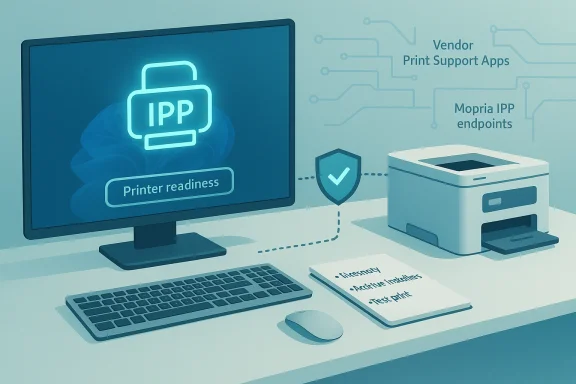 Background / Overview
Microsoft has been reshaping Windows' printing architecture for years. The company is intentionally moving away from a world in which thousands of vendor-signed kernel-mode drivers are treated as a normal part of the platform, and toward a leaner model built on standard printing protocols — chiefly IPP (Internet Printing Protocol) — plus Microsoft-provided inbox class drivers and vendor-supplied Print Support Apps. That strategic shift reduces the attack surface of the operating system and simplifies driver management, but it also changes how Windows discovers, ranks, and installs printer drivers. The practical implications of that shift — and the timeline Microsoft has signaled for changing how Windows Update and driver ranking behave — are what sparked the so-called "Great Printer Panic."In short: Microsoft is evolving printing architecture for security and manageability, but it is not flipping a single switch that instantly makes most printers unusable. The company has staged the changes over multiple milestones and left plenty of transition measures in place, so users who take a few simple steps now will find the upgrade painless.
Microsoft’s driver strategy: evolution, not revolution
The technical pivot: IPP, class drivers and Print Support Apps
At the heart of Microsoft's plan are three concepts that every sysadmin and power user should understand:- IPP (Internet Printing Protocol): an industry-standard, network-friendly protocol that allows devices to expose printing and scanning functionality without requiring vendor kernel drivers. Printers that expose IPP endpoints can be used by generic or inbox drivers for basic printing functions.
- Microsoft IPP Class Driver (inbox class driver): a standardized driver Microsoft ships inside Windows that can talk to printers using IPP. When a printer supports IPP, Windows can often use this driver with no additional vendor software.
- Print Support Apps: vendor-provided user-mode applications that supply advanced features (scan, advanced finishing, color profiles, faxing, firmware updates) without requiring kernel-mode drivers.
What Microsoft changed (and what it hasn't)
Microsoft has signaled a staged deprecation of the distribution and preference for legacy V3/V4 drivers through Windows Update. Important operational milestones reported and observed in the field include:- No new third‑party V3/V4 drivers will be published to Windows Update starting January 15, 2026.
- Windows' driver ranking will prefer the Microsoft IPP inbox class driver beginning July 1, 2026, meaning that when a printer exposes an IPP endpoint Windows may choose the inbox driver over a vendor legacy driver.
- From July 1, 2027, Windows Update’s route for third‑party drivers will be largely reduced to security-related updates for the remaining legacy packages.
What actually happens to legacy printers
Two broad categories of printers
When assessing risk for a particular printer, think in these two buckets:- Modern or semi-modern printers: devices built in roughly the last decade that expose IPP/mopria/eSCL and are often "driverless" on networks. These will typically be serviced by the Microsoft IPP Class Driver or by a vendor Print Support App, and they are far less likely to break on upgrade.
- Legacy printers: older models that depend exclusively on vendor V3/V4 drivers or kernel-mode components for meaningful functionality (scanning, finishing, fax, etc.). These devices are where compatibility friction can occur, particularly if the vendor has not supplied a modern user-mode alternative.
Will mounted, installed V3 drivers stop working?
Short answer: no immediate, universal shutdown. Microsoft retains backward compatibility for V3 drivers on Windows 11 for now, and vendor installers you already have will continue to work on machines where they are installed. Windows Update’s role as a distribution and ranking channel, however, is the critical change — it will stop publishing new legacy drivers after the January 2026 milestone and will prefer the IPP inbox driver for installs in many scenarios starting July 2026. That means:- If you already have a working vendor driver installed, it will likely continue to function until you reinstall or until Microsoft or your vendor publishes a change that alters ranking behavior.
- If you rely on Windows Update to discover and install a vendor driver for an unconfigured machine after those milestones, Windows may install the Microsoft IPP class driver or require a vendor Print Support App rather than a legacy kernel driver.
Windows Protected Print Mode and enterprise locking
Microsoft has introduced optional controls (for example, Windows Protected Print Mode) designed for environments that value security and predictability above backward compatibility. In Protected Print Mode, systems can be configured to prefer or require the IPP class driver and to restrict legacy drivers. This feature is aimed at enterprise deployments and security-conscious organizations and is not enabled by default for typical home users. IT administrators are encouraged to pilot and deploy these modes in stages after inventories and testing.Manufacturer support: the other half of the equation
Why vendors matter
Printer manufacturers — HP, Canon, Epson, Brother, and the like — control firmware, protocol support, and the release of Print Support Apps and modern drivers. Microsoft’s push only works if vendors keep pace. In practice, large manufacturers have been proactive because their installed base buys consumables and services; it’s in their interest to keep devices usable across OS upgrades.Most major vendors now offer:
- IPP/Mopria-capable firmware on newer and many mid-life models.
- Print Support Apps providing advanced features in user-mode.
- Updated installers and driver packages that are compatible with Windows 11.
What to ask your vendor now
When preparing for an upgrade, confirm these with your printer's vendor support:- Does this model expose IPP or Mopria endpoints (network printing) in firmware?
- Is an official Print Support App available for Windows 11?
- Are there signed ARM64 driver packages if you use ARM-based PCs?
- Will the vendor continue to provide downloadable legacy installers if Windows Update stops serving new V3/V4 packages?
The security imperative: why this matters
Printer drivers and the Print Spooler have been a recurring source of privilege escalation and remote‑code execution vulnerabilities in Windows. High-profile incidents in the recent past have shown how dangerous poorly written or unvetted kernel-mode drivers can be when they run with elevated privileges. Microsoft’s printing strategy — favoring a single, well-audited class driver for IPP and moving vendor functionality into user-mode apps — reduces the kernel‑level code base and the related attack surface.The policy is consistent with broader Windows 11 hardening choices (TPM requirements, Secure Boot, virtualization-based protections) and aims to make Windows printing more robust against exploitation. That security tradeoff is the main reason Microsoft is willing to change long-standing driver distribution and ranking behavior: fewer vendor kernel drivers means fewer potential ways for attackers to gain system-level control through printer software.
Enterprise considerations and managed print
Fleets, servers and migration complexity
Large organizations often have diverse fleets, centralized print servers, and specialized multifunction devices integrated into business workflows. Migrating these environments requires planning:- Inventory the fleet and map which devices rely on legacy drivers for critical features.
- Check IPP/Mopria support and firmware status on installed printers.
- Pilot deployment of Windows Protected Print Mode or IPP-first configurations in non-production environments.
- Roll out Print Support Apps and update documentation for helpdesk teams.
- Budget for replacements where devices are end-of-life or where vendor support is not available.
The cost/benefit calculus
- Benefits: reduced driver maintenance, improved security, fewer kernel-mode vectors, simplified OS upgrades.
- Costs: potential short-term work to ensure feature parity (Print Support App deployment), firmware updates, or selective hardware refreshes.
What users should actually do right now
If you’re considering a Windows 11 upgrade and you own one or more printers, follow this practical checklist to avoid surprises:- Check whether your printer supports IPP or is Mopria certified. Look in the printer’s network settings or on its support page from the manufacturer. If it supports IPP, the Microsoft IPP Class Driver will likely provide basic printing without extra drivers.
- If your printer is older and depends on a vendor V3/V4 driver, download and archive the latest vendor installer now. Keep a copy of any necessary installers offline so you can reinstall them even if Windows Update stops offering them later.
- For feature parity (scan, multifunction features) check for a vendor Print Support App for Windows 11; install and test it before committing to a large fleet upgrade.
- If you run an ARM-based PC, verify that your vendor provides ARM64 drivers or that the printer supports IPP, since ARM device compatibility has been a notable area of friction in recent Windows 11 updates. Microsoft and community reports have flagged printer issues on ARM 24H2 builds, and manual workarounds may be required in some cases.
- For enterprise environments, perform a phased pilot with inventory, test deployments, and helpdesk training. Use Protected Print Mode as a staged policy, not a global switch, until you’re confident of vendor support across your fleet.
Real-world risks and edge cases
- Very old printers without IPP: If a device never gained firmware updates to expose IPP and depends on a kernel driver for any meaningful function, expect friction as Windows Update no longer publishes new V3/V4 driver packages after January 15, 2026. You may be able to keep using the device where it’s already installed, but provisioning new systems or recovering from failures will be more complex.
- Feature loss: Generic inbox drivers can handle basic printing, but specialized vendor features (color management, paper finishing, advanced scanning) may require a vendor Print Support App or legacy drivers — verify before you commit.
- ARM-specific issues: Printers and their drivers that were only ever provided as x86/x64 installers may not have ARM64 equivalents. On ARM devices you may need to use network IPP endpoints or vendor apps that are ARM-ready. Community reports and Microsoft advisories have highlighted such issues in the rollout of Windows 11 24H2 on ARM systems.
- Large fleets and custom workflows: Environments with third-party print-management tools, accounting integrations, or bespoke document workflows may encounter hidden dependencies on vendor drivers. Plan tests that exercise every workflow end-to-end.
Why the panic was louder than the problem
Three dynamics produced the outsized alarm:- Headlines compress nuance into fear: "drivers deprecated" becomes "devices will stop working" in short-form headlines and social media.
- Memory of past OS transitions: users remember painful migrations in prior Windows releases and project the worst.
- Visible security movement: Microsoft’s security-first posture (TPM, Secure Boot, virtualization-based security) made users more anxious that other platform changes would be similarly decisive and immediate.
A practical upgrade playbook
If you're preparing to upgrade a single PC or a fleet, use this concise, ordered plan:- Inventory printers and note model, network vs USB, and whether they are shared via print servers.
- Identify IPP/Mopria-capable devices and those with vendor Print Support Apps.
- Archive vendor installers for legacy models that you must keep.
- On a pilot machine, upgrade to Windows 11, test basic printing, scanning, and any specialized workflows.
- If issues arise, attempt one of these:
- Reinstall archived vendor installer.
- Add the printer manually by IP address and select the Microsoft IPP Class Driver.
- Install the vendor Print Support App if available.
- For fleets, schedule phased migrations and communicate with your vendor for support policies.
The bigger picture: hardware longevity in a software-driven world
Printers are a classic example of hardware that outlives the state of software around it. A laser printer bought for business use can easily be serviceable for a decade or more. Software vendors, however, need to manage platform risk and security over a much broader hardware base, which sometimes requires hard decisions about which legacy components to keep supporting.Microsoft’s printing transition reflects a balancing act: improve security and manageability while avoiding unnecessary churn for users. The staged approach, the IPP-first strategy, and continued vendor responsibilities show that the company understands printers’ long service lives — but it also signals decreasing tolerance for poorly designed kernel-mode drivers going forward. For consumers, the message is pragmatic: prepare, verify, and upgrade with confidence — but don’t assume indefinite compatibility for very old devices.
Conclusion: upgrade with your eyes open, not with fear
The “Great Printer Panic” was built on a kernel of truth — Microsoft is changing how it ranks and distributes printer drivers — but it overstated the immediacy and breadth of the impact. For most users with printers made in the last several years, IPP and vendor Print Support Apps mean the transition to Windows 11 will be smooth. For a smaller group with older, driver-dependent devices, the correct approach is preparation: confirm IPP support, archive installers, test in a pilot, and engage vendors if needed.Microsoft’s timeline gives a measurable runway (with concrete milestones in 2026 and 2027) that admins and savvy home users can use to plan. Treat the change like a maintenance window: inventory, test, archive, and then upgrade. Do that, and your printer will almost certainly survive the move to Windows 11 just fine — and you’ll gain the added benefit of a more secure, manageable print environment once the migration is complete.
Source: WebProNews The Great Printer Panic: Why Your Windows 11 Upgrade Won’t Kill Your Aging Printer After All
