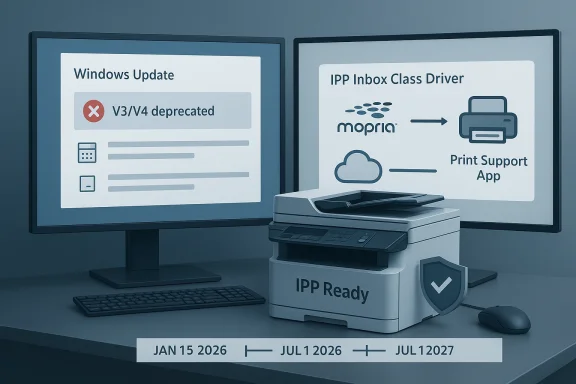
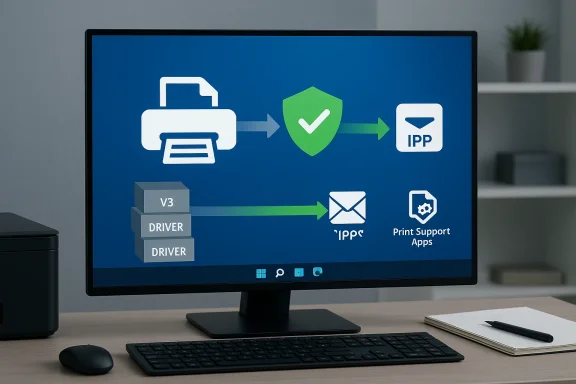
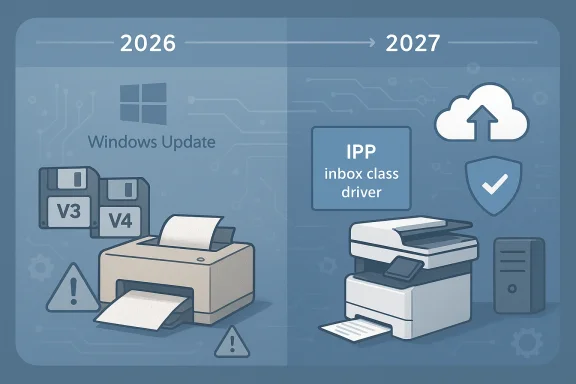
Microsoft has quietly begun enforcing a long‑announced cleanup of Windows’ printing stack: starting with January 2026 updates, Windows 11 will stop servicing legacy V3 and V4 printer drivers through Windows Update and will prefer Microsoft's modern IPP inbox class driver and Print Support Apps instead. That change — the culmination of a deprecation plan announced in September 2023 — is deliberate, security‑first, and staged over multiple years, but it also creates real compatibility work for a small yet important group of users who still rely on legacy drivers and older multifunction devices.
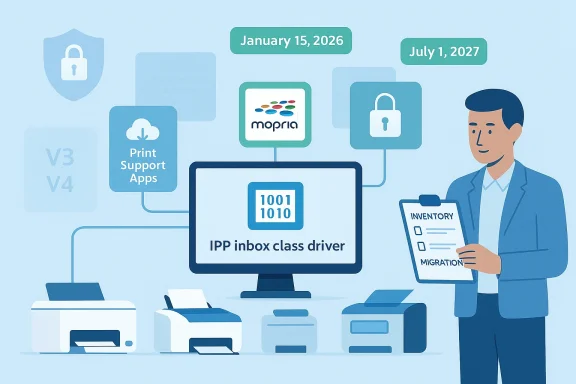
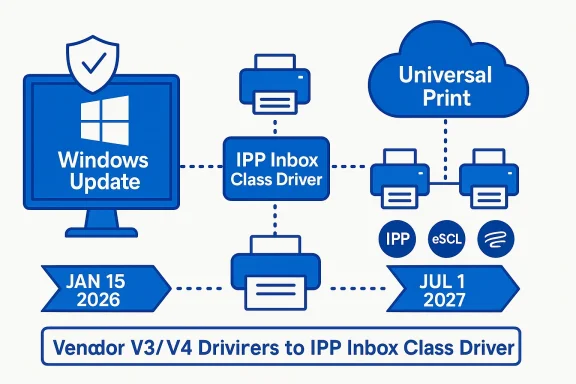
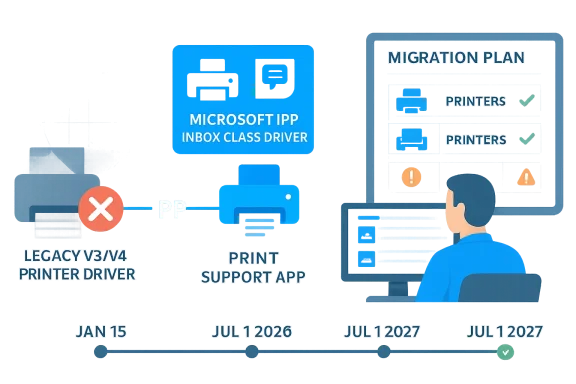
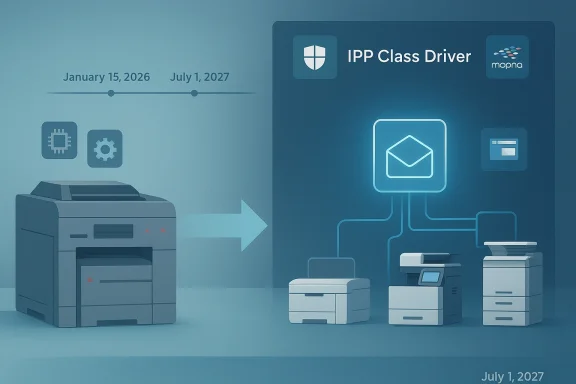
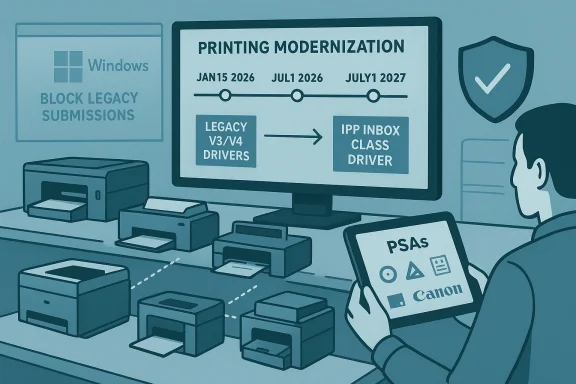
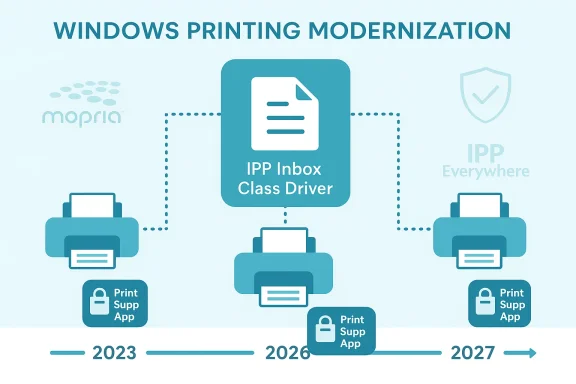
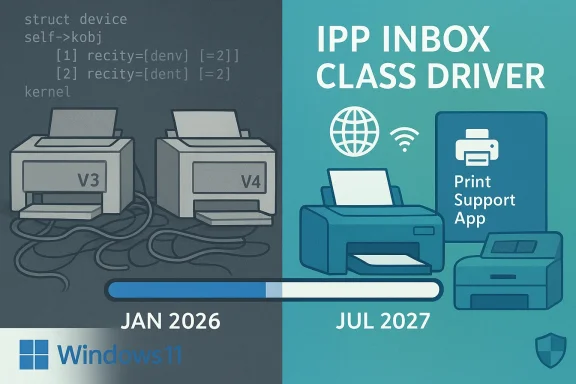
Microsoft first signaled the end of servicing for legacy third‑party printer drivers in September 2023, explaining that the Windows print platform had matured and that the company prefers inbox class drivers and standards such as the Internet Printing Protocol (IPP) and Mopria certification for most devices. The official deprecation timeline built into Microsoft’s support documentation lays out concrete dates and stages: no new drivers will be published to Windows Update beginning January 15, 2026; printer driver ranking will be changed to always prefer the IPP inbox class driver by July 1, 2026; and after July 1, 2027, only security‑related fixes for remaining third‑party drivers will be permitted on Windows Update.
Those dates matter because they convert a multi‑year notice into a set of actionable milestones for IT teams and home users. Microsoft’s message is simple: the transition to the modern printing stack is not optional in the long term, and Windows Update will no longer be the primary distribution channel for newly published legacy drivers for Windows 11 and Windows Server 2025+. Existing driver packages already published and vendor installers remain usable, but the default channel and preference logic are changing.
For printing specifically, the practical consequences to expect as the rollout expands are:
However, the real pain points will be concentrated in the long tail:
That said, the transition cost is concentrated and meaningful for the long tail. Legacy hardware in vertical sectors, older home printers used as part of hobbyist setups, and devices embedded in specialized appliances are at real risk. Forum reporting after the January 2026 updates shows vendor outreach and communication were uneven, and real outages occurred where vendors had not prepared modern drivers. Those operational failures are not accidental; they are the consequence of decades of deferred modernization and thin vendor support for end‑of‑life hardware.
My bottom line for Windows Forum readers: treat this as a scheduled migration, not an emergency. Inventory now, talk to vendors, and test the Microsoft IPP inbox driver + Print Support Apps as your first remediation path. Replace hardware when vendor support isn’t available. And if you must rollback updates to restore functionality, do so with a clear timeline and compensating controls — but treat rollbacks as the last resort, not a long‑term strategy. The platform will be safer when the long tail of kernel‑mode drivers is gone — but safety requires planning, not surprise.
The change is unavoidable and beneficial at scale, but it will sting for users and organizations that have delayed driver and hardware modernization. The practical, risk‑focused response is simple: inventory, vendor engagement, staged testing, and prioritized replacement for truly unsupported devices. That path preserves security and functionality — and after the short pain of migration, users should have a simpler, more reliable printing experience on Windows 11.
Source: Windows Central Microsoft is pulling the plug on old printer drivers — here’s what it means
 Background / Overview
Microsoft first signaled the end of servicing for legacy third‑party printer drivers in September 2023, explaining that the Windows print platform had matured and that the company prefers inbox class drivers and standards such as the Internet Printing Protocol (IPP) and Mopria certification for most devices. The official deprecation timeline built into Microsoft’s support documentation lays out concrete dates and stages: no new drivers will be published to Windows Update beginning January 15, 2026; printer driver ranking will be changed to always prefer the IPP inbox class driver by July 1, 2026; and after July 1, 2027, only security‑related fixes for remaining third‑party drivers will be permitted on Windows Update. Those dates matter because they convert a multi‑year notice into a set of actionable milestones for IT teams and home users. Microsoft’s message is simple: the transition to the modern printing stack is not optional in the long term, and Windows Update will no longer be the primary distribution channel for newly published legacy drivers for Windows 11 and Windows Server 2025+. Existing driver packages already published and vendor installers remain usable, but the default channel and preference logic are changing.
What changed in January 2026 (and what to watch for)
January 2026 brought important cumulative updates and preview releases for Windows 11; one non‑security preview for versions 24H2 and 25H2 (KB5074105) was published on January 29, 2026. Separately, January security updates and monthly cumulatives included targeted removals of some legacy in‑box components elsewhere in the platform (for example, the removal of certain legacy modem drivers in KB5074109), underscoring that Microsoft is actively removing ancient, vulnerable kernel code from the default image.For printing specifically, the practical consequences to expect as the rollout expands are:
- Windows Update will stop accepting and distributing new third‑party V3/V4 drivers for Windows 11+; vendors can still ship installers and submit drivers with special-case approvals.
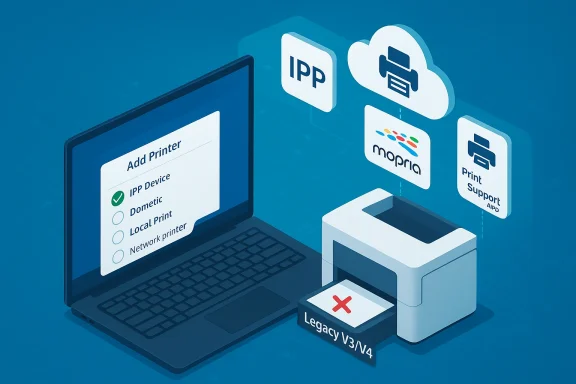
- Windows’ driver ranking will prefer the Microsoft IPP inbox class driver in many situations; that means Windows may install or fall back to a Microsoft‑provided generic class driver rather than a vendor‑customized V3/V4 driver.
- Printers that only work via legacy V3 or V4 drivers — and for which vendors have not provided a modern replacement or Print Support App — may fail to install or may stop functioning after the staged changes are applied. Independent technology outlets and reporting confirm the change and warn of localized compatibility issues.
Why Microsoft is doing this — the positives
There are three straightforward reasons for the change, and they are worth stating plainly.- Security: kernel‑mode printer drivers have historically been a real attack surface. Legacy drivers often contain unpatched kernel code and obscure IOCTL handlers that have led to high‑severity vulnerabilities. Removing, or at least reducing the footprint of, those legacy drivers reduces the platform’s exposure to local privilege escalation and kernel‑level exploits. Microsoft has made similar removals elsewhere in Windows when code was demonstrably vulnerable and unmaintained.
- Maintainability and reliability: maintaining thousands of device‑specific drivers in the OS image and via Windows Update adds complexity and increases the chance that old drivers will interact poorly with modern runtime libraries and security mechanisms. Preferring a modern, standards‑based class driver reduces fragmentation and simplifies testing and platform updates.
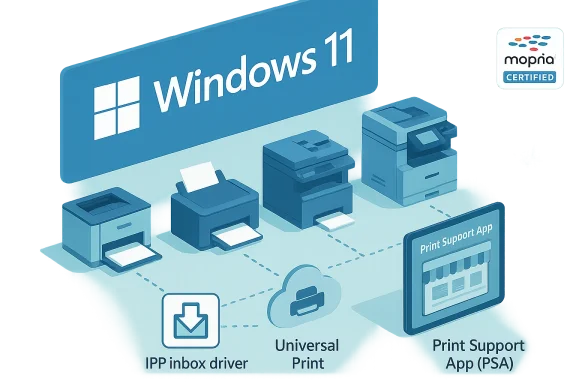
- Modern standards and user experience: IPP (Internet Printing Protocol), Mopria certification, and the use of Print Support Apps (PSAs) provide a more consistent, network‑friendly approach for discovery, rendering, scanning, and feature negotiation — especially for networked and mobile scenarios. Encouraging vendors to ship PSAs instead of kernel‑mode drivers moves UI customization and feature logic into user‑mode and app models that are easier to secure and update.
Who will actually be affected?
The headline here is most users will probably not notice: modern consumer printers and most enterprise fleets already use one of:- a vendor DCH or modern driver package,
- a Print Support App that augments Microsoft’s inbox driver,
- or a native IPP/Mopria implementation.
However, the real pain points will be concentrated in the long tail:
- Small businesses, schools, and home users who keep older printers and MFDs (multifunction devices) running decades past their EOL.
- Vertical and industrial deployments where printers, fax bridges, or scanners were bundled into appliances or medical/retail systems and where vendors never provided modern drivers or PSAs.
- Environments with mixed‑architecture print servers or legacy clients that rely on driver behavior that an inbox class driver does not replicate.
Practical guidance: how to prepare and remediate
If you manage printers — whether as a home user, small business, or IT pro — treating this as a planned migration reduces risk. Below is a prioritized, practical checklist you can use today.1. Inventory and detect which devices use legacy drivers
Use these commands and tools to build an inventory quickly:- PnPUtil driver list (built into Windows): run
pnputil /enum-driversto list installed driver packages and export them for review. This is the recommended approach to create a driver inventory. - PowerShell PrintManagement module (recommended for print environments):
Get-Printer,Get-PrinterDriver, andGet-PrinterPortwill show installed printers and their driver names. These cmdlets support remote queries against print servers as well. - Print Management console (printmanagement.msc) on servers and supported editions of Windows can export driver lists and show driver models and types.
2. Verify driver model and vendor support
- Check the installed driver name and provider in
Printer Properties > Advancedor viaGet-PrinterDriver. If the driver is from the printer vendor and the package is recent, your risk is low. - For any driver that is clearly identified as a legacy V3 or V4 package, contact the vendor to check whether they have:
- a signed WHCP / WHQL / DCH replacement,
- a Print Support App for the Microsoft inbox class driver, or
- an installer that can be deployed as a package. Microsoft’s documentation clarifies that vendors can still provide signed packages and that some submissions will be approved case‑by‑case after January 15, 2026.
3. Test the IPP inbox class driver and Print Support Apps
- Many printers will work sufficiently with Microsoft’s IPP inbox class driver plus a vendor PSA. Ask vendors whether they support an IPP‑based inbox mode or a Print Support App that you can install from the Microsoft Store or as a packaged installer. This approach usually preserves advanced features while avoiding kernel drivers.
4. If a modern driver is not available: options and tradeoffs
- Vendor installer: install the vendor’s signed installer manually (outside Windows Update) if the vendor provides a modern package. Microsoft documentation allows vendor packages even after the servicing change.
- Replace the device: for very old hardware with no vendor support, replacement may be the most practical and secure option.
- Temporary rollbacks: in emergency cases you can uninstall a problematic cumulative update to restore legacy behavior, but that exposes machines to the security fixes in those updates. Several community threads report users choosing rollbacks as a stopgap; treat this as a last‑resort mitigation and document the risk.
5. Enterprise practices: policy, print servers, and procurement
- Use Group Policy and print server controls to test driver behavior before expanding a change broadly. In enterprise environments, prefer vendor DCH drivers or IPP+PSA solutions and add driver‑compatibility checks to procurement workflows.
- Add driver‑support lifecycle questions to procurement: ask vendors whether printers will function with IPP and whether Print Support Apps will be available instead of kernel drivers.
- Scripted remediation: use PowerShell and PnPUtil in automation for large fleets —
pnputil /enum-driversandpnputil /delete-driver <oem>.inf /uninstallare documented patterns for inventory and cleanup when required. Always test in a lab first.
Technical notes IT teams will want to know
V3 vs V4 vs modern printing
- V3 drivers are the long‑standing, widely used Windows driver model that often include kernel components.
- V4 was introduced as a refinement and to better support UWP and sharing scenarios; it reduces architectural complexity but is still considered a legacy model under Microsoft’s deprecation plan. Microsoft now recommends the modern print platform (IPP inbox class driver + Print Support Apps) as the preferred path forward.
Feature parity and multifunction devices
- Microsoft’s FAQ explicitly states that network multifunction devices will work via IPP and IPP Fax Out for print and fax and WS‑Scan or eSCL for scan functionality; for USB, certain endpoints require the device to support IPP Over USB. That is important when evaluating whether a class driver will cover scanning and faxing features for a given MFD.
Installer signing and WHCP
- Beginning January 15, 2026, Microsoft will only approve new WHCP submissions on a case‑by‑case basis; vendor packages remain acceptable outside Windows Update, but signing and partner‑center workflows will be more constrained. This affects vendors who previously relied solely on the Windows Update channel to reach customers.
Risks, gaps, and weaknesses in the rollout
This is a necessary platform hardening move, but it is not without risks and communication gaps.- Communication and vendor outreach are not fully documented publicly. Community reporting suggests that many downstream users were surprised by removals of in‑box legacy binaries (for example, modem drivers) in January 2026 releases — and while that work was announced years earlier, some vendors and customers still reported surprise. Treat claims that Microsoft proactively notified every impacted vendor as unverified until vendors publish their own timelines.
- Rollbacks carry acute security tradeoffs. Forum and community threads show administrators uninstalling cumulative updates to restore legacy device functionality; that practice temporarily reintroduces security exposures that the updates were designed to fix. Any rollback strategy must be carefully documented and limited in time.
- Vertical and embedded systems risk operational outage. Specialized equipment with embedded printers or fax/modem combos that rely on in‑box drivers may break in production environments. Those failures are often hard to detect until an update is applied, which argues for immediate inventorying and coordination with vendors for critical devices. Community threads and aggregated reporting show real examples of overnight service loss in niche deployments.
- Testing and driver‑ranking side effects. As Windows starts to prefer the IPP inbox class driver, some vendor‑specific features — tray mapping, stapling, advanced finishing — could behave differently. That will require testing and possibly vendor Print Support Apps to restore parity for power users.
A pragmatic roadmap (what to do this week, this month, this quarter)
- This week — Inventory and triage:
- Run
pnputil /enum-driversandGet-PrinterDriveracross critical endpoints and print servers to find legacy drivers. Document printers by vendor, model, driver package name, and whether a vendor installer exists. - This month — Vendor outreach and test plans:
- Contact the top‑impact vendors in your estate and ask whether they provide:
- an IPP mode,
- a Print Support App, or
- a signed DCH driver packaged for manual installation.
- Test the IPP inbox driver and any vendor PSAs in a lab environment to confirm feature parity.
- This quarter — Deployment and policy:
- For devices with no replacement, schedule remediation: replace the hardware, purchase vendor‑supported devices, or stage a controlled rollback only when absolutely necessary and documented.
- Add driver lifecycle checks to procurement and asset inventories to avoid repeating this gap.
Final analysis: strength, risk, and the bigger picture
Microsoft’s decision to cut back on legacy V3 and V4 driver servicing is sound from a platform‑security and maintenance perspective. It reduces a long‑standing kernel‑level attack surface and nudges the ecosystem toward IPP, Mopria, and user‑mode extension models that are easier to update and reason about. For users of modern hardware, the change is a net positive: fewer driver conflicts, more consistent user experiences, and fewer legacy kernel binaries in the shipped image.That said, the transition cost is concentrated and meaningful for the long tail. Legacy hardware in vertical sectors, older home printers used as part of hobbyist setups, and devices embedded in specialized appliances are at real risk. Forum reporting after the January 2026 updates shows vendor outreach and communication were uneven, and real outages occurred where vendors had not prepared modern drivers. Those operational failures are not accidental; they are the consequence of decades of deferred modernization and thin vendor support for end‑of‑life hardware.
My bottom line for Windows Forum readers: treat this as a scheduled migration, not an emergency. Inventory now, talk to vendors, and test the Microsoft IPP inbox driver + Print Support Apps as your first remediation path. Replace hardware when vendor support isn’t available. And if you must rollback updates to restore functionality, do so with a clear timeline and compensating controls — but treat rollbacks as the last resort, not a long‑term strategy. The platform will be safer when the long tail of kernel‑mode drivers is gone — but safety requires planning, not surprise.
Quick reference: Key dates and commands
- Key dates (Microsoft timeline):
- September 2023 — deprecation announced.
- January 15, 2026 — new third‑party drivers will generally not be published to Windows Update for Windows 11+ (staged enforcement).
- July 1, 2026 — printer driver ranking order will prefer IPP inbox class driver.
- July 1, 2027 — third‑party driver updates via Windows Update will be restricted to security fixes only.
- Useful inventory and remediation commands:
pnputil /enum-drivers— list driver packages (Windows built‑in).Get-PrinterDriverandGet-Printer(PowerShell PrintManagement module) — list printers and drivers.pnputil /delete-driver oemX.inf /uninstall— remove driver package from driver store (test before use).
The change is unavoidable and beneficial at scale, but it will sting for users and organizations that have delayed driver and hardware modernization. The practical, risk‑focused response is simple: inventory, vendor engagement, staged testing, and prioritized replacement for truly unsupported devices. That path preserves security and functionality — and after the short pain of migration, users should have a simpler, more reliable printing experience on Windows 11.
Source: Windows Central Microsoft is pulling the plug on old printer drivers — here’s what it means