

Microsoft’s January change to Windows Update means older “V3” and “V4” printer drivers will no longer be published automatically to Windows 11’s update channel, and that shift is already visible in the wild — but you don’t have to throw away your inkjet or laser just yet.
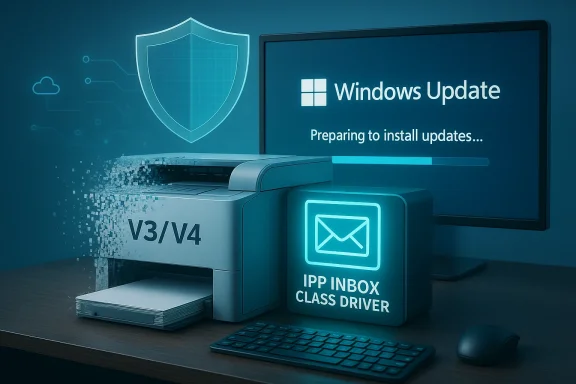
Microsoft announced the deprecation of the legacy third‑party printer driver servicing model back in September 2023 and implemented a hard enforcement step on January 15, 2026: from that date, Windows Update stopped publishing new V3/V4 third‑party printer drivers to Windows 11 and Windows Server 2025 by default. Existing driver packages that are already in the Windows Update catalog remain installable in many cases, but new submissions are blocked by default and require a manual, case‑by‑case justification to be accepted for distribution.
That timeline also includes two more important future milestones: on July 1, 2026 Windows will change driver selection logic to prefer the Microsoft IPP inbox class driver, and on July 1, 2027 third‑party driver updates via Windows Update will be largely limited to security fixes. These steps are designed to move the platform away from thousands of vendor‑specific legacy drivers toward fewer, more modern and secure printing stacks.
Why this matters right now: if your printer relies on an old V3 or V4 driver that historically came from Windows Update, that driver may no longer be provided automatically. In practice, that means a new Windows installation, a device reset, or a repaired device might not receive the vendor driver from Windows Update and could instead get a generic inbox driver — which may lack features like scanning, fax, or advanced finishers. Several outlets and community reports confirm users are seeing these effects after the January enforcement.
Common scenarios you may see:
That security case is not theoretical: past spooler vulnerabilities demonstrated how drivers can become an escalated attack vector, and several reports show Microsoft prioritized mitigating that risk. The trade‑off Microsoft chose is pragmatic: keep the platform safer and simpler at scale, while shifting responsibility for legacy driver distribution back to vendors.
The takeaway for readers: don’t panic, but act. Inventory your printers, identify devices that depend on V3/V4 drivers, and either secure vendor installers now or plan replacements for devices that will not be maintained. Use this period to move toward IPP/eSCL network printing where possible, and tighten your installation policies so that fixes come from vendor‑signed packages and not dubious third‑party collections.
Microsoft’s timeline gives users and administrators months to prepare, but the change is now in effect: Windows Update stopped distributing new V3/V4 printer drivers automatically as of January 15, 2026, and the platform will increasingly prefer class drivers and limit vendor servicing in the years ahead. That makes preparation, vendor coordination, and a clear remediation workflow essential — and, importantly, it makes trusting vendor‑signed installers and proven troubleshooting steps your best path back to a working printer when Windows Update no longer does the heavy lifting.
Source: Lifewire Windows 11 Updates May Break Your Printer—Here's the Fix
 Background / Overview
Microsoft announced the deprecation of the legacy third‑party printer driver servicing model back in September 2023 and implemented a hard enforcement step on January 15, 2026: from that date, Windows Update stopped publishing new V3/V4 third‑party printer drivers to Windows 11 and Windows Server 2025 by default. Existing driver packages that are already in the Windows Update catalog remain installable in many cases, but new submissions are blocked by default and require a manual, case‑by‑case justification to be accepted for distribution. That timeline also includes two more important future milestones: on July 1, 2026 Windows will change driver selection logic to prefer the Microsoft IPP inbox class driver, and on July 1, 2027 third‑party driver updates via Windows Update will be largely limited to security fixes. These steps are designed to move the platform away from thousands of vendor‑specific legacy drivers toward fewer, more modern and secure printing stacks.
Why this matters right now: if your printer relies on an old V3 or V4 driver that historically came from Windows Update, that driver may no longer be provided automatically. In practice, that means a new Windows installation, a device reset, or a repaired device might not receive the vendor driver from Windows Update and could instead get a generic inbox driver — which may lack features like scanning, fax, or advanced finishers. Several outlets and community reports confirm users are seeing these effects after the January enforcement.
What Microsoft actually changed (technical summary)
- Microsoft stopped publishing new legacy V3/V4 third‑party printer drivers to Windows Update for Windows 11 and Server 2025+ beginning January 15, 2026. Existing packages in the catalog are still present but new uploads are blocked by default and require justification.
- Driver ranking/order will be modified so the Windows IPP inbox class driver is preferred when available (effective July 1, 2026).
- From July 1, 2027, Windows Update will generally only allow security‑related fixes for third‑party printer drivers; non‑security updates will be restricted.
- Exceptions will be considered for devices that cannot be modernized (for example, some devices that cannot use Mopria/IPP, native ARM64 drivers, or those needing specific vendor functionality) — but those exceptions require manual review and justification.
The real world impact — who will be affected
Most modern printers will be unaffected. New devices and recent models use modern driver frameworks, class drivers, or network standards (IPP/eSCL/WS‑Scan) that Windows will continue to support and distribute. But there is a non‑trivial population of home, small‑business, school, and legacy enterprise devices that still rely on vendor‑supplied V3/V4 drivers and historically used Windows Update to reach users. Those devices are the ones most at risk of installation friction or degraded functionality.Common scenarios you may see:
- A fresh Windows 11 install or a new user profile doesn’t offer the vendor driver automatically; Windows installs a generic IPP/PS driver instead, and features such as scanning or duplex binding may be missing.
- A small office with a dozen multifunction devices that were added over time may find new machines fail to receive vendor drivers without a manual vendor installer.
- ARM‑based Windows PCs can be especially tricky because some vendor installers were never built for ARM, making manual driver installation or driver availability harder. Community troubleshooting notes and Microsoft guidance reflect additional ARM caveats.
Why Microsoft did this — security, quality, and long‑term maintenance
Microsoft’s stated reasons are straightforward: the legacy third‑party printer driver ecosystem is large, diverse, and historically a source of security and stability problems. Printer drivers have been the vector for vulnerabilities — including print spooler exploits and kernel‑mode driver issues — and Microsoft wants to reduce the attack surface and the ongoing maintenance burden of vetting thousands of vendor drivers in Windows Update. By preferring the IPP inbox class driver and tightening Windows Update’s driver intake and servicing, Microsoft reduces the number of kernel‑mode, vendor‑specific components that run with high privilege on user systems.That security case is not theoretical: past spooler vulnerabilities demonstrated how drivers can become an escalated attack vector, and several reports show Microsoft prioritized mitigating that risk. The trade‑off Microsoft chose is pragmatic: keep the platform safer and simpler at scale, while shifting responsibility for legacy driver distribution back to vendors.
Two simple fixes for end users (what to do now)
If you’re reading this because your printer stopped installing or has lost some functionality after a recent Windows change, here are the two primary, practical options that will keep your printer working.- Option A — Download and run the vendor’s official driver/installer for your exact printer model. This is the recommended route: manufacturers typically publish full‑feature installers that include kernel and user components, printing filters, scanning utilities, and firmware tools. Run the installer as Administrator and follow the vendor’s instructions. If you have a networked device, check whether the vendor supports IPP/eSCL/WS‑Scan; many devices can work fully over IPP without legacy drivers.
- Option B — Use a reputable driver‑update utility oidentify missing components. Several utilities can detect a missing printer driver and automate the download and installation. Be cautious: only use well‑known, trusted tools and avoid utilities that bundle adware. Even when the vendor installer over third‑party “one‑click” fixes when possible.
A step‑by‑step troubleshooting checklist (detailed, actionable)
Below is a consolidated, field‑tested checklist that combines Microsoft guidance and community best practices. If you prefer a quick numbered sequence to follow, start here.- Check the date and know whether you’re encountering the January 15, 2026 policy enforcement (use Windows Update history and Windows build information).
- Run the Windows Printer troubleshooter (Settings > System > Troubleshoot > Other troubleshooters). This often catches simple misconfigurations.
- Try Windows Update first (Settings > Windows Update) to confirm that Windows doesn’t find a vendor driver via the catalog. If nothing is found, proceed.
- Download the manufacturer’s driver package for your exact model and system architecture (x64 vs ARM64). Prefer vendor installers that are signed and targeted to your Windows version. Install as Administrator.
- If the vendor installer fails or is unavailable, do a clean remove: Settings > Bluetooth & devices > Printers & scanners → Remove device; then Control Panel > Devices and Printers > Print server properties > Drivers tab — remove conflicting drive, reboot, and re‑install. Community posts show that this cleans up driver store conflicts.
- Restart the Print Spooler service and, if necessary, clear the spool folder (C:\Windows\System32\spool\PRINTERS) after stopping the service. Restart the service and test. This resolves many transient queue issues.
- If you’re on an ARM Windows device, confirm whether your vendor published an ARM64 driver. If not, test the IPP/ inbox class driver route or reach out to vendor support — manual add paths or cross‑architecture workarounds may be necessary.
- Check Event Viewer (Windows Logs → System, filter by Spooler or PrintService) for driver file or DLL errors; use the file names to identify offending components and target repairs.
- As a last resort, roll back the driver from Device Manager (if the problem appeared after a driver update), or install a vendor installer for an older, compatible driver that the vendor still makes available.
Advanced notes for IT admins and power users
- Driver ranking change: with Windows preferring the IPP inbox class driver from July 1, 2026, admins should test how much functionality they lose when Windows selects the inbox class driver automatically. In many cases, basic printing will work, but multifunction features like scanning or vendor‑specific options may require a vendor package. Plan for exceptions or vendor installers for those devices that require them.
- WHCP signing and partner submissions: vendors can still submit drivers for signing, but starting January 15, 2026, approvals are manual and exceptional — expect longer validation cycles and stricter justification requirements. If you rely on a vendor, coordinate with them to understand their submission strategy.
- Group Policy and driver installation: many organizations block unsigned installers or third‑party driver installation via policy. Check your group policies before instructing users to run vendor installers; instead, prepare signed packages or deployment scripts that conform to your security posture. Community guides show admins using targeted deployment tools and PowerShell (Get‑Printer, Remove‑Printer, Add‑PrinterDriver) to automate remedial installs.
- Firmware matters: some printer oddities are resolved with firmware updates from the manufacturer rather than OS drivers. Always check for firmware updates before replacing a device.
Risks, trade‑offs, and what to watch for
This change improves platform security and reduces the burden on Windows Update, but it brings clear risks and operational friction.- Fragmentation risk: placing more dility on vendors can create a fragmented ecosystem where some vendors keep well‑maintained installers and others do not. Users of long‑lived devices risk losing smooth install exen
- Usability friction: consumers and small‑business users who expec need to learn manual install steps or rely on vendor tools. Support calls and community help requests will likely rise in the next 12–24 months.
- Security nuance: while the policy reduces exposure to legacy drivers distributed broadly, it also pushes users toward manual installs. If users install unsigned or unvetted packages from third‑party sources (or shady driver aggregators), they could inadvertently increase risk. The secure pattern is vendor‑signed installers or vendor‑provided drivers.
- Enterprise operational cost: organizations with many legacy MFDs may incur support and validation costs to prepare deployment packages or to negotiate vendor exceptions for the Windows Update catalog. Admins should inventory printers and plan remediation waves.
Vendor responsibilities and best practices (what manufacturers should do)
For vendors, this change is a call to action:- Publish signed, modern drivers (including ARM64 where possible) and provide clear installation instructions targeted at Windows 11 customers.
- Support IPP/eSCL/WS‑Scan where feasible, since network standards reduce the need for legacy kernel components.
- Provide lightweight, signed installer packages that can be used by IT deployment tools and end users alike; include firmware update utilities where supported.
- Communicate deprecation plans for older models clearly to customers so they can plan replacements or accept feature reductions.
Quick decision guide: Replace, fix, or accept reduced features?
- Replace if: your device is critical to daily operations, lacks vendor support, and cannot workcement cost is justified by lost productivity or security concerns.
- Fix if: the vendor taller or firmware update that restores full functionality — use the vendor route first.
- Accept reduced features if: basic printing suffices and the inbox IPP driver covers your needs; document the limitation and plan a long‑term replacement if multifunction features are important.
Practical tips to make manual installs less painful
- Keep a local archive of vendor installers for your fleet and label them with Windows build and architecture. This saves time when reimaging machines.
- Use deployment tools (Intune, SCCM, Group Policy) to push vendor installers in enterprise environments. Ensure installers are signed and your policies permit the installs.
- When troubleshooting, remove old drivers from the Print server properties Drivers tab before reinstalling to avoid driver store conflicts. Community technicians repeatedly recommend the clean‑remove + vendor reinstall sequence.
- For home users, prefer vendor support pages and community forums for step‑by‑step instructions and cautionary notes about firmware or architecture mismatches.
What we still don’t know — and what to watch for
Microsoft’s plan is clear about dates and policy but leaves operational gray areas:- How many vendors will seek and receive exceptions to continue catalog publishing? Microsoft will evaluate exceptions case‑by‑case, and the scale of those exceptions is not public. That makes forecasting difficult for large or specialized printing fleets.
- How will Microsoft surface guidance in the future when a device is matched to an inbox driver instead of a vendor driver? Administrators need visibility and actionable telemetry to spot devices where functionality has been reduced. Watch Windows Update and Windows Admin Center alerts for new features.
- The long tail of older MFDs: many models with multi‑function features were never designed with IPP first. For such hardware, vendors will have to support installation packages indefinitely or customers will need to replace equipment. Expect continued community troubleshooting around these corner cases.
Final verdict — practical, security‑minded, but disruptive
Microsoft’s move to stop broadly publishing legacy V3/V4 printer drivers on Windows Update is fundamentally a security and maintenance decision: fewer legacy drivers in the Windows ecosystem reduces risk and complexity for the platform. For everyday users with modern devices, the change will be mostly invisible. For owners of older printers, and for small IT shops that relied on Windows Update as the distribution path, there will be real friction and a short‑to‑mid term support burden.The takeaway for readers: don’t panic, but act. Inventory your printers, identify devices that depend on V3/V4 drivers, and either secure vendor installers now or plan replacements for devices that will not be maintained. Use this period to move toward IPP/eSCL network printing where possible, and tighten your installation policies so that fixes come from vendor‑signed packages and not dubious third‑party collections.
Quick checklist (one‑page action items)
- Confirm whether your printer uses a V3/V4 driver and note model + OS architecture.
- Visit your printer manufacturer’s support page and download the latest signed installer for your model.
- If you manage multiple devices, create a vendor installer repository and test push/install scripts.
- Run the Windows Printer troubleshooter and clear the spooler if you see queue errors.
- For ARM devices, verify vendor ARM64 support or test IPP inbox driver behavior before wide deployment.
Microsoft’s timeline gives users and administrators months to prepare, but the change is now in effect: Windows Update stopped distributing new V3/V4 printer drivers automatically as of January 15, 2026, and the platform will increasingly prefer class drivers and limit vendor servicing in the years ahead. That makes preparation, vendor coordination, and a clear remediation workflow essential — and, importantly, it makes trusting vendor‑signed installers and proven troubleshooting steps your best path back to a working printer when Windows Update no longer does the heavy lifting.
Source: Lifewire Windows 11 Updates May Break Your Printer—Here's the Fix
