• Thread Author
Microsoft has quietly begun enforcing a long‑announced cleanup of Windows’ printing stack: starting with January 2026 updates, Windows 11 will stop servicing legacy V3 and V4 printer drivers through Windows Update and will prefer Microsoft's modern IPP inbox class driver and Print Support Apps instead. That change — the culmination of a deprecation plan announced in September 2023 — is deliberate, security‑first, and staged over multiple years, but it also creates real compatibility work for a small yet important group of users who still rely on legacy drivers and older multifunction devices.

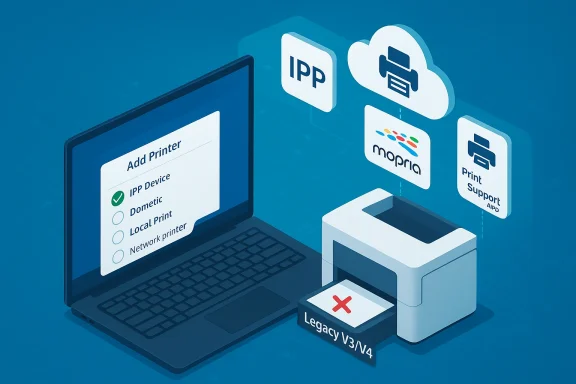
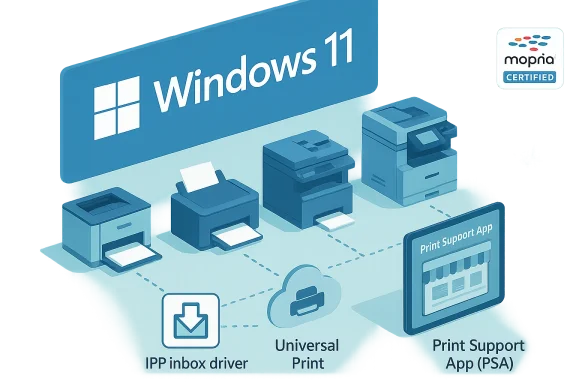
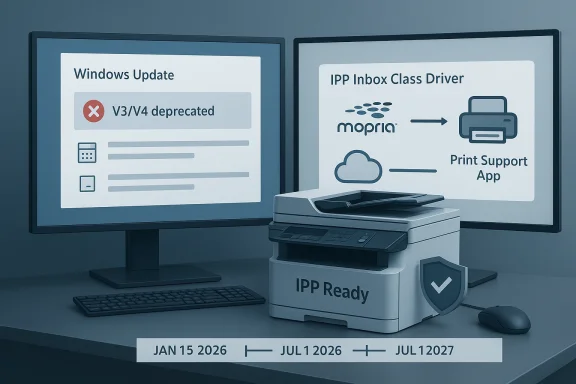
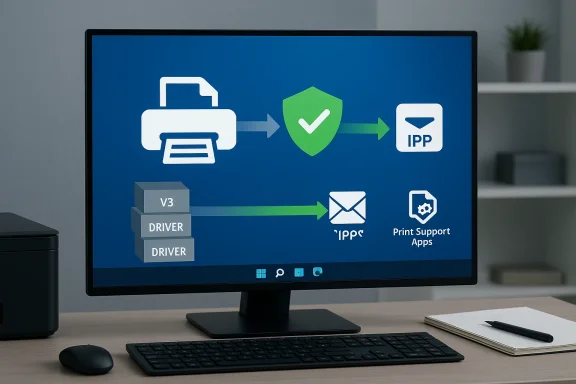
Windows 11 shows legacy V3/V4 printers moving to the IPP InBox Class Driver with a Print Support App.Background / Overview​

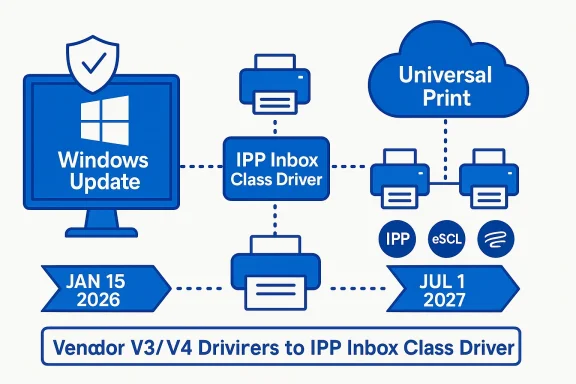
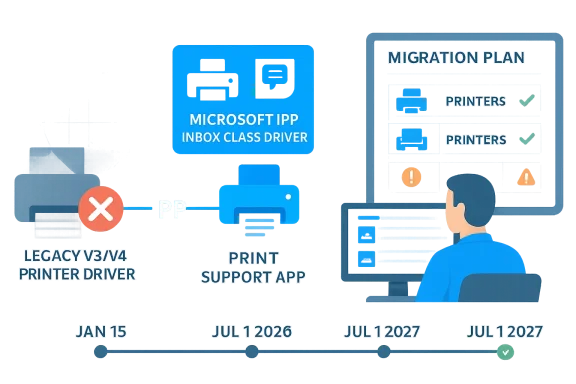
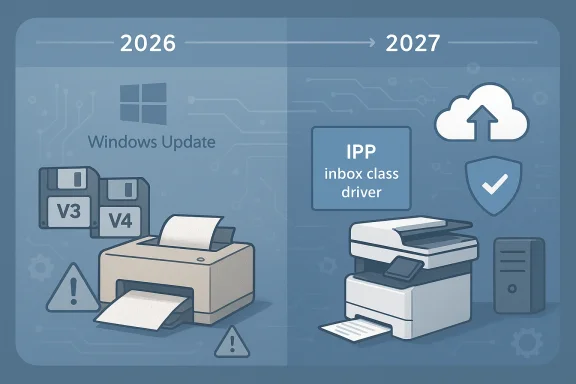
Microsoft first signaled the end of servicing for legacy third‑party printer drivers in September 2023, explaining that the Windows print platform had matured and that the company prefers inbox class drivers and standards such as the Internet Printing Protocol (IPP) and Mopria certification for most devices. The official deprecation timeline built into Microsoft’s support documentation lays out concrete dates and stages: no new drivers will be published to Windows Update beginning January 15, 2026; printer driver ranking will be changed to always prefer the IPP inbox class driver by July 1, 2026; and after July 1, 2027, only security‑related fixes for remaining third‑party drivers will be permitted on Windows Update.
Those dates matter because they convert a multi‑year notice into a set of actionable milestones for IT teams and home users. Microsoft’s message is simple: the transition to the modern printing stack is not optional in the long term, and Windows Update will no longer be the primary distribution channel for newly published legacy drivers for Windows 11 and Windows Server 2025+. Existing driver packages already published and vendor installers remain usable, but the default channel and preference logic are changing.

What changed in January 2026 (and what to watch for)​

January 2026 brought important cumulative updates and preview releases for Windows 11; one non‑security preview for versions 24H2 and 25H2 (KB5074105) was published on January 29, 2026. Separately, January security updates and monthly cumulatives included targeted removals of some legacy in‑box components elsewhere in the platform (for example, the removal of certain legacy modem drivers in KB5074109), underscoring that Microsoft is actively removing ancient, vulnerable kernel code from the default image.
For printing specifically, the practical consequences to expect as the rollout expands are:
  • Windows Update will stop accepting and distributing new third‑party V3/V4 drivers for Windows 11+; vendors can still ship installers and submit drivers with special-case approvals.
  • Windows’ driver ranking will prefer the Microsoft IPP inbox class driver in many situations; that means Windows may install or fall back to a Microsoft‑provided generic class driver rather than a vendor‑customized V3/V4 driver.
  • Printers that only work via legacy V3 or V4 drivers — and for which vendors have not provided a modern replacement or Print Support App — may fail to install or may stop functioning after the staged changes are applied. Independent technology outlets and reporting confirm the change and warn of localized compatibility issues.
Microsoft’s documentation and vendor guidance emphasize that vendors can still supply drivers via installation packages outside Windows Update, and that Microsoft will continue to issue security fixes for the legacy driver platform while a given Windows OS build remains within its support lifecycle. In short: the vendor route remains open, but the Windows Update route is being restricted.

Why Microsoft is doing this — the positives​

There are three straightforward reasons for the change, and they are worth stating plainly.
  • Security: kernel‑mode printer drivers have historically been a real attack surface. Legacy drivers often contain unpatched kernel code and obscure IOCTL handlers that have led to high‑severity vulnerabilities. Removing, or at least reducing the footprint of, those legacy drivers reduces the platform’s exposure to local privilege escalation and kernel‑level exploits. Microsoft has made similar removals elsewhere in Windows when code was demonstrably vulnerable and unmaintained.
  • Maintainability and reliability: maintaining thousands of device‑specific drivers in the OS image and via Windows Update adds complexity and increases the chance that old drivers will interact poorly with modern runtime libraries and security mechanisms. Preferring a modern, standards‑based class driver reduces fragmentation and simplifies testing and platform updates.
  • Modern standards and user experience: IPP (Internet Printing Protocol), Mopria certification, and the use of Print Support Apps (PSAs) provide a more consistent, network‑friendly approach for discovery, rendering, scanning, and feature negotiation — especially for networked and mobile scenarios. Encouraging vendors to ship PSAs instead of kernel‑mode drivers moves UI customization and feature logic into user‑mode and app models that are easier to secure and update.
Those benefits matter. They are the core of Microsoft’s public justification and are reflected across technical documentation and the staged deprecation timeline. But benefits have costs — and those costs fall unequally across different user populations.

Who will actually be affected?​

The headline here is most users will probably not notice: modern consumer printers and most enterprise fleets already use one of:
  • a vendor DCH or modern driver package,
  • a Print Support App that augments Microsoft’s inbox driver,
  • or a native IPP/Mopria implementation.
Large OEMs and mainstream printers have moved away from kernel‑heavy, vendor‑specific drivers. That reduces the total number of devices at risk.
However, the real pain points will be concentrated in the long tail:
  • Small businesses, schools, and home users who keep older printers and MFDs (multifunction devices) running decades past their EOL.
  • Vertical and industrial deployments where printers, fax bridges, or scanners were bundled into appliances or medical/retail systems and where vendors never provided modern drivers or PSAs.
  • Environments with mixed‑architecture print servers or legacy clients that rely on driver behavior that an inbox class driver does not replicate.
Forum reporting and community threads from January 2026 show people discovering functionality loss overnight when updates removed legacy in‑box components; administrators and hobbyists reported rollbacks and emergency mitigation steps. Those real‑world reactions are strongest where hardware vendors have not made replacement drivers or PSAs available.

Practical guidance: how to prepare and remediate​

If you manage printers — whether as a home user, small business, or IT pro — treating this as a planned migration reduces risk. Below is a prioritized, practical checklist you can use today.

1. Inventory and detect which devices use legacy drivers​

Use these commands and tools to build an inventory quickly:
  • PnPUtil driver list (built into Windows): run pnputil /enum-drivers to list installed driver packages and export them for review. This is the recommended approach to create a driver inventory.
  • PowerShell PrintManagement module (recommended for print environments): Get-Printer, Get-PrinterDriver, and Get-PrinterPort will show installed printers and their driver names. These cmdlets support remote queries against print servers as well.
  • Print Management console (printmanagement.msc) on servers and supported editions of Windows can export driver lists and show driver models and types.
Gathering this inventory will let you prioritize devices that have either V3/V4 drivers or vendor names that indicate legacy stacks.

2. Verify driver model and vendor support​

  • Check the installed driver name and provider in Printer Properties > Advanced or via Get-PrinterDriver. If the driver is from the printer vendor and the package is recent, your risk is low.
  • For any driver that is clearly identified as a legacy V3 or V4 package, contact the vendor to check whether they have:
  • a signed WHCP / WHQL / DCH replacement,
  • a Print Support App for the Microsoft inbox class driver, or
  • an installer that can be deployed as a package. Microsoft’s documentation clarifies that vendors can still provide signed packages and that some submissions will be approved case‑by‑case after January 15, 2026.

3. Test the IPP inbox class driver and Print Support Apps​

  • Many printers will work sufficiently with Microsoft’s IPP inbox class driver plus a vendor PSA. Ask vendors whether they support an IPP‑based inbox mode or a Print Support App that you can install from the Microsoft Store or as a packaged installer. This approach usually preserves advanced features while avoiding kernel drivers.

4. If a modern driver is not available: options and tradeoffs​

  • Vendor installer: install the vendor’s signed installer manually (outside Windows Update) if the vendor provides a modern package. Microsoft documentation allows vendor packages even after the servicing change.
  • Replace the device: for very old hardware with no vendor support, replacement may be the most practical and secure option.
  • Temporary rollbacks: in emergency cases you can uninstall a problematic cumulative update to restore legacy behavior, but that exposes machines to the security fixes in those updates. Several community threads report users choosing rollbacks as a stopgap; treat this as a last‑resort mitigation and document the risk.

5. Enterprise practices: policy, print servers, and procurement​

  • Use Group Policy and print server controls to test driver behavior before expanding a change broadly. In enterprise environments, prefer vendor DCH drivers or IPP+PSA solutions and add driver‑compatibility checks to procurement workflows.
  • Add driver‑support lifecycle questions to procurement: ask vendors whether printers will function with IPP and whether Print Support Apps will be available instead of kernel drivers.
  • Scripted remediation: use PowerShell and PnPUtil in automation for large fleets — pnputil /enum-drivers and pnputil /delete-driver <oem>.inf /uninstall are documented patterns for inventory and cleanup when required. Always test in a lab first.

Technical notes IT teams will want to know​

V3 vs V4 vs modern printing​

  • V3 drivers are the long‑standing, widely used Windows driver model that often include kernel components.
  • V4 was introduced as a refinement and to better support UWP and sharing scenarios; it reduces architectural complexity but is still considered a legacy model under Microsoft’s deprecation plan. Microsoft now recommends the modern print platform (IPP inbox class driver + Print Support Apps) as the preferred path forward.

Feature parity and multifunction devices​

  • Microsoft’s FAQ explicitly states that network multifunction devices will work via IPP and IPP Fax Out for print and fax and WS‑Scan or eSCL for scan functionality; for USB, certain endpoints require the device to support IPP Over USB. That is important when evaluating whether a class driver will cover scanning and faxing features for a given MFD.

Installer signing and WHCP​

  • Beginning January 15, 2026, Microsoft will only approve new WHCP submissions on a case‑by‑case basis; vendor packages remain acceptable outside Windows Update, but signing and partner‑center workflows will be more constrained. This affects vendors who previously relied solely on the Windows Update channel to reach customers.

Risks, gaps, and weaknesses in the rollout​

This is a necessary platform hardening move, but it is not without risks and communication gaps.
  • Communication and vendor outreach are not fully documented publicly. Community reporting suggests that many downstream users were surprised by removals of in‑box legacy binaries (for example, modem drivers) in January 2026 releases — and while that work was announced years earlier, some vendors and customers still reported surprise. Treat claims that Microsoft proactively notified every impacted vendor as unverified until vendors publish their own timelines.
  • Rollbacks carry acute security tradeoffs. Forum and community threads show administrators uninstalling cumulative updates to restore legacy device functionality; that practice temporarily reintroduces security exposures that the updates were designed to fix. Any rollback strategy must be carefully documented and limited in time.
  • Vertical and embedded systems risk operational outage. Specialized equipment with embedded printers or fax/modem combos that rely on in‑box drivers may break in production environments. Those failures are often hard to detect until an update is applied, which argues for immediate inventorying and coordination with vendors for critical devices. Community threads and aggregated reporting show real examples of overnight service loss in niche deployments.
  • Testing and driver‑ranking side effects. As Windows starts to prefer the IPP inbox class driver, some vendor‑specific features — tray mapping, stapling, advanced finishing — could behave differently. That will require testing and possibly vendor Print Support Apps to restore parity for power users.

A pragmatic roadmap (what to do this week, this month, this quarter)​

  • This week — Inventory and triage:
  • Run pnputil /enum-drivers and Get-PrinterDriver across critical endpoints and print servers to find legacy drivers. Document printers by vendor, model, driver package name, and whether a vendor installer exists.
  • This month — Vendor outreach and test plans:
  • Contact the top‑impact vendors in your estate and ask whether they provide:
  • an IPP mode,
  • a Print Support App, or
  • a signed DCH driver packaged for manual installation.
  • Test the IPP inbox driver and any vendor PSAs in a lab environment to confirm feature parity.
  • This quarter — Deployment and policy:
  • For devices with no replacement, schedule remediation: replace the hardware, purchase vendor‑supported devices, or stage a controlled rollback only when absolutely necessary and documented.
  • Add driver lifecycle checks to procurement and asset inventories to avoid repeating this gap.

Final analysis: strength, risk, and the bigger picture​

Microsoft’s decision to cut back on legacy V3 and V4 driver servicing is sound from a platform‑security and maintenance perspective. It reduces a long‑standing kernel‑level attack surface and nudges the ecosystem toward IPP, Mopria, and user‑mode extension models that are easier to update and reason about. For users of modern hardware, the change is a net positive: fewer driver conflicts, more consistent user experiences, and fewer legacy kernel binaries in the shipped image.
That said, the transition cost is concentrated and meaningful for the long tail. Legacy hardware in vertical sectors, older home printers used as part of hobbyist setups, and devices embedded in specialized appliances are at real risk. Forum reporting after the January 2026 updates shows vendor outreach and communication were uneven, and real outages occurred where vendors had not prepared modern drivers. Those operational failures are not accidental; they are the consequence of decades of deferred modernization and thin vendor support for end‑of‑life hardware.
My bottom line for Windows Forum readers: treat this as a scheduled migration, not an emergency. Inventory now, talk to vendors, and test the Microsoft IPP inbox driver + Print Support Apps as your first remediation path. Replace hardware when vendor support isn’t available. And if you must rollback updates to restore functionality, do so with a clear timeline and compensating controls — but treat rollbacks as the last resort, not a long‑term strategy. The platform will be safer when the long tail of kernel‑mode drivers is gone — but safety requires planning, not surprise.

Quick reference: Key dates and commands​

  • Key dates (Microsoft timeline):
  • September 2023 — deprecation announced.
  • January 15, 2026 — new third‑party drivers will generally not be published to Windows Update for Windows 11+ (staged enforcement).
  • July 1, 2026 — printer driver ranking order will prefer IPP inbox class driver.
  • July 1, 2027 — third‑party driver updates via Windows Update will be restricted to security fixes only.
  • Useful inventory and remediation commands:
  • pnputil /enum-drivers — list driver packages (Windows built‑in).
  • Get-PrinterDriver and Get-Printer (PowerShell PrintManagement module) — list printers and drivers.
  • pnputil /delete-driver oemX.inf /uninstall — remove driver package from driver store (test before use).

The change is unavoidable and beneficial at scale, but it will sting for users and organizations that have delayed driver and hardware modernization. The practical, risk‑focused response is simple: inventory, vendor engagement, staged testing, and prioritized replacement for truly unsupported devices. That path preserves security and functionality — and after the short pain of migration, users should have a simpler, more reliable printing experience on Windows 11.

Source: Windows Central Microsoft is pulling the plug on old printer drivers — here’s what it means
 

Microsoft’s long‑planned cleanup of Windows’ printing stack has reached a critical phase: legacy V3 and V4 third‑party printer drivers will no longer be serviced through Windows Update beginning in January 2026, and Windows 11 is being reconfigured to prefer the modern IPP inbox class driver and Print Support Apps as the default printing path.

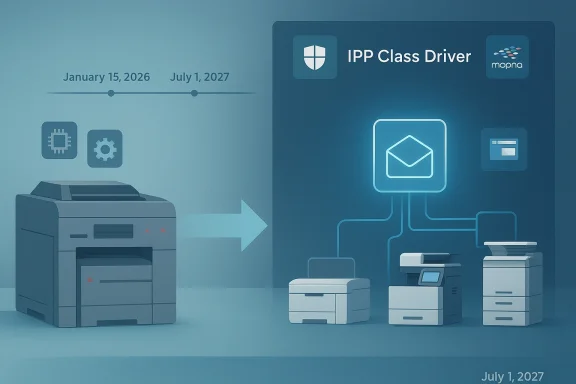
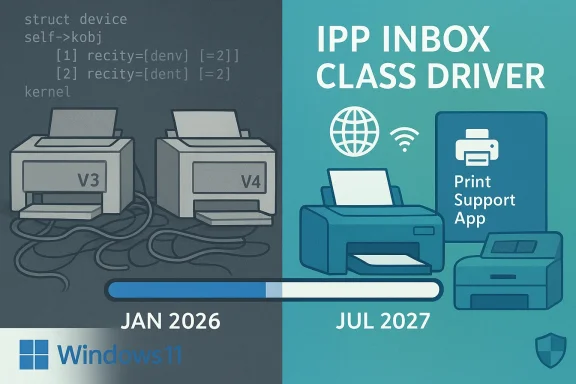
A teal-toned printer glows with an IPP icon, highlighting Mopria print support apps.Background / Overview​

Microsoft first announced the deprecation of legacy V3/V4 printer drivers in September 2023, and the company has staggered the rollout so administrators and hardware partners would have time to adapt. The vendor’s official guidance explains both the rationale and a multi‑year timeline that moves from stopping new driver submissions to Windows Update to eventually restricting Windows Update to security‑only fixes for remaining legacy drivers.
Independent technology outlets tracked the announcement and summarized the same milestone dates: no new legacy drivers to Windows Update starting in 2026, defaulting to the IPP inbox class driver for most installs by mid‑2026, and a final servicing restriction by 2027. Those reports also flagged the practical risks for niche deployments that still depend on vendor kernels.
This is not a wholesale removal of existing drivers from devices today — rather, it is a change in how Microsoft will service and rank drivers into the future. Vendors can continue to ship installers, and administrators can still install existing driver packages; but Windows Update will no longer be the primary channel for new third‑party V3/V4 drivers on Windows 11 and Windows Server 2025+.

What changed in January 2026 and why it matters​

The immediate mechanics: KBs and policy shifts​

January 2026’s cumulative updates introduced practical changes that operational teams noticed in the field. Microsoft’s January servicing (an LCU release series) included coordinated changes across a number of platform areas and set the enforcement posture for the printing transition. The vendor’s own end‑of‑servicing page lists January 15, 2026 as the date after which Windows Update will generally stop publishing new third‑party V3/V4 drivers for Windows 11 and Windows Server 2025+.
At the same time, Microsoft published guidance for partners that clarifies how new submissions will be handled: after January 15, 2026, WHQL/WHCP and attestation submissions targeting legacy driver classes are essentially blocked-by-default and routed for manual review and exception handling. This procedural change means vendor workflows for driver distribution will change materially.

Why Microsoft is doing this — the security and maintainability case​

There are three consistent arguments Microsoft has made for the change:
  • Security: Kernel‑mode printing drivers have historically been a rich attack surface. Reducing the presence of third‑party kernel drivers in the default servicing channel removes a class of local privilege escalation and kernel‑level vulnerabilities.
  • Maintainability: Thousands of device‑specific drivers increase testing complexity and the chance of decomposed interactions as Windows components evolve. Preferring a standards‑based class driver simplifies platform QA.
  • Modern standards and UX: Standards such as IPP and Mopria, combined with Print Support Apps (PSAs) in user mode, give vendors a safer, updateable path for advanced features without requiring kernel code.
These reasons track a broader engineering pattern: move policy and feature logic into user mode where updates are safer and faster, and reduce the kernel‑mode footprint where possible.

Who will feel the pain (and who won’t)​

Most consumers and many enterprise fleets will likely see little or no disruption. Mainstream consumer printers and modern office multifunction devices (MFDs) from major vendors already support IPP/Mopria, deploy DCH/DCH‑style drivers, or provide Print Support Apps that supply advanced functions while the inbox IPP driver handles core printing.
That said, the disruption is concentrated and acute for specific groups:
  • Small businesses, schools, labs, and hobbyists that keep older printers and MFDs running well past vendor EOL.
  • Vertical or embedded systems where printers, fax bridges, or scanners were bundled into appliances and were never updated with modern drivers.
  • Environments that rely on vendor‑specific driver behavior (tray mapping, finishing, or custom spooler interactions) that the IPP class driver does not reproduce.
Community reporting and forum threads from January 2026 show real examples of overnight functionality loss when some legacy in‑box components were removed or when driver ranking changed. These reports underline that the operational impact is real for the long tail of devices.

The timeline — key dates you need to know​

Microsoft’s timeline (with the vendor’s own page as the authoritative reference) is the organizing principle for planning.
  • September 2023 — Deprecation announced.
  • January 15, 2026 — No new third‑party V3/V4 drivers will be published to Windows Update for Windows 11+ and Windows Server 2025+. Existing drivers already on Windows Update may still receive updates, but new submissions are treated differently.
  • July 1, 2026 — Windows printer driver ranking will be modified to prefer the Microsoft IPP inbox class driver in driver selection scenarios. Expect Windows to install or fall back to the inbox class driver in many cases.
  • July 1, 2027 — Windows Update will generally only allow security‑related fixes for remaining third‑party drivers; non‑security updates are disallowed except on a case‑by‑case basis.
File and community analysis also calls out related KBs (for example KB5074109 and optional preview packages such as KB5074105) that were part of January 2026 servicing and that administrators should test carefully, because optional previews can change driver behavior ahead of a cumulative rollout.

Practical impacts and real examples​

What may stop working​

  • Printers or MFDs that rely on vendor kernel features exposed only by legacy V3/V4 drivers may fail to install correctly or lose feature parity (advanced finishing, stapling, device‑resident overlays).
  • Environments that depend on Windows Update as the sole distribution channel for drivers will find that new device HWIDs may not appear via Windows Update after the enforcement date. Vendors must provide installers outside Windows Update or offer PSAs.
  • Some vendor‑specific universal drivers (for example, HP’s SUPD/UPD) required special operational guidance; HP has published notes about queue and configuration loss when Windows switches to a new protected IPP mode, demonstrating vendor‑specific edges to this change. Administrators using universal drivers should consult vendor advisories and test PSAs carefully.

What will continue to work​

  • Existing driver packages already published to Windows Update prior to the enforcement date remain installable and may continue to receive security fixes as Windows’ support lifecycle allows. Microsoft explicitly states it will not remove features from existing V3/V4 drivers as part of the servicing change.
  • Vendors can still ship drivers and Print Support Apps outside Windows Update; those vendor‑supplied installers remain a supported path. Microsoft has documented exception pathways for WHCP/WHQL submissions but these are now manual and restricted.

A pragmatic remediation roadmap​

Treat this transition as a scheduled migration project. The following recommended steps compress industry best practice and the practical checklists being circulated among administrators.

Immediate (this week)​

  • Inventory printers and drivers across endpoints and print servers. Use built‑in tools to create a concrete map of risk and exposure. Useful commands and tools (run in an elevated shell or via PS remoting):
  • pnputil /enum-drivers — enumerate installed driver packages and export lists for review.
  • PowerShell PrintManagement module: Get-Printer, Get-PrinterDriver, Get-PrinterPort — query local and remote print servers.
  • Print Management console (printmanagement.msc) for on‑server inventories and exports.
  • Classify devices by criticality: mission‑critical, business‑critical, and replaceable. Focus vendor outreach on critical devices first.

Short term (this month)​

  • Contact vendors for each high‑impact model and ask:
  • Do you provide an IPP/Mopria mode or Print Support App?
  • Is a signed DCH or WHCP replacement available?
  • If not, can you provide a signed installer or a migration timeline?
  • Test the Microsoft IPP inbox class driver with any available vendor Print Support App in a lab ring. Many printers will have acceptable functionality with this combo; PSAs often restore advanced features in user mode.

Next quarter (3 months)​

  • Plan hardware refreshes for devices with no vendor support. Budgeting and procurement should prioritize IPP/Mopria compliance or vendor Print Support App availability.
  • Where necessary, stage controlled rollbacks only as an emergency mitigant. Rollbacks expose systems to the security fixes in the removed updates and must be documented with compensating controls. Community threads show administrators using rollbacks as temporary stopgaps; this is a high‑risk, short‑term action only.

Enterprise operational controls​

  • Add driver lifecycle and IPP/Mopria compatibility checks to procurement questionnaires. Require vendor statements on Print Support App availability.
  • Use Group Policy and print server isolation to pilot changes before broad rollout, and maintain an emergency support lane for isolated devices that cannot be replaced quickly.

Technical deep dive: IPP inbox class driver and Print Support Apps​

Microsoft’s strategy centers on the Internet Printing Protocol (IPP) as the transport and Microsoft’s IPP inbox class driver as the generic print engine. For advanced features that used to require kernel code, vendors are expected to ship Print Support Apps (PSAs) that run in user mode and extend the inbox driver’s functionality via documented APIs.
  • For network devices, Microsoft documents that Print and Fax endpoints will work via IPP and IPP Fax Out, while Scan endpoints will use WS‑Scan or eSCL. For USB devices, the device must support IPP Over USB for those endpoints to be accessible. These specifics matter when you evaluate whether a class‑driver approach will preserve scanning and faxing workflows.
  • The driver ranking change scheduled for July 1, 2026 will make Windows prefer the IPP inbox class driver over vendor legacy drivers in many installation scenarios. That means even where a V3/V4 driver is present, Windows may choose the inbox class driver unless a higher priority path is explicitly configured. Administrators should test this behavior in pilot rings.

Vendor and ecosystem responses — what vendors are telling customers​

Vendors have responded unevenly. Large OEMs that already support IPP and provide PSAs or DCH drivers have clearer migration paths and published advisories for administrators. HP, for example, published detailed notes warning that a Windows change to a protected IPP mode could delete or invalidate print queues that used the HP SUPD/UPD unless administrators followed specific mitigation steps. That level of vendor guidance is a model for what IT teams should demand.
Smaller vendors and specialized device manufacturers — especially those producing embedded MFDs, point‑of‑sale printers, or industrial label printers — are more likely to lack ready PSAs or IPP over USB support. Those customers face the trickiest remediation choices: vendor outreach, hardware replacement, or tightly controlled rollbacks.

Strengths, risks and blind spots in Microsoft’s approach​

Strengths​

  • Platform security gains are real: reducing kernel driver diversity narrows an attack surface that has produced high‑severity CVEs in the past. The move aligns with long‑standing secure‑by‑design principles.
  • Simplified servicing: fewer in‑box legacy binaries simplify testing, reduce OS image size issues, and make servicing decisions more deterministic for Microsoft.
  • Modernization push encourages vendors to adopt industry standards (IPP/Mopria) and user‑mode extension models, which are faster and safer to update.

Risks and weaknesses​

  • Concentrated operational cost: the long tail of legacy gear — schools, small businesses, industrial deployments — bears most of the replacement or rework cost. These organizations frequently lack spare budgets or staff for rapid refresh cycles. Community reports show immediate outages when updates removed or deprioritized in‑box components.
  • Vendor communication gaps: Microsoft’s documentation is public, but vendor outreach has been inconsistent. Some downstream administrators reported being surprised by removals in January 2026 updates despite the multi‑year notice. Treat vendor claims of proactive notification as unverified until a vendor publishes its own timeline.
  • Rollback security tradeoffs: rolling back cumulative updates to restore legacy printing behavior is a recurring community mitigation — but it reintroduces the very vulnerabilities that the updates fixed. Any rollback must be time‑boxed, mitigated, and monitored.
  • Edge cases in multifunction devices: scanning, faxing, and device‑resident workflows may require IPP‑Over‑USB or vendor PSAs; these are not universal and must be validated.

Quick technical playbook (copy‑ready for sysadmins)​

  • Inventory:
  • pnputil /enum-drivers — export list of driver packages for review.
  • PowerShell: Get-Printer | Select Name,PortName,DriverName and Get-PrinterDriver for driver model details.
  • Test:
  • In a lab ring, unbind the vendor driver and install the Microsoft IPP inbox class driver with any vendor PSA. Confirm print quality and finishing features.
  • Validate scanning endpoints: networked MFDs should provide WS‑Scan or eSCL; USB‑attached devices require IPP Over USB.
  • Remediate:
  • If no modern driver exists, ask the vendor for a signed installer or PSA. If none is available, plan hardware replacement.
  • Use Group Policy or controlled rings to prevent automatic driver ranking changes from impacting production until tested. Document any temporary rollbacks.

What to tell leadership and procurement​

  • This is planned platform hardening; it is not an unannounced break‑fix. Microsoft’s published timeline gives procurement and asset managers time to plan. Use that runway.
  • For high‑impact hardware (hospital, retail, manufacturing), demand vendor statements on IPP/Mopria support and Print Support App roadmaps before purchase. Add driver lifecycle questions to all procurement checklists.
  • Budget for a small refresh window: anticipate that a subset of printers will be replaced or that vendors will need to be paid for update work. The operational cost of unmanaged failure during patch Tuesday is typically higher than planned refreshes. Community evidence shows real outages where vendors did not prepare.

Final analysis and guidance​

Microsoft’s decision to phase out the servicing of legacy V3 and V4 printer drivers represents a deliberate tradeoff: short‑term operational headaches for long‑term improvements in security and platform maintainability. For organizations that stayed reasonably current with hardware refresh cycles and vendor models, the move will be quietly positive. For the long tail — older devices, vertical systems, and institutions with tight refresh budgets — the change will impose real work.
Your immediate priorities should be inventory, vendor outreach, and well‑scoped pilot testing of the IPP inbox class driver plus vendor Print Support Apps. Treat rollbacks as emergency-only, and favor vendor installers or hardware refresh where available. Microsoft’s documentation is the definitive roadmap and has been corroborated by independent reporting; consult vendor advisories (HP, major OEMs) for device‑specific guidance as you plan.
If you run a print estate, this is migration planning — not a surprise. Start the work now, prioritize critical devices, and use scripted inventory tools to keep a running dashboard of at‑risk hardware. The platform will be more secure and less fragmented when the long tail of kernel‑mode drivers is finally reduced, but that safety requires planning rather than surprise.

Conclusion
The phase‑out of legacy V3 and V4 printer drivers in Windows 11 is a major platform policy change with measurable security and maintenance benefits, but it will impose concentrated transition costs on the long tail of legacy hardware. Use the timeline Microsoft published as a project plan, inventory and triage high‑impact devices immediately, press vendors for IPP/PSA support, and treat rollbacks as a temporary, monitored emergency measure only. Follow the technical checklist and prioritize replacements for unsupported devices: the result will be a safer, simpler printing platform — but only if organizations treat the change as a scheduled migration and not an operational surprise.

Source: FilmoGaz Windows 11 to Phase Out Legacy Printer Drivers by 2026
 

Microsoft has quietly ended the era of automatic delivery for legacy V3 and V4 printer drivers through Windows Update on Windows 11, a change that began phasing in on January 15, 2026 and will reshape how printers are deployed and maintained across home and enterprise environments.

A wireless printer with Wi-Fi symbols and IPP/Mopria logos, beside two boxes.Background​

Microsoft first signaled the deprecation of legacy third‑party printer drivers in September 2023. The decision is part of a multi‑year, staged roadmap intended to move Windows toward modern, protocol‑driven printing and reduce the long‑standing security and reliability surface presented by legacy driver models. By mid‑2026 Windows will prefer the built‑in IPP inbox class driver for most installs, and by mid‑2027 third‑party driver updates through Windows Update will be limited to security fixes only.
This is not a single hotfix or an undocumented bug — it is an announced change in servicing and distribution policy. Microsoft’s published timeline lists concrete milestones: the initial deprecation announcement (September 2023), the cutover where new V3/V4 drivers are no longer published to Windows Update (January 15, 2026), a ranking change that prefers the IPP inbox class driver (July 1, 2026), and a final servicing cap where only security updates for third‑party drivers are allowed via Windows Update (July 1, 2027). Independent reporting by multiple technology outlets and vendor advisories have corroborated the timeline and highlighted immediate impacts for large fleets and legacy multifunction devices.

Why this matters now​

The old Windows Update behavior — where a plug‑and‑play printer reliably received a vendor driver automatically — made printing easy for non‑technical users. Removing automatic distribution for legacy V3 and V4 drivers breaks that expectation for older devices that still depend on vendor‑supplied legacy packages.
  • Immediate effect for users: New third‑party legacy drivers generally won’t appear on Windows Update after January 15, 2026. Devices relying on those drivers may require manual vendor installation or migration to modern protocols.
  • Longer‑term effect for admins: By July 1, 2026 Windows will prefer Microsoft’s IPP inbox class driver, which changes default driver selection and can alter functionality for shared or feature‑rich devices.
  • Final servicing change: From July 1, 2027 onward the Windows Update channel for third‑party printer drivers becomes largely security‑only, forcing organizations to host/update drivers through other management tools or manufacturer installers.
For anyone managing printers — from a single home office device to an enterprise print fleet — this is a significant policy change with real planning implications.

What exactly is being deprecated?​

Microsoft’s announcement targets the legacy V3 and V4 third‑party printer drivers historically distributed through Windows Update and validated via Windows signing programs. The company frames the move as a shift to a more modern printing stack where the operating system can use standardized protocols such as IPP (Internet Printing Protocol), IPP Everywhere, and Mopria‑compatible workflows — and in doing so rely upon a smaller, maintained set of inbox drivers.
The deprecation covers:
  • The default publishing of new V3/V4 driver packages to Windows Update for Windows 11+ and Windows Server 2025+.
  • Changes in driver ranking logic to prefer built‑in IPP class drivers beginning July 1, 2026.
  • A servicing model that will allow only security fixes for third‑party drivers via Windows Update after July 1, 2027, with exceptions reviewed on a case‑by‑case basis.
Microsoft has also changed the submission pathway for new drivers so that new legacy driver submissions are blocked by default and require a formal justification and manual review to be signed and published.

The technical implications: printing, scanning, and multifunction devices​

Many modern printers support driverless printing via IPP/IPP Everywhere or Mopria. For those devices, the transition is largely transparent: Windows will use the IPP inbox class driver or a modern protocol and users will be able to print without vendor drivers.
However, not all devices are modern. The change has several technical implications:
  • Print only vs multifunction behavior: Print functionality is often preserved through IPP or class drivers, but scan, fax, and advanced MFD features may still rely on vendor binaries or proprietary USB interfaces. Vendors may need to expose scan endpoints via eSCL or WS‑Scan, or enable IPP over USB, for full functionality to continue without legacy drivers.
  • USB vs network devices: Networked devices are more likely to support IPP, IPP Fax Out, and eSCL/WS‑Scan. USB MFDs may require the device to present IPP over USB to use class driver endpoints; when that is not available, vendor drivers remain necessary.
  • Queue settings and customizations: Some vendors have reported behaviors where queue customizations or universal driver mappings may be lost or need reconfiguration when switching from a vendor driver to the IPP inbox class driver. Testing is required to ensure user settings and print‑server policies are preserved.
  • Driver signing and submission changes: Beginning January 15, 2026 vendors must provide justification documentation for new legacy driver submissions; many routine submissions will be blocked unless they meet strict exceptions (e.g., devices that cannot be Mopria certified, ARM64 needs, fax devices, or targeting older Windows releases).

Confirmations and vendor warnings​

Microsoft’s own documentation lays out the timeline and the submission policy changes. Independent coverage from major Windows news outlets and hardware sites has confirmed the schedule and underlined the practical effects for home and enterprise users. Large printer vendors have also published guidance: some universal drivers have known interactions with Windows’ IPP changes, and specific advisories warn that protected print modes or recent Windows features can interact with vendor driver behavior in ways that may delete or change queues if not handled properly.
Because vendor behavior and device capabilities vary widely, the most responsible course is to treat Microsoft’s timeline as a planning requirement and use vendor guidance for specific models — especially for high‑volume or multi‑function environments.

Practical steps for home users and IT administrators​

If you manage printers, start planning now. Below is an actionable checklist you can follow to inventory, assess, and remediate potential problems.

1. Inventory your printers and drivers​

  • Run a discovery of installed printers:
  • Use the Print Management console on servers or the Printers & Scanners settings on clients.
  • Use PowerShell for scripting: Get-Printer and Get-PrinterDriver (PrintManagement module) to list queues and associated drivers.
  • Identify which drivers are vendor‑supplied legacy packages (V3/V4) versus Microsoft inbox/class drivers.
  • Export a backup of current printer configuration and drivers. Use the built‑in migration/export tools to preserve settings prior to making changes.
Why this matters: You need to know which printers are at risk so you can prioritize remediation for high‑impact devices (shared lab printers, departmental MFDs, or print servers).

2. Back up drivers and print queues​

  • Use the recommended Microsoft tools to export configurations and drivers (for print server migrations or local backups). Exporting ensures you can roll back if a migration fails.
  • Example backup approaches include:
  • Exporting printer configuration via Print Management or printbrm tools.
  • Exporting third‑party drivers with DISM or other vendor utilities where applicable.
Note: Always test a restore in a lab environment before touching production servers.

3. Check manufacturer support and download updated drivers​

  • Visit the printer manufacturer’s support site and search by model for the latest driver bundles, universal drivers, or IPP‑compatible firmware.
  • If the vendor provides an installation package, use their installer to deploy updated drivers or enable protocols such as IPP over USB.
  • For older printers with no available updates, plan replacement or a print server gateway that can handle legacy protocols.

4. Prefer IPP/Mopria/IPP Everywhere where possible​

  • When adding a new printer on Windows 11, choose “Add a printer using IPP” or use discovery options that leverage the Internet Printing Protocol.
  • Mopria‑certified or IPP‑Everywhere printers require little or no vendor driver and are future‑proof against this change.

5. Pilot and stage the migration​

  • Select a small group of users or a pilot office to migrate to the IPP inbox class driver or vendor‑supplied installer.
  • Validate print quality, duplexing, trays, finishing, scanning, and any vendor utilities.
  • Use the pilot feedback to adjust deployment scripts, GPOs, and management packages.

6. Update documentation and SOPs​

  • Revise your depot and imaging procedures to account for manual vendor installers, as Windows Update will no longer be the reliable distribution channel for legacy drivers.
  • Update onboarding, provisioning, and helpdesk scripts so staff know where to find vendor installers and what fallback steps to take.

How to tell whether a device will be impacted​

There’s no single bellwether, but these signals increase risk:
  • The printer is more than five years old and the manufacturer no longer publishes driver updates for modern Windows releases.
  • The device requires a vendor installer that places kernel or user‑mode driver components in the system.
  • The device’s advanced features (scan to folder, OCR, proprietary finishing) are explicitly tied to vendor utilities.
  • Vendor documentation does not list Mopria, IPP, or eSCL support.
If you see any of the above, plan for remediation.

Enterprise considerations: print servers, GPOs and volume imaging​

Large organizations should treat this as a policy change, not a minor bug.
  • Print servers and print drivers: Centralized print servers that host legacy drivers should be inventoried and tested. Migration of queues and driver packages must be handled carefully; driver store and driver package naming can cause conflicts if not normalized.
  • Group Policy and automation: Update GPOs and automation scripts that previously installed driver packages from Windows Update. Provisioning should instead grab vendor installers from an internal repository or use IPP provisioning where supported.
  • Zero‑touch imaging and WIMs: If you bake vendor drivers into images, review whether those packages still meet your security standards. Consider moving to class drivers in golden images where feasible.
  • Security hygiene: Legacy drivers can introduce vulnerabilities; this policy change is intended to reduce risk. Treat any remaining legacy driver package as a potential attack surface and document why it must remain in your estate.

Known vendor interactions and gotchas​

Some vendors have published specific warnings or guidance tied to Microsoft’s changes. For example, universal print drivers and features such as Windows Protected Print or IPP over USB can interact with vendor installers in surprising ways, including deletion or re‑creation of print queues during certain operations. These are the kinds of details that make vendor guidance essential before large‑scale changes.
If your environment uses universal drivers like vendor SUPD/UPD bundles, review the vendor bulletin and plan for any required configuration changes or firmware updates.

Migration playbook — prioritized steps (recommended)​

  • Inventory and classify printers by importance and driver type.
  • Back up current configurations and export driver packages.
  • Engage vendors for the top 25% most critical devices and request IPP/driverless setup or updated driver bundles.
  • Pilot migration to IPP inbox class driver for low‑risk devices.
  • Update imaging and provisioning pipelines to rely on internal repositories or vendor installers rather than Windows Update driver publishing.
  • Monitor and iterate: track helpdesk tickets, printing errors, and device firmware updates.
This ordered approach minimizes surprise outages and gives IT teams a controlled path from discovery to full migration.

Benefits Microsoft is targeting — and the tradeoffs​

Microsoft’s rationale emphasizes security, stability, and maintenance simplicity. By reducing reliance on a broad set of third‑party legacy driver code and shifting towards standardized protocols and a small set of inbox drivers, Microsoft aims to:
  • Reduce the attack surface from third‑party kernel/user mode driver code.
  • Lower the volume of driver support and fragmentation Windows Update must validate and distribute.
  • Encourage device vendors to adopt standardized, vendor‑agnostic protocols like IPP that are easier to maintain across OS releases.
Those benefits come with tradeoffs:
  • Short‑term friction for users with legacy devices.
  • Operational impact for organizations that used Windows Update as the primary driver distribution mechanism.
  • Feature loss risk for MFD features that are not exposed via standardized endpoints.
The long‑term goal is a simpler, more secure printing ecosystem, but the transition requires careful, sometimes manual work.

What to do if you run into trouble​

  • Reinstall vendor drivers using the vendor's installer package rather than relying on Windows Update if the device stops working after updating.
  • Restore from your exported backup of drivers and print queues if a migration step breaks functionality.
  • Engage vendor support for device firmware updates or instructions to enable IPP/eSCL/WS‑Scan endpoints.
  • For enterprises, open a formal support case with Microsoft if a driver published prior to the change breaks under the new ranking logic or update behavior — exceptions and legacy support routes exist, but they may require administrative or case‑by‑case handling.

Final assessment and long‑term view​

The removal of automatic distribution for legacy V3 and V4 printer drivers via Windows Update is a decisive move toward modernizing printing on Windows 11. For most users with relatively modern hardware, the transition will be largely invisible because their devices already support IPP, Mopria, or IPP Everywhere. For a meaningful minority — particularly enterprises, educational institutions, and organizations with older multifunction fleets — the change requires planning, inventory, and action.
Here’s the practical takeaway:
  • If your printer is modern and IPP/Mopria‑capable, you likely have little to do.
  • If your printer is older and relies on vendor V3/V4 drivers, plan to download vendor installers, test migration to IPP where possible, or budget replacements.
  • If you manage fleets, run the inventory, back up drivers and queues, pilot the change, and update your deployment automation to depend on vendor packages or class drivers instead of Windows Update.
Microsoft’s timeline gives administrators time to act, but the clock is ticking. Prioritize your critical printers, test thoroughly, and use vendor guidance — the move toward standards‑based printing will improve security and reliability over time, but only if organizations treat the transition as a planned migration rather than a surprise outage.

By treating printer environment modernization with the same discipline as patching or device lifecycle planning, IT teams can convert this disruption into a durable improvement: fewer vendor driver headaches, a smaller attack surface, and a more manageable, protocol‑driven print estate.

Source: WinCentral Windows 11 Drops Legacy Printer Drivers
 

Microsoft has stopped publishing new legacy printer drivers to Windows Update for Windows 11 and Windows Server 2025 as of January 15, 2026 — a deliberate step in a multi‑year plan to move Windows printing onto a modern, inbox-driven stack and to reduce the attack surface and maintenance burden created by vendor-supplied V3 and V4 drivers. This change does not instantly “kill” existing printers, but it does rewrite the default distribution and installation channel for third‑party legacy drivers, creates new gating rules for driver signing, and sets a firm timetable that will progressively limit non‑security updates for legacy drivers through July 1, 2027. Organizations that still depend on older printers need a clear inventory, a tested migration path to the modern print platform (IPP + Print Support Apps), and an operational plan for vendor-supplied driver delivery going forward.

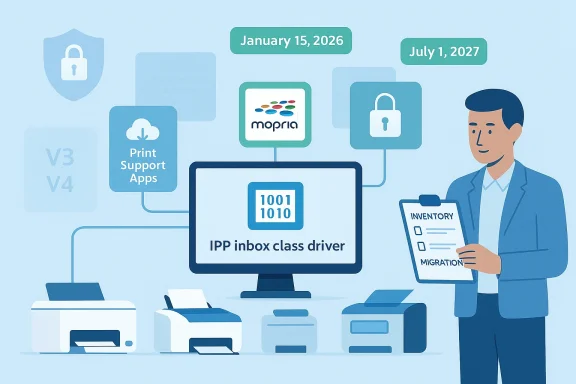
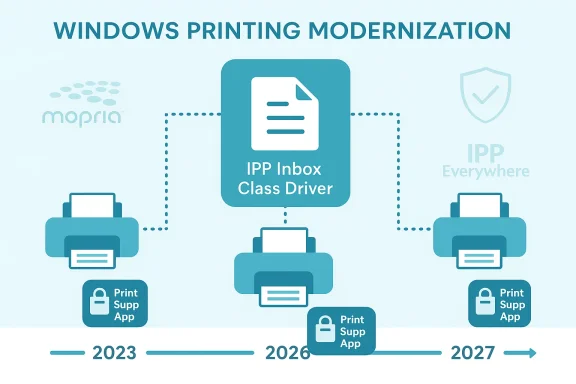
IPP inbox class driver connects printers, Mopria, and print apps for migration and inventory.Background​

Microsoft first signaled the deprecation of legacy printer drivers in September 2023 as part of a broader modernization of the Windows print platform. The company’s rationale is straightforward: the modern platform — based on the Microsoft IPP (Internet Printing Protocol) inbox class driver combined with Print Support Apps (PSA) and Mopria compatibility — reduces the need for vendor-specific kernel-mode drivers, improves cross-architecture compatibility (including ARM64), and mitigates long‑standing security and stability risks associated with the older V3/V4 driver models.
Key timeline milestones now in force include:
  • September 2023 — deprecation announced.
  • January 15, 2026 — Microsoft ceased publishing new V3/V4 third‑party printer drivers to Windows Update for Windows 11 and Windows Server 2025; new driver submissions are blocked by default and require manual justification.
  • July 1, 2026 — Windows will prefer the Microsoft IPP inbox class driver when selecting drivers.
  • July 1, 2027 — Windows Update will generally allow only security‑related fixes for third‑party printer drivers; non‑security updates will be restricted except in narrowly defined cases.
These dates convert the gradual deprecation into hard operational deadlines. Microsoft’s documentation also describes specific exceptions (for example, native ARM64 drivers, fax devices, and devices that cannot support Mopria) and a new submission process requiring a driver exception justification for any legacy driver package still seeking WHCP signing or Windows Update publication.

What changed on January 15, 2026 — the practical effects​

On January 15, 2026, Microsoft implemented the next phase of the plan: Windows Update stopped becoming the default conduit for new legacy driver packages targeting Windows 11+ and Windows Server 2025+. The practical consequences are:
  • No automatic distribution of newly published V3/V4 drivers to Windows Update audiences for the affected OSes. Vendors can still produce installation packages that customers install directly, but those packages will not be automatically pushed by Windows Update unless an exception is granted.
  • Submissions are blocked by default and must include a justification file and supporting material. In short, the gate is manual and higher.
  • Existing driver packages already published to Windows Update remain available, and in many cases can still be installed, but new hardware IDs and new feature additions via Windows Update are tightly restricted.
  • Driver updates that add new hardware IDs or new functionality are generally disallowed from Windows Update unless they meet specific exception criteria like security fixes or ARM64 additions.
Put simply: the distribution path has shifted away from Microsoft’s update channel and toward vendor-delivered installers and the modern inbox class driver model.

Why Microsoft is doing this​

There are three interlocking motivations behind the move:
  • Security: Legacy printer drivers have been implicated in high‑impact vulnerabilities (for example, print‑related vulnerabilities that enable privilege escalation or remote code execution). Reducing reliance on third‑party kernel and user‑mode drivers shrinks the attack surface.
  • Reliability and maintenance: Vendor drivers vary widely in quality. Inbox class drivers and PSAs allow Microsoft to centralize and standardize core print functionality, reducing incompatibilities and driver-related crashes.
  • Platform modernization and architecture uniformity: The IPP class driver plus PSAs is cross‑architecture, which reduces the need for separate x86/x64/ARM64 driver binaries and simplifies support for modern Windows SKUs and cloud-managed devices.
Microsoft’s official guidance emphasizes that the modern platform is the preferred path and that Mopria‑compatible printers are the most likely to work seamlessly in the modern stack. Enabling Windows Protected Print Mode is recommended for enterprises that want to enforce the modern stack and remove third‑party drivers entirely.

Who will be affected — and who likely won’t​

This change most directly targets:
  • Organizations and users who still rely on older printers that require V3 or V4 vendor drivers for installation or full functionality.
  • Environments where multifunction devices (MFDs) depend on vendor drivers for scanning, fax, or device‑specific features not exposed through IPP/IPP‑over‑USB, WS‑Scan, or eSCL.
This move will not impact the majority of users whose printers are:
  • Newer Mopria‑certified models that already work via the Microsoft IPP inbox class driver and print support apps.
  • Devices that use cloud-driven or vendor apps (PSAs) to provide brand features while using the inbox driver for core printing.
In short, modern printers and managed print fleets that have already adopted the IPP + PSA model will be largely unaffected. The pain points will be concentrated in the long tail: legacy hardware deployed in schools, small businesses, clinics, point‑of‑sale installations, and certain government environments where printer replacement cycles are long.

Technical primer: V3/V4 drivers, IPP, Mopria, and Print Support Apps​

  • V3 and V4 drivers: These are legacy Windows print driver models (V3 being the older kernel-mode model, V4 a later user-mode abstraction). They often include vendor‑specific binaries, INF configurations, and supplemental applications for device features.
  • IPP (Internet Printing Protocol): A standardized network printing protocol, supported in modern Windows via the Microsoft IPP inbox class driver. IPP standardizes printing over networks and enables class driver behavior without vendor driver binaries.
  • Mopria: An industry certification that ensures interoperability with IPP and common printing features across vendors. Mopria certification is a compatibility signal for the modern stack.
  • Print Support Apps (PSA): Vendor or OEM apps distributed through the Microsoft Store (or otherwise) that provide device customization: feature tiles, status, utility functions, and device settings while leaving the base printing functionality to the inbox IPP driver.
The architectural shift moves vendor contributions from low‑level drivers into higher‑level PSAs and into the standardized IPP framework, which is easier to maintain, sandbox, and secure.

Exceptions, signing, and the new submission process​

Microsoft’s new submission process requires partners to include a Driver Exception Justification Document with any legacy driver submission beginning January 15, 2026. Important rules include:
  • New legacy drivers will only be signed and published if they meet narrow exception conditions, such as:
  • The device cannot support Mopria.
  • The device is a fax device.
  • The submission adds an ARM64 binary.
  • The target OS is Windows 10 22H2 or earlier (i.e., not Windows 11+).
  • Driver updates are limited — for example, updates that do not add new HWIDs or new functionality and that are replacing an existing signed package may be allowed, especially if the update is a security fix or meets similar exception criteria.
  • WHCP (Windows Hardware Compatibility Program) signing is possible but now reviewed more strictly; vendors must provide justification and supporting artifacts.
These tightened gates make it harder for vendors to rely solely on Windows Update to get new or modified legacy drivers onto customer PCs; instead they must either embrace the modern platform or deliver signed installers through their own channels.

Strengths and potential benefits​

This deprecation has clear benefits if executed and communicated well:
  • Improved security posture: Reducing kernel and user‑mode vendor driver exposure decreases the number of high‑privilege components that can be exploited.
  • Simplified update surface: Fewer third‑party driver packages on Windows Update reduces update complexity and inadvertent regressions during OS servicing.
  • Better cross‑architecture support: The modern platform favors a single, inboxed solution that works consistently across x64 and ARM64.
  • Longer‑term maintainability: Standardized IPP + PSAs are easier for Microsoft and OEMs to support, and they decouple device feature development from OS driver cycles.
These are real gains for organizations with mature device lifecycles and for consumers who primarily buy modern, Mopria‑certified printers.

Risks, gaps, and operational exposures​

The transition carries several non‑trivial risks that IT teams must manage:
  • Legacy hardware compatibility: Older MFDs that require vendor drivers for scanning, faxing, or specialty finishing may lose functionality unless the vendor provides a PSA or separate utility that works with the modern stack.
  • Vendor readiness and support gaps: Not all vendors will immediately provide PSAs or modern platform support for older models. Some vendors have limited resources for long tail products.
  • Distribution complexity: Organizations that previously relied on Windows Update will now need to build and maintain alternative distribution mechanisms (MDM, SCCM/ConfigMgr, vendor installers, or managed print platforms).
  • Operational confusion during rollout: If Group Policy settings like Windows Protected Print Mode are enabled prematurely, devices may uninstall vendor drivers and leave users without required features until substitutes are tested and deployed.
  • Third‑party management overhead: Smaller IT teams and home users may struggle to locate and install vendor installers, especially for devices with discontinued vendor support.
Being strategic about inventory, testing, and phased rollout is essential to avoid service disruptions.

Practical checklist for IT teams and power users​

If you manage printers — or if you support users who do — treat this like a short‑to‑medium‑term project. Here’s a structured checklist you can implement immediately.
  • Inventory and classify printers
  • Use PowerShell to list installed printer drivers and printers:
  • Get-PrinterDriver
  • Get-Printer
  • Use pnputil to enumerate drivers: pnputil /enum-drivers
  • Tag devices by vendor, model, driver type (V3/V4/inbox), and Mopria compatibility.
  • Identify critical devices that depend on vendor drivers for non‑printing features.
  • Engage vendors early: ask whether they provide a Print Support App, a modern IPP interface, or a signed installer for direct distribution.
  • Test the Microsoft IPP inbox class driver and the vendor PSA in a lab before broad deployment.
  • Plan distribution:
  • For enterprise: use MDM (Intune), ConfigMgr (SCCM), or software deployment tools to push vendor installers and PSAs.
  • For smaller environments: centralize vendor installers and record clear installation steps for helpdesk staff.
  • Consider enabling Windows Protected Print Mode only after thorough testing; understand that enabling it will uninstall third‑party drivers and replace them with modern stack equivalents for Mopria‑compatible devices.
  • Create rollback and recovery procedures for printers and drivers, including how to reinstall a vendor driver if needed.
  • Document exceptions and longer‑term replacement plans for devices beyond vendor support.

Migration strategies and timelines​

Given the Microsoft timeline, adopt an aggressive but pragmatic migration plan:
  • Immediate (30–60 days)
  • Complete a full inventory of printers with their driver type and dependency map.
  • Engage vendors for device‑specific guidance and obtain installation packages for direct distribution.
  • Short term (3–6 months)
  • Pilot the modern stack (IPP + PSA) with a subset of devices and users.
  • Build deployment packages for PSAs and vendor installers.
  • Teach helpdesk staff how to reinstall vendor drivers if Windows Protected Print Mode causes removal.
  • Medium term (6–18 months)
  • Roll out the modern stack across the organization for compatible devices.
  • Prioritize replacement of devices that cannot be made Mopria‑compatible or lack vendor support.
  • Long term (by July 1, 2027)
  • Reduce reliance on Windows Update for non‑security driver updates and ensure vendor channels are integrated into your patch and deployment systems.
  • Enact policies to prevent new purchases of non‑Mopria printers where total cost of ownership would be adversely affected.
A disciplined schedule tied to the public deadlines will minimize last‑minute scrambling and service interruptions.

Technical mitigations and scripts to help inventory and cleanup​

Use the following as starting points for inventory and cleanup tasks. Test scripts in a non‑production environment first.
  • Quick driver inventory (PowerShell):
  • Get-PrinterDriver | Select Name, DriverVersion, InfName
  • Get-Printer | Select Name, ShareName, PortName, DriverName
  • List driver packages (admin command prompt):
  • pnputil /enum-drivers
  • Remove a problematic driver package (test carefully):
  • pnputil /delete-driver oemX.inf /uninstall
  • Examine printers that might be replaced by the IPP class driver:
  • Query network printers for IPP support or Mopria compatibility via vendor documentation and print job logs.
These commands are practical first steps for establishing a reliable inventory and for building automation around driver lifecycle management.

Vendor and OEM responsibilities — what to expect​

Vendors need to make concrete decisions for their installed base:
  • Offer Print Support Apps for modern functionality while relying on the IPP inbox driver for basic printing.
  • Provide signed installer packages for legacy drivers that customers must install directly (and document the installation and update path).
  • Offer ARM64 builds where appropriate.
  • Communicate end‑of‑support timelines for legacy devices and provide migration paths or trade‑in programs where practical.
For IT buyers and procurement teams, insist on Mopria or equivalent modern stack compatibility as a purchase requirement for future devices.

The broader context — not an isolated change​

This printer driver modernization is part of a larger trend: operating system vendors are reducing the complexity and risk of third‑party drivers by pushing more functionality into inbox components and secure user‑mode extensions. The printing story mirrors moves in other areas (cloud integration, removal of legacy APIs, tighter driver submission requirements), and administrators should treat it as part of a continuing modernization journey.
From a security perspective, the logic is clear: fewer vendor-supplied high‑privilege binaries translates to fewer avenues for exploitation. From an operations perspective, the tradeoff is increased responsibility for driver distribution and testing during the transition.

Frequently asked pragmatic questions​

  • Will my old printer stop working tomorrow?
  • No. Existing driver packages that are already installed or published to Windows Update remain usable. The January 15, 2026 change stops Microsoft from publishing new legacy drivers to Windows Update by default, but it does not magically remove drivers already in the driver store.
  • Can I still install vendor drivers?
  • Yes. Vendors can still provide installation packages that administrators and end users install directly. WHCP signing is still possible but subject to stricter review.
  • Will Microsoft force me to buy a new printer?
  • Not immediately — but if you rely on features that only vendor drivers provide and the vendor won’t update the device or provide a PSA, you may need to plan for replacement over time.
  • Is this related to PrintNightmare?
  • The history of print driver vulnerabilities has informed Microsoft’s policy decisions; reducing legacy driver reliance helps mitigate similar systemic risks in the future.

Concrete recommendations (summary)​

  • Inventory every printer and driver in your environment now. Do not wait.
  • Identify and prioritize critical printers that require vendor drivers for non‑printing functions (scanners, faxes, MFD features).
  • Contact printer vendors to obtain PSAs, modern stack compatibility guidance, and signed installer packages where needed.
  • Pilot Windows Protected Print Mode and the IPP inbox class driver in a controlled group before wider rollout.
  • Update procurement standards: require Mopria or IPP/PSA compatibility for new purchases.
  • Build deployment packages for PSAs and vendor installers in your management tools (Intune, SCCM, third‑party RMM).
  • Prepare a device replacement plan for hardware that cannot be made compatible or is out of vendor support.

Final assessment​

Microsoft’s decision to stop publishing new legacy V3/V4 printer drivers to Windows Update for Windows 11 and Windows Server 2025 is a decisive step toward a more secure and maintainable print platform. It’s sensible from a platform engineering and security perspective. However, the policy transfers distribution responsibility back to vendors and administrators, exposing gaps for environments that have deferred printer replacement or vendor engagement.
For administrators, the path forward is clear: treat printing as a discrete modernization project. Inventory, test, and operationalize vendor installers or migrate to the IPP + Print Support App model where possible. For organizations that move quickly, the change will be a net positive — fewer driver headaches, better security, and more predictable updates. For those who wait, the risk is operational friction during a constrained timeline.
This is not an abrupt hard stop so much as a scheduled, enforceable nudge. Managed carefully, it will improve reliability and security. Managed poorly, it will create avoidable outages for users who depend on legacy printing features. The next 12–18 months are the window to prepare: inventory, communicate, test, and execute.

Source: Technobezz Microsoft ends publishing new legacy printer drivers for Windows 11
 

Microsoft has begun enforcing the long‑announced phase‑out of legacy V3 and V4 printer drivers for Windows 11, turning a multi‑year deprecation plan into an operational migration for IT teams, small businesses, schools, and anyone still running older printers that depend on vendor kernel drivers.

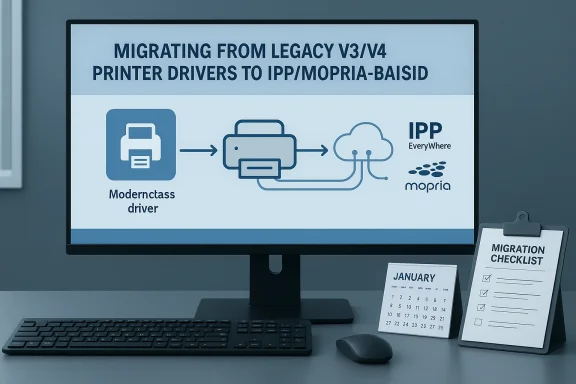
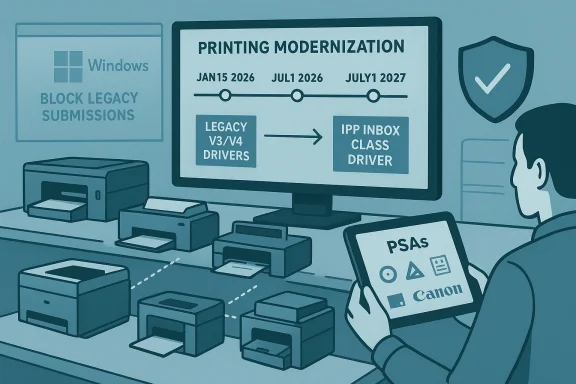
A computer monitor shows a slide about migrating legacy printer drivers to IPP/Mopria, with a migration checklist nearby.Background / Overview​

Microsoft first signaled the end of servicing for third‑party legacy printer drivers in September 2023 as part of a broader strategy to move printing functionality into modern, standards‑based, user‑mode plumbing (IPP/Mopria + Print Support Apps) and shrink the kernel‑mode footprint of Windows. The company laid out a staged timeline with concrete milestone dates that administrators must treat as planning deadlines, not optional guidance. ([windowscentral.com] dates to anchor your planning are:
  • September 2023 — Deprecation announced.
  • January 15, 2026 — New third‑party V3/V4 drivers are generally not published to Windows Update for Windows 11 and Windows Server 2025+. Existing drivers already on Windows Update remain installable but new submissions are blocked‑by‑default and routed for manual review. ([learn.microsoft.com](End of Servicing Plan for Third-Party Printer Drivers on Windows - Windows drivers — Windows changes driver‑ranking logic to prefer the Microsoft IPP inbox class driver over legacy third‑party drivers.
  • July 1, 2027 — Windows Update will generally only allow security‑related fixes for remaining third‑party drivers; non‑security updates will be disallowed except by special exception.
Multiple independent outlets corroborated Microsoft’s timeline and the practical changes seen in January 2026 cumulatives and optional previews, and vendor advisories (HP, others) warned of concrete operational edges and queue‑configuration issues administrators should test for.

What Microsoft changed — the mechanics​

From driver‑centric to protocol‑centric printing​

Microsoft’s modern printing approach emphasizes standards and user‑mode extensibility:
  • Internet Printing Protocol (IPP) and IPP Everywhere provide driverless or class‑driver printing for many networked devices.
  • Mopria certification ensures interoperable behavior across vendors.
  • Print Support Apps (PSAs) allow vendors to ship feature‑rich, user‑mode UWP/Store apps for device customization while leaving the core print path to Microsoft’s inbox class driver.
This reduces the need for third‑party kernel‑mode components that historically caused compatibility, reliability, and security headaches. Microsoft’s own partner guidance specifies that where the modern stack can be used, it should be used — and that new legacy driver submissions for Windows 11+ will be blocked by default and require a justification and manual review.

What changed in January 2026 (practical effects)​

January 2026 cumulative and preview updates implemented the enforcement posture Microsoft announced earlier and surfaced the first live impacts:
  • Windows Update generally stopped publishing new legacy V3/V4 drivers targeted at Windows 11+ beginning January 15, 2026. Vendors can still ship installers outside Windows Update, and a small set of exceptions exists for devices that cannot be modernized.
  • Driver ranking logic changes mean that, by default, Windows may choose the IPP inbox class driver over a vendor legacy driver during device installation. This can alter feature availability and queue behavior on affected printers.
  • Microsoft changed the WHCP/WHQL intake process so new legacy submissions are vetted and approved only on a case‑by‑case basis — effectively forcing vendors to justify why a legacy driver is still required.
Multiple community and vendor reports after the January updates documented real world failures where older multifunction devices lost queue settings or scan/fax endpoints required vendor installs to function fully. Administrators should treat these reports as concrete, actionable warnings rather than hypotheticals.

Technical implications (what can — and can’t — be preserved)​

Printing vs. multifunction features​

For many modern network printers, core printing continues to work under the IPP inbox class driver. However, advanced device functions can fail or be degraded:
  • Print only: Basic printing (render → PDL → print) often works with IPP/IPP Everywhere or Microsoft’s IPP class driver.
  • Scan, fax, advanced finishing: MFD features commonly rely on vendor binaries or proprietary USB descriptors. Vendors must expose scan endpoints via eSCL/WS‑Scan and IPP Fax Out for full functionality without legacy drivers. When those modern endpoints are missing, vendor installers or PSAs are required.

USB vs network; IPP over USB​

Networked devices are more likely to be modern out of the box. USB‑connected printers historically relied on vendor drivers to enumerate multiple endpoints. To be driverless over USB, devices must implement IPP over USB (IPP‑USB). Without IPP‑USB, USB MFDs may still need a vendor driver to access scan/fax endpoints.

Windows Protected Print (WPP) mode and queue deletion​

Microsoft introduced Windows Protected Print (WPP) as an additional defense: when WPP is enabled, Windows will prefer inbox class drivers and may remove non‑IPP queues, which in some vendor scenarios has resulted in permanent loss of queue customizations for universal drivers (HP’s SUPD/UPD is a documented example). Vendors have published recovery and backup guidance; administrators must verify vendor‑specific instructions before toggling WPP. Do not enable WPP without backups when managing universal vendor drivers.

Security and reliability rationale — the case Microsoft makes​

Microsoft’s arguments for the phase‑out are consistent and compelling:
  • Security: Kernel‑mode printer drivers have been a recurring attack surface (e.g., the PrintNightmare era highlighted how printing subsystems can be exploited). Reducing the number of signed, kernel‑mode drivers in the default servicing channel reduces potential kernel attack surfaces.
  • Maintainability: Fewer vendor kernel blobs in the default image simplifies Microsoft’s testing matrix and reduces the risk of regressions from fragile or unmaintained drivers.
  • Modern UX & deployment: Standards like IPP and Mopria, paired with PSAs, provide a consistent user experience across devices and Windows releases while making vendor updates safer and easier to ship through a store channel.
Those are valid engineering goals. But engineering gains come with concentrated migration costs that fall hardest on the long tail of legacy hardware and vertical deployments.

Who will be affected — a practical segmentation​

  • Least impacte modern consumer printers that support IPP/IPP Everywhere or Mopria. These devices typically continue to work out‑of‑the‑box.
  • Enterprises that already standardized on modern MFD fleets and vendor Print Support Apps.
  • Moderately impacted:
  • Small businesses and schools using older but still serviceable printers and universal vendor drivers.
  • IT environments using print servers with many older queues and hardware IDs. Changes in driver ranking and WPP behavior can break deployed print policies.
  • Most impacted:
  • Vertical or embedded systems where printers are integrated into appliances or specialized workflows and have never received modern firmware or exposed IPP endpoints.
  • Devices where vendor‑specific drivey mappings, finishing, or device resident workflows) is required for business processes.

Vendor responsibilities and OEM actions​

Microsoft’s plan does not prevent vendors from shipping drivers; it changes the distribution channel and approval posture:
  • Vendors can still publish drivers via their own web portals or ship installers, and Microsoft will continue to sign drivers in limited, exception‑driven cases (for example, devices that cannot be Mopria certified or require native ARM64 parity).
  • Best practice for vendors is to provide a Print Support App in the Microsoft Store for feature parity while ensuring the device exposes modern IPP/E‑Scan endpoints for basic functionality.
  • Major vendors have already posted advisories and migration steps; administrators should consult vendor‑specific guidance and use vendor tools to back up queue and configuration data before attempting platform upgrades or toggling WPP. HP’s advisory on queue loss is a salient example.

What IT teams and power users should do now — an immediate checklist​

Treat this change as a scheduled migration project. Below is a practical, prioritized checklist to reduce operational risk.
  • Inventory and categorize your print estate now.
  • Use built‑in tools and scripts:
  • pnputil /enum-drivers — enumerate driver packages in the driver store.
  • PowerShell PrintManagement: Get-Printer, Get-PrinterDriver.
    These commands let you map which machines use V3/V4 drivers and which queues rely on vendor features.
  • Identify high‑risk devices.
  • Prioritize multifunction devices in clinical, retail, lab, and manufacturing scenarios where downtime is unacceptable.
  • Contact vendors and request roadmaps.
  • Ask whether the model supports IPP/IPP‑USB, eSCL/WS‑Scan, IPP Fax Out, and whether a Print Support App is available or planned.
  • Pilot the IPP inbox class driver + vendor PSA (where available).
  • Deploy to a small group, verify print quality, tray mapping, finishing, and scan endpoints.
  • Back up queue configurations and defaults before changing system policies.
  • Vendors and community tools can export queue names, port assignments, and settings.
  • Test Windows updates in a controlled ring (include optional preview KBs).
  • January 2026 preview releases included changes that can surface issues before a cumulative roll‑out; test those previews in non‑production first.
  • Prepare fallback procedures.
  • If a rollback to prior behavior is required, do so as a short‑term mitigation while pursuing vendor fixes or replacements.
  • Budget for replacements where vendor remediation is impossible or cost‑ineffective.

Recommended migration timelines by scale​

  • Small office / home lab (1–10 printers): Inventory and pilot within 30 days; full migration or replacement within 6–12 months.
  • SMB (10–200 printers): Inventory + vendor engagement within 30 days; prioritized pilot within 60–90 days; rollouts and hardware refresh windows planned over 6–18 months.
  • Enterprise (>200 printers / print farms): Immediate executive‑level project kickoff; full asset inventory and a vendor remediation program within 30 days; cross‑functional pilots across departments within 60 days; staged migration, replacement budgeting, and SLA adjustments over 12–36 months.

Risks and caveats — what to watch for​

  • Data‑loss risk from WPP: Some vendors reported permanent loss of queue customizations when WPP removed v3fore enabling WPP. ([support.hp.com](https://support.hp.com/us-en/document/ish_11587406-11587005-
  • Hidden feature gaps: The IPP inbox class driver focuses on core printing. Specialized, device‑resident features (forms, overlays, finishing defaults) may require vendor PSAs or separate installers. Test thoroughly.
  • Vendor readiness variability: Not all vendors will move at the same pace. Expect some manufacturers to rely on legacy drivers for longer, which increases the operational burden on administrators to manage separate installer channels.
  • Exception process uncertainty: Microsoft’s manual review exceptions exist but are not a substitute for vendor modernization; rely on them only for truly exceptional hardware that cannot be modernized.

What Microsoft could do better (and what to ask vendors)​

  • Clearer remediation tooling: Microsoft should provide first‑party, supported tooling to export/restore queue settings and port mappings to avoid manual reconfiguration headaches when migrating queues.
  • Extended exception information: Publish clearer criteria and estimated timelines for manual review approvals to help vendors know when they must invest in modernization.
  • Vendor engagement playbook: A joint Microsoft–OEM playbook for migration testing, QA, and PSA packaging would remove a lot of the friction for mid‑market vendors that lack large driver engineering teams.
Ask vendors for:
  • A concrete timeline to support IPP/IPP‑USB and eSCL/WS‑Scan.
  • A Print Support App or PSA roadmap and feature parity lists.
  • Tools or scripts to back up and restore print queues and policies.

Final assessment — tradeoffs and the long tail​

Microsoft’s move is a classic platform tradeoff: short‑term disruption for long‑term systemic gain. Reducing the presence of legacy kernel drivers in Windows improves security posture, reduces the testing and QA burden for Microsoft and vendors, and encourages modern, network‑centric printing protocols that align better with mobile and cloud scenarios. Those are real benefits.
But the costs are concentrated, not uniformly spread. The organizations that will struggle most are precisely those with constrained refresh budgets, long equipment lifecycles, or highly customized print workflows that never received firmware updates to expose modern endpoints. For those groups, the policy is not simply a convenience change — it is a project that must be resourced, tested, and executed. Forum and vendor reporting from January 2026 shows the change is already producing real operational incidents; treat those reports as early warning signals rather than isolated anecdotes.

Practical quick reference (commands & resources)​

  • Enumerate driver store: pnputil /enum-drivers.
  • List printers and drivers (PowerShell PrintManagement): Get-Printer, Get-PrinterDriver.
  • Key Microsoft documentation to anchor your plan: End of servicing plan for third‑party printer drivers on Windows and Legacy Printer Driver Submission Process. These pages list authoritative dates, exception categories, and partner requirements.

Conclusion​

This is a platform‑level migration, not a bug. Microsoft’s January 15, 2026 enforcement marks the point where a long‑noticed deprecation becomes operational reality: Windows 11 will prefer standards and inbox class drivers, and Windows Update will no longer be the default distribution channel for new V3/V4 drivers for Windows 11+. For most modern devices the change will be invisible or beneficial; for the long tail of legacy printers and embedded deployments it will be a migration project that demands inventory, vendor engagement, testing, and, in some cases, hardware replacement. Plan now, test early, and treat rollbacks as emergency stopgaps — the platform is moving toward a safer, simpler printing model, but getting there requires deliberate effort from administrators, vendors, and procurement teams.

Source: WinBuzzer Microsoft Ends Legacy Printer Driver Support for Windows 11
Source: SSBCrack News Microsoft Ends Support for Legacy Printer Drivers in Windows 11 - SSBCrack News
Source: FilmoGaz Microsoft Phases Out Legacy V3/V4 Printer Drivers on Windows 11 by 2026
 

Diagram showing Windows Update delivering V3/V4 drivers to the IPP Inbox Class Driver and Universal Print cloud.
Microsoft’s quiet, staged decision to stop publishing new legacy printer drivers (the V3 and V4 models) to Windows Update for Windows 11 marks one of the most consequential — and least understood — shifts in the Windows device ecosystem in years. Effective January 15, 2026, Microsoft moved the distribution and servicing of new third‑party V3/V4 printer drivers out of Windows Update and into a vendor‑managed model, with follow‑on milestones that will prefer Microsoft’s inbox Internet Printing Protocol (IPP) class driver on July 1, 2026 and limit non‑security third‑party driver updates via Windows Update beginning July 1, 2027. This change is deliberate: it reduces a long‑standing attack surface, simplifies driver management at scale, and forces a modernization of printing architecture — but it also transfers real operational burden to organizations and vendors who must now plan, test, and remediate legacy fleet dependencies before those milestones bite.

Background: why Microsoft moved the printing goalposts​

For more than a decade Windows has supported two dominant legacy printer driver models — commonly referred to as V3 (a kernel‑mode, traditional driver model) and V4 (a later, more modular model introduced to reduce complexity). Those drivers were traditionally distributed through Windows Update so a newly connected printer could “just work” on a Windows PC. While convenient, the model created a sprawling, fragmented driver catalog with uneven quality, inconsistent signing practices, and a growing maintenance overhead for Microsoft.
Security incidents such as the PrintNightmare vulnerabilities exposed how printer drivers — and legacy kernel‑mode code in particular — can become persistent, high‑impact attack vectors. Microsoft’s official servicing roadmap now frames the strategy this way: provide an inbox, protocol‑driven alternative (the Microsoft IPP Class Driver) that supports Mopria‑compatible printers and standard printing protocols, push customization into user‑level Print Support Apps, and stop distributing new legacy driver packages through Windows Update. The timeline Microsoft published establishes the dates organizations must treat as planning anchors: January 15, 2026; July 1, 2026; and July 1, 2027.

What exactly changes — the technical facts​

Microsoft’s deprecation is staged and targeted, not a single on/off switch. The concrete mechanics that administrators and OEMs need to know:
  • January 15, 2026 — Windows 11+ and Windows Server 2025+: Microsoft will no longer publish new third‑party V3/V4 printer drivers to Windows Update by default. Existing driver packages already in the Windows Update catalog can continue to be updated in limited cases, but new submissions are blocked by default and must pass a manual review and justification process.
  • July 1, 2026 — Driver selection order: Windows will modify the internal driver ranking algorithm to prefer the Microsoft IPP inbox class driver when multiple drivers are available for a device. In practice, this means Windows may automatically select the inbox class driver instead of a vendor‑supplied V3/V4 driver in many install flows.
  • July 1, 2027 — Servicing cap: Third‑party printer driver updates via Windows Update will generally be restricted to security‑related fixes only. Non‑security feature or bug‑fix rollouts from third parties through Windows Update will be disallowed except on a case‑by‑case basis.
Microsoft’s documentation also outlines how networked devices expose print/scan/fax endpoints through IPP, IPP Fax Out, WS‑Scan, or eSCL; note that USB devices can expose these endpoints only when operating in IPP over USB mode, which has implications for multifunction devices that historically relied on vendor USB drivers for full scan/fax functionality.

Why Microsoft chose the IPP inbox class driver (and what IPP is)​

The Internet Printing Protocol (IPP) is a standards‑based protocol for submitting print jobs and querying printer capabilities over HTTP/S. Microsoft’s inbox IPP class driver is a generic, protocol‑driven driver that communicates with IPP‑capable printers — many modern network printers support IPP either natively or via firmware. The benefits Microsoft and many administrators cite are straightforward:
  • Security: fewer third‑party kernel drivers reduces the attack surface exposed to privilege escalation and code‑execution exploits.
  • Reliability: standardized protocol flows avoid vendor‑specific translation bugs that can cause crashes, memory leaks, or corrupted print jobs.
  • Simplicity: administrators spend less time matching OS builds and architectures to specific vendor driver packages.
  • Future‑proofing: IPP and related APIs are cross‑platform and better suited to cloud and identity‑driven printing models.
That said, IPP is not a panacea. Not all legacy printers fully implement the features enterprise users have come to expect (for example, advanced finishing options, user authentication tied to a device app, or proprietary scanning workflows). Microsoft’s approach therefore encourages vendors to use Print Support Apps (user‑level apps distributed via an app store or installer) to restore device‑specific UX while keeping kernel code off the platform.

Immediate operational impact: who feels pain first​

Not every environment will be affected equally. The risk profile depends on device age, vendor responsiveness, and the complexity of printing workflows.
  • Small businesses and home offices: Many of these setups use consumer printers that are relatively modern and Mopria‑compatible; they will likely see little or no impact. But pockets of users with older devices that rely on vendor V3/V4 kernels and Windows Update distribution may face plug‑and‑play failures or need manual installers.
  • Education and government: K‑12 schools, local governments, and public agencies frequently run long hardware refresh cycles. These organizations could face significant operational headaches if teacher workstations or shared library printers require vendor installers that are no longer offered through Windows Update.
  • Enterprises with mixed fleets: Large organizations with fleets of multifunction printers (MFPs) will need to inventory exact models, confirm vendor support for IPP/eSCL/WS‑Scan, and test whether scanning and advanced finishing work under the IPP class driver or via vendor Print Support Apps.
  • Managed service providers and print management vendors: Companies offering centralized print management, pull‑printing, or secure release solutions must validate integration with the inbox driver, Universal Print, or other vendor cloud connectors and adapt onboarding procedures.
In short: the first disruption will be felt by environments that assumed Windows Update would always supply the “right” driver without vendor engagement.

The vendor responsibility shift: consequences for OEMs and software partners​

Microsoft’s change intentionally reallocates responsibility for legacy device support to printer manufacturers. Practical outcomes:
  • Vendors must supply installers and, where appropriate, Print Support Apps. New legacy driver submissions to Microsoft’s hardware catalog are blocked by default and require a formal justification document, introducing friction and auditability into the submission process.
  • Expect vendors to triage: high‑volume, recently sold models will be prioritized for modern drivers or Print Support Apps; long‑tail legacy models may receive limited attention.
  • Some vendors will accelerate cloud‑centric strategies (Universal Print connectors, firmware updates to add IPP support, or promoted Print Support Apps).
  • Smaller vendors or discontinued product lines may rely on archived installers hosted on their websites or third‑party driver repositories — raising security and availability concerns.
This shift improves long‑term ecosystem health but creates a transition window during which vendors must move quickly or accept that customers will replace or work around unsupported devices.

The business case: what Microsoft stands to gain — and what organizations lose​

From Microsoft’s perspective, the gains are clear: a lower maintenance burden for Windows Update, fewer privileged drivers to secure and support, and a more consistent printing stack to reason about across Windows SKUs. For enterprises, the potential benefits include simpler image management, reduced unforeseen driver regressions, and improved security posture.
But the immediate cost for organizations includes:
  • Time and personnel to inventory and test fleets.
  • Potential purchase and deployment of replacement hardware for unsupported printers.
  • Short‑term productivity losses where scanning or finishing workflows do not map cleanly to IPP or Print Support Apps.
  • Possible licensing or integration work to move to cloud print management (e.g., Universal Print or third‑party SaaS).
The calculus will differ by organization. What’s unavoidable: a plan is required. Waiting until July 2026 or 2027 guarantees rushed and costly remediation.

Practical remediation checklist — what IT teams should do now​

Below is a concise, prioritized plan administrators should adopt immediately to avoid surprises:
  1. Inventory: run targeted commands and tools to capture installed printers and driver packages. Start with:
    • pnputil /enum-drivers — to list driver packages in the driver store.
    • PowerShell: Get‑PrinterDriver and Get‑Printer (PrintManagement module) — to enumerate installed printer drivers and attachments.
  2. Classify: tag printers by age, vendor, driver model (V3/V4), and network vs USB connectivity. Flag MFPs that require USB-only vendor drivers for scanning.
  3. Vendor engagement: open support tickets for any high‑value or high‑use printers that rely on V3/V4 drivers. Ask vendors explicitly whether:
    • The device supports IPP/eSCL/WS‑Scan or IPP over USB.
    • A Print Support App exists or is planned.
    • They will provide installer packages outside Windows Update and whether they are digitally signed.
  4. Pilot: choose a small set of representative devices and test installs using the Microsoft IPP class driver and any vendor Print Support Apps. Validate print fidelity, finishing, scan workflows, and driver ranking behavior.
  5. Deploy staged updates: incorporate tested installers and configuration baselines into deployment and device management tools (MDM, SCCM/Intune).
  6. Replace or rationalize: for devices that cannot be modernized, prioritize replacement based on business impact and total cost of ownership.
  7. Communicate: notify user groups about changes and what to expect during the transition period.
  8. Consider cloud options: evaluate Microsoft Universal Print or third‑party cloud print services for long‑term simplification and central management.

Cloud printing and Universal Print: a viable alternative for many organizations​

Cloud printing — notably Microsoft Universal Print — is now a mature option for organizations ready to move printing control into the cloud. Universal Print removes the need for client‑side drivers, centralizes printer management under identity controls (Entra ID), and supports pull/prompt printing workflows that improve security and reduce waste.
Universal Print and IPP complement Microsoft’s inbox class driver strategy: where devices are Universal Print–capable or can be connected via a Universal Print connector, organizations can eliminate much of the driver complexity that drove the legacy model. That said, Universal Print is not a drop‑in replacement for every scenario: offline sites, deeply customized MFP feature sets, or specialized scanning pipelines may still require vendor‑specific solutions.

Regional and market ripple effects — localized consequences to watch​

The change’s macroeconomic impact varies by market:
  • United States: a high volume of older printers in SMBs and educational institutions means the US market could see patchy vendor engagement and a rise in managed print services as customers avoid in‑house remediation work.
  • United Kingdom: sustainability and circular‑economy pressures may accelerate hardware refresh cycles for organizations that view migration as an opportunity to modernize and reduce energy use.
  • Canada: a hybrid tech profile — with both conservative procurement cycles and modern public sector projects — will likely see mixed outcomes; the vendor channel will be critical.
  • Australia: rising cloud adoption and the growth of remote hybrid workplaces could drive stronger uptake of Universal Print and cloud connectors as IT groups choose quick, centrally managed options.
Across markets, expect a secondary industry effect: managed print service providers and independent software vendors (ISVs) will market migration packages, replacement leasing programs, and scanning integrations to capture demand.

Strengths of Microsoft’s approach​

  • Security first: removing yet more kernel‑mode third‑party code reduces high‑impact vulnerabilities and simplifies patching models.
  • Operational simplification long‑term: inbox drivers and cloud management reduce one of IT’s chronic support headaches: driver bloat and version mismatch.
  • Clear milestones: Microsoft published firm dates that allow organizations and vendors to plan a staged migration rather than facing an abrupt break.
  • Modern customization paths: Print Support Apps and cloud connectors enable vendors to keep device‑specific experiences while reducing low‑level OS integration.

Risks, unknowns, and overstated claims​

  • Not every claim of "printers dying" is accurate: many reports hyperbolically suggest immediate mass failures. The reality is more nuanced — existing V3/V4 drivers already installed on devices will not be forcibly removed by the January 15, 2026 change; rather, Microsoft stopped publishing new legacy drivers to Windows Update. Vendors can still provide installers, and organizations can continue to use existing packages. However, long‑term servicing constraints and driver ranking changes create a clear migration imperative.
  • Multifunction device parity is a wildcard: some MFPs rely on vendor USB drivers for scanning that are not fully replicable via IPP over USB or eSCL. These devices are the highest‑risk category.
  • Vendor responsiveness varies: smaller OEMs may not have the resources to produce Print Support Apps or firmware upgrades, leaving customers dependent on archived installers or hardware replacement.
  • Operational cost is real: organizations that postpone inventory and vendor engagement risk rushed, expensive migration programs later in 2026 and 2027.
When claims go beyond these verifiable points — for example, precise counts of "millions" of devices that will immediately cease to work — treat them as illustrative rather than factual until vendors publish inventory data.

How to prioritize decisions — a pragmatic timeline​

To avoid unnecessary disruption, follow a simple prioritized timeline:
  • Now — 30 days: Inventory and classify printers; open vendor support cases for your top 25% of devices by usage.
  • 30–90 days: Pilot IPP/inbox driver and Print Support App installs for representative models; validate scan and finish workflows.
  • By July 1, 2026: Ensure critical devices operate correctly when Windows starts preferring the IPP inbox class driver.
  • By July 1, 2027: Migrate or replace devices that cannot be serviced via vendor installers or security‑only updates on Windows Update.
This timeline gives organizations breathing room to batch procurement and rollouts into normal refresh cycles while avoiding the last‑minute scramble that would force emergency purchases.

Final analysis: modernization with a caution label​

Microsoft’s decision to end the routine delivery of new V3/V4 printer drivers through Windows Update is a strategic move to reduce systemic risk and simplify the Windows ecosystem. The approach is defensible from a security and long‑term maintenance perspective: inbox class drivers, cloud print solutions, and Print Support Apps combine to form a modern, manageable printing architecture.
But the policy shift is also a transfer of risk across the ecosystem. It imposes operational work on vendors and customers, and it risks short‑term disruption for institutions slow to modernize. The next 18 months will determine whether vendors respond aggressively with firmware, apps, and modern drivers — or whether a subset of legacy devices becomes a de‑facto recycling event for organizations unwilling to invest the time to remediate.
If you manage Windows devices, treat this as a prioritized infrastructure project: inventory, engage vendors, pilot changes, and consider cloud migration strategies. Ignoring the change risks friction at the worst possible moment — when mandatory updates and changed driver ranking make reactive fixes costly and chaotic. The good news is this: the path forward is known, the dates are fixed, and the technical alternatives (IPP, Universal Print, Print Support Apps) are real and viable — but they require deliberate planning and execution to deliver the promised security and reliability benefits without unnecessary business disruption.

Source: شبكة تواصل الإخبارية Microsoft Halts V3/V4 Printer Drivers, Threatening Legacy Windows 11 Devices
 

Laptop shows Add Printer options via IPP and Mopria cloud printing; Legacy V3/V4 blocked.
Microsoft’s staged end-of-servicing for legacy V3 and V4 printer drivers in Windows 11 has begun to roll out — and while Microsoft frames this as a security and reliability win, the change carries real operational consequences for home users, small businesses, schools, and IT teams that still rely on older printers and multifunction devices.

Background / Overview​

Microsoft announced the deprecation of legacy third‑party printer drivers in September 2023 and published a multi‑year roadmap that changes how Windows will accept, rank, and service printer drivers going forward. The most consequential milestones are: new legacy V3/V4 drivers will generally not be published to Windows Update starting January 15, 2026; Windows will prefer the Microsoft IPP Class Driver by default starting July 1, 2026; and by July 1, 2027, Windows Update will limit third‑party printer driver updates to security‑only fixes. These policy changes are specifically targeted at Windows 11 and Windows Server 2025+ editions.
News outlets and independent reporting have tracked user reports since the January 2026 cutover began, and vendor guidance from major printer manufacturers confirms they’re shipping Print Support Apps and alternative installers to preserve feature parity under the new model. Expect mixed outcomes: many modern printers will continue to work via Microsoft’s inbox IPP driver and a vendor Print Support App, while some older or niche devices — especially multifunction units that rely on kernel drivers for scanning, finishing, or faxing — may require manual vendor installers or replacement hardware.

What exactly is changing?​

The policy timeline (short version)​

  • September 2023: Microsoft announced the end-of-servicing plan for legacy printer drivers.
  • January 15, 2026: Windows 11+ stops accepting and publishing new legacy V3/V4 third‑party drivers to Windows Update; existing drivers may still be updated but approvals are now case‑by‑case.
  • July 1, 2026: Windows will change driver ranking to prefer the Microsoft IPP inbox class driver by default. That means Windows may install a Microsoft-provided generic class driver instead of a vendor-specific legacy driver when adding printers.
  • July 1, 2027: Third‑party driver updates distributed via Windows Update will be limited to security fixes only; general servicing for legacy V3/V4 drivers through the Windows Update channel will effectively end.
These dates are concrete planning milestones; vendors and administrators should treat them as planning deadlines rather than optional guidance.

Technical shift: from vendor kernel/Win32 drivers to IPP + Print Support Apps​

Microsoft’s Modern Print Platform favors driverless and protocol-based printing using standards such as IPP (Internet Printing Protocol) and Mopria certification. The inbox Microsoft IPP Class Driver provides basic printing functionality and uses optional Print Support Apps (distributed through the Microsoft Store or vendor installers) to restore advanced features. This approach reduces kernel-mode code shipped on customer machines and aims to improve reliability, security, and cross‑architecture compatibility (including ARM64).

Why Microsoft is doing this — the rationale​

  • Security: Printer drivers have historically run code in privileged contexts and have been a real attack surface. Consolidating printing functionality into a smaller set of Microsoft-maintained class drivers reduces the risk of insecure third‑party kernel components. Microsoft explicitly frames the change as reducing the security and reliability footprint of the Windows print stack.
  • Compatibility and consistency: A single inbox class driver that uses standard protocols is easier to keep working across Windows releases and architectures (e.g., ARM vs x86), reducing the classic “driver broke after Windows Update” problem. This is also part of the same logic behind Windows Protected Print Mode (WPP) and the push for Mopria/IPP-certified devices.
  • Modern management and cloud scenarios: IPP and Universal Print reduce dependence on print servers and local driver distribution, simplifying management for modern endpoints and cloud-first organizations. Microsoft’s Universal Print and IPP-based workflows are consistent with this strategy.
These goals are sensible for an OS vendor. The tradeoff is operational friction for users with older hardware or for organizations that depend on vendor-supplied kernel drivers for advanced MFD functions.

Who is affected — and how badly?​

Likely unaffected groups​

  • Users of recent consumer printers and many corporate models that already support IPP or are Mopria-certified. These devices will generally install with the Microsoft IPP Class Driver and, where needed, a vendor Print Support App will restore device-specific features.
  • Organizations that already use Universal Print or IPP-based print servers and that maintain up-to-date vendor support contracts.

Potentially affected groups​

  • Home users and small businesses relying on older USB-bound printers or multifunction devices that shipped drivers only as legacy V3/V4 packages and have no modern replacements or Print Support Apps. Some printers may still print, but scanning or finishing features may degrade.
  • Enterprises with large fleets of specialized printers (label printers, POS printers, industrial printers) that rely on vendor kernel drivers or custom vendor ports. Those environments must inventory and plan vendor-driven remediation.
  • Managed devices running Windows in strict security modes (e.g., Windows 11 S Mode or environments that enable Windows Protected Print Mode). In WPP, Windows blocks driver installers and will actively remove non-IPPs, which can break legacy workflows if vendors haven’t provided Print Support Apps or IPP-compliant features.

How to tell if you’re affected — quick diagnostics​

Run these checks on a representative workstation or print server to identify at‑risk devices.
  • Check installed printer drivers using PowerShell:
    • Get-PrinterDriver — lists installed driver packages and providers.
    • Get-Printer — lists installed printers and their port types.
  • Use pnputil to list driver packages in the driver store:
    • pnputil /enum-drivers — shows the driver packages Windows has available. Use pnputil /delete-driver oemX.inf /uninstall only after testing.
  • Inspect individual printer properties:
    • Open Settings → Bluetooth & devices → Printers & scanners → Select a printer → Printer properties → Advanced and check the Driver Provider and Driver Version information. If the provider is a vendor (e.g., HP, Canon, Ricoh) and the driver type is V3/V4, it’s a candidate for remediation.
  • Inventory at scale:
    • Use PowerShell scripts (Export-CSV of Get-PrinterDriver / Get-Printer) or endpoint management tools (SCCM/Intune) to collect driver data from many machines. Prioritize printers that show vendor-specific legacy drivers or are connected via USB rather than IPP.
If you find vendor-signed V3/V4 drivers in active use, contact the vendor and check for a DCH‑style driver, a Print Support App, or a published migration path. Many vendors already document replacement options and offer PSAs in the Microsoft Store.

Practical migration and remediation options​

Below are prioritized actions based on risk, cost, and time-to-complete.
  1. Inventory and classify
    • Create a prioritized list of printers sorted by criticality, age, and reliance on legacy features (scanning, finishing, custom trays). Use Get-PrinterDriver/Get-Printer to automate this.
  2. Vendor engagement
    • Contact the printer manufacturer to ask whether they provide:
      • A Print Support App (PSA) for the Microsoft IPP Class Driver, or
      • A modern DCH or WHCP-signed driver package (note: after Jan 15, 2026, new driver approvals are case-by-case). Vendors often publish migration pages and PSA guidance.
  3. Test the Microsoft IPP Class Driver + PSA
    • In a lab or pilot group, add a printer as an IPP Device via Settings → Add device manuallyAdd a printer using IP address or hostname → Device type = IPP Device, or use Add-Printer -IppURL <url> in PowerShell to recreate IPP installations. Confirm print and scan features. Microsoft’s Universal Print connector docs provide step-by-step IPP install guidance.
  4. Deploy Print Support Apps where available
    • PSAs restore vendor-specific UI and feature sets without kernel-mode drivers. These can be distributed through the Microsoft Store, Intune, or vendor install packages. Test PSA behavior with WPP enabled if your environment uses it.
  5. Vendor installer fallback
    • If no PSA or IPP solution exists, vendors can still ship signed installer packages outside Windows Update. Plan deployment windows and signing/compatibility testing. Remember that driver submissions to WHCP or Partner Center are now stricter after Jan 2026.
  6. Consider Universal Print for larger fleets
    • Universal Print or IPP-based centralized queues simplify management and reduce dependence on device-specific drivers. The Universal Print connector supports IPP-directed discovery for registering devices. This is a strategic migration step for organizations with many distributed printers.
  7. When replacement is the only practical path
    • For end-of-life printers that lack vendor support and whose replacement cost is acceptable versus ongoing risk and management overhead, plan staged replacement. Keep sustainability and total cost of ownership in mind — buying a new Mopria/IPP-compatible device often reduces long-term admin burden.

Step-by-step quick fixes for a broken printer after the update​

  1. Confirm whether the device still appears in Settings → Printers & scanners. If it’s present but not working, check the queue and the driver provider.
  2. Try re-adding the printer as an IPP Device using the device’s IP address — Windows will install the Microsoft IPP Class Driver. Test printing basic jobs.
  3. If scanning or advanced finishing is missing, install the vendor’s Print Support App (Microsoft Store) or the vendor’s installer package if one is available.
  4. If the vendor has no solution and the device is critical, reinstall the legacy driver package manually (outside Windows Update) as a temporary stopgap, but document the exception and track the device for replacement planning. Note the security tradeoffs.
  5. As an emergency last resort you can uninstall the recent Windows update that triggered the change — but this reintroduces any security fixes in that update and is only appropriate for short-term mitigation under strict change control.

Enterprise guidance: policy, testing, and deployment​

  • Start with a pilot: choose a mix of printers (network, USB, MFDs) and test adding them as IPP devices, installing PSAs, and verifying scan/finish workflows. Use a small pilot group before broad rollout.
  • Use automation: script inventory collection with PowerShell; generate reports that show driver provider, transport, model, and installed features. This helps prioritize which printers need vendor remediation or replacement.
  • Policy adjustments: review Group Policy and Intune settings that control driver installation and the Print Spooler; if you plan to enable Windows Protected Print Mode, test the impact thoroughly because WPP uninstalls drivers and blocks new installer-based driver installs while active.
  • Vendor SLAs: insist on vendor migration plans for critical devices and demand clear guidance on PSAs or DCH drivers. Document fallback options and escalate with OEMs for devices where no migration path exists. Several major vendors already publish guidance and apps to help.
  • Staged enforcement: if possible, enable stricter modes (like WPP) on a phased schedule aligned to your replacement and remediation plan rather than flipping a global switch immediately. This reduces operational disruption.

Risks, trade-offs, and wider implications​

Security and stability gains​

  • Consolidating functionality into Microsoft-maintained class drivers reduces the number of privileged third‑party kernel components, which is a clear security win for a widely deployed OS. This reduces the long tail of vulnerable or untested vendor drivers.

Operational and cost risks​

  • For users with many legacy printers, the migration can be costly. Replacing hardware at scale or building out vendor‑specific deployment packages takes time and money. Smaller organizations and schools may feel this pain more acutely than large enterprises. HotHardware and other outlets have reported frustrated users who suddenly lost automatic driver installs via Windows Update.

Feature parity and functionality gaps​

  • Some advanced features (special finishing, proprietary raster modes, embedded controls) depend on vendor drivers. While Print Support Apps can recover many features, not all vendors have fully equivalent PSAs ready for every legacy model — and some older hardware may never be fully supported under IPP.

E-waste and fairness considerations​

  • Forced hardware replacement pressure may accelerate electronic waste and disproportionately affect users with constrained budgets. Microsoft and vendors argue that modern, Mopria/IPP-capable devices are broadly available and more secure, but the transition cost is nontrivial for some communities.

A practical checklist — what to do now (for home users and admins)​

  • Inventory printers now: run Get-PrinterDriver and pnputil /enum-drivers.
  • Prioritize business‑critical devices for remediation.
  • Contact OEMs for Print Support Apps, DCH/WHCP driver alternatives, or documented migration guides. Check the Microsoft Store for vendor PSAs.
  • Pilot IPP installations for representative models; test printing, scanning, and finishing. Use Add-Printer -IppURL or the Settings UI’s IPP Device option.
  • For managed fleets, build automation for deployment and monitoring and schedule replacements for devices with no vendor path.

Final analysis — a measured but active response is required​

Microsoft’s end-of-servicing plan for legacy V3/V4 printer drivers is defensible from a security, compatibility, and manageability standpoint. Consolidating to the Microsoft IPP Class Driver and encouraging Print Support Apps is a strategic move to reduce the OS footprint of third‑party kernel drivers and to improve cross‑architecture reliability. The plan is explicit, staged, and gives vendors and IT teams time to adapt — but time is exactly what many organizations now need to spend wisely.
The immediate outcome will be uneven: modern printers and vendors that have invested in PSAs will glide through the change, while older devices and niche hardware are at real risk of degraded capability or operational interruption. IT teams must inventory, pilot, and remediate now — and home users should check vendor sites and the Microsoft Store for Print Support Apps before deciding to replace hardware. HotHardware’s early reporting captures the user-side frustration; vendors such as Ricoh, HP, and Lexmark are publishing support pages and PSAs to help customers navigate the shift.
If you run printers in a production environment, treat these Microsoft milestones as project deadlines: test IPP installs, demand vendor migration plans, and budget replacements for unsupported devices. If you’re an end user, try the Microsoft IPP Class Driver plus any vendor Print Support App before assuming your printer is permanently obsolete — you might be able to restore full functionality without buying new hardware.

Microsoft’s goal is to make printing simpler, safer, and more reliable at scale — but that improvement comes with a transition cost. Plan accordingly, prioritize the printers that matter most, and work with vendors early. The calendar is fixed; the work is now.

Source: HotHardware Microsoft Is Retiring Old Printer Drivers: What Windows Users Should Know
 

Microsoft's quiet-but-significant shift in Windows 11 printing means that, as of January 15, 2026, the operating system will no longer publish new V3 and V4 printer drivers through Windows Update for Windows 11 and Windows Server 2025+. Existing drivers that were already on Windows Update will remain available for installation, and vendor-supplied driver packages can still be installed manually. What changes is the distribution channel and the default preference Windows will give for modern, inbox printing technologies — a move that aims to reduce complexity and improve reliability, but which also transfers more responsibility to printer manufacturers and IT teams.

Windows 11 printers linked via Universal Print and the Print Support App (Mopria certified).Background / Overview​

For two decades, Windows has relied on a broad ecosystem of vendor-supplied printer drivers — first the long-running v3 model introduced around Windows 2000, then the streamlined v4 model that brought improvements for modern apps and sharing. Those legacy drivers enabled rich device-specific features, but they also introduced a large attack surface, driver incompatibilities across architectures, and a heavy management burden for IT.
Microsoft's printing roadmap has been moving toward a modern print platform based around standards such as IPP (Internet Printing Protocol), eSCL/WS-Scan for scanning, and industry certification via the Mopria Alliance. The company now prefers class or inbox drivers — especially an IPP inbox class driver — and Print Support Apps (PSAs) to provide vendor-specific features without shipping full legacy driver stacks via Windows Update.
This transition was public and staged: Microsoft announced deprecation plans in 2023 and implemented a phased timeline that set hard milestones in 2026 and 2027. The aim is to simplify driver servicing, reduce reliability and security incidents, and make printing more uniform across device architectures. The practical upshot for most modern printers is minimal. The impact is concentrated on older hardware and on workflows that depend on deep, vendor-specific features exposed only by V3/V4 drivers.

What Microsoft actually changed — the timeline and the rules​

Microsoft's changes are phase-based and should be read as a multi-year deprecation, not an overnight removal of functionality. The key milestones to understand are:
  • September 2023 — Microsoft announced the deprecation plan for legacy third‑party V3/V4 printer drivers.
  • January 15, 2026 — For Windows 11+ and Windows Server 2025+, no new V3 or V4 third‑party printer drivers will be published to Windows Update by default. Existing driver packages already on Windows Update remain available and can be installed. New driver submissions may only be approved in exceptional, case-by-case situations.
  • July 1, 2026 — Windows will change the driver ranking order to prefer the Windows IPP inbox class driver when adding printers, making standard driverless or class-driver setups the default.
  • July 1, 2027 — Third‑party driver updates delivered via Windows Update will be limited to security-related fixes only. Feature and non-security bug fixes will generally no longer be distributed through Windows Update.
Those dates define the practical transition: Windows Update will stop being the primary distribution channel for new legacy drivers, the OS will prefer modern inbox drivers, and remaining third‑party driver updates will be severely restricted after mid-2027.

V3 and V4 driver models explained — what’s old, why it matters​

To evaluate the effect, you need to know what V3 and V4 drivers are and why they were used.
  • V3 (Version 3): The traditional Windows printer driver model, heavily customized by OEMs to expose device features and UI. V3 drivers were tied to specific device models and often required separate 32-bit and 64-bit variants and fine‑tuned rendering components. They offered feature parity but at the cost of driver size, complexity, and stability problems on some systems.
  • V4 (Version 4): Introduced to simplify development and administration, V4 consolidates much of the configuration logic, emphasizes PrintTicket/PrintCapabilities, and supports class drivers and easier sharing. V4 made it simpler to develop driver packages that work across architectures and app types, including UWP. V4 still allowed custom UIs and device-specific features, but it reduced the dependency on huge, brittle plumbing that historically caused crashes and management headaches.
Both models have been useful, but they remain vendor-specific and — especially in the case of v3 — a frequent source of system instability and security vulnerabilities. The modern print platform Microsoft is pushing relies instead on standardized network printing protocols and smaller, focused components.

The modern alternative: IPP, Mopria, Print Support Apps, and Universal Print​

Microsoft is positioning several technologies as the forward path for printing on Windows:
  • IPP (Internet Printing Protocol): A standardized, network-centric printing protocol. Windows includes an IPP inbox class driver that can talk to many IPP-capable printers without a vendor driver. IPP enables driverless or class-driver experiences and is the core of Microsoft’s “inbox-first” approach.
  • Mopria: An industry standard and certification program supported by major printer vendors. Mopria-certified printers are designed to work without vendor drivers in many modern OS environments. Microsoft supports Mopria-enabled devices so that Windows can auto-install compatible printers using inbox capabilities.
  • Print Support Apps (PSA): Lightweight applications produced by manufacturers to surface device-specific features (advanced trays, finishing, scanning UIs) without delivering a full legacy driver stack. PSAs can be distributed via the Microsoft Store or directly from vendors.
  • Universal Print (cloud): Microsoft's cloud-based print service that eliminates on-premises print servers for many scenarios. Universal Print and IPP-based inbox drivers reduce on-prem infrastructure and dependency on vendor driver distribution.
These modern elements let Windows provide basic and even advanced printing functionality while avoiding the fragile, full-stack drivers that historically caused many problems.

What this means for everyday users​

If you already have a printer installed and it works today, the immediate risk is low: existing drivers remain installable. The most common scenarios are:
  • Home users with modern printers — Minimal change. Most new printers already support IPP/Mopria or provide a vendor installer. Windows' inbox drivers or the vendor’s installer will continue to enable printing.
  • Users buying a brand-new printer — In many cases the new device will be detected and installed using the IPP inbox class driver or a vendor Print Support App. However, if a new printer depends on a vendor V3/V4 driver that isn’t on Windows Update, you may need to download and run the manufacturer's installer.
  • Owners of older printers (especially pre‑2010 models) — This is where friction appears. If the only supported driver for an older model is a V3/V4 package that vendors do not maintain outside Windows Update, you may need to:
  • download and install the vendor driver manually (if available), or
  • rely on the IPP inbox driver, which may provide basic printing but perhaps not every device-specific feature (scanning, fax, finishing), or
  • replace the hardware if no maintained driver or PSA exists.
  • Multifunction devices (scan/fax/print) — Some features (like scan over IPP vs eSCL/WS-Scan) may use different protocols; functionality can vary depending on how the vendor exposes endpoints. For USB-connected multifunction devices, vendor installers or PSAs may be required to access scanning or fax endpoints if they aren't exposed via IPP over USB or eSCL.
The pragmatic advice for consumers: before installing a Windows update that affects printing behavior, check your printer model’s manufacturer support page for up-to-date installers or a Print Support App. If you rely on legacy features, keep a copy of the last working driver package.

What this means for IT administrators and organizations​

The change matters most to IT teams managing fleets of printers across offices, schools, healthcare, and other environments where older devices can still be mission-critical.
Key implications and recommended actions:
  • Inventory first: Use built-in tools to produce a driver and device inventory. Recommended commands and tooling:
  • Use the built-in PnP utility to export driver inventory: pnputil /enum-drivers /files /format CSV /output-file Drivers.csv.
  • Use PowerShell print cmdlets (PrintManagement module): Get-Printer, Get-PrinterDriver to list installed printers and the driver packages in use.
  • Combine results across print servers, endpoints, and imaging sources.
  • Classify devices:
  • Identify which printers are Mopria or IPP capable and which absolutely require V3/V4 drivers for unique features.
  • Determine which devices are critical to business processes and which are low‑risk candidates for replacement.
  • Vendor engagement:
  • Contact printer manufacturers to request modern drivers, Print Support Apps, or WHCP-signed installers.
  • Ask for guidance on Mopria/IPP modes, firmware updates, and recommended PSA packaging for enterprise deployment.
  • Testing and staging:
  • Create a lab to test the IPP inbox driver and any vendor PSAs. Verify printing, scanning, finishing, toner management, and administrative features (job accounting, secure printing).
  • Validate policies such as Windows Protected Print Mode if you plan to adopt it to harden printing.
  • Policy and deployment:
  • Use MDM (Intune) or Group Policy to distribute vendor installers and Print Support Apps rather than relying on Windows Update for new driver delivery.
  • Maintain an internal driver repository (or a signed package store) so devices can be reprovisioned without internet lookup.
  • Plan for replacement where needed:
  • For unsupported legacy devices that cannot be modernized, budget and schedule phased replacements prioritized by business impact.
  • Security posture:
  • Review whether to adopt Windows Protected Print Mode or to prefer inbox drivers to reduce the kernel/user-mode driver attack surface.
  • Maintain visibility on security-only updates for legacy drivers through 2027 and beyond as Microsoft continues to support security fixes during the OS lifecycle.

Step-by-step remediation checklist for admins (practical)​

  • Run a discovery sweep:
  • pnputil /enum-drivers /files /format CSV /output-file DriverInventory.csv
  • Get-Printer | Export-Csv -Path Printers.csv
  • Get-PrinterDriver | Export-Csv -Path PrinterDrivers.csv
  • Tag printers by capability:
  • Mopria / IPP-capable
  • Requires vendor V3/V4 for full functionality
  • USB-only multifunctions with vendor-specific endpoints
  • Contact vendors for:
  • Print Support Apps (PSA)
  • WHCP-signed installers if you need trusted signing
  • Firmware that enables IPP or eSCL endpoints
  • Build test images:
  • Validate IPP inbox driver behavior
  • Install PSAs from vendor channels and test across user profiles and architectures
  • Update deployment pipelines:
  • Add vendor installers to Intune, SCCM, or your imaging process
  • Host signed installer packages on an internal server for reproducible installs
  • Establish fallbacks:
  • Maintain last-known-good driver packages archived for recovery
  • Create a documented rollback process for any update that affects printing

Security, reliability and the tradeoffs​

Microsoft's reasoning is straightforward: legacy printer drivers have historically been a vector for system instability and security exploits. Cleaner, standardized, inbox-first printing reduces the kernel attack surface and the unpredictability of vendor code. It also simplifies driver servicing and cross‑architecture behavior.
Pros:
  • Reduced attack surface: fewer third-party kernel/user-mode drivers installed by default.
  • Improved reliability: class/inbox drivers are maintained and tested by Microsoft across supported OS builds.
  • Simpler lifecycle: administrators manage fewer driver packages and benefit from a consistent default behavior.
  • Cross-architecture compatibility: class drivers avoid the 32/64-bit split headaches of the past.
Cons and risks:
  • Vendor burden increases: manufacturers must now distribute and support their drivers directly to users or via PSAs, which fragments distribution and support expectations.
  • Fragmentation for users: average consumers accustomed to everything "just working" via Windows Update may now need to download installers or PSAs from vendor sites.
  • Legacy hardware stranded: organizations and homes that rely on older multifunction devices may face degraded feature sets or replacement costs.
  • Operational complexity for IT: admins must maintain driver archives and distribution mechanisms themselves, increasing the work surface during the transition.
The net result is a deliberate trade-off: systemic reliability and security at the expense of placing more of the distribution and support burden on device vendors and IT teams.

Practical recommendations — consumer, SMB, and enterprise guidance​

For consumers and small businesses:
  • Before upgrading or applying a major Windows update, check your printer’s support page for an installer or Print Support App. Keep a copy of the vendor installer offline.
  • If you rely on specific device features (scanners, multi-tray finishing), test them after upgrading in a controlled manner, or hold off on the update until you can confirm compatibility.
  • If your printer is older and the vendor no longer provides updates, consider replacing it with a modern, Mopria-certified model to avoid future breakage.
For mid-market and enterprise IT:
  • Prioritize an inventory and classification project for all printers and print servers. Know which devices are critical and which are candidate replacements.
  • Draft a printer modernization plan with vendor engagement. Ask vendors for PSAs, WHCP signing details, and firmware updates that enable IPP or eSCL scanning.
  • Use MDM and enterprise packaging tools to distribute vendor installers and PSAs. Maintain an internal driver repository and archiving policy.
  • Consider adopting inbox-first policies (IPP inbox driver, Universal Print) on non-critical systems first, then scale to higher-impact environments.
For mission-critical environments (healthcare, manufacturing, finance):
  • Test rigorously before applying Windows updates that affect printing.
  • Keep replacement budgets and service contracts up to date.
  • Maintain a documented and practiced rollback plan if printing functionality is disrupted.

What to watch next and unanswered questions​

  • Manufacturer readiness: how quickly printer vendors publish PSAs and signed installers on their websites or in app stores will determine friction. Organizations should track vendor roadmaps closely.
  • Exceptions and case-by-case approvals: Microsoft has indicated that some new drivers may still be accepted for signing on a case-by-case basis. The criteria for exceptions and how long that practice will continue remain operational details to watch.
  • Long tail of legacy devices: there is no single, reliable public list of every printer model that will be impacted. Administrators should treat this as an inventory-and-validation problem rather than rely on blanket reassurances.
  • Policy tooling: expect enterprise MDM suites and print management vendors to add workflows that simplify PSA distribution and IPP-class provisioning. Evaluate those tools early.
Be cautious about blanket statements that millions of printers will instantly stop working; the reality is nuanced. Existing drivers remain usable, and many printers already work via inbox or IPP channels. That said, some legacy devices that rely exclusively on vendor drivers not maintained outside Windows Update may experience friction or require replacement.

Bottom line: a sensible modernization with predictable friction​

Microsoft's change to stop publishing new V3 and V4 printer drivers on Windows Update is not a surprise — it is the practical continuation of a roadmap that began years ago. The move favors standardized, inbox-first printing (IPP/Mopria) and lighter vendor contributions via Print Support Apps. For many users the impact will be small; for organizations managing large fleets or running older multifunction hardware, it is a clear call to action: inventory, engage vendors, test alternatives, and plan for phased replacement where necessary.
This is modernization by policy rather than by immediate removal. It reduces long-term support complexity and improves security and reliability for the platform as a whole — while shifting operational burden to vendors and IT teams in the near term. If you manage printers, treat the next 12–24 months as a structured migration window: take inventory, validate IPP and PSA options, and be prepared to host or deploy vendor installers yourself so users keep printing without surprise.

Source: Technobaboy Windows 11 changes printer driver updates: What it means for your printer - Technobaboy
 

Microsoft’s move to stop servicing legacy V3 and V4 printer drivers in Windows 11 has quietly become a hard deadline for anyone who still relies on older printers: if your device depends on those legacy drivers and the vendor hasn’t shipped an IPP/Mopria-compatible alternative or a Print Support App, you face compatibility loss, degraded features, or the cost of replacement — and the dates Microsoft set are strict and actionable.

Printer driver migration plan timeline showing legacy V3/V4 to inbox class driver and print support app.Background / Overview​

Microsoft announced the phased deprecation of legacy third‑party printer drivers in September 2023 and turned the notice into enforced milestones across 2026–2027. The practical timeline that administrators and users must treat as real is:
  • January 15, 2026 — Microsoft ceased publishing new V3/V4 third‑party printer drivers to Windows Update for Windows 11 and Windows Server 2025 by default.
  • July 1, 2026 — Windows will change driver ranking logic to prefer the Microsoft IPP inbox class driver over third‑party legacy drivers.
  • July 1, 2027 — Windows Update will generally limit third‑party printer driver updates to security‑only fixes, with non‑security driver updates disallowed except by special exception.
These are not vague guidelines. They convert a multi‑year deprecation into discrete project milestones IT teams and procurement staff must account for now.

What Microsoft is changing — the technical shift​

Microsoft’s goal is straightforward: reduce the kernel‑mode attack surface and move printing functionality toward protocol‑centric and user‑mode mechanisms. Concretely, that means:
  • Preferring the Internet Printing Protocol (IPP) and Mopria/IPP Everywhere as the canonical printing path.
  • Shifting vendor‑specific advanced features into Print Support Apps (PSAs) that run in user mode rather than kernel drivers.
  • Making the Microsoft IPP inbox class driver the default fallback for many installs, analogous to how modern OSes treat USB keyboards and storage.
The rationale is both security and maintainability. Kernel‑level printer drivers historically run with high privileges, and vulnerabilities in printer drivers have been leveraged for privilege escalation and wide‑impact exploits. By shrinking the number of vendor-supplied kernel binaries in default servicing, Microsoft reduces recurring attack vectors and simplifies testing and OS-level QA.

Who will be affected — a practical breakdown​

This is a classic long tail problem: most modern devices will sail through, while older and specialty devices bear the brunt.
  • Home users with modern consumer inkjets or network printers that support IPP or are Mopria certified are unlikely to see any disruption. These devices typically work with the inbox IPP class driver or a vendor PSA.
  • Small businesses and schools with heavy‑duty single devices from the early 2010s or older multifunction devices (MFDs) may find their scanners, fax features, finishing, or even some print functionality degrade or stop.
  • Enterprises with specialized printers (label printers, POS, industrial printers, medical, or vertical‑market equipment) that depend on vendor kernel drivers could face costly migration and testing.
  • Environments using Windows Protected Print Mode or similar restrictive modes may be forced to adopt PSAs and IPP quickly, because such modes block legacy driver installers.
In short: modern, networked, standard‑compliant printers are fine; legacy, USB‑bound or vendor‑customized devices are the at‑risk group.

What actually breaks — symptoms and timelines​

If your environment includes legacy-dependent printers you may observe:
  • New printers may no longer automatically install the vendor V3/V4 driver via Windows Update.
  • Windows may install the Microsoft IPP class driver instead of the vendor driver; printing may work, but vendor‑specific features (duplex controls, advanced finishing, specialized scanning) often won’t.
  • Installed legacy drivers already present in the driver store generally continue to work for now, but updates and new hardware IDs will not be automatically published to Windows Update after January 15, 2026.
  • Over time — especially as driver ranking shifts on July 1, 2026 — some devices may silently fall back to the inbox driver and lose features.
  • By July 1, 2027, the channel for non‑security driver updates via Windows Update is essentially closed for legacy drivers unless a special exception exists.
These are predictable, staged behaviours — not an immediate mass “turn‑off” event — but they are enforceable and cumulative, so ignoring the dates increases the chance of surprise outages during routine updates.

The security case: why this matters​

Printer drivers have historically been an outsized source of kernel‑level risk. High‑privilege vulnerabilities in driver code can be exploited locally — and in some scenarios remotely — to gain persistent, high‑impact control over a Windows machine.
By moving vendor customization out of kernel mode and into:
  • a smaller set of inbox drivers maintained by Microsoft, and
  • user‑mode Print Support Apps for vendor-specific features,
Microsoft reduces the quantity of high‑privilege binaries shipped by default and lowers the maintenance and patching burden. Fewer kernel binaries means fewer critical patches and a tighter, easier‑to‑test platform overall.
That security benefit is real. The tradeoff is operational: vendors and customers must now own the distribution and maintenance story for legacy driver functionality.

What vendors and admins can (and should) do now​

Treat this as a scheduled migration project. The recommended tasks, prioritized, are:
  • Inventory and classify
  • Export printers and drivers with PowerShell:
  • Get-Printer
  • Get-PrinterDriver
  • Enumerate driver packages:
  • pnputil /enum-drivers
  • Automate collection from endpoints using SCCM, Intune, or scripts. Export to CSV for triage.
  • Identify critical devices
  • Prioritize printers by usage: high‑volume devices, those supporting essential scanning workflows, or specialized equipment come first.
  • Vendor engagement
  • Contact OEMs for each high‑priority model. Ask whether they provide:
  • A Print Support App (PSA) for the Microsoft IPP class driver, or
  • A modern DCH/WHCP‑signed driver or manufacturer migration guide.
  • Request firmware updates that expose IPP/eSCL/WS‑Scan endpoints where possible.
  • Pilot migration
  • In a lab, add representative printers as IPP devices (manually or via PowerShell Add‑Printer -IppURL).
  • Test print, scan, duplexing, and finishing. Validate PSAs where present.
  • Deploy remediation
  • For supported models, distribute PSAs through Intune, software distribution tools, or the Microsoft Store.
  • For unsupported models, prepare for vendor installer distribution or hardware replacement.
  • Fallback planning
  • Use driver backups and have rollback plans only as emergency responses — rollbacks are not a long‑term strategy.
  • Procurement policy updates
  • Require Mopria or IPP/IPP Everywhere support and a PSA option for new printer purchases.
These steps turn the deprecation into manageable work rather than a scramble when a routine cumulative update flips the driver ranking logic.

Commands and quick diagnostics (practical toolkit)​

  • List installed printers:
  • Get-Printer
  • List installed printer drivers:
  • Get-PrinterDriver
  • Enumerate driver packages in the driver store:
  • pnputil /enum-drivers
  • Remove a driver package from the store (test first and use caution):
  • pnputil /delete-driver oemX.inf /uninstall
  • Add an IPP printer via PowerShell (example pattern):
  • Add-Printer -Name "PrinterName" -ConnectionName "ipp://printer-address/ipp/print"
Use these commands in a test environment before wide deployment. Always export current driver settings and back up print queues on print servers before making changes.

Migration options explained​

1) IPP inbox class driver + Print Support App (preferred)​

  • The inbox IPP class driver provides core printing for compliant devices.
  • A vendor PSA runs in user mode and restores advanced features (scan to PC, device UI, advanced tray/finishing control).
  • PSAs can be distributed via the Microsoft Store, Intune, or direct installers.
  • This model keeps kernel surface small and allows vendors to iterate on PSAs without kernel signing hassles.

2) Vendor installer packages (manual distribution)​

  • Vendors can still ship driver installers outside Windows Update.
  • Useful for devices that cannot be made IPP‑compliant or when a PSA is not available.
  • Requires admin-managed distribution (SCCM, Intune, RMM). No automatic Windows Update distribution by default after Jan 15, 2026.

3) Hardware replacement​

  • For truly unsupported devices with no vendor path, replacement is often the least risky long‑term choice.
  • Budget and procurement cycles make this non‑trivial for many organizations.

Cost and operational impact — realistic assessment​

  • For a home user, replacing a consumer inkjet is low cost and low friction; many modern inkjets are inexpensive and IPP/Mopria compatible.
  • For small businesses and schools, replacing a decades‑old laser MFD is expensive: these devices are built to last, print at low cost per page, and often sit on tight budgets. Unexpected replacement cycles can be disruptive.
  • For enterprises with specialized devices, the work is not merely hardware cost — it’s testing, validation, updating deployment pipelines, and modifying documentation and user training.
  • Vendor responsiveness varies. Larger OEMs have shipped PSAs and migration guides; smaller vendors and niche hardware may not have resources to produce PSAs or firmware upgrades, increasing replacement likelihood.
The financial calculus should include not only hardware cost but staff time, testing cycles, and potential downtime during migration.

Risks and edge cases to watch​

  • Hidden dependencies: Some environments rely on features exposed only through vendor drivers (scanner button mappings, secure PIN printing, custom finishing). Those features may not be restorable via PSAs.
  • Legacy embedded devices: Printers embedded in appliances or kiosks may be unpatchable, leaving organizations with complex replacement projects.
  • Procurement inertia: Organizations that delay inventorying and testing until July 2026–2027 will face rushed procurements and higher prices.
  • ARM64 and platform variance: Some legacy drivers were never ported to ARM64. The move accelerates compatibility alignment but can expose platforms still using ARM64 builds.
  • Supply chain and availability: Global component shortages or product end-of-life timelines could make replacement procurement slow or costly.
  • Security exceptions: Microsoft’s special exceptions exist but require vendor engagement and justification; they are not a scalable fix for large fleets.
Plan for these edge cases now; risk compounds when many devices are left until the last minute.

Practical advice for home users, SMBs, and IT teams​

  • Home users: Check Settings → Bluetooth & devices → Printers & scanners for driver details. If your printer is pre‑2010 or predates IPP/Mopria, consider replacing on schedule rather than delaying until an outage.
  • Small businesses and schools: Inventory devices now. Prioritize the top 20–30% of printers by page volume and criticality. Contact vendors for migration paths and plan procurement cycles into your FY budget.
  • IT teams and enterprises: Treat printing like any other infrastructure migration. Use automation to collect driver metadata, pilot IPP+PSA installs, and update your imaging and management processes to distribute vendor installers or PSAs. Avoid relying on Windows Update as your driver distribution mechanism going forward.

The upside — long term benefits and why this is defensible​

After a sometimes painful transition, the platform benefits are tangible:
  • A smaller kernel footprint reduces long‑term attack surface and patch churn.
  • Device behavior becomes more consistent across hardware when standard protocols drive core functionality.
  • Vendor feature delivery in user space is faster and safer to iterate on.
  • Management overhead for Windows Update testing and catalog curation decreases.
Those gains are real — the challenge is to manage the concentrated migration cost for the long tail of legacy hardware.

A 90‑day action checklist (practical, time‑boxed)​

  • Inventory every printer and driver across your estate.
  • Classify printers by usage criticality and age.
  • Contact OEMs for IPP/PSA availability for your top 25% devices.
  • Pilot IPP inbound installs and PSAs for representative models.
  • Prepare vendor installer packages and deployment scripts for SCCM/Intune.
  • Budget replacements for devices that cannot be remediated.
  • Update procurement policies to require IPP/Mopria/PSA compatibility.
Start today, and you’ll likely avoid the emergency procurement and operational pressure that comes from leaving this work to the last possible moment.

Final assessment — tradeoffs and the bottom line​

Microsoft’s staged end‑of‑servicing for legacy V3 and V4 printer drivers is a defensible platform decision that prioritizes security, stability, and maintainability. It reduces a persistent kernel‑level attack surface and pushes the industry toward predictable, standard‑driven printing. For most modern users the change will be invisible or positive.
That said, the cost and operational friction are concentrated. The organizations and users who will feel it most are those who have deferred hardware refreshes, rely on older multifunction devices, or depend on niche, vertical hardware without vendor commitment to modern protocols.
The prudent course is clear: inventory, engage vendors, pilot the IPP + Print Support App model, and plan replacements where necessary. The dates Microsoft set are fixed milestones — treat them as project deadlines, not optional guidance. Plan now, test carefully, and you’ll convert a potential disruption into a manageable modernization program that yields better security and fewer driver headaches in the years ahead.

Source: Gizchina.com Is Your Printer Safe? Windows 11 Ending Legacy Driver Support
 

Microsoft has stopped publishing new legacy V3 and V4 third‑party printer drivers to Windows Update for Windows 11 and Windows Server 2025 as of January 15, 2026, forcing a shift from automatic, OS‑mediated driver delivery toward vendor‑supplied installers and a standards‑based, inbox‑driven printing model.

Two monitors show a Windows Update warning and an IPP-ready printer setup with Mopria and a print app.Background / Overview​

Microsoft announced the deprecation of legacy V3 and V4 printer drivers in September 2023 and has executed a staged rollout that converted that deprecation into concrete operational milestones through 2026 and 2027. The change is not a removal of existing drivers from devices today; rather, it changes the distribution and servicing model so that new legacy driver packages are no longer the default content Windows Update publishes for Windows 11 and Windows Server 2025 and later.
The company’s published timeline that administrators must treat as planning anchors includes these critical dates:
  • January 15, 2026 — new third‑party V3/V4 drivers generally stopped being published to Windows Update by default.
  • July 1, 2026 — Windows will prefer the Microsoft IPP inbox class driver when selecting drivers.
  • July 1, 2027 — Windows Update will generally permit only security‑related fixes for remaining third‑party legacy drivers; non‑security updates will be restricted except by special case.
Those milestones convert a policy conversation into an operational project for IT teams, particularly in environments that run older multifunction devices (MFDs), extended refresh cycles, or complex printing workflows. Multiple independent reports and vendor advisories corroborated the timeline and described real‑world edge cases administrators are already encountering.

What Microsoft actually changed — the mechanics​

Microsoft’s change is surgical: it targets distribution and driver‑ranking behavior rather than instantly disabling legacy drivers already installed in customer fleets.
  • New third‑party V3 and V4 driver submissions are blocked‑by‑default from automatic publication to Windows Update for Windows 11 and Windows Server 2025+. Vendors can still ship installers directly to customers, but those packages will not be automatically pushed by Windows Update unless an exception is granted via manual review.
  • Windows’ driver ranking logic will be adjusted to prefer the Microsoft IPP Inbox Class Driver (Internet Printing Protocol) for installs beginning July 1, 2026. That means, in many cases, Windows will choose a standards‑based inbox driver over a vendor’s legacy V3/V4 package during automatic installation.
  • By July 1, 2027, the Windows Update channel for third‑party legacy drivers will be largely limited to security fixes; non‑security feature or compatibility updates to V3/V4 drivers through Windows Update will be disallowed except in narrow exceptions.
Microsoft also tightened the WHQL/WHCP intake process for legacy drivers: new submissions must now include justification and undergo manual review to be considered for Windows Update distribution. That procedural change effectively raises the bar for any vendor continuing to rely on kernel‑mode legacy models.

V3 and V4 driver models, and what replaces them​

What are V3 and V4 drivers?​

  • V3 refers to the traditional, long‑standing Windows printer driver model that frequently included kernel‑mode components and vendor‑specific PDLs and features. It has been a workhorse for many legacy printers and multifunction devices.
  • V4 was introduced later to simplify driver packaging and improve cross‑architecture compatibility; it reduced some complexity but still represents a legacy, vendor‑specific driver model in Microsoft’s servicing taxonomy.
Both models are now considered “legacy” for servicing and distribution purposes; Microsoft’s modern printing strategy instead emphasizes protocol and inbox drivers.

What Microsoft prefers instead​

Microsoft’s modern print platform emphasizes:
  • IPP (Internet Printing Protocol) / IPP Everywhere — a standards‑based, network printing protocol that enables driverless printing in many scenarios.
  • Mopria compatibility — vendor certification that signals a device will behave predictably with IPP/standard stacks.
  • Microsoft IPP Inbox Class Driver — an OS‑provided class driver that implements IPP and acts as the default driver option for many networked printers starting mid‑2026.
  • Print Support Apps (PSAs) — vendor or store‑distributed user‑mode apps that provide advanced features and device configuration while leaving the core print path in inbox, user‑mode territory. PSAs are a primary mechanism vendors can use to restore feature parity without shipping kernel‑mode drivers.
This design intentionally shifts advanced device logic out of privileged kernel contexts into user‑mode apps and standardized inbox drivers, reducing the attack surface and simplifying cross‑platform compatibility (including ARM64).

Why Microsoft made this move — security, maintenance, and platform evolution​

Microsoft’s reasoning is straightforward and echoes other platform hardening efforts (NTLM and SMB hardening, authentication defaults): legacy third‑party drivers, particularly kernel‑mode components, are a recurring reliability and security problem.
  • Kernel‑mode drivers have historically produced high‑impact vulnerabilities. Incidents such as the PrintNightmare vulnerabilities demonstrated how printer drivers and the Print Spooler can provide an entry vector for privilege escalation and code execution. Shrinking the kernel footprint is a defensive engineering strategy.
  • Supporting thousands of vendor‑specific drivers is a heavy maintenance burden for Microsoft and increases regression surface when the OS evolves. Consolidating core behavior into an inbox class driver and user‑mode PSAs reduces that burden and simplifies QA.
  • Standards like IPP and Mopria align better with modern, cloud‑connected, mobile and ARM64 scenarios and support driverless or near‑driverless experiences that are easier to manage at scale.
Taken together, the move prioritizes security and long‑term platform stability over the convenience of legacy plug‑and‑play behavior for older hardware.

Who this affects — the winners and the pain points​

Likely unaffected or minimally affected​

  • Home users and organizations using recent consumer or business printers that already support IPP/IPP Everywhere or are Mopria‑certified. For these devices, the Microsoft IPP inbox class driver plus a vendor Print Support App will usually deliver equal or near‑equal functionality.

The long tail that will feel real pain​

  • Enterprises, educational institutions, public sector bodies, and small businesses with older fleets where printers are typically 8–12 years old (or older) and where multifunction features (scan, fax, finishing) depend on vendor kernel components. Those devices may lose automatic driver installation through Windows Update for new hardware IDs, and advanced MFD features could require manual vendor installers or replacement hardware.

Specific technical impacts​

  • New installations of older printers may fail to find an appropriate driver via Windows Update and thus will require manual vendor‑provided installers.
  • Driver updates and HWID additions for legacy devices will generally not flow automatically through Windows Update. Vendors must supply installers or seek special exceptions.
  • Imaging and deployment workflows that rely on Windows Update to supply driver packages will need to be rewritten to include vendor packages, driver repositories, or alternate distribution mechanisms.

Practical guidance for IT administrators — inventory, test, migrate​

Treat this as a scheduled migration project. The following remediation roadmap compresses vendor guidance, field reports, and community best practices into a prioritized, actionable plan.

Immediate (week 0–2): Inventory and classify risk​

  • Build a complete inventory of printers and drivers across endpoints and print servers. Use built‑in tools and export results for analysis:
  • pnputil /enum-drivers — enumerate installed driver packages.
  • PowerShell PrintManagement module: Get-Printer, Get-PrinterDriver, Get-PrinterPort — query printers and drivers on endpoints and servers.
  • Print Management console (printmanagement.msc) for server inventories and exports.
  • Classify devices by criticality: mission‑critical (e.g., production MFDs that serve a floor), business‑critical, and replaceable. Prioritize vendor outreach for mission‑critical models.

Short term (1–6 weeks): Vendor engagement and lab testing​

  • Contact each vendor for fleet models and ask:
  • Do you offer IPP/Mopria compatibility or a Print Support App (PSA) that restores advanced features?
  • Is there a DCH or WHCP replacement driver, or a signed installer we can host?
  • In a lab ring, test the Microsoft IPP inbox class driver with any available vendor PSA before wide deployment. Many modern printers will function adequately with this combo; PSAs often restore advanced features in user‑mode.

Medium term (1–6 months): Update deployment processes and pilot​

  • Rework imaging and deployment scripts to include vendor installers or to preinstall vendor Print Support Apps where needed. Test driver installation order and queue persistence under the new driver ranking rules.
  • Host vendor installers in an internal package repository or on secure file shares; integrate with SCCM/Intune/MDT for managed rollout.
  • Pilot a phased migration: move non‑critical sites first, validate scanning, finishing, and print behavior, and collect rollback criteria.

Long term (6–18 months): Replace and consolidate​

  • For devices with no vendor replacement path, budget hardware refreshes prioritized by criticality. Consider Mopria‑certified, IPP‑native devices or vendors that provide robust PSAs.
  • Consider modern cloud options where appropriate (Universal Print, managed cloud print services) to decouple driver management from endpoint imaging. Test for feature parity and latency for high‑volume print workflows.

Quick command and checklist reference​

  • Enumerate driver packages: pnputil /enum-drivers.
  • List printers/drivers via PowerShell: Get-Printer; Get-PrinterDriver (PrintManagement module).
  • Remove a driver package from the driver store (test first): pnputil /delete-driver oemX.inf /uninstall.
  • Export and store critical driver packages in a controlled repository to ensure reinstallability if Windows Update no longer delivers them.

Critical analysis — strengths, tradeoffs, and risks​

Strengths and long‑term benefits​

  • Security gain: Removing the automatic distribution path for kernel‑mode vendor drivers reduces the attack surface tied to third‑party code and aligns with Microsoft’s broader secure‑by‑default posture. This is especially meaningful given past printing vulnerabilities.
  • Maintainability and consistency: An inbox, standards‑based class driver reduces the QA burden for both Microsoft and vendors and improves cross‑architecture compatibility (for example, ARM64). It also addresses the classic “driver broke after update” problem by shrinking the diversity of default drivers.
  • Modern management alignment: IPP and Universal Print are better suited to cloud and mobile environments, simplifying management for modern endpoints and reducing dependence on on‑premises print servers.

Real risks and operational downsides​

  • Operational friction for the long tail: Organizations that run older or heavily customized MFDs face nontrivial migration projects. The costs are immediate (testing, vendor outreach, possible device replacement), and the benefits are realized only over time.
  • Feature loss for advanced MFD functions: Scanning, faxing, and advanced finishing options often rely on vendor components that may not be fully replicated by an inbox driver + PSA approach. Some vendor universal driver transitions have already produced queue or configuration loss in early reports.
  • Vendor readiness and supply chain risk: Not all vendors will respond quickly with PSAs or signed installers. Where vendors are slow to act, organizations will need to host, sign, and test drivers themselves or accelerate hardware refreshes.
  • Administrative burden: Environments that relied entirely on Windows Update for driver delivery must now build and maintain driver registries, deployment scripts, and exception handling processes—work that requires time and cross‑team coordination.

Practical risk mitigations and operational recommendations​

  • Inventory early and classify by impact. If a device is mission‑critical, escalate vendor contact and ask for a signed installer or PSA road map immediately.
  • Build a secure internal driver repository. Keep vendor installers and the last known good legacy driver packages stored with checksums and access control. This is insurance against Windows Update no longer supplying a package for a given HWID.
  • Prioritize standardization on IPP/Mopria devices in future procurement cycles. Include IPP, IPP Everywhere, and PSA availability as explicit purchase requirements.
  • Test and validate PSAs in a lab before broad deployment. PSAs are the vendor’s intended migration path for returning advanced functionality without kernel drivers, but behavior varies between vendors.
  • Maintain clear rollback procedures (and treat rollbacks as emergency, temporary measures). Rollbacks reintroduce risks that the policy aims to remove and should be accompanied by compensating controls and a documented remediation timeline.
  • Engage procurement and finance early. For fleets with many older devices, a staged replacement plan tied to refresh budgets will be more cost‑effective than emergency device swaps triggered by failed installs.

Vendor and partner considerations​

  • Vendors that proactively provide signed DCH/WHCP replacements, robust PSAs, and clear migration documentation will reduce customer disruption and retain installed bases. Large vendors have already started shipping PSAs and guidance; smaller vendors may lag.
  • Organizations should push vendors to: publish explicit IPP/PSA compatibility matrices, provide signed offline installers for critical models, and document any feature gaps between legacy drivers and PSA+inbox combinations. Where vendors cannot or will not support modern modes, procurement should consider replacement as a first‑class option.
  • Microsoft’s partner intake for legacy drivers now requires justification. Vendors that need exceptions must prepare technical justifications and be ready for manual review rather than automatic WHQL/WHCP publishing.

Scenario examples — concrete outcomes administrators should expect​

Scenario A: Modern IPP/Mopria printer (likely smooth)​

A newly ordered Mopria‑certified network printer typically works with the Microsoft IPP inbox class driver. The user experience is nearly seamless, and a vendor PSA restores advanced features such as color profiles, finishing presets, or accounting. Minimal admin work is required beyond deploying the PSA where necessary.

Scenario B: Older enterprise MFD with kernel dependencies (painful)​

An 8–10 year‑old multifunction device that uses a vendor kernel driver for scan‑to‑network, device resident job stores, or custom finishing may no longer receive a new HWID driver via Windows Update if that device needs reinstalling or is moved to a new host. Admins will need to obtain a signed vendor installer, test it for queue and scan behavior, and possibly plan for hardware replacement if no modern alternative exists.

Final assessment and call to action​

Microsoft’s decision to stop automatic distribution of new V3 and V4 legacy printer drivers through Windows Update as of January 15, 2026 is a consequential, deliberate step in a broader platform modernization and security program. For most modern printers the change will be invisible or beneficial: fewer driver regressions, better cross‑architecture support, and a smaller kernel footprint. For the long tail of older, highly customized devices, it is an operational project that requires inventory, vendor engagement, testing, and often budgeting for replacement.
Practical next steps for administrators are clear and urgent: inventory your print estate, classify critical devices, contact vendors immediately for PSA or signed installer availability, and run lab tests to validate the Microsoft IPP inbox class driver combined with vendor‑supplied PSAs where possible. Treat rollbacks as emergency measures and prioritize replacement for devices with no migration path. The transition is manageable if planned; it will be painful if ignored.
Converting this platform shift into a site‑level win requires discipline: inventory early, test thoroughly, communicate with vendors, and budget for replacements where vendors cannot provide modern, supported alternatives. The end state — a standards‑driven, inbox‑centric print platform with less kernel surface — is a defensible engineering outcome. The operational work to get there is the responsibility of IT teams today.

Source: Petri IT Knowledgebase Microsoft Stops Distributing Legacy Printer Drivers
 

Microsoft’s recent roadmap language startled a lot of people: a sentence suggesting that Windows would “no longer support V3 and V4 printer drivers starting in January 2026” read like a doomsday notice for legacy printers. The reality, when you step back and read Microsoft’s detailed guidance, is far less dramatic — but the change is still meaningful and requires action from IT teams, small businesses, and anyone who still relies on older gear. This article explains exactly what Microsoft changed, what remains supported, and how you should prepare — with practical migration steps, risk analysis, and tips to avoid printing outages.

Windows Printing Modernization: inbox IPP class driver routes to printer, Mopria/IPP, and Print Support App.Background: what Microsoft announced (and why people panicked)​

In September 2023 Microsoft published a multi‑year plan to modernize the Windows print platform and move away from traditional vendor-supplied V3 and V4 driver models in favor of standards-based printing (notably IPP and Mopria compliance) and inbox support via the Microsoft IPP Class Driver.
That plan includes staged milestones. The headline dates everyone should know are:
  • January 15, 2026 — Windows Update will generally stop publishing new V3/V4 third‑party printer drivers for Windows 11+ and Windows Server 2025+. Existing drivers already on Windows Update may still receive updates on a case‑by‑case basis.
  • July 1, 2026 — Windows will change driver ranking behavior to prefer the Microsoft IPP inbox class driver when adding printers.
  • July 1, 2027 — Windows Update will be restricted to security‑only fixes for third‑party legacy drivers in most cases; non‑security updates will not be accepted except under specific exceptions.
Those timelines are deliberate: Microsoft’s goal is to reduce the long‑standing attack surface and reliability issues caused by legacy kernel-mode printer drivers, while steering the ecosystem toward protocol‑driven printing and user‑space customization via Print Support Apps.
What caused the panic was a poorly worded roadmap snippet implying an immediate loss of support — language that some outlets and social posts amplified into “Windows is killing old printers.” Microsoft’s clarified guidance makes a very different point: existing V3/V4 drivers and vendor installers still work, and manufacturers can still supply driver packages; Windows Update will simply stop being the default distribution mechanism for new legacy drivers. In short: printers will not abruptly stop printing, but the way drivers get installed and maintained is changing.

Overview: the technical shift in plain English​

What’s changing, succinctly​

  • Windows Update will no longer be the go‑to place for publishing new third‑party V3/V4 drivers for Windows 11 and later. OEMs can still provide installers on their sites or use the Partner Center, but new submissions will require additional justification and will be reviewed more strictly.
  • Windows is steering installs toward the Microsoft IPP Class Driver and Mopria‑compatible printing, encouraging driverless or inbox installations for networked printers that support modern protocols.
  • Existing drivers already published can still be installed, and Microsoft will continue to provide security fixes for the legacy driver platform while the host OS version remains in its support lifecycle.
  • Vendor installer packages remain permitted and supported, so manufacturers can continue to ship drivers outside of Windows Update.

What this does not mean​

  • This is not an immediate compatibility break for every V3/V4‑based printer.
  • Microsoft is not remotely disabling or “switching off” installed V3/V4 drivers on consumer machines.
  • Existing printer features supported by V3/V4 drivers are not being intentionally removed as part of this servicing plan.

Why Microsoft is doing this: security, reliability, and scale​

Printer drivers have historically run with high privileges, and they’ve been a vector for several critical Windows vulnerabilities in the past. Legacy kernel‑mode components are harder to secure and test across the enormous diversity of printer models in the market.
Moving to an inbox, standards-based model brings several benefits:
  • Better security: fewer vendor kernel drivers in the OS image reduces attack surface and local privilege escalation opportunities.
  • More reliability: Microsoft can provide a vetted, consistent inbox driver experience (IPP class driver) that avoids the unpredictable behavior of poorly maintained vendor drivers.
  • Easier management at scale: enterprises and IT admins can rely on consistent behavior across printers without chasing vendor driver quirks.
  • Future-proofing: modern protocols like IPP and services like Universal Print enable cloud and cross‑platform printing scenarios that legacy drivers were never designed for.
That said, the strategy also creates transitional friction for older hardware and workflows that depend on vendor‑specific features implemented only in legacy drivers.

Who is affected — and who isn’t​

Likely unaffected​

  • Newer printers (post‑2015 models and many since 2010) that are Mopria certified or expose standard IPP/eSCL scanning endpoints will typically work with the Microsoft IPP Class Driver or a Print Support App.
  • Most consumer printers purchased in recent years; OEMs have moved toward driverless setups for network printing and provide modern utilities for feature parity.
  • Devices already using modern printing solutions, such as Universal Print, IPP over the network, or vendor Print Support Apps, are already aligned with Microsoft’s plan.

Potentially affected​

  • Older printers that depend on V3/V4 drivers for installation and features, especially devices that never received a Mopria/IPP firmware update.
  • Multi‑function devices (MFDs) that expose scanning, fax, finishing, or vendor‑specific features through custom kernel drivers may need vendor‑supplied installers or a Print Support App to maintain full functionality.
  • Large fleets (schools, SMBs, print farms) where inventory includes vintage models; these environments must plan and test because driver distribution behavior changes.
Crucially, we do not have a precise public tally of affected devices. Reports that claim “millions of printers will immediately stop working” are speculative — the truthful approach is inventory and verification.

Practical guidance: what to do today (home users and IT admins)​

If you own or manage printers, here’s a prioritized checklist to prepare and avoid surprises.

For home users and small offices​

  • Don’t panic. If your printer is working right now on Windows 11, it will continue to work. Existing installed drivers remain usable.
  • Check if your printer supports IPP / Mopria. Most networked printers list Mopria certification on their spec sheet or control panel. If it’s supported, try adding the printer as an IPP device in Settings → Bluetooth & devices → Printers & scanners.
  • If you need features (scanning, special trays, finishing), download the OEM installer from the manufacturer’s support/download page — that installer still works and can be used to install drivers outside Windows Update.
  • Keep track of security notices from your printer vendor; Microsoft will continue to backport critical fixes for the legacy driver platform, but OEM advisories may be the faster route for device‑specific patches.

For IT admins and enterprise​

  • Inventory every printer now. Use PowerShell and driver tools to map hardware and driver models, for example:
  • Get a list of installed drivers and printers with the PrintManagement module (Get-PrinterDriver, Get-Printer).
  • Use pnputil or driver store queries to enumerate driver packages.
  • Classify by capability: which devices are Mopria/IPP capable, which have vendor drivers only, which provide Print Support Apps.
  • Prioritize replacements and migrations for machines that:
  • Are critical to business operations and rely on legacy drivers with known issues.
  • Have no modern protocol support and no OEM migration path.
  • Test Print Support Apps and IPP installs in a controlled environment before mass migration. Expect some feature differences and validate scanning endpoints (eSCL / WS‑Scan) where applicable.
  • Tape the timeline into your patching calendar: January 15, 2026 (no new V3/V4 drivers on Windows Update), July 1, 2026 (prefer IPP inbox driver), July 1, 2027 (security‑only updates) — these are the published milestones to plan against.
  • Consider hosting vendor installers internally or use management tools (SCCM/Intune/MDM) to deploy OEM packages once Windows Update is no longer the distribution channel for new legacy drivers.

How to migrate printers to IPP / inbox class driver (step‑by‑step)​

  • Verify IPP support on the printer
  • Check the printer’s web admin page or documentation for IPP or Mopria certification.
  • Confirm the device has an IP address and that port 631 (IPP) is reachable from the client.
  • Install as IPP device in Windows
  • Open Settings → Bluetooth & devices → Printers & scanners → Add device.
  • Choose “Add manually” → “Add a printer using an IP address or hostname.”
  • Select Device type: IPP Device, enter the IP address or full IPP URL if required.
  • Let Windows install the Microsoft IPP Class Driver (inbox) and then test print.
  • If features are missing, add a Print Support App
  • Many OEMs publish Print Support Apps in their software packages or in app catalogs; these apps can provide vendor UIs for options without kernel drivers.
  • Install the Print Support App and validate feature parity (duplex options, finishing, toner status, scanning).
  • For USB devices, check IPP over USB
  • Some multifunction printers support IPP over USB (IPP for Print, eSCL for Scan) — this mode must be enabled on the printer and may behave differently from classic kernel driver USB installs.
  • Test scanning endpoints
  • Verify that scanning works via eSCL or WS‑Scan endpoints — many vendors implemented eSCL for client‑side scanning in modern models.
  • Document and automate
  • Create a repeatable process for adding IPP printers and deploying any required Print Support Apps via your management platform.

Technical caveats and edge cases to watch​

  • Vendor HWIDs and driver signing: Microsoft’s Partner Center/HWCP signing flow remains available but is restricted. New submissions targeting Windows 11+ are reviewed and may be accepted only under special exceptions (e.g., device can’t be Mopria certified, ARM64 drivers, fax devices). Expect extra friction for vendors who attempt to ship new legacy drivers through Microsoft.
  • Printer features that rely on kernel drivers: Certain advanced features (custom finishing, firmware update channels, vendor‑specific scanning toolchains) may only be available via the vendor’s package. If those features are business‑critical, keep vendor installers in your deployment pipeline.
  • Automatic driver ranking: From July 1, 2026, Windows may prefer the inbox IPP class driver during plug‑and‑play. That can be beneficial (fewer failures), but it can also mean the OS selects a generic driver instead of a vendor‑specific one — validate the user experience when this change rolls through your environment.
  • Security patching: Microsoft will continue to publish security fixes for the legacy driver platform while the host OS release is supported. That does not mean vendors will keep introducing bug fixes or functional patches via Windows Update after the stated cutoffs.
  • ARM64 and special cases: Vendor submissions for ARM64 drivers or drivers targeting older Windows builds may still be accepted under the rules laid out by Microsoft; consult device vendor roadmaps if you rely on niche architectures.

Assessing the risks: who should worry more?​

  • High concern: Organizations with large fleets of older multifunction devices that rely on vendor drivers for scanning and specialized workflows. These setups may need vendor cooperation or hardware replacement.
  • Medium concern: IT shops that have delayed driver and hardware modernization; the change requires organizational effort to inventory and test replacements.
  • Low concern: Consumers and SMBs with modern printers purchased in the last 5–7 years that support IPP/Mopria or have modern vendor utilities.
A single high‑impact printer in a production pipeline can justify rapid action; however, for many typical home users the change will be invisible. The truth sits in the middle: there is no immediate mass failure, but the long‑term servicing model has shifted.

Vendor responsibilities and what to ask your printer manufacturer​

If you depend on a particular model, contact the vendor and ask:
  • Is my model Mopria/IPP capable, and is IPP enabled in firmware?
  • Do you provide a Print Support App or modern installer for feature parity with legacy drivers?
  • Will you sign future driver updates via the Partner Center if needed, or provide installers on your support site?
  • Are ARM64 packages available if we are using ARM devices?
  • Is there an OEM‑recommended migration path or firmware update to add IPP support?
Vendors vary widely in their update policies for older models. A quick check with the manufacturer will tell you whether an OEM migration path exists or whether replacement is the pragmatic route.

Long‑term implications for the ecosystem​

  • Expect fewer vendor kernel drivers in the Windows ecosystem over time, and more vendor functionality pushed into user‑space apps or cloud services.
  • Printer manufacturers will need to embrace IPP/Mopria or provide robust Print Support Apps to remain fully compatible with Windows Update changes.
  • IT tooling and device management will adapt: driver hosting and distribution may migrate from Windows Update to configuration management systems, vendor repositories, or internal distribution points.
For users and admins who embrace the transition, the payoff is a more secure, manageable environment. For those who delay, the cost will be operational friction and potentially unplanned hardware refreshes.

Final verdict: don’t panic, but do prepare​

The immediate “printers will stop working” headlines were overblown. Microsoft is not remotely turning off installed V3/V4 drivers on your machines. What is true — and important — is that Microsoft has changed how it will serve and accept new legacy drivers: Windows Update will stop being the distribution channel for most new V3/V4 driver packages after January 15, 2026, driver selection will favor the Microsoft IPP Class Driver from July 1, 2026, and by July 1, 2027 the Windows Update route for third‑party drivers will be largely limited to security fixes.
That creates two practical realities:
  • For most modern printers, the move will be painless: IPP/Mopria and Print Support Apps will handle typical needs.
  • For older or feature‑dependent devices, proactive inventory, vendor engagement, and migration testing are essential to avoid surprises.
If you manage devices, inventory now. If you rely on a venerable printer, confirm your vendor’s support story and keep a copy of any OEM installer you need. This transition is a managed one; with the right preparation it’s manageable, and it should ultimately make Windows printing more secure and reliable for everyone.

Source: TechRadar https://www.techradar.com/computing...-need-to-know-about-microsofts-support-plans/
 

Microsoft’s quiet, multi‑year cleanup of Windows’ printing stack has moved from roadmap to reality: beginning January 15, 2026 Microsoft stopped publishing new legacy V3 and V4 printer drivers to Windows Update for Windows 11 (and Windows Server 2025+), and a staged timeline now directs most installs toward the Microsoft IPP inbox class driver and vendor Print Support Apps — a change that boosts security and reliability but creates a real migration project for administrators and owners of older printers.

Printers shift to IPP Class Driver from Jan 15, 2026 to Jul 1, 2027.Background / Overview​

For decades, Windows printing relied on vendor‑supplied driver packages — broadly referred to as V3 (the older, kernel‑mode model) and V4 (a later, more modular driver model). Those packages often ran code at high privilege, were distributed through Windows Update, and became the default way a newly connected printer “just worked.” Microsoft formally announced a policy to wind that era down in September 2023 and published a precise, staged timetable for ending servicing of these legacy drivers.
Why now? Over the last several Windows releases Microsoft invested in a standards‑based approach built around the Internet Printing Protocol (IPP), the Microsoft IPP Class Driver (inbox), and Print Support Apps (PSAs) that live in user mode and can be distributed through the store. Those pieces let Windows provide vendor‑agnostic printing for Mopria‑compatible devices and move device customization out of privileged kernel code and into safer user‑mode extensions. The result: fewer kernel‑mode attack surfaces, simpler servicing, and a platform that’s easier to test and update at scale.

The timeline you need to treat as facts​

Microsoft’s published timeline creates concrete planning dates you should treat as anchors — these are not speculative:
  • September 2023 — Deprecation announced. Microsoft set out the long‑term plan.
  • January 15, 2026No new V3/V4 drivers will be published to Windows Update for Windows 11+ and Windows Server 2025+. New submissions are blocked‑by‑default and routed to manual review; exceptions are limited and require justification.
  • July 1, 2026Driver ranking will prefer the Microsoft IPP inbox class driver. In many install scenarios Windows will select the Microsoft class driver instead of any legacy vendor driver.
  • July 1, 2027Windows Update will restrict third‑party printer driver updates to security fixes only; general servicing via Windows Update for legacy drivers will be effectively ended.
These dates are the project milestones IT and procurement teams must schedule around; the January 15, 2026 cutover has already begun impacting installs and driver submissions. Independent reporting and field reports confirm the practical effects of those changes.

What exactly changed (technical mechanics)​

From vendor kernel drivers to protocol + user‑mode apps​

Microsoft’s strategy replaces the default distribution and preference for vendor kernel code with a protocol‑centric model:
  • The Microsoft IPP Class Driver provides inbox printing support for IPP/Mopria devices across network and USB. It acts as a generic class driver and is intentionally lightweight and well‑tested.
  • Print Support Apps (PSAs) are the recommended path for vendor‑specific features (advanced finishing, accounting, job accounting, color profiles). PSAs run in user mode and can be updated independently via the Windows Store.
  • For USB devices, IPP over USB (IPP‑USB) exposes device endpoints for print/fax/scan; for scanning, modern standards like WS‑Scan and eSCL are used where supported.

What remains possible for vendors and admins​

This is a change to Windows Update servicing and driver ranking — it is not an absolute ban on vendor drivers:
  • Vendors can still ship installer packages that customers run locally (or distribute through enterprise management tools). Microsoft will continue to allow vendor installers, and existing Windows‑Update‑published drivers remain installable. However, new submissions to Windows Update are blocked by default and must include a justification.
  • Exceptions exist (for example, native ARM64 drivers, devices that cannot be Mopria certified, specialized hardware), but they require manual review.

Why Microsoft is doing this — the hard engineering case​

There are three concrete, repeatable arguments behind the decision:
  • Security: Kernel‑mode printer drivers have historically been a high‑impact attack surface (PrintNightmare is the best‑known example). Reducing the default prevalence of third‑party kernel code closes a class of local and network attack vectors. ([learn.microsoft.com](End of Servicing Plan for Third-Party Printer Drivers on Windows - Windows drivers:** Thousands of vendor‑specific drivers increase test surface area for Windows releases and updates. Preferring an inbox class driver simplifies QA and reduces regressions caused by fragile driver interactions.
  • Modern user experience & mobility: IPP/Mopria/IPP Everywhere make it easier to print from modern devices (phones, tablets, Chromebooks) and support cloud/zero‑touch scenarios. PSAs let vendors offer advanced features without committing kernel‑mode code.
These are not abstract benefits; they directly reduce operational risk for enterprise fleets while sd work scenarios. That said, the implementation transfers operational burden to organizations that still depend on the legacy long tail.

Who will be affected — and how badly​

The change distributes impact unevenly.

Little/no pain: most home users and modern devices​

If you bought your inkjet or small office laser in the last few years, there’s a good chance it speaks IPP/Mopria out of the box or can be brought up to date with a firmware update and a PSA. For many consumer printers the transition will be invisible or even beneficial.

Noticeable pain: schools, SMBs, vertical apps, and kiosks​

Organizations that rely on older, high‑volume laser devices, multifunction peripherals (MFPs) with device‑specific finishing, or embedded systems (point‑of‑sale printers, lab printers, production printers) are the most at risk. Those environments often:
  • Use printers purchased a decade ago with Windows‑specific, vendor kernel drivers.
  • Depend on custom workflows (barcode overlays, stapling, proprietary paging) implemented via vendor drivers.
  • Control procurement tightly and operate long refresh cycles (5–10+ years).
For many such environments, the result is a project: inventornctional testing, and often hardware replacement. The anecdote that resonates — the “massive black printer between cabinets” that still prints perfectly yet depends on unsupported software — is common in education and verticals where device life is measured in many years.

Hidden corners: embedded scanning, faxing, and specialty features​

Scanning and fax endpoints sometimes rely on legacy drivers or proprietary kernels. Although Microsoft documents IPP Fax Out and WS‑Scan/eSCL support for many devices, real‑world interoperability for advanced scanning workflows is mixed and must be tested. Devices that expose features only via vendor kernel code are the highest risk.

Practical checklist: what you should do this week​

Start with a clear, scoped plan and work methodically. Below is a prioritized checklist for administrators and technically competent home users.

1. Inventory (critical first step)​

  • Run PowerShell to list installed printers and drivers:
    1.) Get-Printer
    2.) Get-PrinterDriver
  • Or use pnputil to enumerate driver packages: pnputil /enum-drivers
    These commands give you a baseline for machines and drivers that may be at risk.

2. Categorize by risk​

  • Category A — Modern IPP/Mopria compatible (low effort).
  • Category B — Vendor PSA available (medium effort: install PSA and test).
  • Category C — Vendor installer only / legacy features require vendor kernel code (high effort: test vendor installer; plan replacement).
  • Category D — Unsupported / no vendor pamicro

3. Contact vendors and collect remediation artifacts​

  • Ask for firm statements on IPP/Mopria support, PSAs, and firmware updates.
  • Request ARM64 drivers or explicit support statements for specialized hardware.

4. Pilot the Microsoft IPP inbox class driver + PSA​

  • Pick a small group of devices (high‑value printers used by knowledge workers) and test the IPP class driver + vendor PSA approach. Validate advanced features (duplex, finishing, secure printing, accounting).

5. Update procurement policies​

  • Add Mopria certification or IPP support as a procurement requirement for new devices. Include PSA availability and documented firmware update practices in RFPs.

6. Prepare rollback and emergency plans​

  • If a critical device stops working after an update, you can reinstall the vendor package from installer media or temporarily block the Windows Update change. Treat rollbacks as emergency-only and document compensating controls.

Technical deep dive: V3 vs V4 vs IPP — what admins need to know​

  • V3 drivers: Older model, frequently included kernel‑mode components. Historically carried more capability but also more risk. Many PrintNightmare‑class vulnerabilities were tied to kernel‑mode behavior.
  • V4 drivers: Introduced to reduce complexity and improvll considered part of the legacy servicing model Microsoft is deprecating. V4 drivers are more modern than V3 but are still covered by the end‑of‑servicing plan.
  • IPP Class Driver: Protocol‑driven, inbox, cross‑vendor. Designed to support IPP/Mopria devices without vendor kernel code. Paired with PSAs for advanced features. Preferable for security, easier for Microsoft to QA, and more compatible acroding ARM64 in many cases.
If a device roks to expose custom sensors or finishing hardware, it will need a vendor installer or replacement. These are the devices you'll want to inventory first.

Risk assessment and long‑term consequences​

Immediate risks​

  • Operational outages where vendor drivers no longer auto‑install via Windows Update.
  • Unexpected behavior when Windows selects the IPP class driver in place of a vendor driver (e.g., missing finishing options or changed paper handling).

Medium‑term risks​

  • Procurement churn: organizations with multi‑year refresh cycles may be forced into earlier hardware replacement.
  • Vendor inertia: smaller OEMs may not release PSAs or firmware updates for older models, increasing replacement costs.

Long‑term benefits (the tradeoff)​

  • Fewer kernel attack surfaces, easier Windows servicing, and a simplified helpdesk experience for modern devices. Over time, the classroom and office printing experience should be more consistent and secure.m])

Migration casework: realistic options​

  • If the printer is IPP/Mopria capable: Move to the Microsoft IPP class driver and install the vendor PSA. Test feature parity. This is the least‑disruptive path in most cases.
  • If the vendor offers only a legacy installer: Test and document the installer. Consider packaging the installer for enterprise deployment (SCCM/Intune). Track support windows and plan replacement if the vendor refuses to provide modern alternatives.
  • If the device supports cloud printing (Universal Print or vendor cloud offerings): Evaluate whether moving to cloud print reduces local driver dependence and simplifies management. Note that cloud print adoption has operational costs and privacy/security tradeoffs that must be evaluated.
  • If the device is mission‑critical and unsupported: Budget and schedule replacement — prioritize by business impact.

What Microsoft and vendors must do better (editorial analysis)​

Microsoft’s engineering rationale is compelling: moving customization out of kernel space and standardizing on IPP and PSAs reduces attack surface and maintenance costs. That said, the company could have reduced stakeholder friction in three ways:
  • Provide a more aggressive vendor outreach and certification assistance program for firmware updates that expose IPP endpoints on older existing hardware.
  • Offer clearer migration tooling (for example, a printer compatibility scanner that enumerates IPP/fallback behavior and flags risky features). Some community guides exist, but a built‑in Microsoft tool would decrease helpdesk load.
  • Extend guidance and funding models for public institutions (schools, libraries) where refresh cycles and budgets create acute pain. Coordination with major OEMs and procurement frameworks could soften the blow.
Vendors must match Microsoft’s shift by shipping PSAs, publishing clear support matrices, and supplying firmware updates where device hardware can support modern protocols. Smaller OEMs and older models are the weak link in the chain.

Quick reference: commands and rapid checks​

  • Enumerate installed drivers: pnputil /enum-drivers
  • List printers and drivers (PowerShell): Get-Printer and Get-PrinterDriver
  • Remove a driver package from the store (test before use): pnputil /delete-driver oemX.inf /uninstall
If you see vendor names and INF files that map to old V3/V4 packages, put those devices into a prioritized remediation bucket.

Final assessment — how to think about this change​

This isn’t the death of printing; it’s the end of an era where Windows’ default behavior shipped and maintained a sprawling catalog of vendor kernel drivers via Windows Update. The move to IP P + Microsoft inbox class driver + Print Support Apps is a defensible modernization: it improves security and maintainability at scale. However, the benefits are distributed unevenly and the short‑term operational cost is real for organizations that have deferred printing refreshes or rely on hardware that can’t expose modern endpoints.
If you manage Windows devices, treat these Microsoft dates as project deadlines: inventory now, pilot the IPP/PSA model, pressure vendors for firmware and PSAs, and prioritize replacement only for those devices where no modern path exists. The platform will be safer, and printing may finally become simpler for most users — but only if the long tail of legacy devices is handled deliberately rather than ignored.

Conclusion
Microsoft has shifted printing from a world of opaque vendor kernel drivers to a standards‑based, user‑mode‑friendly model. The engineering benefits are significant: reduced kernel attack surface, simplified servicing, and a more consistent printing experience across devices. The operational reality for many institutions and mid‑sized organizations is that the change requires concrete action — inventory, vendor engagement, testing, and, sometimes, hardware replacement. The good news is the path forward is known: IPP/Mopria support, Microsoft’s IPP inbox class driver, and Print Support Apps. The next 12–18 months are the window to plan and execute that migration; treat it as a project, not a surprise.

Source: privatetherapyclinics.co.uk Microsoft Ends Legacy Printer Driver Support in Windows 11: What Happens Next - Private Therapy Clinics
 

Microsoft has quietly moved a long‑announced printing modernization from roadmap to reality: beginning January 15, 2026, Windows Update will generally stop publishing new third‑party legacy V3 and V4 printer drivers for Windows 11 and Windows Server 2025+, with follow‑on milestones that change driver selection and limit non‑security servicing through Windows Update by mid‑2027.

Office desk illustrating printing modernization from legacy drivers to IPP Inbox Class Driver.Background / Overview​

Microsoft first signaled the intent to wind down support for legacy third‑party printer drivers in a deprecation notice issued in September 2023. That announcement set a staged timetable intended to move the platform toward a smaller, standards‑driven set of inbox drivers and user‑mode extensions known as Print Support Apps (PSAs). The goal, according to Microsoft’s roadmap and corroborating reporting, is to lower the kernel‑mode footprint of the print stack, reduce maintenance overhead and security risk, and favor a protocol‑first model based on IPP (Internet Printing Protocol) and industry certifications like Mopria.
The change is not an instantaneous removal of previously published drivers. Rather, Microsoft has converted a multi‑year plan into concrete milestones that administrators and device owners must treat as project deadlines:
  • September 2023 — Deprecation announced.
  • January 15, 2026 — New third‑party V3/V4 drivers will generally not be published to Windows Update for Windows 11 and Windows Server 2025+. Existing packages already published remain available in cataloged form, but new submissions are blocked by default and routed for manual review.
  • July 1, 2026 — Windows will change driver ranking logic to prefer the Microsoft IPP inbox class driver when multiple drivers are available.
  • July 1, 2027 — Windows Update will generally restrict third‑party printer driver updates to security fixes only; non‑security updates for legacy drivers will be effectively curtailed.
These dates are operational: they affect distribution, default selection, and long‑term servicing behavior. Microsoft’s rhetoric emphasizes safety and maintainability, but the practical consequence is a shift of responsibility for driver delivery and feature enablement from Windows Update to printer manufacturers and IT teams.

What changed in January 2026 — the practical mechanics​

January 2026’s servicing cycle introduced coordinated changes in how Windows accepts, ranks, and distributes printing drivers. Administrators noticed two immediate mechanics:
  • Windows Update stopped accepting routine new V3/V4 submissions for Windows 11+; new legacy driver submissions now require exception handling and manual justification.
  • Existing drivers that were already published to Windows Update remain accessible, but the default publishing path for new legacy packages is effectively closed. Vendors may still ship installers and use vendor update channels, but the automatic distribution model through Windows Update is curtailed.
Those mechanical changes are what make this a transition — not a sudden compatibility break. That said, because Windows will soon prefer the IPP inbox class driver in many install flows, the default that end users and many automated deployments have relied on for "plug‑and‑play" behavior will change. Where vendor drivers once arrived silently by Windows Update and enabled device‑specific features, Windows may now install a Microsoft class driver that provides basic printing over IPP but not the full vendor feature set.

Technical primer: V3, V4, IPP class driver, and Print Support Apps​

V3 vs V4 — what Microsoft is calling “legacy”​

  • V3 drivers: The older, kernel‑mode driver model that historically exposed device‑specific code in privileged context. V3 drivers supported a wide range of specialized features but also increased attack surface and compatibility complexity.
  • V4 drivers: A later evolution intended to reduce complexity and improve portability, but still a third‑party model that often ships vendor code and, in many cases, still implemented privileged operations or vendor‑specific workflows.

The Microsoft IPP inbox class driver​

  • The Microsoft IPP Class Driver is an inbox, protocol‑based class driver that implements printing using standard protocols such as IPP/IPP Everywhere and Mopria‑compatible stacks. It provides broad baseline functionality across many modern printers without requiring vendor kernel code. Microsoft intends to prefer this driver by default in many install scenarios starting July 1, 2026.

Print Support Apps (PSAs)​

  • Print Support Apps run in user mode and are intended to deliver vendor‑specific features (advanced finishing, scanning workflows, UI extensions) without shipping kernel‑mode driver components. PSAs can be updated more quickly (store or vendor installer) and reduce the risk associated with privileged code. The PSA model is central to Microsoft's modernization strategy.
The combined approach — an inbox IPP class driver for baseline printing plus optional PSAs for advanced features — seeks to keep printing functional out of the box while moving customization into a safer, user‑mode surface.

Why Microsoft did this — the engineering case and benefits​

Microsoft has framed the move around three consistent arguments:
  • Security: Kernel‑mode drivers have repeatedly been an exploitable attack surface (historical incidents such as PrintNightmare highlighted the risk). Reducing the number of third‑party kernel drivers Microsoft must validate and service narrows the set of privileged code running on endpoints.
  • Maintainability: Thousands of vendor drivers produce testing complexity and unpredictable interactions as Windows evolves. Preferring a standards‑based class driver reduces regression surface for Windows engineering and field reliability issues.
  • Modern standards and UX: IPP and Mopria provide cross‑vendor plumbing that works across architectures (including ARM64). PSAs provide a safer extension point for vendor features. Microsoft argues this yields a simpler, more uniform printing experience at scale.
These are defensible engineering arguments: fewer kernel components mean fewer opportunities for critical vulnerabilities and less complexity in validation. For broad consumer populations and well‑maintained enterprise fleets, the net outcome should be better platform reliability and security.

Who will be affected — the distribution of pain and minimal impact zones​

The change is asymmetric: most modern printers and fleets will see little to no user‑visible disruption, but the long tail of older devices and vertical integrations will feel the impact most acutely.
  • Likely minimal impact:
  • Modern, Mopria/IPP‑capable printers that work with the Microsoft IPP class driver and have vendor PSAs available.
  • Organizations with recent hardware refresh cycles and active vendor support contracts.
  • At‑risk groups:
  • Older, specialized multifunction devices that require vendor V3/V4 drivers for scanning, faxing, or advanced finishing.
  • Vertical or embedded systems (medical, manufacturing, point‑of‑sale) with printers integrated into workflows and limited vendor update paths.
  • Small businesses and home offices using legacy devices without easy vendor installers or where automatic driver delivery was relied upon for "it just worked" installs.
Real‑world reports already surfaced localized outages where vendors had not prepared migration guidance or PSAs; these are concentrated examples but instructive for how the long tail behaves.

Operational guidance — inventory, triage, and migration checklist​

This is a migration project, not a one‑line fix. Treat Microsoft’s milestones as project gates and adopt a measured, test‑driven approach.

Step 1 — Inventory and classification (immediate)​

  • Scripted discovery is essential. Useful built‑in tools include:
  • pnputil /enum‑drivers — list driver packages installed in the driver store.
  • PowerShell PrintManagement module: Get‑PrinterDriver and Get‑Printer — enumerate printers and their drivers.
  • Classify printers by:
  • Criticality (clinical devices, point‑of‑sale, print servers)
  • Dependency (requires vendor V3/V4 driver to function)
  • Vendor support status (active, legacy, EoL)

Step 2 — Vendor outreach and validation (short timeline)​

  • Contact OEMs for:
  • PSA availability and roadmap.
  • Signed installer packages or managed deployment options (MSI, SCCM/Intune).
  • Official guidance on whether the device is supported with the IPP class driver.

Step 3 — Lab testing and pilot (2–8 weeks)​

  • Build a representative lab that mirrors production hardware and workflows.
  • Test the Microsoft IPP class driver + vendor PSA combination first.
  • Validate printing, scanning, finishing, and any device‑specific management features.
  • If features are missing, test vendor installer paths and signed driver packages. Keep vendor installers in a secure repository and sign‑off their use in change control.

Step 4 — Deployment planning (staged, prioritized)​

  • Prioritize mission‑critical printers for vendor remediation or hardware refresh.
  • Update deployment automation to prefer vendor installers or pre‑staged drivers rather than relying on Windows Update for driver delivery.
  • Plan communication to end users about any change to printing workflows.

Step 5 — Rollback and contingency planning​

  • Rollbacks should be emergency mechanisms, not long‑term solutions. If a critical printer fails after a Windows Update change, have documented steps to re‑install vendor drivers or restore a known good image. Maintain a driver backup repository for the most important devices.

Practical commands and scripts (technical appendix)​

  • Enumerate driver packages:
  • pnputil /enum‑drivers
  • List printers and drivers (PowerShell):
  • Import‑Module PrintManagement
  • Get‑Printer | Select‑Object Name,DriverName,PortName
  • Get‑PrinterDriver | Select‑Object Name,DriverVersion,ProviderName
  • Remove a driver package from the driver store (test in lab):
  • pnputil /delete‑driver oemX.inf /uninstall
These commands appear in field guidance and community writeups as reliable starting points for driver inventory and remediation. Use them as part of scripted discovery and asset management workflows.

Vendor responsibilities and what to demand as a customer​

Vendors now carry a heavier operational burden for legacy devices:
  • Publish PSA roadmaps and make signed installers available for critical hardware.
  • Provide clear documentation for migration to IPP and list any lost feature sets when dropping legacy drivers.
  • Offer extended support or paid remediation for vertical customers whose devices cannot migrate to IPP/PSA.
Procurement teams should add driver lifecycle questions to purchase checklists and require an explicit vendor statement on IPP/Mopria support and PSA availability for new purchases. Treat the change as a device lifecycle cost, not a purely technical configuration change.

Risks, tradeoffs, and potential unintended consequences​

Microsoft’s engineering case is strong, but the transition carries operational and strategic risks:
  • Compatibility loss: Some multifunction devices expose scanning, OCR, or advanced finishing only via vendor drivers. If vendor PSAs lack parity, workflows can break and require costly hardware replacement.
  • Vendor readiness gap: Not all vendors will have PSAs or signed installers ready for every model, especially low‑end or EoL devices. That gap creates pockets of risk for institutions that cannot afford wholesale replacement.
  • Management complexity: Shifting driver delivery off Windows Update increases the management burden on IT — packaging, signing, vetting, testing, and distributing drivers becomes a tactical task rather than a passive expectation.
  • Procurement and budget impacts: Organizations with long device refresh cycles may face unplanned capital expense to replace legacy printers that cannot be migrated.
These tradeoffs are not theoretical. Community reports document field outages and frustrated customers where vendor support was incomplete, underscoring the importance of early inventory and remediation.

Short‑term mitigation strategies for administrators​

If you need to buy time while executing a migration plan, consider:
  • Maintaining a local driver repository for at‑risk devices and deploying drivers via your management platform (Intune, SCCM, Jamf, third‑party tools).
  • Disabling automatic driver updates via Group Policy in tightly controlled environments to avoid unexpected driver selection changes during test windows. (Treat this as a temporary, controlled measure.)
  • Prioritizing vendor engagement and escalating support requests where devices are critical to operations. Document any vendor‑provided migration steps.
Remember: these are stopgaps. The platform timetable is designed to make this migration eventual and unavoidable; your objective should be to convert temporary mitigations into a planned, validated migration.

Longer‑term outlook — what the ecosystem will likely look like​

If vendors deliver PSAs and modern IPP support consistently, the end state should be simpler and safer:
  • A smaller set of inbox, standards‑based class drivers provides baseline printing across architectures.
  • Vendor‑specific functionality moves to user‑mode apps that can be updated more rapidly and with less platform risk.
  • Microsoft’s engineering burden falls, enabling more predictable testing and fewer platform regressions.
The downside risk is fragmentation during the migration window. The long tail of devices will require triage, and organizations with constrained refresh budgets will face difficult choices. How smoothly the ecosystem transitions depends on vendor commitment and the ability of IT teams to execute disciplined migration plans.

Final analysis — balancing security and operational reality​

Microsoft’s decision to phase out the automatic delivery and default preference for legacy V3/V4 printer drivers through Windows Update is a credible, engineering‑first move that trades short‑term compatibility friction for long‑term security and maintainability gains. The core benefits are real: fewer privileged drivers, smaller attack surface, and a standards‑based baseline that simplifies cross‑architecture support.
However, the transition shifts real operational work onto vendors and IT teams. For organizations that deferred hardware modernization or that rely on deeply integrated printers in vertical workflows, this change is a project with budget, testing, and procurement implications. That is not a failing of the strategy — it is the predictable cost of moving a decades‑old ecology toward safer engineering principles.
Practical takeaways for Windows administrators and procurement leads:
  • Treat Microsoft’s published dates as deadlines, not guidance. Inventory now.
  • Hold vendors accountable for PSA roadmaps and signed installers.
  • Build a lab, pilot widely, and prefer standardized, scripted deployments over ad‑hoc, manual fixes.
The migration will sting at the edges, but approached deliberately it will yield a simpler, safer printing platform in the medium term. Start the work now; the calendar is set, and the long tail of legacy drivers will not be serviced in the same way going forward.

Conclusion
The end of automatic Windows Update distribution for new legacy V3 and V4 printer drivers marks a major, multi‑year platform shift: it’s a pragmatic, security‑minded modernization that is technically sound but operationally consequential. For most users and modern devices the pain will be limited; for organizations with older fleets, specialized hardware, or tight refresh cycles, the change demands immediate inventory, vendor engagement, lab testing, and prioritized remediation. Follow the timeline, script your inventory, press vendors for PSA support or installer packages, and treat this as a scheduled migration project rather than an unexpected outage. The long‑term payoff — fewer kernel drivers, a smaller attack surface, and a standards‑driven printing experience — is worth the short‑term effort, provided the ecosystem treats the transition with the discipline it requires.

Source: Neowin Windows Update ends support for printer drivers
Source: TechSpot Microsoft is retiring legacy Windows printer drivers, one step at a time
 

Microsoft has confirmed a staged end to servicing for legacy v3 and v4 printer drivers on Windows, and beginning January 15, 2026 Windows Update will no longer publish new third‑party v3/v4 drivers for Windows 11 and Windows Server 2025+. This is not an overnight “kill switch” for older printers, but it is a decisive shift toward a modern, inbox, driver‑less printing model based on IPP (Internet Printing Protocol) and Mopria standards — and it carries real operational consequences for home users, SMBs, schools, and enterprises with mixed or older fleets of multifunction devices.

Blue-toned desk setup showing IPP Class Driver on screen with a printer and print apps icons.Background​

Microsoft first announced the deprecation of legacy third‑party printer drivers in September 2023 and began providing technical previews and rollouts in phases starting with Windows 10 21H2. The company’s rationale is straightforward: inbox support for Mopria‑compliant printers via the Windows IPP Class Driver reduces reliance on vendor‑supplied kernel‑mode drivers and Win32 customization layers that historically caused reliability, compatibility, and security problems.
A public timeline now frames the next milestones:
  • September 2023 — Deprecation announced.
  • January 15, 2026 — No new v3/v4 third‑party drivers will be published to Windows Update for Windows 11+ and Windows Server 2025+.
  • July 1, 2026 — Driver ranking changes to prefer the Windows IPP class driver by default when adding new printers.
  • July 1, 2027 — Only security fixes for third‑party drivers will be allowed via Windows Update; non‑security bug fixes and feature updates will no longer be distributed.
Microsoft states that manufacturers can continue to distribute drivers using their own installation packages, and existing drivers already published may still be permitted on a case‑by‑case basis. At the same time, Microsoft is encouraging the use of Print Support Apps (PSAs) from the Microsoft Store for device‑specific feature customization, moving vendor UX from Win32 into a modern app model.

What exactly is changing (plain language)​

The short version​

Windows Update will stop acting as the primary distribution channel for new legacy v3 and v4 printer drivers starting January 15, 2026. Windows will increasingly default to its own IPP inbox driver for device discovery and installation, and by 2027 vendors will no longer be able to ship routine driver updates through Windows Update except for security patches.

The technical implications​

  • New third‑party v3/v4 driver packages will not be published to Windows Update. Devices that rely on a vendor installer can still be set up by running that installer manually or via management tools.
  • The system’s driver ranking will prefer the Microsoft IPP Class Driver for newly added printers on and after July 1, 2026, which means Windows may choose the inbox driver over an older vendor package during discovery.
  • After July 1, 2027, only security updates for legacy drivers will be accepted through Windows Update; feature and reliability fixes for v3/v4 drivers will no longer flow through the Windows Update channel.

Why Microsoft is doing this​

Security​

Legacy print drivers operate with broad system privileges; past vulnerabilities in the print subsystem (for example, the widely publicized "PrintNightmare" family of vulnerabilities) demonstrated how printer drivers can become an attack vector. Reducing the use of third‑party kernel‑mode drivers and consolidating around the IPP model minimizes attack surface and centralizes updates.

Reliability and maintainability​

Vendor drivers historically introduced system instability because they ran complex Print Processor and UI components in user and kernel space. The inbox IPP model is simpler, standardized, and updated as part of the OS, which should translate into fewer compatibility regressions across Windows updates.

Modern standards (driver‑less printing)​

IPP and Mopria standards enable driverless printing for many network and USB devices. Microsoft’s IPP Class Driver and Print Support Apps allow vendors to supply feature customization (job options, finishing, authentication) without shipping a traditional Win32 driver.

What this means for users, admins, and organizations​

Home users and small offices​

Most modern printers from major vendors released within the past 5–7 years already support IPP/Mopria or have vendor Print Support Apps; these customers will likely see little or no disruption. Windows’ inbox drivers will often permit plug‑and‑play printing without a vendor driver installer.
However, if you own an older model that required a vendor v3/v4 driver to expose features (special trays, stapling, proprietary scanning features over USB), you should:
  • Check the manufacturer’s support pages for an updated driver or a Print Support App.
  • Test printing via the IPP inbox driver (some functions will work; advanced features may be missing).
  • Plan for device replacement timelines if the vendor provides no modern alternatives.

IT departments and enterprises​

Organizations with mixed fleets need to take inventory. Key operational risks include:
  • Loss of print queue customizations and job routing when moving to IPP or when Windows switches to the inbox driver ranking. Some vendors have documented scenarios where enabling new Windows print features caused HP universal driver queues to be recreated, losing settings.
  • Managed deployments that relied on Windows Update distribution of vendor drivers will need to shift to vendor installers deployed via SCCM, Intune, or other software distribution mechanisms.
  • Multifunction device (MFD) features like scanning and faxing may require vendor Print Support Apps or separate utilities; in some USB scenarios, certain endpoints (e.g., eSCL for scanning) only work when the device supports IPP over USB.
For large scale environments, the prudent path is to:
  • Inventory printers and map each model to its driver type (v3/v4, IPP/Mopria, vendor PSA).
  • Establish a testing lab to validate IPP inbox behavior for critical workflows.
  • Communicate timelines to stakeholders and plan phased replacements or vendor engagements for unsupported hardware.

Strengths of Microsoft’s approach​

  • Improved security posture. Consolidating on the IPP class driver reduces kernel‑mode driver exposure and centralizes patches.
  • Simpler management for standard printing. Many modern printers will install and function without separate driver packages.
  • Cross‑platform standards. IPP and Mopria are widely supported outside Windows, easing multi‑OS environments.
  • Modern customization model. Print Support Apps allow vendors to offer UI and job‑control without shipping risky Win32 driver components.
  • Predictable roadmap. The staged timeline gives IT teams time to plan and vendors time to migrate.

Risks, limitations, and where the plan could falter​

Device feature loss and degraded workflows​

Not all MFD endpoints behave identically under IPP or IPP over USB. Some advanced finishing, secure print, or scanning features rely on vendor‑specific hooks that only exist in v3/v4 packages. Customers that use printer‑integrated forms, specialized toner calibration, or vendor scripting could lose functionality.

Vendor readiness and fragmentation​

While major brands embraced Mopria and IPP, the ecosystem is uneven. Some niche or business‑critical devices are only supported by legacy drivers with no vendor PSA or IPP alternative. In those cases, organizations face either continued use of manual vendor installers (outside Windows Update) or hardware replacement.

Management complexity​

Enterprises that leveraged Windows Update for automatic distribution of vendor drivers will need to migrate to alternative deployment strategies. Tracking which drivers were installed through Windows Update vs. vendor packages may not be straightforward.

Potential for service disruption during the transition windows​

The driver ranking change (July 1, 2026) could cause Windows to pick the inbox driver when a v3/v4 vendor driver previously handled a queue — potentially altering printing behavior unexpectedly if the scenario wasn’t tested.

Residual support expectations​

Microsoft states that existing features provided by the legacy driver platform are not planned for removal, and security fixes will continue while a Windows version is in support. However, the practical reality is dependent on vendor cooperation: if a manufacturer ceases support for a device, the path forward falls to manual installs or replacement.

Concrete steps IT teams and advanced users should take now​

  • Inventory every printer and MFD in your environment.
  • Record model, serial, interface (USB, IP, Wi‑Fi), currently installed driver type (v3/v4 or IPP), and whether a vendor PSA exists.
  • Prioritize critical devices.
  • Rank devices by business impact: critical print servers, lab printers, point‑of‑sale receipt printers, and devices with unique features.
  • Test IPP inbox driver behavior.
  • Set up a controlled lab with representative models and check print, scan, stapling, secure print, and paper tray mappings.
  • Update vendor engagement.
  • Contact manufacturers for migration plans, updated drivers, PSAs, or supported IPP/Mopria modes. Escalate for high‑risk models.
  • Prepare alternative deployment methods.
  • For vendor packages that will no longer be published via Windows Update, prepare to deploy via:
  • Configuration Manager (SCCM)
  • Microsoft Intune (Win32 app or MSIX)
  • Group Policy and vendor MSI installers
  • Onboarding scripts that run vendor installers silently
  • Build a replacement and budget timeline.
  • Where vendors offer no modern replacement path, plan lifecycle replacements with lead time to avoid surprises around the July 2026/2027 milestones.
  • Educate support staff and users.
  • Document known feature gaps when using the IPP driver and provide user guidance for scanning workflows or secure print release.

How to check whether a printer is using a v3 or v4 driver (quick checklist)​

  • Open Settings > Bluetooth & devices > Printers & scanners, select the printer, then choose Printer properties.
  • In Device Manager, expand Print queues or Printers, locate your device, right‑click and open Properties > Driver tab — the driver provider and version will be shown.
  • Vendors’ installer metadata often names their packages (e.g., “HP Universal Print Driver”); where in doubt, consult the manufacturer product page for driver model details.
  • If your device installs automatically and shows as an IPP Class Driver or “Microsoft IPP Class Driver” that indicates inbox driver behavior.

Migration patterns vendors have been using (what to expect)​

  • Large OEMs have been shipping universal drivers that either support IPP or provide a Print Support App to expose device features.
  • Some vendors provide cloud‑based print solutions or a managed print layer that bypasses Windows drivers entirely (useful for MFP features and analytics).
  • For USB‑attached MFDs, vendors increasingly support IPP over USB and eSCL for scanning, but hardware compatibility must be confirmed.

A note about Windows Protected Print (WPP)​

Microsoft introduced features like Windows Protected Print to harden the print path. Some vendors — HP in particular — have documented interactions where enabling WPP or moving to the new print protection modes can cause loss of print queue customizations or deleted queues for certain universal drivers. This underlines the practical risk that enabling new protection and prioritization features can change printer behavior in ways administrators must validate before wide deployment.

Practical recommendations for different audiences​

For home users​

  • Check your printer manufacturer’s website for a Windows 11‑compatible driver or a Print Support App.
  • Try adding the printer using Windows’ automatic detection; many newer devices will work without extra drivers.
  • If the printer is essential and old, consider replacing it over the next 12–24 months to avoid unsupported scenarios.

For small businesses​

  • Prioritize testing of shared printers and devices that perform mission‑critical tasks.
  • Maintain vendor installers centrally and document manual installation procedures.
  • If using print servers, test how queues behave when Windows prefers the IPP inbox driver.

For enterprise administrators​

  • Run rapid inventory and risk assessment for all printer models.
  • Use device management tools to stage deployments and quick rollback plans.
  • Engage vendors for enterprise‑grade support contracts and migration guides, and prepare to replace unsupported units in procurement cycles.

When replacement becomes the realistic option​

If a device is more than five to seven years old, lacks IPP/Mopria support, and offers no vendor pathway to a Print Support App or a modern driver package, replacement may be the only practical option. Consider total cost of ownership: old devices may cost more in support time, broken workflows, and security risk than the capital expense of modern replacements over a 2–3 year plan.

What Microsoft explicitly says — and where to be cautious​

Microsoft’s communications make two key assurances:
  • Existing third‑party drivers can still be installed via vendor packages even after January 15, 2026.
  • Microsoft will continue to issue security fixes related to the legacy driver platform while an OS version is within its support lifecycle.
These are important protections, but they are conditional: the operational viability of a device depends on vendor cooperation and the presence of installation packages. Administrators should not assume uninterrupted vendor support or flawless behavior when Windows changes driver ranking or when security protections are enabled.

Final assessment: a necessary but disruptive transition​

Microsoft’s migration away from legacy v3/v4 printer drivers is a principled move toward security, reliability, and modern standards-based printing. For the majority of modern devices and environments, the benefits are tangible: fewer driver conflicts, simpler deployments, and a smaller attack surface.
At the same time, the staged timeline and the practical realities of the installed base mean this will be disruptive in many organizations. The most meaningful impacts will fall on environments with older MFDs that rely on vendor drivers for advanced features, and on administrators who have depended on Windows Update for driver distribution.
The prudent path for IT leaders is clear: inventory, test, engage vendors, and budget for selective replacements where necessary. For home users, the message is simpler — check your printer’s support status and upgrade if the manufacturer provides no modern alternative.
This is a transition that can be managed, but it requires planning. Organizations that treat January 15, 2026, and the subsequent July 1, 2026 and July 1, 2027 checkpoints as project milestones now will avoid the last‑minute scrambling that comes from unexpected print failures in production.

Source: Mezha Microsoft will remove driver support for older printers from Windows 11
 

Microsoft’s multi-year clean‑up of the Windows print stack has moved from planning to practice, and its consequences are now material for home users, IT teams, and printer manufacturers: Windows Update has stopped accepting routine V3/V4 printer driver submissions for Windows 11 and Windows Server 2025, Windows will prefer the Microsoft IPP (Internet Printing Protocol) Inbox Class Driver by default in many install flows, and by mid‑2027 the Windows Update channel will be limited to security‑only updates for legacy third‑party printer drivers — a staged transition Microsoft announced publicly and which vendors and outlets have been quickly operationalizing. m])

Windows Printing Modernization: IPP Inbox Class Driver links printers to Print Supp Apps (2023–2027).Background / Overview​

Microsoft first signalled the intent to deprecate the legacy V3 and V4 printer driver servicing model in September 2023 and has since documented a deliberate, staged timeline that turns engineering goals — fewer kernel drivers, more standards, fewer surprise installs from Windows Update — into operational deadlines. The company’s official guidance frames the change as a security and reliability improvement: move printing to a standards‑based, protocol‑driven model (IPP/Mopria/IPP Everywhere) and push device‑specific UI or advanced features into Print Support Apps that run in user mode and update via the Microsoft Store.
What changed in January 2026 is not that printers stopped working overnight; it’s that the automatic channel that used to deliver vendor drivers via Windows Update has been closed for general V3/V4 submissions targeting Windows 11 and Windows Server 2025. Vendors can still ship installers and ask for exceptions, but the default plumbing that let many printers “just work” through Windows Update has been intentionally altered. Independent reporting and vendor advisories picked up the change quickly, and early field reports show the practical effects are uneven: modern Mopria/IPP‑capable devices are largely unaffected, while older or highly specialized devices are the ones that need work.

The timeline every admin and buyer should know​

Microsoft published a clear set of milestones. These are the dates you should treat as project deadlines, not vague guidance:
  • September 2023 — Deprecation announced. Microsoft published intent and a roadmap to move to IPP, Mopria, and Print Support Apps.
  • January 15, 2026 — Windows Update will generally stop publishing new V3/V4 third‑party printer drivers for Windows 11+ and Windows Server 2025+; new submissions are blocked by default and subject to manual justification. Existing drivers already on Windows Update remain available but future additions are gated.
  • July 1, 2026 — Windows modifies driver ranking logic to prefer the **Microsoft IPP Inbox Clasg devices; this becomes the default selection in the Add Printer flows and Settings UIs unless an admin or user explicitly chooses otherwise.
  • July 1, 2027 — Servicing cap: except for security fixes, third‑party V3/V4 driver updates via Windows Update will be disallowed in most cases. Vendors can still publish installers, and Microsoft will sign drivers on a case‑by‑case exception basis (for example, devices that cannot be Mopria certified or native ARM64 drivers).
These milestones convert a high‑level platform goal into a project schedule for procurement, engineering and support teams. Treat them as fixed planning anchors.

Why Microsoft is doing this — the rationale​

Microsoft’s public rationale has three consistent pillars:
  • Security: legacy drivers, especially kernel‑mode V3 drivers, historically ran with elevated privileges and were a frequent source of critical vulnerabilities (PrintNightmare being the headline example). Consolidating to a smaller set of inbox class drivers and moving vendor features into user‑mode Print Support Apps reduces the kernel attack surface.
  • Reliability and maintainability: thousands of device‑specific drivers across OS versions and architectures are hard to test and validate. A standards‑based class driver model is easier to QA and less likely to cause system crashes or driver conflicts.
  • Modern standards and a better UX: IPP, IPP Everywhere and Mopria provide protocol‑level consistency across devices and platforms; Print Support Apps give vendors a standard, updatable place to present device‑specific UI and features. This is the model Apple and many Linux environments have used for years: system‑ or protocol‑native printing plus vendor apps for extras.
These are defensible engineering goals. But the tradeoff is concentrated transition cost for the "long tail" of hardware — older devices, vertical appliances, and niche printers that still rely on vendor kernel drivers for scanning, finishing, or specialized I/O.

What the changes mean in practice​

For consumers and small offices​

  • If your printer is modern and Mopria‑certified (or supports IPP/IPP Everywhere), Windows will usually install the Microsoft IPP Class Driver automatically and without manual driver installs. Many consumer printers from the last decade already implement these protocols. Mopria reports hundreds of millions of certified devices and thousands of certified models, indicating broad support among modern hardware.
  • If your printer is older and historically relied on a vendor V3/V4 driver delivered by Windows Update, you may now need to download and install the vendor’s installer package manually, or find a vendor Print Support App in the Microsoft Store, or — in some cases — replace the printer. Vendors are publishing guidance and tools; check your vendor’s support site before makins. Early vendor advisories (HP, Fujifilm, Ricoh) explicitly warn that enabling new protection modes or moving to 24H2 can delete vendor drivers and queues, so backup before you change settings.

For enterprise print fleets and managed services​

  • This is a migration project, not a configuration tweak. If you run a fleet, inventory your devices now, classify them by IPP/Mopria support and vendor Print Support App availability, and prioritize replacements or vendor migrations for devices that lack a modern path. Community playbooks emphasize this.
  • Management tools (Intune, SCCM, other MDM/EMM systems) will be essential for coordinating vendor installers, deploying Print Support Apps, and applying Group Policy around Windows Protected Print Mode. Microsoft’s approach expects administrators to host or push vendor packages where needed.
  • Testing is mandatory. Confirm that advanced features — stapling, hole‑punch, confidential printing, embedded accounting, or multi‑function scanning endpoints — continue to work under the IPP + Print Support App model before you roll this out broadly. For many vendors, the Print Support App restores feature parity; for others, vendor installers or firmware updates are required.

Windows Protected Print Mode — what it does and why it matters​

Microsoft introduced Windows Protected Print Mode as part of the modern print platform and made it available in Windows 11 version 24H2 and later. When enabled, Protected Print Mode forces the system to use the modern print stack (the IPP class driver and Print Support Apps) and removes third‑party driver binaries from the printing pipeline to harden the environment against malicious print drivers and exploit vectors. The documented behavior can include automatic removal of vendor drivers and deletion of print queues that depended on them — a destructive change if you’re unprepared.
Vendors have begun to publish device‑specific notices describing exactly how Protected Print Mode affects their drivers (some warn that enabling it will permanently remove existing vendor drivers and queues until they are reinstalled). If you enable Protected Print Mode in production, treat it as a migration step: inventory, back up driver configurations, deploy alternate drivers/apps, then enable in a controlled rollout.

Print Support Apps: the new way to deliver features​

Under Microsoft’s model, manufacturers use Print Support Apps (PSAs) to provide features that used to be baked into ker PSAs are:
  • Distributed via the Microsoft Store and installed automatically when the OS detects a compatible printer, or deployable by IT as a packaged app.
  • Built on modern app frameworks (UWP/WinUI), meaning they run in user mode and can be updated independently from OS servicing. This improves reliability and reduces the risk of kernel crashes.
  • Responsible for UI features such as tray selection, ink/toner status, finishing options and other vendor‑specific settings. They do not replace the protocol‑level job submission and transport functions that IPP handles.
For manufacturers, the PSA model reduces the engineering burden of shipping per‑OS, per‑architecture kernel drivers. For IT teams, it centralizes feature updates via the Store or MDM. For users, it promises a more consistent, less crash‑prone experience — but only if vendors deliver PSAs with the same feature parity as prior drivers.

Hardware compatibility and the long tail problem​

The long tail of older printers — especially those manufactured well before IPP/Mopria became common — will not magically gain protocol support. Microsoft’s guidance is explicit: manufacturers can still sign drivers for Windows 10 timelines or seek case‑by‑case exceptions if a device cannot be Mopria certified, but Windows Update will no longer be the default publication channel for new legacy drivers targeting Windows 11+. That means:
  • Printers from pre‑2010 eras, or devices embedded into appliances with no vendor support, may require manual vendor installers, a hosted driver package, or hardware replacement.
  • Specialized devices in verticals (medical imaging printers, industrial labelers, point‑of‑sale printers) that require custom kernel features are eligible for review and exceptions — vendors should plan to request certnd be ready to provide justification documentation to Microsoft’s partner tools.
  • For multifunction devices, note that scanning endpoints are often handled by eSCL or WS‑Scan, and USB devices must expose IPP‑over‑USB to be fully accessible without legacy USB drivers. This nuance matters: physical USB connections do not automatically guarantee a driverless experience.

Security: did this prevent PrintNightmare‑style bugs?​

Consolidating to an inbox class driver and moving vendor extensions into user‑mode apps reduces the kernel attack surface, which is the specific hardening lesson from vulnerabilities like PrintNightmare. That exploit class leveraged privileged driver code to escalate local privileges; Microsoft’s design reduces the number and variety of privileged binaries installed by default and places custom logic into a sandboxed, updateable app framework. That does not eliminate all risk — no architecture can — but it materially reduces the scale and diversity oinistrators should treat this as one important layer in a defense‑in‑depth posture rather than a complete cure.

Manufacturer responsibilities and tools​

Printer vendors must adopt several practical steps:
  • Produce or update Print Support Apps that restore feature parity for enterprise use cases; publish these through the Microsoft Store and test them across Windows SKUs and architectures.
  • Use Microsoft’s Partner Center and the driver validation tools to submit package exceptions where devices cannot be Mopria certified or need native ARM64 binaries. Microsoft wilvers in limited, documented scenarios.
  • Provide clear migration guidance and tools for customers — scripts to back up and restore print queues, firmware updates to enable IPP or IPP‑over‑USB, and a timeline for PSA feature parity. Enterprises will demand these artifacts.
For many vendors, the migration rrn; for some vendors it will require focused investment to port long‑running features into a PSA.

A practical migration playbook for administrators​

  • Inventory: run automation to list all printers, drivers and HWIDs. Useful commands and tools include pnputil /enum-drivers and PowerShell’s PrintManagement module (Get‑Printer, Get‑PrinterDriver). Back up driver stores and print queue configurations before you touch anything.
  • Classify: label devices by IPP/Mopria support, whether a vendor PSA exists in the Microsoft Store, whether scanning requires eSCL/WS‑Scan endpoints, and whether the device is on a vendor EOL list.
  • Pilot: choose a representative subset of devices (including a complex MFD) and migrate them to IPP + PSA. Confirm finishing, accounting, authentication and scanning behave as required.
  • Remediate: for devices that fail pilot testing, pursue vendor firmware updates, install vendor installers via MDM, or schedule hardware replacement windows.
  • Protect: until your fleet is migrated, maintain compensating controls (network segmentation, limited driver install rights, and monitoring) and plan for a controlled enablement of Windows Protected Print Mode only after validation.
  • Automate: update imaging and deployment artifacts so new devices are configured with the IPP class driver and the vendor PSA or with vendor installers pushed from your management system.
This is a program of work. For small environments the steps are short; for large managed fleets this is a quarter‑to‑multi‑quarter project.

Strengths, risks and what to watch​

Strengths
  • Security gain by reducing kernel driver diversity and moving vendor logic to user‑mode PSAs.
  • More consistent user experience across devices that implement IPP/Mopria.
  • Easier long‑term maintenance as vendors update PSAs through the Store rather than recompiling kernel drivers for each Windows release.
Risks
  • Concentrated transition costs for the long tail of legacy and vertical printers that lack IPP/Mopria support.
  • Potential data loss if Protected Print Mode is enabled without backups — some vendors warn that enabling it will remove vendor drivers and queues until reinstalled. Administrators must back up prior to toggling the feature.
  • Uneven vendor readiness — not all manufacturers will release PSAs with full feature parity immediately, so expect functionality gaps for advanced finishing and scanning workflows during the migration window.
What to watch next
  • Vendor PSA rollouts and the Microsoft Store catalog for Print Support Apps for your fleet models.
  • Microsoft’s case‑by‑case approvals for legacy drivers; if a mission‑critical device lacks a modern path, open formal engagement via the Partner Center.

Final outlook — what this means for Windows printing​

Microsoft has deliberately chosen a staged, accountable approach to modernize printing on Windows: stop treating vendor kernel drivers as the default distribution path, prefer a standards‑driven inbox driver for common cases, and move custom features into updatable user‑mode apps. The result should be a safer, more stable printing infra for most users and a smaller support burden for Windows as a platform. For the long tail, this is a scheduled migration requiring active inventory, vendor engagement, and testing.
If you manage printers: inventory, pilot, and budget for replacements where vendors cannot or will not provide a modern IPP/PSA path. If you are a vendor: prioritize PSAs and clear migration documentation; customers will demand it. If you are an end user: check your printer’s Mopria or IPP support and your vendor’s store for a Print Support App before deciding to buy new hardware.
The platform change is both necessary and disruptive: necessary because the historical driver model created an unbounded kernel attack surface and brittle user experience; disruptive because decades of installed hardware and divergent vendor practices do not modernize overnight. Done well, this migration will make Windows printing less painful, more secure, and easier to manage for the next decade — but only if organizations treat the Microsoft milestones as project deadlines and plan accordingly.

Conclusion
Microsoft’s phase‑out of V3 and V4 legacy driver servicing is a clear platform decision: a push toward protocol‑first printing (IPP/Mopria), inbox resilience (the Microsoft IPP Class Driver), and user‑mode extensibility (Print Support Apps). That transition brings meaningful security and maintenance improvements, but it also imposes concentrated migration costs on older, vertical and specialized devices. The practical path forward is straightforward — inventory, test, engage vendors and automate — but the work is unavoidable for any organization that still relies on legacy print drivers. Plan now, pilot early, and treat the published milestones as immutable project deadlines; the movement toward a simpler, safer Windows printing stack is underway and will change how printers are deployed and maintained in the years ahead.

Source: Colitco Microsoft Axes Legacy Printer Drivers: The Future of Windows
 

Microsoft's recent enforcement of a long‑announced cleanup in the Windows printing stack has left a noisy trail of headlines — but the real story is more nuanced: Windows 11 has begun moving away from vendor-supplied legacy V3 and V4 printer drivers as a primary distribution channel, favoring standards-based, inbox drivers and Print Support Apps to reduce security risk and simplify servicing, and that shift is producing real compatibility work for owners of older printers and multifunction devices.

Monitor shows a printer workflow diagram with drivers, shield, and IPP.Background / Overview​

Microsoft first signaled the deprecation of legacy third‑party printer drivers in September 2023 and turned that roadmap into actionable milestones across 2026 and 2027. The company’s stated aim is straightforward: reduce kernel‑mode attack surface, standardize behavior across devices, and shift vendor feature logic into user‑mode apps that are easier to maintain and update.
Most modern printers already use one of these approaches — DCH drivers, IPP/eSCL/Mopria protocols, or vendor Print Support Apps — so many users will hardly notice a change. But the staged enforcement of the policy (which affects how Windows Update distributes and prefers drivers) has created a visible pain point for the long tail of older hardware that still relies on legacy V3/V4 driver models for full functionality.

What changed: timeline and practical effects​

Microsoft converted an advisory into enforced changes with concrete checkpoints. The practical timeline is the pivot point you need to plan around:
  • September 2023 — Microsoft publicly announced the deprecation plan for legacy printer drivers.
  • January 15, 2026 — Windows Update stopped accepting and distributing new third‑party V3/V4 printer drivers for Windows 11 by default. Existing driver packages already published remain available, but new submissions are blocked without special justification.
  • July 1, 2026 — Windows will prefer the Microsoft IPP inbox class driver in driver ranking logic, so the OS will opt for inbox/standard drivers over legacy vendor packages in many add‑printer flows.
  • July 1, 2027 — Windows Update will limit third‑party legacy driver updates mostly to security‑only fixes; feature fixes will be excluded in many cases.
Important clarifications: this is primarily a change to distribution, ranking, and servicing — Microsoft has not remotely “deleted” installed third‑party drivers from systems en masse. However, the change alters the default behavior when adding a printer, reinstalling, or applying some platform updates, and that subtle shift can be interpreted as “printer stopped working” in real-world scenarios where vendor installers are not available or vendor features are required.

Why Microsoft did it — the technical rationale​

There are three core reasons Microsoft pushed this change:
  • Security: Kernel‑mode printer drivers have been a persistent source of high‑severity vulnerabilities (the Print Spooler incidents of recent years are emblematic). Legacy drivers often include kernel code and obscure IOCTL paths that are difficult to audit and maintain across the immense variety of printer hardware on the market. Reducing the presence of these drivers lowers the platform attack surface.
  • Maintainability and reliability: Supporting thousands of vendor kernel drivers increases testing complexity and causes unpredictable interactions with modern runtime and security updates. An inbox‑first policy and a standardized IPP class driver make platform updates more predictable and reduce regressions caused by poorly maintained drivers.
  • Modern standards and UX: Protocols like IPP, Mopria, and IPP Everywhere enable driverless or standard behavior for discovery, rendering, scanning, and feature negotiation. By pushing vendor‑specific features into Print Support Apps (PSAs) that run in user mode and can be updated independently, Microsoft aims to deliver a more consistent and secure experience.
Taken together, these objectives are technically defensible: fewer kernel drivers means fewer privilege‑escalation avenues and fewer fragile vendor dependencies. But the migration strategy also shifts operational responsibility to vendors and administrators in the near term — and that is the friction point we’re seeing.

Who's affected — the distribution of risk​

This change does not affect all users equally. The pain is concentrated where legacy hardware and bespoke workflows live.
Likely unaffected
  • Consumers and SMBs with printers purchased in the last 5–7 years that support IPP/eSCL or are Mopria certified.
  • Environments already using cloud printing solutions like Universal Print or vendor Print Support Apps.
  • New Copilot+ and modern PCs where vendors already provide DCH or ARM64 installers.
Potentially affected
  • Older printers and multifunction devices (MFDs) that depend on V3/V4 drivers for features such as advanced finishing, secure release, proprietary scanning/fax functionality, or integrated vendor UIs.
  • Schools, small businesses, and vertical deployments with mixed or long‑lived fleets that were never updated and where replacements are cost‑sensitive.
  • Legacy print servers and automation pipelines that expect vendor driver behavior that a class/IPP driver does not reproduce.
Risk is not evenly spread — a single critical printer in a production pipeline or a clinic, lab, or retail setup can justify immediate action even if most devices are unaffected.

Separating fact from alarmism​

Headlines that scream “Total Shutdown” or “millions of printers stop working” mix accurate events with hyperbole. The precise reality is:
  • Microsoft stopped accepting and distributing new legacy V3/V4 driver packages to Windows Update as of January 15, 2026, and changed the driver ranking to prefer an IPP class driver beginning July 1, 2026.
  • Installed V3/V4 drivers that already exist on systems are not automatically removed.
  • Problems arise in real scenarios where users need to reinstall a printer, perform a system refresh, or apply updates that change driver selection behavior — in those moments Windows may choose the inbox driver and lose vendor‑specific functionality.
  • Some vendors will provide modern installers or Print Support Apps; others will not — that vendor readiness gap is the operational problem, not an immediate binary deletion of driver support.
If you read “printers stopped working” as “existing installations were universally disabled,” that’s likely overstating the situation. If you read it as “this change will make many older models harder to reinstall or maintain without vendor help,” that’s accurate and actionable.

Real‑world reports and common failure modes​

Field reports and community threads in early 2026 show recurring scenarios:
  • Printers that were added years ago continue to work, but when users performed OS refreshes or reinstalled, Windows chose the inbox IPP driver by default and printing/scanning features were degraded or missing.
  • ARM‑based Copilot+ machines and some 24H2 upgrade paths surfaced compatibility quirks where vendor installers were not ready for ARM64 or where the device required kernel functionality no longer distributed via Windows Update.
  • Environments relying on Point and Print-style behavior or automated driver distribution found that the Windows Update channel no longer supplies a fallback driver, making manual distribution or internal driver repositories necessary.
These anecdotes are examples of real technical friction — they do not prove a global device outage but do illustrate where and how disruptions occur.

Practical mitigation: immediate checklist (home users & SMBs)​

If you own or manage a printer, follow this prioritized list now:
  • Inventory: note make, model, current driver type (V3/V4, DCH, PSAs, IPP) and whether the vendor lists a modern installer or Print Support App.
  • Try the built‑in add flow: add the printer using Settings → Bluetooth & devices → Printers & scanners and test core features. If Windows chooses the IPP inbox driver and core print works, verify scanning/finishing separately.
  • Download vendor installers: if the vendor publishes a signed installer (including ARM64 if relevant), download and archive it now — vendor installers can still be used even if Windows Update won’t host new V3/V4 packages.
  • Back up drivers and queues: keep an internal repository or export driver files so you can reinstall without relying on Windows Update.
  • Check firmware: some devices can be upgraded to expose IPP/Mopria endpoints via firmware — ask your vendor.
  • Use Print Support Apps where available: these can restore UI and functionality without kernel drivers.
  • Consider Universal Print or managed print solutions for fleets — these reduce per‑device driver complexity.
  • Plan replacements for mission‑critical printers that have no modern support — budget and timeline now; the platform timelines are actionable.

Operational guidance for IT teams and admins​

Enterprises and larger organizations should treat this as a small project with clear milestones:
  • Run an automated inventory — PowerShell scripts, MDM reports, and print management tools can identify devices still using legacy drivers.
  • Prioritize devices by business impact and test migration paths for the most critical ones first.
  • Establish an internal driver repository and a signed installer distribution mechanism (SCCM/Intune, shared file server, or vendor package hosting).
  • Engage vendors: request Print Support Apps or DCH packages, ask for ARM64 builds if you have ARM hardware, and ask for firmware timelines for IPP support.
  • Pilot inbox-first policies on non‑critical systems to validate behavior before broad rollout.
  • Maintain rollback plans and test imaging workflows that include preserved drivers and queue configurations.
  • For mission‑critical scenarios (healthcare, manufacturing), maintain service contracts and replacement budgets rather than relying on informal expedients.

Workarounds and tools that actually help​

  • Print Support Apps (PSAs): vendor apps that augment the Microsoft IPP inbox driver and restore many UI and feature functions in user mode.
  • IPP/eSCL/Mopria: leverage standards for driverless network printing when the device supports it; many modern devices expose scanning endpoints via standard protocols.
  • Universal Print (cloud): decouples driver dependencies on clients; however, it may not replicate all vendor‑specific MFD features.
  • Internal driver repository and automated deployment tools: essential if vendors don’t host or update installers.
  • Export and re‑use installed drivers: tools can capture driver packages from working machines and redeploy them where needed (use with caution — check signing and compatibility).

The hard truth about Windows 10 and “switching back”​

Some coverage suggested that moving back to Windows 10 is a fallback. That advice deserves a cautionary flag: Windows 10 reached end of support on October 14, 2025, and Microsoft no longer provides routine security updates for the general consumer channel beyond that date. While Extended Security Updates (ESU) are available in limited scenarios, relying on Windows 10 as a long‑term mitigation is a security tradeoff — you may temporarily avoid the new Windows 11 driver distribution rules, but you pay with a platform that no longer receives mainstream security servicing. In short: downgrading to Windows 10 is not a safe long‑term strategy for security‑conscious environments.

Critical analysis — strengths, weaknesses, and the wider ecosystem​

Strengths
  • Security-first engineering: reducing kernel‑mode driver diversity addresses a well‑documented attack surface (the Print Spooler incidents showed how driver installation vectors can be exploited).
  • Simpler servicing: fewer in‑box vendor components make testing and patching easier for Microsoft and OEMs alike.
  • Standards alignment: the shift encourages IPP/Mopria compliance and drives the ecosystem toward driverless, interoperable behavior.
Weaknesses and risks
  • Vendor readiness gap: many smaller printer manufacturers or older models will not receive the necessary PSAs or firmware to migrate, creating real operational debt for schools, SMBs, and verticals.
  • Hidden cost and replacement pressure: organizations running older fleets may face unplanned capital expense to replace printers that are still functional but unsupported by modern drivers.
  • Message and optics: Microsoft’s enforcement timeline collided with headline culture, producing confusion and alarm; communication could have been clearer around practical scenarios and the precise mechanics of change.
  • Edge cases and complex environments: specialized devices and print workflows that rely on vendor-specific kernel behavior may be difficult or impossible to reproduce with class drivers or PSAs.
Ecosystem implications
  • Print management vendors and MDM suites will gain new importance as distribution moves off Windows Update; expect feature additions and paid tooling to simplify PSA distribution and IPP provisioning.
  • Vendors who embrace PSAs and cloud printing will preserve customers; those who don’t risk accelerating hardware replacement cycles.
  • IT teams must treat printing like any other lifecycle problem: inventory, test, migrate, and budget replacements where the cost of migration exceeds replacement.

What Microsoft could (and should) do next​

  • Provide clearer, searchable lists of models that Microsoft expects to function under inbox drivers versus those that will lose vendor features.
  • Publish a vendor readiness dashboard so organizations can plan replacements and updates.
  • Offer longer, clearly documented exception channels for critical devices and vertical deployments that cannot be refreshed quickly.
  • Strengthen guidance and tooling for driver archiving and safe redistribution in enterprise contexts.

Conclusion — practical judgment for the next 12–24 months​

This policy shift is modernization by policy rather than sudden removal. For the majority of users with modern printers, the transition will be invisible. For administrators and anyone with older multifunction hardware, this is an operational call to action: inventory your fleet, talk to your vendors, and prepare installers or replacements for devices that cannot migrate to IPP or receive Print Support Apps.
The alarmist headlines were useful in one way — they focused attention on printing, a component too often ignored in lifecycle planning. But the correct response is not panic: it is deliberate preparation. Treat the Microsoft milestones as project dates, not rumors. Inventory now, pilot an inbox‑first approach, archive vendor installers, and prioritize replacements only where you must. That way you convert a disruptive change into a manageable migration that improves security and stability for your environment in the long term.

Source: Inbox.lv Total Shutdown: Printers Stop Working with Windows
 

Microsoft’s phased withdrawal of Windows Update distribution for legacy V3 and V4 printer drivers has finally reached an active enforcement phase, and the result is a wave of confusion: some older printers may no longer receive driver updates through Windows Update, installation workflows that used to be seamless can require manual intervention, and administrators must plan migration paths to modern printing protocols if they want long-term stability and security.

2023 shows legacy printers; 2026–27 depicts Windows IPP inbox and cloud printing.Background​

For two decades, Windows has relied on multiple printer driver architectures to support a vast array of third‑party printers. The older driver models — commonly described as V3 (Type 3) and V4 (Type 4) drivers — allowed manufacturers to ship device- and feature-specific code that integrated deeply with Windows printing subsystems. These legacy drivers enabled advanced features such as custom paper trays, finishing options, device‑specific scan utilities, and vendor-supplied print queue configuration tools.
Microsoft announced a formal deprecation and end‑of‑servicing plan for these legacy third‑party printer drivers in September 2023 and then moved the plan into operational enforcement in January 2026. The goal: reduce attack surface, simplify maintenance, and encourage adoption of standardized, more secure printing protocols such as IPP (Internet Printing Protocol) and Microsoft’s inbox class drivers. The transition is staged over multiple years with specific milestone dates for changes in how drivers are published, prioritized, and updated.
This isn’t an overnight removal of driver functionality; it’s a staged withdrawal of Windows Update distribution and a tightening of the submission and approval pipeline for new legacy driver packages. Still, for users who relied on the old “Windows Update will deliver drivers” experience, the change can feel like an abrupt loss of support.

What changed — the timeline and the practical meaning​

Microsoft’s deprecation plan is phased, with several practical milestones that IT teams and consumers should understand:
  • September 2023: Deprecation announced. Microsoft published an end‑of‑servicing plan for third‑party printer drivers and began outreach to partners.
  • January 15, 2026: Windows Update stopped publishing new V3 and V4 printer drivers for Windows 11 (and Windows Server 2025+). Existing legacy drivers could still be present on Windows Update, but new additions and normal publishing for legacy driver packages were blocked or moved to manual review.
  • July 1, 2026: Windows will shift priority to prefer the Windows IPP inbox class driver in the driver ranking order, making driverless or inbox solutions the default for many networked devices.
  • July 1, 2027: Only security-related fixes for third‑party legacy drivers will be allowed through Windows Update in most cases, severely limiting routine maintenance and feature updates for V3/V4 drivers.
In practice, this means Windows Update is no longer the convenient distribution channel it once was for newly submitted legacy drivers. Vendors can still supply drivers via their own installer packages, and IT teams can still install drivers manually or push them via managed deployment tools — but automatic discovery + download from Windows Update for newly published legacy drivers is effectively ended.

Why Microsoft did this — security and manageability​

The primary reasons Microsoft gives are security, reliability, and operational complexity.
  • Legacy vendor drivers increase the Windows attack surface. Printer drivers are kernel‑level or near‑kernel components and have historically been vectors for privilege escalation and local/remote compromise — a prominent example being the “PrintNightmare” family of vulnerabilities that prompted emergency patches and enterprise mitigation steps in recent years.
  • Maintaining thousands of device‑specific drivers and vetting new submissions through automated pipelines became risky and expensive. Manual review and stricter prioritization reduce the chance of malicious or poorly constructed drivers being published.
  • Modern printing standards like IPP and Microsoft’s inbox class drivers can deliver the majority of common printing needs without vendor-supplied kernel code, improving reliability across the ecosystem.
From a Microsoft engineering perspective, reducing variability in the installed printing stack makes Windows updates less likely to be blocked by vendor code, and it reduces the number of third‑party components that need deep security review.

Technical primer: V3 and V4 drivers vs. modern printing (IPP and inbox drivers)​

Understanding the difference between legacy drivers and modern driverless approaches clarifies the scope of the change.
  • V3 (Type 3) drivers: Historically common, these drivers include vendor-supplied binaries that interact with the Windows print spooler and often run in privileged contexts. They can provide rich feature sets but also carry security and compatibility risk.
  • V4 (Type 4) drivers: A later model intended to be less intrusive and more modular. Type 4 drivers simplified some aspects but still rely on vendor code that Windows must host.
  • IPP (Internet Printing Protocol) and inbox class drivers: These are standardized, network‑centric approaches. IPP allows printers to expose capability information and consume print jobs without vendor-specific kernel code. Microsoft’s Windows IPP inbox class driver is a generic driver that supports many printers using network protocols. IPP over USB bridges USB-connected devices to the same IPP experience.
Key technical trade-offs:
  • Legacy drivers can expose device-specific features (special finishing, vendor scan utilities) that class drivers or IPP may not support.
  • Class/IP P-based printing reduces driver complexity and improves security because much of the vendor-specific logic is removed from Windows’ privileged layers.
  • Some multifunction devices (scan/fax features) may still require vendor software or separate protocols (e.g., WS‑Scan, eSCL) for full functionality.

Who is affected?​

The practical impact divides into several groups:
  • Home users with recent printers: Little to no effect. Modern printers typically support driverless IPP, are recognized by Windows, or have updated drivers distributed outside Windows Update.
  • Owners of older printers (5–12+ years old): These devices often ship with and rely on V3 or V4 drivers. Such printers may still work if the driver is already installed, but future reinstallation or automatic provisioning via Windows Update can be disrupted.
  • Small and medium businesses: Environments with mix-and-match printers or older fleet devices may face increased helpdesk tickets as Windows no longer auto‑fetches legacy drivers via Windows Update.
  • Enterprises with managed print services and print servers: Impact depends on architecture. Print servers that centrally host and deliver vendor drivers can keep existing functionality; however, new deployments and distributed endpoint provisioning may require updated processes.
  • Specialized devices: Print devices with OEM utilities, custom finishers, or integrated scanning workflows might lose streamlined local install behaviour and could require vendor apps or new protocols.
It’s important to note: most existing printers won’t immediately “stop working” simply because of the Windows Update change. The key pain points are around driver distribution, discovery, and future updates. Nonetheless, the change raises real concerns for sites that routinely rely on Windows Update to provision drivers automatically.

Real-world vendor and ecosystem responses​

Major printer vendors and IT vendors have already begun issuing guidance to administrators. Some notable impacts and vendor precautions include:
  • Vendor documentation and universal driver strategies (like HP’s Universal Print Driver and other vendor UPDs) are being updated to cope with the change.
  • Enterprise‑oriented driver installers and managed deployment techniques are becoming the recommended path for maintaining legacy printers.
  • Vendors have warned about specific behaviors when next‑generation Windows features (for example, Windows Protected Print modes) are enabled — administrators may see print queues deleted or settings lost if drivers don’t match the new protection model.
These vendor advisories are a sign the ecosystem is adapting, but they also underline the need for careful planning when enabling new Windows security or print features.

Mitigations and a practical step‑by‑step plan​

If you’re responsible for PCs or printers — whether at home, in a small office, or in corporate IT — take these concrete steps now to avoid surprise outages:
  • Inventory your printers.
  • Identify make, model, and current driver version on each endpoint.
  • Determine whether the device currently uses a vendor V3/V4 driver, the Windows IPP inbox class driver, or a vendor-supplied universal driver.
  • Check manufacturer support.
  • For each model, verify whether the vendor still provides an installer or updated driver package on their support portal.
  • If manufacturer drivers exist, download and archive the installers for redeployment.
  • Test IPP and inbox drivers.
  • On a test machine, attempt to add the printer using network discovery and the Windows IPP inbox driver. Many modern devices work fine without vendor drivers.
  • If the printer supports IPP over USB or eSCL/WS‑Scan for scanning, test those functions specifically.
  • Create a driver deployment plan.
  • For enterprises, prepare installer packages or Group Policy/MDT/Intune deployment profiles with manufacturer installers. Do not rely solely on Windows Update for legacy devices.
  • Treat print servers as a control point: ensure server-hosted queues use stable, tested drivers and maintain backups of queue settings.
  • Consider alternative workflows.
  • Use vendor apps for advanced features (scanning, finishing) if the Windows class driver provides only basic printing.
  • Where security or compliance is critical, evaluate moving to vendor-managed cloud print services or standardized driverless printing solutions.
  • Plan hardware refresh cycles.
  • For fleets older than 8–10 years, consider lifecycle replacement to get devices with robust IPP support and vendor-supplied modern drivers.
  • Test Windows Protected Print and new security settings carefully.
  • Where Windows Protected Print features or stricter driver enforcement are on the roadmap, validate behavior in a lab environment before enabling them widely.
  • If desperate: fallback to Windows 10 is temporary.
  • Windows 10 continues to offer legacy driver support under its lifecycle, but this is a stopgap with its own security and support limitations. Evaluate this option only as a short-term mitigation.
Follow these steps in order: inventory → vendor check → testing → deployment planning → gradual rollout. That sequence minimizes user disruption and ensures you aren’t surprised by missing features during a mass update.

Enterprise considerations: print servers, deployments, and security posture​

Enterprises must think beyond single endpoints. Key items for IT departments:
  • Print server architecture matters. Centralized print servers can preserve legacy behavior by hosting drivers centrally and avoiding direct Windows Update dependency. However, servers themselves will need careful patching and may require vendor driver packages to be signed and maintained by the IT team.
  • Endpoint provisioning changes. New Windows installs or device reimaging workflows must incorporate driver packages as part of the image or deployment sequence.
  • Security trade-offs. Legacy drivers increase the risk profile. If a critical operation requires an older device and vendor driver, treat that driver as a privileged component: minimize who can install it, audit its usage, and isolate the endpoints where possible.
  • Managed print services (MPS). Many organizations can shift printing to managed providers who handle driver compatibility and device replacement logistics. MPS may be cost‑effective when factoring in the administrative burden of driver management.
  • Testing and staging. Any change to Windows Update behavior or driver ranking should be staged in lab and pilot groups before full deployment, especially in environments with multifunction devices and scan-to-network workflows.

Strengths of Microsoft’s approach — why this makes sense​

  • Improved security posture. Removing vendor-supplied code from privileged contexts reduces the attack surface for kernel-targeting exploits.
  • Greater consistency. Prioritizing inbox and standardized protocols simplifies cross-device behavior and reduces the variety of failure modes caused by poorly written third‑party drivers.
  • Long-term maintainability. Microsoft can focus validation resources on fewer supported driver models and on mechanisms that scale — for example, IPP and class drivers.
  • Clear roadmap for partners. The phased timeline and submission process place clear constraints on vendors and encourage modern driver development or driverless support.
From an engineering and ecosystem standpoint, standardization and reduced third‑party code in privileged contexts are sound objectives. The Windows printing stack has long been a pain point for patch stability; this plan directly addresses that underlying complexity.

Risks and downsides — what’s at stake​

  • Loss of advanced features. Class drivers and IPP may not expose vendor-specific finishing, color management, or bespoke scanning workflows. That can impact desktop publishing, legal, or medical environments with specialized printing needs.
  • Administrative overhead. Organizations that relied on Windows Update for driver provisioning will now need to implement manual deployment processes and maintain driver archives.
  • Potential for user confusion. End users adding a legacy printer for the first time might expect automatic provisioning; a failed auto-install can look like a broken device.
  • Fragmented vendor responses. Not all vendors will update their devices to support IPP or produce modern, signed installer packages. That leaves some hardware in a long-tail state.
  • Perception and trust. Poorly worded vendor or Microsoft messaging can create panic. Some headlines implying “printers will stop working immediately” are inaccurate and cause unnecessary alarm.
These risks are real and warrant cautious planning. Microsoft’s direction favors security and long-term stability, but the migration path imposes transitional burdens that smaller organizations may struggle to absorb.

Recommendations for users, IT admins, and vendors​

For individual users:
  • Archive your existing printer installers and drivers today.
  • Try adding the printer via network discovery and the Windows inbox driver before taking dramatic actions.
  • Contact the manufacturer for a supported installer if the inbox driver does not expose needed features.
For small business IT:
  • Create a concise inventory and prioritize replacement for devices that are business-critical or lack modern protocols.
  • Deploy vendor installer packages via your management tools rather than relying on Windows Update for driver distribution.
  • Document the change for users and prepare simple step-by-step guides for adding printers manually.
For enterprise IT:
  • Test the Windows IPP inbox driver and vendor UPDs on representative devices.
  • Use print servers as a stopgap while migrating to standardized protocols where possible.
  • Consider MPS partners to offload driver lifecycle management and hardware refreshes.
For hardware vendors:
  • Publish clear guidance and signed installer packages for legacy devices.
  • Accelerate support for IPP, eSCL, and WS‑Scan for multifunction devices.
  • Work with Microsoft’s driver submission process, including the required justification documentation for legacy driver updates.
For Microsoft:
  • Continue to improve migration tooling and offer clearer messaging for non‑technical users.
  • Provide a compatibility diagnostic tool that can show which printers will be impacted by Windows Update changes and suggest vendor links.
  • Offer longer transition windows or exception paths for critical sectors with specialized hardware.

Caveats and unverifiable claims — read this before taking action​

  • Headlines that assert millions of printers will suddenly stop functioning are speculative and hard to verify. The enforcement action mainly stops Windows Update from distributing new legacy drivers — it does not instantly remove or disable drivers already installed.
  • The exact number of affected printers is not published publicly in granular detail, so any large numeric claim should be treated cautiously.
  • Vendor behavior varies: some manufacturers will continue to support legacy devices with manual installer packages; others may not. Check your device vendor’s support page for the definitive answer on a model-by-model basis.
If you see dramatic headlines about printers “dying” after a Windows Update, check the facts: the primary change is distribution and submission policy, not an immediate OS-level disabling of legacy drivers.

Final analysis and the path forward​

Microsoft’s move to stop distributing new V3 and V4 printer drivers via Windows Update is an inevitable and defensible step toward a safer, more maintainable printing ecosystem. The rationale — reducing attack surface, preventing poorly written or malicious drivers from propagating automatically, and nudging the industry toward standardized protocols — is technically sound.
That said, the execution demands careful management. The transitional pain falls disproportionately on users and organizations with older, specialized, or widely distributed fleets that historically depended on the convenience of Windows Update. The burden of manual driver distribution, testing, and potential hardware refreshes will create administrative cost and operational complexity in the short term.
Practical, immediate actions are clear:
  • Inventory your devices now.
  • Archive or collect the vendor-supplied installers you’ll need.
  • Test the Windows IPP inbox driver and vendor UPDs in a controlled environment.
  • Prepare deployment packages and staged rollouts for business-critical systems.
  • For organizations with complex print needs, evaluate managed print services or plan a phased hardware replacement aligned with device lifecycle budgets.
This is not a binary “kill switch” — it’s a migration roadmap from a sprawling, vendor-driven driver landscape toward a tighter, protocol-first future. Plan properly, test thoroughly, and use the window provided by the phased timeline to modernize printing infrastructure without surprises. The result should be a safer, more consistent printing experience long-term — but getting there will require work.

Source: Inbox.lv Total Shutdown: Printers Stop Working with Windows
 

It’s happening quietly, but it’s consequential: Microsoft has stopped automatically distributing new legacy printer drivers (the long-familiar V3 and V4 packages) through Windows Update for Windows 11 and Windows Server 2025, and the company has published a clear multi‑year timeline that redirects responsibility for legacy-driver servicing to printer manufacturers and IT teams.

Windows Update 2026–2027: rollout of IPP inbox class driver for printers.Background​

For more than two decades, Windows Update has been the safety net that let ordinary users and IT administrators plug a printer into a PC and expect the correct vendor driver to appear without manual intervention. That convenience masked a long‑running tradeoff: tens of thousands of vendor‑specific drivers running in the Windows print subsystem increased complexity, raised maintenance cost, and, crucially, enlarged the platform’s attack surface. The sequence of print spooler exploits known as PrintNightmare crystallized that risk and drove an industry re‑think about how printing should be handled on modern operating systems.
Microsoft first signaled its intent to deprecate servicing of legacy third‑party print drivers in September 2023. The company has now implemented the next phase: as of January 15, 2026, Windows Update will no longer publish new third‑party V3 and V4 printer drivers for Windows 11 and Server 2025 by default. Existing driver packages already in the Windows Update catalog can remain available, but new submissions are blocked and any exceptions must be justified and approved through a manual process. Microsoft has also published firm downstream milestones: on July 1, 2026 Windows will prefer Microsoft’s built‑in IPP inbox class driver, and on July 1, 2027 the Windows Update channel will largely be limited to third‑party printer driver security fixes only.
These are servicing and distribution changes — not an immediate forced uninstall of already installed drivers — but they change the default experience for driver discovery and installation. For many users the practical difference will be invisible; for others (especially organizations and owners of older multifunction devices) the change will require active planning.

Why Microsoft made the move​

Security first​

The historical model placed Microsoft in the middle of distributing thousands of vendor‑supplied kernel‑mode and user‑mode drivers. That model became untenable after repeated security incidents that exploited the print subsystem. The PrintNightmare series of vulnerabilities demonstrated how printer drivers and the print spooler could be used to achieve system‑level code execution. Public advisories from U.S. federal cybersecurity authorities underscored the operational urgency to shrink and harden that attack surface. Microsoft’s deprecation of legacy driver servicing is explicitly framed as a security hardening initiative.

Operational simplicity and reliability​

Beyond security, the legacy-driver model complicates testing, servicing, and quality assurance. Supporting thousands of variants — different architectures, INF behaviors, custom spooler extensions, and OEM helper services — makes the print stack fragile. By shifting default installs toward a limited set of inbox class drivers (for modern protocols like IPP/IPP Everywhere and Mopria) and encouraging or requiring Print Support Apps where vendor customization is needed, Microsoft can reduce maintenance overhead and surface variability. The result should be fewer breakages after feature updates and a smaller set of well-audited binaries in the platform. Microsoft’s official materials and the technical press frame this as a long‑term maintainability win.

Economic reality​

There’s also a practical economics argument: validating, signing, and distributing driver packages through Windows Update consumes resources. As hardware lifecycles shorten and manufacturers prioritize new SKUs, continuing to act as the universal distribution point for every legacy driver is expensive and increases legal and security exposure. Moving responsibility back to OEMs — and relying more on standardized, protocol-driven printing — is a predictable rationalization.

The timeline and what each milestone means​

  • September 2023 — Deprecation announced. Microsoft began formally warning partners and administrators that legacy servicing would change.
  • January 15, 2026 — New phase enforced: Windows Update stopped publishing new third‑party V3/V4 drivers to Windows 11 and Windows Server 2025 by default; new submissions are blocked pending manual justification. Existing catalog entries remain subject to case‑by‑case updates.
  • July 1, 2026 — Driver ranking logic is changed to prefer Microsoft’s IPP inbox class driver when available, meaning Windows will default to class/protocol‑based drivers over vendor legacy packages.
  • July 1, 2027 — Third‑party printer driver updates via Windows Update become restricted to security‑related fixes only; non‑security servicing will generally be blocked and must be handled by vendors directly.
Multiple independent reports and technology outlets corroborated these dates and described the practical enforcement that began with the January update.

Who will be affected — and how badly​

Most modern printers and multifunction devices introduced in the last few years already use modern driver models, network printing protocols (IPP, eSCL/WS‑Scan), or Microsoft’s inbox drivers and therefore will be unaffected in day‑to‑day operation. But the long tail of devices — older laser printers, aging school and small‑office MFDs, label and point‑of‑sale printers, and vertical‑market devices that depend on vendor features — are the ones at risk. The practical failure modes include:
  • A fresh Windows install or a user profile reset may not automatically pull the vendor driver from Windows Update, resulting in a generic class driver being installed that lacks device‑specific features (scanning, finishers, stapling, color management).
  • New driver updates from vendors may not be automatically published via Windows Update; manufacturers must now provide installation packages or request exceptions.
  • Institutions with large, mixed fleets can see intermittent or persistent functional regressions if driver management isn’t proactively handled.
Independent coverage of the January enforcement already shows real‑world instances where previously automatic vendor drivers did not appear during plug‑and‑play installs. Those reports align with Microsoft’s stated goals but highlight immediate operational friction for the long tail.

Practical playbook: what to do now (consumers, IT admins, procurement)​

This is migration planning — not a sudden outage. But you should act, starting with inventory and triage.

1. Inventory and classification (first 48–72 hours)​

  • Run an inventory of printers and MFDs across your estate. Use Print Management tools or PowerShell (PrintManagement module) to list installed printers and drivers; for example, the PowerShell cmdlet Get-PrinterDriver returns installed driver names, manufacturers, and environments. That output helps identify devices using legacy driver models.
  • Classify devices:
  • Modern (IPP/IPP Everywhere, Mopria, vendor class drivers) — low priority.
  • Legacy (V3/V4 vendor drivers historically delivered via Windows Update) — medium to high priority.
  • Vertical/embedded devices with specialized dependencies (label printers, barcode printers, print servers) — highest priority.

2. Vendor outreach (days 3–14)​

  • Contact manufacturers for each legacy device; ask whether they provide:
  • A modern IPP/eSCL/WS‑Scan compatible firmware or configuration.
  • A signed installer package that customers can host and deploy.
  • A documented long‑term servicing policy and update cadence.
  • If a vendor offers a Print Support App (PSA) model for customizing behavior atop Microsoft’s class drivers, get the PSA package and test it. Microsoft explicitly recommends using IPP inbox class drivers plus PSAs for modern print experiences.

3. Pilot and test (week 2–6)​

  • Pick a small set of representative devices and simulate:
  • A clean Windows 11 install and plug‑and‑play driver discovery.
  • A driver roll‑forward via a vendor package (local installer).
  • A fallback to Windows IPP inbox class driver and validation of functional loss (scan, stapling, color fidelity).
  • Document acceptable fallbacks and workarounds (for example, a vendor USB‑only installer vs. network IPP install).

4. Deploy mitigations (weeks 3–12)​

  • For devices that work with vendor installers, host those installers in your software distribution system (SCCM/Intune/other) and automate deployment.
  • For devices that can tolerate a class driver, prepare documentation for users describing any lost features and how to access scanning via network shares or vendor apps.
  • For critical vertical devices that cannot be modernized, budget to replace or maintain those units under a vendor SLA.

5. Procurement policy update (ongoing)​

  • Immediately update procurement checklists to require vendor statements on IPP/IPP Everywhere/Mopria support and long‑term driver servicing plans.
  • Favor purchases that expose standard protocols and allow local installation packages that you can control.

Technical notes and admin controls​

  • Windows will still allow vendor installers and signed driver packages to be installed locally; Microsoft’s change mainly affects automatic publication via Windows Update. That means manual installation, enterprise distribution systems, or vendor‑hosted installers remain the primary path to del
  • Use Group Policy and Windows Update for Business rings to control driver updates and prevent unexpected driver ranking changes in production until you’ve validated new behavior.
  • Consider enabling Microsoft’s Protected Print Mode on endpoints where eliminating third‑party drivers is acceptable. Protected Print Mode disables third‑party printer drivers and forces class‑driver usage; it is an optional, more secure mode that reduces attack surface at the cost of device‑specific features. Microsoft is promoting this as a long‑term safety lever.

The environmental and economic angle: e‑waste versus security​

A common visceral takeaway from early coverage is the prospect of printers that still work being declared obsolete because a platform update removes the convenience of automatic driver delivery. That raises real concerns about e‑waste and affordability. However, the change’s intent is to stop relying on a fragile distribution channel that has been abused or implicated in security incidents.
There are concrete mitigation paths that reduce replacement pressure:
  • Many printers will continue to function if you install vendor installers manually or deploy them centrally.
  • IPP and class drivers support the core function of producing a printout; for many users that’s sufficient until budgeted replacement cycles.
  • Manufacturers are incentivized to publish modern support if customers demand it, and procurement policies can nudge vendor behavior.
Nevertheless, organizations with tight budgets, long equipment refresh cycles (schools, non‑profits, municipal offices), or specialized hardware will bear a higher immediate cost. The right policy response includes procurement changes, refurbishment credits, and targeted vendor obligations to minimize unnecessary replacement.

Risks and weak points in Microsoft’s plan​

No major platform transition is risk‑free. The primary risks to watch for are:
  • Fragmented vendor response: Some manufacturers — especially smaller or long‑tail vendors — may not provide signed installers or PSAs in a timely fashion, leaving customers to rely on community drivers or replacement buys. This risk is highest for legacy, low‑volume models.
  • Administrative overhead: Organizations that relied on Windows Update for zero‑touch installs now face a short‑term management burden — inventorying, testing, packaging, and distributing drivers — that will increase operational costs unless automated.
  • Functional regressions for users: Class drivers may not expose advanced device features (scan workflows, finishing options). That can break business processes that assumed those features were available at the OS level.
  • Backdoor complexity: Requiring manual justification for exceptions introduces a subjective process that could delay fixes for niche but mission‑critical devices. If Microsoft adopts an overly rigid exception policy, organizations could be forced into expensive hardware refreshes.
These risks are manageable with early planning, but they’re real and concentrated in the long tail.

A longer view: why printing is a bellwether for platform control​

Printing is a deceptively good proxy for a broader trend: major platform vendors are increasingly willing to break backward compatibility to reduce maintenance cost, improve security, and centralize control — even when that push imposes costs on users who own perfectly functional hardware. Microsoft’s print strategy follows the same logic applied to driver models, telemetry equilibria, and OS gating decisions in recent years.
For customers, the takeaway is straightforward: expect fewer “works forever” guarantees. Hardware lifetimes will increasingly be gated by platform priorities (security, manageability, protocol standardization), and buyers should demand clearer lifecycle disclosures at the point of purchase.
At the same time, there is an argument on the other side: a smaller, well‑maintained driver surface reduces vectors for systemic compromise. It reduces urgent emergency directives like those issued during the PrintNightmare incidents and simplifies enterprise compliance. The challenge for policymakers, procurement teams, and civil society is to balance security gains with affordability and repairability for disadvantaged users.

Quick checklist — immediate steps for WindowsForum readers​

  • Inventory printers: Run PowerShell or Print Management queries to list drivers and classify devices.
  • Contact vendors: Ask for signed installers, IPP support, or PSAs for at‑risk devices.
  • Pilot: Test the Microsoft IPP inbox driver against representative units and record lost features.
  • Automate: Host vendor installers in your SCCM/Intune or management system to restore zero‑touch deployment.
  • Budget: For devices that can’t be modernized, plan refresh windows and include driver‑lifecycle requirements in procurement.
  • Protect: Where acceptable, use Protected Print Mode or disable print spooler on high‑risk servers to reduce attack surface.

What Microsoft and vendors should do (policy and product recommendations)​

  • Microsoft should publish clearer, device‑grade exception guidelines and a rapid review path for enterprise‑critical hardware to avoid unnecessary replacements.
  • Vendors must publish explicit lifecycle commitments for driver servicing and provide signed installers that enterprises can host locally.
  • Procurement teams should require IPP/Mopria/PSA support as a minimum for new purchases and include fallback options in contracts.
  • Industry and regulators should explore incentives for refurbishment and repair to offset forced replacements driven by software policy changes.

Final analysis​

Microsoft’s decision to stop automatic distribution of new legacy V3 and V4 printer drivers through Windows Update is a logical — if blunt — step in a multi‑year plan to modernize printing on Windows. It addresses real security weaknesses and long‑term maintainability costs, but it imposes a concentrated transition cost on the long tail of legacy hardware and the organizations that depend on it. The change is manageable for most, but it requires action: audit, vendor engagement, testing, and updating procurement policies.
If you rely on older printers, treat this as an unavoidable migration project rather than a surprise: inventory now, prioritize mission‑critical devices, and push vendors for supported installers or modern protocol compatibility. For policymakers and procurement officers, the move underscores the need to demand clearer lifecycle guarantees at purchase and to fund targeted support to avoid turning functional hardware into e‑waste.
The printing experience on Windows is evolving from a sprawling, vendor‑driven mess into a narrower, more secure ecosystem. That’s good for platform security. Whether it’s good for consumers — especially those with constrained budgets — depends on how quickly vendors, IT teams, and policymakers respond to keep usable hardware functioning without forcing unnecessary replacements.

Source: AOL.com Microsoft drops support for key devices
 

Back
Top