

Windows 11 Pro has become more than a business operating system; it is increasingly a platform where security and productivity are woven together by design. For professionals, that matters because the modern workday is defined by constant logins, frequent context switching, and an ever-present risk of phishing, malware, and data loss. Microsoft’s pitch is simple: reduce friction without weakening protection, and use AI to turn everyday tasks into faster, lower-effort workflows.
That promise is strongest on hardware that can take advantage of Windows 11’s newest capabilities, especially Copilot+ PCs with on-device AI acceleration. But even without that newer silicon, Windows 11 Pro brings a deep bench of built-in features that help users lock down devices, protect files, and streamline work. The result is a platform that is trying to be both safer and smarter at the same time, which is exactly what many business users have been asking for.
Windows has always balanced two competing realities: the need to be approachable for everyday users and the need to satisfy IT departments that care about compliance, identity, encryption, and endpoint control. In the Windows 7 and Windows 10 eras, Microsoft steadily shifted from password-centric security toward device-bound identity, secure boot chains, and built-in protections that could run without extra software. Windows 11 Pro continues that trajectory, but it does so in a world where ransomware, credential theft, and browser-based attacks are more aggressive than ever.
The big change is that security is no longer treated as an optional layer sitting on top of the OS. Features like Windows Hello, BitLocker, Microsoft Defender Offline, and Smart App Control are intended to work together as part of a default security posture. Microsoft’s documentation frames Windows Hello as a phish-resistant sign-in method that can also work with supported websites, while Smart App Control combines app intelligence and code integrity to block untrusted code on clean installs.
At the same time, Microsoft has moved aggressively to make AI feel native to Windows rather than bolted on. That push accelerated with Copilot+ PCs, which introduced on-device AI experiences such as Recall and Click to Do, both of which rely on the Neural Processing Unit to perform local analysis. Microsoft has described these features as part of a broader Windows 11 AI strategy, and the company’s own blog posts emphasize that the experiences are meant to help users find, reuse, and act on what they have already seen on screen.
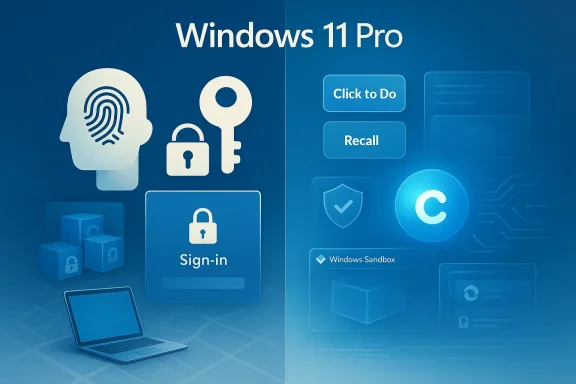
What makes this moment interesting is that security and AI are converging. Windows 11 Pro is not simply trying to harden the desktop; it is trying to make the desktop responsive, context-aware, and less repetitive. That is why Microsoft now presents passwordless sign-in, phishing protection, isolated testing spaces, and AI summarization tools as parts of one story rather than separate product categories.
In practical terms, that means the OS is becoming more opinionated. It wants you to authenticate with your face or fingerprint. It wants you to trust device-bound passkeys rather than reusable passwords. It wants to keep suspicious apps from ever launching, and it wants AI to reduce the number of steps between a question and an answer. That shift is significant because it affects both enterprise management and consumer usability.
The important thing is not just convenience. It is that the password is no longer the center of the identity model. A password can be reused, guessed, stolen, phished, or sprayed across accounts. Windows Hello ties the authentication to the device and to biometric or PIN-based verification, which is a fundamentally different security posture. For professionals, that can mean fewer helpdesk tickets, fewer login interruptions, and less exposure to common account compromise techniques.
Microsoft also positions passkeys as a natural extension of that model. Passkeys use cryptographic keys rather than shared secrets, and they are designed to resist phishing because the signing process happens locally with device authentication. The setup still happens per service, but once configured, the user does not need to remember or type a password every time. That reduces friction while also improving security, which is a rare combination in endpoint management.
For enterprise IT, this is especially valuable because identity attacks have become one of the most reliable ways in. A stolen password can often bypass weak configurations, especially in mixed environments. By shifting more of the authentication burden onto hardware, Windows 11 Pro makes the platform harder to abuse at the moment of sign-in.
That distinction matters because consumer convenience and enterprise compliance are not the same problem. Windows 11 Pro addresses both, but the business case is stronger when identity can be enforced in a managed way. In other words, passwordless is not merely a UX upgrade; it is an operational simplification.
The practical impact is straightforward: if a device is lost, stolen, or powered down and removed from its owner, the contents of the drive remain unreadable without the proper keys or authentication. That is not a theoretical improvement. For traveling professionals, executives, consultants, and hybrid workers, it is one of the few protections that still matters after the device leaves the user’s hands.
In a managed business environment, administrators can centralize recovery and make sure helpdesk processes are in place. For independent professionals and consumers, the risk is more informal but still real: lose the recovery key, and you may lose access to your own data. Keep it poorly, and you may create a new security problem. The safest answer is usually procedural discipline, not just a checkbox in Settings.
Key points to remember:
That is why BitLocker belongs in the same conversation as Windows Hello. One protects the act of access, the other protects the substance of the work. Together, they make it much harder for a lost device to become a disastrous incident.
That “clean install” requirement is a clue that Microsoft sees this as a foundational policy, not a casual toggle. In practice, Smart App Control is meant to make the OS more selective about what it lets run. That can be controversial for power users, but it is exactly the kind of friction security teams often want when endpoint trust is the priority.
That model is not perfect, and it will occasionally collide with niche software, older installers, or custom utilities. But it reflects a broader shift in platform security: reputation matters as much as signatures, and cloud intelligence can help stop malware that traditional antivirus might miss until it is too late.
That is valuable for a different reason than Smart App Control. Smart App Control tries to prevent the problem; offline scanning tries to clean up the mess when prevention fails. In security terms, that combination is far more credible than relying on a single line of defense.
That makes Sandbox especially useful for IT administrators, security-conscious enthusiasts, and anyone who regularly handles files from unfamiliar sources. It is not a replacement for a full virtual machine in every scenario, but it is faster, lighter, and easier to use for quick checks. In everyday terms, it is the digital equivalent of putting gloves on before touching something questionable.
Microsoft’s documentation also notes that Sandbox is a separate kernel-based environment, which reinforces the point that the host and guest are meaningfully isolated. The temporary nature of the space means you can experiment and then walk away cleanly, which is exactly what professionals need when time is tight and uncertainty is high.
Useful scenarios include:
The article you provided describes Edge Secure Network as a limited VPN-like service powered by Cloudflare with a monthly cap. That characterization aligns with Microsoft’s broader effort to provide lightweight privacy protection in the browser, though availability and naming have varied across releases and regions. The key idea is that Microsoft wants browser traffic to be less exposed, especially on untrusted networks. That is the right direction, even if it is not a full VPN replacement.
This is the same design philosophy visible across Windows 11 Pro: reduce user friction, but make safe choices the default. Microsoft’s own support material also emphasizes tools like HTTPS-First Mode and tracking protections in Edge, which together make the browser more defensive by default.
For professionals, the browser is where sensitive work gets done: corporate email, cloud documents, admin portals, dashboards, and identity flows all live there. If the browser is weak, the whole stack is weaker. If it is hardened, the rest of the device benefits.
That said, Copilot is not simply a chatbot sitting beside the desktop. It is being woven into Windows and Edge as a layer of interaction that can understand text, images, and, in some cases, what is visible on the screen. For many users, that makes AI feel less like a novelty and more like a utility.
Microsoft has also leaned into multimodal interaction, including image uploads and screen-sharing-style assistance through Copilot Vision in some experiences. Those features are appealing because they reduce the effort needed to explain context. In a real workday, that can mean faster troubleshooting, better drafting, and fewer interruptions. The promise is not magic; it is less friction.
That distinction becomes even more important as Microsoft moves toward more agentic experiences. Once an assistant can take action on behalf of a user, the question shifts from “What can it answer?” to “What can it do?” That is a much bigger operational change.
This matters because it changes the trust model. Instead of sending every interaction to the cloud, these features can analyze content on-device, which can improve responsiveness and reduce some privacy concerns. That does not make them risk-free, but it does make them feel more grounded in the hardware.
That is more significant than it sounds. Context switching is one of the most persistent productivity taxes in knowledge work. If the OS can reliably interpret the current screen and offer the next logical action, it may shave minutes off many small tasks throughout the day.
The concept is powerful because it solves a genuinely annoying problem: remembering something you saw, but not where you saw it. That said, it also raises obvious privacy and security questions, which is why Microsoft has added more controls and made it opt-in. Recall’s utility depends on user trust, and trust depends on restraint. That balance will define whether the feature feels helpful or invasive.
That hardware dependence means the most advanced AI productivity tools are not distributed evenly across all Windows 11 Pro machines. As a result, enterprises will need to think carefully about device refresh cycles, employee roles, and whether the business value of local AI justifies premium hardware.
What makes Snipping Tool important is that it lives at the intersection of communication and troubleshooting. When you need to show a bug, document a process, or share evidence of an issue, the fastest tool is often the one already built into the system. Microsoft’s additions make that tool far more capable than it used to be.
The text extraction feature is similarly helpful because it turns an image into reusable content. That can save time when transcribing notes, copying error messages, or moving text from a screenshot into a document. Combined with AI analysis, the Snipping Tool becomes a bridge between visual information and editable work.
In practical terms, Snipping Tool helps Windows 11 Pro feel more complete out of the box. It is a reminder that productivity is often won in the small moments: capturing an error, sharing a quick video, or extracting text without switching apps.
The opportunity for Microsoft is to make these features feel indispensable rather than optional. If the company keeps improving the default experience, it can push more users toward passwordless identity, safer app execution, and AI-assisted workflows without requiring major behavior changes.
There is also a trust issue. Recall-style capabilities can feel invasive unless the controls are clear and the privacy model is easy to understand. Likewise, security features that block apps or limit behavior can frustrate advanced users if the rules are too opaque or the exceptions too narrow.
The other big variable is hardware. Copilot+ PCs and NPU-equipped devices are clearly becoming the premium tier for Windows AI, and that will affect refresh cycles across both consumer and business markets. Microsoft is betting that the benefits of local AI will eventually justify the cost, but that argument will need to be proven in everyday workflows, not just demos.
What to watch next:
Source: Windows Central How Windows 11 Pro helps you work smarter with built‑in security and AI tools
That promise is strongest on hardware that can take advantage of Windows 11’s newest capabilities, especially Copilot+ PCs with on-device AI acceleration. But even without that newer silicon, Windows 11 Pro brings a deep bench of built-in features that help users lock down devices, protect files, and streamline work. The result is a platform that is trying to be both safer and smarter at the same time, which is exactly what many business users have been asking for.
 Background
Windows has always balanced two competing realities: the need to be approachable for everyday users and the need to satisfy IT departments that care about compliance, identity, encryption, and endpoint control. In the Windows 7 and Windows 10 eras, Microsoft steadily shifted from password-centric security toward device-bound identity, secure boot chains, and built-in protections that could run without extra software. Windows 11 Pro continues that trajectory, but it does so in a world where ransomware, credential theft, and browser-based attacks are more aggressive than ever.The big change is that security is no longer treated as an optional layer sitting on top of the OS. Features like Windows Hello, BitLocker, Microsoft Defender Offline, and Smart App Control are intended to work together as part of a default security posture. Microsoft’s documentation frames Windows Hello as a phish-resistant sign-in method that can also work with supported websites, while Smart App Control combines app intelligence and code integrity to block untrusted code on clean installs.
At the same time, Microsoft has moved aggressively to make AI feel native to Windows rather than bolted on. That push accelerated with Copilot+ PCs, which introduced on-device AI experiences such as Recall and Click to Do, both of which rely on the Neural Processing Unit to perform local analysis. Microsoft has described these features as part of a broader Windows 11 AI strategy, and the company’s own blog posts emphasize that the experiences are meant to help users find, reuse, and act on what they have already seen on screen.
What makes this moment interesting is that security and AI are converging. Windows 11 Pro is not simply trying to harden the desktop; it is trying to make the desktop responsive, context-aware, and less repetitive. That is why Microsoft now presents passwordless sign-in, phishing protection, isolated testing spaces, and AI summarization tools as parts of one story rather than separate product categories.
In practical terms, that means the OS is becoming more opinionated. It wants you to authenticate with your face or fingerprint. It wants you to trust device-bound passkeys rather than reusable passwords. It wants to keep suspicious apps from ever launching, and it wants AI to reduce the number of steps between a question and an answer. That shift is significant because it affects both enterprise management and consumer usability.
Identity and Sign-In: From Passwords to Device Trust
Identity is the first line of defense, and Windows 11 Pro does a better job than older versions of Windows at making the first step of every work session both quicker and safer. Windows Hello lets you sign in with facial recognition, a fingerprint, or a PIN that is stored locally and protected by the device’s hardware-backed security. Microsoft’s documentation describes Windows Hello as a phish-resistant authentication technology that can also be used with supported websites via FIDO/WebAuthn.The important thing is not just convenience. It is that the password is no longer the center of the identity model. A password can be reused, guessed, stolen, phished, or sprayed across accounts. Windows Hello ties the authentication to the device and to biometric or PIN-based verification, which is a fundamentally different security posture. For professionals, that can mean fewer helpdesk tickets, fewer login interruptions, and less exposure to common account compromise techniques.
Why Passwordless Sign-In Matters
Passwordless authentication is not a luxury feature anymore. It is one of the easiest ways to cut risk in environments where users are handling email, cloud services, and sensitive corporate data all day. Because the authentication factors are local and hardware-bound, attackers cannot simply harvest a credential from one website and reuse it elsewhere.Microsoft also positions passkeys as a natural extension of that model. Passkeys use cryptographic keys rather than shared secrets, and they are designed to resist phishing because the signing process happens locally with device authentication. The setup still happens per service, but once configured, the user does not need to remember or type a password every time. That reduces friction while also improving security, which is a rare combination in endpoint management.
For enterprise IT, this is especially valuable because identity attacks have become one of the most reliable ways in. A stolen password can often bypass weak configurations, especially in mixed environments. By shifting more of the authentication burden onto hardware, Windows 11 Pro makes the platform harder to abuse at the moment of sign-in.
- Biometric sign-in reduces password reuse.
- PINs stay device-bound instead of being universal secrets.
- Passkeys help neutralize phishing by removing the password from the equation.
- Fast unlocks improve user adoption because security feels less intrusive.
Enterprise vs. Consumer Impact
For consumers, this means logging in feels immediate and modern. For businesses, the value is deeper because Windows Hello for Business adds management, attestation, and policy controls that can fit into corporate identity systems. Microsoft describes it as an enterprise-grade extension with certificate-based authentication and conditional access support.That distinction matters because consumer convenience and enterprise compliance are not the same problem. Windows 11 Pro addresses both, but the business case is stronger when identity can be enforced in a managed way. In other words, passwordless is not merely a UX upgrade; it is an operational simplification.
Data Protection: Encryption and Recovery as a Daily Habit
If identity protects access, encryption protects the data itself. BitLocker remains one of Windows 11 Pro’s most important built-in security features because it helps ensure that a stolen laptop is not also a stolen data breach. Microsoft’s guidance and broader enterprise documentation continue to treat encryption as part of a layered defense model, alongside identity protection and device control.The practical impact is straightforward: if a device is lost, stolen, or powered down and removed from its owner, the contents of the drive remain unreadable without the proper keys or authentication. That is not a theoretical improvement. For traveling professionals, executives, consultants, and hybrid workers, it is one of the few protections that still matters after the device leaves the user’s hands.
BitLocker and the Recovery-Key Problem
Encryption only works if the recovery path is handled responsibly. That is why the recovery key is such a critical part of the story. Microsoft often suggests convenient cloud storage options, but for professionals the more important question is where the key is stored, who can access it, and how it is audited. That is where corporate governance and personal habits diverge.In a managed business environment, administrators can centralize recovery and make sure helpdesk processes are in place. For independent professionals and consumers, the risk is more informal but still real: lose the recovery key, and you may lose access to your own data. Keep it poorly, and you may create a new security problem. The safest answer is usually procedural discipline, not just a checkbox in Settings.
Key points to remember:
- Encryption protects data at rest, not just the login screen.
- Recovery keys must be backed up securely before trouble happens.
- Stolen hardware becomes much less valuable when the drive is encrypted.
- Travel and remote work amplify the value of full-disk protection.
Why This Matters for Mobility
Windows 11 Pro is especially compelling on laptops because the mobility benefits and the security benefits overlap. A portable device is easy to carry, but it is also easy to misplace, leave in a taxi, or expose in a crowded café. Encryption quietly reduces the cost of those mistakes.That is why BitLocker belongs in the same conversation as Windows Hello. One protects the act of access, the other protects the substance of the work. Together, they make it much harder for a lost device to become a disastrous incident.
Malware Defense: Blocking Problems Before They Start
The next piece of the Windows 11 Pro story is not about recovery after something goes wrong. It is about preventing risky code from ever getting a foothold. Smart App Control is designed to block untrusted or potentially dangerous applications using Microsoft’s app intelligence and code integrity checks, and Microsoft says it is intended to protect a device for its entire lifetime on supported clean installs.That “clean install” requirement is a clue that Microsoft sees this as a foundational policy, not a casual toggle. In practice, Smart App Control is meant to make the OS more selective about what it lets run. That can be controversial for power users, but it is exactly the kind of friction security teams often want when endpoint trust is the priority.
Smart App Control and Reputation
The value proposition here is simple: if Windows cannot confidently identify an app as safe, it should hesitate. Microsoft’s documentation says the feature can run in evaluation mode before switching to enforcement mode, during which it actively blocks apps that are not recognized by app intelligence services or a trusted certificate authority.That model is not perfect, and it will occasionally collide with niche software, older installers, or custom utilities. But it reflects a broader shift in platform security: reputation matters as much as signatures, and cloud intelligence can help stop malware that traditional antivirus might miss until it is too late.
Offline Scanning and Containment
Windows 11 Pro also includes Microsoft Defender Offline, which lets the system reboot into the Windows Recovery Environment and scan for malware while the operating system is not actively running. Microsoft’s support documentation notes that Defender Offline is built into Windows and can run from Windows Security, which is useful when malware is hiding in memory or interfering with normal cleanup.That is valuable for a different reason than Smart App Control. Smart App Control tries to prevent the problem; offline scanning tries to clean up the mess when prevention fails. In security terms, that combination is far more credible than relying on a single line of defense.
- Smart App Control reduces the chance of unsafe apps launching.
- Offline scans help remove malware that is harder to evict while Windows is live.
- Modern reputation checks complement signature-based defenses.
- Containment beats remediation when the user is busy and the clock is ticking.
Safe Testing and Isolation: Windows Sandbox Still Matters
One of Windows 11 Pro’s least flashy but most useful features is Windows Sandbox. It gives users a disposable isolated environment for opening suspicious files, trying unknown software, or debugging a problem without polluting the host system. Microsoft describes it as a lightweight, isolated desktop environment that is deleted when closed.That makes Sandbox especially useful for IT administrators, security-conscious enthusiasts, and anyone who regularly handles files from unfamiliar sources. It is not a replacement for a full virtual machine in every scenario, but it is faster, lighter, and easier to use for quick checks. In everyday terms, it is the digital equivalent of putting gloves on before touching something questionable.
Why Isolation Is a Productivity Feature
At first glance, Sandbox sounds like a niche security tool. In practice, it is a productivity feature because it lowers the hesitation cost of testing. You do not need to ask, “Will this break my laptop?” before opening a suspicious installer or checking the behavior of a dubious document.Microsoft’s documentation also notes that Sandbox is a separate kernel-based environment, which reinforces the point that the host and guest are meaningfully isolated. The temporary nature of the space means you can experiment and then walk away cleanly, which is exactly what professionals need when time is tight and uncertainty is high.
Practical Use Cases
For enterprise users, Sandbox can be part of an incident-response or triage workflow. For consumers, it can be a safer place to inspect a file before taking a risk on the main system. That difference is important because it shows how a single feature can support both controlled corporate operations and personal caution.Useful scenarios include:
- Testing unsigned utilities
- Opening suspicious attachments
- Checking how software behaves before installing it
- Running quick experiments without persistent changes
Browsing and Web Security: The Browser Is Part of the OS
Work now happens in browsers as much as in desktop apps, which means Windows 11 Pro cannot be judged only by its login screen and file encryption. Microsoft Edge therefore plays an outsized role in the platform story, and features like Secure Network and HTTPS-focused protections help extend security into the browser layer. Microsoft Support also recommends Edge for secure browsing and notes protections like phishing and malicious site blocking in its work-focused guidance.The article you provided describes Edge Secure Network as a limited VPN-like service powered by Cloudflare with a monthly cap. That characterization aligns with Microsoft’s broader effort to provide lightweight privacy protection in the browser, though availability and naming have varied across releases and regions. The key idea is that Microsoft wants browser traffic to be less exposed, especially on untrusted networks. That is the right direction, even if it is not a full VPN replacement.
Secure Network vs. Full VPN
A full VPN changes the routing of nearly all traffic on the device, while a browser-only secure network is narrower and easier for casual users to adopt. That means it can be a practical defense against public Wi‑Fi risks without the complexity or overhead of a traditional VPN service. It is not as powerful, but it is also less burdensome.This is the same design philosophy visible across Windows 11 Pro: reduce user friction, but make safe choices the default. Microsoft’s own support material also emphasizes tools like HTTPS-First Mode and tracking protections in Edge, which together make the browser more defensive by default.
Why the Browser Still Defines Risk
Most phishing attacks do not begin with a kernel exploit. They begin with a link, a fake login page, or a convincing impersonation of a trusted service. That is why browser security is now inseparable from endpoint security.For professionals, the browser is where sensitive work gets done: corporate email, cloud documents, admin portals, dashboards, and identity flows all live there. If the browser is weak, the whole stack is weaker. If it is hardened, the rest of the device benefits.
- Modern browser protections help stop common social engineering attacks.
- Secure Network-style features add value on public Wi‑Fi.
- HTTPS enforcement reduces exposure to downgrade attacks.
- Tracking prevention improves privacy as well as security.
Copilot and AI Productivity: The New Work Layer
Security is only half the story. Windows 11 Pro is also getting smarter about helping users actually do things, and that is where Copilot becomes central. Microsoft positions it as a built-in AI assistant that can summarize, draft, generate ideas, and help users find information without leaving their workflow. The broad appeal is obvious: fewer app switches, fewer context changes, and faster access to answers.That said, Copilot is not simply a chatbot sitting beside the desktop. It is being woven into Windows and Edge as a layer of interaction that can understand text, images, and, in some cases, what is visible on the screen. For many users, that makes AI feel less like a novelty and more like a utility.
Copilot as a Workflow Shortcut
The clearest value of Copilot is time saved. If a user can summarize a document, draft a response, or brainstorm next steps without leaving the current task, the OS becomes more fluid. That is especially useful for professionals who live in Outlook, Teams, browser tabs, and Office apps all day.Microsoft has also leaned into multimodal interaction, including image uploads and screen-sharing-style assistance through Copilot Vision in some experiences. Those features are appealing because they reduce the effort needed to explain context. In a real workday, that can mean faster troubleshooting, better drafting, and fewer interruptions. The promise is not magic; it is less friction.
Enterprise Considerations
For businesses, Copilot brings both productivity upside and governance questions. AI assistants can speed up research and content creation, but they also raise issues around data handling, policy compliance, and user expectations. The more useful the assistant becomes, the more important it is to understand what leaves the device and what stays local.That distinction becomes even more important as Microsoft moves toward more agentic experiences. Once an assistant can take action on behalf of a user, the question shifts from “What can it answer?” to “What can it do?” That is a much bigger operational change.
- Drafting and summarization save time in daily work.
- Natural-language interaction lowers the learning curve.
- Multimodal input makes help more contextual.
- Governance becomes essential as AI gets more capable.
Click to Do, Recall, and the Copilot+ PC Advantage
Some of the most ambitious Windows 11 AI features are limited to Copilot+ PCs, which include an NPU designed to run AI workloads locally. Two of the most visible are Click to Do and Recall, both of which depend on on-device intelligence to interpret what is on the screen and help the user act on it. Microsoft’s blogs describe them as part of a broader local AI strategy for Windows 11.This matters because it changes the trust model. Instead of sending every interaction to the cloud, these features can analyze content on-device, which can improve responsiveness and reduce some privacy concerns. That does not make them risk-free, but it does make them feel more grounded in the hardware.
Click to Do: Context Before Commands
Click to Do is designed to make contextual actions easier. Instead of copying content into another app, you can invoke AI-powered actions directly from what is on the screen. Microsoft says the feature detects text and images locally and offers actions that help users complete tasks inline.That is more significant than it sounds. Context switching is one of the most persistent productivity taxes in knowledge work. If the OS can reliably interpret the current screen and offer the next logical action, it may shave minutes off many small tasks throughout the day.
Recall: Search by Memory, Not Just by Filename
Recall is the more controversial and more ambitious feature. Microsoft describes it as a way to revisit apps, websites, images, and documents by searching through snapshots of prior activity. The feature uses on-device AI models and a semantic index to make what you saw earlier searchable in natural language.The concept is powerful because it solves a genuinely annoying problem: remembering something you saw, but not where you saw it. That said, it also raises obvious privacy and security questions, which is why Microsoft has added more controls and made it opt-in. Recall’s utility depends on user trust, and trust depends on restraint. That balance will define whether the feature feels helpful or invasive.
Why NPU Hardware Matters
The NPU is not just a marketing checkbox. It is what makes local AI feasible at acceptable performance and power levels. Without it, the same features would either be slower, more battery-hungry, or more dependent on cloud round-trips.That hardware dependence means the most advanced AI productivity tools are not distributed evenly across all Windows 11 Pro machines. As a result, enterprises will need to think carefully about device refresh cycles, employee roles, and whether the business value of local AI justifies premium hardware.
Snipping Tool and Visual Work: Small Utilities, Big Gains
The Snipping Tool has quietly become one of Windows 11’s most useful built-in productivity apps. What used to be a basic screenshot utility now supports screen recording, markup, text extraction, and redaction, which means it can handle a surprising amount of real-world work without third-party software. For many users, that makes it one of the most practical AI-adjacent tools in the OS.What makes Snipping Tool important is that it lives at the intersection of communication and troubleshooting. When you need to show a bug, document a process, or share evidence of an issue, the fastest tool is often the one already built into the system. Microsoft’s additions make that tool far more capable than it used to be.
Screenshots, Recording, and Redaction
The obvious benefits are screenshots and screen recording, but the less obvious one is redaction. Being able to remove emails, phone numbers, or other sensitive text before sharing is a genuinely useful security feature, especially in support and enterprise settings. It reduces the chance of accidental disclosure while making sharing faster.The text extraction feature is similarly helpful because it turns an image into reusable content. That can save time when transcribing notes, copying error messages, or moving text from a screenshot into a document. Combined with AI analysis, the Snipping Tool becomes a bridge between visual information and editable work.
A Better Default Than Third-Party Tools
There are plenty of third-party capture utilities, but relying on built-in tools has advantages. The user does not have to install anything, admin approval is less of a hurdle, and the integration with Windows feels tighter. That also lowers the maintenance burden for IT teams.In practical terms, Snipping Tool helps Windows 11 Pro feel more complete out of the box. It is a reminder that productivity is often won in the small moments: capturing an error, sharing a quick video, or extracting text without switching apps.
- Quick captures save time during support and documentation.
- Screen recording helps explain steps visually.
- Text extraction reduces manual typing.
- Redaction protects sensitive information before sharing.
Strengths and Opportunities
Windows 11 Pro’s biggest strength is that it treats productivity and security as mutually reinforcing rather than competing goals. That gives the platform a strong story for both professionals and IT leaders, especially in environments where remote work, device mobility, and cloud identity all overlap. The AI layer adds a second value proposition: not just safer computing, but faster computing.The opportunity for Microsoft is to make these features feel indispensable rather than optional. If the company keeps improving the default experience, it can push more users toward passwordless identity, safer app execution, and AI-assisted workflows without requiring major behavior changes.
- Reduced password dependence lowers phishing exposure.
- Built-in encryption strengthens lost-device protection.
- Isolation tools help users test without risk.
- AI shortcuts reduce repetitive work.
- On-device processing improves responsiveness and privacy.
- Integrated capture tools remove the need for extra software.
- Enterprise manageability makes the platform more scalable.
Risks and Concerns
The biggest risk is overpromising. AI features are compelling, but they can also create the illusion that Windows will understand intent perfectly, when in reality these tools will still make mistakes or require oversight. That is especially true for features that interpret screen contents or summarize activity, because context can be ambiguous.There is also a trust issue. Recall-style capabilities can feel invasive unless the controls are clear and the privacy model is easy to understand. Likewise, security features that block apps or limit behavior can frustrate advanced users if the rules are too opaque or the exceptions too narrow.
- AI misinterpretation could lead to wrong actions or summaries.
- Privacy concerns may slow adoption of Recall-like features.
- App blocking friction can annoy power users and developers.
- Hardware fragmentation means not every PC gets the same experience.
- Recovery-key mismanagement can lock users out of data.
- Browser-based protections may be mistaken for a full VPN.
- Feature complexity can make the platform feel harder to explain.
Looking Ahead
The next phase of Windows 11 Pro will likely be defined by how well Microsoft connects local AI, browser intelligence, and enterprise policy into a coherent model. If the company gets that right, Windows could become less of a static operating system and more of an adaptive work environment that learns from user behavior while respecting boundaries. If it gets it wrong, the result could be a platform that feels fragmented, overconfigured, or too eager to act on the user’s behalf.The other big variable is hardware. Copilot+ PCs and NPU-equipped devices are clearly becoming the premium tier for Windows AI, and that will affect refresh cycles across both consumer and business markets. Microsoft is betting that the benefits of local AI will eventually justify the cost, but that argument will need to be proven in everyday workflows, not just demos.
What to watch next:
- How Microsoft expands Recall and Click to Do
- Whether enterprise controls get stronger and simpler
- How well Smart App Control handles legitimate software edge cases
- Whether Edge Secure Network becomes more consistent and better defined
- How much value users actually get from Copilot versus cloud-only alternatives
Source: Windows Central How Windows 11 Pro helps you work smarter with built‑in security and AI tools
