

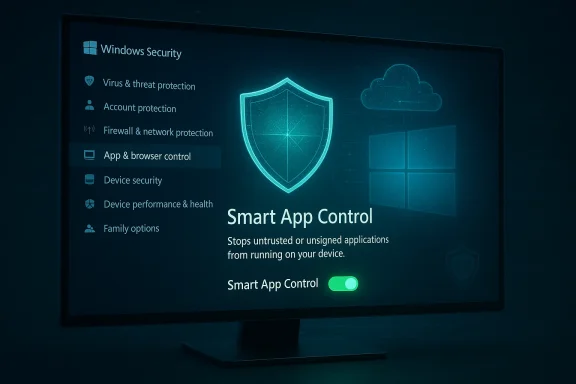
Microsoft has quietly fixed one of the most annoying usability limits in Windows 11’s app-protection stack: Smart App Control (SAC) can now be switched on and off from the Windows Security app in Insider builds, removing the old requirement to wipe or reset Windows just to re-enable the feature after it was turned off.
Smart App Control launched as a proactive, cloud-backed guardrail that intercepts untrusted or suspicious applications before they run. Instead of waiting for malicious behavior to be observed, SAC consults Microsoft’s app-intelligence services, looks for valid digital signatures, and applies predictive models to block unknown or risky binaries at launch. That “guilty until proven innocent” posture was designed to add a hard layer of defense on top of traditional antivirus protections.
When SAC first appeared, Microsoft limited its availability to devices that had a clean install of Windows 11 (22H2 or later) and introduced an automatic Evaluation phase during setup. During Evaluation, SAC watches what you run and decides whether it would be a good fit; after the period ends the system either flips SAC to On or turns it Off to avoid disrupting workflows. Critically, a deliberate design choice made SAC essentially one-way: once you turned it Off, you couldn’t turn it back On without reinstalling or resetting the OS. That behavior blocked broad adoption and created an obvious friction point for developers, power users, gamers, and IT pilots who sometimes need to run unsigned or legacy tools.
That hardline lifecycle—good for integrity, bad for usability—has now been softened in recent Windows Insider preview builds. Microsoft’s November Insider announcement for Build 26220.7070 (KB5070300) explicitly notes that SAC will be updated so Windows users can toggle it on or off from Windows Security without a clean install requirement. The change is being delivered via the Windows Insider program and Controlled Feature Rollout, so not every device sees it immediately.
With the toggle:
That said, the change is an incremental improvement—not a complete solution. The absence of per-app exceptions, the potential risk window while SAC is disabled, and the CFR-based rollout all mean organizations and cautious users still need to plan carefully. IT teams should pilot SAC with controlled user groups, update their support playbooks, and demand better administrative controls and auditing from Microsoft going forward.
If you’re eager to try SAC, start in Evaluation on a test device or VM, document any blocked installers, and use the toggle responsibly: create backups, scan installers, and re-enable SAC promptly. For enterprises, treat this as the first step toward a future where Windows enforces a stronger default security posture while still letting power users and admins safely run the specialized tools their jobs require.
Conclusion: The new toggle turns Smart App Control from an impractical, one-time-only experiment into a usable security layer—but the job is not done. Microsoft has repaired the biggest UX flaw; now it needs to deliver per-app controls, enterprise management hooks, and clearer block diagnostics to make SAC a truly deployable, low-friction defense for every Windows 11 user.
Source: MakeUseOf Microsoft finally lets you disable this annoying Windows 11 security feature
 Background / Overview
Smart App Control launched as a proactive, cloud-backed guardrail that intercepts untrusted or suspicious applications before they run. Instead of waiting for malicious behavior to be observed, SAC consults Microsoft’s app-intelligence services, looks for valid digital signatures, and applies predictive models to block unknown or risky binaries at launch. That “guilty until proven innocent” posture was designed to add a hard layer of defense on top of traditional antivirus protections.When SAC first appeared, Microsoft limited its availability to devices that had a clean install of Windows 11 (22H2 or later) and introduced an automatic Evaluation phase during setup. During Evaluation, SAC watches what you run and decides whether it would be a good fit; after the period ends the system either flips SAC to On or turns it Off to avoid disrupting workflows. Critically, a deliberate design choice made SAC essentially one-way: once you turned it Off, you couldn’t turn it back On without reinstalling or resetting the OS. That behavior blocked broad adoption and created an obvious friction point for developers, power users, gamers, and IT pilots who sometimes need to run unsigned or legacy tools.
That hardline lifecycle—good for integrity, bad for usability—has now been softened in recent Windows Insider preview builds. Microsoft’s November Insider announcement for Build 26220.7070 (KB5070300) explicitly notes that SAC will be updated so Windows users can toggle it on or off from Windows Security without a clean install requirement. The change is being delivered via the Windows Insider program and Controlled Feature Rollout, so not every device sees it immediately.
What Smart App Control actually does — technical primer
Smart App Control is designed to interpose at application launch and make a quick, high-confidence allow/deny decision using several signals:- Cloud reputation checks — SAC queries Microsoft’s app-intelligence graph (cloud service) to see whether the binary or installer is known and trusted.
- Code-signature validation — SAC verifies whether the binary is digitally signed and that the signature chain is intact, which helps ensure authenticity and tamper-resistance.
- Predictive models and reputation scoring — For new or unseen binaries, SAC applies machine learning signals to predict maliciousness and block likely threats proactively.
- Local integrity checks — SAC integrates with Windows code integrity mechanisms to apply policy-level enforcement at runtime.
What changed: toggle, builds, and rollout
- The reversible toggle for SAC is included in Insider Preview Build 26220.7070 (packaged as KB5070300) and is being carried forward in later 25H2-stream builds. Microsoft published the Insider blog announcing the build and the associated changes. This is an official, documented change to SAC’s operational model.
- Where you’ll find the control in Windows:
Settings > Privacy & security > Windows Security > App & browser control > Smart App Control settings. From that screen eligible users can switch SAC between Evaluation, On (Enforcement), and Off. The new behavior is surfaced in Windows Security and thus is visible to ordinary users and admins alike. - Distribution model: Microsoft is pushing this as part of Windows 11 version 25H2 preview builds and is gating the change via Controlled Feature Rollout (CFR) for Insiders. That means you may see the toggle on some devices before others, and production release timing depends on Microsoft’s broader cadence. Community threads and news sites corroborate the build numbers and rollout notes.
- Important nuance: some coverage has referenced other servicing streams or earlier minor versions; the most authoritative signal is Microsoft’s Insider announcement and the Support FAQ, which emphasize the 25H2/Insider build path and the KB5070300 packaging. If a vendor or third-party article references 24H2, treat that as a reporting variation until Microsoft confirms broader availability.
Why this matters — practical impact for everyday users and IT
The old SAC lifecycle created a painful trade-off: accept stricter application execution rules and risk being locked out of the feature forever if you turned it off, or avoid SAC entirely. That binary choice discouraged many users from enabling SAC in the first place.With the toggle:
- Users can safely test SAC in Evaluation mode, disable it temporarily to run a trusted but false-positive-prone app, and re-enable enforcement afterward.
- IT teams can pilot SAC without forcing device reimages when exceptions are needed, which lowers the friction for adoption in test groups and proof-of-concept deployments.
- Power users no longer face the “use it or lose it” dilemma; they can experiment with SAC on a per-session basis (but see the risks below).
Risks, remaining limitations, and unanswered questions
The toggle solves the one-way usability problem but does not magically fix all SAC pain points. Several caveats remain:- No per-app allowlist (yet). Microsoft has not shipped a supported, user-facing per-application whitelist that lets you mark a specific installer or tool as trusted while keeping SAC enforced globally. The toggle remains global: you turn SAC off to run the app, and then turn it on again. That temporary window is better than a permanent uninstall, but it is less convenient and more error-prone than a per-app exception. Multiple outlets and previews reiterate that per-app overrides are still missing.
- Potential for exploitation during windows of disablement. The original “no re-enable” rule existed because once an untrusted app is permitted to run, re-enabling SAC would not retroactively undo the risk. With a toggle, risk returns to the user: if you turn SAC off to run a legitimate installer, malicious payloads in the same operation or dropped by that installer could execute while protection is disabled. Treat this as a trade-off: convenience vs. windowed risk. Microsoft still recommends other protections and diagnostic practices.
- Controlled Feature Rollout means uneven availability. Not every Insider or device will get the toggle at the same time. Production consumers may see the change later; enterprise rollouts should plan pilot phases and not assume immediate availability across a fleet.
- Diagnostic data, S Mode, and managed devices. SAC depends on optional diagnostic data and behaves differently on devices managed by enterprise policies or in S Mode. If optional diagnostic telemetry is disabled, SAC may be unavailable. Organizations that restrict telemetry will need to plan for SAC differently (reset, reimage, or adjust policies) if they want to enable it on existing systems. Microsoft’s FAQ lists these specific conditions.
- False positives still happen. Community reports and vendor troubleshooting logs show SAC blocking legitimate signed apps (e.g., some enterprise tools or driver installers) due to a combination of signature validation, certificate chain quirks, or predictive model assessments. Those incidents remain real and justify the need for careful testing and escape paths. One community write-up described AVDManage being blocked and workaround guidance while SAC evolved. Treat these as case studies rather than definitive failure modes.
How to safely test, disable, and re-enable Smart App Control — practical checklist
If you want to evaluate SAC or need to run an app that SAC blocks, follow these steps to reduce risk:- Check availability and current state
Open Settings > Privacy & security > Windows Security > App & browser control > Smart App Control settings to see whether SAC is On, Off, or in Evaluation mode. The toggle appears only if your device is eligible and the feature has been rolled out to your machine. - Prefer Evaluation mode first
Leave SAC in Evaluation when first available. It observes app usage without blocking, and if the system fits SAC’s profile it will move to Enforcement automatically. Evaluation reduces surprise-based breakage. - If SAC blocks a trusted app, don’t immediately reinstall OS
With the new toggle you can switch SAC to Off, run the app, then switch SAC back On. But follow the remaining steps before disabling. - Create a restore point and take snapshot backups
Before turning SAC Off for a potentially risky install, create a System Restore point or an image backup. This gives you a recovery option if something goes wrong while SAC is disabled. - Scan the installer and the machine while SAC is off
- Use Microsoft Defender Offline or another reputable full-disk offline scanner before re-enabling SAC.
- Inspect the installer with signtool or a certificate validation tool if you’re in a managed environment.
- Minimize exposure window
Only keep SAC Off for as long as strictly necessary. Complete the install, verify the binary’s signature, and then re-enable SAC immediately. - Document exceptions and escalate for IT
If you’re in an organization, capture reproducer steps and logs: collect the blocked file hash and details, tag it with the user/device, and escalate to security/IT so they can triage and, if necessary, engage Microsoft for false-positive investigation. - Consider using a virtual machine or sandbox
When practical, test installers in a disposable VM or a dedicated test device. That eliminates risk to your production system and avoids toggling SAC on core devices. - Monitor for updates
Because this capability is rolling out via Insiders and CFR, check Windows Update and Microsoft Insider announcements for changes to behavior, per-app exceptions, or policy additions.
Enterprise considerations and deployment guidance
- Pilot before wide deployment. Use a staged rollout—lab, small pilot, then broader production. Track blocked app telemetry and user impact during Evaluation and early Enforcement phases.
- Policy alignment. If your organization restricts optional diagnostic data or applies heavy device management (MDM or Group Policy), SAC availability and behavior may be affected. Test these permutations before adoption.
- Endpoint detection posture. SAC supplements (does not replace) endpoint protection platforms (EPP/EDR). Keep Defender/third-party AV in active use; SAC’s launch-time blocking and Defender’s behavioral telemetry are complementary.
- Change management and helpdesk playbook. Update documentation and triage SOPs so helpdesk analysts know how to respond to SAC blocks—collect blocked hashes, reproduce on test systems, and apply the “toggle + scan + re-enable” process only when appropriate.
- Regulatory and forensics concerns. Turning SAC Off could complicate incident investigation if an untrusted binary executes during that period. Log and preserve device state when you need to disable enforcement for business reasons.
Strengths — why this is good news
- Lowered friction for adoption. Removing the reinstall requirement addresses the main human barrier to trying SAC: permanent lockout after a single disable event. That will likely increase experimentation and adoption among non-enterprise users and SMBs.
- Better usability without sacrificing core design. Microsoft preserved SAC’s core model—evaluation, enforcement, and reliance on cloud intelligence—while making lifecycle management more practical.
- Enables safer troubleshooting. Support teams can now recommend a controlled disable-retry workflow instead of resorting to reimages or permanent policy changes, which saves time and reduces disruption.
- Signals Microsoft is responsive to feedback. The change shows Microsoft listened to community and enterprise pain points and adjusted a security policy to be more operationally viable.
Weaknesses and future wishlist
- Per-app allowlist or temporary, auditable exceptions would be the ideal next step. Allowing administrators or local users to mark a binary, installer, or publisher as trusted for a single session or with expiry would materially improve the experience compared to flipping a global toggle.
- Better telemetry and incident context in the Windows Security UI—showing why a block occurred, which signal (signature, reputation, ML score) caused it, and a safe “request review” workflow to expedite false-positive handling—would reduce helpdesk ove management hooks** (Intune/Group Policy controls, enterprise exception catalogs) with auditing and attestation would help IT teams adopt SAC at scale while retaining control.
Real-world examples and community reporting
Community threads documented both the pain and the fix: users reported SAC blocking legitimate vendor tools (for example, AVDManage and various vendor utilities), and Insiders noted the build-level change that makes SAC toggling possible. Those anecdotal reports helped push the change into a formal Insider announcement and subsequent controlled rollout. Take individual reports as useful signals but verify reproducibility and vendor guidance before applying broad policy changes.Final verdict — a pragmatic move that still needs polish
Microsoft’s decision to let users toggle Smart App Control from Windows Security without a clean reinstall is a pragmatic, long-overdue correction. It removes a major usability barrier that discouraged adoption while preserving the protective model that makes SAC valuable. For most users the new behavior will make SAC approachable: try it in Evaluation, confirm it doesn’t break workflow, and flip it to Enforcement.That said, the change is an incremental improvement—not a complete solution. The absence of per-app exceptions, the potential risk window while SAC is disabled, and the CFR-based rollout all mean organizations and cautious users still need to plan carefully. IT teams should pilot SAC with controlled user groups, update their support playbooks, and demand better administrative controls and auditing from Microsoft going forward.
If you’re eager to try SAC, start in Evaluation on a test device or VM, document any blocked installers, and use the toggle responsibly: create backups, scan installers, and re-enable SAC promptly. For enterprises, treat this as the first step toward a future where Windows enforces a stronger default security posture while still letting power users and admins safely run the specialized tools their jobs require.
Conclusion: The new toggle turns Smart App Control from an impractical, one-time-only experiment into a usable security layer—but the job is not done. Microsoft has repaired the biggest UX flaw; now it needs to deliver per-app controls, enterprise management hooks, and clearer block diagnostics to make SAC a truly deployable, low-friction defense for every Windows 11 user.
Source: MakeUseOf Microsoft finally lets you disable this annoying Windows 11 security feature
