Windows 11 Smart App Control Now Toggleable Without Reinstall

  • Thread Author
Microsoft has quietly removed the long-standing clean install requirement for Smart App Control (SAC), making the Windows 11–exclusive security feature toggleable from the Windows Security app without reinstalling the operating system — a change now rolling out to Windows Insiders and being staged toward broader availability.

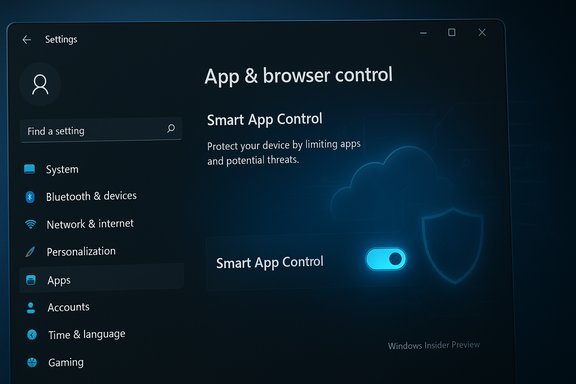
Windows Settings: App & Browser Control screen with Smart App Control toggle.Background​

Smart App Control (SAC) launched as part of Windows 11’s security stack with the 22H2 update, positioning itself as a proactive, cloud-powered application execution control that blocks untrusted or potentially harmful apps before they run. SAC uses Microsoft’s app intelligence services and Windows code integrity features to allow only applications that are predicted to be safe or properly signed by a trusted certificate authority. When SAC was introduced, Microsoft required a clean installation of Windows 11 in order to enable it — a deliberate design choice intended to ensure SAC could be evaluated and enforced from a known-good system state. That installation requirement proved a friction point for many users. Reinstalling or resetting Windows to obtain a single security feature is disruptive, particularly for users migrating upgrades in-place from Windows 10 or for those with heavily customized systems. Third-party reporting and community feedback repeatedly called out the requirement as a barrier to adoption. Microsoft has now acted to remove that barrier, exposing a toggle in the Windows Security app so SAC can be turned on or off without a clean install — starting with Insider Preview build 26220.7070 (KB5070300) and continuing in more recent Dev/Beta channel flights such as build 26220.7344 (KB5070316).

What changed: the technical details​

The toggle, where to find it, and how it behaves​

Microsoft updated the Insider release notes to say SAC will be controllable from Settings > Windows Security > App & Browser Control > Smart App Control settings. This change removes the explicit requirement to reset or perform a fresh OS install purely to enable or disable SAC. The Insider announcement also clarifies that the toggle is being rolled out gradually — meaning availability will vary by device, channel, and staging flag.
  • To check or change SAC: open Settings > Privacy & Security > Windows Security > App & Browser Control > Smart App Control settings.

Builds and rollouts to watch​

The change was first detailed in Windows Insider Preview Build 26220.7070 (KB5070300) and is present in later 25H2–era builds such as 26220.7344 (KB5070316). These releases are being distributed to the Dev and Beta channels first, with Microsoft noting many of these capabilities are gradually rolling out under feature toggles for Insiders. That pattern indicates Microsoft intends to test the control in the wild before pushing it to the Release Preview or general channels.

Why this matters technically​

SAC relies on cloud-based app intelligence to predict app trustworthiness. Previously, SAC’s lifecycle management was tied to the OS image state to ensure predictable evaluation of installed software and user behavior. Allowing SAC to be turned on/off without reinstall reduces operational friction and makes end-user testing, IT piloting, and consumer adoption much simpler. It also means Microsoft has built safeguards to evaluate device state and user scenarios dynamically, rather than treating SAC as strictly a post-install-only policy.

Verification of the claim and primary sources​

  • Official Windows Insider announcement for build 26220.7070 (KB5070300) explicitly states: “We’re updating Smart App Control (SAC) so you will now be able to switch SAC off or on without any clean install requirement.” This is the authoritative product communication for Insiders.
  • Microsoft’s product documentation and Support articles continue to describe what SAC does and how it previously required a clean install for initial enablement — those pages have been updated over time but still document SAC’s evaluation and enforcement modes and the role of clean installs in the feature’s lifecycle. Use the Windows Security app to view and manage SAC settings.
  • Third‑party coverage from multiple outlets picked up the Insider notes and fleshed out the implications: reporting confirmed the toggle and emphasized the staged rollout and Insider channel testing. These independent reports corroborate Microsoft’s Insider blog and provide situational context for adoption timelines.

How Smart App Control works — a technical primer​

Smart App Control blends cloud intelligence, reputation data, and local code integrity checks to decide whether to allow an application to run. In practice:
  • SAC queries Microsoft’s app intelligence service to determine whether an executable is known-good, known-bad, or unknown.
  • If the service provides a high-confidence prediction that the app is safe, the binary is allowed to run.
  • If the service cannot generate a confident prediction, SAC will fall back to digital signature checks — allowing binaries that are signed by certificate authorities in the Trusted Root Program. Unsigned or low-confidence binaries are blocked by default.
SAC operates in phases: Evaluation (observing app behavior and learning typical usage patterns) and Enforcement (actively blocking untrusted code). Historically, once you exit evaluation or turn SAC off, returning to evaluation required a reinstall; Microsoft’s documentation emphasized that this was intentional. The new toggle changes at least the on/off lifecycle, but OEM and enterprise-managed behaviors may remain subject to policy controls.

Performance claims and reality check​

Microsoft’s claim​

Microsoft promotes SAC as having a lighter impact on PC performance because it adopts a proactive, gatekeeping approach — blocking harmful apps before they run, which reduces the need for continuous, resource-intensive scanning typical of traditional antivirus engines. The company’s marketing explicitly describes SAC as reducing system strain and helping maintain responsiveness for work and gaming.

Independent coverage and testing​

Independent outlets (including major tech publications) have explained the theoretical performance advantages and noted the conceptual difference between proactive app blocking and reactive scanning. Some community and forum commentary also points to observable snappiness in common-sense scenarios (e.g., fewer I/O spikes from background scans). However, there is currently no comprehensive, widely accepted benchmark suite showing SAC’s real-world performance delta across diverse hardware, workloads, and usage patterns. Independent benchmark studies remain scarce. Where available, early reports are primarily qualitative or limited to small-scale tests.

Takeaway​

Microsoft’s performance claim is plausible and grounded in how SAC is architected, but the assertion should be considered a vendor claim until independent, repeatable benchmarks across a representative sample of systems are published. Users who are sensitive to performance should evaluate SAC on test systems matching their real workloads before broadly enabling it in production environments.

Practical implications for different user groups​

Home users and enthusiasts​

  • The new toggle removes the reinstall barrier. Home users who were deterred by the clean-install requirement can now trial SAC more easily. Because SAC can block unsigned or uncommon apps, enthusiasts who sideload custom utilities, developer builds, or niche tools should expect some friction and may need to temporarily disable SAC for certain workflows.
  • If enabled, SAC will run alongside Microsoft Defender; it is not a full replacement for endpoint security suites but an additional control layer that reduces the attack surface presented by unknown binaries.

Developers, power users, and IT pros​

  • Developers and sysadmins who frequently run unsigned builds, scripts, or internal tools will need to validate SAC’s compatibility with their toolchains. Historically SAC prevented switching back to evaluation mode without reinstalling; Microsoft’s toggle changes the initial installation restriction but does not fully remove the need for controlled testing of development workflows. Proceed with caution in dev machines and use testing rings to validate compatibility.
  • For enterprise-managed devices, Windows Defender Application Control (WDAC) and Intune-based policies remain the recommended approach for tightly managed application control. SAC is most useful as a consumer-grade proactive safeguard, while enterprises will continue to rely on managed application control policies.

Enterprises and admins​

  • Admins evaluating SAC should consider pilot groups and compatibility validation before mass enabling. The toggle simplifies pilot deployment but does not negate the need for app whitelisting strategies, impact assessments, and configuration management. SAC’s cloud-dependent reputation checks also mean it’s important to consider environments with restricted outbound connectivity.

Risks and limitations​

  • False positives and productivity impact: SAC’s conservative posture can block legitimate, unsigned or low-reputation utilities. That may disrupt workflows for developers, content creators, or users who depend on niche software. Historically SAC had limited options for whitelisting or returning to evaluation without reinstall; the toggle helps, but false positives remain a concern.
  • Cloud dependency and privacy surface: SAC leverages cloud signals to make trust predictions. That cloud dependency raises two considerations: (1) devices without reliable outbound connectivity might see degraded SAC functionality, and (2) the mechanism necessarily shares telemetry about apps and binaries with Microsoft’s services as part of reputation calculations. Administrators should weigh these against organizational privacy and compliance policies.
  • Compatibility with enterprise app control: Enterprises with established WDAC/AppLocker deployments should test for interactions. SAC is intended for consumer and simpler small-business use cases; it is not a drop-in replacement for centrally managed application control in complex IT environments.
  • Limited independent performance data: Microsoft’s performance claims are credible, but the lack of broad, independent benchmarking means performance benefits are still a vendor claim. Administrators and power users should validate impact on representative hardware and workloads.

How to enable or disable Smart App Control (practical steps)​

  • Open Settings.
  • Go to Privacy & Security > Windows Security > App & Browser Control.
  • Select Smart App Control settings.
  • Toggle SAC to On or Off according to your preference.
When the toggle becomes available on your device, you’ll be able to switch SAC without reinstalling Windows. If the setting is not present, your device may not yet have received the staged rollout or may be subject to enterprise management policies that override the local toggle.

Recommended rollout approach for IT teams​

  • Pilot: Enable SAC on a controlled pilot group that mirrors production software portfolios and usage patterns.
  • Test: Run daily and weekly workflows, automated build systems, and admin tools to detect false positives.
  • Policy alignment: Confirm enterprise management (Intune, Group Policy) interactions and update documentation.
  • Communications: Notify users about possible blocked apps and provide a clear remediation path (e.g., approved alternatives, IT support channels).
  • Measure: Track blocked app events, support tickets, and performance metrics pre/post-enable to quantify SAC’s impact.
This phased approach reduces business disruption and gives security and operations teams empirical data to guide broader rollouts.

What remains uncertain and what to watch for​

  • General availability timeline: Microsoft’s Insider release notes state the SAC toggle is being rolled out gradually to Insiders. The company has not provided a firm date for when the capability will appear in a general retail build, though the staged Insider testing suggests wider availability could follow after additional validation. Watch Release Preview channel announcements and the Windows release cadence for signals.
  • Behavioral nuances around evaluation mode: Microsoft’s documentation previously indicated that evaluation and enforcement transitions were one-way without reinstall. The new toggle removes the clean-install requirement for enabling/disabling SAC, but full operational details (for example, whether evaluation windows and auto-disable heuristics remain unchanged) require confirmation from Microsoft docs or later release notes. Until Microsoft updates the product documentation in full, assume some legacy constraints may remain. Flag any policy or behavior change that affects rollback or re-evaluation for additional testing.
  • Comprehensive performance benchmarks: Expect vendors and independent labs to publish more rigorous benchmarks. Until then, treat performance claims as vendor-asserted and validate in representative environments.

Strategic analysis: why Microsoft made the change​

Microsoft’s decision to remove the clean-install requirement is a pragmatic shift with multiple strategic benefits:
  • Lower friction for adoption: Making SAC toggleable dramatically reduces the setup cost for consumers and pilots, improving the odds of widespread usage and real-world telemetry collection.
  • Faster feedback loop: A toggle enables Microsoft to gather more diverse telemetry about compatibility and user experience across varied hardware and software stacks — data that insiders and staged rollouts can provide.
  • Competitive positioning: By simplifying access to a proactive control mechanism, Microsoft strengthens Windows 11’s security differentiation against competing platforms and third-party endpoint vendors.
  • Operational flexibility: Enterprises and power users still have centralized tools (WDAC, Intune) for fine-grained control, while SAC provides a simplified consumer-grade policy that can be adopted without IT involvement.
However, the move also increases pressure on Microsoft to handle false positives gracefully and to provide robust rollback strategies to avoid breaking critical workflows. The staged rollout hints that Microsoft is aware of those trade-offs and intends to gather telemetry before wider GA release.

Bottom line​

The removal of the mandatory clean-install requirement for Smart App Control is a meaningful usability and deployment improvement for Windows 11 users. It reduces friction for adoption, simplifies trialing the feature, and may accelerate Microsoft’s ability to learn from a broader set of real-world systems. That said, SAC remains a conservative, cloud-aware gatekeeper that can block unsigned or unusual binaries; organizations and power users should pilot and validate the feature before enabling it across production fleets. Microsoft’s performance claims are reasonable given SAC’s design, but comprehensive independent benchmarks are still needed to substantiate real-world gains. For now, expect staged availability through the Insider program and incremental documentation updates as Microsoft moves this capability toward general release.
The toggle is now visible to Insiders in the Dev and Beta channels and will roll out more widely as Microsoft confirms stability and compatibility across its ecosystem. Users who want proactive, gatekeeper-style protection without reinstalling Windows can prepare to trial SAC when the toggle lands on their devices; IT teams should treat the change as an opportunity to pilot SAC but continue to rely on established app-control tooling and testing discipline before broader deployment.
Source: Neowin Microsoft removes mandatory clean install requirement for a Windows 11-exclusive feature
 

Microsoft has quietly removed the long-standing requirement that Smart App Control (SAC) only be enabled after a clean Windows 11 installation, making the Windows 11–exclusive protection toggleable from the Windows Security app for Insiders in the Dev and Beta channels and lowering a major adoption barrier for users and IT teams testing the feature.

Windows Settings: App & browser control with Smart App Control enabled.Background​

Smart App Control arrived as part of the Windows 11 security stack industry watchers first saw in preview builds in 2022. Designed as an AI- and cloud-powered gatekeeper, SAC evaluates app reputation and behavior before execution, blocking untrusted or potentially harmful programs at launch rather than waiting to react after they run. Microsoft originally tied SAC’s initial enablement to a clean install policy: machines upgraded in-place from prior OS versions were generally not eligible to enable SAC because Microsoft wanted the feature to start from a known-good baseline.
That design decision created friction. Enthusiasts, system builders, and corporate pilots who upgrade machines in-place or who want to test SAC without rebuilding large fleets were forced to plan time-consuming reinstalls or resets. Recent Insider releases change that requirement: beginning with Windows 11 Insider Preview Build 26220.7070 (delivered under KB5070300) Microsoft announced that SAC can be switched on or off from within Windows Security without performing a fresh OS install. Later Insider flights in the same 25H2 development stream (for example build 26220.7344 under KB5070316) have continued to include this behavior and related rollouts.

What exactly changed​

The new behavior, in plain terms​

  • Toggle location: Users and administrators who receive the staged rollout can now access the SAC toggle at Settings > Privacy & security > Windows Security > App & browser control > Smart App Control settings.
  • No reinstall required: The toggle removes the previous hard dependency on a clean installation for changing SAC’s state.
  • Gradual rollout: Microsoft is rolling this change out to Insiders using controlled feature flags. Not every device with the same build will see the toggle at the same time.
  • Preserved modes: SAC’s operational model still includes Evaluation and Enforcement modes; what changed is lifecycle flexibility rather than SAC’s core decision engine.

Important build and channel context​

  • The toggle was first disclosed in the Insider release notes for Windows 11 Insider Preview Build 26220.7070 (KB5070300), published to Dev and Beta channels.
  • Subsequent 25H2-era builds such as 26220.7344 (KB5070316) continued to include SAC updates alongside other platform changes.
  • This change is an Insider-first modification and is being validated in Dev/Beta channels before it can be considered for broader Release Preview or general availability.
Note: some third‑party reports misstated a build number as 22620.7344; the correct 25H2-series build numbers are in the 26220.xxxx range referenced above.

How Smart App Control works (short technical primer)​

Smart App Control is not a traditional signature-only antivirus. It combines code integrity checks, app reputation and signature verification, and machine learning models that consult cloud intelligence to decide if a file should be allowed to execute.
  • SAC operates in three primary states:
  • Evaluation: SAC observes app activity and determines whether it is a good match for enforcement on the device.
  • Enforcement: SAC actively prevents untrusted apps from executing unless they are recognized by Microsoft's app intelligence or signed by a trusted certificate.
  • Off: SAC is disabled and does not enforce app execution policies.
  • SAC uses both local heuristics and cloud-based telemetry to make decisions, which enables it to block novel threats that may not yet appear in signature lists.
  • Historically, Microsoft required a clean image to allow SAC to evaluate and (if appropriate) flip into enforcement mode, so the change to an in-place toggle represents a policy and UX shift rather than a change to the decision engine itself.

Why Microsoft changed the policy​

There are three practical motivations behind the move to allow toggling SAC without reinstalling:
  • Reduce friction for testing and adoption. For developers, power users, and IT pilots, forcing a reinstall for a single security toggle was an unnecessary barrier. Allowing in-place toggling accelerates validation and troubleshooting.
  • Faster enterprise rollouts and troubleshooting. Admins can now test app compatibility or respond to a false positive by flipping SAC without scheduling a reimage or reset.
  • Operational flexibility. Microsoft appears to be moving toward more dynamic evaluation of device health and state, rather than making SAC lifecycle strictly tied to initial image provenance.

The performance story — vendor claim vs. reality​

Microsoft has long presented SAC as having a lighter impact on system performance than traditional antivirus software because SAC blocks many threats at execution time and reduces reliance on continuous, resource-consuming background scans.
What Microsoft claims:
  • Because SAC blocks suspicious apps before they run, continuous scanning of already-active files is less necessary.
  • That proactive behavior results in lower ongoing CPU and I/O costs, benefiting system responsiveness, battery life, and gaming or content-creation workloads, especially on lower‑spec machines.
Reality and limitations:
  • The theoretical performance benefits are plausible given the architectural differences between proactive gating and continuous scanning engines.
  • There is currently no widely published, large-scale independent benchmark suite that quantifies SAC’s real-world performance delta across diverse hardware, workloads, and software profiles. Early reports are qualitative or limited to small-sample testing.
  • SAC may still introduce overhead in specific scenarios (for example, when cloud lookups occur repeatedly or where SAC’s local evaluation triggers additional checks). Historical bug reports and isolated community tests show that performance effects can be variable and occasionally negative, depending on device configuration and workloads.
Caveat: treat Microsoft’s performance claims as vendor-provided guidance until independent labs publish reproducible, peer-reviewed benchmarks covering a representative range of client hardware and workloads.

Security implications — gains, trade-offs, and caveats​

The removal of the reinstall requirement has clear operational benefits, but it also changes an important safety guard that previously required more deliberate action to alter SAC’s state. Below are the benefits and risks.

Benefits​

  • Easier adoption: A lower barrier to try SAC will increase the number of devices protected by the feature.
  • Quicker response to false positives: IT teams can temporarily disable SAC to allow legitimate workloads to run while investigating a blockage.
  • Better coverage on older or upgraded systems: Systems upgraded in-place from earlier OS versions can now more easily be protected.

Potential risks and trade-offs​

  • Baseline assurance removed: The clean-install requirement ensured SAC started from a predictable, known-good system state. Without that barrier, SAC can be enabled on systems that might already contain poorly behaved or compromised software that could affect evaluation behavior.
  • False sense of safety: Administrators and end users may assume SAC fully replaces endpoint protection. In reality, SAC is complementary and not a complete antivirus replacement—traditional AV and endpoint detection-and-response (EDR) remain important for defense-in-depth.
  • Policy and telemetry requirements: SAC’s behavior and availability have dependencies—enterprise management, Developer Mode, S Mode, and the level of diagnostic data collection can affect whether SAC is offered or how it behaves.
  • Staged rollout caveats: Because Microsoft is delivering the toggle via controlled rollouts in Insider channels, behavior may vary among devices; testing must account for staged availability and feature flags.

Enterprise and IT considerations​

When considering SAC for fleets, administrators should treat this policy change as an operational opportunity but also as one that calls for careful planning.

Compatibility testing checklist​

  • Validate critical line‑of‑business apps in a controlled pilot with SAC enabled in evaluation mode.
  • Monitor App & Browser Control events and logs to capture blocked app names, hashes, and the context of delivery.
  • Use Intune or Group Policy to instrument rollout and collect telemetry before flipping SAC to enforcement.
  • Ensure rollback plans exist: administrators should be able to disable SAC, quarantine a file, or apply policy-based exceptions if needed.

Policy and manageability notes​

  • SAC is subject to existing management controls; in corporate-managed devices SAC may be disabled by policy or by developer tooling.
  • Resetting a device still counts as a clean install for the purpose of SAC eligibility; administrators can use this when they require a full known-good baseline.
  • For organizations with regulated data or strict software catalogs, SAC’s evaluation mode can assist testing but should not replace formal software whitelisting or certified app stores until compatibility is proven.

Security posture guidance​

  • Treat SAC as a layer—it is effective at blocking untrusted executable launches but should be combined with endpoint protection, threat hunting, and network-level controls.
  • Maintain standard detection and response playbooks for scenarios where SAC blocks legitimate developer tooling or custom-signed enterprise apps.
  • Keep diagnostic data (as allowed by privacy policy) sufficiently enabled on pilot machines to maximize SAC’s cloud-assisted decision accuracy during evaluation.

How home users and enthusiasts can approach the change​

For enthusiasts and home power users who want to try SAC without reinstalling Windows, follow a cautious plan:
  • Confirm your device received the staged rollout — check Settings > Privacy & security > Windows Security > App & browser control and look for Smart App Control settings.
  • If SAC appears, switch to Evaluation mode first rather than Enforcement. This lets SAC observe behavior and collect telemetry without fully blocking apps.
  • Use the device for typical daily workflows for several days and review the Smart App Control event logs for any unexpected denies.
  • If false positives appear, you can:
  • Temporarily switch SAC off to allow a task to finish,
  • Submit the app or file for review via feedback channels, and
  • Re-enable SAC when confident.
  • If you’re sensitive to performance, run before/after measurements with your normal apps and games using Task Manager, Resource Monitor, and any synthetic tests you prefer; evaluate subjective responsiveness as well.

How to test and measure SAC’s performance and compatibility​

A structured test plan will help separate marketing claims from actual effects on your systems.
  • Baseline metrics to collect:
  • Boot time (cold and fast startup)
  • Application launch latency for common apps
  • Background CPU and disk usage during idle and active workloads
  • Battery drain profiles for laptops during mixed workloads
  • Tools and techniques:
  • Use built-in tools like Task Manager and Resource Monitor for lightweight observations.
  • Use Windows Performance Recorder (WPR) and Windows Performance Analyzer (WPA) for deep tracing of CPU and I/O activity.
  • Run game or content-creation workloads and compare frame times or export times pre- and post-SAC.
  • Repeat tests across multiple reboots and different days, especially where cloud-based lookups might be buffered differently.
  • Compatibility testing:
  • Exercise developer tools, installers, and signed enterprise apps to ensure they’re not erroneously blocked.
  • Maintain logs of app file hashes and certificate chains for auditing and troubleshooting.
Note: When testing, capture evidence and, if you see a blocking behavior that appears incorrect, use Windows Feedback and Microsoft-provided submission channels to escalate suspected false positives.

Risks that still deserve cautionary flags​

  • Incomplete documentation: Microsoft’s public docs remained tied to the clean-install messaging for some time; the change in policy is rolling out and documentation updates can lag. Confirm behavior on your own machines before assuming parity with published guidance.
  • Staged availability: Insiders will see this feature before the general population; if you rely on a particular toggle, don’t assume all your devices will receive it simultaneously.
  • No silver bullet: SAC provides strong prevention at launch time but will not fully replace layered defenses, logging, and incident response tooling.

Practical recommendations for different audiences​

  • For home users:
  • Try SAC in Evaluation mode first. If you have minimal custom software, SAC can be a useful added protection.
  • Keep your traditional antivirus/antimalware active; treat SAC as complementary.
  • For power users and developers:
  • Use test VMs to explore SAC’s blocking behavior against developer tools and build systems.
  • Use the toggle to help triage issues quickly without reimaging.
  • For IT and security professionals:
  • Pilot SAC on a representative cross-section of hardware and applications.
  • Automate logging and telemetry collection; create rollback procedures.
  • Build SAC checks into your application compatibility test suite before broad deployment.

Conclusion​

Allowing Smart App Control to be toggled without a full clean install is a pragmatic and overdue move that removes a major adoption hurdle. It makes SAC accessible to more Windows 11 devices and simplifies testing and remediation workflows for developers and administrators alike. However, the change trades a strict baseline guarantee for operational flexibility. That trade-off is reasonable and useful — provided teams treat SAC as one part of a layered protection strategy and validate performance and compatibility on representative hardware.
Microsoft’s performance claims about SAC being lighter than traditional antivirus are plausible, grounded in architectural differences, and attractive to users with constrained systems. But those claims remain vendor-provided until independent, reproducible benchmarks show consistent advantages across real-world scenarios. Enthusiasts and IT teams should adopt a cautious, evidence-driven rollout: use Evaluation mode, collect telemetry, measure performance with real workloads, and retain conventional endpoint defenses as part of a comprehensive security posture.

Source: Neowin Microsoft removes mandatory clean install requirement for a Windows 11-exclusive feature
 

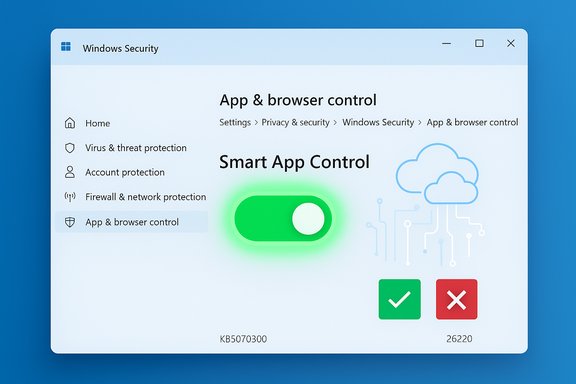
Windows Security app shows Smart App Control with a green toggle.
Microsoft has quietly removed one of the most annoying adoption barriers for Smart App Control (SAC) on Windows 11: starting with Insider Preview build 26220.7070 (packaged as KB5070300), SAC can now be switched on or off from the Windows Security app without forcing a clean reinstall of the OS, making the feature far easier to test and deploy for home users, power users, and enterprise pilots.

Background​

Smart App Control (SAC) launched as part of Windows 11’s expanded security surface and was positioned as a proactive, AI- and cloud-assisted gatekeeper that blocks untrusted or suspicious apps before they execute. The feature blends local code integrity checks with Microsoft’s cloud-based app reputation and machine-learning models to make allow/block decisions at launch time rather than relying solely on periodic signature-based scans. This architectural choice is why Microsoft described SAC as lighter on continuous resource consumption compared with traditional antivirus scanning. At first, Microsoft limited SAC to devices that had a clean installation of Windows 11. The rationale was straightforward: SAC’s initial evaluation and potential enforcement should start from a known-good image so the system baseline could be trusted. That policy meant users who upgraded in-place from older OS versions or who had previously turned SAC off had no way to turn it back on without resetting or reinstalling Windows — a major usability and operational friction that kept SAC out of many deployments. Microsoft’s own support page retained wording that reflected the old constraint even after the Insider announcement, underscoring the transitional nature of the change.

What changed in build 26220.7070 (KB5070300)​

Microsoft updated Insider Preview build 26220.7070 and explicitly stated that SAC can now be toggled from within the Windows Security app without a clean install requirement. The toggle lives at Settings > Privacy & security > Windows Security > App & browser control > Smart App Control settings. The change is being distributed to Insiders via a Controlled Feature Rollout (CFR), so visibility is staged and not every device on the same build will immediately see the new toggle. Key points about the change:
  • The toggle removes the previous hard dependency on a full OS reinstall to change SAC state.
  • Microsoft is rolling the capability out gradually to Insiders; availability depends on feature gating and device entitlements.
  • Core SAC behavior — Evaluation, Enforcement, and Off modes — remains, but lifecycle flexibility is improved. Evaluation mode still plays a role in determining whether a device is a good candidate for enforcement.
This update is not merely a UI convenience: it changes how organizations and advanced users can assess and iterate SAC settings. For many, the reinstatement of a toggle is the difference between ignoring SAC and actually testing it under real-world conditions. Multiple community and industry write-ups reflected on the significance of the change, and the Windows Insider notes name the exact build and package that introduced the behavior.

How Smart App Control actually works (brief technical primer)​

Understanding the operational model of SAC is critical to evaluating what the toggle removal means in practice.
  • SAC combines local heuristics, Windows code integrity policies, and cloud-based app reputation signals. When an executable or script attempts to run, SAC consults local checks (signatures, integrity metadata) and, when necessary, Microsoft’s cloud intelligence to decide whether to allow execution.
  • The feature operates in three primary states:
    • Evaluation: SAC observes app behaviour and compatibility to determine if the device is a good candidate for enforcement. No blocking occurs during evaluation.
    • Enforcement: SAC actively blocks apps judged untrusted by its models unless they are clearly signed by trusted certificates or known safe by reputation engines.
    • Off: SAC does not enforce application execution policies.
Because SAC relies on predictive reputation and not only on signature lists, it can block novel or zero-day vectors with lower runtime overhead — but that same predictive approach introduces a risk of false positives when legitimate but obscure tools lack the cloud reputation that SAC expects. This trade-off is central to the operational guidance below.

Why Microsoft removed the clean-install requirement​

Several converging motivations explain the change:
  • Lower adoption friction: Requiring a reinstall to use a single security feature discouraged real-world testing and adoption, particularly for users who upgraded in-place or maintain heavily customized systems. Enabling a toggle reduces that barrier.
  • Faster telemetry and feedback: Microsoft can gather compatibility and block-event telemetry more broadly if more devices can toggle SAC without reimaging. This accelerates model tuning and reduces the time to identify problematic app classes.
  • Operational flexibility for IT: Admins can now trial SAC in pilot groups and respond to false positives by switching SAC off temporarily without scheduling reimages or major downtime. The result is a faster path for enterprise validation.
  • Maturity of device-state checks: Microsoft appears to have increased SAC’s ability to make dynamic, post-install evaluations of device health/state, lessening the need for a bake-in baseline at install time. That architectural evolution enables in-place toggling while preserving some of SAC’s protective intent.
That said, the change does not magically eliminate every compatibility concern. Microsoft continues to stage the rollout and preserve evaluation logic to mitigate misclassification risks while enabling broader testing.

How to enable or disable SAC (practical steps)​

When the toggle is available on your device you can switch SAC from the Windows Security UI. The precise path is:
  1. Open Settings (Win + I).
  2. Go to Privacy & security > Windows Security.
  3. Click Open Windows Security.
  4. Select App & browser control.
  5. Choose Smart App Control settings and toggle On or Off as needed.
Notes and caveats:
  • If the option is not visible, your device might not yet be entitled by Microsoft’s staged rollout or might be governed by enterprise policy that overrides the local toggle.
  • Historically, turning SAC off required reinstallation to re-enter Evaluation mode; Microsoft’s Insider change now allows toggling without reinstall, but certain evaluation behaviors and one-way transitions may still exist in nuanced cases — treat documentation differences with caution until general documentation is updated.

Enterprise implications: manageability, telemetry, and governance​

The toggle’s arrival without reinstallability brings both practical benefits and governance responsibilities for IT teams.
Benefits:
  • Easier pilot and rollback: IT can enable SAC in a controlled pilot cohort and flip it off quickly if workflows break. This reduces the need for imaging gold images just to trial the feature.
  • Faster troubleshooting: Security teams can temporarily relax enforcement to remediate false positives without mass reimage operations.
Risks and governance considerations:
  • Change of security posture: Toggling SAC is effectively changing endpoint enforcement. Treat SAC-state changes as security-relevant events — audit them, log them, and gate them where possible with MDM or Group Policy. Ad-hoc toggling by users increases exposure to unvetted software.
  • Telemetry and privacy: SAC’s predictive model relies on cloud signals, which may involve uploading metadata about binaries for reputation scoring or telemetry. Regulated environments should evaluate this telemetry contract before enabling SAC broadly, and document compliance analysis accordingly.
  • Integration with App Control tooling: Enterprises running Windows Defender Application Control (WDAC) or AppLocker should validate interactions. SAC is tailored for consumer and smaller-business scenarios and is not a drop-in replacement for centrally managed WDAC policies. Compatibility testing is essential.
Practical manageability tips for IT:
  • Use Intune/MDM to control configurations and report on SAC state across fleets.
  • Pilot SAC with representative machines that mirror production software portfolios and developer tools.
  • Maintain exception workflows and clear remediation paths for blocked-but-legitimate apps (internal sign-off, whitelisting, or transient disable with auditing).

Privacy and cloud-dependence: what to watch​

SAC’s predictive model uses cloud reputation and machine-learning signals. That dependency creates two notable points for risk assessment:
  • Devices without reliable outbound connectivity may experience degraded SAC functionality or different behavioral characteristics because cloud checks are limited or delayed. SAC is designed to use local heuristics when needed, but cloud signals materially improve classification.
  • Diagnostic and telemetry uploads for reputation lookups are part of how SAC operates; organizations in regulated industries must evaluate the privacy and compliance implications before enabling cloud-assisted features at scale. Microsoft’s QMR and cloud remediation flows also exchange diagnostic data during recovery — treat those interactions similarly and document them for compliance teams.

Performance and false-positive trade-offs​

Microsoft has consistently presented SAC as having a relatively light runtime impact because it blocks suspicious apps at execution time rather than running continuous file-system scans. Practically, this means fewer background CPU cycles compared to aggressive on-access scanning, but independent, large-scale benchmarking is still limited. Treat performance claims as vendor statements until validated in representative environments. False positives remain the primary operational risk. SAC’s predictive blocking can interfere with obscure developer utilities, in-house signed tools, or legacy provisioning scripts that lack modern reputational signals. That is why:
  • Pilots should include dev machines, build servers, and LOB apps in test plans.
  • Endpoint logging should be enabled to capture blocked-app events and to expedite remediation workflows.

Recommended rollout for home users, power users, and IT teams​

The new toggle makes SAC practical to test. Follow a staged approach that balances security benefits with operational risk.
  1. Prepare: Ensure Windows Update and Microsoft Defender updates are current on candidate devices. Document existing whitelist needs and prepare recovery media.
  2. Pilot: Enable SAC on a small set of representative devices (home, developer, and business scenarios). Monitor blocked-app events for 72–168 hours.
  3. Measure: Track support tickets, performance metrics, and blocked app logs. Quantify false-positive rate and time-to-remediation.
  4. Adjust: Use whitelisting, signing policies, or temporary SAC toggles to handle legitimate blockers. Update deployment documentation.
  5. Scale: Expand to a broader cohort only after tolerable false-positive rates and remediation SLAs are in place. Use MDM to enforce governance.
For single-PC enthusiasts who previously avoided SAC because of the reinstall requirement, the new toggle means you can safely trial SAC on your main device — but keep a fallback plan (system restore point or image backup) in case a critical developer tool is blocked unexpectedly.

Practical troubleshooting checklist​

  • If the SAC toggle is missing, confirm:
    • You are on an Insider flight that has received the feature flag, or the build with KB5070300.
    • No enterprise policy is hiding or disabling the setting.
  • If legitimate apps are being blocked:
    • Temporarily switch SAC to Off while collecting blocked-event logs.
    • Submit binaries for reputation review through Microsoft’s feedback path or use internal whitelisting mechanisms.
    • Use Intune or local AppLocker/WDAC policies to allow known-good apps in managed environments.
  • If you rely on cloud-dependent recovery flows (QMR/WinRE), validate network reachability for recovery tooling before enabling cloud-assisted features widely.

Strengths and risks — balanced assessment​

Strengths:
  • Lower friction for adoption: The toggle substantially reduces the operational cost of trying SAC.
  • Proactive protection model: SAC’s predictive blocking can stop threats at execution time without heavy continuous scanning.
  • Better telemetry and faster tuning: More devices testing SAC provides richer signals for Microsoft to refine models.
Risks:
  • False positives and compatibility breaks: Predictive blocking can impact developer workflows and niche enterprise tools. Rigorous pilot testing is required.
  • Telemetry and privacy considerations: Cloud-assisted checks imply telemetry exchange that must be assessed in regulated environments.
  • Policy drift if unmanaged: Allowing end users to toggle SAC without governance can create inconsistent security postures across an organization. Use Intune/GP to govern toggles.

How the community reacted (short synthesis)​

Industry outlets and community forums quickly noted that removing the reinstall requirement turns SAC from an interesting but impractical feature into one that can actually be tested in the wild. Coverage emphasized the staged Insider rollout and the need for IT to treat SAC toggles as policy changes rather than casual user settings. Community posts also flagged the discrepancy between the Insider announcement and Microsoft’s existing support documentation, which still contains the earlier “clean install” language — an expected lag while documentation updates proceed.

Final verdict and practical recommendation​

The removal of the clean-install requirement for Smart App Control is a pragmatic and overdue change that materially improves SAC’s usability and testing lifecycle. For security-minded home users and organizations, the toggle is an invitation to reassess SAC’s value with real-world telemetry rather than theoretical constraints. That said, the move also shifts the responsibility to administrators and users to pilot SAC carefully and to treat SAC state changes as security-relevant events.
Recommended short checklist before enabling SAC broadly:
  • Pilot across representative machines including dev/build systems.
  • Ensure centralized logging and auditing for SAC-state changes.
  • Validate network and telemetry policies for cloud-assisted reputation queries.
  • Prepare a remediation path (whitelisting or temporary disable) for legitimate app blocks.
This is a usability win for the Windows 11 security stack — one that gives defenders a practical tool to test and adopt modern, predictive protections without the disruptive cost of reimaging every endpoint. The staged Insider rollout and the remaining documentation lag mean administrators should validate behavior in controlled environments and watch for official support updates, but the path to broader adoption is finally clear.

Source: Windows Report Smart App Control on Windows 11 Now Works Without a Clean Install
 

Microsoft’s move to let users toggle Smart App Control from inside Windows Security without forcing a clean reinstall marks a pragmatic — and strategically important — shift in how Windows 11 delivers one of its headline security features, easing adoption for home users, power users and IT pilots while raising new questions about compatibility, telemetry and enterprise governance.

Smart App Control is ON, shown by a glowing toggle beside a shield and devices.Background / Overview​

Smart App Control (SAC) debuted as a Windows 11–exclusive, cloud‑assisted application execution control designed to block untrusted or potentially harmful software before it runs. The feature blends local code‑integrity checks, digital signature validation and Microsoft’s cloud app‑reputation services to make allow/block decisions at execution time rather than relying solely on traditional signature‑based scanning. Microsoft’s official documentation originally tied SAC’s activation to a clean install of Windows 11, a guardrail intended to ensure the feature starts from a known‑good baseline. That installation constraint created an adoption problem: users who upgraded in‑place from Windows 10 or who wanted to test SAC on existing systems were forced to reset or reinstall Windows to get the protection. Microsoft has begun to unwind that restriction inside the Windows Insider program, exposing a toggle in the Windows Security app that — when staged for a device — lets SAC be turned on or off without reimaging. The change first appeared in Insider Preview Build 26220.7070 (delivered as KB5070300) and has been carried forward in later 25H2‑stream builds such as 26220.7344 (KB5070316).

What changed — the practical details​

Where to find the new control​

When the toggle is available on a device it appears in the Windows Security app under:
Settings > Privacy & security > Windows Security > App & browser control > Smart App Control settings.
From that screen eligible users can switch Smart App Control between Evaluation, On (Enforcement), and Off without performing a clean OS reinstall — a behavior Microsoft explicitly called out in the Insider release notes.

Which builds and channels matter​

  • The capability was announced in Windows 11 Insider Preview Build 26220.7070 (packaged as KB5070300) targeted to the Dev and Beta channels.
  • Microsoft continued the same behavior in subsequent 25H2‑era Insiders builds, including 26220.7344 (KB5070316).
Note: several outlets and community posts initially reported a different build number (22620.7344) in error; the correct 25H2‑series builds are in the 26220.xxxx range. That discrepancy has been noted and corrected in follow‑up reporting and community threads.

How Microsoft is rolling this out​

Microsoft is using its usual Controlled Feature Rollout (CFR) model for the change: the binary update ships to Insiders, but server‑side flags and device entitlements determine whether a given machine actually sees the toggle. That means installing the build is necessary but not sufficient — the toggle itself will appear only for devices Microsoft selects during the staged rollout.

Why Microsoft changed the behavior​

Microsoft’s rationale is practical and telemetry driven:
  • Lowering friction for adoption and testing. Requiring a fresh install to enable a single security control was a major friction point for ecosystem testing and enterprise pilots; allowing toggling in place makes SAC testable on a far wider set of devices.
  • Faster feedback loops. Broader, simpler access to SAC lets Microsoft gather more diverse compatibility telemetry and refine the models that drive blocking decisions.
  • Operational flexibility for admins. IT teams can now flip SAC during a pilot or react to false positives without scheduling reimages — an important manageability improvement.
These motivations are consistent with Microsoft’s broader posture of using staged testing to reduce regressions while enabling more rapid iteration on features thrown open to real‑world signals.

Technical primer: how Smart App Control decides what to block​

Smart App Control’s core mechanics are a hybrid of local and cloud checks:
  • Local integrity and signature checks assess whether a binary has been tampered with or is signed by a trustable publisher.
  • Cloud‑based app intelligence supplies reputation and machine‑learning predictions about unknown or novel binaries.
  • SAC operates in three states: Evaluation (observation only), Enforcement/On (actively blocking untrusted apps), and Off (no enforcement).
Because SAC emphasizes predictive reputations and pre‑execution gating rather than continuous, full‑system signature scanning, Microsoft positions the feature as a lighter, more proactive control that can reduce ongoing resource use compared with some traditional antivirus engines. That architectural distinction is real, but its measurable benefit will depend on workload, system hardware, and the mix of background AV software present.

Strengths and benefits for users​

  • Lower deployment cost: No longer needing to reimage makes SAC accessible to users who upgraded in place and to pilots that can’t afford reinstall cycles.
  • Proactive blocking: SAC can stop malicious or untrusted binaries before they execute, potentially catching zero‑day or novel threats that signature lists have not yet catalogued.
  • Performance upside for constrained devices: By reducing reliance on continuous real‑time signature scanning, SAC may lessen I/O and CPU churn on low‑ and mid‑range machines — a meaningful user experience improvement where every megabyte of RAM matters. Microsoft has framed this as a benefit for resource‑constrained PCs.
  • Simpler testing and remediation: Admins can turn SAC on in pilot groups, validate app compatibility, and flip off enforcement quickly if needed without reimaging fleets. This shortens pilot cycles and troubleshooting windows.

Risks, caveats and unanswered questions​

1. Compatibility and false positives​

SAC’s predictive model can produce false positives for legitimate but obscure or unsigned tools. Previously, the clean‑install requirement served as a conservative boundary; removing it increases the risk that enforcement will disrupt unusual developer workflows or line‑of‑business utilities. Organizations must pilot SAC on representative software portfolios before broad enabling.

2. Vendor claim vs independent validation on performance​

Microsoft asserts SAC can reduce background scanning overhead and help constrained machines run smoother. That claim is plausible given SAC’s architecture, but comprehensive, repeatable benchmarks covering varied hardware and workloads are still scarce. Treat performance improvements as vendor‑claimed benefits until third‑party labs publish systematic results. Administrators and enthusiasts should perform their own benchmarks on representative machines.

3. Telemetry and privacy trade‑offs​

SAC relies on cloud reputation signals. To classify unknown binaries it necessarily exchanges metadata with Microsoft’s cloud services. Organizations operating under strict privacy or regulatory constraints should evaluate that telemetry flow, confirm what data is sent, and ensure it meets compliance requirements. Microsoft’s documentation discusses cloud calls in the model, but exact telemetry contracts for all SAC interactions may require more careful review for regulated environments.

4. Enterprise manageability and logging​

Toggling SAC is effectively a change to endpoint security posture. In managed environments the toggle should be controlled via Group Policy or MDM (Intune) and changes should be logged centrally. Allowing ad‑hoc local toggles on production endpoints risks drift and operational surprises during audits.

5. Feature gating and mixed environments​

Because rollout is staged, different devices in the same organization might have different SAC behavior until wider release, complicating pilot coordination and user support. Admins should document which devices are in the CFR cohort and plan staged rollouts accordingly.

Practical guidance — how to evaluate and deploy SAC safely​

  • Pilot first
  • Create a representative pilot group that mirrors your application mix, including developer machines, legacy line‑of‑business apps, and peripheral hardware.
  • Enable SAC in Evaluation mode first and monitor block events and telemetry for at least one standard work cycle (one to two weeks).
  • Validate common workflows
  • Test build, signing, installation and deployment workflows, especially for unsigned utilities and administration tools. Flag and document any false positives.
  • Use management controls
  • Block or disable local toggles via MDM/Group Policy where consistent posture is essential. Require change requests for exceptions.
  • Monitor telemetry and support flow
  • Route SAC block events into centralized logging and create a remediation path for users (approved alternatives, IT support SOPs). Track support‑ticket volume after enabling.
  • Benchmark performance impact
  • Run controlled performance tests (boot time, game/application responsiveness, background I/O) before and after enabling SAC to verify vendor claims in your environment. Treat results as the decisive evidence for operational impact.

Cross‑checks and verification​

  • Microsoft’s own Support documentation explains SAC’s operational model and historically referenced the clean‑install constraint for initial enablement; that support page remains the authoritative product FAQ for end users.
  • The change was formally announced in Insider release notes where Microsoft states: “We’re updating Smart App Control (SAC) so you will now be able to switch SAC off or on without any clean install requirement.” Those notes appear in the announcements for Build 26220.7070 (KB5070300) and the subsequent Build 26220.7344 (KB5070316).
  • Independent tech outlets and community reporting picked up the Insider notes and analyzed implications; community threads and forum reporting also flagged and corrected early build‑number transcription errors reported in some third‑party stories. Treat the Insider blog as the primary authoritative statement and third‑party coverage as interpretation.
Where coverage or claims exceeded what's directly supported by Microsoft’s documentation — for example, specific quantified performance gains on low‑end hardware — that remains a vendor claim lacking broad, independent benchmarking. Those statements should be evaluated empirically in representative environments before being accepted as fact.

Strategic implications​

  • For consumers: Removing the reinstall requirement makes SAC a realistic option for a much larger set of users, which should increase real‑world adoption and provide Microsoft with richer telemetry to tune blocking models.
  • For enterprises: The change simplifies pilots but amplifies the need for governance. Organizations should treat SAC as part of a layered endpoint protection strategy, not a direct replacement for centrally managed application control (AppLocker/WDAC) in complex environments.
  • For security vendors: Wider SAC adoption will increase the pressure on third‑party AV and EDR vendors to demonstrate measurable value beyond what SAC provides in combination with Defender, especially in managed environments with complex legacy software.

Final assessment​

Microsoft’s decision to let Smart App Control be toggled from Windows Security without a clean install is a welcome usability and manageability change that removes a long‑standing adoption barrier. The move is consistent with Microsoft’s strategy of iterating in the wild via the Insider program and CFR, and it will materially simplify pilots, compatibility testing and consumer adoption of SAC. The core technical premise — that a predictive, pre‑execution gating model can reduce continuous scanning overhead — is sound in principle, but measurable gains will vary and require independent benchmarking to validate.
Administrators should proceed carefully: pilot SAC in Evaluation mode, benchmark its real‑world performance and compatibility impact, and integrate SAC state into endpoint governance and logging. Where privacy or regulatory constraints apply, evaluate the telemetry exchange involved in SAC’s cloud lookups before enabling broad deployments.
Microsoft’s Insider announcements and Support documentation make the change and its mechanics clear; follow those primary sources for definitive guidance while treating vendor performance claims as provisional until verified in your environment.

Quick reference — commands and UI paths​

  • Open Windows Security: Settings > Privacy & security > Windows Security.
  • SAC settings path: Windows Security > App & browser control > Smart App Control settings.
  • Insider builds that introduced the policy change: Build 26220.7070 (KB5070300) and Build 26220.7344 (KB5070316).

Smart App Control’s new in‑place toggle is a practical, welcome change — one that lowers the activation cost for users and IT teams — but it does not remove the need for careful validation, governance and performance verification before broad adoption.

Source: bangkokpost.com Microsoft is testing an update to the Smart App Control
 

Back
Top