

Microsoft has quietly fixed one of Smart App Control’s biggest usability problems: beginning with Insider Preview Build 26220.7070, Windows 11 now exposes a toggle that lets users turn Smart App Control (SAC) on or off without performing a clean reinstall or reset of the OS. The control appears in the Windows Security app under App & Browser Control > Smart App Control settings, and — according to Microsoft’s Insider notes — the change is rolling out gradually to the Dev and Beta channels. For the many users who were forced to choose between broken but useful software and an inflexible security feature, this is a pragmatic and overdue correction to SAC’s original all-or-nothing lifecycle.
Smart App Control is a proactive application control layer introduced with Windows 11 that uses cloud-powered app intelligence and code‑integrity rules to block unknown, unsigned, or otherwise suspicious executables before they run. Unlike traditional antivirus scanning that often inspects behavior after execution, SAC implements a gatekeeper model: if Microsoft’s app intelligence can’t confidently mark a binary as safe, and the binary lacks a valid, trusted signature, SAC will prevent it from launching.
From a security perspective, this is powerful: SAC can stop zero‑day threats and potentially unwanted applications (PUAs) earlier in the kill chain, reducing the window in which malware can execute harmful actions. The feature was positioned as an extra protection layer alongside Microsoft Defender Antivirus and Defender SmartScreen, not as a replacement. But the original implementation came with strict lifecycle rules that caused significant friction for real-world users.
On a clean Windows 11 install, SAC enters Evaluation mode and silently observes the device for a limited period. If usage patterns suggest the device runs predominantly trusted, signed software, SAC will flip into Enforcement mode and begin blocking anything it deems untrusted. If the system is an upgrade from a prior Windows version, or if a user manually switches SAC off at any time, the previous model treated that decision as permanent: SAC could not be re-enabled unless the user reset or reinstalled Windows.
That rigid behavior made SAC effectively unusable for many gamers, content creators, developers, and power users whose workflows depend on unsigned tools, frequent builds, or niche utilities. The lack of per-app exceptions or a “Run anyway” option inside SAC enforcement further amplified the pain — either accept blocked apps or disable SAC forever.
Settings > Privacy & security > Windows Security > App & browser control > Smart App Control settings
Key points about the change:
Benefits of the toggle:
This is not a perfect solution for every scenario. Enterprises will still prefer managed application controls, and developers remain responsible for signing their binaries to avoid reputation-based blocks. The staged rollout means not every insider or consumer will see the toggle immediately, and toggling SAC off even temporarily must be done with appropriate caution.
Overall, the change moves SAC from an inflexible experiment to a practical security tool that acknowledges real-world workflows. It keeps the stronger enforcement model intact while giving users the control and flexibility necessary to keep their work flowing — and, importantly, to restore strict protection after a brief, controlled exception.
Source: Windows Latest Microsoft confirms you can soon disable Smart App Control without reinstalling Windows 11
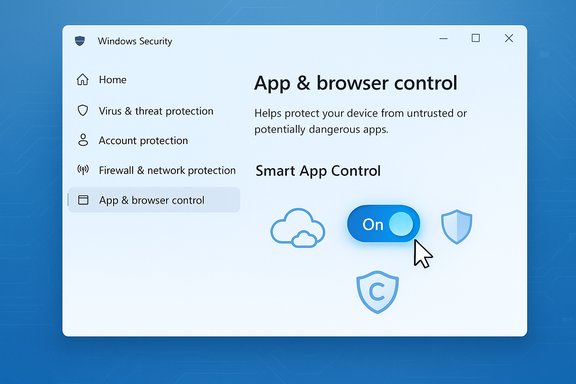 Background: what Smart App Control is and why it mattered
Smart App Control is a proactive application control layer introduced with Windows 11 that uses cloud-powered app intelligence and code‑integrity rules to block unknown, unsigned, or otherwise suspicious executables before they run. Unlike traditional antivirus scanning that often inspects behavior after execution, SAC implements a gatekeeper model: if Microsoft’s app intelligence can’t confidently mark a binary as safe, and the binary lacks a valid, trusted signature, SAC will prevent it from launching.From a security perspective, this is powerful: SAC can stop zero‑day threats and potentially unwanted applications (PUAs) earlier in the kill chain, reducing the window in which malware can execute harmful actions. The feature was positioned as an extra protection layer alongside Microsoft Defender Antivirus and Defender SmartScreen, not as a replacement. But the original implementation came with strict lifecycle rules that caused significant friction for real-world users.
On a clean Windows 11 install, SAC enters Evaluation mode and silently observes the device for a limited period. If usage patterns suggest the device runs predominantly trusted, signed software, SAC will flip into Enforcement mode and begin blocking anything it deems untrusted. If the system is an upgrade from a prior Windows version, or if a user manually switches SAC off at any time, the previous model treated that decision as permanent: SAC could not be re-enabled unless the user reset or reinstalled Windows.
That rigid behavior made SAC effectively unusable for many gamers, content creators, developers, and power users whose workflows depend on unsigned tools, frequent builds, or niche utilities. The lack of per-app exceptions or a “Run anyway” option inside SAC enforcement further amplified the pain — either accept blocked apps or disable SAC forever.
What changed in Build 26220.7070
Microsoft’s Insider release notes for Build 26220.7070 (delivered as KB5070300) announced a small but meaningful change: the Smart App Control setting can now be toggled on or off from Windows Security without a clean install. The new control is located at:Settings > Privacy & security > Windows Security > App & browser control > Smart App Control settings
Key points about the change:
- The toggle removes the previous requirement to wipe or reset Windows to re-enable SAC after it was turned off.
- The change is rolling out gradually to Insiders in the Dev and Beta channels; availability may vary by device and staging flags.
- Microsoft did not change how SAC decides whether an app is allowed — the decision engine (cloud app intelligence + signature checks) remains the same.
- Microsoft continues to position SAC as a lifetime protection layer for devices where it’s appropriate, but the lifecycle is now flexible rather than permanently one-way.
How Smart App Control works today (short technical primer)
Understanding what toggling SAC actually changes requires a quick look at how SAC evaluates apps:- When a user attempts to run an executable, SAC queries Microsoft’s app intelligence (cloud) to determine whether the app is known safe or malicious.
- If the cloud can make a confident trust decision, SAC respects it. If not, it falls back to code signing checks: a valid signature from a certificate issued by a CA in Microsoft’s Trusted Root Program will usually allow execution.
- If neither cloud reputation nor a valid trusted signature exists, SAC flags the app as untrusted and blocks it in Enforcement mode.
- In Evaluation mode, SAC observes behavior and logs potential blocks without blocking execution, giving Microsoft’s system a chance to determine if the device is a suitable candidate for enforcement.
- SAC is separate from Microsoft Defender Antivirus and Defender SmartScreen; the three work in complementary ways.
- SAC is typically available only on clean installs or devices in a supported region (historically this was the case; the toggle change relaxes this).
- SAC writes diagnostic and block events into CodeIntegrity event logs (events 3076 / 3077), which admins and developers can use to troubleshoot blocked files.
- There is no built-in per-app whitelist inside SAC enforcement today; the recommended long-term fix for developers is to sign binaries with trusted certificates or use Microsoft’s trusted signing services.
How to use the new toggle — practical, step-by-step guidance
The new toggle makes SAC behave more like other Windows security features. For users who need to temporarily run a tool that SAC blocks, the safe workflow is:- Open Settings > Privacy & security > Windows Security > App & browser control > Smart App Control settings.
- If the toggle is available on your device, switch SAC to Off.
- Run the installer or application you trust. Use the normal SmartScreen prompts (if present) and confirm the publisher, or unblock the file via Properties if necessary.
- Re-enable SAC immediately after completing the install or action.
- Create a system restore point or backup important files.
- Scan the target executable(s) with Microsoft Defender and an online scanner (e.g., VirusTotal) before running them.
- Verify digital signatures: right-click the executable > Properties > Digital Signatures tab.
- If the executable comes from a known vendor, prefer official installers from the vendor’s site.
Who benefits — and who still needs alternatives
This fix helps several groups:- Gamers and streamers who were forced to permanently disable SAC to use tools like overlay utilities, streaming macros, or automation bots.
- Developers and power users who run locally built, frequently modified binaries that lack broad reputation.
- Support teams and IT professionals testing software on devices without reimaging every time SAC is toggled.
- Enterprise-managed devices: SAC is disabled on enterprise‑managed endpoints by design. Organizations should use App Control for Business policies in Microsoft Intune or Windows Application Control (WDAC) profiles to manage application allowlists and controlled install flows.
- High‑security environments: Enterprises needing rigorous, deterministic application allowlists should maintain managed WDAC or App Control for Business policies rather than rely on SAC’s consumer-focused reputation system.
Security trade-offs and risks
Allowing users to switch SAC on and off without reinstalling Windows introduces practical convenience but also presents security trade-offs that require careful handling.Benefits of the toggle:
- Reduces friction and adoption barriers — users won’t permanently abandon SAC because of one false positive.
- Makes SAC viable for a broader audience, including creators and hobbyists who rely on niche tools.
- Simplifies testing and troubleshooting for IT and developers.
- Temporarily disabling SAC lowers the level of protection against unknown and zero‑day threats. SAC operates on a stricter “guilty until proven safe” approach than standard AV; turning it off opens that window.
- Users may forget to re-enable SAC after a temporary bypass, leaving devices under-protected.
- Because SAC is still a cloud + signature model, toggling it does not remove the need for developers to sign their binaries; unsigned apps remain risky.
- The staged rollout means the toggle’s availability is inconsistent; guidance written today may not match every Insider device.
- Treat SAC toggling as a targeted, time-limited action: disable only for the exact time needed, then re-enable.
- Use Defender and SmartScreen as complementary protections while SAC is off, but recognize those systems have different detection models.
- Organizations should prefer managed application control (Intune App Control for Business or WDAC) for predictable behavior and whitelisting capabilities.
- Adopt stronger code‑signing practices for in-house and distributable apps: obtain certificates from trusted CAs, sign all binaries (exe, dll, installers, scripts), and test with SAC’s auditing tools before broad distribution.
Developer and vendor action items
SAC’s architecture rewards proper code signing and good distribution hygiene. For developers and ISVs, the path to a smoother experience for customers is clear:- Sign every binary (executables, DLLs, installers, helpers, and script bundles) with a certificate issued by a CA in the Microsoft Trusted Root Program.
- Test against SAC using Microsoft’s recommended audit policies and citool.exe. Audit mode lets developers see what SAC would block in enforcement without breaking installs.
- Consider Microsoft Trusted Signing or packaging through the Microsoft Store / trusted distribution channels to accelerate reputation building.
- If distributing tools that expect rapid iteration (nightly builds, private beta releases), provide clear instructions for power users on how to verify and safely run builds (digital signatures, checksums).
Enterprise considerations and manageability
For organizations, the fact that SAC can be toggled does not change the recommended approach for managed fleets. Enterprises should continue to use:- App Control for Business policies via Microsoft Intune to control allowed applications at scale, create managed installer rules, and implement audit-only or enforcement modes as needed.
- Windows Defender Application Control (WDAC) profiles where deterministic allowlists are required.
- Deployment and testing channels to evaluate partner and in-house apps against SAC before broad deployment.
Troubleshooting blocked apps: diagnosis checklist
When SAC blocks an app, use this checklist to diagnose and remediate:- Confirm SAC mode: open Windows Security > App & browser control and view the Smart App Control state (On / Evaluation / Off).
- Review CodeIntegrity logs in Event Viewer: Applications and Services Logs > Microsoft > Windows > CodeIntegrity > Operational. Look for event IDs 3076 (evaluation) and 3077 (enforcement).
- Verify the binary’s digital signature via file Properties > Digital Signatures.
- Use Microsoft’s audit policies and citool.exe to emulate enforcement and capture logs for specific installers.
- If the app is trusted, run through the safe toggle workflow: temporarily disable SAC, run installer, re-enable SAC.
- Consider contacting the software vendor to request trusted signing or to accelerate reputation updates.
Final assessment: practical fix, not a redesign
The toggle change in Build 26220.7070 is a pragmatic correction that will materially reduce friction and increase the practical adoption of Smart App Control. It does not loosen SAC’s blocking criteria or introduce per-app exceptions; rather, it makes the feature reversible without reimaging. That change alone will be welcomed by gamers, creators, and testers who previously had to choose between productivity and protection.This is not a perfect solution for every scenario. Enterprises will still prefer managed application controls, and developers remain responsible for signing their binaries to avoid reputation-based blocks. The staged rollout means not every insider or consumer will see the toggle immediately, and toggling SAC off even temporarily must be done with appropriate caution.
Overall, the change moves SAC from an inflexible experiment to a practical security tool that acknowledges real-world workflows. It keeps the stronger enforcement model intact while giving users the control and flexibility necessary to keep their work flowing — and, importantly, to restore strict protection after a brief, controlled exception.
Source: Windows Latest Microsoft confirms you can soon disable Smart App Control without reinstalling Windows 11
