

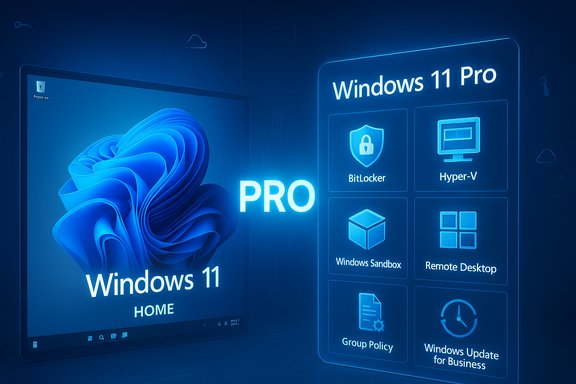
Imagine upgrading Windows 11 Home to Pro and finding the same elegant interface—but with a suite of hidden tools that fundamentally change what your PC can do for work, security, and virtualization.
Windows 11 ships in multiple editions, but the difference between Windows 11 Home and Windows 11 Pro is more than cosmetic. For people building workstations, running virtual labs, managing small fleets of PCs, or protecting sensitive data, Pro adds functionality that materially changes risk profiles and capabilities. The short version: Pro unlocks advanced encryption (BitLocker), virtualization (Hyper‑V and Windows Sandbox), the ability to host Remote Desktop sessions, centralized management (Group Policy, Azure AD join), and expanded hardware limits. Many recent consumer-facing writeups have highlighted those exact benefits and limited-time discount opportunities, which is why the “upgrade to Pro” conversation keeps resurfacing.
This article pulls those claims apart, verifies the technical specifics against Microsoft documentation and independent reporting, highlights the practical benefits, and calls out the pitfalls — from activation/licensing traps to data‑loss risks that can surprise even experienced users.
If you’re considering upgrading because of a bargain sale, treat the transaction as a licensing decision: check license type, transfer rules, and whether the seller is reputable. A low up‑front price can be attractive, but the long‑term value depends on license portability and support.
Finally, treat BitLocker as a policy decision: adopt it only after implementing a recovery key strategy and training users in key handling. The benefits are enormous; the consequences of negligence can be permanent.
The original article you referenced captures the spirit of the Pro pitch: the interface feels familiar, but Pro reveals a deeper set of tools underneath the surface. The closing caution is practical: validate any price‑oriented offers, confirm license types, and always back up keys and critical data before toggling encryption or performing edition upgrades.
Source: INSCMagazine Unlocking the Power of Windows 11 Pro - INSCMagazine
 Background: why this matters right now
Windows 11 ships in multiple editions, but the difference between Windows 11 Home and Windows 11 Pro is more than cosmetic. For people building workstations, running virtual labs, managing small fleets of PCs, or protecting sensitive data, Pro adds functionality that materially changes risk profiles and capabilities. The short version: Pro unlocks advanced encryption (BitLocker), virtualization (Hyper‑V and Windows Sandbox), the ability to host Remote Desktop sessions, centralized management (Group Policy, Azure AD join), and expanded hardware limits. Many recent consumer-facing writeups have highlighted those exact benefits and limited-time discount opportunities, which is why the “upgrade to Pro” conversation keeps resurfacing.This article pulls those claims apart, verifies the technical specifics against Microsoft documentation and independent reporting, highlights the practical benefits, and calls out the pitfalls — from activation/licensing traps to data‑loss risks that can surprise even experienced users.
Overview: what Windows 11 Pro actually adds
Windows 11 Pro is not a visual skin over Home; it is a different product tier intended for professionals and business users. The headline Pro-only capabilities are:- BitLocker full-disk encryption for drives and external media (more granular than Home’s device encryption).
- Hyper‑V virtualization and Windows Sandbox for running isolated VMs and testing untrusted apps.
- Remote Desktop hosting — your PC can accept inbound RDP connections (Home can only act as a client).
- Group Policy and domain/Azure AD join for centralized policy and device management.
- Windows Update for Business controls that allow administrators to defer and manage feature/quality updates (policy‑based deferrals up to 365 days for feature updates).
- Higher hardware ceilings (Pro supports far more RAM and multi‑CPU configurations than Home). Microsoft documents explicit memory limits per edition: Windows 11 Home supports up to 128 GB while Windows 11 Pro supports up to 2 TB of physical memory.
Deep dive: the features that justify the “Pro” label
BitLocker: full-disk encryption and the surprises that come with it
BitLocker is the industry-standard disk encryption solution built into Windows Pro, Enterprise, and Education. It encrypts entire volumes using AES and ties keys to TPM hardware where available. The practical benefits are obvious: a stolen laptop or removed drive is unreadable without the decryption key.- Verified fact: BitLocker is supported on Windows 11 Pro; Home provides a limited “device encryption” on some hardware but not the full BitLocker management surface. Microsoft and major Windows outlets confirm this distinction.
- BitLocker’s protection is only effective when you safely manage recovery keys. If you enable encryption and lose the recovery key, data can become permanently inaccessible. Recent real-world reports show users losing terabytes of backups after unexpected automatic encryption during reinstall workflows — a sharp reminder to export recovery keys and keep them safe. This is not hyperbole: there are documented incidents of data loss when users were not prepared for automatic encryption. Treat BitLocker as a two‑edged sword: excellent protection when managed, catastrophic when mismanaged.
- Back up BitLocker recovery keys to a Microsoft account or enterprise key escrow (Intune/Azure) before enabling encryption.
- Understand whether your device will auto‑enable encryption (some modern installs and OEM settings toggle it on by default).
- For enterprise use, consider Windows Enterprise licensing for advanced BitLocker lifecycle management such as silent enablement and automated key rotation.
Virtualization: Hyper‑V and Windows Sandbox
Hyper‑V and Windows Sandbox are cornerstone Pro features for developers, testers, and security-conscious users.- Hyper‑V: a Type‑1 hypervisor that lets you run full virtual machines. It is supported on Windows 11 Pro, Enterprise, and Education but not on Home via supported channels.
- Windows Sandbox: a lightweight disposable environment for running untrusted apps; it is licensed for Pro/Enterprise/Education editions and not available on Home. Microsoft’s documentation rigorously lists edition support.
- Developers can spin up multiple OS images, test configurations, and keep their host clean from experimental installs. IT pros can run nested testing without separate hardware. For many power users, Hyper‑V obviates the need for third‑party virtualization software.
- Hyper‑V requires hardware virtualization support (Intel VT‑x/AMD‑V, SLAT) and adequate RAM. GPU passthrough and advanced hypervisor features are still areas where server hypervisors or specialized tooling may be superior.
- Although unofficial workarounds exist to enable Hyper‑V-like components on Home, those approaches are unsupported and can break with updates — they’re not recommended for production use.
Remote Desktop hosting: more than “connect to someone else’s PC”
A Windows 11 Pro machine can act as an RDP host. That enables secure remote access to an office desktop, remote troubleshooting, and certain classes of remote app delivery.- Confirmed: Home can act as a Remote Desktop client but cannot host RDP sessions; Pro supports hosting. Third‑party tools (TeamViewer, AnyDesk) offer alternatives but don’t replace built‑in Windows management integration.
- If you expose RDP to the internet, protect it with multi‑factor authentication, strong firewall rules, and preferably a VPN or Azure AD-based conditional access.
- For small businesses, using Azure AD join and Intune simplifies device access policies and controls for remote sessions.
Group Policy, Azure AD, and Windows Update control
Group Policy and domain join are Pro features that let admins enforce security settings and manage fleet behavior.- Group Policy provides centralized configuration controls and is essential for enforcing company policies (password rules, device restrictions, update behavior). Azure AD join and mobile device management (MDM) support are similarly Pro/Enterprise features.
- Pro devices can be managed to defer feature updates (policy deferral can be configured up to 365 days for feature updates) and control rollout timing. This is a major differentiator for businesses that need predictable uptime and testing windows. Microsoft documentation spells out the deferral and pause mechanics.
- For a small firm, Pro reduces the risk of an automatic feature update breaking critical software mid‑quarter. For IT administrators, it enables staged deployments and compatibility testing.
Hardware support: memory and CPU limits you should know
The raw hardware ceilings differ by edition — and those numbers matter for workstations and home lab builders.- Microsoft’s documentation lists Windows 11 Home: up to 128 GB RAM and Windows 11 Pro: up to 2 TB RAM. These are authoritative, edition‑specific physical memory caps.
- Community and technical reporting consistently observe that Pro also supports multi‑processor workstation configurations (typically up to 2 physical CPUs for client Pro/Enterprise editions; enterprise/workstation variants raise further ceilings). For truly large core/socket counts, Windows Server is the intended platform. Use Pro for high‑end desktop workstations; use server SKUs for multi‑socket server deployments.
- If you plan to run many heavyweight VMs, large datasets, or rendering workloads on a single machine, Home’s 128 GB cap can be a hard limit; Pro’s 2 TB allows serious workstation builds.
Licensing and product keys: what you need to know before you buy
One repeated point in popular guides is that “buying a Windows 11 Pro product key unlocks features.” That’s true, but the nuances matter and they’re often glossed over.- Product key vs. digital license: Microsoft supports activation through either a 25‑character product key or a digital license tied to hardware/Microsoft account. You can enter a Pro product key on a device running Home to perform the edition upgrade via Settings > System > Activation > Change product key. Microsoft explicitly documents the manual product key upgrade path.
- License types matter (retail vs OEM vs volume):
- Retail keys are transferable between PCs (after deactivation on the old device) and include Microsoft support.
- OEM keys are usually tied to the original device and are non‑transferable.
- Volume licensing is for organizations and imposes different deployment rules and entitlements.
- These differences affect whether you can move your Pro license to a new machine in the future. Independent explainers lay out the distinctions clearly.
- A Pro product key will not “magically work” on a Home installation unless you use the edition upgrade process — but that process is supported and documented. In other words, you can upgrade Home to Pro by entering a valid Pro key; the claim “a Pro key won’t work on a Home edition installation” is a misleading oversimplification.
- Extremely cheap product‑key offers: discounted keys exist, often OEM or OEM‑like bulk licenses. They may be legitimate but can carry restrictions (non‑transferability, lack of Microsoft support). Exercise caution with third‑party resellers and verify transfer/activation terms.
- Confirm you need Pro features — list the Pro-only capabilities you will actually use.
- Choose the right license type for your use case (retail if you want portability; OEM for a single device; volume for many devices).
- Keep the product key and link the license to your Microsoft account where possible.
Who should upgrade to Windows 11 Pro — and who shouldn’t
Windows 11 Pro is targeted and expensive only if you don’t use its features. Evaluate your needs:- Upgrade if you are:
- A developer or developer‑ops engineer who runs VMs and needs Hyper‑V and Sandbox.
- A remote worker who needs to host Remote Desktop sessions and rely on Azure AD/Intune management.
- A small business owner who needs Group Policy, update controls, and device management capabilities.
- A security‑conscious user who intends to use BitLocker and will responsibly manage recovery keys.
- A workstation builder who will exceed Home’s RAM/CPU limits.
- Skip Pro if you are:
- A casual gamer, streamer, or light productivity user — Home typically suffices.
- Uncomfortable with managing encryption keys or enterprise tools (the added features bring responsibility).
Common upgrade pitfalls and how to avoid them
- Automatic encryption surprises. With newer Windows 11 releases, OEMs and reinstall flows may enable drive encryption automatically. If you reinstall or accept defaults and do not store recovery keys safely, you risk permanent data loss. Export recovery keys and keep them offline or in enterprise key escrow.
- Buying the wrong key. A bargain key might be OEM or volume‑locked and not transferable; confirm the seller’s terms and test activation before relying on the license for business use.
- Hardware compatibility confusion. Meeting minimum Windows 11 requirements does not mean your hardware will support every Pro feature (e.g., Hyper‑V needs CPU virtualization support; Pro’s bigger RAM ceiling still depends on motherboard/CPU physical limits). Check hardware vendor specs.
- Unsupported workarounds. Hacks to unlock Pro-only features on Home can break with updates. Use supported upgrade paths when possible.
- Management vs. entitlement mismatch. Some BitLocker lifecycle features (silent enablement, automated rotation) are technically possible only with Enterprise licensing and management tooling (Intune, SCCM). If you’re an organization, review licensing for lifecycle management capabilities.
Buying advice and a recommended upgrade workflow
If you decide to upgrade, follow a conservative workflow:- Inventory: Confirm exactly which Pro features you will use and that your hardware supports them.
- Backup: Take a full backup of important files (cloud or image backup). Export BitLocker keys if already enabled.
- Purchase: Prefer reputable retailers or Microsoft Store purchases for retail keys (better transferability and support). Avoid unknown marketplaces unless you understand license restrictions.
- Upgrade path: Use Settings > System > Activation > Change product key to enter the Pro key or purchase via Microsoft Store. You can also perform an in-place upgrade with an ISO when necessary.
- Post-upgrade checks: Confirm BitLocker, Hyper‑V, Windows Sandbox, Remote Desktop, and Group Policy components are present and properly configured. Reconcile any management requirements if joining a domain or Azure AD.
A critical view: strengths, risks, and where Microsoft’s changes complicate the picture
Windows 11 Pro’s strengths are clear: security, manageability, virtualization, and hardware scalability. But the ecosystem around Windows 11 has introduced new complexities:- Strengths:
- Integrated security (BitLocker, Windows Hello, Defender) reduces the need for third‑party encryption on Pro.
- Built‑in virtualization is a huge win for dev/test workflows.
- Policy-based update control avoids surprise reboots and is essential for production environments.
- Risks and trade‑offs:
- Data recovery vs. security friction: Automatic encryption and mishandled recovery keys have produced hard data‑loss cases; encryption must be matched with key management discipline.
- Licensing complexity: Cheap keys hide transfer restrictions; volume licensing and Enterprise entitlements are different animals. Verify before you buy.
- Feature fragmentation: Microsoft’s rapid rollout of AI features (Copilot, Copilot+ enhancements) and changes in defaults (e.g., encryption behavior during reinstall) mean expectations must be validated with current release notes and OEM behavior. These are moving pieces that can change user experience quickly.
Verdict: when paying extra for Pro is worth it
Windows 11 Pro is a pragmatic buy for anyone who will actually use its feature set. If you need encryption that you control, host RDP sessions, run Hyper‑V VMs, join Azure AD or local domains, or build high‑end workstations, Pro is not a luxury—it’s a toolset that materially increases capability and reduces operational risk when used correctly. For casual users who only game, stream, or do light productivity, the Home edition is usually sufficient.If you’re considering upgrading because of a bargain sale, treat the transaction as a licensing decision: check license type, transfer rules, and whether the seller is reputable. A low up‑front price can be attractive, but the long‑term value depends on license portability and support.
Finally, treat BitLocker as a policy decision: adopt it only after implementing a recovery key strategy and training users in key handling. The benefits are enormous; the consequences of negligence can be permanent.
Quick reference — key facts and authoritative verification
- Windows 11 Pro supports up to 2 TB RAM; Windows 11 Home supports up to 128 GB. This is documented by Microsoft.
- Hyper‑V and Windows Sandbox are supported on Pro, Enterprise, and Education; Home does not include official support.
- BitLocker is available in Windows 11 Pro (and Enterprise/Education); Home has more limited device encryption. Treat BitLocker key management seriously.
- Windows Update for Business policies on Pro allow feature‑update deferrals configurable up to 365 days by policy.
- You can upgrade from Windows 11 Home to Pro by entering a valid Pro product key or buying the upgrade through the Microsoft Store; license type (retail/OEM/volume) determines portability.
Final thoughts
Upgrading to Windows 11 Pro unlocks capabilities rather than merely cosmetic differences. That shift is real: Pro is the version that lets you run secure, controlled, and high‑performance Windows environments. The tradeoff is administrative overhead — encryption keys, update policies, and licensing details require thought and a plan. For professionals, developers, and small businesses, Pro often pays for itself in saved time, mitigated risk, and increased flexibility. For everyone else, Home remains a sensible default.The original article you referenced captures the spirit of the Pro pitch: the interface feels familiar, but Pro reveals a deeper set of tools underneath the surface. The closing caution is practical: validate any price‑oriented offers, confirm license types, and always back up keys and critical data before toggling encryption or performing edition upgrades.
Source: INSCMagazine Unlocking the Power of Windows 11 Pro - INSCMagazine
