

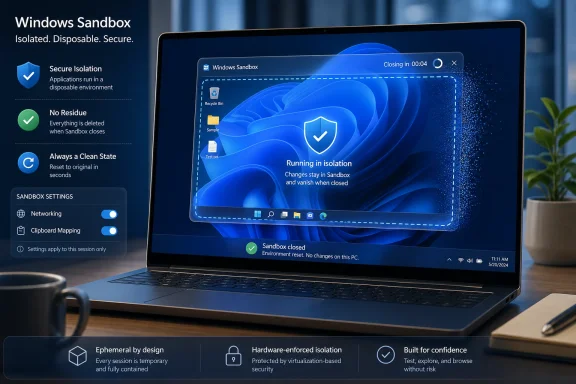
Windows 11 Pro includes Windows Sandbox, an optional virtualization feature that creates a temporary isolated Windows desktop on the same PC, lets users run apps or files inside it, and deletes the session when the window closes. That sounds like a power-user parlor trick, but it is really Microsoft’s most approachable answer to a problem every Windows user knows: curiosity is useful, and curiosity is dangerous. The feature deserves more attention precisely because it is not glamorous. It turns the risky middle ground between “I trust this” and “I should not touch this” into a place where ordinary users can actually work.
Windows has never lacked recovery tools. Microsoft Defender can block known threats, SmartScreen can warn about suspicious downloads, System Restore can unwind some bad changes, and Windows Recovery Environment can help when the machine is already in trouble. The catch is that most of those tools are reactive. They are what you reach for after the questionable installer, registry tweak, driver package, or macro-enabled document has already made contact with the system you care about.
Windows Sandbox changes the posture. Instead of asking users to trust a warning dialog, maintain a full virtual machine, or gamble on “it is probably fine,” it gives them a disposable desktop that behaves like Windows but does not carry the emotional weight of their real Windows installation. That matters because the average Windows power user is not reckless. They are often just trying to answer a practical question: what happens if I run this?
The MakeUseOf piece gets the basic appeal right: Sandbox is a PC inside a PC, and its most important feature is that it disappears. Install the app, open the attachment, test the script, poke around in Settings, and then close the window. The next launch starts clean again, without the residue that makes ordinary troubleshooting so tedious.
That combination of familiarity and disposability is the trick. Traditional virtual machines are powerful, but they feel like projects. Windows Sandbox feels like an app. For many users, that difference is the line between a feature they admire and a feature they actually use.
The feature is optional, so a Windows 11 Pro user can own it for years without seeing it. Enabling it usually means turning on the Windows Sandbox feature through Windows Features, restarting, and then launching “Windows Sandbox” from Start. On newer Windows 11 builds, Microsoft has also been moving more virtualization controls into Settings, but the old “Turn Windows features on or off” route remains the canonical path many users will recognize.
Under the hood, Sandbox relies on hardware virtualization and the Microsoft hypervisor. It is not merely a locked-down user account or a clever desktop mode. It runs as a lightweight virtualized environment that uses the host’s Windows components to avoid the bulk of a conventional VM. Microsoft describes it as disposable by design: every launch is clean, and closing the session deletes the contents.
That architecture is why Sandbox feels fast compared with building a VM from scratch. There is no ISO hunt, no full Windows install, no product key ceremony, no virtual disk housekeeping, and no snapshot discipline required before every risky experiment. The bargain is that you get less persistence and less customization than a conventional VM, but for a large class of testing tasks, that is exactly the point.
Microsoft’s own configuration documentation makes the trade-offs plain. Networking is enabled by default, which means a program inside Sandbox can reach the internet and, depending on the environment, may have some path toward internal network resources. Clipboard redirection is also enabled by default, which makes it easy to copy files and text between the host and the sandbox. These defaults make the feature usable, but they also widen the channel between the disposable machine and the real one.
That is the recurring tension in Windows security: the safer configuration is often the one people stop using. If Microsoft shipped Sandbox with no network, no clipboard, no mapped folders, no printer redirection, and no virtual GPU, it would satisfy a stricter threat model and frustrate half the people who try it. The current design says, in effect, “we will make isolation easy enough that users reach for it.” That is a reasonable bet, but it should not be confused with maximum containment.
Mapped folders are the clearest example. A user can configure Sandbox so a host folder appears inside the disposable desktop, optionally read-only. That is convenient for testing a batch of installers or documents. It is also a place where the security model becomes user-dependent: a writable mapped folder gives untrusted software a path to modify data outside the sandbox, while a read-only mapping reduces that risk but does not make careless handling impossible.
The same applies to copying files back out. If a user runs a suspicious installer in Sandbox, sees that it “works,” and then copies its generated output back to the host without understanding what changed, Sandbox has only moved the decision point. It has not eliminated judgment. The feature is a safety bench, not an absolution machine.
The bad habit is double-clicking unknown software on the main desktop because spinning up a full VM feels like too much ceremony. The bad habit is testing a registry file on a production machine because “it is just one change.” The bad habit is opening an odd attachment because Defender did not complain and the deadline is now. Sandbox competes with the little acts of convenience that make Windows machines messy over time.
A full VM remains the better tool when persistence matters. Developers who need a stable test environment, administrators validating a multi-step deployment, malware analysts preserving artifacts, and IT teams reproducing bugs across different OS versions will still want proper virtual machines, snapshots, network segmentation, and logging. Sandbox is intentionally thinner. It is the paper plate, not the dinnerware set.
That is why it belongs in more Windows workflows. Security tools often fail because they demand users become specialists before they can benefit. Windows Sandbox compresses the workflow to “launch, test, close.” It meets the user at the moment of hesitation, which is exactly when a security feature has the greatest chance of changing behavior.
There is also a psychological benefit. A user who knows there is a clean place to test things is less likely to turn the main OS into a permanent laboratory. Over months and years, that may matter as much as any single malware encounter. The healthiest Windows installation is often the one that was spared a thousand unnecessary experiments.
It is one of those features that makes the Pro upgrade feel less like a licensing tax and more like a toolbox. If you download utilities from GitHub, test freeware, compare driver packages, examine scripts, write registry tweaks, troubleshoot browser behavior, or help family members inspect suspicious files, Sandbox is directly useful. It is not an abstract enterprise feature that trickled down. It is a daily-driver safety valve.
That said, Microsoft does itself no favors by leaving it disabled and under-explained. The feature is discoverable only if you already know to look for it. A user can spend years on Windows 11 Pro, carefully avoiding suspicious downloads, without realizing the operating system includes a disposable testing desktop.
This is one of Microsoft’s oddest product instincts. The company will aggressively promote cloud upsells, account integration, Copilot surfaces, and subscription prompts, but some of the best local operating-system features remain hidden in legacy dialogs. Windows Sandbox is exactly the kind of feature that could make Windows feel more trustworthy and more professional. Instead, it often spreads by word of mouth, forum posts, and articles from users who stumble into it and wonder why they waited so long.
That last detail is a reminder that Sandbox is not literally “your PC, duplicated.” It is a lightweight Windows environment with enough functionality to test and inspect, not a perfect mirror of every installed app and configuration. Third-party programs from the host are not present. User files are not there unless copied or mapped. The session is intentionally bare.
For most users, bare is good. The absence of personal files is the point. The lack of installed apps reduces confusion. The temporary profile makes the environment feel almost theatrical: a stage set that exists only for the test in front of it.
But the convenience defaults mean cautious users should learn the configuration file system. Windows Sandbox supports .wsb files, which are XML configuration files that can control features such as networking, virtual GPU, mapped folders, clipboard redirection, printer redirection, audio and video input, memory allocation, and startup commands. That sounds more intimidating than it is, but it marks the difference between casual use and disciplined use.
A good pattern is to maintain more than one Sandbox launcher. One can be the default, internet-connected environment for testing ordinary apps. Another can disable networking for suspicious files that do not need external access. Another can map a folder read-only for batch inspection. The feature becomes far more powerful when treated not as one sandbox, but as a set of disposable benches for different kinds of risk.
Sandbox is excellent for seeing what an installer does to a clean Windows profile. Does it add browser extensions? Does it drop a helper app into startup? Does it bundle a service? Does it change file associations? These are not always malware behaviors, but they are exactly the small system changes that annoy users later.
It is also useful for command-line experimentation. PowerShell snippets copied from blogs, registry commands from forum threads, winget experiments, and installer switches can all be tested in a place where mistakes are cheap. A typo that would have damaged the host becomes a lesson instead of an incident.
For writers, support technicians, and IT pros, Sandbox can function as a clean-room view of Windows. If a setting, webpage, installer, or workflow behaves differently inside Sandbox than on the host, that contrast can reveal whether the problem is tied to the user profile, installed software, corporate policy, or accumulated system state. It is not a full diagnostic lab, but it is often enough to separate “Windows does this” from “my Windows installation does this.”
That practical troubleshooting role is underappreciated. The most common Windows problems are not cinematic infections. They are weird, sticky interactions between apps, drivers, shell extensions, cached credentials, policies, and user habits. A clean disposable desktop gives you a baseline without making you reinstall the OS or create another local account.
The enterprise case is not that Sandbox should replace endpoint detection, application control, phishing defenses, or proper malware analysis systems. It should not. The case is that many risky actions happen before a ticket is opened and outside a lab. If trained users have an approved, easy, isolated place to inspect a file or reproduce a behavior, fewer experiments happen on production desktops.
There is a governance angle too. Organizations often write policies that assume users will make perfect decisions under imperfect information. Do not run untrusted software. Do not open unexpected attachments. Do not test scripts on your workstation. These rules are correct and insufficient. Sandbox gives the policy a practical escape hatch: if you must inspect something, do it here, and do it with constrained settings.
Still, the feature can create false confidence if rolled out carelessly. With networking enabled, Sandbox traffic may still touch infrastructure. With clipboard sharing enabled, data can move both ways through user action. With writable mapped folders, the boundary can be weakened. A mature deployment would define different .wsb profiles and teach users when each one applies.
That training does not need to be elaborate. It needs to be concrete. If the file does not need the internet, use a no-network Sandbox. If you need to bring in test files, use a read-only mapped folder. If you are done, close the session and assume everything inside is gone. If you find something truly suspicious, do not copy artifacts back to the host unless your process requires it.
Microsoft’s edition split has commercial logic. Pro includes features aimed at professionals and organizations, and Sandbox fits that tradition because it depends on virtualization plumbing also associated with Hyper-V and enterprise controls. But from a user-safety perspective, the absence on Home looks increasingly artificial.
Windows security has become more important, not less, as ordinary users face malicious ads, fake installers, poisoned search results, fraudulent support tools, and compromised open-source distribution channels. Microsoft has invested heavily in baseline security requirements for Windows 11, from TPM 2.0 to virtualization-based security on capable systems. Against that backdrop, keeping one of the most understandable isolation features out of Home feels like a missed public-interest opportunity.
There may be support reasons. Virtualization features can interact with BIOS settings, older hardware, third-party hypervisors, and performance expectations. Sandbox also consumes memory and CPU resources that lower-end consumer devices may not handle gracefully. But those caveats argue for clear requirements and opt-in design, not necessarily edition exclusion.
At minimum, Microsoft should market the feature more honestly as a reason to choose Pro. If Sandbox is going to remain a Pro-only convenience, then it should be presented as one of Pro’s headline user-facing benefits. Right now, many buyers know Pro gets them BitLocker and Remote Desktop. Far fewer know it gets them a throwaway Windows desktop for dangerous curiosity.
A better Windows experience would surface Sandbox at the moment of risk. If SmartScreen blocks or warns about an app, Windows could offer a “Try in Windows Sandbox” option on eligible Pro systems. If a user right-clicks an executable or script, the context menu could expose “Open in Sandbox” after the feature is enabled. If Defender quarantines or flags something as suspicious but removable, the security app could explain that Sandbox is for controlled inspection, not for overriding protection.
There are obvious dangers in making risky actions feel too easy. Microsoft would need careful language to avoid implying that Sandbox makes malware safe. But the current gap is worse: the feature exists, users do not know it exists, and so they fall back to worse behavior.
The same is true for configuration. The .wsb system is powerful but nerdy. XML files are not an inviting interface for the average Windows user, even a technically inclined one. A small graphical profile manager could transform Sandbox from a hidden feature into a serious tool: toggles for networking, clipboard, GPU, mapped folders, read-only mode, startup command, and memory, with plain-language warnings beside the dangerous options.
This is where Microsoft’s current Windows strategy can feel lopsided. The company is willing to add AI surfaces across the shell, but a practical security feature with immediate value still asks users to hand-edit configuration files for best results. If Windows is going to be a safer operating system for real people, the boring workflows need design attention too.
That matters in a Windows ecosystem built around endless small decisions. Should I try this driver? Should I trust this open-source utility? Should I run this cleanup tool? Should I test this registry tweak suggested in a forum? Should I install this app just to convert one file? The safest answer is often “no,” but an operating system that only says no trains users to ignore it.
Sandbox offers a more useful answer: try it somewhere that can be destroyed. That is not perfect security, but it is better human factors. It respects the fact that people learn by doing, and it gives them a place where doing does not have to mean contaminating the system they depend on.
For Windows enthusiasts, this should become muscle memory. Before running an unfamiliar installer, try it in Sandbox. Before applying a registry file, inspect and test it in Sandbox. Before following a questionable troubleshooting recipe, rehearse it in Sandbox. The payoff is not only reduced risk; it is better understanding.
There is an educational benefit that rarely appears in feature checklists. Sandbox lets users watch Windows respond to changes in a clean environment. That makes cause and effect easier to see. Over time, the user becomes less dependent on superstition and more confident in distinguishing harmless changes from invasive ones.
Source: MakeUseOf Windows 11 Pro has a disposable PC hidden inside it, and I wish I’d used it sooner
 The Best Security Feature Is the One People Will Actually Use
Windows has never lacked recovery tools. Microsoft Defender can block known threats, SmartScreen can warn about suspicious downloads, System Restore can unwind some bad changes, and Windows Recovery Environment can help when the machine is already in trouble. The catch is that most of those tools are reactive. They are what you reach for after the questionable installer, registry tweak, driver package, or macro-enabled document has already made contact with the system you care about.Windows Sandbox changes the posture. Instead of asking users to trust a warning dialog, maintain a full virtual machine, or gamble on “it is probably fine,” it gives them a disposable desktop that behaves like Windows but does not carry the emotional weight of their real Windows installation. That matters because the average Windows power user is not reckless. They are often just trying to answer a practical question: what happens if I run this?
The MakeUseOf piece gets the basic appeal right: Sandbox is a PC inside a PC, and its most important feature is that it disappears. Install the app, open the attachment, test the script, poke around in Settings, and then close the window. The next launch starts clean again, without the residue that makes ordinary troubleshooting so tedious.
That combination of familiarity and disposability is the trick. Traditional virtual machines are powerful, but they feel like projects. Windows Sandbox feels like an app. For many users, that difference is the line between a feature they admire and a feature they actually use.
Microsoft Hid a Workbench in the Pro Edition
Windows Sandbox is not new, and that may be part of why it is easy to overlook. It arrived in the Windows 10 era and remains available in supported Pro, Enterprise, and Education editions of Windows 10 and Windows 11. It is not included in Home, which is unfortunate but consistent with Microsoft’s long-running habit of keeping the most useful administrative and virtualization tools behind the Pro line.The feature is optional, so a Windows 11 Pro user can own it for years without seeing it. Enabling it usually means turning on the Windows Sandbox feature through Windows Features, restarting, and then launching “Windows Sandbox” from Start. On newer Windows 11 builds, Microsoft has also been moving more virtualization controls into Settings, but the old “Turn Windows features on or off” route remains the canonical path many users will recognize.
Under the hood, Sandbox relies on hardware virtualization and the Microsoft hypervisor. It is not merely a locked-down user account or a clever desktop mode. It runs as a lightweight virtualized environment that uses the host’s Windows components to avoid the bulk of a conventional VM. Microsoft describes it as disposable by design: every launch is clean, and closing the session deletes the contents.
That architecture is why Sandbox feels fast compared with building a VM from scratch. There is no ISO hunt, no full Windows install, no product key ceremony, no virtual disk housekeeping, and no snapshot discipline required before every risky experiment. The bargain is that you get less persistence and less customization than a conventional VM, but for a large class of testing tasks, that is exactly the point.
Disposable Does Not Mean Magical
The danger in praising Windows Sandbox is overstating it. It is an isolation boundary, not a moral force field. A malicious file run inside Sandbox should not get to freely rewrite the host system, but the session is not hermetically sealed from every consequence by default.Microsoft’s own configuration documentation makes the trade-offs plain. Networking is enabled by default, which means a program inside Sandbox can reach the internet and, depending on the environment, may have some path toward internal network resources. Clipboard redirection is also enabled by default, which makes it easy to copy files and text between the host and the sandbox. These defaults make the feature usable, but they also widen the channel between the disposable machine and the real one.
That is the recurring tension in Windows security: the safer configuration is often the one people stop using. If Microsoft shipped Sandbox with no network, no clipboard, no mapped folders, no printer redirection, and no virtual GPU, it would satisfy a stricter threat model and frustrate half the people who try it. The current design says, in effect, “we will make isolation easy enough that users reach for it.” That is a reasonable bet, but it should not be confused with maximum containment.
Mapped folders are the clearest example. A user can configure Sandbox so a host folder appears inside the disposable desktop, optionally read-only. That is convenient for testing a batch of installers or documents. It is also a place where the security model becomes user-dependent: a writable mapped folder gives untrusted software a path to modify data outside the sandbox, while a read-only mapping reduces that risk but does not make careless handling impossible.
The same applies to copying files back out. If a user runs a suspicious installer in Sandbox, sees that it “works,” and then copies its generated output back to the host without understanding what changed, Sandbox has only moved the decision point. It has not eliminated judgment. The feature is a safety bench, not an absolution machine.
The Real Competition Is Not VMware or Hyper-V
It is tempting to compare Windows Sandbox with full virtual machines, and the MakeUseOf article does exactly that. The comparison is technically fair but strategically incomplete. Sandbox is less a competitor to Hyper-V, VMware Workstation, or VirtualBox than it is a competitor to bad habits.The bad habit is double-clicking unknown software on the main desktop because spinning up a full VM feels like too much ceremony. The bad habit is testing a registry file on a production machine because “it is just one change.” The bad habit is opening an odd attachment because Defender did not complain and the deadline is now. Sandbox competes with the little acts of convenience that make Windows machines messy over time.
A full VM remains the better tool when persistence matters. Developers who need a stable test environment, administrators validating a multi-step deployment, malware analysts preserving artifacts, and IT teams reproducing bugs across different OS versions will still want proper virtual machines, snapshots, network segmentation, and logging. Sandbox is intentionally thinner. It is the paper plate, not the dinnerware set.
That is why it belongs in more Windows workflows. Security tools often fail because they demand users become specialists before they can benefit. Windows Sandbox compresses the workflow to “launch, test, close.” It meets the user at the moment of hesitation, which is exactly when a security feature has the greatest chance of changing behavior.
There is also a psychological benefit. A user who knows there is a clean place to test things is less likely to turn the main OS into a permanent laboratory. Over months and years, that may matter as much as any single malware encounter. The healthiest Windows installation is often the one that was spared a thousand unnecessary experiments.
Windows Pro’s Value Proposition Is Hiding in Plain Sight
Microsoft has long struggled to explain why many enthusiasts should pay for Windows Pro. Domain join, Group Policy, BitLocker management, Remote Desktop host capabilities, Hyper-V, and enterprise management hooks all have real value, but they do not always speak to the person buying or building a single powerful PC at home. Windows Sandbox does.It is one of those features that makes the Pro upgrade feel less like a licensing tax and more like a toolbox. If you download utilities from GitHub, test freeware, compare driver packages, examine scripts, write registry tweaks, troubleshoot browser behavior, or help family members inspect suspicious files, Sandbox is directly useful. It is not an abstract enterprise feature that trickled down. It is a daily-driver safety valve.
That said, Microsoft does itself no favors by leaving it disabled and under-explained. The feature is discoverable only if you already know to look for it. A user can spend years on Windows 11 Pro, carefully avoiding suspicious downloads, without realizing the operating system includes a disposable testing desktop.
This is one of Microsoft’s oddest product instincts. The company will aggressively promote cloud upsells, account integration, Copilot surfaces, and subscription prompts, but some of the best local operating-system features remain hidden in legacy dialogs. Windows Sandbox is exactly the kind of feature that could make Windows feel more trustworthy and more professional. Instead, it often spreads by word of mouth, forum posts, and articles from users who stumble into it and wonder why they waited so long.
The Defaults Reveal Microsoft’s Real Priority
The default Sandbox experience is designed for convenience. It has networking. It has clipboard sharing. It boots into a familiar Windows desktop. It gives users Edge and core Windows tools, though Microsoft has noted that beginning with Windows 11 version 24H2 some inbox Store apps such as Calculator, Photos, Notepad, and Terminal are not available inside Sandbox, with support expected to be added later.That last detail is a reminder that Sandbox is not literally “your PC, duplicated.” It is a lightweight Windows environment with enough functionality to test and inspect, not a perfect mirror of every installed app and configuration. Third-party programs from the host are not present. User files are not there unless copied or mapped. The session is intentionally bare.
For most users, bare is good. The absence of personal files is the point. The lack of installed apps reduces confusion. The temporary profile makes the environment feel almost theatrical: a stage set that exists only for the test in front of it.
But the convenience defaults mean cautious users should learn the configuration file system. Windows Sandbox supports .wsb files, which are XML configuration files that can control features such as networking, virtual GPU, mapped folders, clipboard redirection, printer redirection, audio and video input, memory allocation, and startup commands. That sounds more intimidating than it is, but it marks the difference between casual use and disciplined use.
A good pattern is to maintain more than one Sandbox launcher. One can be the default, internet-connected environment for testing ordinary apps. Another can disable networking for suspicious files that do not need external access. Another can map a folder read-only for batch inspection. The feature becomes far more powerful when treated not as one sandbox, but as a set of disposable benches for different kinds of risk.
The Security Story Is Stronger When It Is Less Dramatic
The popular pitch for Sandbox is malware testing, and that is understandable. “Run suspicious EXE without consequences” is the headline version. Yet the more durable value may be in lower-drama work.Sandbox is excellent for seeing what an installer does to a clean Windows profile. Does it add browser extensions? Does it drop a helper app into startup? Does it bundle a service? Does it change file associations? These are not always malware behaviors, but they are exactly the small system changes that annoy users later.
It is also useful for command-line experimentation. PowerShell snippets copied from blogs, registry commands from forum threads, winget experiments, and installer switches can all be tested in a place where mistakes are cheap. A typo that would have damaged the host becomes a lesson instead of an incident.
For writers, support technicians, and IT pros, Sandbox can function as a clean-room view of Windows. If a setting, webpage, installer, or workflow behaves differently inside Sandbox than on the host, that contrast can reveal whether the problem is tied to the user profile, installed software, corporate policy, or accumulated system state. It is not a full diagnostic lab, but it is often enough to separate “Windows does this” from “my Windows installation does this.”
That practical troubleshooting role is underappreciated. The most common Windows problems are not cinematic infections. They are weird, sticky interactions between apps, drivers, shell extensions, cached credentials, policies, and user habits. A clean disposable desktop gives you a baseline without making you reinstall the OS or create another local account.
Enterprise IT Should Like Sandbox, But Not Romanticize It
For administrators, Windows Sandbox sits in an interesting middle zone. It is simple enough for power users and help desk staff, but configurable enough to support safer workflows. In managed environments, policies can control Sandbox capabilities such as clipboard redirection, networking, and mapped folder behavior. That gives IT a way to shape the risk instead of simply telling users not to run unknown files.The enterprise case is not that Sandbox should replace endpoint detection, application control, phishing defenses, or proper malware analysis systems. It should not. The case is that many risky actions happen before a ticket is opened and outside a lab. If trained users have an approved, easy, isolated place to inspect a file or reproduce a behavior, fewer experiments happen on production desktops.
There is a governance angle too. Organizations often write policies that assume users will make perfect decisions under imperfect information. Do not run untrusted software. Do not open unexpected attachments. Do not test scripts on your workstation. These rules are correct and insufficient. Sandbox gives the policy a practical escape hatch: if you must inspect something, do it here, and do it with constrained settings.
Still, the feature can create false confidence if rolled out carelessly. With networking enabled, Sandbox traffic may still touch infrastructure. With clipboard sharing enabled, data can move both ways through user action. With writable mapped folders, the boundary can be weakened. A mature deployment would define different .wsb profiles and teach users when each one applies.
That training does not need to be elaborate. It needs to be concrete. If the file does not need the internet, use a no-network Sandbox. If you need to bring in test files, use a read-only mapped folder. If you are done, close the session and assume everything inside is gone. If you find something truly suspicious, do not copy artifacts back to the host unless your process requires it.
The Home Edition Gap Is Harder to Defend
The most awkward part of the Windows Sandbox story is availability. Windows 11 Home users are not the only people who download questionable utilities, receive suspicious attachments, or experiment with system tweaks. In fact, they may be more likely to lack the layered defenses and administrative habits found in business environments.Microsoft’s edition split has commercial logic. Pro includes features aimed at professionals and organizations, and Sandbox fits that tradition because it depends on virtualization plumbing also associated with Hyper-V and enterprise controls. But from a user-safety perspective, the absence on Home looks increasingly artificial.
Windows security has become more important, not less, as ordinary users face malicious ads, fake installers, poisoned search results, fraudulent support tools, and compromised open-source distribution channels. Microsoft has invested heavily in baseline security requirements for Windows 11, from TPM 2.0 to virtualization-based security on capable systems. Against that backdrop, keeping one of the most understandable isolation features out of Home feels like a missed public-interest opportunity.
There may be support reasons. Virtualization features can interact with BIOS settings, older hardware, third-party hypervisors, and performance expectations. Sandbox also consumes memory and CPU resources that lower-end consumer devices may not handle gracefully. But those caveats argue for clear requirements and opt-in design, not necessarily edition exclusion.
At minimum, Microsoft should market the feature more honestly as a reason to choose Pro. If Sandbox is going to remain a Pro-only convenience, then it should be presented as one of Pro’s headline user-facing benefits. Right now, many buyers know Pro gets them BitLocker and Remote Desktop. Far fewer know it gets them a throwaway Windows desktop for dangerous curiosity.
The Feature’s Biggest Weakness Is Its Silence
Windows Sandbox has a documentation problem, but not in the sense that Microsoft lacks documentation. The official pages explain installation, prerequisites, configuration files, mapped folders, networking, clipboard behavior, and policy controls. The problem is product storytelling. The OS itself does not teach the workflow.A better Windows experience would surface Sandbox at the moment of risk. If SmartScreen blocks or warns about an app, Windows could offer a “Try in Windows Sandbox” option on eligible Pro systems. If a user right-clicks an executable or script, the context menu could expose “Open in Sandbox” after the feature is enabled. If Defender quarantines or flags something as suspicious but removable, the security app could explain that Sandbox is for controlled inspection, not for overriding protection.
There are obvious dangers in making risky actions feel too easy. Microsoft would need careful language to avoid implying that Sandbox makes malware safe. But the current gap is worse: the feature exists, users do not know it exists, and so they fall back to worse behavior.
The same is true for configuration. The .wsb system is powerful but nerdy. XML files are not an inviting interface for the average Windows user, even a technically inclined one. A small graphical profile manager could transform Sandbox from a hidden feature into a serious tool: toggles for networking, clipboard, GPU, mapped folders, read-only mode, startup command, and memory, with plain-language warnings beside the dangerous options.
This is where Microsoft’s current Windows strategy can feel lopsided. The company is willing to add AI surfaces across the shell, but a practical security feature with immediate value still asks users to hand-edit configuration files for best results. If Windows is going to be a safer operating system for real people, the boring workflows need design attention too.
Curiosity Needs Guardrails, Not Shame
The MakeUseOf framing — “a disposable PC hidden inside it” — lands because it describes the emotional value of the feature. Users do not merely want protection from malware. They want permission to explore without feeling foolish.That matters in a Windows ecosystem built around endless small decisions. Should I try this driver? Should I trust this open-source utility? Should I run this cleanup tool? Should I test this registry tweak suggested in a forum? Should I install this app just to convert one file? The safest answer is often “no,” but an operating system that only says no trains users to ignore it.
Sandbox offers a more useful answer: try it somewhere that can be destroyed. That is not perfect security, but it is better human factors. It respects the fact that people learn by doing, and it gives them a place where doing does not have to mean contaminating the system they depend on.
For Windows enthusiasts, this should become muscle memory. Before running an unfamiliar installer, try it in Sandbox. Before applying a registry file, inspect and test it in Sandbox. Before following a questionable troubleshooting recipe, rehearse it in Sandbox. The payoff is not only reduced risk; it is better understanding.
There is an educational benefit that rarely appears in feature checklists. Sandbox lets users watch Windows respond to changes in a clean environment. That makes cause and effect easier to see. Over time, the user becomes less dependent on superstition and more confident in distinguishing harmless changes from invasive ones.
A Disposable Desktop Deserves a Permanent Place in the Toolbox
Windows Sandbox is useful because it is simple, but using it well still requires a few habits. The feature should become part of the Windows power-user routine, not an emergency tool remembered only after something goes wrong.- Windows Sandbox is best for short, risky experiments where persistence is not needed and a clean reset is more valuable than a customized test machine.
- Users should remember that default Sandbox sessions include networking and clipboard sharing, which improve usability but also create channels between the sandbox and the outside world.
- Read-only mapped folders are safer than writable mapped folders when the goal is to inspect host files from inside the sandbox.
- Full virtual machines remain the better choice for long-running tests, different operating systems, repeatable snapshots, or serious malware analysis.
- Microsoft could make the feature dramatically more useful by integrating it into SmartScreen, right-click workflows, and a graphical configuration manager.
- Windows 11 Pro users who already paid for the feature should enable it before they need it, because the best time to build a safer habit is before the suspicious file arrives.
Source: MakeUseOf Windows 11 Pro has a disposable PC hidden inside it, and I wish I’d used it sooner
