

If you’re still treating Windows 11 like a refreshed wallpaper and a centered Start menu, you’re missing the parts of the OS that were actually built to speed you up, protect your data, and reduce friction in everyday work.
Windows 11 shipped with a lot of visual polish, but the productivity and accessibility wins are where the operating system delivers real, repeatable value. Features such as Widgets, passkeys, Live Captions, Snap Layouts and Snap Groups, and Focus Sessions are not just glitzy add-ons — they solve concrete problems: information overload, password fatigue, missed dialog in meetings, messy window juggling, and burnout from unfocused work. A recent primer that surfaced these five tricks shows how quickly a few focused changes can change daily workflows. s each of those tools in detail, verifies the technical claims with official documentation and independent reporting, and — critically — explains the practical trade-offs and how to set them up so they actually improve your day instead of creating new annoyances.
The five tools we’ll dig into are those most likely to produce immediate, measurable gains:
MakeUseOf points out how widgets and the lock screen can be configured to surface helpful info the moment you open your machine — a good example of reducing friction between intention and information.
Independent reporting has tracked Microsoft’s broader push toward a passwordless future and noted third-party password manager integration with passkey APIs to enable cross-device use. That means passkeys are both secure and becoming more convenient for people who use multiple devices.
This feature was designed for accessibility, but the everyday productivity payoff is obvious: better comprehension in noisy environments, searchable meeting text for later reference, and on-the-fly transcription without sending audio to cloud services.
MakeUseOf highlights how Focus Sessions can turn scattered attention into consistent output with scheduled breaks — an implementation of the well-known time-boxing techniques that many productivity methodologies endorse.
Windows 11’s real advantage isn’t how it looks; it’s how it helps you think and act less about the machine and more about the work. The five features covered here — Widgets, passkeys, Live Captions, Snap Layouts/Snap Groups, and Focus Sessions — each address a specific daily pain point. Turn them on thoughtfully, test their behaviors in your environment, and you’ll likely find that everyday computing becomes faster, safer, and a little less stressful.
Source: MakeUseOf You're not using Windows 11 right — 5 tricks that actually make life easier
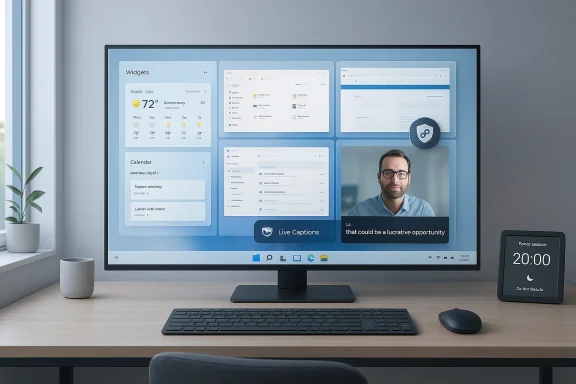 Overview: why "quality of use" matters more than a prettier UI
Windows 11 shipped with a lot of visual polish, but the productivity and accessibility wins are where the operating system delivers real, repeatable value. Features such as Widgets, passkeys, Live Captions, Snap Layouts and Snap Groups, and Focus Sessions are not just glitzy add-ons — they solve concrete problems: information overload, password fatigue, missed dialog in meetings, messy window juggling, and burnout from unfocused work. A recent primer that surfaced these five tricks shows how quickly a few focused changes can change daily workflows. s each of those tools in detail, verifies the technical claims with official documentation and independent reporting, and — critically — explains the practical trade-offs and how to set them up so they actually improve your day instead of creating new annoyances.Background: what Microsoft built into Windows 11 and why it matters
Microsoft’s design philosophy for Windows 11 blends visual cohesion with on-device intelligence and tighter integration across apps and accounts. That approach yields features that are often disabled by default, tucked into system apps, or discoverable only via keyboard shortcuts. When enabled and configured intentionally, these features save time and reduce cognitive overhead; when left to defaults they’re simply another notification.The five tools we’ll dig into are those most likely to produce immediate, measurable gains:
- Widgets — a personalized, glanceable information board.
- Passkeys — a passwordless authentication method tied to Windows Hello and device-bound keys.
- Live Captions — on-device, real-time transcription across apps.
- Snap Layouts & Snap Groups — one-click window organization and layout memory.
- Focus Sessions — a timer-driven focus mode integrated with Clock, To Do and music services.
Widgets: your mini-dashboard (and its privacy trade-offs)
What Widgets do — and why you should care
Widgets present personalized content cards — weather, calendar itemssports, and photos — inside a left-side board that you open with Win + W or the Widgets button on the taskbar. They’re designed for a “one-stop glance” experience so you can check what matters without opening full apps. Widgets are interactive and resizable (Small, Medium, Large) and you can pin, unpin, and rearrange them.MakeUseOf points out how widgets and the lock screen can be configured to surface helpful info the moment you open your machine — a good example of reducing friction between intention and information.
How to make Widgets actually useful
- Use the Widgets board for lightweight, glanceable data: weather, upcoming calendar items, and a concise to-do summary.
- Pin only the widgets you actually consult; too many cards defeat the “glance” purpose.
- Resize high-value cards (calendar, weather) to Medium or Large for quick readability.
- Use the Widgets avatar to manage interests and sign-in options to keep the feed relevant.
The downside: personalization and telemetry
Widgets are personalized by default and rely on your Microsoft account and the Windows Web Experience Pack to supply content. That personalization requires data exchange with Microsoft services (and MSN-powered feeds), which some users will see as a privacy cost. If you want the convenience but not the telemetry, the pragmatic trade is: sign out of Widgets or limit what you pin; otherwise accept the personalization in exchange for the faster glance experience. Microsoft explicitly documents the personalization behavior and how to sign out or limit content.Passkeys: stop babysitting passwords (but understand recovery and sync)
What passkeys are and why they matter
Passkeys are a modern, phishing-resistant replacement for passwords that rely on public-key cryptography. When you create a passkey, your device generates and stores a private key (never shared), and the service stores a public key. Authentication is completed using Windows Hello (PIN, fingerprint, or face) to unlock the local private key. Microsoft’s documentation states that passkeys are device-based, easier to use than passwords, and phish-resistant.Independent reporting has tracked Microsoft’s broader push toward a passwordless future and noted third-party password manager integration with passkey APIs to enable cross-device use. That means passkeys are both secure and becoming more convenient for people who use multiple devices.
How to enable and use passkeys today
- Visit your Microsoft account’s security settings and choose “Add a new way to sign in.”
- Follow the prompts to create a passkey and link it to your Windows Hello option (PIN or biometric).
- Use supported browsers (Edge, Chrome, Safari) to sign into services that accept passkeys.
Caveats and operational risks
- Device loss: because a passkey’s private key is stored locally, losing the device can block access unless you’ve set up a synced passkey solution or backup recovery option. Microsoft and many password managers offer sync/backup mechanisms, but they must be enabled in advance.
- Cross-device complexity: while passkeys can be synced, not all services or browsers implement the same UX for recovery and sync. Test your account recovery process — don’t assume it’ll be seamless.
- Enterprise policies: corporate identity systems may require specific enrollment or management of passkeys for compliance; consult your IT team before changing authentication methods on work devices.
Live Captions: accessibility that helps everyone (and how it works)
What Live Captions does
Live Captions in Windows 11 provides system-wide, real-time transcription of spoken audio into text that appears on screen. It works across apps — video calls, media players, recordings — and runs on-device after you download the necessary language files the first time you enable it. Use the shortcut Windows key + Ctrl + L to toggle it on instantly.This feature was designed for accessibility, but the everyday productivity payoff is obvious: better comprehension in noisy environments, searchable meeting text for later reference, and on-the-fly transcription without sending audio to cloud services.
Why this matters to knowledge workers
If you’re in meetings with multiple speakers, diverse accents, or low-quality audio, Live Captions reduces missed sentences and prevents the need to replay recordings for a 30-second clarification. On-device processing also means the transcription doesn’t require continuous network access once language packs are installed.Setup and tips
- Press Windows + Ctrl + L to enable Live Captions.
- The first time you run it, Windows prompts you to download language files — that requires an internet connection.
- Customize caption appearance (font size, colors, placement) from the Live Captions settings to make the text readable without obscuring important content.
Privacy note and accuracy limits
Live Captions processes audio locally after the language pack download, which reduces cloud privacy concerns. However, accuracy depends on audio quality, speaker clarity, and the available language model. Live Captions supports profanity filtering and multiple languages, but it’s not a substitute for formal meeting minutes or legally binding transcripts. Treat it as a high-value accessibility and note-taking aid, not a certified record.Snap Layouts & Snap Groups: get windows arranged in seconds
What these features solve
If you ever manually drag and resize three or four windows into a working arrangement, you know how tedious it is. Snap Layouts give you predefined grids that appear when you hover the maximize button or press Win + Z. Snap Assist then helps fill the remaining regions with other open windows, and once a layout is complete Windows remembers that combination as a Snap Group so you can return to it later. These tools massively cut the friction of multi-app workflows.How to use Snap Layouts and Snap Groups
- Hover over the maximize button on a window or press Windows + Z to reveal layout options.
- Click a layout zone to snap that window; Snap Assist will show thumbnails of other open apps to fill the remaining zones.
- When you’ve populated the layout, Windows creates a Snap Group. Hovering over an app in the group will show the out so you can restore the entire layout.
Practical workflow examples
- Research session: browser on the left, note-taking app in the top-right, reference PDF bottom-right.
- Remote work: video call in a top-right panel, chat tool bottom-right, documentation left.
- Coding: editor in the center, terminal in a narrow column to the left, documentation to the right.
Multi-monitor and edge cases
Snap layouts are tailored to your screen size and orientation; large landscape monitors can support three side-by-side windows, while portrait screens get stacked top/bottom zones. However, some apps (especially older Win32 apps or full-screen games) may not play nicely with snapping, and complex multi-monitor setups can result in surprising behavior when docking/undocking. If you rely on exact layouts for critical work, test common scenarios and save time using Snap Groups rather than rebuilding layouts manually.Focus Sessions: build a rhythm, not a slog
The concept and why it works
Focus Sessions is a built-in productivity timer in the Windows Clock app that integrates with Focus/Do Not Disturb rules, Microsoft To Do, and Spotify for background audio. When a session starts, notifications quiet down, the focus timer appears, and you can pick a task from To Do to anchor the session. The design is to structure work into manageable timed chunks and reduce context-switching.MakeUseOf highlights how Focus Sessions can turn scattered attention into consistent output with scheduled breaks — an implementation of the well-known time-boxing techniques that many productivity methodologies endorse.
Setting up Focus Sessions
- Open Clock (Start > All apps > Clock) and choose Focus Sessions.
- Link Microsoft To Do to show and select tasks, or pick a task manually.
- Optionally link Spotify to play a focus playlist without switching apps.
- Start the timer — Do Not Disturb and focused behaviors will apply automatically.
Strengths and limits
- Strengths: integrates with To Do for one-click focus, enforces Do Not Disturb, and builds an easy rhythm of concentrated work plus breaks.
- Limits: sync and cross-device continuity require a Microsoft account; Spotify integration requires linking your Spotify account and doesn’t replace full-featured music management.
A practical "turn-on" checklist (five minutes to better Windows)
- Widgets: press Win + W, remove everything you don’t consult daily, and pin your calendar & weather. (If privacy-sensitive, sign out of Widgets or limit pinned cards.)
- Passkeys: create a passkey in your Microsoft account security page and enroll Windows Hello. Test account recovery and enable passkey sync if you use multiple devices.
- Live Captions: press Windows + Ctrl + L; download the initial language pack when prompted; adjust font & position.
- Snap Layouts: hover the maximize button or press Win + Z; snap a favored layout and use Snap Groups to save it.
- Focus Sessions: open Clock > Focus Sessions, link To Do and Spotify if useful, then set a 20–30 minute block and commit.
Critical analysis: strengths, real risks, and mitigation
Strengths — why these features are a net positive
- Immediate productivity lift: Snap Layouts and Focus Sessions produce measurable time savining.
- Accessibility built-in: Live Captions improves comprehension and inclusivity without extra apps.
- Security modernization: Passkeys eliminate many common attack vectors — phishing and password reuse — and align with the industry move to passwordless authentication.
Risks and hidden costs — what to watch for
- Privacy & telemetry: Widgets and some personalization features rely on Microsoft services and can surface personalized content that’s fed by account and diagnostic settings. Users should choose pinned widgets carefully or opt out.
- Recovery and lock-in: Passkeys are device-bound — recovery and cross-device sync must be set up proactively. Treat passkeys like cryptographic keys: plan for loss scenarios.
- Accuracy limitations: Live Captions is excellent but imperfect; don’t rely on it for compliance, legal transcription, or mission-critical record keeping.
- Enterprise friction: Companies with managed identity infrastructures may require policy adjustments to adopt passkeys widely. IT teams should be part of rollout plans.
Mitigations
- Use passkey sync with a trusted manager and verify account recovery steps.
- Limit Widget personalization or sign out if data minimization is required.
- Use Live Captions for comprehension, then save formal notes or recordings for authoritative records.
- Pilot passkeys in a small group before broad enterprise rollouts and document recovery pathways.
Verdict: try them in sequence, then keep what sticks
Windows 11 ships with a practical toolkit that rewards small investments of time. Here’s a suggested adoption sequence that balances benefit and risk:- Enable Snap Layouts and practice building a few layouts you’ll reuse hourly. The time saved hunting for windows compounds quickly.
- Turn on Live Captions the next time you’re in a noisy meeting — it’s low risk and immediately helpful.
- Start Focus Sessions for a week and measure output vs. distraction. The feature is easy to stop if it doesn’t fit.
- Try Widgets but trim aggressively: keep only what provides true at-a-glance value.
- Move to passkeys once you’ve verified your recovery path and cross-device sync. The security upside is significant, but the operational details matter.
Final notes: what to watch for in the next updates
Microsoft is evolving the Windows authentication UX (Windows Hello and passkey flows), expanding passkey integrations with third-party managers, and continually refining on-device AI features such as Live Captions and Copilot-related experiences. That means two practical implications for readers:- Keep Windows and the Windows Web Experience Pack up to date so widgets and language packs function correctly.
- Revisit passkey and recovery settings periodically, especially after major account or device changes.
Windows 11’s real advantage isn’t how it looks; it’s how it helps you think and act less about the machine and more about the work. The five features covered here — Widgets, passkeys, Live Captions, Snap Layouts/Snap Groups, and Focus Sessions — each address a specific daily pain point. Turn them on thoughtfully, test their behaviors in your environment, and you’ll likely find that everyday computing becomes faster, safer, and a little less stressful.
Source: MakeUseOf You're not using Windows 11 right — 5 tricks that actually make life easier
