

Microsoft’s apparent concession on in‑OS promotions — framed by a small Brazilian site as “an end to advertisements in the Windows 11 sharing menu” — is less a single dramatic switch than the latest step in a slow retreat toward giving users clearer controls over promotional surfaces in Windows 11. The Mix Vale report asserts a new setting that removes ads specifically from the Share (sharing) menu; however, public documentation, Microsoft statements, and major technology outlets do not corroborate a discrete “share‑menu ads off” toggle. What we can verify is that Microsoft has been expanding and relabeling the controls that let users opt out of many recommendation and promo surfaces inside Windows 11, and those controls now live in a more centralized place in Settings.
Microsoft’s practice of surfacing promotions and “recommendations” inside Windows is not new. Over the past several years the company has nudged users toward its services — Microsoft 365, OneDrive, Edge, and Microsoft Store listings — via the Start menu, File Explorer, lock screen, and other system surfaces. Those nudges range from contextual tips and store‑promoted apps to GUI elements that many users experience as advertising. The most visible episode in recent memory was the rollout and discussion around Start menu “recommendations,” which Microsoft described as app discovery but which many users read as in‑OS ads. Industry coverage and user guides show Microsoft added and then clarified settings that allow users to disable these recommendations.
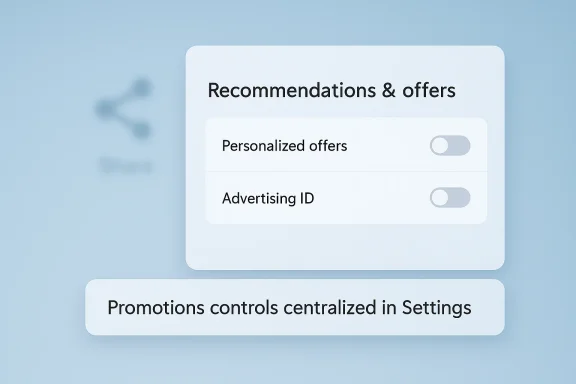
By late 2024 and into 2025, Microsoft consolidated a number of these toggles into a dedicated Recommendations & offers page in Settings — a clear sign the company recognized an ongoing user demand for easier control over promotional content. That page groups options such as the Advertising ID, personalized offers, and recommendation visibility so users can turn most promotional surfaces down in one place. Windows community reporting and Settings screenshots confirm this reorganization.
In short: the headline is directionally correct — Microsoft is giving users more power to silence promotions — but the specific claim about a share‑menu‑only toggle remains unverified until we see Microsoft label and document it explicitly.
Source: Mix Vale Microsoft allows an end to advertisements in the Windows 11 sharing menu with new feature
 Background / Overview
Microsoft’s practice of surfacing promotions and “recommendations” inside Windows is not new. Over the past several years the company has nudged users toward its services — Microsoft 365, OneDrive, Edge, and Microsoft Store listings — via the Start menu, File Explorer, lock screen, and other system surfaces. Those nudges range from contextual tips and store‑promoted apps to GUI elements that many users experience as advertising. The most visible episode in recent memory was the rollout and discussion around Start menu “recommendations,” which Microsoft described as app discovery but which many users read as in‑OS ads. Industry coverage and user guides show Microsoft added and then clarified settings that allow users to disable these recommendations.By late 2024 and into 2025, Microsoft consolidated a number of these toggles into a dedicated Recommendations & offers page in Settings — a clear sign the company recognized an ongoing user demand for easier control over promotional content. That page groups options such as the Advertising ID, personalized offers, and recommendation visibility so users can turn most promotional surfaces down in one place. Windows community reporting and Settings screenshots confirm this reorganization.
What Mix Vale reported — and what we could verify
- The headline circulating (from Mix Vale) claims Microsoft “allows an end to advertisements in the Windows 11 sharing menu with new feature.” This is a succinct, attention‑grabbing summary — but it compresses multiple ideas into one claim: (a) that Microsoft displayed ads inside the Share or sharing menu; (b) that Microsoft added a new user control specifically for that surface; and (c) that the control ends those ads entirely. The catch: we cannot independently confirm the presence of a distinct, single toggle that addresses only the Share sheet. Major tech outlets and Microsoft’s own changelogs and support pages describe broader controls for recommendations, personalized offers, and the Start menu; they do not list a labeled “Disable ads in Share menu” option. Use caution when treating the Mix Vale phrasing as a literal technical change until Microsoft publishes a formal note or the Settings app shows that exact toggle.
- What is verifiable: Windows 11 already provides several switches that dramatically reduce promotional content across the OS, and Microsoft has centralized many of them under Settings → Privacy & security → Recommendations & offers or Settings → Personalization → Start. Turning these off will remove a great deal of the UX elements that resemble ads — particularly the Start menu recommendations — and will likely stop most discovery prompts that could appear during sharing workflows. Multiple independent outlets and community threads document these toggles and the paths for turning them off.
How Windows 11’s promotional controls actually work (what to check right now)
If your goal is to make Windows 11 stop surfacing promotional content as much as possible, focus on the settings below. They are the operational reality today — and they will stop the majority of in‑OS recommendations that users experience as ads.- Disable Start menu recommendations
- Settings → Personalization → Start → Turn off “Show recommendations for tips, app promotions, and more.” This removes app promotions that appear in the Start menu’s Recommended section. Multiple outlets documented this exact toggle and how it affects Start recommendations.
- Turn off Personalized offers / Recommendations & offers
- Settings → Privacy & security → Recommendations & offers (or similarly named page in newer builds) → Turn off “Personalized offers.” Microsoft and Windows‑focused sites noted this setting after it became a distinct page inside Settings. This reduces contextually tailored tips, recommendations, and cross‑product nudges.
- Clear or disable Advertising ID
- Settings → Privacy & security → Recommendations & offers → Toggle off Advertising ID (or use privacy settings to disable targeted ad‑ID usage). This prevents apps and Microsoft from tying an advertising identifier to your profile for personalized offers.
- Reduce search highlights and Spotlight-style surfaces
- Settings → Search → Search settings (or Search permissions) → Search highlights off. Search highlights and similar features pull content from the web and Microsoft services and can feel like ad delivery in the Search UI. Multiple practical guides list this as part of a broader “declutter Windows” checklist.
- File Explorer and OneDrive prompts
- File Explorer occasionally surfaces prompts encouraging OneDrive use or Store apps. There are toggles under Settings and File Explorer’s ribbon or under OneDrive settings that remove many of those prompts. Community guides provide step‑by‑step instructions to silence these prompts.
Why Mix Vale’s phrasing is plausible — and why it needs confirmation
There are two reasons why the Mix Vale headline feels plausible even if the exact claim isn’t verifiable yet.- Microsoft has historically iterated on how recommendations and promotions appear in Windows and has experimented with surface‑specific code paths. The company has tested recommended apps in Start and promotional cards in Settings before pushing them more widely. Those experiments are what created the initial user outcry and the subsequent rollout of clearer toggles.
- Microsoft responded to criticism by consolidating controls and renaming options (for example, moving “Personalized offers” into a dedicated Recommendations & offers page). Because those changes centralized controls, it’s easy for smaller outlets to interpret them as a targeted “end ads” control for a related surface like the Share menu. That interpretation is understandable — but it’s an inference rather than a direct quote from Microsoft product notes or patch logs.
UX, privacy, and business trade‑offs — what this change (or a real toggle) would mean
User experience and trust
- Benefits:
- Cleaner UX: Users who dislike promotions regain uncluttered surfaces like Start and (potentially) Share, improving focus and discoverability of personal content.
- Perceived control: Consolidating promo toggles into a central page increaseer agency — a clear trust win for Microsoft if implemented consistently.
- Risks:
- Discoverability tradeoff: Microsoft and indie app developers rely on in‑OS discovery as a distribution channel. Removing promos may reduce serendipitous app discovery for mainstream users and lower install rates for developers who hat Store placements.
- Inconsistent experiences: If toggles exist but do not cover all surfaces (for example, not every share‑flow or contextual tip), users will still encounter fragmented promotional content and be frustrated by perceived inconsistency. Community threads show users often need several toggles to reach a “clean” state.
Privacy and data usage
- Benefits:
- Turning off personalized offers typically reduces cross‑product profiling, advertising ID use, and personalized recommendation signals. That’s a meaningful privacy improvement for users who opt out.
- Risks:
- Opaque defaults: Many Windows installations have defaults that err on the side of recommendations enabled. Users who don’t inspect Settings will keep sending telemetry that influences personalized offers and recommendations.
- Third‑party surfaces: Some promotional content comes from third‑party apps (Edge, preinstalled OEM apps) and may not be covered by the same Settings toggles, leaving residual promotion pathways open. Community guides repeatedly note the need to toggle multiple settings across Settings, Edge, and OneDrive to get a near‑ad‑free desktop.
Enterprise considerations
- IT administrators can suppress recommended content using Group Policy, MDM, or CSP settings, so organizations can enforce ad‑free experiences on managed devices. Microsoft documentation and community write‑ups show enterprises have both local and cloud‑based policy levers to manage Start behavior and promotional content. For enterprise deployments, a central toggle isn’t sufficient — admins require policy settings to lock down experience.
Practical guide: Step‑by‑step to minimize ads and recommendations in Windows 11
Below is a practical, stepwise sequence any Windows 11 user can follow today ty of in‑OS promotions.- Open Settings (Windows + I).
- Go to Personalization → Start.
- Toggle off “Show recommendations for tips, app promotions, and more.” This removes Start menu recommendations.
- Go to Privacy & security → Recommendations & offers (or similar).
- Turn off “Personalized offers” and “Advertising ID” (or uncheck the options that permit personalized ads).
- Search → Search settings → Turn off Search highlights or other web‑sourced suggestions.
- File Explorer → View or Settings → Disable OneDrive prompts and remove suggestions for OneDrive where possible.
- Edge (if installed): Settings → Privacy, search, and services → Turn off personalized suggestions and recommendations.
- Reboot (where necessary) to let the UI refresh and hide suppressed areas.
Critique — strengths, weaknesses, and the transparency testtralizing promotional controls into a Recommendations & offers page is a positive move: it improves discoverability of the controls and reduces the cognitive burden of hunting through disparate Settings panes.
- Microsoft’s decision to expose toggles (rather than burying controls or making them registry‑only) respects user choice and gives a technically accessible way to opt out.
Weaknesses and risks
- Labeling and scope inconsistency: Toggle labels, channel differences, and inconsistent coverage across surfaces make the experience feel piecemeal. That invites confusion and speculation — exactly the situation that produced headlines like the one from Mix Vale.
- Default posture: If Microsoft ships devices with recommendations enabled by default, then a centralized toggle helps but does not solve the default opt‑in problem. Users who don’t inspect Settings remain exposed to promotions.
- Measurement vs. user preference: Microsoft’s incentives to monetize attention (directly or indirectly) conflits user base that expects an uncluttered, paid‑OS experience. The long‑term solution demands clear defaults and simple opt‑outs; toggles alone are a compromise.
What to watch next
- Look for an official Microsoft blog post or changelog entry that specifically mentions the Share menu (Share sheet) by name. Until Microsoft documents a surface by name, claims that a particular menu now has a dedicated “ads off” toggle should be treated as unverified.
- Monitor Insider builds and the Windows Update KB notes for wording changes. Microsoft has been known to test string changes in Canary/Beta before wider rollout; these can reveal both intent and eventual labeling in stable releases.
- Watch enterprise policy additions. When Microsoft adds per‑surface toggles, it typically complements them with Group Policy/MDM controls. The presence or absence of an administrative control for a given surface will indicate whether Microsoft expects organizations to standardize the behavior.
Bottom line
The Mix Vale headline captures a genuine user desire — an expectation that OS vendors should make it easy to turn off promotions and regain a decluttered desktop. But nuance matters: Microsoft hasn’t published a clear, single switch labeled exactly “stop ads in the Share menu” that we can point to and verify. What is real, documented, and actionable is a set of controls and a newly centralized Settings page that lets users and administrators opt out of many of Windows 11’s recommendation and promotional surfaces. If you want a near‑ad‑free Windows 11 experience today, follow the Settings steps outlined above and watch Microsoft’s official notes for any surface‑specific toggles that may arrive in later builds.In short: the headline is directionally correct — Microsoft is giving users more power to silence promotions — but the specific claim about a share‑menu‑only toggle remains unverified until we see Microsoft label and document it explicitly.
Source: Mix Vale Microsoft allows an end to advertisements in the Windows 11 sharing menu with new feature
