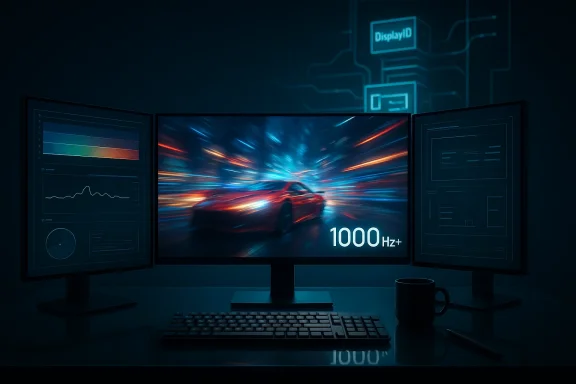
Microsoft’s latest Release Preview drop for Windows 11—delivered as KB5079387 to Insiders—makes a clear push into high-refresh display support and a handful of quality-of-life graphics features that gamers, creators, and multi-monitor users have been asking for. Early reports and preview notes indicate Microsoft is widening the OS-level refresh-rate envelope (what Neowin called “extreme display refresh rate” support) while rolling out the companion display and graphics improvements that power smoother scrolling, lower latency and better HDR workflows. These changes are arriving via Release Preview channel builds (26100.8106 and 26200.8106), and while the headline is compelling, the actual impact depends heavily on hardware, drivers, and the rollout cadence from manufacturers and OEMs.
Dynamic refresh technologies have been evolving rapidly across OS, GPU driver, and display firmware layers. Microsoft introduced Dynamic Refresh Rate (DRR) in Windows 11 to let systems automatically scale between lower refresh rates for power savings and higher refresh rates for responsiveness (inking, scrolling, low-latency input). Over time Microsoft has extended DRR and Variable Refresh Rate (VRR) behaviors to support more scenarios, including external displays and mixed-monitor setups. These preview-era updates also included the building blocks for better HDR calibration and a graphics-focused “Optimizations g input latency while enabling Auto HDR and VRR.
Historically, Windows’ refresh-rate logic has been a point of friction: OS-level policies, GPU drivers, EDID information from displays, and cable/connector bandwidth all interplay. Microsoft’s updates aim to make the OS a more active partner—choosing refresh rates dynamically and coordinating behavior across multiple monitors—rather than leaving everything to driver heuristics. Independent reporting and Insider blog notes confirm the company has been iterating on this capability across preview builds.
Source: Neowin Windows 11 gets extreme display refresh rate support and new features in KB5079387
 Background / Overview
Dynamic refresh technologies have been evolving rapidly across OS, GPU driver, and display firmware layers. Microsoft introduced Dynamic Refresh Rate (DRR) in Windows 11 to let systems automatically scale between lower refresh rates for power savings and higher refresh rates for responsiveness (inking, scrolling, low-latency input). Over time Microsoft has extended DRR and Variable Refresh Rate (VRR) behaviors to support more scenarios, including external displays and mixed-monitor setups. These preview-era updates also included the building blocks for better HDR calibration and a graphics-focused “Optimizations g input latency while enabling Auto HDR and VRR.Historically, Windows’ refresh-rate logic has been a point of friction: OS-level policies, GPU drivers, EDID information from displays, and cable/connector bandwidth all interplay. Microsoft’s updates aim to make the OS a more active partner—choosing refresh rates dynamically and coordinating behavior across multiple monitors—rather than leaving everything to driver heuristics. Independent reporting and Insider blog notes confirm the company has been iterating on this capability across preview builds.
What KB5079387 reportedly adds
- Release channel: KB5079387 is being delivered to Windows 11 Insiders via the Release Preview Channel as cumulative package for builds 26100.8106 (24H2) and 26200.8106 (25H2). This was surfaced in Insider rollout announcements and community posts tied to the March 2026 update wave.
- Display improvements: previehe update extends Windows’ support for “extreme” refresh rates—meaning the OS will better recognize and use very high panel refresh options on supported hardware, and improve DRR behavior across internal and external displays. The new capabilities are paired with improvements to how Windows manages multiple high-refresh displays to preserve power and GPU zero‑RPM modes where possible.
- Graphics and gaming: the update surface includes the previously previewed Optimizations for windowed games feature (improves latency, unlocks Auto HDR and VRR for more titles), smoother scrolling integration in more UIs and apps, and the Windows HDR Calibration app becoming accessible from Settings. These were originally rolled out to Insiders in earlier preview builds and are being expanded.
- Rollout nuance: KB5079387 appears to be part of the broader March 2026 update cycle (which included several cumulative packages such as KB5079473), but KB5079387 specifically targets Release Preview channel Insiders and acts as an enabling update for staged feature rollouts rather than an immediate, universal feature flip. Administrators should watch release notes and channel targeting carefully.
Note: some press coverage referenced a Neowin write-up that flagged “extreme display refresh rate support” specifically under KB5079387. At the time of writing, Microsoft’s cumulative KB rollups for March cover many items; the new behavior is best treated as a staged, hardware-dependent enhancement rather than a universal OS switch. Community signals confirm the rollout is selective and tied to specific device/driver combinations. ([reddeddit.com/r/windowsinsiders/comments/1rrxdnp/releasing_windows_11_builds_261008106_and/)
How “extreme refresh rate” support actually works (and what it means)
What Microsoft changed at the OS level
Windows already supports a gamut of refresh rates via the display pipeline, but improvements in KB5079387 and earlier previews tighten the way Windows chooses and switches refresh rates:- More aggressive DRR boosting for cursor, touch and pen — when you interact, the OS will boost to the panel’s high refresh rate more frequently to make input feel snappier. This was first observed in Insider builds and expanded in these Release Preview drops.
- Better multi-monitor coordination — Windows will attempt to keep GPUs in low-power modes (zero RPM fan idle) where possible, switching refresh behavior only when content or input requires it. That prevents a second high-refresh monitor from forcing elevated power state on the primary GPU unnecessarily.
- Expanded external display DRR testing — Microsoft is allowing DRR-style behaviors to be trialed on external monitors via Insider/preview channels to surface driver and firmware compatibility issues before a broader rollout.
What “extreme” means (hardware and bandwidth limits)
“Extreme refresh rate” in media shorthand usually refers to panels that operate well above mainstream refresh rates (144Hz, 165Hz), typically 240Hz, 360Hz or beyond. Important constraints:- Connector bandwidth: achieving extreme refresh at high resolution depends on DisplayPort (1.4 with DSC or 2.0) or HDMI 2.1 class bandwidth, and on the monitor and GPU supporting required reduced-blanking or compression. Windows changes alone won’t conjure bandwidth that the cable or GPU can’t deliver.
- EDID and driver support: the monitor must expose supported modes correctly via EDID and GPU drivers must advertise and allow these modes. OEM/driver updates are often necessary after OS changes.
- GPU and OS coordination: the OS, GPU driver, and monitor firmware must all agree on refresh-change policies to avoid flicker, signal negotiation loops, or modes where Windows reports a rate but the panel actually runs at half-rate (a community problem reported in some prevrts show edge cases where the system reports 120Hz but effectively runs at 60Hz or 120Hz when it should be 240Hz; this is typically driver/EDID negotiation friction, not a simple OS bug.
Gaming and latency: what to expect
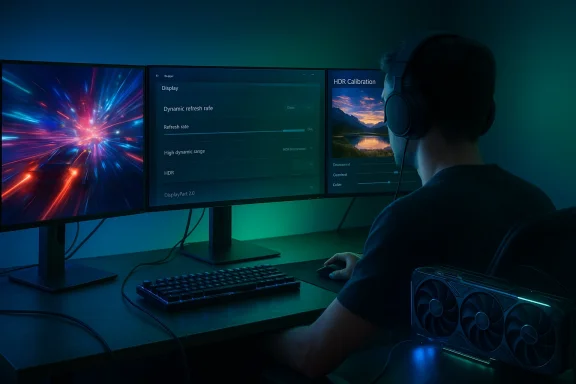
KB5079387’s graphics-related enhancements extend features Microsoft has iterated in Insider builds:- Optimizations for windowed games: designed to improve latency when playing windowed or borderless games and to make Auto HDR/VRR available with fewer compatibility constraints. Turning this on via Settings > System > Display > Graphics may reduce input lag and unlock HDR/VRR for games that previously required full-screen exclusive modes.
- Auto HDR adoption: expanding Auto HDR’s availability when the OS supports more flexible refresh policies makes HDR conversion more consistent across titles and displays.
- Smoother scrolling and UI inking: Microsoft has been expanding boosted refresh behavior for scroll and pen interactions beyond Office to Edge (canary flags) and Settings, giving the UI a perceptibly smoother feel when hardware supports it.
Known issues and community warnings
Preview channels reveal both progress and problems. Community threads and Microsoft Q&A highlight recurring themes:- Refresh-rate negotiation problems: users on Insider and preview builds have reported displays dropping to lower-than-expected refresh rates (e.g., reporting 120Hz but effectively running half that) or failing to display full-screen correctly at very high rates. These are typically caused by driver/display firmware negotiation issues or how Windows’ display policy interacts with specific hardware. Microsoft has acknowledged DRR/refresh rate work but issues persist in preview.
- DRR compatibility regressions: some users reported that after previous 24H2 updates, Dynamic Refresh Rate became “not supported” on systems where it had worked before—again underlining the fragile interdependence of OS, driver and firmware.
- Staged rollout and device gating: Microsoft is enabling features in a staged manner, which means not all devices in the Release Preview channel receive the same behavior simultaneously. Expect feature-gating and phased enablement as Microsoft collects telemetry and manufacturer feedback.
How to prepare and validate on your PC (practical steps)
If you want to test KB5079387 features (or generally validate high-refresh behavior on Windows 11), follow these steps:- Verify your Windows build: open Settings > System > About and confirm you’re on the Release Preview build that corresponds to KB5079387 (26100.8106 or 26200.8106 for Insiders). If you’re not an Insider, wait for your production channel rollout.
- Update GPU drivers: get the latest WHQL/optional drivers from NVIDIA, AMD, or Intel that explicitly list support for the new Windows build, or check the GPU vendor’s release notes for DRR/VRR improvements.
- Update monitor firmware: check your monitor manufacturer for firmware updates that expand or fix EDID and refresh-mode negotiation, especially for 240Hz+ or novel DisplayPort/HDMI modes.
- Use the right cable and port: ensure you’re using certified DisplayPort 1.4/2.0 or HDMI 2.1 cables capable of the required bandwidth and plug into GPU ports that expose full lanes; docking stations and adapters often bottleneck refresh rates.
- Check advanced display settings: Settings > System > Display > Advanced display will list available refresh rates. Look for “Dynamic” options or the target refresh rate and test via the monitor’s OSD to confirm actual panel refresh.
- Test with controlled content: run benchmark or test utilities that can display explicit refresh rates and frame pacing (FPSTest, custom frame generators, or the monitor’s service menus) to confirm end-to-end behavior.
- Roll back if necessary: create a restore point and keep a copy of prior GPU drivers so you can revert igresses.
For IT admins: rollout guidance and risk mitigation
- Pilot first: test KB5079387 and accompanying driver updates on a small representative set of machines (including mobile devices, desktops with multiple displays, and AV/meeting-room PCs).
- Lock drivers in managed environments: for stable endpoints, push vendor-validated drivers via your standard deployment pipeline rather than letting Windows Update pick optionaollout.
- Staged feature enablement: use Windows Update rings and Group Policy to stagger the update. If you rely on specialized display hardware (digital signage, control rooms), validate those systems separately; OS-level changes to refresh negotiation can break appliance-like setups.
- Rollback plan: have a documented rollback plan (restore points, driver packages, and update block policies) in case refresh negotiation causes outages or degraded user experience.
- Monitor telemetry and user reports: watch for reports of flicker, dropped signals, or unexpected refresh-rate changes and correlate them with driver/firmware versions.
Strengths, opportunities, and risks — critical analysis
Strengths
- User experience lift: enabling the OS to proactively manage extreme refresh behaviors can make scrolling, inking, and input feel materially better without every app doing heavy lifting. This is especially true for hybrid devices where power saving is important.
- Better multi-monitor handling: improving how Windows coordinates refresh across displays is a real win for multi-monitor productivity setups and gamers using mixed-refresh displays.
- Game-focused optimizations: bringing low-latency windowed game optimizations, Auto HDR and VRR closer together simplifies modern gaming setups and reduces friction for titles that don’t run well in exclusive fullscreen mode.
Risks and caveats
- Hardware/driver fragmentation: the broader the OS-level policy, the more visible the gaps caused by out-of-date drivers and incomplete EDID support. Users with older GPUs or monitors stand to see regressions.
- Rollout complexity: staged enablement and channel targeting mean public messaging can be confusing: some users will get the feature immediately, others will not; some will get buggy behavior. Administrators must test rather than assume.
- Power vs. performance trade-offs: aggressive refresh-rate boosting increases responsiveness but can also increase power draw and reduce battery life on laptops. For users sensitive to battery life, default or “balanced” settings may still be preferable.
- Telemetry dependency: Microsoft’s phased approach depends on feedback and telemetry; while this is sensible, it also means the feature’s availability and behavior could change quickly based on anonymized data the user cannot inspect.
Verdict and practical recommendations
KB5079387 represents a careful, iterative step forward: Microsoft is lifting OS-level behavior to better support very high refresh-rate displays and modern gaming scenarios. For early adopters and gamers with cutting-edge hardware, this is promising—provided you pair the OS update with up-to-date GPU drivers and monitor firmware. For IT admins and conservative users, the right approach is staged testing, driver control, and clear rollback plans.- Enthusiasts: test on a secondary machine, update drivers and monitor firmware, and validate end-to-end using test utilities before trusting your primary workstation or gaming rig.
- Creators and professionals: wait for vendor-certified drivers for mission-critical systems if you rely on color-managed HDR workflows or have multi-monitor arrangements in production.
- Administrators: pilot, stage, and document rollback procedures. Use driver whitelisting or deployment groups to avoid surprise regressions that can impact meetings, streaming, or digital signage.
Final thoughts
The promise of OS-driven support for “extreme” refresh rates is significant: smoother interaction, better game latency, and smarter power use across mixed-display setups. But as the preview rollout demonstrates, the reality will always be a three-way negotiation—Windows, the GPU driver, and the display’s firmware. Users who understand that dependency chain and prepare accordingly will see the biggest gains; everyone else should treat KB5079387 as a feature preview to be adopted with care.Source: Neowin Windows 11 gets extreme display refresh rate support and new features in KB5079387