

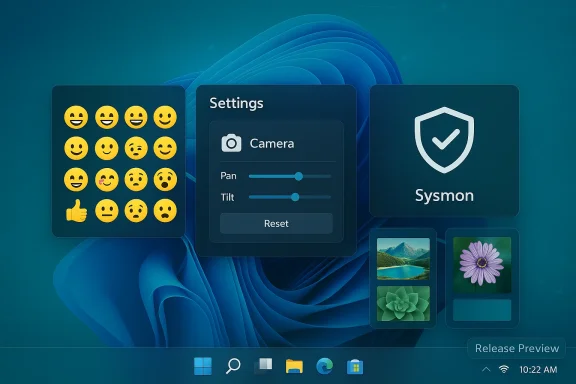
Microsoft’s latest Release Preview build for Windows 11 gives us a concrete look at the next feature drop — a measured package of quality‑of‑life enhancements that Microsoft says will start reaching production PCs in the coming weeks. The preview includes a curated subset of Emoji 16.0, a one‑click network speed test in the Taskbar, native (but opt‑in) Sysmon support, first‑sign‑in restore for managed devices, pan/tilt camera controls in Settings, WebP wallpaper support and several small but meaningful reliability and performance fixes intended to reduce friction for both consumers and IT administrators. Microsoft’s Release Preview notes and the Insider blog make it clear these features are being staged via controlled rollout mechanisms — so not every machine will see everything immediately.
Microsoft has continued the “continuous innovation” approach for Windows 11: smaller, feature‑level drops shipped when ready rather than bundling everything into an annual OS release. That cadence means high‑value refinements are arriving monthly in preview channels and then staging out to general users. The Release Preview build published this cycle consolidates several user‑facing conveniences and an enterprise‑grade security capability — a signal that Microsoft is balancing consumer polish with IT tooling in a single update wave.
Two operational realities are worth calling out up front. First, these items are being distributed via enablement packages and Controlled Feature Rollouts (CFR), so installing the preview build does not guarantee immediate visibility of a feature — Microsoft gates features server‑side to monitor stability and adoption. Second, some features are explicitly disabled by default and require explicit activation, which influences how businesses and power users should approach rollout and testing. Both points are documented in Microsoft’s Insider postings and in community coverage.
Microsoft also adjusted behavior for uncombined taskbar setups so that multi‑window apps don’t push entire window sets into overflow when only some windows require it — a subtle fix that reduces spurious overflow and improves discoverability.
Implications:
The Start menu account menu also gains a direct entry to the Microsoft account benefits page, a small UX change that surfaces account‑centric benefits for consumers.
Practical rollout checklist:
The tradeoffs are also straightforward. Integrating a powerful logging tool like Sysmon into the OS comes with operational complexity around event volumes, privacy and compatibility. Web‑backed utilities (the speed test) favor simplicity over absolute control or reproducibility. Emoji updates — while welcome — highlight the messy reality of platform rendering diversity and may initially frustrate users who expect universal consistency.
For administrators and informed users the path forward is equally pragmatic: pilot, tune, and automate. These updates provide additional tools and conveniences, but they are not a wholesale platform change — they are incremental, useful, and manageable when paired with cautious validation and good change management.
Microsoft’s staged rollout model means this feature drop will be visible to increasing numbers of users over the coming weeks. If you manage devices in an organization, start planning now: identify pilot groups, tune Sysmon configs, and update user communications so the transition is smooth and the new tools deliver immediate value without surprises.
In short: expect a steady trickle of useful refinements, one practical security capability, and several small fixes that together reduce friction for both everyday tasks and enterprise operations — but plan your enablement and monitoring carefully before flipping switches across a production fleet.
Source: Windows Central Microsoft confirms new Windows 11 feature drop coming next month
 Background / Overview
Microsoft has continued the “continuous innovation” approach for Windows 11: smaller, feature‑level drops shipped when ready rather than bundling everything into an annual OS release. That cadence means high‑value refinements are arriving monthly in preview channels and then staging out to general users. The Release Preview build published this cycle consolidates several user‑facing conveniences and an enterprise‑grade security capability — a signal that Microsoft is balancing consumer polish with IT tooling in a single update wave.Two operational realities are worth calling out up front. First, these items are being distributed via enablement packages and Controlled Feature Rollouts (CFR), so installing the preview build does not guarantee immediate visibility of a feature — Microsoft gates features server‑side to monitor stability and adoption. Second, some features are explicitly disabled by default and require explicit activation, which influences how businesses and power users should approach rollout and testing. Both points are documented in Microsoft’s Insider postings and in community coverage.
What’s included in this wave (high level)
- Emoji 16.0 (curated subset) — new glyphs added to the system emoji panel.
- Taskbar network speed test shortcut — quick access to a browser‑based speed test via the system tray.
- Built‑in Sysmon — native Sysmon functionality integrated into Windows but disabled by default.
- First sign‑in restore for organizations — Windows Backup for Organizations restores user settings and Store apps at first sign‑in for hybrid and Cloud PC scenarios.
- Quick Machine Recovery (QMR) expansion — auto‑enablement for certain Windows Pro devices not domain‑joined or managed.
- Camera pan/tilt controls — native Settings controls for supported PTZ webcams.
- WebP desktop backgrounds — support for .webp as wallpaper files.
- A raft of small UX, performance and reliability fixes: File Explorer minor improvements, print spooler smoothing, login/lock screen stability, Nearby Sharing reliability, Projecting behavior, and display/resume improvements.
Emoji 16.0: small set, big UX questions
What Microsoft shipped
Microsoft has added a curated subset of Emoji 16.0 glyphs into Windows’ emoji panel — one representative character from each major category — rather than pushing the entire Unicode 16.0 set at once. Examples called out include the Fingerprint, Harp, Shovel, and Face with Bags Under Eyes. Those glyphs now appear in the panel for Insiders receiving the staged rollout.Why this matters
Emoji updates are low‑risk feature wins for everyday users but surprisingly complex under the hood. Different apps and rendering engines (DirectWrite, GDI, web rendering) determine whether a new emoji glyph will display consistently across the OS and third‑party apps. Historically, Windows has shown new emoji in some first‑party apps before the emoji panel and legacy UI surfaces adopt them, which means users may see mixed results until the rollout and rendering engine updates complete. For example, first‑party apps that use DirectWrite may show the new glyphs while older Win32 title bars and some web surfaces still show blank boxes. Expect a phased improvement curve.Practical guidance
- If consistent emoji rendering across apps matters (communications, documentation, social posts), test the new glyphs in the specific apps your team uses before broadly enabling the preview.
- Be aware that emoji behavior is a function of both OS font/glyph installation and application rendering paths — some web services or cross‑platform apps may continue to use their own emoji fonts.
Taskbar: one‑click network speed test and taskbar overflow behavior
What’s new
A Perform speed test entry is being added to the network icon context menu in the system tray and as a button in the Wi‑Fi/Cellular quick settings. The menu option opens a browser and launches a speed test (Microsoft’s implementation funnels to a web‑based test). This is designed as a quick troubleshooting shortcut — not a native measurement engine — and supports Ethernet, Wi‑Fi and cellular interfaces.Microsoft also adjusted behavior for uncombined taskbar setups so that multi‑window apps don’t push entire window sets into overflow when only some windows require it — a subtle fix that reduces spurious overflow and improves discoverability.
Why it’s useful
Most users resort to third‑party sites or apps for an ad hoc speed check. Placing a launcher at the point where users usually go to inspect connectivity (the system tray) is a low‑friction UX improvement that reduces context switching.Caveats and privacy
Because the speed test launches a web page in the default browser, it relies on third‑party content and a web provider (the current implementation opens Microsoft’s web widget). That design choice keeps the OS lightweight but raises two practical questions:- Provider choice: the test is web‑hosted; results and telemetry may be subject to the web provider’s privacy policy rather than purely local system telemetry.
- Reproducibility: web tests can vary by CDN and browser behavior; for critical troubleshooting, IT teams should continue using controlled measurement tools and internal network diagnostics.
Built‑in Sysmon: what changed and why it matters
The change
Microsoft has integrated Sysmon (System Monitor) — a longtime Sysinternals staple — into Windows as an optional, native component. The functionality mirrors the standalone Sysmon: extended system event logging, configurable XML filters, and detailed telemetry usable by SIEMs and EDR tooling. The key points from Microsoft’s announcement are straightforward: the feature is disabled by default, must be enabled explicitly, and if you previously installed the standalone Sysmon, you must uninstall it before enabling the built‑in variant.How to enable (administrative steps)
- Open Settings > System > Optional features > More Windows features and check Sysmon, or run with administrative rights:
- Dism /Online /Enable-Feature /FeatureName:Sysmon
- Complete installation by running:
- sysmon -i
Security benefits
- Out‑of‑the‑box observability: integrating Sysmon reduces administrative overhead for organizations that previously had to deploy the Sysinternals binary manually.
- Event‑log integration: Sysmon events written to the Windows Event Log can be consumed by existing security pipelines, enabling quicker incident detection.
- Configurability: Sysmon’s XML config model allows teams to tailor event collection and reduce noise, which matters for log storage and analyst time.
Risks and operational considerations
- Event volume: Sysmon can generate very high event volumes. Without proper filter configuration and ingestion controls, SIEM costs and storage requirements can spike.
- Privacy and data sensitivity: detailed process and network activity can contain sensitive data. Ensure collection complies with policy and data residency rules.
- Change management: enabling Sysmon on production endpoints should be staged; teams should assess the impact on log collection, agent processing, and retention policies.
- Compatibility: the instruction to uninstall previously installed Sysmon is operationally significant — orchestration tools and configuration management must account for the switch to the native feature.
Recommended rollout path for IT teams
- Pilot in a controlled lab with representative workloads.
- Deploy a conservative Sysmon configuration tuned to capture high‑value indicators of compromise (IOCs) rather than full verbose logging.
- Measure event rates and SIEM ingestion costs, and iterate on configuration to balance fidelity and cost.
- Automate installation and rollback using scripts and configuration management tools, respecting the uninstall requirement for the older Sysmon agent.
Backup & Restore, Quick Machine Recovery and enterprise setup improvements
Microsoft is extending the first sign‑in restore experience to Windows Backup for Organizations. This means that on supported device types — Entra hybrid‑joined devices, Cloud PCs, and multi‑user environments — user settings and Microsoft Store apps can be restored automatically at first sign‑in. That improves onboarding velocity during device refresh and migrations. Separately, Quick Machine Recovery (QMR) is being turned on automatically for Windows Pro devices that are neither domain‑joined nor managed by enterprise endpoint management, aligning recovery features for Pro devices with Windows Home users.Implications:
- For enterprise IT, the sign‑in restore extension reduces helpdesk tickets after hardware refreshes.
- Administrators should confirm that restoration policies align with corporate app‑lifecycle management and compliance needs.
Camera controls, media and personalization: small but practical
Pan/tilt controls
Settings now surface pan and tilt controls for supported PTZ webcams under Settings > Bluetooth & devices > Cameras in the Basic settings for the selected camera. This removes reliance on vendor utilities for basic repositioning and unifies camera control across device types. The change simplifies meeting setup and reduces support complexity for webcam vendors.WebP backgrounds
You can now set .webp image files as desktop backgrounds via Settings or File Explorer. That’s a convenience for users who encounter the WebP format frequently, especially those working with images saved from modern web sources.Identity & enterprise: Entra SID resolution and account menu updates
Windows now supports Microsoft Entra ID group and role SID resolution, enabling Windows to translate Entra cloud group and role SIDs to readable names for file permissions and local group membership. This reduces reliance on hybrid AD for permission readability and helps cloud‑first organizations manage access more coherently.The Start menu account menu also gains a direct entry to the Microsoft account benefits page, a small UX change that surfaces account‑centric benefits for consumers.
Quality, performance and reliability fixes
This release includes a mixture of pragmatic reliability improvements:- Print spooler performance smoothing during high‑volume jobs.
- Faster scanning for temporary files and improved Storage Settings dialogs.
- Login/lock screen reliability and resume‑from‑sleep improvements (particularly on docked laptops).
- File Explorer fixes including an “Extract all” command for non‑ZIP archive folders and reliability fixes for devices on the Network page.
Deployment and rollout: what to expect
Microsoft is rolling these changes through the Windows Insider channels first (Dev, Beta, Canary) and into the Release Preview channel. From there, Microsoft typically gates features into the general population via staged updates or monthly cumulative releases. The company has historically timed such feature drops to coincide with monthly servicing updates and warned that not all features on a build are automatically visible due to server‑side toggles. In short: expect a measured, phased rollout rather than an immediate, universal switch.Practical rollout checklist:
- Enable preview testing on a small set of devices via Release Preview or Beta channels.
- Validate high‑impact features — Sysmon, backup restore, camera controls — in lab scenarios that mirror production.
- Adjust policies for Sysmon event retention, backup/restore behavior and Entra group mappings before mass enabling.
- Communicate changes to end users around emoji rendering caveats and the new taskbar speed‑test affordance so helpdesk contacts aren’t surprised.
Risks, caveats and recommended mitigations
- Sysmon event noise: Start with conservative Sysmon configs, iterate slowly, and monitor SIEM ingestion costs.
- Privacy and telemetry: The browser‑based speed test and any web‑launched tools will be subject to the host site’s privacy practices; document this for compliance teams.
- Inconsistent emoji rendering: Communicate rendering differences to users; don’t assume universal glyph availability until rendering surfaces receive updates.
- Enablement confusion: Because features are gated and sometimes disabled by default, create a feature matrix to document what is enabled on what builds and by which toggle, to avoid miscommunication across IT, helpdesk and user communities.
- Third‑party agent interactions: The uninstall requirement for the Sysinternals Sysmon agent needs careful orchestration — include uninstall/enable steps in automated deployment pipelines.
How this fits into Microsoft’s broader Windows strategy
This feature drop illustrates three ongoing threads in Microsoft’s Windows roadmap:- A focus on incremental user experience polish (taskbar efficiency, emoji, small Settings improvements).
- A push to surface useful troubleshooting tools at discoverable UX points (taskbar speed test).
- A strategic pivot to embed advanced telemetry/security tools natively when they have become indispensible for defenders (Sysmon integration), removing a friction point for organizations seeking deeper observability without third‑party installs.
Recommendations for different audiences
For IT administrators
- Pilot Sysmon in a controlled environment and tune XML configuration to limit noise.
- Inventory endpoints for any pre‑installed Sysinternals Sysmon and plan an uninstall sequence before enabling the native feature.
- Validate first sign‑in restore behavior for hybrid‑joined and Cloud PC devices to ensure app and settings restoration meets your compliance and provisioning standards.
- Add test cases for camera repositioning workflows if your organization supplies PTZ webcams for hybrid work.
For power users and home users
- Try the Perform speed test shortcut for quick checks — but use a controlled test if you need reproducible measurements for ISP troubleshooting.
- If you rely on consistent emoji rendering across multiple apps (chat clients, email, web), test the new glyphs in the specific apps you use before depending on them for communication.
For security teams
- Treat Sysmon as a capability that increases detection fidelity but also operational cost; plan ingestion and retention accordingly.
- Update detection content and playbooks to consume native Sysmon events, and validate that your EDR/SIEM parses the event IDs and fields you need.
Final analysis — strengths, tradeoffs and the bottom line
This feature drop is deliberately conservative in scope but strategic in impact. The strengths are clear: Microsoft is prioritizing friction reduction (taskbar speed tests, WebP support, camera controls), improving enterprise usability (Entra SID resolution, first sign‑in restore), and making a significant security capability (Sysmon) easier to adopt by integrating it into the OS. Those are smart, pragmatic moves that should reduce administrative overhead and modernize some long‑standing pain points.The tradeoffs are also straightforward. Integrating a powerful logging tool like Sysmon into the OS comes with operational complexity around event volumes, privacy and compatibility. Web‑backed utilities (the speed test) favor simplicity over absolute control or reproducibility. Emoji updates — while welcome — highlight the messy reality of platform rendering diversity and may initially frustrate users who expect universal consistency.
For administrators and informed users the path forward is equally pragmatic: pilot, tune, and automate. These updates provide additional tools and conveniences, but they are not a wholesale platform change — they are incremental, useful, and manageable when paired with cautious validation and good change management.
Microsoft’s staged rollout model means this feature drop will be visible to increasing numbers of users over the coming weeks. If you manage devices in an organization, start planning now: identify pilot groups, tune Sysmon configs, and update user communications so the transition is smooth and the new tools deliver immediate value without surprises.
In short: expect a steady trickle of useful refinements, one practical security capability, and several small fixes that together reduce friction for both everyday tasks and enterprise operations — but plan your enablement and monitoring carefully before flipping switches across a production fleet.
Source: Windows Central Microsoft confirms new Windows 11 feature drop coming next month
