

Microsoft’s latest Release Preview for Windows 11 is a study in restraint: a compact, practical set of quality‑of‑life improvements rather than another wave of headline-grabbing AI features. The optional preview — packaged under KB5077241 for the servicing tracks and reflected in recent Insider flights — surfaces three immediately useful upgrades that everyday users and IT pros will notice right away: a one‑click network speed test accessible from the Taskbar, native pan and tilt controls for supported webcams exposed directly in Settings, and a handful of assorted polish items that aim to make waking a sleeping PC and general system interactions feel snappier. These changes are small individually, but taken together they point to a deliberate pivot toward optimization and usability before another big push of speculative AI integrations.
For most of the past year Microsoft’s Windows 11 engineering cadence has alternated between two patterns: large, ambitious feature waves (often built around Copilot and on-device AI) and a rapid sequence of incremental updates delivered to Insiders and then production users. The current Release Preview installment — visible as builds 26200.7918 / 26100.7918 (KB5077241) on the Release Preview channel and related Beta/Dev channel flights in the 26220/26300 series — is an example of the latter: tightly scoped polish, bug fixes, and a few practical features that improve day‑to‑day workflows.
Microsoft is continuing its two-step delivery model for many of these bits: the underlying binaries land in cumulative updates while server‑side enablement and Controlled Feature Rollout (CFR) determine which devices actually see each experience and when. That means availability will vary by region, hardware, and device configuration — a fact to remember when your own machine doesn’t show a new toggle the moment the update appears.
A related usability tweak applies to the Taskbar’s overflow behavior when the Taskbar is set to show uncombined buttons. Rather than moving every instance of an app into the overflow area when space gets tight, Windows 11 now moves only the windows that actually exceed the available space. The result is a cleaner, less confusing overflow that more accurately reflects your running apps and reduces empty white space in the overflow menu. This change is subtle but meaningful for users who keep many windows visible at once.
This is an important example of how to read preview coverage: vendor marketing and press summaries sometimes compress or interpret generic performance claims into concrete improvements. That’s useful for readers, but it’s also the right place to apply caution. I’ve explicitly cross‑checked the Microsoft release notes and two independent reporters; the sleep/wake optimization appears to be suggested by some coverage, but not clearly enumerated as a standalone entry in Microsoft’s own summary.
On one hand, the Release Preview’s headline features are decidedly non‑AI: speed test launcher, PTZ camera controls, and Sysmon in‑box. Those are the kinds of practical, low‑risk changes that improve real workflows and reduce friction. The controlled reintroduction of a few new emoji sets rather than a wholesale Unicode refresh also speaks to a conservative rollout philosophy. These choices suggest Microsoft is listening to user feedback about prioritizing reliability and usability over continual surface‑level AI placements.
On the other hand, Microsoft’s larger AI investments remain very much alive. Copilot, on‑device models, Studio Effects, and other AI surfaces continue to be developed and gated to compatible hardware or Copilot+ devices. The difference is a shift in how features are rolled out: more enablement packages, more server-side gating, and more conservative staging so that big changes land without destabilizing the overall experience. In short, the company appears to be refocusing its release priorities — emphasizing polish and readiness — rather than abandoning AI entirely.
The Taskbar speed test raises a different class of privacy and telemetry questions. Because the control launches a browser widget (Bing’s speed test), measurements route through web endpoints and therefore can involve third‑party infrastructure and telemetry baked into the cloud service. For most consumers this is acceptable — the result is convenience with minimal risk — but privacy‑conscious users and organizations should be aware that the measurement is not a purely local diagnostic: the test contacts external servers and its data handling will follow the terms and privacy practices of the cloud service performing the test. If your environment prohibits outbound connections to third‑party measurement endpoints, or requires local, auditable network diagnostics, a native tool or in‑house speed test remains necessary.
Finally, the camera pan/tilt controls are a clear privacy win in the sense that they reduce reliance on third‑party vendor utilities (many of which request intrusive permissions or run background services). The system‑level controls are intentionally simple and do not, on their own, introduce new telemetry streams; however, vendors that ship advanced camera suites may still include additional features (auto‑framing, AI‑based studio effects) that require consent. The good news is that the OS now exposes a core set of controls at the platform level — a net positive for manageability and transparency.
If you’re an everyday user, the benefits are immediate and visible: easier camera control, a faster way to sanity‑check connectivity, and a few small personalization perks. If you’re an IT or security pro, the arrival of Sysmon as a supported optional feature is the standout item — an operational simplification that deserves planning and testing.
Finally, be careful with assumptions: controlled rollouts and imprecise press paraphrasing mean that the experience on your own devices might lag the headlines. Treat this update as a welcome course correction — Microsoft is not abandoning AI, but it is, for now, giving polish and reliability the spotlight they deserve.
Windows 11’s March preview may not be the biggest feature drop you’ll read about this year, but it’s exactly the kind of update the platform needed: practical, low‑risk, and focused on making everyday computing smoother. If Microsoft continues to balance ambitious AI work with measured polish like this, the result will be a healthier Windows ecosystem for both consumers and enterprises alike.
Source: Tom's Guide https://www.tomsguide.com/computing...s-microsoft-starting-to-pull-back-on-ai-slop/
 Background / Overview
For most of the past year Microsoft’s Windows 11 engineering cadence has alternated between two patterns: large, ambitious feature waves (often built around Copilot and on-device AI) and a rapid sequence of incremental updates delivered to Insiders and then production users. The current Release Preview installment — visible as builds 26200.7918 / 26100.7918 (KB5077241) on the Release Preview channel and related Beta/Dev channel flights in the 26220/26300 series — is an example of the latter: tightly scoped polish, bug fixes, and a few practical features that improve day‑to‑day workflows.Microsoft is continuing its two-step delivery model for many of these bits: the underlying binaries land in cumulative updates while server‑side enablement and Controlled Feature Rollout (CFR) determine which devices actually see each experience and when. That means availability will vary by region, hardware, and device configuration — a fact to remember when your own machine doesn’t show a new toggle the moment the update appears.
What’s in the update: the practical bits
Taskbar: one‑click speed test and smarter window overflow
One of the most visible changes is a network speed test entry surfaced directly in the Taskbar’s network flyout and the network icon’s right‑click menu. The control lets users launch a speed measurement without hunting for an external site or running a separate tool — a handy shortcut for troubleshooting flaky connections or verifying ISP throughput during a support call. It’s designed as a fast diagnostic launcher rather than a deep diagnostics tool: the control opens your default browser and runs a web‑based speed test (currently delivered via the Bing speed‑test widget), rather than executing a native, local measurement inside the kernel or network stack. That design choice keeps the implementation lightweight but also introduces browser and cloud dependencies for the measurement itself.A related usability tweak applies to the Taskbar’s overflow behavior when the Taskbar is set to show uncombined buttons. Rather than moving every instance of an app into the overflow area when space gets tight, Windows 11 now moves only the windows that actually exceed the available space. The result is a cleaner, less confusing overflow that more accurately reflects your running apps and reduces empty white space in the overflow menu. This change is subtle but meaningful for users who keep many windows visible at once.
Native pan & tilt camera controls in Settings
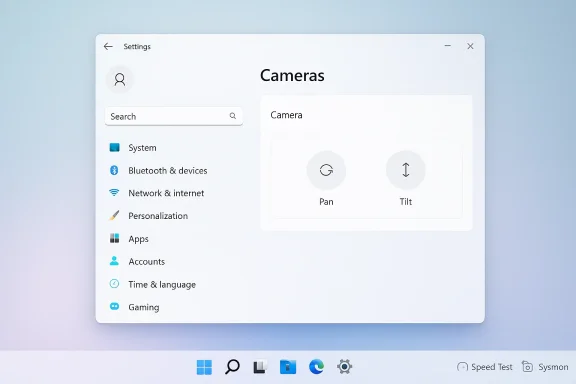
Webcam adjustments have long been a pain point. Many webcams ship with vendor utilities that offer pan/tilt/zoom (PTZ) controls — but those utilities are inconsistent, optional, and often buggy. The update exposes basic pan and tilt controls for compatible cameras directly in Settings (Settings > Bluetooth & devices > Cameras), giving users a system-level, vendor-agnostic way to nudge a camera left/right or up/down. This is deliberately minimalist — Microsoft surfaces simple PTZ controls rather than a full vendor console — but for most users the built‑in controls are enough to avoid reorienting the device or installing extra software. The controls arrive gated by hardware capability: they appear only for cameras that expose PTZ features via standard interfaces.Security: Sysmon becomes an optional, in‑box feature
Arguably the most important change for IT and security teams is that Sysmon (System Monitor) — the venerable Sysinternals tool used to capture high‑fidelity system telemetry — is now offered as an optional, supported Windows feature. Historically admins who wanted Sysmon had to download and maintain it separately; making it an optional Windows component that integrates with Windows Event Log simplifies deployment, logging, and compliance pipelines for orgs that rely on advanced event telemetry for detection and response. Sysmon remains disabled by default and requires explicit enablement; this preserves compatibility for casual users while giving defenders a supported pathway for stronger endpoint observability.Personalization and tiny wins: WebP wallpapers, emoji, and system responsiveness
A handful of smaller but welcome items round out the release:- Set .webp files as the desktop wallpaper — modern image formats supported natively without conversion make creating compact wallpaper packs easier and reduce storage waste.
- A curated subset of Emoji 16.0 has been reintroduced into the emoji panel for Insiders (Microsoft is being conservative in its rollout, deliberately adding a representative glyph per category rather than the full Unicode set).
- Microsoft reports a batch of visual and performance polish across the shell: improved taskbar autohide behavior, fixes for desktop icon flashing, and other reliability updates intended to make the OS feel more consistent. The changelog language is general, but it signals a focus on smoothing jank and edge‑case regressions.
Claims, verification, and the one thing I couldn’t fully confirm
Tom’s Guide reported that the update optimizes resume-from-sleep performance and that many systems — especially those juggling lots of open apps — should feel snappier when waking the system. That’s a meaningful user experience outcome if true, and it aligns with Microsoft’s stated focus on performance polish in these previews. However, the official Windows Insider post and the KB changelog for the Release Preview don’t explicitly call out a "faster wake from sleep" improvement by name; Microsoft’s wording is broader (“improved the visual experience and performance for several scenarios”) which could include resume behavior, but the documentation doesn’t enumerate it as a discrete bullet. Given the absence of an explicit, itemized entry in Microsoft’s official notes, treat the sleep/resume statement as plausible but not directly confirmed by Microsoft’s public changelog. I flagged the Tom’s Guide piece as the source for that specific claim, and I could not find a matching explicit entry in Microsoft’s official build notes at the time of writing.This is an important example of how to read preview coverage: vendor marketing and press summaries sometimes compress or interpret generic performance claims into concrete improvements. That’s useful for readers, but it’s also the right place to apply caution. I’ve explicitly cross‑checked the Microsoft release notes and two independent reporters; the sleep/wake optimization appears to be suggested by some coverage, but not clearly enumerated as a standalone entry in Microsoft’s own summary.
What this tells us about Microsoft’s direction
Is Microsoft “pulling back” on AI? The short answer: partially, and strategically.On one hand, the Release Preview’s headline features are decidedly non‑AI: speed test launcher, PTZ camera controls, and Sysmon in‑box. Those are the kinds of practical, low‑risk changes that improve real workflows and reduce friction. The controlled reintroduction of a few new emoji sets rather than a wholesale Unicode refresh also speaks to a conservative rollout philosophy. These choices suggest Microsoft is listening to user feedback about prioritizing reliability and usability over continual surface‑level AI placements.
On the other hand, Microsoft’s larger AI investments remain very much alive. Copilot, on‑device models, Studio Effects, and other AI surfaces continue to be developed and gated to compatible hardware or Copilot+ devices. The difference is a shift in how features are rolled out: more enablement packages, more server-side gating, and more conservative staging so that big changes land without destabilizing the overall experience. In short, the company appears to be refocusing its release priorities — emphasizing polish and readiness — rather than abandoning AI entirely.
Security and privacy: meaningful gains and new questions
There are real security benefits in this preview release. Making Sysmon an optional in-box component is a boon for enterprise defenders: it standardizes a high-quality telemetry source and reduces the friction of deploying an otherwise third‑party tool. Integrated Sysmon that pipes events into the standard Windows Event Log simplifies collection and SIEM pipelines, and reduces support burden for organizations that rely on rich audit trails. That said, administrators must still craft and maintain Sysmon configuration files carefully to avoid generating unmanageably noisy logs.The Taskbar speed test raises a different class of privacy and telemetry questions. Because the control launches a browser widget (Bing’s speed test), measurements route through web endpoints and therefore can involve third‑party infrastructure and telemetry baked into the cloud service. For most consumers this is acceptable — the result is convenience with minimal risk — but privacy‑conscious users and organizations should be aware that the measurement is not a purely local diagnostic: the test contacts external servers and its data handling will follow the terms and privacy practices of the cloud service performing the test. If your environment prohibits outbound connections to third‑party measurement endpoints, or requires local, auditable network diagnostics, a native tool or in‑house speed test remains necessary.
Finally, the camera pan/tilt controls are a clear privacy win in the sense that they reduce reliance on third‑party vendor utilities (many of which request intrusive permissions or run background services). The system‑level controls are intentionally simple and do not, on their own, introduce new telemetry streams; however, vendors that ship advanced camera suites may still include additional features (auto‑framing, AI‑based studio effects) that require consent. The good news is that the OS now exposes a core set of controls at the platform level — a net positive for manageability and transparency.
Deployment notes for IT pros and enthusiasts
- Build and KB identifiers you may see:
- Release Preview channel: Builds 26200.7918 and 26100.7918 distributed as KB5077241. These are the non‑security Release Preview packages previewing March 2026 changes.
- Beta/Dev channel flights continue in the 26220/26300 series (for example, Build 26220.7755 surfaced in Beta with camera and emoji changes). Expect variations in exact build numbers depending on channel and SKU.
- Controlled Feature Rollout (CFR) means staggered availability:
- Many of these features are gated and will arrive gradually. Don’t assume a single KB install will instantly unlock everything; server-side flags and device eligibility can delay exposure. Manage expectations with end users and pilot devices before broad deployment.
- How to try the most visible items:
- Taskbar speed test: look in the Wi‑Fi/Cellular Quick Settings or right‑click the network icon and select “Perform speed test” (the control launches a browser speed widget).
- Camera pan/tilt: open Settings > Bluetooth & devices > Cameras (if your camera exposes PTZ, the controls appear under Basic settings).
- Sysmon: install via Settings > System > Optional features > More Windows features and enable “Sysmon” (admins should provision a tailored Sysmon config file and validate event collection pipelines).
- Admin checklist:
- Validate whether the speed test’s external endpoints are acceptable for your network policy. If not, maintain internal diagnostics tools.
- Prepare Sysmon configuration templates and test ingestion to your SIEM. Turning Sysmon on without a restrictive config can create noisy logs.
- Test camera controls across vendor devices: not all webcams will expose PTZ; expect a mixed experience across device fleets.
Strengths, limitations, and potential risks
Strengths- The update delivers tangible, user‑centric improvements that reduce friction (speed test shortcut, PTZ controls, WebP wallpaper). These are the sorts of features that reduce helpdesk tickets and improve first‑touch support.
- Sysmon in‑box is a real operational win for defenders, removing deployment friction and improving the parity between Windows‑native and third‑party telemetry.
- Emphasis on reliability and incremental polish suggests Microsoft is prioritizing quality over quantity in the near term — a welcome change for users who want fewer regressions.
- The speed test is browser‑based, so it’s not a substitute for native diagnostics. That means measurements can vary based on browser networking stacks, proxies, and the cloud endpoint used to host the test. For enterprises, that reduces its usefulness as an auditable diagnostic.
- CFR fragmentation means IT teams will have to account for uneven rollout curves when documenting features and supporting users. Inconsistencies across devices can complicate support flows.
- Making tools like Sysmon easier to enable is powerful, but it also places responsibility on administrators to manage logging volume and retention. Poorly tuned Sysmon configurations can overwhelm collectors and SIEM quotas.
- Some claims in press coverage (for example, explicit "faster wake from sleep" improvements) are plausible and even expected, but they aren’t always enumerated verbatim in the official changelog — treat press summaries with scrutiny and verify against vendor notes for mission‑critical assertions.
The verdict: pragmatic forward motion, not a retreat
This Release Preview package reads like a developer team taking a breath: squashing jank, adding a few sensible capabilities, and making platform management easier for enterprises. It’s not a repudiation of Microsoft’s larger AI ambitions; rather, it’s a recalibration. The company is balancing the rollout of large AI investments with an unmistakable diet of pragmatic improvements that users actually asked for.If you’re an everyday user, the benefits are immediate and visible: easier camera control, a faster way to sanity‑check connectivity, and a few small personalization perks. If you’re an IT or security pro, the arrival of Sysmon as a supported optional feature is the standout item — an operational simplification that deserves planning and testing.
Finally, be careful with assumptions: controlled rollouts and imprecise press paraphrasing mean that the experience on your own devices might lag the headlines. Treat this update as a welcome course correction — Microsoft is not abandoning AI, but it is, for now, giving polish and reliability the spotlight they deserve.
Quick practical checklist
- If you want to test the new features: opt into the Release Preview or Beta channel depending on your tolerance for pre‑production code, then install KB5077241 when it appears for your servicing track. Expect staggered enablement.
- For helpdesk teams: prepare documentation that explains the speed test’s browser‑based nature and provide alternative steps for in‑house network diagnostics.
- For security teams: create and test a Sysmon configuration, verify event ingestion into your SIEM, and set retention/alerting rules to manage volume.
- For privacy‑conscious users: remember the Taskbar speed test uses external endpoints — consult your privacy policy if you’re in a managed environment.
Windows 11’s March preview may not be the biggest feature drop you’ll read about this year, but it’s exactly the kind of update the platform needed: practical, low‑risk, and focused on making everyday computing smoother. If Microsoft continues to balance ambitious AI work with measured polish like this, the result will be a healthier Windows ecosystem for both consumers and enterprises alike.
Source: Tom's Guide https://www.tomsguide.com/computing...s-microsoft-starting-to-pull-back-on-ai-slop/
