

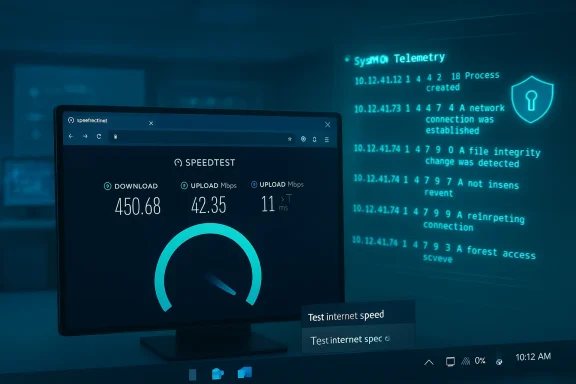
Microsoft’s latest Release Preview wave quietly folds two practical features into Windows 11 that are likely to be noticed by very different audiences: a quick-access network speed test surfaced in the taskbar and the long-requested arrival of native Sysmon (System Monitor) as an optional, first-class Windows feature. Both additions reflect Microsoft’s pragmatic approach to feature design: make routine diagnostics more discoverable for everyday users, and give security teams a baked-in telemetry option that aligns with enterprise event pipelines. Together they tighten the gap between everyday convenience and pro-level observability — but they also introduce new questions about privacy, measurement fidelity, and deployment complexity for managed environments.
Microsoft is rolling out builds 26100.7918 and 26200.7918 as part of the Release Preview servicing wave for Windows 11 (packaged as KB5077241). These builds include a mix of small user-facing conveniences — the taskbar speed-test launcher, camera pan-and-tilt controls, Emoji 16.0 additions, and various File Explorer and storage-setting refinements — alongside deeper platform changes like the inclusion of Sysmon functionality as an optional Windows feature that is disabled by default.
The taskbar speed-test feature is visible from the network icon in the system tray and from Wi‑Fi/Cellular Quick Settings; choosing the option launches your default browser and initiates an internet speed check. The native Sysmon implementation is shipped as an optional feature; administrators and power users must explicitly enable it, and those with an existing Sysmon installation are instructed to uninstall the prior copy before enabling the built-in variant.
This update follows Microsoft’s pattern of staged rollouts and controlled feature delivery: features may be present in the Release Preview channel yet still gated by server-side controls, and broader availability usually follows a measured schedule.
However, it’s important to understand what the feature is and is not:
Option A — GUI (recommended for individual devices or lab testing)
Neither change is a silver bullet. The taskbar launcher is a lightweight, web-driven convenience, not a substitute for controlled network diagnostics. The native Sysmon is powerful but requires disciplined configuration, resource planning, and privacy governance to avoid operational headaches.
For individual users: enjoy the convenience, but keep using proven tools for in-depth diagnostics. For administrators: plan carefully — start with pilots, validate configurations, and ensure compliance and SIEM readiness before enabling the native Sysmon across production fleets. Microsoft has lowered the friction to better baseline telemetry and diagnostics. The smart move now is to raise the discipline around how that telemetry is configured, collected, and used.
Source: TweakTown Windows 11 taskbar is getting a built-in speed test
 Background
Microsoft is rolling out builds 26100.7918 and 26200.7918 as part of the Release Preview servicing wave for Windows 11 (packaged as KB5077241). These builds include a mix of small user-facing conveniences — the taskbar speed-test launcher, camera pan-and-tilt controls, Emoji 16.0 additions, and various File Explorer and storage-setting refinements — alongside deeper platform changes like the inclusion of Sysmon functionality as an optional Windows feature that is disabled by default.The taskbar speed-test feature is visible from the network icon in the system tray and from Wi‑Fi/Cellular Quick Settings; choosing the option launches your default browser and initiates an internet speed check. The native Sysmon implementation is shipped as an optional feature; administrators and power users must explicitly enable it, and those with an existing Sysmon installation are instructed to uninstall the prior copy before enabling the built-in variant.
This update follows Microsoft’s pattern of staged rollouts and controlled feature delivery: features may be present in the Release Preview channel yet still gated by server-side controls, and broader availability usually follows a measured schedule.
What Microsoft shipped in KB5077241 (builds 26100.7918 / 26200.7918)
Quick, discoverable diagnostics: taskbar network speed test
- The Taskbar now exposes a Perform speed test / Test internet speed control via:
- Right-clicking the network icon in the taskbar (system tray), or
- Selecting the Test Internet Speed button inside the Wi‑Fi or Cellular Quick Settings panel.
- Activating the control opens the user’s default browser and runs the web-based speed test, measuring download, upload, and latency.
- The implementation is a lightweight launcher — a convenience shortcut — rather than a new kernel- or OS-level measurement engine.
Security gets native telemetry: Sysmon included, but optional
- Sysmon functionality — the Sysinternals System Monitor tool that provides high-fidelity process, network, and file activity telemetry — is now included as an optional Windows feature.
- It is disabled by default and requires manual activation via Settings (Settings > System > Optional features > More Windows features) or command line:
- Dism /Online /Enable-Feature /FeatureName:Sysmon
- Complete installation by running sysmon -i with an appropriate configuration file.
- Organizations and administrators who have installed the standalone Sysmon from Sysinternals must uninstall that copy before enabling the integrated feature to avoid conflicts.
- Captured events are written to the Windows Event Log, improving compatibility with existing SIEM and EDR pipelines.
Other notable refinements
- Camera controls: new pan-and-tilt settings appear in Settings > Bluetooth & devices > Cameras for supported devices; Microsoft has not published a complete supported-device list yet.
- File Explorer: usability improvements including "Extract All" for non-ZIP folders and reliability fixes.
- Storage and Windows Update: modernized dialogs and performance improvements when scanning for temporary files; faster resume-from-sleep behavior on heavily-loaded systems.
- Emoji 16.0: a staged rollout of new emoji glyphs.
- Desktop backgrounds: ability to set .webp images as wallpaper.
Why the taskbar speed test matters — and where it won’t replace existing tooling
The core benefit of the taskbar speed-test launcher is immediacy. A one-click test from the system tray reduces friction for basic connectivity validation. For users who simply need a quick sanity check — “Is the Wi‑Fi slow, or is the site I’m visiting lagging?” — this is a clear win.However, it’s important to understand what the feature is and is not:
- It launches a browser-based test (the launcher points to a web speed-test widget). This means:
- Measurement is performed by the web service’s logic and network path, not by a native kernel-level probe.
- Results reflect the endpoint’s path to the measurement server (and the browser’s networking stack and proxy settings), which is fine for quick checks but not for precise, repeatable network measurement.
- For controlled, reproducible diagnostics, enterprise-grade tools remain necessary:
- Use iperf3 or similar client/server benchmarks for controlled throughput testing.
- Use Speedtest CLI or scripted tests for repeatability against fixed servers.
- Use synthetic monitoring and managed telemetry for trend analysis and SLA validation.
The advantages of native Sysmon — and the administrative curve
Bringing Sysmon into Windows as an optional feature is a strategic improvement for enterprise security:- Lower deployment friction: administrators no longer need to push a third-party binary across devices; an optional platform feature simplifies provisioning.
- Event-log standardization: because the built-in Sysmon writes directly to Windows Event Log channels, organizations can reuse existing ingestion and SIEM rules with minimal changes.
- Consistency: shipping it as part of Windows improves the odds that telemetry fields and event IDs are consistent across devices and Windows versions.
- Configuration is mandatory: Sysmon without a configuration file produces lots of raw events. A vetted Sysmon XML config is essential to filter noise and focus on relevant indicators. Organizations should adopt or adapt a well-maintained configuration (for example, vendor- or community-curated profiles tailored to endpoint roles).
- Resource and storage impact: enabling fine-grained process, network, and file activity logging increases event volume and consumes additional storage and network bandwidth for log shipping. Retention policies and ingestion pipelines must be validated.
- Compatibility and migration: teams with standalone Sysmon deployments must uninstall the previous version before enabling the built-in feature. Migration planning should include testing of existing config files against the native implementation to ensure behavior parity.
- Risk of misconfiguration: a poorly tuned Sysmon installation can flood event logs and obscure signals. Enablement should be accompanied by clear operational runbooks and monitoring.
Privacy, telemetry, and governance considerations
Both features introduce governance questions that organizations should consider before broad enablement or policy changes.Taskbar speed test — web-based launcher and privacy
- Because the speed test opens in a web browser and uses a web service, it often involves third-party endpoints and may inherit tracking behavior associated with the website or widget provider.
- In managed environments where web access is proxied, restricted, or logged, the test might be blocked or return misleading results that reflect proxy behavior rather than last-mile performance.
- IT help desks should be aware that speed-test results captured by end users could include context the organization’s policies don’t permit to be shared (IP addresses, client identifiers, HTTP headers). Consider internal guidance before instructing staff to use the launcher in regulated contexts.
Sysmon — telemetry scope and compliance
- Sysmon captures detailed telemetry that can include process command lines, network connection endpoints, and file hashes. This data can be sensitive.
- Organizations must update data handling, retention, and access policies to reflect the new log sources. Legal, compliance, and privacy teams need to be part of deployment planning.
- For privacy-sensitive environments, consider using targeted Sysmon configurations that minimize collection of non-essential information while preserving security signal.
Practical guidance: how to try the taskbar speed test and how to enable Sysmon
Below are step-by-step instructions suitable for power users and IT administrators who want to experiment with these features in the Release Preview channel. Expect server-side gating and phased rollout; not every device will see the controls immediately after installation.How to check the taskbar speed test (if you have KB5077241)
- Ensure your device is enrolled in the Windows Insider Program Release Preview channel or has received the KB5077241 preview update.
- Update Windows via Settings > Windows Update until the Release Preview update is installed.
- Look for the feature:
- Right-click the network icon in the system tray and check for Perform speed test or Test internet speed.
- Or open Quick Settings (click the network/Wi‑Fi icon) and look for a Test Internet Speed button in the Wi‑Fi/Cellular panel.
- Clicking the control will launch your default web browser and run the web-based speed-test widget. Review download, upload, and latency results there.
- If you don’t see the control immediately after installing the update, be patient — Microsoft often uses Controlled Feature Rollout gating, which may enable the feature gradually.
How to enable built-in Sysmon (administrator steps)
Note: The built-in Sysmon is disabled by default. If you previously installed the standalone Sysmon, uninstall it before proceeding.Option A — GUI (recommended for individual devices or lab testing)
- Open Settings.
- Go to System > Optional features.
- Click More Windows features.
- Locate Sysmon in the list, check it, and follow prompts to enable the feature.
- Open an elevated Command Prompt or PowerShell and run:
- sysmon -i <your-sysmon-config.xml>
Use a vetted configuration file rather than default settings to avoid noisy logs.
- Open an elevated PowerShell or Command Prompt.
- Run:
- Dism /Online /Enable-Feature /FeatureName:Sysmon
- After the feature is enabled, install Sysmon with your config:
- sysmon -i <your-sysmon-config.xml>
- Provide a well-tested Sysmon configuration file that filters out high-volume benign events and focuses on detectable malicious behaviors.
- Validate log ingestion, parsing, and retention policies in your SIEM before enabling at scale.
- Consider enabling first in a pilot group to measure the event volume and performance impact.
Security analysis: how built-in Sysmon changes the defender’s landscape
Shipping Sysmon as native Windows functionality reduces barriers for defenders and raises expectations for endpoint telemetry. Here’s how defenders and platform teams should view the change.Positive security outcomes
- Faster baseline telemetry: Teams can expect better baseline coverage across fresh devices without extra installation steps, improving Mean Time to Detect (MTTD) for certain categories of threats.
- Easier onboarding into SIEMs: Since native Sysmon writes to Windows Event Log, many SIEM ingestion pipelines that already collect these channels may require fewer changes.
- Consistency reduces blind spots: A consistent Sysmon deployment strategy can reduce per-host differences that previously made analysis and hunting more complex.
Operational risks and mitigations
- Event noise: Default or poorly tuned configurations will produce high volumes of log data. Mitigation: use conservative configurations in production and implement rolling configuration updates via management tools.
- Performance and storage: High-frequency logging increases disk and network usage. Mitigation: pilot carefully, monitor resource consumption, and adjust retention and filtering strategies.
- Migration hazards: Uninstalling older Sysmon instances and switching to the native feature requires a migration plan. Mitigation: stage migration, maintain versioned configs, and validate behavior in a test environment.
- Access control: Sysmon logs may contain sensitive command lines and network endpoints. Mitigation: restrict access to logs, apply role-based controls, and scrub fields where necessary for privacy compliance.
UX and product design critique: the trade-offs Microsoft made
Microsoft’s decision to implement the taskbar speed test as a browser launcher is telling: it prioritizes discoverability over deep technical coverage. This is sensible from a product-design and engineering-cost perspective, but it also frames user expectations.- Strength: Low development cost + high discoverability — users get a useful capability with minimal engineering overhead.
- Weakness: Perceived “native” capability could be confusing — some users may assume the OS itself is performing measurements independent of browser-based scripts and servers. Clarify this in UI copy and help text to avoid confusion.
- Strength: Bridges the gap between consumer and enterprise needs — defenders gain consistent telemetry without third-party pushes.
- Weakness: Complexity for admins — adding more optional platform features increases the surface area for misconfiguration and requires robust documentation and migration guidance.
Enterprise recommendations and checklist
If you manage Windows devices at scale, treat this update as an opportunity to formalize detection and diagnostic workflows.- Audit current Sysmon usage:
- Inventory endpoints with standalone Sysmon installed.
- Test existing Sysmon config files against the native implementation in a lab.
- Prepare migration playbooks:
- Uninstall standalone Sysmon instances on pilot devices.
- Enable the built-in Sysmon feature using DISM or the Settings GUI.
- Deploy your vetted Sysmon configuration (sysmon -i <config>).
- Validate SIEM ingestion and retention settings.
- Review privacy and data governance:
- Update policies to reflect new event sources and data retention requirements.
- Ensure legal and compliance teams sign off on telemetry collection scope.
- Communicate with help desks:
- Document what the taskbar speed test does and doesn’t measure.
- Provide guidance for users on when to use the speed test and how to capture consistent diagnostics for support tickets.
- Pilot and monitor:
- Start with a subset of users or devices and monitor event volumes, disk usage, and network traffic to SIEM.
Questions Microsoft should answer (and what to watch for)
There are several gaps that deserve clarity from Microsoft as the rollout continues:- Which camera hardware vendors and models will be supported by the new pan-and-tilt controls? Right now, Microsoft’s release notes list the capability but don’t enumerate supported devices; buyers and IT teams will need that detail.
- Will Microsoft provide resource and sizing guidance for native Sysmon deployments at scale? Recommended configurations, expected event volumes, and SIEM ingestion best practices would help admins plan.
- Will the taskbar speed-test launcher include an option to use an internal, corporate-configurable speed test endpoint? Enterprises would benefit if Microsoft exposed a policy for redirecting or customizing the test to internal diagnostic servers.
- How will Microsoft preserve user privacy with the browser-based speed test widget, especially for regulated industries with strict telemetry rules?
A measured conclusion
Windows 11’s Release Preview builds 26100.7918 and 26200.7918 (KB5077241) package a blend of convenience and capability: the taskbar speed-test launcher gives quick, user-friendly access to internet performance checks, and the inclusion of Sysmon as an optional built-in feature materially improves the platform’s security telemetry story. Both changes are reflective of a product team that is iterating on discoverability for consumers while moving defensive tooling closer to the platform for enterprises.Neither change is a silver bullet. The taskbar launcher is a lightweight, web-driven convenience, not a substitute for controlled network diagnostics. The native Sysmon is powerful but requires disciplined configuration, resource planning, and privacy governance to avoid operational headaches.
For individual users: enjoy the convenience, but keep using proven tools for in-depth diagnostics. For administrators: plan carefully — start with pilots, validate configurations, and ensure compliance and SIEM readiness before enabling the native Sysmon across production fleets. Microsoft has lowered the friction to better baseline telemetry and diagnostics. The smart move now is to raise the discipline around how that telemetry is configured, collected, and used.
Source: TweakTown Windows 11 taskbar is getting a built-in speed test
