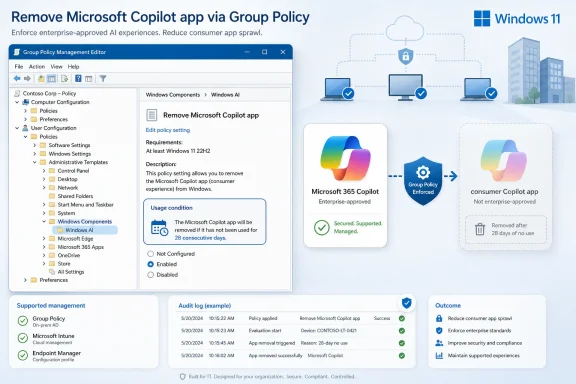
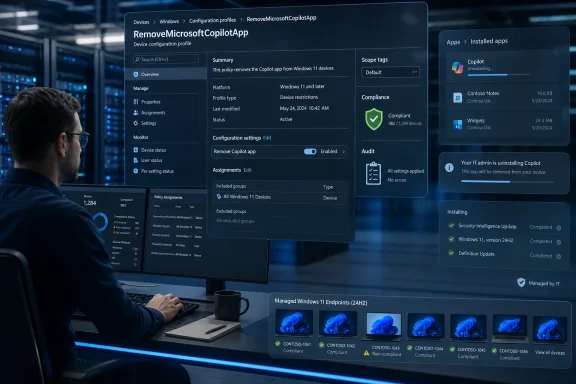
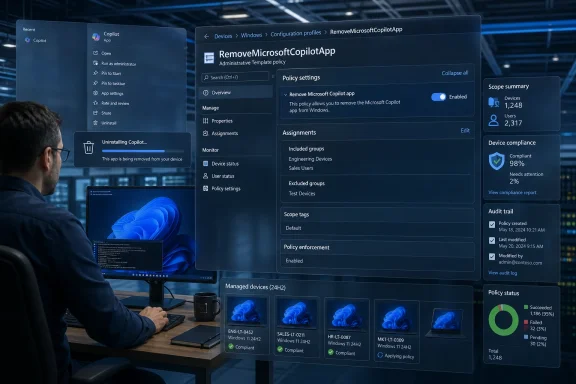
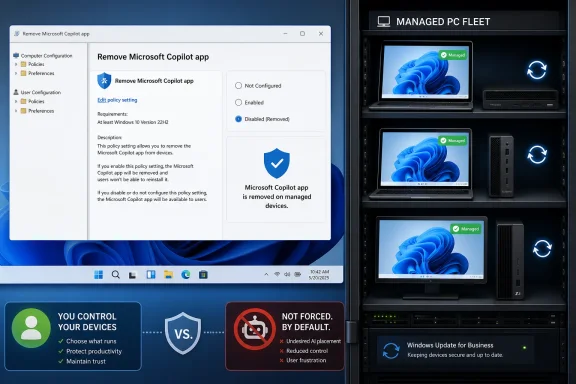
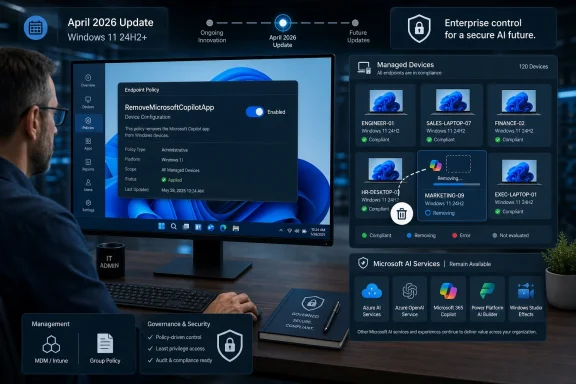
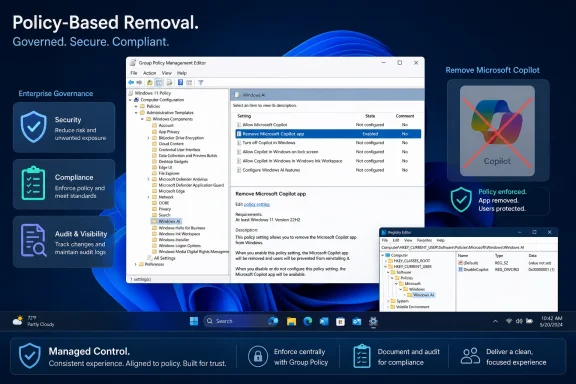
Microsoft has added a Windows 11 policy called “Remove Microsoft Copilot app” that lets administrators uninstall the consumer Copilot app through Group Policy, MDM policy, or an equivalent Registry value on supported editions including Pro, Enterprise, Education, and IoT Enterprise/LTSC. The change arrived quietly in the spring 2026 Windows 11 policy stack, and it says more about Microsoft’s AI course correction than any keynote could. Copilot is not being evicted from Windows; it is being made governable. That distinction matters because Windows users have spent the last two years objecting less to AI itself than to Microsoft’s habit of treating the desktop as a distribution channel.
The new policy sits under Windows Components > Windows AI, which is exactly where it belongs. It is not a cosmetic setting, not a taskbar preference, and not another toggle buried in Settings after the fact. It is an administrative control for an operating-system component that Microsoft has spent years presenting as inevitable.
That inevitability has been the problem. Copilot arrived in Windows 11 as branding, button, sidebar, web app, Store app, keyboard key, and marketing thesis all at once. Microsoft could argue that each piece was technically removable or ignorable, but users experienced the whole campaign as pressure. The machine they bought for work, games, study, coding, or administration kept finding new ways to ask whether they wanted to talk to an assistant.
The “Remove Microsoft Copilot app” policy is therefore not just a new Group Policy setting. It is an admission that the old posture was unsustainable. Windows has always been tolerated in business because it can be managed; the moment Microsoft’s AI push looked less manageable than Edge, OneDrive, Teams, or Store apps, the Copilot rollout started to collide with the expectations that keep Windows entrenched.
The policy’s name is blunt in a way Microsoft’s AI messaging usually is not. It does not say “hide,” “deprioritize,” “optimize,” or “personalize.” It says remove. For administrators who have been watching Copilot reappear after updates, image refreshes, or app provisioning changes, that word is the whole story.
That makes the feature both more cautious and more revealing. Microsoft is trying to distinguish between a user who actually chose the app and a system that simply inherited it. This is a more defensible line than the company’s earlier “AI everywhere” approach, but it also shows how confused the product boundary has become. If an app needs a 28-day inactivity test to decide whether it was wanted, Microsoft already knows it has an adoption problem.
The policy can be configured through Group Policy on supported Windows editions, and the underlying WindowsAI policy path also exposes a management channel for device and user targeting. On Windows 11 Home, where Group Policy Editor is not part of the supported administrative experience, users can attempt the equivalent Registry value under the WindowsAI policy key. That Registry path is useful for enthusiasts, but it should not be confused with a contractual guarantee that Home will behave like Pro.
That distinction is classic Windows. The registry often gives power users a way to express intent, while policy support tells administrators what Microsoft is actually willing to stand behind. If you are managing a fleet, Group Policy, Intune, or another MDM route is the real control plane. If you are a home user trying to keep your Start menu and app list clean, the Registry workaround may help, but it lives in the gray zone between supported configuration and Windows tinkering.
The supported editions list is also telling. Pro is included, which means this is not being reserved only for large enterprise tenants with compliance departments and licensing leverage. Microsoft knows small businesses, consultants, labs, schools, kiosk maintainers, and advanced home users buy Pro precisely because they want policy-level control. Giving them a Copilot removal policy is a quiet concession to that audience.
That mess is why users have reacted so sharply. Microsoft often talks about Copilot as if it were a single coherent assistant. On the desktop, it has felt more like a weather system: sometimes an app, sometimes a button, sometimes a web view, sometimes a feature name, sometimes a shortcut to something that is not quite the same thing as the last Copilot shortcut.
The new removal policy does not solve that confusion. It removes the Microsoft Copilot app under defined conditions. It does not mean every AI feature disappears from Windows 11, and it does not mean Microsoft has abandoned AI as the operating system’s organizing theme. Paint can still have generative features, Settings can still gain natural-language search, and Microsoft 365 can still surface Copilot where licensing permits.
But the policy creates a precedent. Once Microsoft admits that Copilot belongs under administrative governance, users and IT departments will expect the same treatment for the rest of the AI layer. The question will not be whether Microsoft can ship AI features. It will be whether every AI feature has a clear deployment state, a documented policy, a data boundary, and a removal or disablement path.
That is a healthier argument. It moves the debate away from culture-war shouting about whether AI is good or bad and toward the practical questions Windows customers actually need answered. What runs locally? What talks to Microsoft’s cloud? What stores data? What appears for new users? What comes back after a cumulative update? What can be audited?
In practice, usage is a messy proxy for consent. A user may open Copilot once out of curiosity, by accident, or because Windows placed it prominently enough to invite a click. Does that count as adoption? Microsoft’s policy logic appears to say, at least temporarily, yes.
This reflects a deeper tension in modern Windows. The operating system increasingly observes user behavior to decide what to promote, retain, recommend, or remove. That can make the system feel adaptive, but it can also make administration feel probabilistic. Administrators prefer desired state: this app is installed, this one is blocked, this feature is enabled, this one is disabled.
A policy that says “remove only if unused for 28 days” is less clean than a conventional uninstall rule. It is Microsoft trying to protect engagement while still offering administrators relief from unwanted provisioning. That compromise may be politically necessary inside Microsoft, but it will frustrate some IT shops that want certainty more than nuance.
Still, the direction is better than the alternative. A conditional removal policy is not as strong as a hard block, but it beats an ecosystem where Copilot keeps returning like a sponsored app with a security clearance. It gives administrators a documented handle, and in Windows management, a documented handle is often the difference between a nuisance and a supportable configuration.
That is not altruism. Microsoft has invested too much in AI infrastructure, Office integration, Azure consumption, and new PC marketing to back away from Copilot as a strategic platform. The company still wants AI to be a reason to buy new hardware, subscribe to Microsoft 365, use Edge, search with Bing, and stay inside the Microsoft account ecosystem.
But Microsoft also knows that Windows has a different social contract than a web app. Users expect websites to change under them. They expect SaaS dashboards to grow new buttons. They do not expect the operating system to behave like an ad surface for whatever strategic initiative is currently most important in Redmond.
That is the line Copilot kept crossing. The assistant was not simply offered; it was positioned as the future of the PC before many users had a reason to invite it into their workflows. The result was predictable: enthusiasts disabled it, admins hunted for policies, privacy-conscious users distrusted it, and ordinary users learned to ignore yet another Microsoft prompt.
The removal policy is Microsoft’s attempt to convert annoyance into governability. It lets the company keep saying Copilot is part of Windows while giving administrators a way to say, “Not on these machines, not for these users, not under these conditions.” That is how Windows survives strategic overreach: by burying the escape hatch just deep enough for IT to find it.
But the existence of a Registry value does not mean Windows Home users have full parity with supported policy editions. Microsoft’s documentation and policy tables matter here. A setting can exist in code, appear in ADMX files, and still be formally supported only on certain SKUs or management channels.
For Windows enthusiasts, that ambiguity is familiar territory. Half of Windows customization culture lives in the space between “unsupported” and “works today.” If you are configuring your own machine, that may be acceptable. If you are responsible for a school lab, medical workstation, point-of-sale estate, or regulated office, “it worked on my laptop” is not a management strategy.
The Home edition problem also exposes Microsoft’s long-running segmentation dilemma. Home users are often the people most irritated by forced-feeling consumer experiences, but they are given the fewest first-class tools to govern them. Pro users get Group Policy. Enterprise users get MDM and compliance controls. Home users get Settings, uninstall buttons, and folklore.
If Microsoft truly wants to win back users, it cannot treat “remove the thing I did not ask for” as an advanced administrative scenario forever. There is a reason resentment accumulates around preinstalled apps and recurring prompts. Users understand the difference between a capability they can choose and a campaign they are expected to endure.
The consumer-versus-commercial split is especially important. Microsoft’s own product family now contains multiple Copilot experiences with different authentication models, licensing assumptions, and data boundaries. A user signing into the wrong Copilot surface with the wrong identity is not just an annoyance; it is a governance failure waiting to happen.
This is where the new removal policy becomes genuinely useful. An organization can decide that consumer Copilot should not be present on managed Windows desktops, while Microsoft 365 Copilot or Copilot Chat remains available through approved channels. That is not anti-AI. It is the same distinction IT already makes between personal OneDrive and OneDrive for Business, consumer Skype and Teams, personal Microsoft accounts and Entra ID.
Microsoft should lean into that distinction instead of blurring it. The company’s strongest argument to enterprise customers is not that Copilot is magical. It is that Microsoft can make AI fit the identity, compliance, data-loss-prevention, audit, and management frameworks those customers already use. Every unmanaged Copilot entry point weakens that argument.
The irony is that a removal policy may make Copilot more acceptable, not less. Administrators are more willing to tolerate new platform features when they know they can disable, phase, pilot, or remove them. Control builds trust. Lack of control turns even useful features into liabilities.
Recall, Click to Do, Paint’s generative tools, Copilot key behavior, and Copilot app removal now sit in a growing constellation of AI-related controls. Some apply to Pro, some are limited to Enterprise and Education, and some depend on Windows version or hardware capability. The result is messy, but it is recognizably Windows: a feature wave becomes real only when it becomes configurable.
That matters for Copilot+ PCs as well. Microsoft and its hardware partners need a story for why new NPUs and AI-branded machines are worth buying. But if AI features are perceived as invasive or unmanageable, they become a reason to delay refresh cycles, not accelerate them. The enterprise PC market does not buy vibes; it buys predictable deployment stories.
The consumer market is different but not immune. A user may appreciate AI image editing in Paint, summarization in a browser, or better search in Settings. The same user may still resent a Copilot app that arrives uninvited, sits in the app list, reappears after updates, and seems tied to a Microsoft account strategy they never opted into.
This is the paradox Microsoft now has to manage. AI features must be visible enough to justify the investment, but not so visible that they trigger rejection. They must feel native without feeling inescapable. They must be easy to discover and easy to remove. Windows has rarely been elegant at that balance.
The problem is that Microsoft spent the early Copilot period behaving as if distribution would solve product-market fit. Put it in the taskbar. Put it in Edge. Put it on the keyboard. Put it in apps. Put it in Windows setup flows. Put it in Microsoft 365. Eventually, the thinking seemed to go, the habit would form.
That strategy underestimated Windows users. The Windows audience includes people who have spent decades removing OEM trialware, disabling startup apps, managing services, editing policy, and defending clean images from vendor enthusiasm. A new AI assistant was never going to be exempt from that scrutiny just because Microsoft called it the future.
The better path is earned integration. Copilot should appear where it does something distinctly useful, where the data model is clear, and where the user’s next action makes sense. A button that summarizes a document inside a productivity app has a clearer value proposition than a generic assistant icon watching from the edge of the desktop.
Microsoft also needs to stop confusing branding with capability. If a feature is simply a writing tool, call it a writing tool. If it is search, call it search. If it is a cloud chatbot, call it a cloud chatbot. Slapping “Copilot” on every assistive feature made the brand feel larger, but it also made the backlash larger.
To Microsoft’s credit, Windows policy now includes controls for what the Copilot key opens. That matters because a key is different from an app icon. Users can uninstall an app, hide a taskbar button, or ignore a Start menu entry, but a hardware key is a constant reminder that someone else made an assumption about how the PC should be used.
The removal policy does not erase that assumption. It does, however, help complete the management story. If an organization can remove the consumer Copilot app and redirect or control the Copilot key, the physical key becomes less of a compliance embarrassment and more of a remappable input.
For enthusiasts, the key is still a symbol. It represents the moment when Microsoft decided AI was not merely a feature but a category of PC interaction deserving keyboard real estate. If Copilot had landed as indispensable, the key would look prescient. Because adoption has been uneven and the branding overexposed, it instead looks premature.
That does not mean AI keys will disappear. The Windows ecosystem has a long memory for hardware decisions, and OEMs like marketing differentiators. But it does mean Microsoft must make the key useful on the user’s terms. Otherwise, it risks joining a long list of special buttons that shipped with ambition and ended as remapping targets.
For WindowsForum readers, the lesson is to treat this as part of a broader AI management baseline, not a one-off tweak.
Microsoft has not surrendered its AI ambitions in Windows 11; it has merely rediscovered the oldest rule of the Windows platform, which is that serious users will accept almost anything if they can manage it. The new Copilot removal policy is a small control with a large message: the future of AI on the PC will not be decided only by demos, accelerators, and branding campaigns, but by whether users and administrators believe the machine still belongs to them.
 Microsoft Discovers That Control Is a Feature
The new policy sits under Windows Components > Windows AI, which is exactly where it belongs. It is not a cosmetic setting, not a taskbar preference, and not another toggle buried in Settings after the fact. It is an administrative control for an operating-system component that Microsoft has spent years presenting as inevitable.That inevitability has been the problem. Copilot arrived in Windows 11 as branding, button, sidebar, web app, Store app, keyboard key, and marketing thesis all at once. Microsoft could argue that each piece was technically removable or ignorable, but users experienced the whole campaign as pressure. The machine they bought for work, games, study, coding, or administration kept finding new ways to ask whether they wanted to talk to an assistant.
The “Remove Microsoft Copilot app” policy is therefore not just a new Group Policy setting. It is an admission that the old posture was unsustainable. Windows has always been tolerated in business because it can be managed; the moment Microsoft’s AI push looked less manageable than Edge, OneDrive, Teams, or Store apps, the Copilot rollout started to collide with the expectations that keep Windows entrenched.
The policy’s name is blunt in a way Microsoft’s AI messaging usually is not. It does not say “hide,” “deprioritize,” “optimize,” or “personalize.” It says remove. For administrators who have been watching Copilot reappear after updates, image refreshes, or app provisioning changes, that word is the whole story.
The New Policy Is Narrow, but the Signal Is Wide
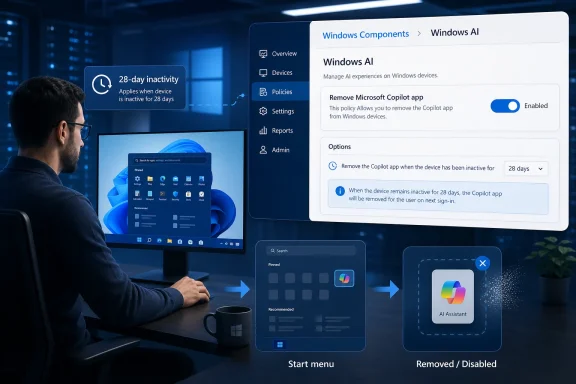
The policy reportedly applies when Microsoft Copilot and Microsoft 365 Copilot are both present, when the user did not install the consumer Copilot app manually, and when the app has not been launched in the last 28 days. That last condition is important. Microsoft is not giving administrators a universal kill switch that rips Copilot away from active users; it is creating a removal path for unused, Microsoft-provisioned Copilot installations.That makes the feature both more cautious and more revealing. Microsoft is trying to distinguish between a user who actually chose the app and a system that simply inherited it. This is a more defensible line than the company’s earlier “AI everywhere” approach, but it also shows how confused the product boundary has become. If an app needs a 28-day inactivity test to decide whether it was wanted, Microsoft already knows it has an adoption problem.
The policy can be configured through Group Policy on supported Windows editions, and the underlying WindowsAI policy path also exposes a management channel for device and user targeting. On Windows 11 Home, where Group Policy Editor is not part of the supported administrative experience, users can attempt the equivalent Registry value under the WindowsAI policy key. That Registry path is useful for enthusiasts, but it should not be confused with a contractual guarantee that Home will behave like Pro.
That distinction is classic Windows. The registry often gives power users a way to express intent, while policy support tells administrators what Microsoft is actually willing to stand behind. If you are managing a fleet, Group Policy, Intune, or another MDM route is the real control plane. If you are a home user trying to keep your Start menu and app list clean, the Registry workaround may help, but it lives in the gray zone between supported configuration and Windows tinkering.
The supported editions list is also telling. Pro is included, which means this is not being reserved only for large enterprise tenants with compliance departments and licensing leverage. Microsoft knows small businesses, consultants, labs, schools, kiosk maintainers, and advanced home users buy Pro precisely because they want policy-level control. Giving them a Copilot removal policy is a quiet concession to that audience.
Copilot’s Problem Was Never Just the App
The consumer Copilot app is only one piece of Microsoft’s AI sprawl. There is Microsoft 365 Copilot, Copilot Chat, Copilot in Edge, Copilot-branded features in Windows apps, AI tools in Paint and Photos, Recall on Copilot+ PCs, Click to Do, and the physical Copilot key on newer keyboards. Some of those features are cloud services, some are local experiences, some are app integrations, and some are just branding wrapped around existing software.That mess is why users have reacted so sharply. Microsoft often talks about Copilot as if it were a single coherent assistant. On the desktop, it has felt more like a weather system: sometimes an app, sometimes a button, sometimes a web view, sometimes a feature name, sometimes a shortcut to something that is not quite the same thing as the last Copilot shortcut.
The new removal policy does not solve that confusion. It removes the Microsoft Copilot app under defined conditions. It does not mean every AI feature disappears from Windows 11, and it does not mean Microsoft has abandoned AI as the operating system’s organizing theme. Paint can still have generative features, Settings can still gain natural-language search, and Microsoft 365 can still surface Copilot where licensing permits.
But the policy creates a precedent. Once Microsoft admits that Copilot belongs under administrative governance, users and IT departments will expect the same treatment for the rest of the AI layer. The question will not be whether Microsoft can ship AI features. It will be whether every AI feature has a clear deployment state, a documented policy, a data boundary, and a removal or disablement path.
That is a healthier argument. It moves the debate away from culture-war shouting about whether AI is good or bad and toward the practical questions Windows customers actually need answered. What runs locally? What talks to Microsoft’s cloud? What stores data? What appears for new users? What comes back after a cumulative update? What can be audited?
The 28-Day Rule Turns Usage Into Consent, Awkwardly
Microsoft’s reported 28-day inactivity condition is probably designed to avoid yanking Copilot from people who have adopted it. On paper, that is reasonable. If a user regularly launches the app, an administrator may want a different policy conversation than if the app is sitting unused on thousands of devices.In practice, usage is a messy proxy for consent. A user may open Copilot once out of curiosity, by accident, or because Windows placed it prominently enough to invite a click. Does that count as adoption? Microsoft’s policy logic appears to say, at least temporarily, yes.
This reflects a deeper tension in modern Windows. The operating system increasingly observes user behavior to decide what to promote, retain, recommend, or remove. That can make the system feel adaptive, but it can also make administration feel probabilistic. Administrators prefer desired state: this app is installed, this one is blocked, this feature is enabled, this one is disabled.
A policy that says “remove only if unused for 28 days” is less clean than a conventional uninstall rule. It is Microsoft trying to protect engagement while still offering administrators relief from unwanted provisioning. That compromise may be politically necessary inside Microsoft, but it will frustrate some IT shops that want certainty more than nuance.
Still, the direction is better than the alternative. A conditional removal policy is not as strong as a hard block, but it beats an ecosystem where Copilot keeps returning like a sponsored app with a security clearance. It gives administrators a documented handle, and in Windows management, a documented handle is often the difference between a nuisance and a supportable configuration.
Microsoft Is Rebranding Retreat as Responsiveness
The company’s broader Copilot posture has shifted noticeably. After a long period of aggressive placement, Microsoft has been trimming or renaming some Copilot entry points, especially where the branding seemed more irritating than useful. The message is no longer simply “Copilot everywhere.” It is closer to “Copilot where it makes sense,” with a growing emphasis on user choice, app-level framing, and manageability.That is not altruism. Microsoft has invested too much in AI infrastructure, Office integration, Azure consumption, and new PC marketing to back away from Copilot as a strategic platform. The company still wants AI to be a reason to buy new hardware, subscribe to Microsoft 365, use Edge, search with Bing, and stay inside the Microsoft account ecosystem.
But Microsoft also knows that Windows has a different social contract than a web app. Users expect websites to change under them. They expect SaaS dashboards to grow new buttons. They do not expect the operating system to behave like an ad surface for whatever strategic initiative is currently most important in Redmond.
That is the line Copilot kept crossing. The assistant was not simply offered; it was positioned as the future of the PC before many users had a reason to invite it into their workflows. The result was predictable: enthusiasts disabled it, admins hunted for policies, privacy-conscious users distrusted it, and ordinary users learned to ignore yet another Microsoft prompt.
The removal policy is Microsoft’s attempt to convert annoyance into governability. It lets the company keep saying Copilot is part of Windows while giving administrators a way to say, “Not on these machines, not for these users, not under these conditions.” That is how Windows survives strategic overreach: by burying the escape hatch just deep enough for IT to find it.
The Registry Path Is a Power-User Escape Hatch, Not a Promise
The reported Registry approach is straightforward in the way most Windows policy tweaks are straightforward. Create or use the WindowsAI policy key under the current user’s policies path, add a 32-bit DWORD named RemoveMicrosoftCopilotApp, set it to 1, and restart or sign out. That mirrors the way many Group Policy settings ultimately express themselves on disk.But the existence of a Registry value does not mean Windows Home users have full parity with supported policy editions. Microsoft’s documentation and policy tables matter here. A setting can exist in code, appear in ADMX files, and still be formally supported only on certain SKUs or management channels.
For Windows enthusiasts, that ambiguity is familiar territory. Half of Windows customization culture lives in the space between “unsupported” and “works today.” If you are configuring your own machine, that may be acceptable. If you are responsible for a school lab, medical workstation, point-of-sale estate, or regulated office, “it worked on my laptop” is not a management strategy.
The Home edition problem also exposes Microsoft’s long-running segmentation dilemma. Home users are often the people most irritated by forced-feeling consumer experiences, but they are given the fewest first-class tools to govern them. Pro users get Group Policy. Enterprise users get MDM and compliance controls. Home users get Settings, uninstall buttons, and folklore.
If Microsoft truly wants to win back users, it cannot treat “remove the thing I did not ask for” as an advanced administrative scenario forever. There is a reason resentment accumulates around preinstalled apps and recurring prompts. Users understand the difference between a capability they can choose and a campaign they are expected to endure.
Enterprise IT Will See a Compliance Story, Not a Culture War
For many administrators, the Copilot question is not ideological. It is about data handling, identity boundaries, support cost, procurement policy, and predictable images. Consumer Copilot does not belong everywhere simply because it ships from Microsoft, and Microsoft 365 Copilot is not automatically appropriate for every tenant, department, or role.The consumer-versus-commercial split is especially important. Microsoft’s own product family now contains multiple Copilot experiences with different authentication models, licensing assumptions, and data boundaries. A user signing into the wrong Copilot surface with the wrong identity is not just an annoyance; it is a governance failure waiting to happen.
This is where the new removal policy becomes genuinely useful. An organization can decide that consumer Copilot should not be present on managed Windows desktops, while Microsoft 365 Copilot or Copilot Chat remains available through approved channels. That is not anti-AI. It is the same distinction IT already makes between personal OneDrive and OneDrive for Business, consumer Skype and Teams, personal Microsoft accounts and Entra ID.
Microsoft should lean into that distinction instead of blurring it. The company’s strongest argument to enterprise customers is not that Copilot is magical. It is that Microsoft can make AI fit the identity, compliance, data-loss-prevention, audit, and management frameworks those customers already use. Every unmanaged Copilot entry point weakens that argument.
The irony is that a removal policy may make Copilot more acceptable, not less. Administrators are more willing to tolerate new platform features when they know they can disable, phase, pilot, or remove them. Control builds trust. Lack of control turns even useful features into liabilities.
Windows 11’s AI Layer Is Becoming a Policy Surface
The placement under Windows AI is not accidental. Microsoft is building a policy surface for AI experiences just as it previously built policy surfaces for browsers, app stores, search, telemetry, and security features. That is the quiet maturation phase after the marketing blast.Recall, Click to Do, Paint’s generative tools, Copilot key behavior, and Copilot app removal now sit in a growing constellation of AI-related controls. Some apply to Pro, some are limited to Enterprise and Education, and some depend on Windows version or hardware capability. The result is messy, but it is recognizably Windows: a feature wave becomes real only when it becomes configurable.
That matters for Copilot+ PCs as well. Microsoft and its hardware partners need a story for why new NPUs and AI-branded machines are worth buying. But if AI features are perceived as invasive or unmanageable, they become a reason to delay refresh cycles, not accelerate them. The enterprise PC market does not buy vibes; it buys predictable deployment stories.
The consumer market is different but not immune. A user may appreciate AI image editing in Paint, summarization in a browser, or better search in Settings. The same user may still resent a Copilot app that arrives uninvited, sits in the app list, reappears after updates, and seems tied to a Microsoft account strategy they never opted into.
This is the paradox Microsoft now has to manage. AI features must be visible enough to justify the investment, but not so visible that they trigger rejection. They must feel native without feeling inescapable. They must be easy to discover and easy to remove. Windows has rarely been elegant at that balance.
Winning Back Users Requires Less Ambush Marketing
The Windows Latest framing — that Microsoft is trying to win back users — is plausible because the change fits a pattern. Microsoft appears to be learning that users do not reward forced proximity. If Copilot is useful, people will return to it. If it is not useful, pinning it more aggressively only teaches them where the disable controls are.The problem is that Microsoft spent the early Copilot period behaving as if distribution would solve product-market fit. Put it in the taskbar. Put it in Edge. Put it on the keyboard. Put it in apps. Put it in Windows setup flows. Put it in Microsoft 365. Eventually, the thinking seemed to go, the habit would form.
That strategy underestimated Windows users. The Windows audience includes people who have spent decades removing OEM trialware, disabling startup apps, managing services, editing policy, and defending clean images from vendor enthusiasm. A new AI assistant was never going to be exempt from that scrutiny just because Microsoft called it the future.
The better path is earned integration. Copilot should appear where it does something distinctly useful, where the data model is clear, and where the user’s next action makes sense. A button that summarizes a document inside a productivity app has a clearer value proposition than a generic assistant icon watching from the edge of the desktop.
Microsoft also needs to stop confusing branding with capability. If a feature is simply a writing tool, call it a writing tool. If it is search, call it search. If it is a cloud chatbot, call it a cloud chatbot. Slapping “Copilot” on every assistive feature made the brand feel larger, but it also made the backlash larger.
The Hardware Key Still Symbolizes the Overreach
The Copilot key remains one of the strangest artifacts of the AI PC push. Microsoft and PC makers placed a dedicated AI key on new keyboards before many users had a stable reason to press it. That may make sense as ecosystem signaling, but it also turned a software adoption bet into a piece of physical hardware.To Microsoft’s credit, Windows policy now includes controls for what the Copilot key opens. That matters because a key is different from an app icon. Users can uninstall an app, hide a taskbar button, or ignore a Start menu entry, but a hardware key is a constant reminder that someone else made an assumption about how the PC should be used.
The removal policy does not erase that assumption. It does, however, help complete the management story. If an organization can remove the consumer Copilot app and redirect or control the Copilot key, the physical key becomes less of a compliance embarrassment and more of a remappable input.
For enthusiasts, the key is still a symbol. It represents the moment when Microsoft decided AI was not merely a feature but a category of PC interaction deserving keyboard real estate. If Copilot had landed as indispensable, the key would look prescient. Because adoption has been uneven and the branding overexposed, it instead looks premature.
That does not mean AI keys will disappear. The Windows ecosystem has a long memory for hardware decisions, and OEMs like marketing differentiators. But it does mean Microsoft must make the key useful on the user’s terms. Otherwise, it risks joining a long list of special buttons that shipped with ambition and ended as remapping targets.
The Copilot Retreat Gives Administrators a Rare Clean Win
The practical result is simple enough: administrators now have a cleaner way to remove Microsoft’s consumer Copilot app from supported Windows 11 environments when the policy conditions are met. That will not satisfy everyone, and it will not eliminate every AI surface in Windows. But it is a concrete improvement over relying on manual uninstall steps, provisioning cleanup scripts, or post-update whack-a-mole.For WindowsForum readers, the lesson is to treat this as part of a broader AI management baseline, not a one-off tweak.
- The new “Remove Microsoft Copilot app” policy targets the consumer Copilot app, not every AI feature in Windows 11.
- The policy is most useful for managed Pro, Enterprise, Education, and IoT Enterprise/LTSC deployments where Group Policy or MDM can enforce a desired state.
- The reported 28-day launch condition means the removal behavior may not be immediate or universal across every user profile.
- The Registry value gives power users a possible path on unsupported editions, but it should not be treated as equivalent to supported policy management.
- Organizations should separate consumer Copilot removal from decisions about Microsoft 365 Copilot, Copilot Chat, Recall, Click to Do, and app-specific AI features.
- Microsoft’s willingness to expose AI controls is a sign that customer resistance has become a product-management constraint, not just online noise.
Microsoft has not surrendered its AI ambitions in Windows 11; it has merely rediscovered the oldest rule of the Windows platform, which is that serious users will accept almost anything if they can manage it. The new Copilot removal policy is a small control with a large message: the future of AI on the PC will not be decided only by demos, accelerators, and branding campaigns, but by whether users and administrators believe the machine still belongs to them.
References
- Primary source: Windows Latest
Published: Sat, 23 May 2026 19:48:01 GMT
Windows 11 now lets you remove Microsoft Copilot app with Group Policy or Registry, as it tries to win back users
Microsoft wants to win back users, and it's making it easier for you to remove Copilot on Windows 11 using Group Policy. www.windowslatest.com
- Official source: learn.microsoft.com
Updated Windows and Microsoft 365 Copilot Chat experience | Microsoft Learn
Learn about changes to the Copilot in Windows experience for commercial environments and how to configure it for your organization.learn.microsoft.com - Related coverage: windowsreport.com
Microsoft Finally Lets IT Admins Remove Copilot From Windows 11
Microsoft now lets IT admins uninstall Copilot on Windows 11 enterprise devices using a new policy introduced in April 2026. windowsreport.com
- Related coverage: windowscentral.com
We’ve tested the April 2026 Windows 11 update, and its 11 improvements genuinely make the OS feel better | Windows Central
Microsoft rolls out major Windows 11 Insider changes in April 2026, focusing on updates, recovery, gaming, and AI improvements.www.windowscentral.com - Related coverage: tomshardware.com
Admins finally get the power to uninstall Microsoft Copilot on Windows 11 Pro, Enterprise, and EDU versions — devices must meet specific conditions to allow the removal of the AI app | Tom's Hardware
One less bloatware on Windows 11.www.tomshardware.com - Related coverage: tomsguide.com
Microsoft is hiding Windows 11's 'eyes' — here's how to find Copilot Vision (and fully delete it) | Tom's Guide
Microsoft’s new AI can "see" your screen to fix errors and summarize docs. Here's how to master Copilot Vision or disable it entirely to protect your privacy.www.tomsguide.com
- Related coverage: vendorcompliance.surf.nl
Manual advice on disabling Copilot applications in Microsoft products
PDF documentvendorcompliance.surf.nl
- Related coverage: libraryfreedom.org