

A familiar Windows 11 storage debate is back in the spotlight after MakeUseOf highlighted a setting that can quietly hold back roughly 7GB or more of space on many PCs: Reserved Storage. For users with a spacious desktop SSD, that reserve may be invisible background plumbing; for anyone gaming, editing, or working on a 256GB or 512GB laptop, it can feel like the difference between installing one more app and deleting something useful. The key point is not that Windows is “stealing” storage, but that Microsoft deliberately set aside capacity to make updates, caches, and system maintenance more reliable.
Reserved Storage arrived during the Windows 10 era as part of Microsoft’s broader attempt to make servicing Windows less fragile. Before the feature existed, PCs that ran close to full could fail updates, stall feature upgrades, or behave unpredictably when temporary files had nowhere to go. That was especially painful on low-cost laptops, tablets, and small SSD systems where the system drive might be only 64GB, 128GB, or 256GB.
The idea was straightforward: Windows would reserve a portion of the system drive for updates, apps, temporary files, and system caches. Instead of letting ordinary user data consume every last gigabyte, the operating system would keep a working area available so critical operations could complete. Microsoft introduced the feature automatically on new devices and clean installs beginning with Windows 10 version 1903, and the design carried forward into Windows 11.
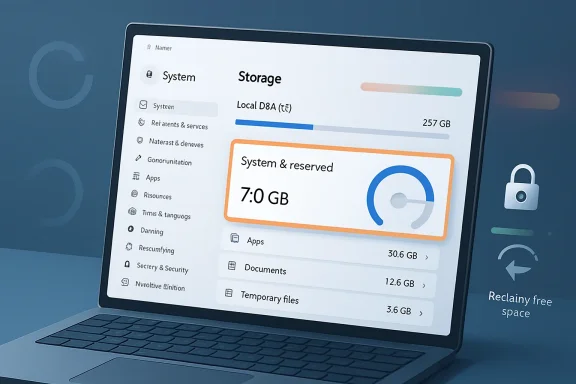
The headline number is usually about 7GB, but that figure is not a hard ceiling. The amount can grow depending on installed languages, optional features, Features on Demand, update state, and system configuration. That means one user may see a modest reserve while another may see a more noticeable chunk of storage grouped under System & reserved in Settings.
What makes the current conversation interesting is that the reclaim process is simple enough for power users, but the consequences are not trivial. A single PowerShell or DISM command can disable the feature, yet doing so removes a safety net Microsoft built precisely because low free space has historically broken Windows servicing. The right answer depends less on the command itself and more on the user’s storage discipline.
This design matters because modern Windows updates are not small file swaps. They can involve downloaded packages, decompression, component store activity, rollback preparation, driver servicing, and multiple reboot phases. Even monthly cumulative updates may need more working space than the final installed size suggests.
For most users, the reserve is visible through Settings rather than File Explorer. Go to Settings > System > Storage > Show more categories > System & reserved, and Windows will show whether reserved storage is present and how much space it is currently consuming. That number can fluctuate, which is why treating 7GB as a universal guarantee is misleading.
Key functions include:
That distinction matters because Windows installations vary widely. A plain English-language installation with few optional components may sit near the expected baseline. A system with multiple language packs, handwriting recognition, speech components, legacy optional features, developer tools, or OEM additions may need a larger reserve.
This is where some users become confused. They open Storage settings expecting a tidy 7GB line item and instead see a figure closer to 10GB or more. In extreme cases, unusual “system reserved” numbers may point to something else entirely, such as hibernation files, page files, restore points, Windows.old data, delivery optimization cache, or component store growth.
The number can grow because Windows must preserve and service installed capabilities during updates. If you add optional Windows features, the servicing system needs enough room to maintain them. That does not mean every optional feature is a bad choice, but it does explain why minimalist installations often have smaller storage footprints.
A practical interpretation looks like this:
If the line item appears, note the number before making changes. It is also wise to check total free space, installed update status, and whether Windows Update is already downloading or installing anything. Disabling Reserved Storage while servicing is active can fail with an error indicating that the reserve is in use.
Power users can also check state from an elevated terminal. The DISM route is explicit and useful when writing instructions for mixed environments because it mirrors Microsoft’s deployment tooling. The PowerShell cmdlet is cleaner for interactive users.
Typical checks include:
For readers who maintain family PCs, this distinction is important. Checking the number is harmless. Changing the setting should be treated like a maintenance decision, not a routine cleanup step for every Windows 11 machine.
There is also a DISM equivalent that many administrators prefer because it directly reflects the deployment servicing interface: DISM /Online /Set-ReservedStorageState /State isabled. To restore the feature, use the same command with Enabled instead of Disabled. Microsoft’s tooling also supports querying the state before changing it.
A cautious sequence looks like this:
And the DISM equivalents:
If Windows returns an error saying the operation is not supported while reserved storage is in use, the answer is usually patience rather than registry surgery. Finish updates, reboot, wait for servicing tasks to settle, and try again. Editing undocumented registry values found in forum posts may work in isolated cases, but it is not the cleanest path for most users.
Gaming laptops with 512GB SSDs sit in a gray area. Modern AAA games can exceed 100GB each, so Reserved Storage alone will not transform the machine. Still, users who juggle a Steam library, Xbox app installs, shader caches, and capture footage may appreciate every reclaimed gigabyte.
For desktops with 1TB or larger boot drives, disabling Reserved Storage is harder to justify. The benefit is small relative to total capacity, while the downside remains real. If 7GB matters on a 2TB system, the better question is usually why the system drive is so poorly managed.
Good candidates may include:
Historically, low disk space has been one of the most mundane causes of update failure. A user might have enough room for the final installed update but not enough room for the temporary files and rollback state required during installation. From the user’s perspective, the update “failed for no reason,” even though the real reason was storage exhaustion.
Microsoft’s solution was to make disk space usage more predictable. By reserving working capacity in advance, Windows reduces the chance that a full drive will break servicing at the worst possible moment. It is not glamorous engineering, but it addresses a real support burden.
The feature also reflects a shift in how Windows is maintained. The operating system is no longer a product installed once from a disc and left mostly unchanged. It is continuously serviced through monthly cumulative updates, security fixes, driver updates, Microsoft Store app updates, and periodic feature releases.
That servicing model creates pressure points:
Reclaiming 7GB to 10GB may be enough for a smaller indie title, a mod pack, a patch buffer, or a few game captures. It is rarely enough for the largest modern releases, which can dwarf Reserved Storage many times over. That does not make the tweak useless, but it does put the gain in perspective.
Gamers should also consider update behavior outside Windows itself. Steam, Xbox, Epic Games Store, Battle.net, and other launchers often require temporary room to patch games. Some patches rewrite large archives, meaning a game can demand far more free space during patching than the final download size implies.
Better gaming storage hygiene includes:
For IT administrators, the feature can be useful precisely because it reduces user-driven update failures. A field laptop with limited storage, cached Teams files, offline OneDrive content, browser data, and line-of-business apps can easily become a servicing problem. Reserved Storage offers a predictable buffer that users cannot casually consume.
At the same time, administrators may intentionally disable and re-enable it around controlled update operations. In managed environments, reclaiming the reserve before downloading and installing updates, then enabling it afterward, may fit a broader servicing workflow. That is a policy decision, not a one-off trick.
Enterprise considerations include:
IT teams should also remember that “available storage” is often a policy and lifecycle issue. If a company deploys Windows 11 devices with minimal SSDs, heavily cached cloud content, and large security agents, disabling Reserved Storage may merely postpone the real problem. The more durable fix may be better provisioning, Storage Sense policy, Known Folder Move, app rationalization, and larger baseline storage.
The first step is to open Settings > System > Storage and inspect the categories. Installed apps, temporary files, downloads, videos, and synced cloud files are often more significant than Reserved Storage. A user chasing 7GB may find 40GB sitting in Downloads or an old installer cache.
Storage Sense is particularly useful because it can automate routine maintenance. With sensible settings, it removes temporary files and Recycle Bin contents without touching important user files unless configured to do so. Users should be careful with Downloads cleanup, however, because that folder often contains both junk and important documents.
Good cleanup priorities include:
In other words, reclaiming Reserved Storage is not wrong. It is simply farther down the list than many headlines suggest. Clean the obvious clutter first, then decide whether the safety net is worth trading away.
Microsoft’s next challenge is not merely reducing the footprint of Windows 11 or its successors. It is giving users clearer explanations and better defaults. A storage screen that says System & reserved may be technically accurate, but it often fails to answer the user’s real question: “What can I safely remove, and what happens if I do?”
Watch these areas closely:
Reserved Storage is not a bug, a scam, or a secret cache of wasted space. It is a trade-off: Windows takes a small but meaningful portion of the system drive to make updates and maintenance more reliable, and advanced users can take it back if they are prepared to manage the consequences. On a cramped Windows 11 PC, disabling it may be a useful last resort; on most healthy systems, the better move is to clean up ordinary clutter, keep updates current, and let the operating system keep the breathing room it was designed to use.
Source: MakeUseOf Your Windows 11 PC is hiding 7GB of storage you can reclaim right now
 Overview
Reserved Storage arrived during the Windows 10 era as part of Microsoft’s broader attempt to make servicing Windows less fragile. Before the feature existed, PCs that ran close to full could fail updates, stall feature upgrades, or behave unpredictably when temporary files had nowhere to go. That was especially painful on low-cost laptops, tablets, and small SSD systems where the system drive might be only 64GB, 128GB, or 256GB.The idea was straightforward: Windows would reserve a portion of the system drive for updates, apps, temporary files, and system caches. Instead of letting ordinary user data consume every last gigabyte, the operating system would keep a working area available so critical operations could complete. Microsoft introduced the feature automatically on new devices and clean installs beginning with Windows 10 version 1903, and the design carried forward into Windows 11.
The headline number is usually about 7GB, but that figure is not a hard ceiling. The amount can grow depending on installed languages, optional features, Features on Demand, update state, and system configuration. That means one user may see a modest reserve while another may see a more noticeable chunk of storage grouped under System & reserved in Settings.
What makes the current conversation interesting is that the reclaim process is simple enough for power users, but the consequences are not trivial. A single PowerShell or DISM command can disable the feature, yet doing so removes a safety net Microsoft built precisely because low free space has historically broken Windows servicing. The right answer depends less on the command itself and more on the user’s storage discipline.
What Reserved Storage Actually Does
A controlled workspace for Windows
Reserved Storage is best understood as a maintenance buffer, not a hidden folder full of useless files. Windows uses the reserved area for temporary files, update staging, caches, and other system activity that needs predictable space. When the device is low on storage, Windows can also clear parts of that reserve so important processes have room to operate.This design matters because modern Windows updates are not small file swaps. They can involve downloaded packages, decompression, component store activity, rollback preparation, driver servicing, and multiple reboot phases. Even monthly cumulative updates may need more working space than the final installed size suggests.
For most users, the reserve is visible through Settings rather than File Explorer. Go to Settings > System > Storage > Show more categories > System & reserved, and Windows will show whether reserved storage is present and how much space it is currently consuming. That number can fluctuate, which is why treating 7GB as a universal guarantee is misleading.
Key functions include:
- Windows Update staging for downloaded and expanded update packages
- Temporary file handling for system and app activity
- System cache space used by core OS components
- Predictable servicing capacity during cumulative and feature updates
- Support for optional features and language resources
- Reduced risk of low-disk update failures
Why 7GB Became the Magic Number
The number is a baseline, not a promise
The commonly quoted 7GB figure comes from Microsoft’s original framing of Reserved Storage when the feature was introduced. It was never meant to mean every Windows 11 PC will permanently reserve exactly 7GB. Instead, it described the approximate starting point Microsoft expected on typical systems.That distinction matters because Windows installations vary widely. A plain English-language installation with few optional components may sit near the expected baseline. A system with multiple language packs, handwriting recognition, speech components, legacy optional features, developer tools, or OEM additions may need a larger reserve.
This is where some users become confused. They open Storage settings expecting a tidy 7GB line item and instead see a figure closer to 10GB or more. In extreme cases, unusual “system reserved” numbers may point to something else entirely, such as hibernation files, page files, restore points, Windows.old data, delivery optimization cache, or component store growth.
The number can grow because Windows must preserve and service installed capabilities during updates. If you add optional Windows features, the servicing system needs enough room to maintain them. That does not mean every optional feature is a bad choice, but it does explain why minimalist installations often have smaller storage footprints.
A practical interpretation looks like this:
- Around 7GB is common on many standard installations
- More than 7GB can be normal when optional features or languages are installed
- Very large figures should prompt broader storage investigation
- Reserved Storage is only one part of the System & reserved category
- Disabling it may not reclaim every gigabyte immediately
How to Check Before You Change Anything
Measure first, modify second
Before running commands, users should confirm whether Reserved Storage is actually enabled. Windows 11 already exposes the relevant information in the Settings app, although it is buried deeply enough that many people never see it. The path is Settings > System > Storage > Show more categories > System & reserved.If the line item appears, note the number before making changes. It is also wise to check total free space, installed update status, and whether Windows Update is already downloading or installing anything. Disabling Reserved Storage while servicing is active can fail with an error indicating that the reserve is in use.
Power users can also check state from an elevated terminal. The DISM route is explicit and useful when writing instructions for mixed environments because it mirrors Microsoft’s deployment tooling. The PowerShell cmdlet is cleaner for interactive users.
Typical checks include:
- Confirm free space in File Explorer or Storage settings
- Open System & reserved to see whether Reserved Storage appears
- Pause and finish pending updates before changing the state
- Restart if Windows Update recently completed servicing
- Record the before-and-after number so you know what changed
For readers who maintain family PCs, this distinction is important. Checking the number is harmless. Changing the setting should be treated like a maintenance decision, not a routine cleanup step for every Windows 11 machine.
The PowerShell and DISM Commands
The fast route for advanced users
The command that has drawn attention is simple: run PowerShell as administrator and enter Set-WindowsReservedStorageState -State Disabled. On systems where the feature is enabled and not actively in use, Windows will set Reserved Storage to disabled. After a restart, users may see additional free space become available.There is also a DISM equivalent that many administrators prefer because it directly reflects the deployment servicing interface: DISM /Online /Set-ReservedStorageState /State
isabled. To restore the feature, use the same command with Enabled instead of Disabled. Microsoft’s tooling also supports querying the state before changing it.A cautious sequence looks like this:
- Open Settings > Windows Update and install pending updates.
- Restart the PC if Windows asks for one.
- Open Windows Terminal or PowerShell as administrator.
- Check the current state with a supported command.
- Disable Reserved Storage only if you understand the trade-off.
- Restart and recheck Storage settings.
Code:
Get-WindowsReservedStorageState
Set-WindowsReservedStorageState -State Disabled
Set-WindowsReservedStorageState -State Enabled
Code:
DISM /Online /Get-ReservedStorageState
DISM /Online /Set-ReservedStorageState /State:Disabled
DISM /Online /Set-ReservedStorageState /State:EnabledWho Should Consider Disabling It
Small SSD owners have the strongest case
The strongest argument for disabling Reserved Storage belongs to users with genuinely constrained system drives. On a 128GB or 256GB Windows 11 laptop, recovering 7GB to 10GB can be meaningful. That space might allow a productivity suite update, a small indie game, a developer SDK, or enough breathing room to stop daily low-storage warnings.Gaming laptops with 512GB SSDs sit in a gray area. Modern AAA games can exceed 100GB each, so Reserved Storage alone will not transform the machine. Still, users who juggle a Steam library, Xbox app installs, shader caches, and capture footage may appreciate every reclaimed gigabyte.
For desktops with 1TB or larger boot drives, disabling Reserved Storage is harder to justify. The benefit is small relative to total capacity, while the downside remains real. If 7GB matters on a 2TB system, the better question is usually why the system drive is so poorly managed.
Good candidates may include:
- 128GB and 256GB laptops used by careful, technically confident owners
- Gaming systems with small boot drives and separate backup routines
- Single-purpose devices that are rarely updated outside planned windows
- Test machines where storage behavior is being deliberately controlled
- Advanced users comfortable re-enabling the feature before major updates
- Shared family PCs where no one monitors free space
- Business laptops managed by IT policy
- Devices used by nontechnical owners
- Systems that already struggle with failed updates
- PCs with plenty of unused capacity
Why Microsoft Built This Safety Net
Windows servicing has a long memory
Reserved Storage exists because Windows has spent decades supporting a massive diversity of hardware, storage sizes, languages, drivers, and user habits. Unlike a locked-down appliance platform, Windows must update machines with wildly different configurations. Some have pristine SSDs and modern firmware; others are low-end notebooks filled to the last megabyte.Historically, low disk space has been one of the most mundane causes of update failure. A user might have enough room for the final installed update but not enough room for the temporary files and rollback state required during installation. From the user’s perspective, the update “failed for no reason,” even though the real reason was storage exhaustion.
Microsoft’s solution was to make disk space usage more predictable. By reserving working capacity in advance, Windows reduces the chance that a full drive will break servicing at the worst possible moment. It is not glamorous engineering, but it addresses a real support burden.
The feature also reflects a shift in how Windows is maintained. The operating system is no longer a product installed once from a disc and left mostly unchanged. It is continuously serviced through monthly cumulative updates, security fixes, driver updates, Microsoft Store app updates, and periodic feature releases.
That servicing model creates pressure points:
- Updates need temporary workspace
- Rollback safety requires storage
- Language and feature migration adds complexity
- Driver packages can expand during installation
- Low-end devices often have the least spare capacity
- Users rarely maintain free space proactively
The Gaming PC Angle
Seven gigabytes helps, but it will not solve modern game bloat
The MakeUseOf example resonates because gaming PCs are uniquely storage-hungry. A 512GB SSD sounds comfortable on a spec sheet, but it shrinks quickly once Windows, recovery partitions, launchers, drivers, shader caches, screenshots, cloud sync folders, and a few large games enter the picture. Many users discover that their “gaming laptop” can comfortably hold only a small active rotation.Reclaiming 7GB to 10GB may be enough for a smaller indie title, a mod pack, a patch buffer, or a few game captures. It is rarely enough for the largest modern releases, which can dwarf Reserved Storage many times over. That does not make the tweak useless, but it does put the gain in perspective.
Gamers should also consider update behavior outside Windows itself. Steam, Xbox, Epic Games Store, Battle.net, and other launchers often require temporary room to patch games. Some patches rewrite large archives, meaning a game can demand far more free space during patching than the final download size implies.
Better gaming storage hygiene includes:
- Move large libraries to a second SSD when possible
- Uninstall games you are not actively playing
- Clear capture folders after uploading or archiving clips
- Watch shader cache growth from GPUs and game engines
- Use launcher tools to move games instead of copying folders manually
- Keep at least 15% free space on SSDs when practical
Enterprise and Managed Device Implications
IT departments should not treat this as a casual tweak
In enterprise environments, Reserved Storage intersects with deployment strategy, update rings, endpoint management, and help desk volume. Microsoft’s own deployment guidance distinguishes between consumer devices that connect directly to Windows Update and managed devices using tools such as Configuration Manager, WSUS, or modern endpoint management platforms. That distinction matters because servicing workflows can differ significantly.For IT administrators, the feature can be useful precisely because it reduces user-driven update failures. A field laptop with limited storage, cached Teams files, offline OneDrive content, browser data, and line-of-business apps can easily become a servicing problem. Reserved Storage offers a predictable buffer that users cannot casually consume.
At the same time, administrators may intentionally disable and re-enable it around controlled update operations. In managed environments, reclaiming the reserve before downloading and installing updates, then enabling it afterward, may fit a broader servicing workflow. That is a policy decision, not a one-off trick.
Enterprise considerations include:
- Update compliance targets across large fleets
- Remote worker devices with inconsistent connectivity
- Limited-storage education and frontline PCs
- Language packs and optional features required by users
- Help desk impact from failed upgrades
- Device lifecycle planning for undersized SSDs
IT teams should also remember that “available storage” is often a policy and lifecycle issue. If a company deploys Windows 11 devices with minimal SSDs, heavily cached cloud content, and large security agents, disabling Reserved Storage may merely postpone the real problem. The more durable fix may be better provisioning, Storage Sense policy, Known Folder Move, app rationalization, and larger baseline storage.
Better Ways to Free Space First
Start with the low-risk cleanup paths
Reserved Storage should not be the first cleanup target for most users. Windows 11 includes safer tools that remove files specifically intended to be disposable. Storage Sense and Cleanup recommendations can clear temporary files, empty the Recycle Bin, identify large unused files, and surface old Windows installation data after upgrades.The first step is to open Settings > System > Storage and inspect the categories. Installed apps, temporary files, downloads, videos, and synced cloud files are often more significant than Reserved Storage. A user chasing 7GB may find 40GB sitting in Downloads or an old installer cache.
Storage Sense is particularly useful because it can automate routine maintenance. With sensible settings, it removes temporary files and Recycle Bin contents without touching important user files unless configured to do so. Users should be careful with Downloads cleanup, however, because that folder often contains both junk and important documents.
Good cleanup priorities include:
- Empty the Recycle Bin after reviewing its contents
- Run Cleanup recommendations
- Remove previous Windows installation files only if rollback is no longer needed
- Uninstall unused apps and launchers
- Delete old ISO files, installers, and archives
- Move photos and videos to external or cloud storage
- Review OneDrive Files On-Demand settings
In other words, reclaiming Reserved Storage is not wrong. It is simply farther down the list than many headlines suggest. Clean the obvious clutter first, then decide whether the safety net is worth trading away.
Strengths and Opportunities
Reserved Storage is a rare Windows feature that is both easy to criticize and easy to defend. It consumes visible space on devices where storage is precious, yet it also addresses one of the most common causes of failed updates. The opportunity for Microsoft is to make the feature more transparent, more intelligently sized, and easier for advanced users to manage without making ordinary users responsible for servicing reliability.- Predictable update behavior helps Windows avoid preventable servicing failures.
- A visible Settings entry gives users at least some insight into the space being used.
- Supported PowerShell and DISM controls give enthusiasts and administrators legitimate management paths.
- Dynamic sizing allows Windows to account for optional features, languages, and system needs.
- Storage Sense integration complements the reserve by cleaning disposable files.
- Enterprise manageability makes the feature useful in planned servicing workflows.
- User awareness can turn a hidden frustration into an informed choice.
Risks and Concerns
The biggest risk is that users will treat Reserved Storage as useless bloat and disable it without understanding what changes. On a well-maintained PC, that may cause no immediate problem; on a cramped or neglected system, it can increase the chance of failed updates at exactly the moment security patches matter. Microsoft also bears some responsibility here because Windows still does a poor job explaining the difference between reserved storage, system files, hibernation, page files, restore points, and update leftovers.- Failed Windows updates become more likely when free space is poorly managed.
- Major feature updates may need more temporary room than users expect.
- The reclaimed amount may disappoint if other system components dominate storage use.
- Registry-based workarounds can create unnecessary risk when supported commands exist.
- Nontechnical users may forget to re-enable it before large servicing events.
- Tiny SSD devices remain structurally constrained even after reclaiming the reserve.
- Confusing storage labels can lead users to blame the wrong component.
What to Watch Next
Smarter storage management is becoming more important
The broader trend is clear: Windows PCs are doing more background work than ever. Security updates, Defender intelligence, app packages, driver refreshes, AI components, cloud sync, browser caches, game launchers, and development tools all compete for local storage. The old assumption that the system drive is just a place for Windows and a few programs no longer fits how many people use PCs.Microsoft’s next challenge is not merely reducing the footprint of Windows 11 or its successors. It is giving users clearer explanations and better defaults. A storage screen that says System & reserved may be technically accurate, but it often fails to answer the user’s real question: “What can I safely remove, and what happens if I do?”
Watch these areas closely:
- Windows servicing changes that alter update staging requirements
- Storage Sense policy improvements for home and enterprise users
- OEM laptop storage baselines as 256GB remains common in budget systems
- Game installation sizes and launcher patching behavior
- Windows optional feature growth as AI and local components expand
Reserved Storage is not a bug, a scam, or a secret cache of wasted space. It is a trade-off: Windows takes a small but meaningful portion of the system drive to make updates and maintenance more reliable, and advanced users can take it back if they are prepared to manage the consequences. On a cramped Windows 11 PC, disabling it may be a useful last resort; on most healthy systems, the better move is to clean up ordinary clutter, keep updates current, and let the operating system keep the breathing room it was designed to use.
Source: MakeUseOf Your Windows 11 PC is hiding 7GB of storage you can reclaim right now
