

Windows 11’s taskbar search is more than a convenience — it’s the primary gateway to apps, settings, files, and quick answers — so when the search bar stops responding or returns blank results, it disrupts productivity and frustrates users. Over the last several years Microsoft and the Windows community have refined a practical troubleshooting path that fixes most search failures without reinstalling Windows. This feature article pulls together verified fixes, explains what causes the search bar to fail, assesses risks, and lays out a prioritized, safe remediation plan that works for home users, power users, and IT administrators.
The Windows 11 search experience depends on multiple components: the shell/UI host that displays the search box (SearchHost.exe and related shell components), the Windows Search service and indexer that catalog file metadata, local and cloud connectors (OneDrive/Exchange), and a set of app packages registered with the system. Problems can arise when any of these layers become corrupted, misconfigured, or blocked by third‑party software or policy. Microsoft documents the same core troubleshooting steps — restart the shell or search host, run the Search and Indexing troubleshooter, rebuild the index, and, when needed, reset the Windows Search package using PowerShell — and community reports validate those approaches across many real‑world failure modes. Search failures typically present in three ways:
How:
How:
How:
How (Windows 11):
How:
How:
If the problem appears suddenly after a feature or cumulative update, document the installed KB number, check Microsoft’s update advisories and community threads for the same KB, and escalate to vendor support if the issue matches a known regression. Where corporate policy or endpoint protection could be interfering, coordinate with IT to check Group Policy and security tools.
The solutions above combine vendor‑approved troubleshooting and community‑tested workarounds; applying them in the recommended order minimizes risk while maximizing the chance of a quick recovery. If search still fails after following this article’s plan and collecting logs (Event Viewer errors, Search diagnostic output), gather the evidence and open a support case with Microsoft or post the collected logs in specialist forums for deeper analysis.
When search works again, consider installing PowerToys and enabling PowerToys Run (Alt+Space) as a reliable, fast fallback for launching apps and finding files while you vet long‑term stability of the built‑in search indexer. It’s lightweight and doesn’t depend on the Windows Search service.
This consolidated plan is drawn from Microsoft’s official troubleshooting guidance and corroborated by Windows community reporting and practical field experience; it will resolve the majority of Windows 11 search bar problems while preserving user data and minimizing downtime.
Source: sigortahaber.com How to fix Windows 11 search bar not working?
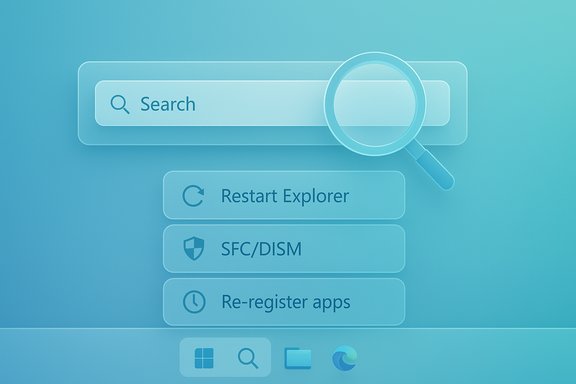 Background
The Windows 11 search experience depends on multiple components: the shell/UI host that displays the search box (SearchHost.exe and related shell components), the Windows Search service and indexer that catalog file metadata, local and cloud connectors (OneDrive/Exchange), and a set of app packages registered with the system. Problems can arise when any of these layers become corrupted, misconfigured, or blocked by third‑party software or policy. Microsoft documents the same core troubleshooting steps — restart the shell or search host, run the Search and Indexing troubleshooter, rebuild the index, and, when needed, reset the Windows Search package using PowerShell — and community reports validate those approaches across many real‑world failure modes. Search failures typically present in three ways:- The search icon opens but the panel is blank or the text box is unresponsive.
- Search opens but returns no or partial results (missing files, settings, or apps).
- Search causes the shell to hang or crashes (taskbar freezes when clicking the icon).
Quick triage: the “5‑minute” checklist
Start here before anything more invasive. These are low‑risk, fast actions that fix the majority of cases.- Restart File Explorer (explorer.exe): open Task Manager (Ctrl+Shift+Esc) → find Windows Explorer → right‑click → Restart. This reloads the shell and restores many UI faults instantly.
- End the search host process: in Task Manager Details look for SearchHost.exe and End task (Windows will relaunch it when you use search again). This often clears transient UI hangs.
- Reboot the PC: it installs pending updates, restarts services, and clears transient resource locks.
- Verify Taskbar search is enabled: Settings → Personalization → Taskbar → Taskbar items → ensure Search is turned on. (Sometimes it’s simply hidden.
- Run the Search and Indexing troubleshooter: run
msdt.exe -ep WindowsHelp id SearchDiagnosticand follow prompts. This automated tool fixes permission issues and common configuration problems.
Step 1 — Restart and check the Windows Search service
Why: The Search service (Windows Search) runs the indexing engine and exposes the service APIs. If it’s stopped, suspended, or set to manual, the search UI may open but returns nothing.How:
- Press Win+R → type
services.msc→ Enter. - Find Windows Search → right‑click → Properties. Set Startup type to Automatic (Delayed Start) and click Start if it’s stopped.
- Test the search bar.
Step 2 — Rebuild the search index (when results are missing or incomplete)
Why: A corrupted or incomplete index causes missing results, stale data, or very slow searches. Rebuilding deletes the old index and forces a fresh catalog of the specified locations.How:
- Open Settings → Privacy & security → Searching Windows (or Control Panel → Indexing Options).
- Click Advanced → under Troubleshooting click Rebuild and confirm.
- Let the system complete the rebuild; for large libraries this can take hours — avoid heavy disk activity while it runs.
Step 3 — Run System File Checker (SFC) and DISM (when corruption is suspected)
Why: Broken or missing system files can break search-related components. SFC repairs protected system files; DISM repairs the component store the repair tools use.How:
- Open an elevated Command Prompt or Windows Terminal (Admin).
- Run:
DISM /Online /Cleanup-Image /RestoreHealthsfc /scannow- Reboot after both complete, then test search again.
Step 4 — Reset Windows Search app packages (PowerShell re‑register)
Why: The Search UI is shipped as an app package on modern Windows builds. If the package registration or AppX manifests are damaged, re‑registering restores the expected package state without touching personal files.How (Windows 11):
- Open Windows Terminal or PowerShell as Administrator.
- Run:
Get-AppxPackage -AllUsers Microsoft.Windows.Search | ForEach-Object {Add-AppxPackage -DisableDevelopmentMode -Register "$($_.InstallLocation)\AppXManifest.xml"}- Restart the PC.
Step 5 — Clear Search data and AppData caches (when package reset didn’t help)
Why: Residual, corrupted search data stored under user AppData can prevent search from regenerating correctly.How:
- While signed in to the affected account, open File Explorer and navigate to:
C:\Users\<username>\AppData\Roaming\Microsoft\Windows\Search\Data- Stop the Windows Search service first (
services.msc) or end SearchHost.exe in Task Manager. - Move the Data folder to a backup location (don’t delete immediately).
- Start the Windows Search service and log off/on or reboot — Windows will recreate the folder and index files.
Step 6 — Check for third‑party interference and group policies
Why: Antivirus, endpoint protection, system‑tweaker utilities, or corporate group policies can block the indexer or disable search features. These cause symptoms ranging from missing results to search refusal to start.How:
- Boot into Safe Mode and test search. If search works in Safe Mode, suspect third‑party software.
- Temporarily disable third‑party antivirus and repeat tests.
- If on Windows 11 Pro/Enterprise, check Group Policy:
gpedit.msc→ Computer Configuration → Administrative Templates → Windows Components → Search- Look for policies that prevent indexing or disable search features.
- On managed devices, coordinate with IT to review Intune or AD policy pushes.
Advanced recovery options
When the previous steps fail, escalate carefully:- Use DISM to remove and re-enable the Search Engine feature:
dism /Online /Disable-Feature /FeatureName:"SearchEngine-Client-Package"- reboot, then
dism /Online /Enable-Feature /FeatureName:"SearchEngine-Client-Package"- reboot again. Microsoft Q&A documents this as an advanced repair path when app re‑registration fails.
- Create a new local administrative user and test search there. If the problem is profile-specific, migrating to a fresh profile may be the practical fix. Several real‑world reports show that a new profile bypasses corrupted user settings.
- Reset this PC (Keep my files): a repair install that preserves user data but reinstalls system files and resolves stubborn corruption. Use as last resort after full backups. Microsoft recommends this when in‑place fixes won’t restore core shell behavior.
When the search bar break is caused by a Microsoft update
Microsoft occasionally ships cumulative updates that inadvertently change Search/Copilot/start-menu behaviors. In some past incidents, community reporting showed issues resolved by uninstalling a recently installed KB or applying an update that arrived shortly after. Before uninstalling updates:- Check the update history and know the exact KB number.
- Confirm community reports and Microsoft advisories for the specific KB.
- Use System Restore if available.
- For enterprise fleets, test rollback on a small set of machines and follow vendor guidance on SSU/LCU differences; uninstalling the combined packages can be non‑trivial.
Prevention and best practices
- Keep Windows up to date but stagger updates on critical systems. Test major cumulative updates on a small set before broad deployment.
- Use the Classic index mode for typical usage to reduce unnecessary load; enable Enhanced selectively and only when you need whole‑disk semantic indexing.
- Maintain regular backups and create a restore point before making registry or Group Policy changes.
- Avoid aggressive “system optimizers” that claim to speed up Windows by stopping background services.
- Use alternate search tools like Everything or PowerToys Run as a fast fallback for file location and launching — they’re lightweight and independent of Windows Search.
Critical analysis — strengths and risks of each approach
- Restarting Explorer / ending SearchHost.exe
- Strengths: Fast, zero‑risk, reversible.
- Risks: None. Always try first.
- Rebuilding index
- Strengths: Fixes corrupted indexes and missing results; documented by Microsoft.
- Risks: Resource‑heavy during rebuild; may take hours on large drives; user confusion if results temporarily disappear. Use during low‑demand hours.
- SFC / DISM
- Strengths: Repairs system file corruption that other steps can’t.
- Risks: None for normal usage, but they can take time and should be run with patience; DISM may require a network connection for component downloads if local repair source is insufficient.
- PowerShell re‑register (AppxPackage/Add-AppxPackage)
- Strengths: Restores Search UI package without touching user files; often fixes UI-level package corruption.
- Risks: Requires admin rights and ability to run scripts; in locked corporate environments script execution might be blocked; use with caution and test in non-production machines first.
- Clearing AppData Search Data
- Strengths: Effective when cached payloads are corrupted.
- Risks: Forces full index rebuild and temporary loss of instant search; must stop Search service first to avoid file locks.
- DISM disable/enable feature and Reset this PC
- Strengths: Deep repairs that often resolve stubborn corruption.
- Risks: Higher impact, longer downtime; Reset this PC is disruptive even when keeping files and should be a last resort.
- Uninstalling updates
- Strengths: Can directly revert a problematic vendor change.
- Risks: Removes security fixes; may be complex due to SSU/LCU packaging; enterprise rollback requires careful planning.
Real‑world evidence (community signals)
WindowsForum community archives and troubleshooting threads reflect a consistent pattern: the quick triage steps restore the search bar for most users, while a smaller subset requires index rebuilds or re‑registration of the Search app. Several threads document update-related regressions that were later fixed by Microsoft updates or workarounds like re‑registering app packages and clearing the user Search Data folder. These community findings align closely with Microsoft’s own troubleshooting guidance.Checklist — prioritized action plan (copy & use)
- Restart File Explorer and end SearchHost.exe. Test.
- Reboot PC. Test.
- Verify Taskbar search is enabled (Settings → Personalization → Taskbar).
- Run Search and Indexing troubleshooter:
msdt.exe -ep WindowsHelp id SearchDiagnostic. - Ensure Windows Search service is started and set to Automatic (Delayed Start).
- Rebuild the search index (Settings → Privacy & security → Searching Windows → Advanced Indexing Options → Rebuild).
- Run DISM and SFC:
DISM /Online /Cleanup-Image /RestoreHealthsfc /scannow- Re‑register Search App package via PowerShell (Admin):
Get-AppxPackage -AllUsers Microsoft.Windows.Search | ForEach-Object {Add-AppxPackage -DisableDevelopmentMode -Register "$($_.InstallLocation)\AppXManifest.xml"}- If still failing, clear
C:\Users\<user>\AppData\Roaming\Microsoft\Windows\Search\Data(after stopping the service) and reboot. - Test in a new local admin profile. If that works, migrate profile data.
- If system‑wide or update‑related and none of the above work, plan an in-place repair or Reset this PC (Keep my files) with backups in place.
Final verdict and practical advice
Most Windows 11 search failures are repairable without reinstalling Windows. Start with low‑impact fixes and progress to the documented deeper repairs in a controlled order. Rebuilding the index and re‑registering the Search app package are the two most reliable next steps when a restart and service check don’t help. When managing multiple machines, adopt a staged update policy and test fixes in a lab environment before enterprise rollout. Always back up critical data before high‑impact operations like rolling back updates or resetting a PC.If the problem appears suddenly after a feature or cumulative update, document the installed KB number, check Microsoft’s update advisories and community threads for the same KB, and escalate to vendor support if the issue matches a known regression. Where corporate policy or endpoint protection could be interfering, coordinate with IT to check Group Policy and security tools.
The solutions above combine vendor‑approved troubleshooting and community‑tested workarounds; applying them in the recommended order minimizes risk while maximizing the chance of a quick recovery. If search still fails after following this article’s plan and collecting logs (Event Viewer errors, Search diagnostic output), gather the evidence and open a support case with Microsoft or post the collected logs in specialist forums for deeper analysis.
When search works again, consider installing PowerToys and enabling PowerToys Run (Alt+Space) as a reliable, fast fallback for launching apps and finding files while you vet long‑term stability of the built‑in search indexer. It’s lightweight and doesn’t depend on the Windows Search service.
This consolidated plan is drawn from Microsoft’s official troubleshooting guidance and corroborated by Windows community reporting and practical field experience; it will resolve the majority of Windows 11 search bar problems while preserving user data and minimizing downtime.
Source: sigortahaber.com How to fix Windows 11 search bar not working?
