

Windows 11 quietly hides a toolkit of oddball, useful and occasionally risky features inside the Settings app — a mix of modern conveniences, accessibility advances and legacy relics that reward exploration but demand caution. The recent tour of these options highlights ten particularly surprising items — Dynamic Lock, Nearby Sharing, Storage Sense, Project to Your PC, Clipboard Sync, an End Task button on the taskbar, Game Mode, Eye Tracking, Title‑Bar Window Shake and Device Portal — and shows how a few clicks can change day‑to‑day workflows while also widening the system’s attack surface if misconfigured.
Windows has been migrating options from the classic Control Panel into Settings for years. That migration left Settings as a centralized, sometimes cluttered place where consumer conveniences, developer tooling and hardware‑specific pages sit side‑by‑side. The effect is twofold: users discover powerful cross‑device features (cloud clipboard, Nearby Sharing) while also finding developer‑facing interfaces (Device Portal) and legacy Mixed Reality pages that feel out of place. Multiple recent writeups verify that this is intentional and that availability can vary by build, OEM image or optional feature installs.
The practical takeaway is straightforward: Settings is a treasure chest for productivity but also a configuration area that should be audited, especially on managed machines. Administrators and power users should treat network‑facing or developer features as policy decisions rather than casual toggles.
However, not every historical assertion should be treated as proven within Settings itself. For example, commentary tying Device Portal screens to specific HoloLens contract details or to recent military contract transfers has been flagged by analysts as requiring primary source confirmation and should be treated cautiously until verified against official announcements.
Explore Settings with intention: flip a toggle, test the behavior, and document the change. The hidden tools can be powerful allies — just don’t give them the keys to your data without a clear plan.
Source: PCMag UK Windows 11 Is Full of Hidden Tools. These Are the Weirdest Ones You've Never Used
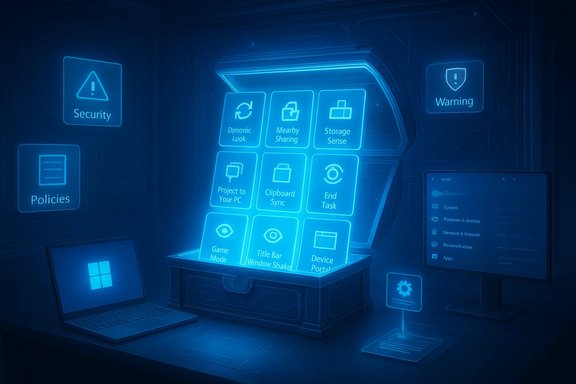 Background: why Settings became a mixed toolkit
Windows has been migrating options from the classic Control Panel into Settings for years. That migration left Settings as a centralized, sometimes cluttered place where consumer conveniences, developer tooling and hardware‑specific pages sit side‑by‑side. The effect is twofold: users discover powerful cross‑device features (cloud clipboard, Nearby Sharing) while also finding developer‑facing interfaces (Device Portal) and legacy Mixed Reality pages that feel out of place. Multiple recent writeups verify that this is intentional and that availability can vary by build, OEM image or optional feature installs.The practical takeaway is straightforward: Settings is a treasure chest for productivity but also a configuration area that should be audited, especially on managed machines. Administrators and power users should treat network‑facing or developer features as policy decisions rather than casual toggles.
1) Dynamic Lock — proximity‑based locking
What it is
Dynamic Lock uses a paired Bluetooth device (commonly your phone) as a proximity token to automatically lock a Windows session when that device moves out of range. Some modern PCs replace phone‑based detection with built‑in presence sensors (IR or radar) that detect when you leave and trigger locking more reliably.How to enable
- Pair your phone via Bluetooth to the PC.
- Open Settings → Accounts → Sign‑in options → Additional settings.
- Toggle Dynamic Lock on.
Real behavior and verified specifics
Windows monitors Bluetooth signal strength and will lock the PC within about a minute after the paired device is no longer detected — an intentionally conservative interval to avoid false positives. That timing and the need for pairing are documented across multiple platform walkthroughs.Benefits
- Hands‑free workstation hardening for public or shared spaces.
- Integrates with Windows Hello and presence‑sensing hardware for faster unlocks where available.
Risks and caveats
- RSSI (Bluetooth signal strength) is inherently noisy; false locks or missed locks can occur.
- Phone‑based Dynamic Lock is an auxiliary protection and should not replace stronger policies (screen lock timeouts, BitLocker, administrative controls).
- Presence sensors are preferable in managed environments when procurement allows.
2) Nearby Sharing — Windows’ AirDrop (but Windows‑only)
What it is
Nearby Sharing is Microsoft’s peer‑to‑peer file/link transfer feature that uses Bluetooth or Wi‑Fi to send items between proximate Windows devices. Unlike Apple AirDrop, it is limited to Windows endpoints unless third‑party bridges are used.How to enable and use
- Settings → System → Nearby sharing to choose visibility (My devices only or Everyone nearby).
- Use the Share dialog (right‑click a file → Share) to send items to a discovered device.
Why it matters
Nearby Sharing removes the friction of emailing or cloud‑uploading small files between devices on the same network, making quick cross‑device workflows (screenshots, documents, links) easier.Risks and practical controls
- On open networks, setting discovery to “Everyone nearby” increases the chance of unwanted transfers; restrict to “My devices only” for security.
- IT teams should consider policy controls or firewalling on managed networks to prevent misuse.
3) Storage Sense — automatic cleanup with teeth
What it is
Storage Sense is Windows’ automatic disk housekeeping tool. It can remove temporary files, empty the Recycle Bin on a schedule, convert rarely used OneDrive files to online‑only, and purge files from the Downloads folder using configurable intervals.Configuration and verified numbers
- Settings → System → Storage → Storage Sense.
- Cleanup schedules include deletion intervals for Downloads (options include 1, 14, 30, 60 days; some systems also report a 24‑hour option). Multiple independent sources confirm the presence of these purge intervals.
Benefits
- Keeps system drives lean on smaller SSDs.
- Automates one‑off maintenance tasks that users often forget.
Risks
- Silent data loss is the primary hazard: aggressive settings (e.g., delete downloads older than one day) can remove irreplaceable files.
- Users should exclude important folders and rely on cloud backup for critical data.
- Administrators should document Storage Sense behavior and set conservative defaults in enterprise images.
4) Project to Your PC — use a PC as a wireless display
What it is
Project to Your PC (requires the optional Wireless Display feature) lets another Windows device cast its screen to your PC over the network — essentially turning a laptop or AIO into a Miracast target. This is helpful for quick screen sharing without dedicated hardware.How to enable
- Settings → System → Projecting to this PC and install the Wireless Display optional feature if prompted.
- On the source device press Windows+K to cast to the available target.
Benefits and oddities
- Useful for extending a small laptop display onto a larger desktop in a hurry.
- The Settings text still references "Windows phone" in some builds — a historical oddity reflecting Settings' museum‑like evolution.
Risks and operational notes
- Network exposure: Projecting requires network connectivity and should be gated on managed networks.
- Optional feature installs can be administratively controlled; default‑disable on managed endpoints unless needed.
5) Clipboard Sync (Cloud Clipboard) — move snippets across devices
What it is
Windows 11’s Clipboard History stores up to 25 items and the Clipboard Sync option can propagate clipboard entries across devices signed into the same Microsoft account. There are two sync modes: automatic (everything copies across devices) and manual (you choose which clipboard entries to sync).How to enable
- Win+V to open Clipboard UI, or Settings → System → Clipboard.
- Toggle Clipboard history and enable sync across devices; choose Automatic or Manual sync.
Android bridging
- Clipboard sync to Android is possible through the Microsoft‑owned SwiftKey keyboard when signed into your Microsoft account. iOS does not support the SwiftKey clipboard bridge for privacy/platform reasons.
Benefits
- Seamless copy/paste between multiple Windows PCs without email or cloud files.
- Pin important snippets so they persist across reboots and devices.
Risks and privacy controls
- Cloud clipboard stores items transiently in user account storage and has an item size limit; pinned items remain until removed.
- Sensitive data leak risk: disable automatic sync on systems that handle secrets; prefer manual syncing when required. Administrators should disable this on regulated machines.
6) End Task on the Taskbar — quick force‑close
What it is
Windows 11 offers an optional End Task button on the taskbar, which lets you right‑click an app icon and forcibly terminate it — a faster shortcut than opening Task Manager.How to enable
- Settings → System → Advanced → Taskbar → toggle End Task on.
Benefits and limitations
- Great for quickly recovering from frozen apps when you must act fast.
- Not a substitute for normal save/close workflows — forcible termination risks data loss.
Best practice
- Use only when necessary; combine with autosave options or document versioning to reduce risk of lost work.
7) Game Mode — mild interruption minimizer
What it is
Game Mode aims to minimize interruptions and stabilize frame rates while gaming. Over time Microsoft deprecated earlier developer APIs that once gave Game Mode stronger control; today it mainly blocks notifications and attempts to avoid driver updates during active sessions. Real‑world testing often shows little to no measurable performance difference in most games.Where to find it
- Settings → Gaming → Game Mode.
Practical verdict
- Leave it on if you prefer notification suppression; don’t expect dramatic performance improvements.
- Performance tuning remains primarily a driver and hardware task, not a Settings toggle.
8) Eye Tracking — built‑in accessibility for compatible hardware
What it is
Windows 11 supports eye‑tracking hardware natively so users can control the cursor and interact using gaze and dwell clicks. This requires specialist hardware (for example, Tobii devices) — standard IR cameras do not provide full eye‑tracking capabilities. Options appear under Accessibility → Eye control.Benefits
- Meaningful accessibility gains for people with limited mobility.
- Built‑in support removes the need for third‑party software in compatible setups.
Procurement and privacy notes
- Organizations should plan for device procurement, driver support and telemetry handling when deploying gaze systems.
- Verify vendor data practices around gaze telemetry before large‑scale purchases.
9) Title Bar Window Shake (Aero Shake) — an old gesture survives
What it is
The classic Aero Shake gesture — grab a window’s title bar and shake to minimize all other windows — lives on as Title Bar Window Shake under System → Multitasking. It’s off by default on many systems but still available for users who like that interaction.Why it remains
- It’s a lightweight way to declutter a busy desktop and reflects Microsoft’s habit of preserving some legacy gestures for user familiarity.
10) Device Portal — developer web UI with mixed reality leftovers
What it is
Device Portal provides a web interface for local remote diagnostics, profiling and management and is intended for developer and device scenarios (HoloLens origin). Enabling it requires Developer Mode and exposes a local web server interface. Inside, you may still find odd sections referencing Mixed Reality and the 3D Objects folder — remnants of feature lines that are no longer mainstream.Why it’s odd and what to watch for
- Device Portal is powerful but network‑facing by design; enabling it on unmanaged systems can expand the attack surface.
- Several analyses flag any historical claims that tie Device Portal screens directly to recent military contracts or specific product lifecycles as needing independent confirmation; treat such assertions cautiously and verify against primary sources before accepting them as fact.
Recommended controls
- Default‑disable Device Portal on managed endpoints, or restrict it via firewall and authentication.
- Use it only in validated development/test environments and audit usage.
The Settings app as a “museum” and a junk drawer — strengths and risks
Strengths
- Productivity wins: Tools like Clipboard Sync, Nearby Sharing and Project to Your PC materially reduce friction in multi‑device workflows. Verified coverage shows these features deliver real, day‑to‑day benefits for writers, developers and multi‑device users.
- Accessibility integration: Native support for presence sensors, eye tracking and other assistive features signals a commitment to inclusive computing.
- Modular delivery: Windows’ combination of Store updates and optional feature installs lets Microsoft iterate quickly without forcing full OS upgrades — good for incremental feature improvements.
Risks and weaknesses
- Discoverability and fragmentation: Useful features are buried; availability can vary by build or OEM image. That makes consistent support and documentation harder for organizations.
- Privacy and data lifecycle hazards: Automated behaviors (Storage Sense, automatic clipboard sync) can result in silent deletions or unintended cloud syncs. Conservative defaults and clear in‑UI explanations are needed.
- Expanded attack surface: Developer and network‑exposed tools (Device Portal, Wireless Display, Nearby Sharing) should be treated as administrative risks on managed devices. Default‑disable these features unless explicitly required.
Practical checklist — what every user and admin should do now
- Users:
- Audit Settings for Clipboard, Nearby Sharing, Projecting and Storage Sense; set conservative defaults and exclude important folders from automated deletion.
- Disable automatic Clipboard sync when handling sensitive information; prefer Manual sync mode.
- Use presence sensors + Windows Hello instead of phone‑based Dynamic Lock where possible for smoother unlocks.
- Administrators:
- Default‑disable Device Portal, Wireless Display and Nearby Sharing via Group Policy or endpoint configuration unless required for workflows.
- Document Storage Sense behavior in onboarding guides and create exclusion rules for business data folders.
- Add eye‑tracking procurement and telemetry obligations to assistive‑technology supplier contracts.
Where claims are solid — and where to be cautious
Several technical specifics are consistent across documentation and independent writeups: Clipboard history holds up to 25 items, Storage Sense supports multiple purge intervals, and Projecting to your PC relies on the Wireless Display optional feature. These are corroborated by multiple sources in the recent coverage.However, not every historical assertion should be treated as proven within Settings itself. For example, commentary tying Device Portal screens to specific HoloLens contract details or to recent military contract transfers has been flagged by analysts as requiring primary source confirmation and should be treated cautiously until verified against official announcements.
Final analysis: a pragmatic verdict
Windows 11’s Settings app is both useful and messy by design. It’s a centralization of decades of Windows work: some features are polished productivity enhancers, others are developer utilities or artifacts from earlier projects. The net result is a compact toolbox that rewards curiosity and threatens complacency.- When used deliberately, features like Nearby Sharing, Clipboard Sync and Project to Your PC can streamline workflows and save minutes every day.
- When left unchecked, automated behaviors or network‑facing developer tools can cause data loss or broaden attack surfaces. Conservative defaults, admin gating and user education are essential.
Explore Settings with intention: flip a toggle, test the behavior, and document the change. The hidden tools can be powerful allies — just don’t give them the keys to your data without a clear plan.
Source: PCMag UK Windows 11 Is Full of Hidden Tools. These Are the Weirdest Ones You've Never Used
