

Windows 11 shortcuts are one of the fastest ways to turn a familiar desktop into a genuinely efficient workspace, and the headline-grabbing “73 tricks” format gets at a real truth: most people use only a tiny slice of what Microsoft built into the OS. The core of the article is sound—keyboard shortcuts can save time every single day—but several entries are dated, mislabeled, or missing the newer Windows 11 framing that matters in 2026. Microsoft’s current support pages confirm the fundamentals of snapping, task view, emoji input, and common Windows-key shortcuts, while also showing that some older references, like Cortana and the legacy Action Center wording, no longer reflect how Windows 11 actually works.
The appeal of shortcut guides is obvious: they compress years of habit into a few memorized key combos. For office workers, students, and power users alike, the biggest gain is not speed in the abstract but the elimination of tiny friction points that happen dozens or hundreds of times a day. Microsoft continues to emphasize that keyboard shortcuts remain central to Windows productivity, especially in multitasking, snapping, virtual desktops, and quick access to system tools.
What makes Windows 11 different from earlier versions is not that shortcuts disappeared; it’s that the OS’s visual design and interaction model changed around them. The centered taskbar, richer Snap layouts, improved task switching, and newer shortcut behavior around Copilot and search all reflect a system that expects users to jump between apps more often. That means shortcuts are not just a convenience anymore; they are a workflow layer that can meaningfully affect productivity.
At the same time, shortcut lists age quickly. Microsoft’s current documentation shows that Windows key + C now opens Copilot or Microsoft 365 Copilot on supported systems, or Windows Search when Copilot is unavailable, which is a very different reality from older Windows 10-era references to Cortana. Likewise, the old “Action Center” language in some guides has given way to Windows 11’s notifications and quick settings model. A good Windows 11 cheat sheet should therefore be more than a pile of key combinations; it should be version-aware.
That distinction matters for readers who rely on accuracy. A shortcut guide that still mentions features that were deprecated, renamed, or region-limited risks teaching people habits that are partially obsolete. The best way to read any shortcut roundup in 2026 is as a practical starter kit, not a final authority. Microsoft’s own pages remain the most reliable baseline for what actually works today.
It also correctly highlights the power of taskbar and desktop navigation. Windows key + number shortcuts for pinned apps, Windows key + Tab for Task view, and Windows key + Ctrl + D for new virtual desktops are all still documented behaviors that can materially improve multitasking. For users juggling email, browser tabs, spreadsheets, and chat windows, this is where Windows 11 starts to feel less like a consumer OS and more like a workspace manager.
A few of the article’s inclusions are especially useful because they solve problems people encounter constantly:
The same issue appears in the reference to Windows key + A as opening the Action Center. In Windows 11, the user experience has been reorganized around notifications and quick settings, so the old Windows 10 terminology can confuse newer users. A shortcut guide aimed at Windows 11 should avoid legacy naming unless it is explicitly explaining historical differences.
This is especially noticeable in older references to apps and features that have shifted in emphasis. Windows key + F is still meaningful, but its association with Feedback Hub needs to be explained in the context of current Windows 11 feedback channels. Likewise, terms like “secret Start menu” or “Windows Ink Workspace” feel a little nostalgic rather than current. Useful? Yes. Updated? Not fully.
A better approach would be to distinguish between:
Windows 11’s Snap experience is especially important because it is no longer just about dragging windows to the side. Microsoft supports predefined layouts, Snap Assist, and snapping behavior that helps users fill the remaining space with other open windows. For anyone working on wide monitors, ultrawide panels, or multi-monitor setups, this is one of the best reasons to learn keyboard-first navigation.
There is also a stronger enterprise argument here than the AOL piece makes. In organizations where employees spend their day across email, line-of-business apps, browser dashboards, and collaboration tools, reducing window friction can have an outsized effect on responsiveness. The shortcut guide is therefore not only a consumer convenience piece; it is also a productivity play.
This area is even more important in Windows 11 because the Snipping Tool has evolved beyond a basic screenshot utility. Microsoft now documents video capture shortcuts as well, including Windows logo key + Shift + R for recording, which shows how screenshots have merged with lightweight screen recording in the modern OS. The AOL roundup focuses on the basics, but the underlying platform has become more capable.
In practice, the best screenshot workflow often looks like this:
The guide deserves credit for emphasizing multiple screenshot paths, but it could have gone further by explaining when each method is best. That missing context is exactly what separates a good shortcut list from a truly great one.
Microsoft’s documentation also shows that the panel is not just for emojis; it includes GIFs, kaomoji, and symbols. That broad utility is important because many users still waste time copying characters like em dashes, section symbols, or copyright marks from the web when the OS already provides an easier route. Tiny feature, surprisingly large payoff.
Some of the most useful patterns include:
Some of the article’s commands here are familiar and still highly relevant, including Ctrl + N for a new window when File Explorer is active and F2 to rename a selected item. Those shortcuts make file management feel less like a series of clicks and more like a direct manipulation workflow. For anyone organizing media, assets, or business documents, that difference matters.
The strongest Explorer-related shortcuts to remember are:
The article’s list of copy, paste, select all, and line navigation commands is broadly aligned with long-standing console behavior. That is important because Command Prompt and related terminal tools are often where efficiency gains compound most rapidly. When you are entering repeated commands or reviewing output, every extra mouse action is friction.
A few practical examples stand out:
This transition changes how shortcut guides should be written. It is no longer enough to say “press this key to open a tool”; editors should explain what that tool represents in the current product strategy. In this case, the shortcut is evidence that Microsoft wants discovery, assistance, and AI entry points to be closer to the user’s hands.
For enterprise IT, this is both promising and complicated. On one hand, AI and search shortcuts can speed up common tasks. On the other, organizations need to manage policy, availability, and user training so shortcuts do not become confusing when Copilot is disabled, not provisioned, or restricted by compliance settings. Consistency is the real challenge.
This is why a modern shortcut guide needs to be explicit about fallbacks. The old “one shortcut, one fixed function” model is giving way to a more dynamic Windows experience in which the same keys may open different surfaces depending on configuration and availability. That makes documentation more important, not less.
For users, that means the smartest move is not to memorize all 73 tricks at once. It is to start with the daily essentials, then add workflow-specific shortcuts for screenshots, window management, virtual desktops, and file handling. For IT teams, the opportunity is to standardize a shortlist of shortcuts that match the organization’s actual work patterns and hardware profiles.
Source: AOL.com The 73 Essential Windows 11 Tricks That'll Save You Hours Every Week
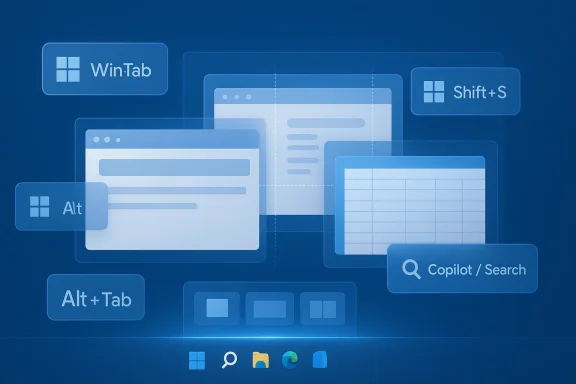 Overview
The appeal of shortcut guides is obvious: they compress years of habit into a few memorized key combos. For office workers, students, and power users alike, the biggest gain is not speed in the abstract but the elimination of tiny friction points that happen dozens or hundreds of times a day. Microsoft continues to emphasize that keyboard shortcuts remain central to Windows productivity, especially in multitasking, snapping, virtual desktops, and quick access to system tools.What makes Windows 11 different from earlier versions is not that shortcuts disappeared; it’s that the OS’s visual design and interaction model changed around them. The centered taskbar, richer Snap layouts, improved task switching, and newer shortcut behavior around Copilot and search all reflect a system that expects users to jump between apps more often. That means shortcuts are not just a convenience anymore; they are a workflow layer that can meaningfully affect productivity.
At the same time, shortcut lists age quickly. Microsoft’s current documentation shows that Windows key + C now opens Copilot or Microsoft 365 Copilot on supported systems, or Windows Search when Copilot is unavailable, which is a very different reality from older Windows 10-era references to Cortana. Likewise, the old “Action Center” language in some guides has given way to Windows 11’s notifications and quick settings model. A good Windows 11 cheat sheet should therefore be more than a pile of key combinations; it should be version-aware.
That distinction matters for readers who rely on accuracy. A shortcut guide that still mentions features that were deprecated, renamed, or region-limited risks teaching people habits that are partially obsolete. The best way to read any shortcut roundup in 2026 is as a practical starter kit, not a final authority. Microsoft’s own pages remain the most reliable baseline for what actually works today.
What the Article Gets Right
The strongest part of the AOL/CNET roundup is its broad coverage of day-to-day tasks. It includes foundational commands such as Ctrl + C, Ctrl + V, Alt + Tab, and Alt + F4, which are the kinds of shortcuts that immediately reduce mouse dependence. Those are timeless productivity tools, and they remain part of Microsoft’s recommended Windows keyboard toolkit.It also correctly highlights the power of taskbar and desktop navigation. Windows key + number shortcuts for pinned apps, Windows key + Tab for Task view, and Windows key + Ctrl + D for new virtual desktops are all still documented behaviors that can materially improve multitasking. For users juggling email, browser tabs, spreadsheets, and chat windows, this is where Windows 11 starts to feel less like a consumer OS and more like a workspace manager.
Why These Shortcuts Matter in Real Work
The real value of these shortcuts is not novelty. It’s context switching with less cognitive drag, especially in hybrid work where the same machine often serves as office desk, meeting hub, and personal computer. Shortcuts that save two seconds each may not sound dramatic, but multiplied across a workday they become real time savings.A few of the article’s inclusions are especially useful because they solve problems people encounter constantly:
- Windows key + Shift + S remains the fastest universal screenshot entry point in Windows 11, launching the Snipping Tool overlay.
- Windows key + . opens the emoji panel, which is still the easiest built-in way to insert emojis and symbols.
- Windows key + Left/Right arrow supports quick snapping for side-by-side work.
- Windows key + PrtScn saves screenshots directly to a file, which is better than clipboard-only capture for many workflows.
Where It Feels Dated
The biggest weakness is that several shortcut descriptions reflect older Windows behavior rather than current Windows 11 reality. The mention of Windows key + C as opening Microsoft Copilot is broadly accurate on modern systems, but the article’s framing around Cortana and older search behavior is inconsistent with Microsoft’s current documentation. Microsoft now explicitly notes that Windows key + C can open Copilot or Microsoft 365 Copilot, or Windows Search when Copilot is not available.The same issue appears in the reference to Windows key + A as opening the Action Center. In Windows 11, the user experience has been reorganized around notifications and quick settings, so the old Windows 10 terminology can confuse newer users. A shortcut guide aimed at Windows 11 should avoid legacy naming unless it is explicitly explaining historical differences.
The Problem With Legacy Labels
There is a broader editorial problem here: when a shortcut list mixes current and outdated labels, it becomes harder for users to trust the whole guide. That is particularly risky for enterprise readers, who need to train staff on a predictable interface. A shortcut can be technically correct and still be operationally misleading if the surrounding description is stale.This is especially noticeable in older references to apps and features that have shifted in emphasis. Windows key + F is still meaningful, but its association with Feedback Hub needs to be explained in the context of current Windows 11 feedback channels. Likewise, terms like “secret Start menu” or “Windows Ink Workspace” feel a little nostalgic rather than current. Useful? Yes. Updated? Not fully.
A better approach would be to distinguish between:
- Still-current shortcuts like snapping, Task view, and screenshot capture.
- Renamed or reframed shortcuts like search, notifications, and settings access.
- Older shortcuts that survive for compatibility but are no longer central to Windows 11’s identity.
Productivity Shortcuts That Still Earn Their Keep
The most valuable shortcuts are the ones that reduce repetitive window management, because that is where most office time goes. Microsoft’s multitasking guidance continues to emphasize Alt + Tab, Snap, Task view, and multiple desktops as key features for moving among apps efficiently. In other words, the article’s multitasking section is not just convenient—it is one of the most strategically important parts of the list.Windows 11’s Snap experience is especially important because it is no longer just about dragging windows to the side. Microsoft supports predefined layouts, Snap Assist, and snapping behavior that helps users fill the remaining space with other open windows. For anyone working on wide monitors, ultrawide panels, or multi-monitor setups, this is one of the best reasons to learn keyboard-first navigation.
The High-Value Multitasking Set
If you were teaching a newcomer the minimum viable shortcut set, these would be the ones to emphasize first:- Alt + Tab for app switching.
- Windows key + Tab for Task view and virtual desktops.
- Windows key + Ctrl + D to create a new virtual desktop.
- Windows key + Ctrl + Left/Right arrow to move between desktops.
- Windows key + Shift + Left/Right arrow to move an app across monitors.
There is also a stronger enterprise argument here than the AOL piece makes. In organizations where employees spend their day across email, line-of-business apps, browser dashboards, and collaboration tools, reducing window friction can have an outsized effect on responsiveness. The shortcut guide is therefore not only a consumer convenience piece; it is also a productivity play.
Screenshots, Sharing, and Visual Communication
The screenshot section is one of the article’s most useful because visual capture has become a core form of workplace communication. Microsoft’s current guidance confirms that Windows key + Shift + S opens the Snipping Tool overlay, while Windows key + PrtScn saves a full-screen capture directly to the Pictures folder. That is exactly the kind of distinction users need, because clipboard-only capture and file-based capture solve different problems.This area is even more important in Windows 11 because the Snipping Tool has evolved beyond a basic screenshot utility. Microsoft now documents video capture shortcuts as well, including Windows logo key + Shift + R for recording, which shows how screenshots have merged with lightweight screen recording in the modern OS. The AOL roundup focuses on the basics, but the underlying platform has become more capable.
Why Capture Speed Matters
Fast capture is about more than convenience. It supports documentation, bug reporting, customer support, and training content creation. A user who can capture and annotate a screen instantly is far more likely to preserve context than someone forced to open a separate app every time.In practice, the best screenshot workflow often looks like this:
- Use Windows key + Shift + S for a quick selection.
- Paste directly into chat, email, or a document.
- Use Windows key + PrtScn when you need an archived file.
- Use Snipping Tool recording shortcuts when a process is better shown than described.
The guide deserves credit for emphasizing multiple screenshot paths, but it could have gone further by explaining when each method is best. That missing context is exactly what separates a good shortcut list from a truly great one.
Emoji, Symbols, and Modern Text Input
One of the more Windows 11-specific conveniences is the emoji panel, which Microsoft still supports via Windows key + . or Windows key + ; depending on layout and documentation context. The article is right to call this out because people now use emoji, symbols, and quick inserts in far more places than just chat apps. That makes the panel a small but genuinely useful time saver.Microsoft’s documentation also shows that the panel is not just for emojis; it includes GIFs, kaomoji, and symbols. That broad utility is important because many users still waste time copying characters like em dashes, section symbols, or copyright marks from the web when the OS already provides an easier route. Tiny feature, surprisingly large payoff.
Small Input Tricks, Big Time Savings
Text-entry shortcuts are often overlooked because they seem trivial, but they add up in writing-heavy jobs. Whether you are filling out support tickets, drafting reports, posting in Teams, or editing documents, the ability to summon symbols on demand reduces interruption.Some of the most useful patterns include:
- Windows key + . to open the emoji panel.
- Switching to Symbols inside that panel when punctuation or special characters are needed.
- Using Alt codes for repeated symbol entry on keyboards with numeric keypads.
- Treating emoji input as part of professional communication, not just casual messaging.
File Explorer and System Navigation
The article’s inclusion of File Explorer shortcuts is another strong point, because Explorer remains the place where many users still spend surprising amounts of time. Microsoft documents a solid set of navigation shortcuts for folder movement, search, and file operations, and these are particularly useful for power users who live in directories, downloads, and project folders.Some of the article’s commands here are familiar and still highly relevant, including Ctrl + N for a new window when File Explorer is active and F2 to rename a selected item. Those shortcuts make file management feel less like a series of clicks and more like a direct manipulation workflow. For anyone organizing media, assets, or business documents, that difference matters.
Explorer Is Still a Productivity Hub
One reason this section matters is that Windows 11 has not replaced Explorer with a radically new paradigm. Instead, it has layered new visual design and a few quality-of-life improvements over a deeply familiar file manager. That means old habits still pay dividends, but only if users know them.The strongest Explorer-related shortcuts to remember are:
- F2 to rename.
- F5 to refresh the active window.
- F3 to search within File Explorer.
- Alt + Enter to open Properties.
- Alt + Left/Right arrow to move backward and forward through folders.
Command Prompt and Power User Workflows
The inclusion of Command Prompt shortcuts helps broaden the article beyond casual desktop navigation. Microsoft continues to support common text-editing and selection shortcuts in command environments, which matters for users who script, troubleshoot, or manage systems. These workflows may be less visible than Copilot or emoji panels, but they remain essential in technical support and enterprise administration.The article’s list of copy, paste, select all, and line navigation commands is broadly aligned with long-standing console behavior. That is important because Command Prompt and related terminal tools are often where efficiency gains compound most rapidly. When you are entering repeated commands or reviewing output, every extra mouse action is friction.
Why Console Shortcuts Still Deserve Attention
There is a tendency to think of the Windows command line as niche, but that misses how often it appears in support work. Even in organizations that are not deeply technical, IT teams and power users frequently use console tools for diagnostics, network checks, and automation.A few practical examples stand out:
- Ctrl + C and Ctrl + V for copy/paste workflows.
- Ctrl + M for Mark mode in the console.
- Shift + Arrow keys to select text precisely.
- Ctrl + Shift + Left/Right to select whole words.
The Copilot and Search Transition
One of the biggest conceptual shifts in Windows 11 is how Microsoft has re-centered its shortcut story around search and Copilot. Microsoft’s current documentation states that Windows key + C opens Microsoft Copilot or Microsoft 365 Copilot, with a fallback to Windows Search when Copilot is unavailable. That is a major signal: the keyboard shortcut is no longer about a legacy assistant experience, but about AI-assisted and search-driven interaction.This transition changes how shortcut guides should be written. It is no longer enough to say “press this key to open a tool”; editors should explain what that tool represents in the current product strategy. In this case, the shortcut is evidence that Microsoft wants discovery, assistance, and AI entry points to be closer to the user’s hands.
Search, AI, and the New Default Workflow
The practical implication is that Windows 11 users are increasingly expected to navigate by intent rather than by hierarchy. Instead of hunting through menus, they can search, summon Copilot, or jump directly into a feature with a shortcut. That is not merely a UI change; it is a philosophical shift in how the OS expects people to work.For enterprise IT, this is both promising and complicated. On one hand, AI and search shortcuts can speed up common tasks. On the other, organizations need to manage policy, availability, and user training so shortcuts do not become confusing when Copilot is disabled, not provisioned, or restricted by compliance settings. Consistency is the real challenge.
This is why a modern shortcut guide needs to be explicit about fallbacks. The old “one shortcut, one fixed function” model is giving way to a more dynamic Windows experience in which the same keys may open different surfaces depending on configuration and availability. That makes documentation more important, not less.
Strengths and Opportunities
The article’s biggest strength is that it taps into a real productivity pain point and turns it into a learnable list. The opportunities are even bigger now because Windows 11 has deepened the importance of keyboard-first workflows, especially around multitasking, snapping, and quick capture. With a little modernization, the guide could be a genuinely durable reference for both beginners and power users.- It covers core universal shortcuts that apply across apps and workflows.
- It highlights multitasking tools that are central to Windows 11.
- It includes screenshot shortcuts that are highly practical for modern work.
- It introduces emoji and symbol input, which reflects current communication habits.
- It reinforces virtual desktop habits that matter for focus and organization.
- It can serve as a training aid for new Windows 11 users.
- It has strong SEO value because shortcut queries are evergreen and highly searchable.
Risks and Concerns
The main risk is editorial staleness. A shortcut guide that mixes current Windows 11 behavior with older Windows 10 terminology can confuse readers, especially around Copilot, search, Action Center, and legacy assistant references. There is also a usability risk when a shortcut works differently depending on device type, keyboard layout, region, or system configuration. Precision matters here.- Some shortcuts are described with outdated labels or legacy feature names.
- Copilot availability can vary by device and configuration.
- Certain shortcuts may behave differently on touch keyboards or compact devices.
- Users may overgeneralize shortcuts that are only useful in specific apps.
- Enterprise environments may disable or reconfigure some AI and search behaviors.
- Mixing Windows 10 and Windows 11 terminology can reduce reader trust.
- A long list without prioritization can create information overload instead of efficiency.
Looking Ahead
The future of Windows productivity is likely to be less about memorizing every shortcut and more about learning a compact set of high-leverage habits. Microsoft’s current direction suggests that keyboard shortcuts will remain important, but they will increasingly sit alongside AI prompts, quick settings, snapping automation, and smarter search. In that environment, the best shortcut guides will be the ones that teach both the command and the context.For users, that means the smartest move is not to memorize all 73 tricks at once. It is to start with the daily essentials, then add workflow-specific shortcuts for screenshots, window management, virtual desktops, and file handling. For IT teams, the opportunity is to standardize a shortlist of shortcuts that match the organization’s actual work patterns and hardware profiles.
- Prioritize Alt + Tab, Win + Tab, and Win + Arrow keys for everyday use.
- Standardize screenshot and screen recording methods for support and training.
- Teach emoji/symbol input where written communication matters.
- Document Copilot and search behavior for the devices in your fleet.
- Revisit shortcut lists periodically so they stay aligned with current Windows 11 behavior.
Source: AOL.com The 73 Essential Windows 11 Tricks That'll Save You Hours Every Week
