

Windows 11’s Snipping Tool has quietly graduated from a simple screenshot utility to a nimble, on‑device OCR workhorse that can extract text, scan QR codes, redact sensitive contact details, and even convert photographed tables into pasteable spreadsheet data — all without uploading your images to the cloud. Text extractor in Snipping Tool begins rolling out to Windows Insiders))
Microsoft has been iteratively rebuilding the Snipping Tool since Windows 11’s early days, folding in features that push it beyond “snip-and-save” into true productivity territory. The app first gained a Text Actions mode that exposed OCR capabilities after capturing a snip; more recently, Microsoft surfaced a dedicated Text Extractor in the capture bar so users can extract text without taking an intermediate screenshot. This evolution is documented in Microsoft’s own rollout notes and covered by independent outlets tracking the Insider flights. (support.microsoft.com)
Why it matters: OCR inside an OS-provided tool changes the calculus for most users. Instead of adding and managing third‑party apps, you get a fast, integrated path to turn on‑screen text into editable text — searchable, copyable, and ready to paste. That lowers friction for common tasks like grabbing error messages, extracting recipe steps from an image, or pulling tabular data out of screenshots.
From a product architecture perspective, this shift mirrors a broader Microsoft strategy to bring more AI and vision processing on‑device (especially for Copilot+ hardware), while still allowing online augmentation in scenarios where on‑device compute is insufficient. For most everyday uses, the local OCR engine is the critical piece: it’s fast, offline, and integrated into the OS capture flow. (windowscentral.com)
Risks and gaps remain:
If your workflow occasionally requires grabbing text from the screen, try the Snipping Tool as your first stop. For heavier or more sensitive workstreams, evaluate a purpose‑built OCR tool or maintain PowerToys alongside Snipping Tool until Microsoft clarifies long‑term plans for the Text Extractor module. (support.microsoft.com)
Windows 11’s Snipping Tool no longer feels like an afterthought; it’s a practical utility that understands how people actually work with digital text. Whether you use it to rescue an unselectable error message, copy a table into Excel, or mask a phone number before sharing, it has become the quick, private, and convenient way to get text off the screen — and for many users, that’s enough reason to make it their go‑to OCR tool. (blogs.windows.com)
Source: MakeUseOf Windows 11's Snipping Tool is now my favorite way to copy text
 Background / Overview
Microsoft has been iteratively rebuilding the Snipping Tool since Windows 11’s early days, folding in features that push it beyond “snip-and-save” into true productivity territory. The app first gained a Text Actions mode that exposed OCR capabilities after capturing a snip; more recently, Microsoft surfaced a dedicated Text Extractor in the capture bar so users can extract text without taking an intermediate screenshot. This evolution is documented in Microsoft’s own rollout notes and covered by independent outlets tracking the Insider flights. (support.microsoft.com)Why it matters: OCR inside an OS-provided tool changes the calculus for most users. Instead of adding and managing third‑party apps, you get a fast, integrated path to turn on‑screen text into editable text — searchable, copyable, and ready to paste. That lowers friction for common tasks like grabbing error messages, extracting recipe steps from an image, or pulling tabular data out of screenshots.
What the Snipping Tool can do today
Extract text from anything on your screen
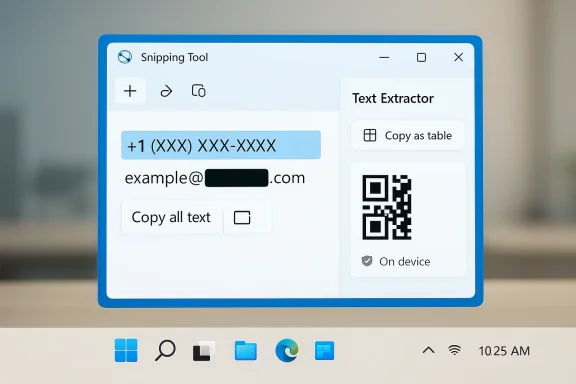
Open Snipping Tool or invoke its overlay and choose the Text Extractor/Text Actions option to have Windows analyze the selected region and highlight recognized text. From there you can pick fragments or use “Copy all text” to move everything to the clipboard. Microsoft’s support documentation explicitly states the app offers a Text actions button to extract and copy text from a snip. (support.microsoft.com)- Recognizes printed and many handwritten forms of text.
- Lets you select specific fragments or copy everything at once.
- Offers a “Copy all text” convenience when you need the full capture.
Instant on‑screen extraction (no screenshot file required)
One of the most productivity‑oriented improvements is that the Snipping Tool can extract text without the extra step of saving a screenshot first. The Text Extractor control lives in the capture bar so you can drag a selection and copy text immediately, significantly shortening the capture → OCR → paste flow. This capture-bar Text Extractor rollout was announced to Windows Insiders in April 2025 and reported in the press. (blogs.windows.com)Quick Redact for contact details
After OCR runs, the Snipping Tool exposes a Quick Redact action that can automatically block out detected phone numbers and email addresses in the captured image before you share it. This is aimed at reducing accidental leakage of basic personal contact details. Microsoft’s documentation confirms Quick Redact targets email addresses and phone numbers. It does not currently redact other types of PII such as names or physical addresses automatically. (support.microsoft.com)Copy as table — structured extraction for spreadsheets
A notable productivity addition is Copy as table: when a selection contains tabular data, Snipping Tool attempts to preserve rows and columns and paste the result as structured table text so you can paste directly into Excel or Word without reformatting. This feature debuted in Insider builds and has been widely demonstrated in hands‑on coverage. It’s highly useful when you need to digitize a printed ledger, capture a small spreadsheet snapshot, or convert a photographed chart into a working table.QR code detection and extraction
Within Text Actions, the Snipping Tool will also detect QR codes in snipped images and surface the embedded text or link. This saves you from pulling out a phone or a separate QR scanner app when confronted with QR content on a webpage or device screen. Early Insider posts and product notes confirm QR detection appears as part of the Text Actions experience.How it works under the hood (and why local processing matters)
Microsoft states that “all text recognition processes are performed locally on your device.” That matters for speed and privacy: there’s no implicit uploading of your screenshots to Microsoft servers or third‑party OCR endpoints by default. Local processing reduces latency — you select, OCR runs, you copy — and it reduces privacy risk for sensitive images. (support.microsoft.com)From a product architecture perspective, this shift mirrors a broader Microsoft strategy to bring more AI and vision processing on‑device (especially for Copilot+ hardware), while still allowing online augmentation in scenarios where on‑device compute is insufficient. For most everyday uses, the local OCR engine is the critical piece: it’s fast, offline, and integrated into the OS capture flow. (windowscentral.com)
Shortcuts and workflow: the fast path to copy text
There are two commonly used workflows to extract text:- Open the Snipping Tool or invoke the overlay with Win + Shift + S, then click the Text Extractor / Text Actions button and draw the selection. The recognized text appears for selection or copying. (blogs.windows.com)
- Use a direct OCR shortcut to skip the explicit app step and jump straight to extraction. Historically PowerToys’ Text Extractor used Win + Shift + T, and some Insider builds surfaced a matching Snipping Tool shortcut. However, keyboard behavior can vary by build and PowerToys still documents Win + Shift + T as its activation. If you rely on a global shortcut, check both PowerToys and Snipping Tool settings because the same hotkey may be claimed by multiple utilities on your system.
Strengths: what the Snipping Tool does particularly well
- Seamless single‑app workflow. Capture, OCR, redact, and copy happen in one place without switching to a separate app. That reduces friction for intermittent OCR needs. (pcworld.com)
- On‑device processing for privacy and speed. Local recognition avoids cloud hops and speeds up the overall operation. This is a real quality‑of‑life win for screenshots that contain sensitive data. (support.microsoft.com)
- Mixed content handling. If a page includes both selectable text and image‑embedded text, Snipping Tool can pick up both in a single pass, eliminating a two‑step copy‑then‑OCR chore. This saves time for mixed web content and screenshots of documents. (pcworld.com)
- Structured outputs. The Copy as table option shows Microsoft is moving from raw text extraction toward preserving semantic layout where useful, which is directly helpful for spreadsheet workflows.
Limitations and real‑world caveats
No single tool is perfect. The Snipping Tool’s OCR is fast and covers many daily needs, but several practical limits mean you’ll still want alternatives in some situations.Handwriting recognition is uneven
The built‑in OCR does a respectable job on clear handwriting but can struggle with messy notes, cursive, or shorthand. Users who routinely digitize handwritten notebooks will usually get better results from specialized handwriting OCR tools or services designed for penmanship recognition. Anecdotal testing across reviews and forum reports confirms handwriting remains a weaker area.Low‑resolution and very small text
If the captured image is too small or too blurry the Snipping Tool may fail outright (an “image too small” or OCR failed scenario) or return garbled results. That’s a general limitation of OCR engines: they need sufficient pixel density, contrast, and consistent fonts to work reliably. When you see an OCR failure, try re‑capturing at higher scale, improving contrast, or photographing at higher resolution.Formatting and layout aren’t perfectly preserved
Although “Copy as table” attempts to capture rows/columns, most Text Extractor outputs are plain text by default. Complex document layout, multi‑column pages, advanced typographic features, and precise spacing will typically be lost; you’ll get workable text but not a faithful reproduction of the original formatting. If you need WYSIWYG fidelity, dedicated PDF/OCR suites remain superior. (pcworld.com)Redaction is narrow in scope
Quick Redact auto‑detects and obscures email addresses and phone numbers, which helps with casual sharing. However, it does not redact names, physical addresses, account numbers, or other PII categories automatically. Users sharing legally sensitive or regulated documents must not rely on Quick Redact as a complete privacy solution. Microsoft’s documentation describes Quick Redact’s scope clearly. (support.microsoft.com)Shortcut inconsistency across builds / conflicts with PowerToys
The Win + Shift + T shortcut historically belongs to PowerToys’ Text Extractor and may be present with PowerToys installed. Snipping Tool’s keyboard behavior for direct OCR varies between Insider and public builds; forum threads document both the presence and absence of a direct Win + Shift + T mapping for Snipping Tool in different releases. If you depend on a single, systemwide shortcut, you may need to adjust settings or disable conflicting apps.When to use Snipping Tool vs. dedicated OCR apps
Use Snipping Tool OCR when:- You need quick, occasional extraction from screenshots, web pages, or images.
- Privacy matters and you prefer on‑device OCR.
- You want a lightweight workflow: capture, OCR, copy, paste.
- You occasionally convert photographed tables for one‑off spreadsheet edits.
- You require high fidelity layout preservation or batch processing.
- You routinely process low‑quality scans, messy handwriting, or multilingual documents.
- You need enterprise‑grade accuracy, advanced format export (PDF/OCR to Word/Excel with layout), or API automation.
- You need built‑in review workflows, audit trails, or regulatory compliance features.
Practical tips and best practices
- Capture at higher resolution and crop tightly around text to improve accuracy.
- When OCRing tables, ensure your selection aligns with rows and columns and avoid extra margins that confuse the layout detector.
- If Quick Redact is not sufficient, perform manual redaction steps: edit the snip in the app, use drawing tools to mask content, then save the redacted image.
- To avoid hotkey conflicts, check PowerToys and Snipping Tool keyboard settings if Win + Shift + T behaves differently than you expect.
- For repeated batch OCR or scanned documents, use a specialized OCR app that supports batch imports; Snipping Tool is optimized for quick, ad‑hoc captures.
Security, privacy, and enterprise considerations
Because Snipping Tool performs OCR locally, its default behavior is better aligned with privacy‑conscious workflows than cloud OCR services. However, for organizations, a few governance points remain important:- Device policy and store updates: Text Actions and newer features are rolled out via Microsoft Store/Windows updates and Insider channels; system administrators should control which builds are permitted in managed environments. Microsoft’s rollout notes and Insider blog posts document staged releases. (blogs.windows.com)
- Data leakage risks: Local processing doesn’t eliminate the risk that users will copy and paste sensitive content into insecure locations (chat apps, email, cloud drives). Train users to follow redaction protocols and use enterprise DLP (data loss prevention) where necessary.
- Hotkey conflicts and standardization: Organizations that standardize on PowerToys or third‑party utilities should harmonize hotkeys and document expectations to reduce user confusion and accidental tool conflicts.
Who benefits most from the built‑in OCR?
The Snipping Tool’s improvements are a boon for a broad group of users:- Knowledge workers who occasionally need to extract an error message, code snippet, or paragraph from an image.
- Students and researchers who digitize small sections of printed material for notes.
- Casual users who want to scan QR codes or copy contact info from screenshots quickly.
- Users who prefer a lightweight, privacy‑forward solution without adding third‑party apps.
Critical analysis — strengths, risks, and unanswered questions
The Snipping Tool’s transformation is notable for its focus on practical improvements rather than flashy bells and whistles. Microsoft shipped features that meaningfully reduce friction in everyday tasks: on‑device OCR, QR detection, quick redaction, and structured table extraction. The integration into the system capture flow is particularly smart because it hits users where they already work — the screen itself — rather than forcing an app hopping pattern. (blogs.windows.com)Risks and gaps remain:
- The capability set is intentionally conservative: redact only phone numbers and emails automatically, no robust PII policy enforcement, and mixed results with handwriting. Those constraints limit the tool’s usefulness for regulated environments or heavy‑duty document processing. (support.microsoft.com)
- Feature availability is fragmented across Insider and public builds; enterprises and some users may see different behavior depending on their update channel. Microsoft’s staged rollouts mean your mileage will vary and admto manage expectations. (blogs.windows.com)
- Shortcut collisions with PowerToys or other utilities create user confusion about the right hotkey and can produce inconsistent behavior. The ecosystem would benefit from clearer guidance and conflict resolution options.
Alternatives and complementary tools
If you outgrow Snipping Tool’s capabilities, consider:- Microsoft PowerToys Text Extractor — handy when you prefer a dedicated global shortcut and a separate utility.
- Dedicated OCR suites (ABBYY FineReader, Adobe Acrobat OCR) — for batch processing, layout preservation, and enterprise exports.
- Mobile OCR apps or Google Lens — when capturing text from physical documents with better image correction and scanning workflows.
- Automation scripts and APIs — for programmatic or high-volume conversion tasks where integration with backend systems is required.
Final verdict
For most Windows users, the Snipping Tool’s matured OCR features are a genuine productivity win: fast, local, and integrated. It removes the small but persistent friction of multi‑app OCR workflows and adds sensible extras like Quick Redact, QR detection, and table extraction that address real, everyday pain points. However, it’s not a one‑size‑fits‑all replacement for specialized OCR solutions — particularly for handwriting, low‑quality scans, or high‑volume enterprise needs.If your workflow occasionally requires grabbing text from the screen, try the Snipping Tool as your first stop. For heavier or more sensitive workstreams, evaluate a purpose‑built OCR tool or maintain PowerToys alongside Snipping Tool until Microsoft clarifies long‑term plans for the Text Extractor module. (support.microsoft.com)
Windows 11’s Snipping Tool no longer feels like an afterthought; it’s a practical utility that understands how people actually work with digital text. Whether you use it to rescue an unselectable error message, copy a table into Excel, or mask a phone number before sharing, it has become the quick, private, and convenient way to get text off the screen — and for many users, that’s enough reason to make it their go‑to OCR tool. (blogs.windows.com)
Source: MakeUseOf Windows 11's Snipping Tool is now my favorite way to copy text
