

Microsoft has begun rolling out a substantial visual and interaction overhaul to the Windows 11 Start menu as part of the October 28, 2025 optional preview (KB5067036), replacing the two‑pane experience with a single, scrollable app surface, new categorized and grid views, tighter Phone Link integration, and explicit controls to hide the Recommended section.
For many Windows users the Start menu is the heartbeat of daily navigation — a tiny interface with outsized impact. Since Windows 11’s debut Microsoft iterated slowly on Start, favoring a clean centered layout that separated Pinned shortcuts from the full All‑apps list. That split design, while visually light, generated persistent feedback about extra clicks and reduced discoverability for users with large app libraries.
The KB5067036 preview represents the most consequential redesign of Start since Windows 11 launched: Microsoft has effectively promoted the “All apps” list to the main canvas, introduced multiple app presentation modes, and added adaptive behaviors so the Start surface better matches device form factors. Microsoft documents the change in its October preview notes, and independent outlets that tested the preview corroborate the core behavior.
Microsoft’s Start menu has shaped how generations of users approach their PCs; with KB5067036 the company has chosen to reduce friction and surface apps more intelligently. The change is subtle in concept but substantial in day‑to‑day effect — for many users, fewer clicks will feel like a genuine productivity win.
Source: Zoom Bangla News Windows 11 Start Menu Update Delivers Simplified Design and Enhanced Usability
 Background / Overview
For many Windows users the Start menu is the heartbeat of daily navigation — a tiny interface with outsized impact. Since Windows 11’s debut Microsoft iterated slowly on Start, favoring a clean centered layout that separated Pinned shortcuts from the full All‑apps list. That split design, while visually light, generated persistent feedback about extra clicks and reduced discoverability for users with large app libraries.The KB5067036 preview represents the most consequential redesign of Start since Windows 11 launched: Microsoft has effectively promoted the “All apps” list to the main canvas, introduced multiple app presentation modes, and added adaptive behaviors so the Start surface better matches device form factors. Microsoft documents the change in its October preview notes, and independent outlets that tested the preview corroborate the core behavior.
What changed: feature‑by‑feature
A single, scrollable Start surface
- The Start menu stops hiding the full app list behind a separate “All apps” view. Instead, the main page is a single vertically scrollable canvas that can show Pinned apps, Recommended items (if enabled), and the full installed‑apps inventory in one place. This reduces clicks and mirrors the single‑surface app drawers common on mobile platforms.
Multiple app views: Category, Grid, and List
- Category view: Apps are auto‑grouped into topical buckets (for example: Productivity, Games, Creativity) with frequently used apps surfaced within each bucket.
- Grid view: An alphabetical grid with wider horizontal spacing makes visual scanning faster on wider screens.
- List view: The traditional alphabetical list remains available for keyboard‑centric power users.
The Start menu remembers the last selected view. These modes give users choice between discovery (Category), visual scanning (Grid), and deterministic ordering (List).
Hideable Recommended and adjustable Pinned behavior
- For the first time Windows provides a native toggle to hide the Recommended section entirely through Settings → Personalization → Start. That was a frequent user request because the previous designs often left a visible Recommended area even when “recommendations” were turned off.
Phone Link panel integrated inside Start
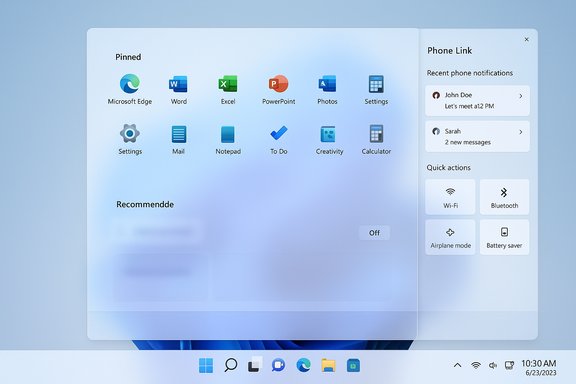
- A compact Phone Link button sits beside Search and expands a collapsible pane showing recent phone notifications, messages, and quick actions from a paired device. This brings phone workflows closer to the launcher. Availability depends on device pairing and region.
Responsive / adaptive layout and Taskbar tweaks
- Start adapts to screen size: larger displays will show more pinned apps, categories, and recommendations by default. The update also includes Taskbar visual improvements (animated thumbnails, a battery icon with percentage options and color states) and File Explorer refinements such as a Recommended files feed in File Explorer Home.
Why this matters — practical benefits
- Fewer clicks: Putting “All apps” on the primary canvas removes an extra step and speeds app launches for users with long app lists.
- Better discoverability: Category grouping surfaces related apps and frequently used items, helping users form purpose‑based mental shortcuts (e.g., “open my creative tools” rather than hunting app names).
- Improved large‑screen ergonomics: The adaptive design uses available screen real estate more effectively on ultrawide and high‑DPI displays.
- More control: The ability to hide Recommended removes unwanted clutter without third‑party tools.
Availability, builds, and rollout model (what to expect)
- KB identifier and preview packaging:
- Microsoft released the redesigned Start menu as part of the optional, non‑security preview KB5067036 on October 28, 2025. The preview updates increment OS builds to the 26100.7019 (24H2) and 26200.7019 (25H2) families. The Microsoft support page lists the Start menu as a visible enhancement in that KB.
- Rollout is staged:
- Microsoft ships the binaries via the optional preview package but activates the new Start experience using server‑side feature flags and staged rollout groups. That means installing KB5067036 does not guarantee immediate activation of the new Start; feature exposure will be gradual.
- Channels and eligibility:
- The preview targets Windows 11 versions 24H2 and 25H2 and is currently available to devices that have enabled optional/preview updates (Release Preview / optional updates in Settings). A broader release through normal cumulative updates is expected following telemetry validation.
How to get the redesigned Start menu (step‑by‑step)
Follow these steps to try the preview; enterprise administrators should test in lab environments first.- Open Settings → Windows Update → check for updates.
- If you have the “Get the latest updates as soon as they’re available” toggle enabled, look for the optional preview (KB5067036) under “Optional updates available.” Download and install if present.
- Alternatively, download the matching MSU package from the Microsoft Update Catalog and install manually (useful for lab imaging).
- Reboot and sign out/sign in if prompted. The new Start may appear immediately or activate later as Microsoft flips the feature flag for your device.
Known issues and early reports — risks to consider
While the redesign is promising, preview releases carry caveats. Early coverage and community tests have surfaced the following concerns:- Task Manager duplication and instability: Some users reported Task Manager spawning duplicate instances or failing to close correctly after installing the preview; this behavior was reported by multiple independent outlets and can affect resource usage. Microsoft’s preview channel model means such issues are more likely in optional releases.
- Feature gating inconsistency: Because the UI is enabled server‑side, identically configured machines may show different Start behaviors. That increases difficulty for helpdesk troubleshooting during the staged rollout.
- Auto‑categorization limitations: Category view groups apps automatically. Early implementations do not permit manual editing of categories, which can frustrate power users and admins who require deterministic layouts for training or kiosk scenarios. Expect future refinements.
- Enterprise policy interactions: Some Start behaviors (for example, group policy to remove Recommended historically was limited to specific SKUs) may react differently with the new design; test group policies and MDM profiles in a controlled pilot before broad deployment.
- Regional and hardware gating: Certain features (Phone Link behavior, Copilot integrations, File Explorer recommendations) are regionally restricted or gated by hardware capability (for example, Copilot+ features requiring on‑device acceleration). Expect an uneven experience across devices and geographies.
Enterprise guidance: a short rollout checklist
Enterprises and IT teams should treat KB5067036 as a preview until it reaches broad cumulative update status.- Pilot group: Install KB5067036 in a small pilot (representative hardware mix) and verify Start behavior, group policy interactions, app compatibility, and image stability.
- MDM/Policy validation: Test Group Policies, provisioning packages, and endpoint management tools for Start and Taskbar expectations.
- Compatibility testing: Validate line‑of‑business apps and shell extensions — Start behavior can surface regression in legacy shell hooks and context menus.
- Communication: Prepare user guidance about the new Start views and the option to hide Recommended to avoid confusion.
- Rollback plan: Maintain a tested rollback path (uninstall the preview MSU or hide the optional update) in case of unacceptable regressions.
Power‑user and enthusiast notes
- If you want the new Start now: install the optional preview but accept potential preview instability and the fact the UI activation may still be staged.
- If you prefer stability: wait for the broader Patch Tuesday distribution; the change will arrive to more devices after telemetry validation.
- Forcing the feature: ViVeTool and similar community utilities may force UI flags but are unsupported by Microsoft and can complicate future updates — use only on test machines.
Design and user‑experience analysis: strengths and tradeoffs
Strengths
- Reduced friction: The single‑surface approach eliminates an interaction step and better supports users who install many apps.
- Flexible discovery models: Offering Category and Grid views acknowledges different scanning strategies and device types.
- Native control over Recommended: Letting users hide unwanted recommendations is a long‑requested enhancement that eliminates reliance on third‑party Start mods.
Tradeoffs and open questions
- Auto‑categorization vs determinism: Auto grouping helps many users but removes explicit user control. Power users and enterprise admins may miss the ability to curate categories or lock layouts.
- Server‑side gating friction: While staged feature flips reduce enterprise risk for Microsoft, they introduce variability that complicates support troubleshooting and documentation.
- Stability in previews: The presence of UI and system glitches (Task Manager duplication, intermittent regressions) is a reminder that optional preview builds are not finished products. Enterprises should not treat this as production‑ready until it arrives in stable cumulative updates.
How this fits Microsoft’s broader Windows strategy
The Start redesign is consistent with Microsoft’s recent strategy of incremental, staged feature delivery and tighter cross‑device integration. The company is moving toward a model where big UX changes are rolled out progressively, feature‑flagged server‑side, and refined through telemetry and Insider feedback before broad release. This reduces the blast radius of change but shifts part of the testing burden onto early adopters and IT pilots. The emphasis on categorization and on‑Start phone integration also signals a continued push to make Windows the hub for multi‑device workflows.Quick troubleshooting & recovery tips
- If the optional preview causes problems, uninstall the MSU via Settings → Update history → Uninstall updates or hide the optional package using the Microsoft Show/Hide tool.
- If Start behavior is inconsistent across machines, verify whether your devices are subject to staged feature flags (installing the preview does not always mean the feature is enabled).
- For Task Manager or update anomalies after installing a preview, use the Windows Update Troubleshooter, check event logs, and consider uninstalling the preview from a test image.
Final verdict — who should install and when
- Install now if you are:
- An enthusiast or power user who accepts preview risk and wants early access.
- An IT pro testing the new Start in a controlled pilot to assess compatibility and policy interactions.
- Wait if you are:
- A stability‑sensitive business user or enterprise broad deployment owner.
- Running critical production systems where UI regressions would cause helpdesk overhead.
Microsoft’s Start menu has shaped how generations of users approach their PCs; with KB5067036 the company has chosen to reduce friction and surface apps more intelligently. The change is subtle in concept but substantial in day‑to‑day effect — for many users, fewer clicks will feel like a genuine productivity win.
Source: Zoom Bangla News Windows 11 Start Menu Update Delivers Simplified Design and Enhanced Usability
