

Microsoft has quietly moved the Storage pane in Windows 11 behind a User Account Control (UAC) gate — a small change in a release note that immediately changes who can see and act on system-level storage items, and how routine maintenance is performed on shared and managed devices.
Microsoft shipped an optional preview cumulative update on January 29, 2026 — identified as KB5074105 (OS Builds 26200.7705 and 26100.7705) — and the release notes were updated to state that opening Settings → System → Storage now triggers a UAC prompt to “help ensure that only authorized Windows users can access system files.” Community testing and reporting quickly showed that this is intentional behavior, and that the change was scheduled to be folded into the regular February 2026 security rollup distributed on Patch Tuesday.
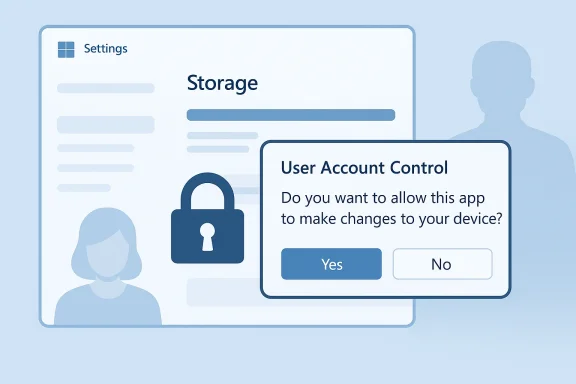
For years the Storage page in Settings acteintenance area: any signed-in user could look at disk usage, run the temporary files scanner, and remove many kinds of user-facing clutter without seeing another prompt. With KB5074105, that entry point is now treated as a privileged UI surface: Windows shows a UAC consent dialog before the Storage UI renders, and the contents and capabilities shown to the user depend on whether Settings was elevated.
Two concurrent truths now define the immediate landscape:
Microsoft’s decision to gate the Storage settings behind UAC is a deliberate, security‑first move that makes sense in the context of least‑privilege and Administrator Protection goals — but the success of that change depends on better documentation, targeted management tooling, and a few practical concessions for consumer scenarios. If you manage machines, treat this as a control point to audit and automate now; if you’re an ordinary user, accept the occasional extra prompt and lean on elevated tools when needed. The hardening is welcome; the way it was communicated wasn’t — and closing that gap is the next step that will determine whether this becomes a helpful tightening or a recurring usability headache.
Source: perfscience.com Why Windows 11 now demands admin rights just to open storage settings and what changes for you
 Background
Microsoft shipped an optional preview cumulative update on January 29, 2026 — identified as KB5074105 (OS Builds 26200.7705 and 26100.7705) — and the release notes were updated to state that opening Settings → System → Storage now triggers a UAC prompt to “help ensure that only authorized Windows users can access system files.” Community testing and reporting quickly showed that this is intentional behavior, and that the change was scheduled to be folded into the regular February 2026 security rollup distributed on Patch Tuesday. For years the Storage page in Settings acteintenance area: any signed-in user could look at disk usage, run the temporary files scanner, and remove many kinds of user-facing clutter without seeing another prompt. With KB5074105, that entry point is now treated as a privileged UI surface: Windows shows a UAC consent dialog before the Storage UI renders, and the contents and capabilities shown to the user depend on whether Settings was elevated.
What changed — the concrete behavior
- Opening Settings → System → Storage now triggers a UAC prompt before Storage content appears. If the user accepts (or the current account is an administrator and consents), Settings runs elevated and the full Storage UI is available. If the user declines or cannot supply admin credentials, Settings continues un‑elevated and intentionally hides cleanup buckets a require administrative enumeration.
- In practice this means certain items in Temporary files — most notably **Windows Updadriver-package cleanup entries — no longer appear in the non‑elevated Storage view. Legacy, elevated maintenance tools such as Disk Cleanup (cleanmgr.exe) run as administrator still enumerate and remove those same items. That mismatch ettings and legacy elevated tools is what has caused user confusion.
- The change is enforced at enumeration time, not by silently disabling functionality: the system-level cleanup handlers still exist, but the Settings process needs an elevated token to load them. Tools and scripts that run elevated (or as SYSTEM) continue to work as before.
- The change appears in KB5074105 release notes published January 29–30, 2026.
- Preview builds showing the behavior are identified as build numbers 26200.7705 and 26100.7705.
- Microsoft planned to incorporate the preview changes into the February 2026 ch Tuesday), making the behavior broadly delivered through normal servicing.
How this works (technical explanation)
Privilege boundaries, enumeration handlers, and the Settings process
The Storage page relies on a set of cleanup providers and enumeration handlers protected system locations such as the component store (WinSxS), the SoftwareDistribution cache, driver package directories, and installer caches. Historically, Settings ran without elevation and selectively enumerated a mixture of user-level and (in some cases) system-level items. With the update, Settings respects process token boundaries more strictly: it must be elevated to load admin‑only handlers. When un‑elevated, the Settings process intentionally omits those handlers so the UI does not list items that require admin credentials to enumerate or delete.Why legacy elevated tools still work
Legacy tools such as Disk Cleanup or DISM were designed to be run elevated when they need to access system-level artifacts. Because they run with the required administrative token, they continue to show and operate on Windows Update Cleanup and other admin-level buckets. That explains why users see a difference between Disk Cleanup (elevated) and the (now gated by UAC).Security rationale Microsoft cites
Microsoft frames the change as a least‑privilege hardening: Storage settings can reveal and act on system-level caches and artifacts that could aid local information discovery or permit destructive cleanup if run by an unprivileged account or malicious process. Reclassifying the UI as privileged "helps ensure that only authorized Windows users can access system files," reducing the attack surface for local enumeration and accidental deleWho this affects — scenarios and user impact
1) Single‑user home PCs where the daily account is an admin
If your daily user account is an administrator — a common configuration for single-user home machinesct is limited to an extra UAC prompt when you open Storage. It’s a small UX interruption: click to consent and proceed. For power users who are already comfortable with UAC, it will feel like a minor nuisance.2) Households and shared PCs with standard (non‑admin) accounts
This is where the change is most disruptive. Secondary accounts that were intentionally configured as standard users to reduce accidental changes can no longer enumerate or remove admin-level cleanup items from Settings without an administve the UAC dialog. That increases dependence on household admins, creates more help requests, and can lead nontechnical users to assume functionality has been removed or broken.3) Education labs, kiosks, and public/shared devices
Schools, libraries, and kiosks that rely on standard accounts to minimize risk must adapt maintenance procedures. Scheduled elevated maintenance tasks, MDM-managed cleanup jobs, or sn should be used so that day-to-day maintenance does not require interactive elevation from a helpdesk person or administrator on-site.4) Enterprise and managed estates
Enterprises already centralize system maintenance using elevatetune, Group Policy, and endpoint management tooling — so the change aligns with existing best practice. However, it still carries operational costs: helpdesk workflows that relied on taking screenshots from non‑admin users, remote troubleshooting steps that assumed Settings would list the same items for all users, and automation that parsed Settings output without elevation must be updated.Benefits: what the change buys you
- Reduced information exposure. Non‑admin users and processes can no longer trivially enumerate system-level storage details that could reveal update state or other metadata.
- Fewer accidental destructive actions. By gating admin-level cleanups, casual users are less likely to remove componeupdates or system stability.
- Alignment with least‑privilege trends. The move is consistent with Microsoft’s broader Administrator Protection and hardening efforts across Windows 11. Expect other sensitive Settings surfaces to be tightened similarly over time.
risks
- Usability and support friction. Family PCs and small offices will see more requests for admin assistance, and helpdesks may experience a spike in tickets as users encounter an unexpected UAC prompt. Many users initially mistook the prompt for a bug or compromise.
- Potential social‑engineering exposure. UAC prompts remain a human decision poituated to approving prompts to "fix" problems, attackers might exploit that training in social engineering attacks. Closing UI surfaces behind UAC reduces automated risk but does not eliminate human-targeted risk.
- Breakage for automation and monitoring. Sls, or third‑party utilities that expected a stable, non‑elevated Settings output will return incomplete data or fail. Administrators must adapt scripts to run elevated or use management APIs.
- Communication failure. The change was implemented with terse KB notes and limited consumer-facing communication, causing confusiohe preview notes quickly, but community testing initially supplied much of the practical detail.
Practical now
Below are specific, verifiable steps and options for users and administrators to adapt to the Storage UAC gate.For home users and power users
- If you see the UAC dialog when opening Storage and you are the device owner, click Yes te UI. That will present the admin-only cleanup buckets.
- If you want to avoid the UAC step in the short term for cleanup tasks, use Disk Cleanup elevated: right‑click Disk Cleanup (cleanmgr.exe) → Run as administrative → Clean up system files. That still shows Windows Update cleanup options.
- For component-store cleanup, prefer DISM commands run elevated:
- dism.exe /online /cleanup-image /star - dism.exe /online /cleanup-image /startcomponentcleanup /resetbase (irreversible; prevents removal of superseded updates)
These must be run from an elevated Command Prompt or PowerShell.
For parents and household admins
- Explain to standard account users: “You may be asked to get administrator approval for certain storagemal now.” Prepare remote‑assistance options or use scheduled elevated cleanups so routine housekeeping doesn’t require manual elevation each time.
For IT administrators and helpdesks
- Audit automation and monitorin that parse or rely on Settings → Storage to run under elevated contexts (SYSTEM or service accounts) or replace them with official management APIs.
- Convert interactive cleanup runbooks into scheduled elevated jobs where possible (Intune scripts, scheduled tasks, or SCCM/endpoint managementt interactive elevation and reduces helpdesk load.
- Update support documentation and phone scripts: teach Tier 1 teams to ask whether the user attempted to open Storage and saw a UAC prompt;nup fallback instructions.
Quick diagnostic and temporary workaround (when admin access is available)
- Right‑click the Settings app → Run as administrator.
- Navigate to System → Storage; the Storage pane will enumerate admin-only buckets and cleanup options. Use this when you need to reproduce a user-reported situation or to run one-off maintenance.
Recommended long‑term fixes and policy options
- Use management tooling (Intune, SCCM, Group Policy) to schedule elevated maintenance. Do not rely on ad‑hoc, interoutine cleanup at scale.
- Where kiosks or classrooms require delegated local cleanup without exposing admin credentials, consider a local scheduled task that runs under SYSTEM or a managed service account to perform periodic cleanups. This keeps standard users from needing elevation while preserving central control.
- Update endpoint telemetry and alerts to account for privilege‑filtered views: reporting that looks for certain cleanup buckets should run under an elevated context to avoid false negatives.
What Microsoft could do to reduce friction
From a product and communications standpoint, the security rathe rollout exposed gaps that Microsoft can address to reduce support churn and user confusion:- Publish a granular privilege matrix that maps each Storage sub‑feature / Temporary files bucket to the required privilege level. That would immediately help admins and power users understand which items are gated. Early community testing filled this gap; official documentation would prevent guesswork.
- Provide a short "home-user" KB entry or banner inside Settings explaining why a UACirst time Storage is opened and what non‑admin users can expect. Clear in‑UI messaging would dramatically lower misinterpretation.
- Consider delegated-consent flows for consumer scenarios. For example, a secure, remote parent approval mechanism (one-time pairing or companion device approval) could let guardians approve Storage elevation without sharing credentials. This would preserve security while restoring convenient maintenance for families. Community suggestions in the field echo this point.
Final analysis: protection versus friction
This change is a textbook security trade‑al information exposure and accidental destructive changes, but it increases operational friction** in the environments that relied on the old, low‑friction model. For single‑user admin machines the cost is minimal — an extra UAC click. For shared and educational devices the change is material and requires reworked runbooks and clearer communication.Two concurrent truths now define the immediate landscape:
- The hardening included in Microsoft’s servicing stream (KB5074105 and the February 2026 rollup), so it is not a transient bug to be ignored. Administrators and support teams should plan for it.
- The practical user impact depends heavily on account types and management posture. Where administration is centralized, this is a sensible tightening. Where maintenance was intentionally delegated to standard accounts (households, labs), the friction is real and needs operational countermeasures.
Takeaway checklist (what you should do in the next 72 hours)
- Check whether your fleet has installed KB5074105 or the February 2026 rollup and identify which devices still need patching. If you manage devices, pilot the update on a small set first.
- Update helpdesk scripts: include "Did you get a UAC prompt when opening Storage?" and offer Disk Cleanup (elevated) fallback steps.
- Audit and update automation that depends on Settings → Storage output; run such processes elevated or switch them to supported management APIs.
- Communicate to family or user communities that occasional UAC prompts for Storage are normal and that admins can run scheduled cleanups if necessary. Keep messaging brief and reassuring.
Microsoft’s decision to gate the Storage settings behind UAC is a deliberate, security‑first move that makes sense in the context of least‑privilege and Administrator Protection goals — but the success of that change depends on better documentation, targeted management tooling, and a few practical concessions for consumer scenarios. If you manage machines, treat this as a control point to audit and automate now; if you’re an ordinary user, accept the occasional extra prompt and lean on elevated tools when needed. The hardening is welcome; the way it was communicated wasn’t — and closing that gap is the next step that will determine whether this becomes a helpful tightening or a recurring usability headache.
Source: perfscience.com Why Windows 11 now demands admin rights just to open storage settings and what changes for you
