

When Microsoft added a native sudo command to Windows 11, it closed a long-standing usability gap for developers—but the company’s minimalist, security-first implementation leaves gaps that the open‑source tool gsudo still fills, so many power users will be better served by keeping the community tool in their toolkit.
Microsoft is borrowing a small but meaningful piece of Unix ergonomics
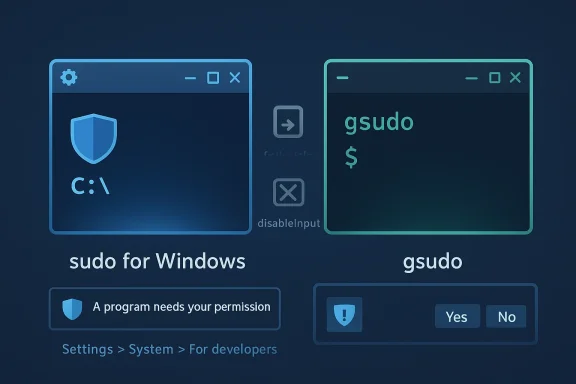
The new Sudo for Windows is bundled with Windows 11 version 24H2 and higher, and brings a single-line elevation mechanism to the Windows command line. You enable it from Settings > System > For developers or by running a short configuration command from an elevated terminal. Microsoft documents three operational modes — forceNewWindow, disableInput, and normal — which trade off isolation and convenience. gsudo: the community alternative that inspired years of workflows
Long before Microsoft shipped an inbox sudo, Gerardo Grignoli’s open-source gsudo filled the same problem space for Windows users. gsudo offers a Linux-like experience in current consoles, shell-aware behavior across CMD/PowerShell/WSL/Git‑bash, and a credential cache to reduce UAC fatigue. It installs through popular package managers and exposes many configuration knobs and modes absent from Microsoft’s first-party tool. Why this matters now
The command-line ergonomics gap between Windows and Unix-like systems has been one of the more niche but persistent pain points for developers who split time across platforms. A single-command elevation model reduces context switching and scripting friction; it also interacts with long-established Windows security patterns (UAC, integrity levels, tokens). Because those security models are sensitive, Microsoft’s choice to ship a conservative, limited sudo makes sense — but it also means the feature is a pragmatic first step rather than a complete replacement for what advanced users expect from sudo on Linux.
sudo config --enable <configuration_option>
For inline behavior you would use sudo config --enable normal from an elevated administrative shell.
Source: MakeUseOf I tried Windows 11’s new sudo, then went back to the open-source version
 Background
Microsoft is borrowing a small but meaningful piece of Unix ergonomicsThe new Sudo for Windows is bundled with Windows 11 version 24H2 and higher, and brings a single-line elevation mechanism to the Windows command line. You enable it from Settings > System > For developers or by running a short configuration command from an elevated terminal. Microsoft documents three operational modes — forceNewWindow, disableInput, and normal — which trade off isolation and convenience. gsudo: the community alternative that inspired years of workflows
Long before Microsoft shipped an inbox sudo, Gerardo Grignoli’s open-source gsudo filled the same problem space for Windows users. gsudo offers a Linux-like experience in current consoles, shell-aware behavior across CMD/PowerShell/WSL/Git‑bash, and a credential cache to reduce UAC fatigue. It installs through popular package managers and exposes many configuration knobs and modes absent from Microsoft’s first-party tool. Why this matters now
The command-line ergonomics gap between Windows and Unix-like systems has been one of the more niche but persistent pain points for developers who split time across platforms. A single-command elevation model reduces context switching and scripting friction; it also interacts with long-established Windows security patterns (UAC, integrity levels, tokens). Because those security models are sensitive, Microsoft’s choice to ship a conservative, limited sudo makes sense — but it also means the feature is a pragmatic first step rather than a complete replacement for what advanced users expect from sudo on Linux.
What Microsoft shipped: how Sudo for Windows works
Three modes: safety first
Microsoft’s implementation exposes three modes you can pick from the Settings UI or set via the command:- forceNewWindow — the default, spawns a new elevated console window so the elevated process runs in a separate token and GUI context.
- disableInput — runs elevated in the current window but with stdin closed, so the elevated process cannot accept interactive input.
- normal — the inline mode that most Unix users expect; the elevated process shares stdin/stdout/stderr with the current console and behaves like Linux sudo.
sudo config --enable <configuration_option>
For inline behavior you would use sudo config --enable normal from an elevated administrative shell.
Security model and limitations
Microsoft’s sudo only elevates to the built‑in Administrator context via UAC. It does not currently implement Unix-style user impersonation (there is no sudoers file, no fine-grained command whitelist, and no run‑as‑other‑user semantics at parity with Linux sudo yet). Each elevation triggers UAC mediation under normal defaults; Microsoft explicitly warns that inline modes increase the risk of elevation misuse and cautions administrators to prefer the more isolated options in managed environments.Why Microsoft’s approach is conservative
Microsoft’s design choices reflect a deliberate, platform-level trade-off: prioritize the integrity of UAC and the Windows elevation model over reproducing every convenience of Unix sudo. That means fewer surprises for endpoint security teams, predictable behavior for support, and a lower attack surface during initial rollout — but it also limits convenience for heavy command-line users and automation scenarios.What gsudo still does better (and why many users stick with it)
Credential caching and reduced UAC friction
gsudo can cache credentials (configurable modes) so repeated elevation requests don’t pop UAC every time you run a command. That’s crucial for workflows where you run many elevated commands in short succession: installing packages, editing protected files, or running multi-step administrative scripts. The cache is time‑bounded and explicitly configurable so users can balance convenience and security.Richer shell integration and flexible behavior
gsudo intentionally supports:- Multiple shells and environments (CMD, PowerShell, WSL, Git‑bash, MSYS2, Cygwin, Nushell, Yori).
- Elevating an entire shell instance, not just one command.
- PowerShell scriptblock elevation semantics and better piping/redirect handling for elevated processes.
- Options to run as other well-known service accounts (e.g., NT AUTHORITY\SYSTEM or TrustedInstaller) and to set integrity levels.
Installation and repeatability
gsudo installs easily via package managers:- winget install gerardog.gsudo
- scoop install gsudo
- choco install gsudo
Hands‑on comparison: day-to-day impressions
First impressions of Microsoft’s sudo
- The command is convenient for occasional, ad‑hoc administrative tasks such as ipconfig /flushdns or working around file-permission oddities.
- The Settings > For developers toggle makes it accessible to everyday users who don’t want to install third‑party software.
- In normal (inline) mode you get a near-Linux experience, but every elevation produces a UAC prompt unless you repeatedly allow the prompt by design — Microsoft intentionally avoids credential caching to reduce the effective persistence of elevation.
Where friction appears
- UAC fatigue: because Microsoft’s default approach does not cache credentials, frequent elevation produces more prompts than gsudo’s cached model — which some users find breaks flow and tempts risky workarounds.
- No sudoers-like controls: enterprises and admin teams that want fine-grained elevation policies will need to rely on existing Windows privilege controls, MDM, AppLocker, or future policy tooling — the first shipping implementation doesn’t address sudoers-style command whitelisting.
- User impersonation gap: runas-style flexibility (running commands as another non-admin user) exists in Windows through runas, but Microsoft’s sudo does not yet replicate runas’ mult-user semantics. That reduces feature parity with Unix sudo for some advanced use cases.
gsudo’s advantages in daily use
- Faster workflows: credential cache and shell elevation allow uninterrupted interactive sessions and pipelines.
- Predictable automation: gsudo’s flags and script integration make it easier to write scripts that elevate selectively without juggling multiple windows or temporary files.
- Tailorable UI/UX: the gsudo PowerShell module can add prompt indicators and convenience aliases that fit developer muscle memory.
Security implications and operational guidance
Microsoft’s posture: secure defaults
Microsoft intentionally ships the feature with conservative defaults (spawn new window by default) and explicit warnings about inline mode. That is aligned with standard Windows security guidance: reduce persistent elevation tokens, keep UAC active, and let admins control features centrally where required. Administrators should evaluate the feature according to trust boundaries and endpoint policies before wide deployment.Threat model differences: native sudo vs gsudo
- Surface area: Microsoft’s inbox sudo reduces the number of moving pieces by limiting behavior and exposing fewer configuration options. That reduces potential for misconfiguration but also restricts useful, safe workflows that the community tool supports.
- Caching trade-offs: gsudo’s caching can be configured tightly (short timeouts, explicit modes) to reduce UAC pop-ups while still maintaining a short window of elevated capability. That does create a larger attack surface during the cache window, so it’s essential to pair caching with endpoint protections and user education.
- Policy and auditability: enterprises should confirm how elevated launches appear in telemetry and SIEM. Microsoft’s shipping route should integrate with standard endpoint telemetry; third‑party tools require validation for logging and forensics readiness.
Practical recommendations (short list)
- For single-user laptops used by developers: enable sudo in normal (inline) mode if you understand the trade-offs and keep UAC enabled. Use Microsoft sudo for occasional tasks; use gsudo if you rely on credential caching or advanced shell elevation frequently.
- For shared workstations, corporate fleets, or high‑security contexts: prefer forceNewWindow or disableInput, and pilot behavior in a test cohort. Do not enable caching on shared endpoints.
- For CI/CD or unattended automation: do not rely on interactive sudo/UAC flows; instead use service accounts, scheduled tasks, or ephemeral privileged runners that are auditable and manageable by configuration management systems.
How to try both safely
Enable Microsoft sudo quickly
- Open Settings > System > For developers and toggle Enable sudo.
- Or, from an elevated terminal, set the mode with:
sudo config --enable normal
(replace normal with forceNewWindow or disableInput as needed).
Install gsudo quickly
- Using winget:
winget install gerardog.gsudo - Or use Chocolatey / Scoop / the MSI from GitHub releases. After installing, read gsudo’s configuration docs and consider enabling a conservative cache mode such as a short timeout or manual cache activation.
Coexistence tips
- If both tools are present, the Windows inbox sudo (c:\Windows\System32\sudo.exe) usually wins on PATH by default. gsudo provides a PathPrecedence config so you can make the gsudo binary take precedence if you want to keep your existing workflows. That gives you the freedom to test Microsoft’s feature without immediately breaking your muscle memory.
Critical analysis: strengths, weaknesses, and where each belongs
Strengths of Microsoft’s approach
- Platform integration: shipped, supported, and updated through Windows servicing; fewer compatibility surprises with OS-level changes.
- Security-first defaults: isolation-first default and explicit warnings reduce managerial risk for enterprise rollouts.
- Lower friction for casual users: accessible via Settings and no extra downloads required for occasional admin tasks.
Notable weaknesses and practical risks
- Insufficient for power workflows: lacks credential caching, user impersonation, sudoers-like controls, and the deep shell integration gsudo offers.
- UAC friction: the absence of built-in caching can make frequent elevations disruptive; that friction sometimes leads users to disable UAC or seek insecure workarounds.
- Unclear enterprise management today: group policy / MDM controls for centrally managing sudo’s availability and default behavior were limited at launch and remain an operational question for admins. This is a rapidly evolving area — validate on your management stack before large-scale enablement.
Strengths of gsudo
- Mature feature set: years in production, tight shell integration, credential caching, and configurability.
- Community-driven evolution: fast response to user needs and documentation that addresses real-world scripting edge cases.
- Control and reproducibility: installable via package managers and scriptable configuration make it easy to roll out for development teams.
Risks of relying solely on gsudo
- Third‑party support: not delivered as part of the OS — validate your security posture and logging when introducing third-party elevation tooling.
- Trust & auditability: in regulated environments, third‑party tools must be assessed for supply-chain and compliance concerns.
Real‑world verdict: when to use which tool
- Use Microsoft’s sudo if:
- You are a casual or occasional admin user who wants a safe, supported way to run one-off elevated commands.
- You manage endpoints in an enterprise and want conservative defaults with platform support and predictable lifecycle.
- You prefer to avoid third‑party dependencies and can tolerate extra UAC prompts for the security trade-off.
- Use gsudo if:
- You are a power user, developer, or system admin who runs frequent elevated commands or needs to elevate entire shells.
- You need credential caching, richer shell integration, or the ability to script complex elevation scenarios reliably.
- You accept the responsibility of vetting and maintaining a community tool and can pair it with endpoint protections and logging.
Caveats, unanswered questions, and calls for verification
- Policy management: centralized MDM/Group Policy controls for sudo rollout and mode enforcement are still evolving. Administrators should test their management stack to confirm the presence (or absence) of a supported CSP/policy for sudo and avoid undocumented registry hacks for fleet-wide changes.
- Server SKUs and long-term roadmap: availability across Windows Server SKUs and the feature’s tweak roadmap (for example, adding sudoers-like primitives) are subject to change; track Microsoft docs and release notes for updates. Treat any statements about future features as provisional until Microsoft publishes official roadmaps.
- Logging and audit integration: verify how elevated actions appear in your logging/EDR/SIEM pipeline. Both the native and third‑party options will surface different telemetry and may require adjusted detection rules.
Conclusion
Microsoft’s native sudo is an important, welcome step: it reduces friction for casual administrative tasks, aligns Windows with cross-platform developer expectations, and does so while prioritizing conservative security defaults. For many users that is enough. For terminal-first developers and admins who depend on credential caching, deep shell integration, and predictable scripting behavior, gsudo remains the better practical choice — not because it is more “powerful” in a vague sense, but because it offers the specific features and ergonomic guarantees that professionals have come to rely upon. Use the native sudo to try the concept with safe defaults; keep gsudo in your toolbox if your workflow demands the speed, caching, and flexibility of an established community tool. Validate policies, confirm logging, and pick the solution that fits your trust model rather than choosing convenience alone.Source: MakeUseOf I tried Windows 11’s new sudo, then went back to the open-source version
