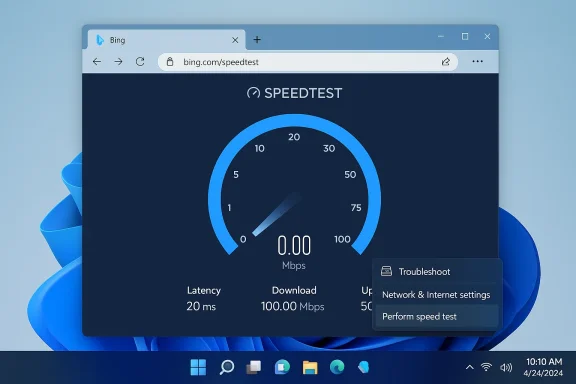
• Thread Author
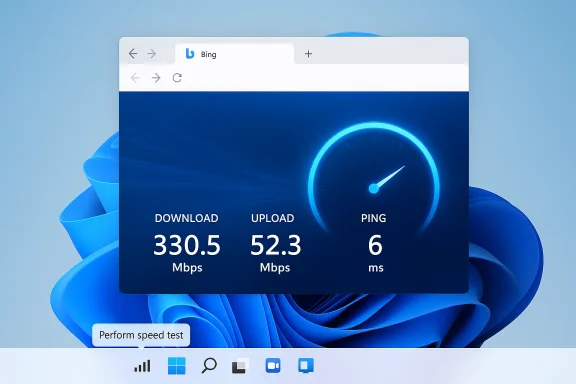
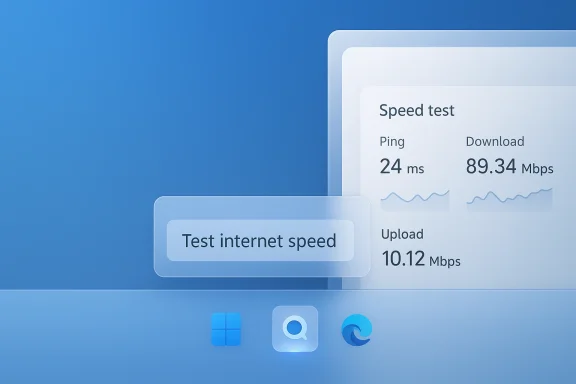
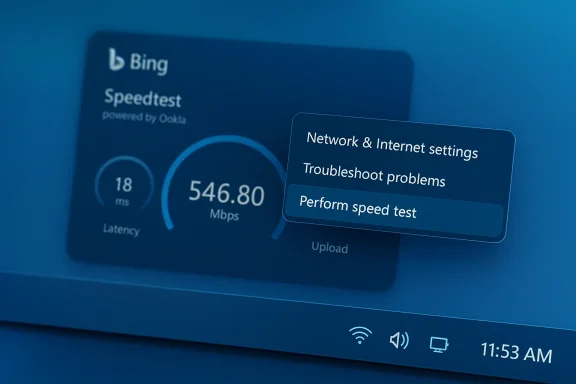
Microsoft is quietly putting a one‑click internet speed check where most Windows users already look for connectivity, adding a “Perform speed test” / “Test internet speed” control to the Taskbar network menu and Wi‑Fi quick settings in recent Windows 11 preview builds.

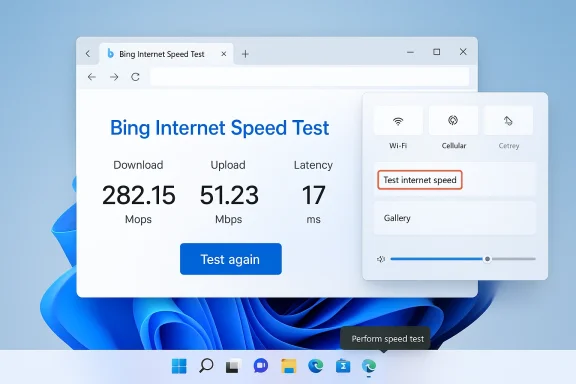
Windows-style browser shows Bing speed test results: 300.56 Mbps down, 51.23 Mbps up, 20 ms latency.Background​

Windows has long left ad‑hoc throughput checks to third‑party sites and utilities such as Speedtest, Fast.com, and CLI tools like iperf. The new taskbar affordance follows a recent pattern from Microsoft of surfacing lightweight diagnostics and convenience features as web‑backed widgets or browser‑launched tools rather than embedding heavy measurement engines directly inside the OS.
This change first appeared for Windows Insiders and now shows up in the Release Preview channel — packaged in an optional update referenced as KB5077241 and reported against recent servicing builds (notably builds identified as 26100.7918 and 26200.7918 in Release Preview traces).

What Microsoft shipped (what the UI actually does)​

Where you’ll find it​

  • The control appears in the right‑click context menu for the network (system tray) icon and inside the Wi‑Fi quick‑settings flyout. This makes the feature highly discoverable because it sits exactly where users go when they suspect connectivity problems.

What happens when you click it​

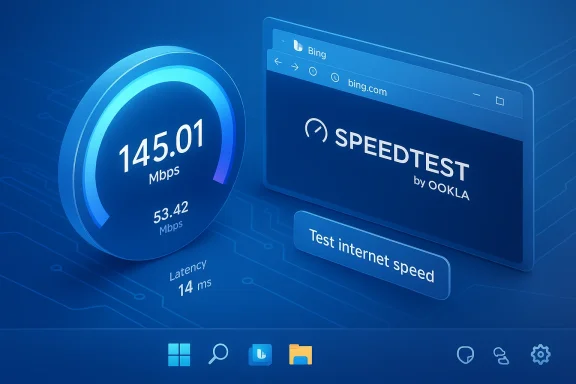
  • Rather than launching a built‑in measurement engine, the taskbar control opens the default browser and launches Bing’s embedded speed‑test widget (the same quick test accessible from Bing). In short: it’s a one‑click launcher to a web tool.
  • The Bing widget itself relies on established third‑party speed‑test backends for measurement. Reporting in preview notes indicates that the web widget delegates measurement tasks to the familiar Speedtest infrastructure (Ookla), meaning the UI in Windows points users to a web endpoint that runs the actual throughput checks.

Why this matters: convenience versus control​

The change is small in surface area but meaningful for several classes of users.
  • For mainstream consumers, it reduces friction: one click, no remembering of URLs, and an immediate check that reports download, upload, and latency numbers. That simple UX improvement matters when the typical response to a perceived slowdown is to click network settings or reboot.
  • For power users and IT pros, however, the distinction between a launcher and a native measurement is critical. A browser‑launched web test depends on the browser’s network stack, the chosen server, and any browser extensions or proxies in place, which can skew results relative to an in‑OS native test that measures from the kernel or device driver layer. Several preview notes call out this architectural choice and the trade‑offs it introduces.

Technical anatomy: what the taskbar control does and doesn’t do​

What it does​

  • Adds a taskbar menu entry labeled something like Perform speed test or Test internet speed.
  • On activation, invokes the user’s default browser to load Bing’s speed‑test widget.
  • Presents standard speed metrics — download throughput, upload throughput, and latency — via the web UI supplied by the widget and its backend.
These actions are reflected in Insider and Release Preview documentation and community reporting.

What it doesn’t do​

  • It does not run a native Windows‑level throughput measurement; it does not bypass the browser. That means there is currently no persistent, always‑on taskbar meter, no kernel‑level measurement, and no built‑in CLI equivalent shipped with this control.
  • It does not replace specialized tools that measure local network path performance (for example, iperf3 for LAN testing or Speedtest CLI for headless scenarios). Administrators and network engineers will still need those tools for benchmarking and troubleshooting complex issues.

Accuracy, measurement variance, and what to expect​

Any reliable discussion about speed tests has to separate UI convenience from measurement fidelity.
  • Browser‑based speed tests measure throughput from the browser process to a selected test server. That introduces variability because modern browsers use multiple optimizations (HTTP/2 or QUIC multiplexing, caching, connection pooling) and browser extensions or security software can affect throughput and latency. The Windows taskbar control inherits all those dependencies because it launches the browser.
  • The backend server choice matters. Most big web speed tests (including Bing’s widget) pick a geographically proximate test server and may use CDNs or third‑party probes (e.g., Ookla). Server selection, current network congestion, and peering behavior between ISP and test server all lead to variance in reported numbers. Preview notes explicitly identify that the web widget delegates to established speed‑test backends.
  • For users who need repeatable metrics — for SLA verification, for example — a single browser test is a quick sanity check but not a substitution for controlled benchmarking (e.g., scheduled iperf runs, Speedtest CLI with fixed servers, or telemetry collected by managed agents).

Privacy, telemetry, and enterprise implications​

The choice to route the test through a web widget raises governance and telemetry questions that will matter to privacy‑conscious users and IT administrators.
  • Because the test runs in the browser and connects to an external web endpoint, the test exchange is subject to the privacy terms and telemetry of the web service (Bing and the backend provider). This can include logging of IP addresses, timestamps, and test statistics by the web service operator. Microsoft’s preview reporting flags these considerations for enterprise readership.
  • Enterprises typically require assurances about where diagnostic data flows and whether it is stored or correlated with user accounts. A browser‑launched test complicates centralized logging compared with a managed telemetry agent that can be configured and audited through enterprise tooling. For organizations that require strict control, administrators should treat the taskbar control as a convenience for end users rather than as an auditable diagnostic pipeline.
  • From a policy standpoint, it will be important to watch for Group Policy or MDM controls that allow IT to hide or disable the test launcher. Preview notes and community analysis raise the expectation that Microsoft will expose enterprise controls for such UI elements, but until those controls are documented in policy templates, administrators should test the behavior in a lab before broad rollout.

Deployment and rollout: where it sits now​

  • The feature surfaced in Insider preview builds before moving to Release Preview, and reporting ties the control to servicing updates distributed via the Release Preview channel. That pattern indicates Microsoft is treating the addition as a relatively low‑risk UX improvement rather than a high‑impact OS service.
  • Because it is present in Release Preview via an optional KB, administrators who manage update rings can evaluate the change in a controlled environment prior to broad deployment. Organizations using Windows Update for Business or third‑party patch management should track the KB identifier (reported in preview annotations as KB5077241) when planning staged rollouts.

Practical guidance: how to use it and when to prefer other tools​

Quick checks (everyday users)​

  • Click the network icon in the Taskbar and choose Perform speed test. Expect a browser tab to open and show download/upload/latency results. That’s perfect for a sanity check when streaming stutters or downloads crawl.

When to use a real diagnostic​

  • If you need to:
  • Validate ISP SLA numbers,
  • Measure LAN throughput or Wi‑Fi across multiple channels,
  • Troubleshoot packet loss, jitter, or MTU issues,
    then use specialized tools such as:
  • iperf3 (for controlled throughput between two endpoints),
  • Speedtest CLI (for scripting repeatable tests against a fixed server),
  • Router‑level monitoring or managed telemetry (for persistent, historical analysis).

For IT and support techs​

  • Treat the taskbar test as a quick first step for end‑user triage.
  • If the test suggests a problem, escalate to controlled benchmarking and server‑side checks.
  • Document results and recreate tests under consistent conditions (same server, same time of day) to reduce variance.

Risks and limitations — a frank appraisal​

UX vs. engineering trade‑offs​

  • Microsoft prioritized discoverability and low friction over measurement purity. That’s a defensible UX decision — most users don’t want to open a terminal or remember a testing URL — but it does create expectations that the result is an authoritative diagnostic. Reviewers and preview commentary caution that the taskbar test is a helpful indicator, not a substitute for engineering diagnostics.

Potential enterprise concerns​

  • Telemetry routing and control: Because the test reaches external services, enterprises concerned about telemetry leakage will need clarity on data retention and opt‑out controls. Preview reporting spotlights this as a point IT should evaluate before broad exposure.

Measurement noise​

  • Browser interference, VPNs, proxies, and local firewall/AV behaviors can distort observed results. Users might misattribute a slow measured value to their ISP when the browser path or local security stack is the root cause. Educating users about this difference remains necessary.

Strengths and opportunities​

  • High discoverability: Putting the test where users already look for connectivity removes friction and democratizes basic network troubleshooting.
  • Low maintenance for Microsoft: A web launcher can be updated server‑side and iterated without a full OS update, allowing Microsoft to refine the experience quickly. That architecture aligns with the trend of moving light utilities into web‑backed components.
  • User education: The control creates an opportunity for Microsoft to surface short, contextual help about interpreting speed results — for example, clarifying the difference between browser tests and native measurements. If Microsoft pairs the control with concise guidance, it reduces the chance of misinterpretation. This is a natural next step and one we expect to see as the feature matures.

What to watch next​

  • Will Microsoft add a policy to disable or hide the launcher for managed devices? Preview commentary suggests administrators should expect Group Policy or MDM controls, but those were not documented at the time of the Release Preview notes. IT teams should watch the next servicing documentation for explicit policy artifacts.
  • Will Microsoft ever provide an optional native in‑OS measurement engine or an API for telemetry collection? The current web launcher approach minimizes OS changes, but organizations that need integrated telemetry may ask for an alternative delivery mechanism (for example, a managed Windows diagnostic agent that can perform scheduled tests and report to internal monitoring). There’s no definitive sign of such a shift yet, but enterprise demand could drive future enhancements.
  • Will Microsoft add a persistent taskbar meter or background telemetry for network performance? That would be a deeper change with privacy and performance implications. Preview builds so far show only the single‑click launcher, not persistent monitoring.

Recommendations​

  • For everyday users: Use the taskbar test as a quick sanity check. If the result looks bad, try a second test in another browser or run the test with VPN disabled to narrow variables.
  • For power users and IT:
  • Treat results as indicative, not definitive.
  • Use controlled tools (iperf3, Speedtest CLI, managed agents) for any verification or SLA work.
  • Evaluate the preview KB in a lab ring and test Group Policy/MDM behavior before permitting end users to use the new control at scale.
  • For privacy teams: Validate that the data exchanged by the web widget conforms to organizational policies. If you have questions about telemetry to external services, consider limiting access to the control until Microsoft publishes enterprise guidance.

Conclusion​

Microsoft’s taskbar speed test is an elegant UX move: it puts a commonly needed diagnostic exactly where users go when they worry about connectivity. That convenience comes with clear trade‑offs — the launcher depends on the browser and external test backends, so it’s a fast check rather than an authoritative measurement. For most consumers the change will reduce friction and make troubleshooting simpler; for power users and enterprises it raises governance, accuracy, and auditability questions that must be handled with established tools and policies.
The Release Preview presence of this feature (packaged in the optional servicing update tracked in preview notes) signals that Microsoft believes the trade‑offs are acceptable for general availability, but IT teams and privacy professionals should evaluate the change in controlled rings before wide deployment. In the meantime, the new taskbar shortcut is a useful, low‑friction addition to Windows 11’s troubleshooting toolbox — just remember that a single click and a browser tab are only the beginning of a proper network investigation.

Source: OC3D Microsoft preps Internet Speed Test for full Windows release - OC3D
Source: Wccftech Microsoft Adds Built-in Internet Speed Test For Windows 11 Taskbar In Latest Preview Build, Alongside Several More Improvements
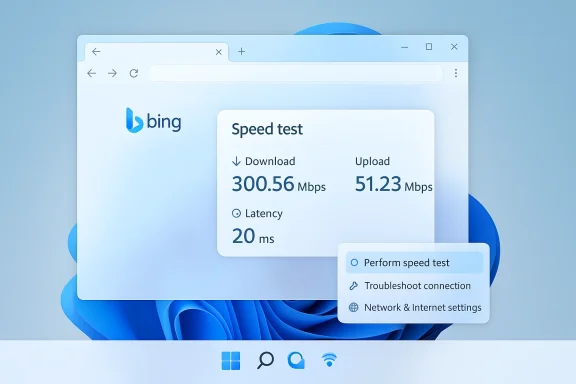
 

Microsoft has quietly added a one‑click network speed test to Windows 11’s taskbar — a small but meaningful convenience that surfaces a “Perform speed test” or “Test internet speed” control in the network system tray and Wi‑Fi quick settings and, for now, launches a browser‑based speed test rather than performing a native, in‑OS measurement.

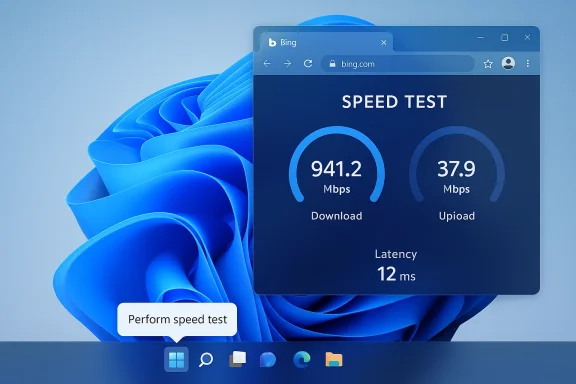
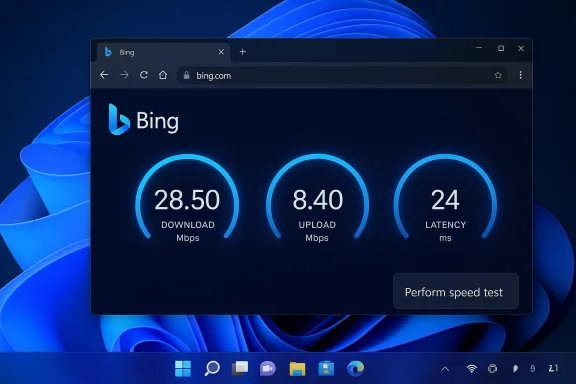
Windows 11 desktop showing Bing speed test results: 941.2 Mbps down, 37.9 Mbps up, 12 ms latency.Background​

Windows has long left ad‑hoc throughput checks to third‑party utilities and websites: think Speedtest by Ookla, Fast.com, and lightweight taskbar monitors. Putting a speed‑test control where users already go to check connectivity — the taskbar network menu — is a classic UX move: low friction, discoverable, and helpful for quick sanity checks. Microsoft started testing the feature in Insider preview builds last year and has made it visible to Insiders in the Release Preview Channel as part of the recent preview servicing update.
The implementation we’re seeing in these preview builds is deliberately lightweight: the taskbar UI surfaces a launcher that opens a web‑based speed test in the machine’s default browser. That means the measurement itself runs in the browser, using whatever backend Microsoft chooses to integrate with — today that is Bing’s embedded speed‑test widget (which itself has used Ookla’s Speedtest backend in Microsoft’s integrations).

What Microsoft shipped in the Release Preview update​

The update and builds​

The speed‑test shortcut appears in Release Preview builds tied to KB5077241 (noted in preview metadata and rollout notes), which includes builds in the 26100 and 26200 families for Windows 11 versions 24H2 and 25H2. Microsoft’s Release Preview Channel users can see the new UI affordance in the system tray and Wi‑Fi quick settings when the feature is enabled via Controlled Feature Rollout.

Where to find it (what users will see)​

  • Right‑click the network (system tray) icon and look for Perform speed test in the context menu.
  • Open the Wi‑Fi quick settings (click the network indicator on the taskbar) and look for a Test internet speed button or icon within the network panel.
  • Selecting either entry launches the default browser and lands you on a speed‑test page hosted via Bing’s widget; from there you can test Ethernet, Wi‑Fi, or cellular connections.

How it works technically — and why that matters​

Browser‑launched vs native measurement​

This rollout is a launcher: the taskbar shortcut opens a web page that runs the speed‑test measurement in the browser process, rather than invoking a local Windows diagnostic utility. Practically, that has three immediate implications:
  • The measurement is subject to the browser environment (extensions, cached content, proxy settings, and any browser‑level privacy configurations).
  • The underlying test backend and methodology are those used by the web tool (Bing’s speed test / Ookla), not a Microsoft‑authored native engine.
  • Updates to the measurement logic can be made centrally on the web service without shipping an OS update.

Why Microsoft likely chose a web approach​

A web‑hosted test reduces development and maintenance overhead and avoids bundling a measurement engine into the OS — Microsoft can iterate server‑side, update test providers, and change UI or telemetry without a Windows servicing cycle. It also leverages existing partnerships and infrastructure (Bing + third‑party speed‑test backends) to deliver a consistent experience across devices. This is exactly the pattern Microsoft has followed for other lightweight flows that don’t require deep OS privileges.

The backend and accuracy: Bing, Ookla, and the limits of a quick test​

Bing’s speed‑test widget — the typical destination for the taskbar launcher — has historically used Ookla’s Speedtest backend (a common arrangement since Microsoft integrated Speedtest technology into Bing). That gives the web experience a familiar measurement methodology (multi‑server selection, concurrent upload/download streams, latency measurements) but it is still not the same as running a controlled, local throughput test such as iperf3 against a known endpoint.
Key accuracy caveats to keep in mind:
  • Browser interference: Extensions, browser throttling, or background browser activity can skew results.
  • Local device load: CPU/RAM pressure or background network activity will change measurements compared with a dedicated native test.
  • Network path differences: A web test measures the path to the test server selected by the web service; that path can differ from paths used by your apps or enterprise servers.
  • Proxies, VPNs, captive portals: These alter routing, add latency, and often reduce throughput; a browser test will reflect those conditions but won’t isolate whether the ISP, corporate gateway, or the local Wi‑Fi AP is at fault.
Bottom line: for a quick sanity check the taskbar shortcut is excellent. For forensic troubleshooting or capacity planning, seasoned technicians should still turn to controlled tools (iperf3, Speedtest CLI, vendor‑supplied diagnostics, or managed probes).

Why this matters for everyday users — pros​

  • Convenience: One click from where users already look for connectivity reduces friction and helps non‑technical users quickly validate if a slowdown is local or network‑side.
  • Familiar UI: Integrating the test into the network menu makes the feature discoverable for users who didn’t know where to go for an internet speed check.
  • Uniform baseline: By funneling users to a single test provider (Bing’s widget), Microsoft reduces the variance caused by different test sites and presentation formats in basic user support scenarios.
  • Low maintenance: Because the test runs in the browser, Microsoft can modify server‑side behavior or redirect to different providers without a Windows update cycle.

Risks, limitations, and enterprise considerations — a deep dive​

Not truly “built‑in” from a diagnostics perspective​

Calling the feature “built‑in” is correct from a discoverability standpoint but imprecise technically: the test is a browser‑launched web widget and not an embedded measurement engine. That distinction matters for IT teams that require reproducible, auditable tests.

Telemetry and privacy considerations​

  • Launching Bing’s speed test implicates the default browser and the web provider’s telemetry practices. Organizations and privacy‑conscious users should consider what data is sent to Bing/Ookla and how that maps to corporate policies.
  • If devices are subject to monitoring or network logging, the test will still generate network flows that can be captured by gateways and SIEMs. Administrators should be aware of potential policy conflicts or false positives triggered by automated monitoring systems.

Enterprise control and rollout complexity​

Microsoft typically uses Controlled Feature Rollout mechanisms to gradually enable features. That means visibility and availability of the taskbar speed test can vary by device, region, and enrollment status. Enterprises that want to control or block the experience should expect to manage it via rollout toggles, MDM policies, or future group policy settings — but specific blocking controls may not be available immediately and might require coordination with Microsoft guidance. Administrators should watch the official release notes and MDM templates for explicit controls.

False sense of completeness​

Because the launcher makes a speed test seem like a full diagnostic, less technical users might stop after a single web test and assume that an observed issue is fully characterized. In practice, one web‑hosted measurement is only a single data point and should be interpreted alongside other indicators (ping to internal servers, application performance, router logs).

The rest of KB5077241 — context and companion features​

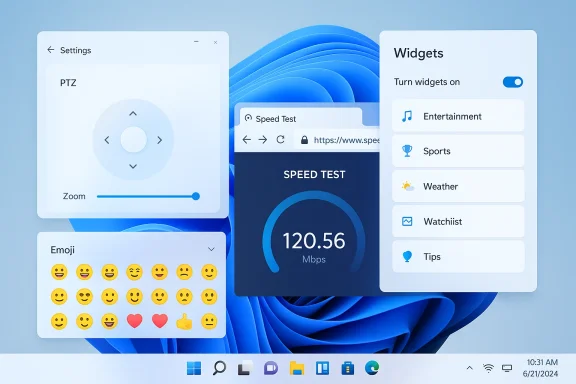
The preview servicing update that surfaces the speed‑test launcher also bundles other modest but useful changes: native pan and tilt (PTZ) camera controls exposed in Settings for supported webcams, an option to set .webp images as desktop backgrounds, a fuller Widget settings page, new emoji glyphs, and the inclusion of Sysmon as an optional in‑box feature for enterprise telemetry and security teams. Those changes sketch a release focused on incremental polish, platform modernization, and admin tooling rather than a single headline feature.
  • Camera PTZ controls: Basic pan and tilt controls appear under Settings > Bluetooth & devices > Cameras for cameras that expose PTZ capabilities, providing a vendor‑agnostic way to orient compatible devices without installing manufacturer utilities.
  • Sysmon as an optional feature: IT and security teams gain a supported, in‑box pathway to deploy Sysmon instrumentation with Windows servicing and management.
  • .webp as desktop background: Windows now supports WebP images as wallpapers, matching broader web image trends and reducing friction for users who prefer modern image formats.

Practical guidance: when to rely on the taskbar speed test and when to dig deeper​

The taskbar launcher is best used for fast, end‑user validation. For structured troubleshooting use these guidelines.
  • Run the taskbar speed test for a quick sanity check (download, upload, latency). If results are what you expect, monitor application performance.
  • If results are poor, reproduce the test with a controlled tool:
  • Run Speedtest CLI or the Ookla desktop app to hit the same backend in a less noisy environment.
  • Run iperf3 between a client and a known server inside your network or a trusted cloud instance to isolate local vs ISP issues.
  • Check for VPNs, proxies, and captive portals that could add latency or throttle throughput.
  • For enterprise validation, schedule automated probes (synthetic tests) from managed endpoints to thsed in your support workflows so you have reproducible historical data.
  • When privacy or policy is a concern, instruct users to avoid running web‑hosted tests to public sites from devices with sensitive configurations unless approved; use internal measurement endpoints.

How to use it — step‑by‑step (end‑user)​

  • Right‑click the network icon in the system tray or open the Wi‑Fi quick settings.
  • Click Perform speed test or Test internet speed.
  • Your default browser opens to the Bing speed‑test widget; click the test button if required.
  • Review download, upload, and latency metrics. Note the selected server location if shown.
  • If you need a more controlled test, follow up with Speedtest CLI, iperf3, or your ISP’s diagnostic tools.

Recommendations for enterprise admins​

  • Monitor rollout notes: Watch Microsoft’s Release Preview/Insider communications and KB posts for explicit management controls and MDM policy templates. Early preview updates indicate progressive rollout; controls may follow.
  • Add to support playbooks: Document the taskbar speed test as a first step in user support flows, and include follow‑on steps that produce reproducible artifacts.
  • Consider telemetry impact: Ensure that automated detection systems differentiate a user‑initiated speed test from symptomatic traffic to avoid noisy alerts.
  • Audit default browser behavior: Because the test launches the default browser, ensure browser configuration and extension policies don’t inadvertently affect enterprise diagnostics.

What Microsoft could (and should) do next​

  • Offer a native diagnostic mode that can run in OS context and report structured telemetry to enterprise management endpoints, alongside the existing browser launcher.
  • Publish explicit administrative controls (group policy, MDM CSP) to enable/disable the taskbar test and to govern where results are sent or logged.
  • Provide an option to run the test against an enterprise‑defined server pool for more useful internal troubleshooting.
  • Clearly document telemetry and privacy behavior for the speed test so admins and privacy officers can make informed decisions.

Balancing convenience with rigor​

The taskbar speed‑test launcher is a tidy, low‑friction feature that will reduce basic support friction for millions of Windows users. As long as Microsoft and IT teams are explicit about what the test is — a web‑hosted measurement that is useful for quick checks but not a substitute for controlled diagnostics — it will be a net win. The wrinkle remains transparency and control: enterprises need ways to confirm measurements, limit telemetry exposure, and enforce consistent testing methodology across managed fleets.

Final takeaways​

  • This addition is a pragmatic UX improvement: a one‑click path from the taskbar to a network speed test that will help casual users and first‑level support quickly triage connectivity issues.
  • It is not a native, in‑OS measurement engine — it launches a web tool (Bing’s speed test, which has ties to Ookla’s backend) and therefore carries the usual caveats of browser‑based measurements.
  • For enterprise and advanced troubleshooting, continue to rely on controlled, reproducible measurement tools (iperf3, Speedtest CLI, managed probes) and watch Microsoft’s admin guidance as the feature progresses through the Controlled Feature Rollout and official servicing lines.
  • The broader preview update that includes this launcher also introduces pragmatic platform improvements — camera PTZ controls, Sysmon as an optional in‑box feature, and WebP wallpaper support — pointing to a Windows servicing cycle focused on polish and enterprise manageability rather than dramatic new consumer features.
Microsoft’s approach here is intentionally incremental: deliver convenience at the surface while leaning on the web for measurement logic. That keeps Windows light and flexible, but it means educated users and IT teams must still do the heavy lifting when accuracy, auditability, or privacy controls matter.

Source: The Verge Microsoft is bringing a built-in network speed test to Windows 11
 

Microsoft has quietly added a one‑click internet speed test to the Windows 11 taskbar in recent Insider and Release Preview builds, placing a Perform speed test / Test internet speed shortcut directly inside the network flyout and Wi‑Fi quick settings — and for now that shortcut launches a browser‑based speed test rather than running a native, in‑OS measurement engine.

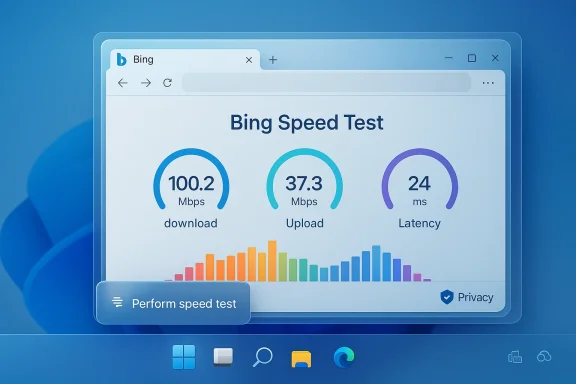
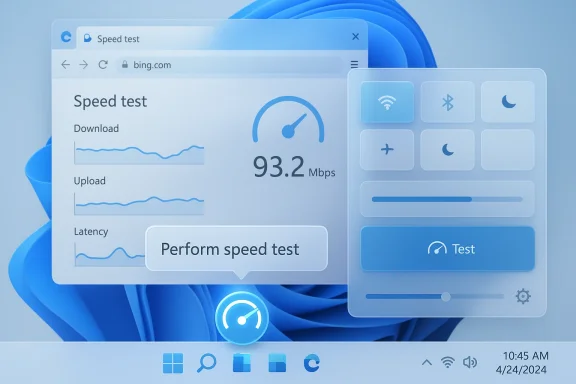
Bing Speed Test results show 100.2 Mbps download, 37.3 Mbps upload, and 24 ms latency.Background​

Windows has long left ad‑hoc throughput checks to external services and lightweight utilities: users habitually turn to Speedtest by Ookla, Fast.com, or simple in‑browser widgets to check download, upload, and latency. The newly surfaced control is a small but purposeful UX tweak: place a network sanity check exactly where people already go to investigate connectivity issues. The affordance first appeared in Insider preview channels and was observed again in the Release Preview packaged as KB5077241 (builds 26100.7918 and 26200.7918).
Microsoft’s broader pattern in recent releases has been to shift lightweight utilities and diagnostics toward web‑backed experiences that are fast to update outside of full OS servicing cycles. The speed‑test shortcut appears to be a continuation of that approach: a discoverable, low‑friction launcher to a web widget (Bing’s embedded speed test) rather than embedding a new measurement engine into the Windows shell.

What changed in the Taskbar and Network UI​

Where you’ll find it​

The new control shows up in two clear places in Windows 11’s network surface:
  • In the system tray / network icon context menu (right‑click or click the network icon).
  • In the Wi‑Fi quick settings flyout that surfaces when you click the network status on the taskbar.
These are exactly the places end users and help‑desk personnel look first when troubleshooting connectivity, which makes the addition more than cosmetic — it improves discoverability and saves time.

What the UI does​

Clicking the control opens your default browser and lands on a web‑based speed test (Microsoft’s implementation currently surfaces Bing’s embedded speed‑test widget). That widget reports download, upload, and latency metrics using an established backend (Bing’s widget uses well‑known testing infrastructure such as Ookla under the hood). The taskbar entry is therefore a launcher — not a native monitoring tile or a persistent taskbar meter.

How it works technically — and why that matters​

Browser‑backed launcher vs native diagnostic​

Microsoft’s launcher approach keeps the Windows shell lightweight: the taskbar simply invokes the default browser and navigates to the test. That means:
  • Results are generated by the web service, not by Windows itself.
  • Measurement methodology (server selection, test length, parallel streams) is determined by the web tool, not by a Windows subsystem.
  • Updates to the tester (improvements, bug fixes) can be deployed independently of Windows servicing.
This architecture simplifies development and reduces shipping friction, but it introduces trade‑offs that matter to administrators, privacy‑conscious users, and power users who rely on consistent, auditable measurements.

Telemetry and defaults​

Because the test runs in the browser, the data flow is primarily between the client and the web provider (Bing/third‑party backend). That raises practical questions:
  • What telemetry is generated, and where does it flow?
  • Does the browser or the web tool log device identifiers, IP address metadata, or Microsoft account ties?
  • How do corporate proxies, captive portals, or private DNS interact with the test?
Those remain relevant considerations for enterprise deployments and privacy‑sensitive environments. At present, Microsoft surfaces the convenience but delegates the execution to the web stack, meaning organizations must consider browser telemetry and web filtering when assessing the feature.

Benefits: why this is a practical addition​

  • Immediate discoverability: Placing a speed‑test launcher where users check connectivity removes friction and reduces time‑to‑diagnosis for basic throughput problems.
  • Simplicity for non‑technical users: Most home users don’t know a preferred test URL; the taskbar shortcut solves that by providing one‑click access.
  • Low maintenance for Microsoft: Using a web launcher avoids adding and maintaining a native measurement engine, simplifying release cadence and bug fixes.
  • Consistent toolchain with Bing: Users receive the same consistent test interface across devices if they use the same web widget.
These benefits align with modern UX priorities: reduce friction and centralize common actions into predictable places.

Risks and limitations: where this convenience falls short​

Not a replacement for native diagnostics​

Because the launcher opens a web tester, it is not a drop‑in replacement for in‑OS network diagnostics or for power tools such as iperf, packet captures, or persistent throughput monitors. For many troubleshooting scenarios you still need:
  • A native measurement tool that can run in controlled conditions (no browser caching or proxy interference).
  • A persistent monitor that shows real‑time throughput over time rather than a one‑off snapshot.

Accuracy and consistency concerns​

Web speed tests are subject to variability:
  • They may pick different servers or different test endpoints based on geolocation and CDN behavior.
  • Browser overhead and extensions can influence results (e.g., ad blockers, HTTPS proxies).
  • Corporate proxies, VPNs, or security middleware can distort measurements and produce misleading results.
That makes the taskbar shortcut excellent for quick sanity checks but unreliable for formal SLA validation or forensic troubleshooting. IT teams should not use a single browser‑based snapshot as authoritative evidence of network performance.

Privacy, telemetry, and enterprise policy​

A web‑launched test routes data through third‑party endpoints and may trigger telemetry collection controlled by the web service and the browser. Organizations should consider:
  • Browser privacy settings and default telemetry collection.
  • Whether the test will traverse corporate proxies and trigger logging.
  • Potential compliance implications where test metadata could include internal IPs or identifying headers.
Enterprises will want guidance from Microsoft about whether the control can be disabled via policy or MDM, and how to control which web provider is used — but that guidance is not yet explicit in preview materials. Flagging this as an open item is prudent.

What IT administrators should know and do​

Immediate steps (practical checklist)​

  • Evaluate the preview in a lab environment. Validate how the launcher behaves behind your corporate proxy, captive portal, or VPN. Confirm whether tests are blocked, rerouted, or produce misleading results.
  • Review browser telemetry settings. The test launches the default browser — confirm that browser telemetry or syncing won’t leak unintended metadata during tests.
  • Update knowledge‑base and runbooks. For first‑line support, add a note explaining the taskbar shortcut’s existence and its status as a browser‑launched test, and provide steps for authoritative measurement (iperf3, Speedtest CLI, vendor tools).
  • Check Group Policy / MDM controls. Once the feature reaches broader channels, confirm whether Microsoft exposes a policy to disable the taskbar shortcut or to choose the test provider. If not present, consider using application control or web filtering to enforce your organization’s testing policy.

Recommended tools for authoritative testing​

  • Speedtest CLI / Ookla CLI: Repeatable, scriptable, and suitable for automation.
  • iperf3: For controlled end‑to‑end throughput tests between two known endpoints.
  • SNMP/RNMI/NMS monitoring: For long‑term, continuous throughput and device telemetry.
  • TCP/UDP synthetic tests: For latency and jitter under different payloads.
Use these tools when diagnostics must be repeatable or legally defensible; the browser‑based shortcut is for quick checks and user convenience.

Privacy and policy: what’s verifiable and what requires caution​

Several claims about telemetry and backend ownership are straightforward to verify: the taskbar launcher opens a browser, and the current implementation uses Bing’s embedded speed‑test widget, which delegates to common speed‑test backends. That part is verifiable in preview builds.
Less verifiable from the preview alone are the full telemetry flows and any long‑term policy controls Microsoft may add. For example:
  • Whether Microsoft logs aggregate usage of the taskbar control in Windows telemetry is currently unclear from preview reports.
  • Whether administrators will be able to swap which service is invoked or restrict the feature centrally is not documented in available preview notes.
Until Microsoft publishes definitive guidance, organizations should treat those aspects with caution and perform their own tests in representative environments.

UX and product design analysis: why Microsoft chose this route​

Design tradeoffs​

Microsoft’s choice to provide a launcher instead of a built‑in tester reflects several product design tradeoffs:
  • Speed to ship: Web tools let product teams iterate quickly without OS servicing.
  • Consistency across platforms: Using a web widget ensures the same user experience across Windows devices and potentially other platforms that use the same service.
  • Avoiding feature bloat: The shell remains lean; complex measurement logic stays out of the OS core.
These are sensible motivations for a convenience feature where full fidelity diagnostics are not the primary goal.

UX gains and limitations​

From a user experience perspective, the taskbar placement is excellent: it removes guesswork and makes a common action discoverable. However, the limitation is that the feature solves only one specific problem (quick, one‑off checks) and does not replace the utility of a persistent throughput indicator or built‑in diagnostic logs for complex troubleshooting.

The enterprise angle: will this ship to businesses — and can it be controlled?​

Enterprises care about telemetry, default behaviors, and administrative controls. The preview signals Microsoft is experimenting with the convenience; whether it becomes a managed feature with clear administrative controls remains to be seen.
Key questions enterprises will ask:
  • Will this shortcut be enabled by default on domain‑joined machines or unmanaged consumer devices?
  • Will Group Policy/Intune provide a toggle to disable the test or to restrict which test provider can be used?
  • Will Microsoft document telemetry, logging, and any back‑end relationships (for example, third‑party partners providing testing servers)?
Current preview materials are sparse on enterprise governance specifics. Administrators should test the preview and look for forthcoming policy documentation as the feature matures.

Alternatives and companion features administrators should consider​

  • Persistent taskbar throughput indicators: For continuous visibility, tools like NetSpeedMonitor variants or vendor endpoint agents provide persistent readouts.
  • Scripted periodic tests: Use Speedtest CLI or iperf3 scheduled runs to capture historical performance for trending and SLA verification.
  • Network detection automation: Combine synthetic testing with automated remediation scripts (e.g., DNS flush, NIC reset) triggered by thresholds in monitoring systems.
These alternatives provide the rigor the browser‑launched test intentionally omits.

What this change tells us about Microsoft’s wider strategy​

The speed‑test launcher is emblematic of Microsoft’s growing preference for web‑backed, easily updateable experiences that reduce the need for full OS updates. It also underscores a pragmatic product philosophy: deliver small, high‑impact UX wins where the maintenance cost is low and the user benefit is immediate. This pattern shows up in other recent Windows refinements (settings refreshes, web‑served troubleshooting flows, and lightweight shell affordances).
At the same time, the feature raises perennial tensions: default browser choices, telemetry, and platform vendor influence. By launching a shortcut to Bing’s widget, Microsoft benefits from a consistent test provider but also invites scrutiny about defaults and ecosystem control — a conversation enterprise customers and regulators are likely to revisit.

Practical guidance for everyday Windows users​

  • If you want a quick check: click the network icon and use the new Perform speed test entry for an instant snapshot.
  • If you need reliable, repeatable results: use a command‑line tool or a dedicated app (Speedtest CLI, iperf3).
  • If you’re privacy‑conscious: check your browser’s privacy and telemetry settings before using the test; consider launching the test in a privacy mode or using a browser with selective telemetry disabled.

What to watch next​

  • Whether Microsoft adds administrative controls (Group Policy / MDM) to disable or restrict the shortcut.
  • Whether the launcher can be configured to use different testing providers or endpoints under organizational control.
  • If Microsoft moves toward a native in‑OS measurement mode for enterprise scenarios, offering both convenience and auditable accuracy.
These developments will determine whether the feature remains a simple user convenience or evolves into a more capable diagnostic affordance.

Conclusion​

The addition of a one‑click network speed test to the Windows 11 taskbar is a modest but meaningful UX improvement: it saves time for everyday users and helps first‑line support triage basic connectivity issues faster. Microsoft’s implementation — a browser‑backed launcher that opens Bing’s embedded speed‑test widget — favors shipping velocity and maintainability over building a heavyweight native diagnostic tool. That tradeoff makes sense for quick sanity checks, but it introduces limitations around measurement consistency, telemetry, and enterprise manageability that organizations must evaluate.
For home users and help‑desk technicians, the taskbar shortcut is a welcome convenience. For administrators and power users, it is a reminder to rely on controlled, repeatable tooling for authoritative testing, and to press vendors for clear policy controls when web‑backed conveniences land in enterprise‑managed environments. As the feature progresses from Insider flights to broader release, watch for Microsoft to publish governance documentation and for IT teams to test the behavior in representative network configurations.

Source: TechPowerUp Updated Windows 11 Taskbar Features Built‑in Network Speed Test - Available Now in Preview
Source: The Tech Buzz https://www.techbuzz.ai/articles/windows-11-adds-native-speed-test-to-taskbar/
 

Microsoft is quietly rolling a one‑click network speed test into Windows 11’s taskbar, but for now it’s a fast path to a browser‑based tool rather than a native diagnostic engine — a small convenience that reveals larger choices Microsoft is making about web‑first utilities, telemetry, and where diagnostic workloads should live.

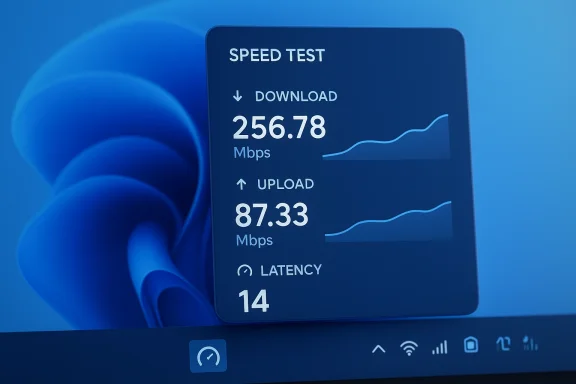
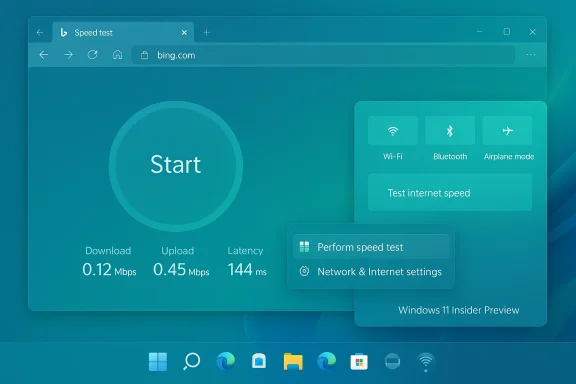
Blue speed test panel shows download 256.78 Mbps, upload 87.33 Mbps, latency 14 ms.Background​

Windows has long left ad‑hoc internet speed checks to third‑party websites and small utilities. Power users and IT pros have traditionally reached for tools such as Speedtest by Ookla, Cloudflare’s speed test, Fast.com, or command‑line utilities like iperf3 to measure throughput, latency, and path characteristics. The new Windows 11 taskbar shortcut folds that basic troubleshooting workflow into the OS surface where most users already go to check connectivity — the network system tray and Quick Settings — but the current implementation deliberately delegates the measurement to a web widget rather than performing it inside Windows itself.
Microsoft documented the change in the release notes for the Release Preview channel updates that shipped under KB5077241 (builds 26100.7918 and 26200.7918), noting the shortcut is reachable from the Wi‑Fi or Cellular Quick Settings or by right‑clicking the network icon in the taskbar. The notes are explicit: the test “opens in the default browser and measures Ethernet, Wi‑Fi, and Cellular connections.”

What exactly shipped (and where to find it)​

The builds and channel​

  • The preview experience is included in the Release Preview channel as part of KB5077241 and appears in Windows 11 builds 26100.7918 and 26200.7918 (24H2 and 25H2 branches, respectively). Microsoft is using a controlled feature rollout model, so availability is staggered by device and region.

How to access the test (for Insiders and early adopters)​

  • Right‑click the network icon in the system tray and select Perform speed test.
  • Or open Wi‑Fi or Cellular Quick Settings (the quick settings flyout in the taskbar) and tap Test internet speed if present.
  • The control launches your default browser and opens a web‑based speed‑test widget that reports download, upload, and latency.

What the tool is now (and what it is not)​

  • It is a launcher that opens a web speed tester; it is not a native in‑OS measurement engine or an always‑on throughput monitor embedded in the taskbar. That distinction matters for accuracy, telemetry, offline use, and enterprise policy control.

Why Microsoft likely chose a browser‑backed approach​

Microsoft’s recent product decisions increasingly favor web‑delivered widgets and cloud‑hosted experiences for smaller utilities. Shipping a server‑backed speed test through a web widget avoids adding and maintaining a separate native subsystem inside Windows. The benefits for Microsoft include:
  • Faster iteration: web services can be updated independently of the OS servicing cadence.
  • Consistent user experience: the same web widget can be surfaced across Windows and the Edge browser.
  • Reduced maintenance and attack surface: no additional native binary or low‑level networking stack changes are required inside Windows itself.
Those design tradeoffs are pragmatic — but they also mean the “built‑in” label is a bit of marketing shorthand: the function is integrated into the Windows UI, but the actual measurement is delivered by a web service that Microsoft controls or partners with.

The actual backend: Bing and Ookla​

When users click the taskbar control the browser opens Bing’s internet speed‑test experience. Bing’s speed‑test widget, in turn, has been powered by partners in the speed‑test ecosystem — most notably Ookla’s Speedtest infrastructure since their partnership was formalized. Multiple hands‑on reports and followups observed that the taskbar shortcut effectively directs users to Bing’s Speedtest front end rather than spinning up an independent Microsoft service.
That lineage matters because the results you see are the product of the web widget’s architecture (client‑side measurement via browser, server selection heuristics, CDN paths) and the partner’s backend choices. It is therefore distinct from a hypothetical native Windows measurement that could, for example, prioritize different servers, use kernel‑level timing, or operate offline.

Accuracy and measurement tradeoffs: browser vs native app​

If you test internet speed frequently — or use speed tests for troubleshooting or SLA measurement — implementation details matter. Here’s what to expect from a browser‑based test surfaced by Windows 11:
  • Browser overhead and limitations: JavaScript‑based tests run in the browser process and can be affected by CPU load, browser extensions, power state, and other processes. Native clients (or specialized CLI tools) can measure throughput with fewer browser‑level constraints. Reports and community experiments have shown notable differences between browser and native app results in certain environments.
  • Server selection and geography: Web widgets typically choose a nearby test server. The chosen server and the CDN path can dramatically affect measured throughput and latency. Ookla’s Speedtest has a large global server network; Cloudflare and Fast.com use different endpoints and methodologies that can yield different numbers.
  • Layer of measurement: Browser tests measure end‑to‑end application throughput as seen from the browser. Native tools have the option to isolate transport characteristics more precisely (e.g., raw TCP throughput on a given adapter or traffic class). For in‑depth troubleshooting you still need tools like iperf3, traceroute, or packet captures.
Bottom line: the convenience of a one‑click test is valuable for a quick sanity check, but it’s not a replacement for rigorous network measurement in more complex diagnostic situations.

Privacy, telemetry, and enterprise considerations​

A web‑launched speed test involves a few distinct privacy and telemetry pathways that organizations and privacy‑conscious users should understand:
  • Third‑party data sharing: the browser‑based test will communicate with whichever backend the widget uses (for example, Ookla servers when Bing surfaces Speedtest). That implies metadata (IP addresses, test timestamps, selected server, and possibly client environment data) will traverse external infrastructure. Organizations that restrict outbound traffic or have strict data‑handling requirements should treat this like any other web service contact.
  • Default browser behavior: because the test opens in the device’s default browser, the browser’s privacy posture (extensions, tracking protection, telemetry) influences the test context. A managed device with a locked down default browser may experience different behavior than a consumer device.
  • Controlled Feature Rollout (CFR) and management: Microsoft is using a CFR model so the feature may appear only on selected devices. Enterprises piloting the update should not assume immediate availability across a managed fleet and should validate the feature in their own environment before broad deployment. There is no public group‑policy knob documented (as of the release notes) to explicitly block the speed‑test launcher; administrators should rely on their existing browser/edge configuration policies, web filtering, or firewall rules to control access if needed. If you require a definitive management control, pilot and confirm behavior with Microsoft’s deployment documentation and MDM templates.
Caveat: precise enterprise management controls specific to this taskbar shortcut are not fully enumerated in the public release notes; the safe operational assumption is that it behaves like any other browser‑launched web content. Flagging that lack of explicit policy documentation as a risk is prudent.

Product strategy and criticism: convenience vs promotion​

Not everyone sees a browser‑backed speed test as a pure win. Critics point out this implementation is a convenient way to surface Bing, and that bundling a web shortcut into the system tray may feel like promotional placement rather than a true native utility. Observers on the tech beat have framed the decision in two ways:
  • Positive: it reduces friction — casual users get an accessible, discoverable way to verify whether their connection is working as expected without memorizing URLs or installing apps. It’s a low‑cost UX improvement that solves a common problem.
  • Negative: it’s not “native” and may be perceived as Microsoft favoring its own search property (Bing) rather than integrating a neutral, in‑OS diagnostic. There are also questions about whether the OS should embed prominent shortcuts to web properties by default. Such critiques argue a small native tool or a true in‑OS measurement API would better serve both privacy‑conscious users and enterprise customers.
Both viewpoints are valid: Microsoft gains flexibility and a consistent experience by surfacing a web widget, but the company also opens itself to criticism about blurring the line between OS features and web promotion.

Practical guidance: when to use the taskbar shortcut — and when not to​

The new shortcut is ideal when you need a quick, obvious answer. But for anything requiring precision, repeatability, or forensic detail, use other tools. Here’s a practical decision guide.
  • Use the taskbar shortcut when:
  • You need a fast sanity check (e.g., “Is my connection up or down?”).
  • You want a quick read of download/upload figures for casual comparison.
  • You’re troubleshooting a home‑office customer and need an immediate baseline.
  • Use more rigorous tools when:
  • You're measuring ISP compliance with a subscribed service level.
  • You must isolate LAN vs WAN throughput.
  • You need to measure jitter, loss, or per‑hop latency for troubleshooting.
  • You require logs or repeatable, scriptable tests for documentation.
Steps for more accurate testing (recommended):
  • Disable or pause large downloads, streaming, or sync clients.
  • Prefer Ethernet for repeatable, maximum‑throughput measurements.
  • Run multiple tests at different times and average the results.
  • Correlate browser‑based results with a native client (e.g., Speedtest app) or iperf3 between known endpoints.
  • If privacy or telemetry is a concern, run tests through controlled endpoints and review outbound logs.

Security considerations​

Opening a web service from the system tray is a straightforward client experience, but keep a few security realities in mind:
  • Default browser vulnerabilities or malicious extensions could alter or interfere with test behavior.
  • If an organization uses proxying or TLS interception for monitoring, the test’s endpoint selection and reported results can be affected.
  • A browser‑launched test makes DNS behavior, proxy configuration, and firewall rules part of the measurement. That’s useful for diagnosing those elements, but it also means the test is measuring a broader set of variables than a strictly endpoint‑to‑server throughput measurement would.
Administrators should therefore treat the speed test as part of a broader troubleshooting toolkit that includes endpoint, network, and proxy telemetry.

Comparing the taskbar launch to other services​

How does the Windows taskbar shortcut stack up against the familiar alternatives?
  • Speedtest by Ookla (standalone app / web): large server footprint, widely used for consumer benchmarking, and often the reference for ISP comparisons. Browser tests and native apps can differ; the app can be more consistent in certain cases.
  • Cloudflare Speed Test: optimized for Cloudflare’s network, typically emphasizes low latency and may return different throughput numbers because of server placement and CDN routing choices.
  • Fast.com (Netflix): extremely simple UI and often used to test download capacity from CDN‑adjacent servers; may underreport in some topologies compared with multi‑threaded tests.
The Windows shortcut simply reduces the friction to get to a web widget; it is not necessarily attempting to supplant the ecosystem of measurement choices or to standardize on a single methodology. For many users the convenience outweighs methodological nuance; for others (particularly IT teams) the nuance is the point.

What this means for IT admins and power users​

  • Pilot first: Because Microsoft is using a controlled rollout, admins should pilot the update on representative hardware before assuming universal availability or behavior parity across their fleet.
  • Treat it as web content: If your organization blocks or monitors web traffic, expect the speed test launch to be governed by the same policies as any other web request from the endpoint. Use your existing network filtering and proxy configuration to manage access.
  • Don’t rely on it for SLAs: For contractual compliance and formal SLA verification, continue to use validated, repeatable measurement methods and documented tooling rather than a browser‑based taskbar shortcut.
  • Feedback loop: If your pilots reveal policy or telemetry concerns, document those findings and provide structured feedback through your Microsoft support channels or Windows Insiders program so Microsoft can consider enterprise needs during the broader rollout.

Strengths and risks — a balanced appraisal​

Strengths​

  • Immediate discoverability: The taskbar is the obvious place to check connectivity; surfacing a measurement there reduces needless friction for end users.
  • Low maintenance for Microsoft: Surfacing a web widget avoids adding a native measurement engine and enables faster iteration.
  • Cross‑platform consistency: Users who interact with Bing or Edge will see a consistent look and behavior across their devices.

Risks and downsides​

  • Perception of promotional placement: Integrating a web shortcut to a specific search property (Bing) inside the OS invites criticism that the feature serves product promotion as much as utility.
  • Measurement variance: Browser‑based tests can differ from native or CLI measurements; for high‑confidence diagnostics, the shortcut is insufficient on its own.
  • Enterprise control ambiguity: The release notes do not enumerate a discrete group‑policy or MDM control for toggling the feature, so enterprise administrators must rely on existing web‑filtering or browser controls. This gap is an operational risk until Microsoft provides explicit management documentation.

Final verdict and recommendations​

Microsoft’s decision to put a one‑click internet speed test on the Windows 11 taskbar is a sensible UX play: it reduces friction for a common troubleshooting action and helps less technical users perform a basic diagnostic without hunting for a website. The current implementation — a browser‑launched web widget, most commonly Bing’s Speedtest front end — delivers that convenience with minimal engineering overhead and gives Microsoft the flexibility to update the experience quickly.
That convenience, however, comes with meaningful caveats:
  • It is not a replacement for native or enterprise‑grade measurement tools.
  • Organizations with strict privacy or telemetry requirements should treat the shortcut as web traffic and manage it via existing policies.
  • Users and admins who require consistent, repeatable results should rely on dedicated clients or network measurement tools.
Practical next steps:
  • If you’re an Insider: enable the Release Preview channel and check your taskbar’s network menu to try the feature yourself. Remember availability is gradual.
  • If you’re an IT admin: pilot the KB5077241 update on a test set and validate how the test behaves with your proxies, filtering, and telemetry systems in place.
  • If you’re a power user: use the taskbar shortcut for a quick sanity check, but corroborate results with an app‑based Speedtest or iperf3 for troubleshooting.
The taskbar speed test is a tidy addition that solves a small but recurrent problem. Its ultimate value will depend less on the novelty of a single click and more on how Microsoft communicates the feature’s limits, provides management controls, and responds to feedback from the enterprise and power‑user communities.

Conclusion
A one‑click internet speed check in Windows 11’s taskbar is a welcome concession to discoverability and convenience — but it is important to recognize the implementation’s boundaries. Because the feature opens a web widget (most commonly Bing’s Speedtest integration), users should understand the measurement’s context and limitations, and IT teams should continue to rely on proven, repeatable tools for formal diagnostics and SLA verification. The rollout is incremental; expect Microsoft to refine the experience and — ideally — to provide clearer management guidance as the feature reaches broader availability.

Source: PCMag Microsoft Previews Built-In Speed-Test Tool for Windows 11
 

Microsoft is quietly adding a one‑click network speed test to the Windows 11 Taskbar — but for now it behaves as a launcher that opens Bing’s web speed‑test widget in your default browser rather than running an in‑OS measurement engine.

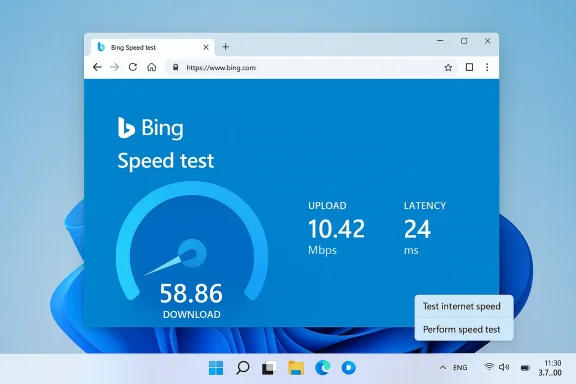
Bing speed test dashboard shows download 58.86 Mbps, upload 10.42 Mbps, latency 24 ms.Background​

Windows 11 has been evolving through small, highly discoverable UX tweaks delivered via Insider and Release Preview channels. The most recent preview servicing wave — published under KB5077241 and reflected in builds 26100.7918 and 26200.7918 — adds a handful of user‑facing conveniences and platform updates, including a new Taskbar‑accessible network speed test, native Sysmon as an optional feature, camera pan/tilt controls for supported webcams, and other visual and reliability changes. Microsoft packaged these changes into the Release Preview channel in mid‑February 2026 ahead of a wider rollout planned for March, making the Taskbar speed‑test shortcut available to Insiders and Release Preview participants first.
This addition continues a pattern: Microsoft increasingly surfaces web‑backed tools directly from Windows UI surfaces, placing curated web experiences where users expect quick diagnostics. The Taskbar speed test is the latest example of that strategy — it’s visible in the Wi‑Fi/Cellular quick settings flyout and the network icon’s right‑click menu, providing a one‑click path to a measurement tool that runs in the default browser.

What Microsoft shipped in KB5077241 (Release Preview)​

Key user‑visible items​

  • Taskbar network speed test: a new “Perform speed test” / “Test internet speed” control in the network system tray and Wi‑Fi quick settings. Selecting the control launches the default browser and runs Bing’s speed‑test widget.
  • Sysmon (native/in‑box): Sysinternals’ System Monitor (Sysmon) is now available as an optional Windows feature, integrated with the Windows Event Log and delivered in‑box (disabled by default).
  • PTZ camera controls: basic pan/tilt controls surfaced in Settings > Bluetooth & devices > Cameras for compatible hardware.
  • Start menu account benefits: a direct link in the Start menu account menu to view Microsoft account benefits.
  • Other polish: .webp desktop background support, various File Explorer and platform reliability fixes, and Quick Machine Recovery behavior changes for non‑domain Pro devices.
Multiple outlets and community posts confirm the feature set in preview builds; community sleuths first flagged the Taskbar speed‑test shortcut in Insider flights last autumn and Microsoft escalated the control into Release Preview near the February 2026 preview wave.

How the Taskbar speed test works (practical details)​

  • Left‑click the network/system‑tray icon to open the Wi‑Fi quick settings flyout and look for a Test internet speed button near other quick actions.
  • Right‑click the network icon in the system tray and choose Perform speed test from the context menu.
  • The control does not run a local measurement engine; instead it opens the default browser and loads Bing’s internet speed test UI. The test measures download, upload, and latency from a web session and displays results in the browser.
Bing’s speed‑test widget itself has, in prior implementations, used the Speedtest infrastructure operated by Ookla — Microsoft integrated an Ookla‑powered speed test into Bing search results in recent years — so the in‑browser test typically delegates to that established backend rather than measuring against Microsoft‑controlled OS servers. That same web widget is what the Taskbar shortcut currently opens.

Why Microsoft chose a browser‑launched web tool (analysis)​

There are practical engineering and product reasons for the web‑backed approach:
  • Rapid updates and rollout: a web tool can be fixed and iterated on independently of Windows servicing timelines. Microsoft can adjust endpoints, UI, or measurement methodology without pushing OS updates. This is a classic tradeoff when shipping lightweight diagnostics.
  • Leverage existing measurement infrastructure: building and operating a global network of test servers is expensive. Reusing an existing web provider (Ookla via Bing) avoids that infrastructure burden.
  • Low maintenance footprint in Windows: by routing to the browser, Microsoft keeps the OS surface small and avoids adding new privileged services, scheduled tasks, or long‑running telemetry collectors.
Those reasons make business sense, but they also produce trade‑offs for accuracy, reliability, privacy, and enterprise manageability — topics we break down next.

Strengths — what this change gets right​

  • Discoverability: the Taskbar is where people already look when connectivity misbehaves. Placing a speed‑test entry directly in the network menu reduces friction for everyday troubleshooting. Users no longer need to remember a URL or install a third‑party app to run a quick check.
  • Consistency with modern Windows UX: Microsoft has shown a pattern of surfacing web utilities (dictionary, converters, small widgets) from shell surfaces. This keeps the OS lean while delivering modern, updateable experiences. For many users, the real value is convenience rather than forensic measurement.
  • Leverages mature backend: Bing’s speed‑test widget already uses a mature measurement backend (Ookla/Speedtest), which is broadly trusted in consumer and ISP diagnostics. Using that backend ensures the tool reports familiar metrics — download, upload, and latency — rather than a homegrown, unvalidated measurement.
  • Low friction for support interactions: help desks and support staff can direct users to the same place in the UI for a quick sanity check, making first‑contact troubleshooting faster.

Risks and limitations — what to watch out for​

1) Measurement variability and technical accuracy​

Browser‑based tests are inherently sensitive to the browser environment. Extensions, caching, proxying, VPNs, or throttling imposed by local software can alter results. Browser networking stacks behave differently than raw sockets used by many CLI or native tools, introducing small but meaningful variance in throughput and latency numbers. For forensic network diagnostics, a browser snapshot is often insufficient.

2) Dependency on the default browser and network accessibility​

If a machine’s default browser is restricted, misconfigured, or blocked by enterprise policy, the Taskbar control is effectively a dead end. Captive portals (hotel Wi‑Fi), DNS blocks, or proxy authentication prompts can prevent the test from loading at all, leaving technicians with an empty or misleading result. The launcher’s dependence on the browser adds a fragile link in the diagnostic chain.

3) Privacy and telemetry concerns​

When the Taskbar control opens a web page, the measurement happens outside the local OS and may involve third‑party endpoints (Ookla servers), cookies, and telemetry tracked by web services. Enterprises that require tight control over telemetry or data exfiltration must evaluate whether directing users to Bing/Ookla from a corporate machine is acceptable under policy. The OS‑level control provides convenience but does not change the fact that the results and any associated metadata are handled via web infrastructure.

4) No built‑in historical logging or scheduling​

Unlike dedicated native tools or managed monitoring agents, the Taskbar launcher stores results only inside the browser session. There’s no native Windows history, no scheduled monitoring option, and no CSV export built into the OS UI. Power users and IT teams will still rely on CLI tools, managed telemetry platforms, or dedicated appliances for long‑term trend data and automated alerts.

5) Enterprise manageability and policy blocking​

Organizations that block Bing or block external speed‑test endpoints may find the shortcut nonfunctional. Conversely, if an enterprise wants to standardize testing against an internal test server, the Taskbar launcher offers no configuration for custom endpoints — it’s hard‑wired to open the web tool. Admins should evaluate whether to allow the feature, document it for support staff, or block it via policy.

What this means for different user groups​

Home and casual users​

For most home users the Taskbar speed‑test shortcut is a clear UX win. It’s fast, familiar, and uses a well‑known backend. If your video call stutters or downloads lag, a one‑click check is a good first step before contacting your ISP.
Benefits:
  • Quick sanity check without searching the web.
  • Familiar metrics that match what ISPs and consumer support expect.
Limitations:
  • Not a substitute for deeper troubleshooting if problems persist.

Power users and technicians​

Technicians will welcome the convenience but should treat the browser test as a preliminary check. For deeper root‑cause analysis they’ll continue to prefer:
  • iperf3 and iPerf server–client tests for controlled throughput measurements.
  • Speedtest CLI for scripted, reproducible runs against controlled servers.
  • Managed telemetry (RMM or synthetic tests) for historical trending and SLA validation.

Enterprise IT and security teams​

Enterprises need to assess:
  • Whether the browser‑backed test complies with telemetry and data governance policies.
  • If the default browser approach fits managed device policies (some organizations lock default browser choices or block search engines).
  • Whether administrators should communicate to help desks that results are produced via Bing/Ookla and may be subject to web tracking.

How to try it today (step‑by‑step)​

If you want to test the feature now, here’s how Insiders and Release Preview participants can access it:
  • Enroll the device in the Windows Insider Program (Release Preview channel) or ensure you have the Release Preview servicing option enabled.
  • Update Windows until you receive KB5077241 (build 26100.7918 or 26200.7918) from the Release Preview channel. Microsoft published this Release Preview wave in mid‑February 2026 with a planned broader rollout in March.
  • Left‑click the network icon and look for Test internet speed in Wi‑Fi quick settings, or right‑click the network system tray icon and select Perform speed test. Your default browser will launch and load the Bing speed‑test UI.
Caveat: availability may be staged via Microsoft’s Controlled Feature Rollout (CFR) and can vary by region, hardware, and account configuration. If you don’t see it immediately after installing the update, the feature may still be gated for your device.

Best practices and recommendations​

  • For routine consumer checks, the Taskbar shortcut is fine. Use it to quickly confirm whether bandwidth or latency is broadly within expected ranges.
  • For repeatable diagnostics, use a dedicated measurement tool or CLI (Speedtest CLI, iperf3) against a controlled server. These tools eliminate many of the browser‑related variables and provide exportable logs for troubleshooting.
  • If you manage devices centrally, document the new control in internal KBs: include expected behavior (browser launch), known blockers (blocked Bing, captive portals), and guidance about privacy/telemetry implications.
  • If you’re concerned about telemetry, run the test in a non‑persistent browser profile or in a context (such as an Incognito window) where cookies and signed sessions are minimized before you share screenshots or results externally.

The long view — implications for Windows UX and diagnostic tooling​

This Taskbar speed‑test shortcut is a small feature, but it reflects a broader direction for Windows:
  • Microsoft is comfortable surfacing web experiences directly from shell surfaces to keep the OS footprint small while providing modern capabilities. That model gives Microsoft agility but increases the number of diagnostic flows that cross the OS–web boundary.
  • For users and enterprises, that shift means more reliance on web backends (Bing, partner services) for everyday tooling, which can simplify updates but complicate governance and offline resilience.
  • The feature also highlights an incremental approach to shipping smaller, targeted UX improvements in preview channels before a full rollout — a controlled, iterative cadence that gives Microsoft a chance to collect feedback and adjust behavior before a broad release.
If Microsoft later replaces the launcher with an actual native measurement service, that would change the calculus: native tests could provide OS‑level logging, offline capability, and managed endpoints. For now, the approach prioritizes convenience and reuse of mature web infrastructure.

Final verdict — useful convenience, not a forensic tool​

The Taskbar’s built‑in network speed‑test launcher is a welcome convenience for everyday users and help desks: it reduces friction and makes basic connectivity checks discoverable. However, it is not a replacement for native diagnostics, scripted testing, or long‑term monitoring. The browser‑backed implementation solves distribution and maintenance problems for Microsoft but raises predictable questions about measurement fidelity, telemetry, and enterprise suitability.
If you’re a casual user: enjoy the one‑click check but treat the result as a quick sanity check.
If you’re an IT pro or network engineer: continue to rely on dedicated tools for accurate, reproducible measurements and use the new Taskbar control only as a first step in troubleshooting.
The change is small but telling — Microsoft continues to weave web capabilities into core Windows surfaces. That strategy will speed delivery of convenience features, but it also requires users and administrators to keep an eye on how measured data flows across browser and cloud boundaries.


Source: TechPowerUp Updated Windows 11 Taskbar Features Built‑in Network Speed Test - Available Now in Preview | TechPowerUp}
 

Microsoft has quietly folded a one‑click internet speed check into the Windows 11 taskbar — but for now the convenience is a browser‑launched shortcut to Bing’s speed‑test widget rather than a fully native diagnostic engine inside the operating system.

Blue speed-test window shows download 330.5 Mbps, upload 52.3 Mbps, ping 6 ms.Background / Overview​

Windows has long left ad‑hoc throughput checks to third‑party websites, dedicated apps, and command‑line tools. For years, most users have turned to services such as Speedtest by Ookla, Fast.com, Cloudflare’s measurement tools, or network tools like iperf3 when they needed to verify download, upload, or latency numbers. That patchwork of options works, but it creates friction: non‑technical users don’t always know where to go, and even tech‑savvy users must remember URLs or install utilities.
Microsoft’s recent Release Preview packages (builds 26100.7918 and 26200.7918, delivered as KB5077241) introduce a small but highly discoverable UX affordance: a “Perform speed test” / “Test internet speed” control accessible from the Taskbar’s network icon (system tray) and the Wi‑Fi/Cellular Quick Settings panel. The control launches your default browser and runs the speed test there, measuring Ethernet, Wi‑Fi, and Cellular links. Microsoft is delivering the capability via a gradual rollout so availability will vary by device and region.
This is a pragmatic move: instead of building a complex measurement engine into the OS, Microsoft is providing an easy, discoverable pathway to an existing web‑based test. That design choice has both clear benefits and meaningful trade‑offs for privacy, enterprise control, and measurement fidelity.

What Microsoft shipped (what you’ll actually see)​

Where to find the test​

  • Right‑click the network icon in the taskbar (system tray) and select Perform speed test.
  • Open Wi‑Fi or Cellular Quick Settings and tap the Test Internet Speed button.
  • If present on your device, the option will open your default browser and start the web‑based test.

Which builds contain the change​

  • The feature appears in Release Preview builds 26100.7918 and 26200.7918 (packaged as KB5077241). Microsoft published release notes describing the taskbar speed test as part of the build announcements on February 17, 2026, and the preview servicing wave is staged for rollout in March 2026. Availability is controlled server‑side and will vary across devices.

How the test behaves (practical details)​

  • Activating the control launches the browser to Bing’s internet speed widget; the numbers are produced by that web widget environment rather than by any Windows‑running binary.
  • The widget measures the usual triad: download throughput, upload throughput, and latency (ping).
  • The control is intended as a quick troubleshooting sanity check and not as a replacement for enterprise network diagnostics or long‑running throughput monitoring.

Why Microsoft likely chose a browser‑based launcher​

Putting a browser shortcut in the Taskbar is a low‑risk way to add discoverability without the engineering burden of adding a full measurement stack into Windows. Building a native speed‑test tool that is consistently accurate across networks requires:
  • a global (or at least regional) server farm for test endpoints,
  • carefully tuned measurement logic (parallel streams, packet sizes, warm‑up behavior),
  • repeatable methodology for comparisons over time,
  • handling for VPNs, captive portals, proxies, and multi‑ISP networks,
  • and ongoing maintenance to adapt to network path changes and new transport technologies.
By leveraging Bing’s web widget — which itself surfaces an established measurement backend — Microsoft avoids those operational burdens while still putting the feature where casual users will find it.

Strengths: what works well about this approach​

  • Discoverability and user convenience. The taskbar is where users already look when connectivity is flaky. A one‑click test reduces friction for non‑technical users who just need a quick sanity check.
  • Consistency of backend. By funneling users to an established web widget, Windows benefits from a mature measurement backend and server network rather than an under‑resourced new Microsoft service.
  • Low engineering and maintenance cost. A browser launcher means Microsoft can add and iterate on the UI affordance without managing measurement servers or maintaining complex OS‑level code.
  • Cross‑interface consistency. Because the test launches in the browser, all results and UI are consistent regardless of whether a user invoked the test from the system tray, Quick Settings, or via another route.
  • Fast rollout and staged deployment. Controlled Feature Rollout (CFR) lets Microsoft test adoption and telemetry signals before wider exposure, reducing the risk of mass‑impact regressions.

Risks and limitations you should know about​

1) Not a native diagnostic — limited auditability and control​

Because the test runs in the browser, it generates no Windows Event Log entry or local audit trail that IT teams can rely on. For organizations that require an auditable diagnostic trail or centralized network testing, a browser‑based, user‑initiated test is inadequate.

2) Privacy and telemetry considerations​

A web test will naturally exchange metadata with the test backend and the browser. Depending on the widget’s implementation and server partner, that exchange may include IP addresses, geolocation hints, ISP identifiers, and timing metadata. Organizations with strict data‑handling requirements should treat the taskbar control as a convenience for users rather than a sanctioned diagnostics channel.

3) Dependent on the default browser and web policies​

If your environment restricts browsers, blocks particular domains, or uses proxy rules, the quick test may fail or return skewed results. Group Policy, MDM, or network security appliances can interfere with the experience. In short: it’s only as reliable as the browser environment and network policies permit.

4) Measurement fidelity issues (methodology and comparability)​

Web‑based speed tests employ specific server selection and sampling strategies. That means:
  • Tests can vary by chosen server, time of day, and routing path.
  • Results may not be directly comparable to other measurement approaches (for example, iperf3 or sustained throughput tests).
  • VPNs or carrier NAT can skew measurements or reveal ISP endpoints rather than the end‑user path.
For troubleshooting that requires precise, repeatable numbers (e.g., SLA verification or forensic packet loss analysis), the browser test is a first step — not the final word.

5) Perception — is this a Bing promotion?​

Because the taskbar option opens a Bing‑hosted widget, skeptics will see the affordance as another nudge toward Microsoft’s web services. That perception matters for user trust and for enterprise neutrality.

The backend question: who powers the numbers?​

Bing’s in‑search speed widget has been transitioned to rely on an established third‑party measurement provider rather than Microsoft’s old home‑grown engine. That means the test you see in the browser when you launch from the Taskbar is not a Microsoft‑authored measurement stack; it uses an external service’s measurement methodology and servers. For users that already use Speedtest or other well‑known services, that is reassuring: the measurement is handled by providers built specifically to run global speed tests.

How to treat the Taskbar Speed Test: practical guidance​

For everyday users​

  • Use the Taskbar speed test for quick, first‑look checks: is the connection working? Is download speed roughly what you expect?
  • If the test shows poor performance, try:
  • Repeating the test at different times to check for transitory congestion.
  • Testing while connected by Ethernet if you normally use Wi‑Fi, to rule out local wireless issues.
  • Temporarily pausing background syncs, cloud backups, and Windows Update before testing for a cleaner baseline.

For power users and home IT​

  • Don’t rely on a single browser result. Run multiple tests and compare across services (Speedtest, Fast.com/Cloudflare, M‑Lab) and, when possible, use wired vs wireless runs.
  • Use traceroute/mtr to confirm where latency or packet loss is introduced.
  • For VPN troubleshooting, test both with and without the VPN to isolate whether the tunnel is the bottleneck.

For enterprise IT and networking teams​

  • Treat the Taskbar control as a user convenience only. For validated diagnostics and SLA verification, continue to use:
  • Speedtest CLI or other vendor CLI tools (can be scripted and scheduled).
  • Instrumentation such as iperf3 for controlled throughput tests.
  • Passive and active monitoring suites (NETFLOW/telemetry, synthetic transactions, RUM).
  • Consider adding a policy note to user guidance: explain the Taskbar test is helpful for ad‑hoc checks but not a formal diagnostics procedure.
  • Review MDM and proxy policies to ensure the browser‑launched test is not blocked for support use cases.

Better testing practice: a short checklist​

  • Connect physically (Ethernet) when testing baseline throughput.
  • Pause heavy background tasks (cloud syncs, large downloads).
  • Run multiple iterations at different times of day.
  • Test with multiple endpoints/providers (Ookla Speedtest, Fast.com, Cloudflare).
  • Use iperf3 or Speedtest CLI for controlled, scriptable benchmarks.
  • Collect traceroute/mtr output to localize latency and loss.
  • For enterprise reporting, use scripted, repeatable tests and central logging.

What this means for privacy‑conscious users and admins​

  • Assume the browser‑launched test will exchange information with the test provider. If your policy forbids external telemetry or sending connection metadata to third parties, block or discourage use.
  • If you need to prevent users from accidentally exposing data via the test, consider a formal communication advising against using the Taskbar launcher on managed devices, and provide an internal, auditable alternative (for example, an on‑premises test portal or centrally managed CLI tool).
  • Microsoft’s staged rollout and server‑side gating mean the feature may appear and disappear across devices as flags and eligibility controls change; don’t treat presence of the UI as an assurance of a supported diagnostics workflow.

What Microsoft could improve (and what to ask for)​

  • Native measurement option. Offer an optional local measurement mode that can run short controlled transfers to Microsoft‑provided servers while producing logs for local analysis and inclusion in Windows Event Logs.
  • Privacy controls & admin policy. Add explicit Group Policy/MDM settings to disable the Taskbar test, require an internal test provider, or route the test to a managed endpoint.
  • Auditable results. Provide a way for users or IT to export test results to a local file or to a central server for recorded evidence. Right now, results appearing only in the browser are ephemeral.
  • Provider transparency. Make it easy to identify the provider and what metadata is exchanged during a test so privacy teams can assess compliance.
  • Choice of provider. Allow enterprises to replace the default web endpoint with a managed URL (for example, an internal Speedtest server) so the Taskbar control can point to an auditable, in‑house tool.

Alternatives and complementary tools you should know​

  • Speedtest by Ookla (web and apps). A widely used consumer tool with global servers and a CLI for scripting. Good for quick checks and scripted automation.
  • Fast.com / Cloudflare speed tools. Alternative single‑purpose checkers that are useful for cross‑validation.
  • iperf3. A controlled throughput testing tool for technical diagnostics between two endpoints you control.
  • Speedtest CLI. For scripted, repeatable testing that can be logged centrally.
  • Network performance monitoring suites. For enterprise needs, synthetic transactions and RUM give long‑term trending and alerting.

How this fits into the broader Windows strategy​

Microsoft’s move to add a Taskbar launcher aligns with the broader pattern of tightly integrating web services and cloud‑backed utilities into Windows’ surface area. The company has repeatedly added small, discoverable pathways to web experiences — Diagnostics, account benefits links, and Copilot integrations are examples — enabling features to be iterated on server‑side while minimizing OS churn.
That approach lets Microsoft ship convenience quickly, but it also shifts responsibility and control to cloud partners and web stacks. For many users that’s an acceptable tradeoff: less software, fewer maintenance headaches, and access to mature measurement backends. For organizations and network professionals who need controlled, auditable, and repeatable measurements, Microsoft’s shortcut will be useful only as a first step.

Final assessment: practical convenience, not a diagnostic revolution​

The new Taskbar speed‑test launcher is a pragmatic, low‑friction addition that will help everyday users quickly answer the common question “Is my internet actually slow?” It’s an incremental UX win: a shortcut placed exactly where people look when something goes wrong.
But it’s important to read the feature honestly. Right now, this is a browser‑hosted convenience that relies on a web widget and external measurement infrastructure. It is not a native, audited, enterprise‑grade diagnostic tool. For IT teams and power users who require precision, repeatability, and centralized logging, traditional CLI tools, managed synthetic testing, and performance monitoring remain necessary.
If you want a fast, one‑click sanity check: try the Taskbar button. If you need an evidentiary diagnosis or an SLA‑grade measurement: plan to run scripted, managed tests and retain logs. And if you manage a fleet, treat the feature as optional for end users and continue to provide an approved diagnostics workflow that meets your organization’s privacy and compliance needs.
In short: the Taskbar speed test is a welcome convenience and an example of how web‑backed tools are being surfaced inside modern Windows, but it’s not the end of the story for anyone who needs rigorous network measurement or centralized control.

Source: PCMag Australia Microsoft Previews Built-In Speed-Test Tool for Windows 11
 

Microsoft has quietly added a practical — if modest — troubleshooting shortcut to the Windows 11 taskbar: a one‑click internet speed test accessible from the network icon that opens a browser‑hosted measurement tool, bringing a common diagnostic flow one step closer for everyday users and helpdesk technicians alike.

Blue UI illustration showing a speed test result: Ping 24 ms, Download 89.34 Mbps, Upload 10.12 Mbps.Background / Overview​

Windows 11’s evolution since launch has favored discoverable, lightweight utilities surfaced where users already look: from quick settings to the taskbar. The latest Insider and Release Preview updates continue this trend, introducing a Perform speed test (or similarly labeled) control in the network system tray and a Test internet speed button inside the Wi‑Fi quick settings flyout. Rather than embedding a full measurement engine natively, the control launches the default web browser and loads a web‑based speed test widget to deliver latency, download, and upload figures in seconds.
This change is being rolled out via preview channels and optional servicing updates. Insiders first spotted the affordance in mid‑cycle preview builds; subsequent Release Preview packages package the feature for broader, staged deployment. The UX is deliberately placed where users instinctively go when their connection acts up, making the feature highly discoverable without adding new complexity to the Settings app.

What Microsoft shipped (what you’ll actually see)​

Where to find the new control​

  • Right‑click the network (system tray) icon on the taskbar to reveal a context menu that now may include Perform speed test.
  • Left‑click the network indicator to open the Wi‑Fi/Cellular quick settings flyout; a Test internet speed button sits among the existing quick actions.
Both controls perform the same action: they open your default browser and navigate to a web‑hosted speed test, which begins a measurement and reports the usual metrics — ping, download throughput, and upload throughput.

What the UI does and does not do​

  • It is a launcher, not a native measurement tool. The taskbar entry provides a fast path to a web service rather than running diagnostics within a compact Windows dialog.
  • It measures connectivity over the active adapter — Ethernet, Wi‑Fi, or cellular — based on the endpoint chosen by the web service.
  • The control is designed for quick sanity checks and one‑click troubleshooting, not advanced, repeatable network performance auditing.

Why Microsoft chose a browser‑hosted test​

There are clear engineering and product reasons for routing the action to a web widget instead of embedding a full speed‑test engine inside the OS:
  • Agility and update cadence. Web services can be updated independently of Windows servicing cycles, enabling quicker fixes and telemetry improvements without pushing OS updates.
  • Third‑party interoperability. Many browser‑hosted speed tests already integrate robust measurement backends and server networks; leveraging them avoids re‑building infrastructure.
  • Simplicity for users. A predictable web UI is familiar to most users and eliminates the need to learn a new in‑OS interface.
  • Reduced maintenance and footprint. A lightweight launcher avoids adding persistent native components and reduces surface area for bugs or compatibility issues.
That said, this design choice introduces meaningful trade‑offs, which are important for power users and IT administrators to understand.

Technical analysis: measurement fidelity and limitations​

A quick in‑browser speed test is usually sufficient for a rapid sanity check, but it differs from native or controlled measurements in several important ways:
  • Server selection variability. Browser tests typically choose a nearby test server from a global pool. Server selection and routing can influence results, making repeatable comparisons difficult unless you control the endpoint.
  • Background traffic and process scheduling. Browser‑based tests run inside the browser process and are subject to the system scheduler and other foreground activity, which can skew peak throughput and latency numbers.
  • Protocol and path differences. Different test providers use different test methodologies (multi‑threaded downloads, HTTP/HTTPS transfers, UDP/TCP probes), which yield different numeric results. Native tools (iperf3, power‑consumers’ CLI) can be tuned for consistent test parameters.
  • Caching and CDN effects. Content Delivery Network (CDN) caches can influence short‑duration transfer rates. A web test may show excellent results if cached content is used, even though real application traffic to other endpoints might be slower.
  • Measurement scope. Browser tests report end‑to‑end throughput from the client to a selected test host, which includes ISP and transit segments but may not reflect local LAN congestion, router CPU limits, or hardware offload behavior.
For routine troubleshooting — "is my ISP connection slow right now?" — the taskbar shortcut is convenient and effective. For diagnostics that require reproducibility, detailed path analysis (traceroute), or controlled throughput testing, native or specialized tools remain necessary.

Privacy, telemetry, and policy implications​

The choice to funnel a diagnostic into a web service raises questions administrators and privacy‑conscious users should consider:
  • Which backend handles the test? In current implementations the browser test typically uses the search provider or a known partner backend. That relationship determines which external servers see test traffic and which entities might log metadata.
  • Telemetry and diagnostic data. A web‑based test may send logs, performance data, client IP addresses, and user agent strings to the test provider. Enterprises that restrict outbound telemetry or that route traffic through proxies and inspection appliances need to understand how the web test behaves in managed networks.
  • Browser defaults and MDM controls. The taskbar control launches the default browser. Enterprises controlling default browser policy or using browser lockdown may see different behavior or blocked launches. Administrators should test how the feature behaves under managed policy and whether it respects enterprise network restrictions.
  • Auditability in enterprise contexts. For regulated environments that demand logging and reproducibility, a browser test may be inadequate if the organization cannot guarantee consistent server endpoints or capture measurement logs centrally.
Until Microsoft offers Group Policy or MDM controls to manage the speed test behavior (for example, to choose a measurement endpoint, disable the launcher, or redirect it to an internal diagnostics page), organizations should assume the feature behaves like any other convenience shortcut that opens external web content.

Accessibility and discoverability: why placement matters​

Placing a speed test shortcut where users expect to look when experiencing connectivity problems is a small UX win with outsized benefits:
  • Reduced friction for basic troubleshooting. Instead of advising non‑technical users to open a browser and search for "internet speed test," support agents can point them to a visible, consistent control.
  • Faster first‑level triage. Home users and helpdesks can quickly determine whether a perceived service issue is local (Wi‑Fi, router) or ISP/transport related.
  • Lower cognitive load. The quick settings environment already collects related controls (Wi‑Fi refresh, airplane mode, hotspot management); adding a diagnostics affordance keeps related actions in one place.
For these reasons, the placement is a thoughtful UX decision even if the measurement itself remains web‑hosted.

What this means for different user types​

Home users and prosumers​

If you occasionally wonder why a video buffers or a video call stutters, the shortcut will save several steps. It’s a fast, no‑friction method to immediately surface latency and throughput numbers and is especially helpful in mixed connectivity environments (home router vs. mobile hotspot vs. Wi‑Fi mesh).

IT support and helpdesks​

Support teams should note that the taskbar test is a convenience, not a diagnostic gold standard. Use it for initial triage, then escalate to more controlled tools (enterprise remote monitoring, iperf3, managed speed‑test endpoints, router logs) for persistent or critical incidents.

Enterprises and managed devices​

Organizations that retain strict control over telemetry, network egress, or software defaults should evaluate how the launcher interacts with managed browsers and proxies. Until Microsoft publishes explicit management controls or documentation for this feature, assume that it follows the system’s default browser and may contact external backends.

Alternatives and best practices for accurate measurement​

If you need results that stand up to deeper analysis or SLA reconciliation, follow a more methodical approach:
  • Use a controlled test endpoint — run iperf3 against a known server on your corporate network or cloud instance to isolate local and ISP‑side effects.
  • Test multiple times and at different times of day to average out transient congestion and peak‑time variability.
  • Run tests from multiple client devices to rule out device‑specific issues (Wi‑Fi driver, thermal throttling, CPU scheduling).
  • Measure both LAN and WAN performance separately: test transfer between local machines to check LAN throughput, then test to an external endpoint for ISP performance.
  • Capture packet traces when needed to inspect retransmissions, windowing behavior, and path MTU issues.
These steps create a diagnosable trail and provide evidence for actions such as ISP escalation or hardware replacement.

Stability, UX polishing, and other taskbar improvements in the same update​

The Insider and Release Preview updates that delivered the speed‑test launcher bundle several other quality‑of‑life and reliability improvements:
  • Taskbar responsiveness and faster popups. Small animation and rendering optimizations that make the system tray and quick settings feel snappier.
  • Improved visuals for constrained displays. Better scaling and layout for smaller screens and devices with different DPI characteristics.
  • Notifications and grouping improvements. Cleaner notification layout and more actionable buttons to reduce distractions.
  • Under‑the‑hood stability fixes. Patches addressing taskbar freezes, crashes during network switches, and slow startup behaviors.
Taken together, these refinements improve day‑to‑day usability across a broad set of scenarios, and the addition of the speed test is part of a pattern favoring discoverable, practical improvements over large, monolithic features.

Enterprise considerations and recommended admin actions​

For IT administrators preparing for a staged rollout, here are pragmatic steps to take now:
  • Audit default browser policy and verify behavior when the taskbar control launches the designated browser. Confirm the browser will not be blocked by enterprise‑grade web filtering in a way that breaks the flow.
  • Test the control on representative managed images to ensure the launch does not create unexpected popups or trigger conditional access policies.
  • Update internal troubleshooting documentation to include the new shortcut as a first step for end users, while clarifying its limitations for formal performance testing.
  • If regulatory or privacy concerns exist (e.g., data residency, outbound telemetry), reach out to platform engineering or Microsoft support channels to understand whether management knobs are planned.
  • Validate the feature under split‑tunnel VPN, proxy chaining, and captive portal scenarios commonly found in enterprise environments.
Proactive testing in pilots will prevent support surprises and help you determine whether to instruct users to use the taskbar test or an internal, curated diagnostic tool.

Criticisms and potential risks​

While the convenience is clear, the implementation invites criticism and exposes risks that deserve mention:
  • Perception vs. reality. Some users — especially technical ones — may assume a built‑in Windows test equals a local, OS‑controlled diagnostic; when it simply opens a web widget, expectations and trust could be misaligned.
  • Provider choice and vendor lock. Defaulting to a particular web provider’s test raises questions about choice and control. Users who prefer alternative measurement services may find the one‑click flow constraining.
  • Privacy concerns. Sending test traffic to external servers can expose internal IP information and timing metadata. Managed networks with strict egress policies may need to block or monitor such traffic.
  • Reproducibility and enterprise use. The browser approach is unsuitable for regulated or audit‑heavy environments where reproducible, logged measurements are required.
These risks don’t negate the feature’s utility, but they underscore why it’s best treated as a quick check rather than a definitive diagnostic.

How Microsoft could improve the feature​

Looking ahead, there are straightforward enhancements that would boost the feature’s value without eroding its simplicity:
  • Offer an optional native dialog that surfaces results inline (copyable text, shareable screenshot) for easier reporting.
  • Provide a Group Policy/MDM setting that either disables the launcher or redirects it to an enterprise‑controlled testing endpoint.
  • Allow advanced users to select preferred test providers from a small list or to pin an internal test server.
  • Publish documentation describing the backend behavior and telemetry model so privacy‑minded users and administrators can make informed choices.
  • Add a “repeat test” quick action to help users spot transient vs. consistent performance problems.
Even modest controls like these would broaden the feature’s utility across home, power user, and enterprise audiences.

Practical walkthrough: using the taskbar speed test (quick steps)​

  • Locate the network icon in the taskbar’s notification area (system tray).
  • Right‑click the icon and select Perform speed test — or left‑click to open quick settings and tap Test internet speed.
  • Your default web browser opens and starts the hosted speed‑test widget; observe ping, download, and upload values.
  • If the results look off, try:
  • Switching from Wi‑Fi to Ethernet (if available) and repeating the test.
  • Running multiple tests at different times to detect temporal variance.
  • Using an advanced tool (iperf3, enterprise monitoring) for repeatable tests.
These steps are suitable for most users dealing with everyday connectivity headaches.

Bottom line: a practical shortcut with measured expectations​

Microsoft’s taskbar‑level internet speed test is a thoughtful, low‑friction addition to Windows 11 that reduces the friction of a common troubleshooting step. The feature shines for quick checks: verifying whether an ISP issue is present during an urgent video call or confirming a suspected Wi‑Fi drop. Its decision to route the measurement through the browser preserves agility and avoids adding heavy native subsystems, but also limits the feature’s suitability for enterprise audits and advanced diagnostics.
Users should treat the taskbar speed test as a starting point — an excellent first check — and move to specialized tools when reproducibility, forensic detail, or privacy controls are required. Administrators should validate behavior on managed systems and prepare guidance for end users to prevent confusion about what the test represents.
Windows continues to move incremental but meaningful features into highly visible surfaces like the taskbar, and this speed‑test shortcut exemplifies a pragmatic, user‑centered approach. It reduces friction for the most common connectivity question — “Why is my internet so slow right now?” — while leaving room for improvement around enterprise control, transparency, and measurement fidelity.

Source: thewincentral.com Built-In Internet Speed Test Coming to Windows 11 Taskbar
 

Microsoft is quietly testing a one‑click internet speed checker tucked into Windows 11’s taskbar that aims to make routine connectivity checks faster — but for now the feature is a shortcut to Bing’s web‑based speed test rather than a native, in‑OS diagnostic, and that design choice brings both clear convenience and real technical and policy trade‑offs. ps://www.theverge.com/tech/880756/windows-11-speed-test-build-in-update-preview)

Blue, futuristic speed-test interface showing 145.01 Mbps and 14 ms latency by Ookla Speedtest.Background / Overview​

Windows has long left ad‑hoc throughput checks to third‑party websites and small utilities: Speedtest by Ookla, Fast.com, Cloudflare’s measurement tool and command‑line utilities such as iperf3 are the typical go‑to tools for users and administrators. That ecosystem works because internet speed testing is both a quick sanity check for everyday users and a technical diagnostic for helpdesks and engineers. Microsoft’s new taskbar affordance surfaces a familiar flow — a “Perform speed test” or “Test internet speed” control — directly where users already look to confirm connectivity, the system tray and the Wi‑Fi quick settings panel. The shortcut appears in recent Windows 11 Insider preview builds and Release Preview flights.
Under the hood of Bing’s web widget is a long‑standing arrangement: Bing’s built‑in speed test relies on Speedtest by Ookla as its backend, a change Microsoft and Ookla formalized in 2023. That means the taskbar button effectively launches a web page that runs a well‑known measurement engine — it is not running a new Windows service or native kernel/driver‑level measurement. Multiple hands‑on reports and Insider changelogs confirm the behavior: the control opens the default browser and loads the Bing speed test UI rather than performing the measurement locally in a dedicated Windows component.

What Microsoft is testing (what you'll see)​

Where the control appears​

  • A new entry in the right‑click context menu for the network/system tray icon on the taskbar (the same place you right‑click to diagnose network problems).
  • A dedicated Test internet speed button in the Wi‑Fi quick settings (the flyout you get when you click the network icon).

What the control does​

  • When selected, the control launches your default browser and opens Bing’s built‑in internet speed test page. The page runs a standard upload/download/latency test, using Speedtest infrastructure in the background. It measures typical metrics: download throughput, upload throughput, and latency (ping). The process is familiar to anyone who has used Speedtest.net or Bing’s speed‑test widget.

Where it’s been seen (Insider details)​

  • The shortcut has been observed in a range of Insider preview builds (Dev, Beta and Release Preview lineage) in mid‑to‑late 2025; documentation and community notes cite builds in the 26100/26120 and 26200/26220 series, and Microsoft’s update notes and community threads list rollouts tied to milestone updates. Exact build numbers reported by different outlets vary, and Microsoft hasn’t published a consumer‑facing release date for the feature beyond the Insider channel testing. This means the feature is visible to testers and will likely reach broader installs once Microsoft completes testing and any necessary adjustments. Treat specific build numbers as provisional until Microsoft formally documents the rollout.

Practical value: why everyday users and helpdesks should care​

Putting an internet speed test one click from the taskbar is a UX win for several straightforward reasons:
  • Discoverability: many casual users don’t know which websites provide reliable tests. A taskbar entry reduces friction and makes an essential diagnostic accessible.
  • Speed: instead of opening a browser and searching for “speed test,” a single click yields results — useful for quick troubleshooting when video or VoIP quality degrades.
  • Consistency: by routing users to Bing’s widget (backed by Speedtest), Microsoft can provide a consistent baseline measurement across devices.
  • Helpdesk friendliness: for first‑line tech support, a standardized, visible button helps call flow and remote support sessions.
These benefits explain why testers and outlets called the change “small but meaningful” — it reduces a three‑to‑five‑click ritual to one click.

Technical analysis: why the implementation choice matters​

At a glance the feature is simple, but the technical implications are meaningful.

Browser‑launched vs native measurement​

The current implementation is a launcher to a browser‑hosted test rather than a built‑in measurement engine. That decision affects:
  • Measurement context: browser‑based tests measure throughput at the application layer through the browser process, which can be influenced by the browser’s own network stack, extension interference, or process scheduling. A native, kernel‑aware test could control for more variables and offer a purer, repeatable measurement.
  • Server selection and routing: Speedtest infrastructure picks a server based on client‑side heuristics and geolocation; that’s appropriate for last‑mile checks but can vary test‑to‑test. Native tools can sometimes permit forced server selection or direct LAN path tests (e.g., iperf) that isolate ISP versus local network problems.
  • Background constraints: browsers often limit concurrent threads, and CPU clocks or power constraints (battery saver, thermal management) can throttle throughput. A purpose‑built native measurement could request higher CPU priority during a momentary test to reduce noise.
  • Security / sandboxing: the browser sandbox protects the OS but also limits visibility into low‑level metrics (Wi‑Fi driver stats, signal strength, link‑layer retransmissions). Native tools can combine link metrics with application metrics for better root‑cause analysis.
Multiple hands‑on writeups observed the exact browser behavior and raised the same technical caveats: the taskbar button is useful, but it’s a different class of tool than a fully native diagnostic.

Measurement accuracy: what the numbers mean (and don’t)​

Speedtest reports download and upload throughput as high‑level metrics. For users and admins, remember:
  • Download/upload numbers measure application‑level throughput between your client and a remote test server; they do not directly report on link‑layer retransmits, ARQ behavior, or local packet loss that would show up in traceroute or iperf tests.
  • Latency (ping) is a simple RTT metric to the chosen test server; it can vary widely depending on the server, time of day, and route.
  • A single run can be misleading; multiple runs at different times, and on wired vs wireless, are necessary to establish a baseline.
Practically, treat Bing/Speedtest results as a quick sanity check rather than a definitive forensic trace.

Privacy, telemetry and platform policy implications​

Embedding a web‑based speed test behind a system UI raises policy and privacy questions that matter to both consumers and enterprises.

Telemetry and data flows​

  • The test is run by a web widget served by Bing and Speedtest infrastructure. That means telemetry about the test (IP address, ISP, geolocation hints, timestamps, and anonymized measurement data) flows to Microsoft and Ookla according to their respective privacy policies.
  • For enterprises with strict telemetry or data‑exfiltration rules, a browser‑spawned diagnostic may conflict with policies that forbid direct external connections from endpoints — administrators need controls to block or log such activity.

Browser and default search promotion​

  • The feature routes users to Bing’s test, which critics note is an effective way to steer users toward Microsoft’s search ecosystem. Some outlets framed the change as another example of promotion embedded in the OS rather than a neutral diagnostic. Whether that framing is fair depends on whether Microsoft later offers group policy controls or alternative endpoints.

Enterprise controls and Group Policy​

  • At present, Microsoft hasn’t published a dedicated Group Policy or MDM toggle that specifically disables the taskbar speed test launcher (this is common for Insider features). Enterprises should plan to:
  • Use existing MDM/network policies to restrict outbound web access if necessary.
  • Monitor upcoming administrative templates and policy documentation during the feature’s wider rollout.
  • We recommend that Microsoft add a clear admin control (and an audit event) if the taskbar control becomes permanent, so that managed environments can opt out or redirect the test to internal measurement portals.

Risks and real‑world limitations (what can go wrong)​

  • False sense of completeness: users who rely solely on a single browser‑based test may miss problems like local Wi‑Fi interference, DNS issues, or ISP throttling on specific ports.
  • VPNs and proxies: if the device uses a VPN or corporate proxy, the test measures the VPN/proxy path — which is useful but must be interpreted correctly.
  • Captive portals: guest Wi‑Fi networks and captive portals can produce misleading results or prevent tests entirely.
  • Browser interference: extensions, privacy filters, or browser network isolation can distort measurements.
  • Variation across browsers: because the test runs in the default browser, results may vary between users who use different default browsers, creating noisy comparisons across an organization.
These limitations mean the taskbar test is best used as a first‑step triage tool, not a final arbiter.

Recommendations — how Microsoft should evolve the feature (and what admins/users can do)​

For Microsoft (product recommendations)​

  • Add an admin policy to disable or redirect the taskbar launcher for managed devices, delivered via ADMX/MDM templates.
  • Offer an optional native fallback: a lightweight in‑OS measurement module (exposed via Settings > Network) that can run a controlled test without spawning a browser, useful for enterprise diagnostics and automated scripts.
  • Expose the measurement metadata (server chosen, timestamp, test server region) in the UI or logs so helpdesks can more easily triage anomalies.
  • Permit endpoint selection for power users and admins (force a nearby server or an internal test endpoint).
  • Document telemetry flows clearly: be explicit about what is shared with Microsoft/Ookla and how it is retained.

For enterprise admins (practical steps)​

  • Evaluate whether the default browser/ web access policies permit the test to reach external servers.
  • If you need to block the feature, use existing web filtering or firewall rules to deny the Bing speed test domain(s) until a dedicated policy is available.
  • For accurate diagnostics, use:
  • iperf3 for LAN/last‑mile tests (server/client model).
  • Speedtest CLI for automated, repeatable external tests that can be scripted and recorded.
  • RADIUS/Wi‑Fi controller logs and AP radio metrics for wireless troubleshooting.

For everyday users (how to use it well)​

  • Use the taskbar button as a quick check when you see streaming issues or lag — it’s fast and convenient.
  • If results look odd, repeat the test on a wired connection and then on Wi‑Fi to compare.
  • Run tests at different times of day (peak vs off‑peak) to see if ISP congestion is the issue.
  • If you suspect a device issue, test from a second device on the same network to isolate the problem.

Alternatives and complementary tools​

  • Speedtest by Ookla (website / apps / CLI) — robust, widely adopted; CLI is scriptable for automation.
  • Fast.com (Cloudflare) — very simple UX and useful for pure download validation; Cloudflare’s test is useful for CDN‑adjacent comparison.
  • Iperf3 — the gold standard for controlled throughput tests when you control both server and client. Great for isolating LAN problems.
  • Router/AP diagnostics — modern consumer/prosumer routers often include logs and per‑client throughput stats that reveal local contention or signal problems.
  • Network monitoring platforms (PRTG, Zabbix, Speedtest Insights, Ookla Speedtest Intelligence) — for continuous monitoring and historical baselining across many endpoints.
Each tool has trade‑offs in ease of use, accuracy and scope; the taskbar shortcut fills a convenience niche but doesn’t replace the deeper tools above.

Cross‑checking the reporting and verifiable claims​

Multiple independent outlets and community resources confirm the feature and its current behavior:
  • The Verge reported that the taskbar speed test is being rolled out to Insiders and that it launches a browser test.
  • Windows Central documented the UI changes and confirmed that the test opens Bing’s web tool in the default browser.
  • Hands‑on reporting from WindowsLatest and Tom’s Hardware corroborates that the control exists in preview builds and that it uses Bing/Speedtest under the hood.
  • Community documentation and Insider changelogs (community forums and update notes) list the feature in specific preview build series (26120/26220 and related KB updates), though exact build numbers vary across reports; treat those numbers as indicative rather than definitive until Microsoft publishes formal release notes.
Where reporting differs — notably on which exact Insider build first exposed the control — that difference appears to be a timing artifact of staggered Insider channels (Dev, Beta, Release Preview) and regional rollouts. I flag those build specifics as provisional until Microsoft publishes final release notes for the general channel.

The bigger picture: web‑first utilities in the OS​

Microsoft’s approach here is emblematic of a broader trend: offloading lightweight utilities to web‑backed experiences that can be updated independently of heavy OS servicing cycles. That has advantages — rapid updates, centralized measurement logic, and consistency across devices — but it also shifts trust and contrl OS to cloud services and external partners.
  • Pros: faster iteration, uniform UX, reduced OS bloat, and an easy path to integrate third‑party measurement backends (like Ookla).
  • Cons: data/telemetry externalization, potential default‑search/product promotion, and the loss of low‑level diagnostic capability that a native tool could provide.
The taskbar speed test sits at that crossroads: useful and polished for everyday checks, but lacking the depth IT pros need for tough, multi‑layer network investigations.

Final verdict​

Microsoft’s taskbar‑level internet speed test is a pragmatic, user‑centric convenience that will make a common troubleshooting action faster and more discoverable for the average user. The current implementation — a browser‑launched link to Bing’s Speedtest widget — is simple, low‑risk and quick to ship through Insider channels. That simplicity is the feature’s strength and its limitation: it’s perfect for a quick sanity check but not a substitute for controlled, native diagnostics.
For consumers, this is an unambiguously useful quality‑of‑life improvement. For enterprise IT and power users, it should be treated as one tool among many: handy for a first check, but insufficient for serious diagnosis without complementary native tools and policies. Microsoft can strengthen the offering by adding administrative controls, an optional native measurement path, and clearer telemetry documentation — steps that would preserve the convenience while addressing the real technical and governance concerns raised by sysadmins and privacy‑minded users alike.

In short: the right‑click “Perform speed test” is a tidy, helpful addition to Windows 11’s taskbar toolkit — just know that, at present, the button opens a web test (Bing/Speedtest) rather than running a local OS measurement. Use it for quick checks; rely on iperf, Speedtest CLI or enterprise monitoring for anything that must be repeatable, scriptable, auditable or policy‑compliant.

Source: TechJuice Microsoft Tests Built-In Network Speed Tool in Windows 11 Taskbar
Source: eTeknix Microsoft Adds an Internet Speed Test to the Windows 11 Taskbar
 

Microsoft’s latest Windows 11 preview adds a cluster of small but practical features that sharpen daily usability: a built‑in network speed test accessible directly from the taskbar, new camera pan/tilt controls exposed in Settings, native support for .webp desktop backgrounds, plus new emoji and a redesigned, full‑page Widgets settings experience. The changes are rolling out through the Windows Insider program’s Release Preview and Beta channels and represent another example of Microsoft’s incremental “continuous innovation” approach — improving convenience and modernizing under‑the‑hood behavior without waiting for a major version jump.

Windows 11-style UI panels featuring Settings, Speed Test, Emoji, and Widgets.Background​

Microsoft has moved away from monolithic, once‑a‑year releases toward a steady stream of feature drops and preview builds delivered through the Windows Insider program. That model means features can appear in Dev, Beta, or Release Preview channels weeks or months before broad consumer rollout. The recent preview builds make it easier to detect the kinds of quality‑of‑life improvements Microsoft prioritizes: small refinements that touch everyday interactions, like the taskbar, Settings, and personalization options.
The set of features surfaced in the Release Preview and Beta channels is not a single “big” update. Instead, it’s a collection of targeted tweaks that aim to reduce friction: quick access to a network speed check, richer camera controls for compatible devices, support for modern image formats, a tidier Widgets settings UI, and the latest emoji additions. For consumers and IT pros alike, these changes are notable because they replace small third‑party workarounds and standardize behavior across devices.

What’s new, at a glance​

  • Taskbar network speed test: Right‑click the network icon in the system tray to launch a speed test in your default browser; works over Ethernet, Wi‑Fi, and cellular connections.
  • Camera pan / tilt controls: New controls in Settings > Bluetooth & devices > Cameras for cameras that support PTZ (pan, tilt, zoom) functions.
  • Native .webp wallpaper support: You can now set .webp images directly as desktop backgrounds without conversion.
  • New emoji: Emoji 16.0 additions are accessible via the emoji panel (Win + .).
  • Redesigned Widget settings: A full‑page Widget settings menu replaces the previous compact dialog for configuring Widgets.
Each item is small by itself, but together they reduce reliance on third‑party websites or tools and bring modern media formats and camera hardware controls into system settings.

Built‑in network speed test: convenience or redundancy?​

How it works​

The new taskbar option appears when you right‑click the network icon in the system tray or use the Wi‑Fi quick settings pane. Selecting the speed test opens the test in your default web browser and runs against Microsoft’s integrated speed test endpoint (commonly surfaced through Bing’s speed testing interface). The tool measures download/upload throughput and latency over the currently active connection — Ethernet, Wi‑Fi, or cellular — giving users an immediate readout without typing a URL or launching a third‑party app.

Why this matters​

  • Faster troubleshooting: The change reduces friction for everyday troubleshooting. Instead of opening a browser and typing a search query or battling an unfamiliar third‑party site, users get one‑click access to an official test.
  • Consistency: By routing users to the same testing endpoint, Microsoft helps standardize results across devices and reduces confusion around which third‑party tools to trust.
  • Education: Integrating a simple test into the UI gives non‑technical users a straightforward way to check whether a problem is local (an overloaded home router) or network‑level (ISP outage).

Technical details and caveats​

  • The test opens in your default browser — it is not a native, sandboxed UI element inside Windows itself. That means browser settings, extensions, or ad blockers can influence the user experience.
  • Reports indicate the test endpoint is the Bing speed test, which Microsoft integrates into the OS as a convenience. Third‑party testers have noted that the test interface resembles the commonly used Ookla/Speedtest UI; be aware that such services may use shared back‑end providers or licensing arrangements.
  • Because the test runs in the browser, the measurement is subject to browser‑level variables (e.g., CPU usage by extensions or background tabs), so results won’t always match a controlled, native client test.

Privacy and security implications​

  • Running a speed test typically requires a request to an external service; Microsoft’s implementation routes that through Microsoft/Bing infrastructure. Users should expect standard network telemetry — IP addresses and performance metrics — to be transmitted to the test provider.
  • For enterprise environments, administrators should treat this as outbound traffic to a third‑party endpoint and confirm whether it violates any outbound data policies. IT teams can restrict this behavior with standard network configuration and group policies if necessary.
  • The convenience of a one‑click test is valuable, but businesses concerned with telemetry or compliance may want to document where speed tests are allowed and, if needed, provide alternative, internally hosted tests for diagnostics.

Practical recommendations​

  • Use the taskbar test for quick checks and casual troubleshooting.
  • For forensic network debugging, prefer controlled native tools (PowerShell, iperf, or vendor tools) that isolate variables and avoid browser influence.
  • If you’re an administrator, verify or limit the external endpoints used by this test within your firewall rules if outbound access is sensitive.

Camera pan and tilt controls: bringing PTZ into Settings​

What’s changing​

Windows 11’s Camera settings page now exposes pan and tilt controls for cameras that support PTZ functions. The interface is available through Settings > Bluetooth & devices > Cameras; when you select a connected camera, device‑specific controls can appear alongside preview and image adjustments.

Who benefits​

  • Hybrid workers and streamers: Users with higher‑end webcams or conference cameras (for example, USB PTZ webcams or cameras attached via capture devices) can better position framing without relying on vendor apps.
  • Teams and video conferencing setups: Enterprise rooms or collaboration setups that use PTZ cameras can benefit from system‑level access to basic controls when an app does not expose them.
  • Accessibility and convenience: For physically adjusted setups (mounted or angled cameras), software PTZ lets users fine‑tune framing remotely.

Compatibility and limitations​

  • Not every camera supports PTZ via standard Windows APIs. Some manufacturers supply proprietary drivers and apps that expose more features than Windows can access.
  • Microsoft has not published a definitive compatibility matrix listing every supported device; reports show the feature surfaces for cameras that expose PTZ through standard drivers or UVC (USB Video Class) extensions.
  • For Microsoft Teams Rooms or managed conference systems, separate admin controls and firmware requirements may apply. In enterprise deployments, PTZ control availability can depend on the device firmware, USB/driver stack, and whether the camera advertises PTZ capabilities to Windows.

Security and administration considerations​

  • PTZ controls are powerful: they can change camera orientation remotely. Administrators should weigh whether enabling system‑level PTZ across endpoints raises privacy concerns in shared or sensitive spaces.
  • Organizations can manage camera access via existing Windows privacy settings and group policy, but a careful inventory of device capabilities is prudent.
  • When PTZ features are enabled, review consent and auditing practices for cameras used in public or semi‑public workspaces.

Native .webp wallpaper support: modern images, smaller files​

Why .webp matters​

The WebP image format offers high visual quality at smaller file sizes than traditional JPEG or PNG counterparts. Native support in the personalization subsystem means users no longer need to convert .webp files before applying them as wallpapers — a convenience long overdue for users who already rely on WebP for web and mobile assets.

Benefits​

  • Better storage efficiency: Smaller file sizes reduce disk usage and can speed wallpaper swaps on devices with slower storage.
  • Higher quality: WebP supports modern compression techniques and can preserve detail with fewer artifacts.
  • Consistency with modern web assets: People who save images from the web — where WebP is common — will find fewer friction points when personalizing their desktop.

Implementation notes​

  • The option to choose a .webp file appears under Settings > Personalization > Desktop Background in updated preview builds.
  • This is a user‑facing convenience that should not materially change system memory or GPU behavior; Windows continues to cache and render wallpapers via the same compositing pipeline.
  • Support for animated WebP or WebP with advanced features is not the same as support for full video wallpapers; that remains a separate area of experimentation.

Practical implications​

  • Wallpaper automation tools and themes that previously converted WebP to JPEG can simplify workflows.
  • Users who use cloud‑based wallpaper services or automatic background changers should verify their tools handle .webp gracefully; some older utilities may still expect JPEG or PNG and may need updates.

Emoji and Widgets: polish and personalization​

Microsoft is also shipping the next set of emoji and a redesigned full‑page Widget settings menu. Emoji 16.0 brings new symbols to the keyboard panel, while the Widgets settings shift from a compact dialog to a more discoverable full‑page layout, making it easier to customize news, interests, and widget visibility.
These updates are primarily cosmetic and accessibility‑focused: emoji updates improve cross‑platform consistency, and the widget settings redesign helps users and administrators find personalization options faster.

Where these updates come from: the Insider pipeline and rollout expectations​

Microsoft is testing these features in the Windows Insider program’s channels before broadly releasing them. The Release Preview and Beta Channels are used for features that are close to general availability, while Dev and Canary channels host earlier, experimental builds. Based on recent behavior:
  • Features appearing in Release Preview are usually candidates for wider deployment in a near‑term monthly update cycle.
  • Microsoft often staggers public rollout: not every device receives an update simultaneously; regional and hardware dependency checks are common.
  • Build numbers observed in preview reporting vary by channel and timing; insiders may see different build identifiers. Reports show the features appearing across the 26100–26220 build range in different channels.
If you rely on predictable enterprise upgrades, treat these preview features as a preview — not a guaranteed immediate change to managed fleets.

Strengths: practical improvements with low friction​

  • Immediate utility: A one‑click speed test and .webp wallpaper support solve common, recurring annoyances.
  • Reduced third‑party dependence: Over time, built‑in options consolidate workflows and minimize the need to recommend third‑party tools to users.
  • Incremental, testable rollout: Microsoft’s channel model lets early adopters provide feedback while broader audiences remain on tested releases.
  • Hardware control standardization: Bringing basic PTZ controls into Windows Settings reduces fragmentation between vendor utilities and OS behavior.
These are the kind of changes that don’t headline press releases but improve day‑to‑day productivity and lower support overhead for common support calls (e.g., “How do I test my internet?” or “Why can’t I set this WebP image as my background?”).

Risks and open questions​

  • Browser dependence for the speed test: Because the test opens in the default browser, variables like extensions, privacy tools, or browser‑level throttling can alter results. For consistent diagnostics, native tools remain superior.
  • Telemetry and privacy: Any external speed test transmits data off the device. Organizations concerned about outbound telemetry or privacy should audit the endpoints and document allowed testing flows.
  • Device compatibility for PTZ: Microsoft has not published a comprehensive compatibility list. Users and IT departments must verify PTZ availability on a device‑by‑device basis and remain aware that vendor utilities may still be needed for full camera control.
  • Fragmentation across channels and builds: Not every PC will get these features simultaneously, and reporting shows features are appearing in a variety of preview builds. This creates a short‑term landscape where users on different builds have different capabilities.
  • Security posture: Any new functionality touching hardware or networking increases the attack surface. While these features are low‑risk compared to kernel or driver changes, administrators should remain attentive to unexpected device behavior after updates.
Flagging uncertainty: some specific build numbers and rollout timelines vary across reports. If you need absolute accuracy for compliance or documentation, verify the build number on the target device before assuming a feature is present.

Recommendations for users and administrators​

For everyday users​

  • Try the new taskbar speed test for quick troubleshooting. If results look off, repeat the test using a controlled native tool or a different browser to rule out browser interference.
  • If you have a modern webcam or conference camera, open Settings > Bluetooth & devices > Cameras to see whether pan and tilt controls appear. If they don’t, check the manufacturer’s driver page for UVC or PTZ support.
  • Use .webp wallpapers freely — they’ll save disk space and preserve image quality. If a customization tool behaves oddly, check for updates that add WebP handling.
  • Use the redesigned Widgets settings to tailor your news and interests feed for relevance and privacy.

For IT administrators​

  • Inventory camera capabilities — document which models in your estate support PTZ via Windows APIs and which rely on vendor software.
  • Audit outbound endpoints — confirm that the speed test endpoint is acceptable under your outbound network policy and consider internal alternatives if not.
  • Test updates in a controlled ring — use the Insider/preview channel behavior as a signal, but gate broad deployment through your standard update rings and regression testing.
  • Communicate changes to support teams — update troubleshooting guides to include the new taskbar speed test and WebP wallpaper handling so frontline support can use them effectively.
  • Review privacy settings — ensure camera and telemetry settings meet organizational policy, especially in shared spaces.

The bigger picture: incremental polish, not reinvention​

These additions are emblematic of Microsoft’s strategy for Windows 11 today: ship practical refinements that make daily workflows smoother, expand support for modern media formats, and standardize controls that previously lived in vendor apps. The changes are modest but meaningful. They shift small pain points — the habit of copying a URL to check internet speed, the need to convert WebP files before use — into system‑level conveniences.
Microsoft’s preview channels continue to serve as both testing grounds and early warning systems. For power users and IT pros, the gap between what’s immediately available in preview builds and what hits managed devices can require close monitoring. That said, these features, once fully rolled out, are likely to reduce support friction and make basic diagnostics and personalization easier for mainstream users.

Conclusion​

The newest Windows 11 preview builds tidy up a handful of everyday hassles: a quick network speed test from the taskbar, camera pan/tilt controls in Settings, native .webp wallpapers, fresh emoji, and a full‑page Widgets settings experience. None of the changes are revolutionary, but together they reflect a pragmatic approach — prioritize convenience, reduce third‑party dependencies, and bring modern format support into the OS.
For consumers, these updates make common tasks more straightforward. For IT teams, they require a modest review of telemetry, compatibility, and policy impact. As always with preview features, test before you adopt. When these tweaks graduate from the Insider channels into broad release, they should quietly improve the Windows 11 experience for millions of users.

Source: Latest news from Azerbaijan Microsoft enhances Windows 11 with new features | News.az
 

Microsoft has quietly made it easier to check your connection: recent Windows 11 preview builds add a built‑in internet speed test shortcut to the Taskbar that launches a browser‑based test from the network icon, letting you run a quick download/upload/latency check without hunting for a website or opening a separate utility.

Windows desktop showing Bing Internet Speed Test results: 282.15 Mbps down, 51.23 Mbps up.Background​

Microsoft introduced the Taskbar shortcut as part of the Release Preview channel preview of the March 2026 update (packaged under KB5077241). The change appears in Windows 11 builds 26100.7918 and 26200.7918 and adds a new “Perform speed test” / “Test internet speed” entry that you can reach two ways: by right‑clicking the network icon in the system tray, or by opening the Wi‑Fi or Cellular Quick Settings flyout. Selecting the control opens your default browser to Bing’s internet speed test page, where the measurement runs in the web UI.
This is a small but deliberate addition to Windows 11’s persistent system UI. It reflects Microsoft’s approach of surfacing frequently requested utilities directly in the OS while relying on cloud or web services for the measurement itself rather than shipping a full native engine. The preview rollout is part of a larger quality‑of‑life set of changes in this update, which also includes camera pan/tilt controls, native Sysinternals Sysmon support, WebP desktop wallpaper support, and several Settings refinements.

What the feature actually is (and what it isn’t)​

What you get​

  • A shortcut to run an internet speed check from the Taskbar.
  • Two access points: right‑click the network icon (system tray) or the Wi‑Fi/Cellular quick settings panel.
  • The test opens in your default web browser and runs in the Bing speed test UI.
  • The test reports the usual trio of results: download Mbps, upload Mbps, and latency (ms).

What it is not​

  • It is not a native, in‑OS network diagnostic engine. The Taskbar item is a launcher to a web tool, not a local measurement process.
  • It does not provide persistent logging, scheduled monitoring, or an exportable history inside Windows itself.
  • It does not change network telemetry or diagnostic capabilities for enterprise management by itself; it simply points the user to a web page.

Why Microsoft likely chose a browser‑launched test​

Microsoft’s move to a web‑launched speed test aligns with several product engineering tradeoffs:
  • Speed to ship: adding a menu entry that opens an existing web test is far faster and lower risk than building, validating, and maintaining a native measurement engine across drivers, adapters, and enterprise policies.
  • Familiar UX: many users already recognize the Bing speed test UI, so surfacing it in the Taskbar reduces friction.
  • Third‑party measurement quality: the web test delegates the heavy lifting to an established measurement backend that already manages server selection and multi‑stream testing, producing broadly comparable results to dedicated services.
  • Reduced attack surface: a web shortcut avoids embedding extra network code in the OS stack that might expand maintenance or security surface area for Microsoft.

Technical details and rollout timing​

The preview appears in Release Preview channel builds identified by Microsoft as Build 26100.7918 (for 24H2) and Build 26200.7918 (for 25H2), bundled under update KB5077241. The releases are being offered to Insiders in the Release Preview channel and are expected to reach broader audiences through Microsoft’s controlled feature rollout process that stages features gradually. The presence of the Taskbar speed test in Release Preview signals readiness for mainstream deployment, subject to Microsoft’s standard staged rollout behavior and potential regional or enterprise exceptions.

How to use it right now (step‑by‑step)​

  • Right‑click the network icon in the system tray and select Perform speed test (or similar wording), or:
  • Click the network tile to open the Wi‑Fi/Cellular Quick Settings flyout and tap Test internet speed near the bottom of the panel.
  • Your default browser will open and load the Bing speed test page.
  • Click the test’s Start (or equivalent) button in the browser UI to run the measurement.
  • Read the results for download, upload, and latency. Optionally rerun if you suspect a transient anomaly.
This flow works provided the PC can open a browser session and reach the measurement site; if the device is behind a captive portal, DNS failure, or strict web filter the test will fail to launch or complete.

Accuracy, limitations, and measurement caveats​

Speed tests are useful but imperfect indicators. When you use the Taskbar shortcut and the Bing/Speedtest UI, bear these caveats in mind:
  • Browser context matters: the test runs in the browser process. Extensions, browser throttling, or competing browser tabs can skew results.
  • Local device load: CPU or disk pressure on the PC can reduce observed throughput. For the cleanest measurement, close heavy apps and downloads.
  • Wireless variability: Wi‑Fi measurements reflect the wireless link state, interference, and signal quality between your adapter and the access point, not only the ISP‑to‑home link.
  • Server path differences: web speed tests measure the path from your PC’s public IP to the selected measurement server. That path can route differently than the client application or business server you care about, so a test is not a guarantee of performance to all endpoints.
  • Single‑point snapshot: one run gives a momentary snapshot. For trend analysis you need repeated tests or a monitoring solution.
Because of these factors, the Taskbar shortcut is best treated as a quick diagnostic and convenience check rather than an authoritative audit of sustained network capacity.

Backend and third‑party integrations: who is doing the measuring?​

The Bing speed test UI that the Taskbar shortcut opens has, in recent years, used third‑party measurement infrastructure rather than a wholly proprietary engine. That public web test has been integrated to rely on established speed‑test backends which run server selection, multi‑stream transfers, and RTT sampling. In practice that means results are broadly comparable to the widely used Speedtest methodology and to other major web‑based tests, though measurement providers and backend endpoints can shift over time.
This matters because using a web‑hosted test involves contacting servers outside your LAN and any data exchanged during the test is subject to the web service’s telemetry and cookie handling rules. Users should expect three things:
  • The web test will pick a public test server (not your corporate server unless you select one).
  • The test operator may collect anonymous measurement telemetry to improve testing.
  • Results reflect the web path and chosen server more than a direct LAN‑to‑LAN or ISP‑to‑server controlled measurement.

Security, privacy, and enterprise implications​

Adding a Taskbar shortcut that launches a web test might seem trivial, but it carries operational considerations for organizations:
  • Telemetry and cookies: the browser‑hosted test may set cookies or send measurement data to the web service operator. Enterprises with strict telemetry policies should treat the Test Internet Speed action as they would any web access to a third‑party domain.
  • Corporate firewall and filtering: many organizations block or filter traffic to external speed‑test services to avoid skewed metrics or to prevent bandwidth exhaustion on shared links. The Taskbar shortcut will fail or be blocked under those policies.
  • Auditability: the OS does not natively log speed test results to Windows Event Log or enterprise management platforms. IT teams that need historical records should deploy managed monitoring tools or agents that log to centralized telemetry systems.
  • Malware/phishing risk reduction: because the UI launches a browser rather than running a native binary, it avoids adding additional privileged executables to the OS. That reduces one class of attack surface—however, any web‑launched service is still subject to the usual web security considerations.
Administrators who manage Windows Update and Controlled Feature Rollout policies should consider whether they need to disable or educate users about the Taskbar speed test in environments with strict compliance needs.

Practical use cases and who benefits​

This Taskbar shortcut is a pragmatic, low‑friction convenience for several user groups:
  • Home users setting up routers or troubleshooting intermittent Wi‑Fi drops.
  • Helpdesk technicians who need a rapid baseline speed measurement while working with a remote user.
  • Users who want a quick sanity check to confirm if their ISP is delivering roughly the promised speeds.
  • Casual users who prefer a one‑click approach and don’t want to remember a website.
It is less useful for:
  • Network engineers, system administrators, and those requiring precise, reproducible measurements or long‑term trend data.
  • Enterprises that require internal, auditable logs for SLA verification.

Alternatives and complementary tools​

Because the Taskbar feature is a convenience launcher, you should know the alternatives when you need more depth:
  • Native command‑line tools (iperf3) — for controlled client‑to‑server throughput tests under your control.
  • Dedicated monitoring agents — Nagios, Zabbix, PRTG, or cloud‑based network monitors that provide historical charts and alerts.
  • Lightweight local apps — taskbar meters and utilities that display real‑time throughput directly from the network adapter, without running an external speed test.
  • PowerToys or Sysinternals utilities — for deeper diagnostics and logging appropriate for power users.
  • Multiple web tests — for cross‑validation, run more than one web test provider to see consistent results.
For most home troubleshooting scenarios the new Taskbar shortcut will be enough, but for any billing dispute or SLA verification you’ll want a controlled test (iperf3 to a chosen server, multiple runs, consistent timing).

Measuring responsibly: tips for getting reliable numbers​

To avoid misleading or noisy results, follow these steps before running the test:
  • Pause large downloads and updates (Windows Update, app stores).
  • Disconnect other devices from the same Wi‑Fi network if possible, or at least minimize their traffic.
  • Use a wired Ethernet connection if you want to measure ISP‑to‑router capacity rather than wireless performance.
  • Close background apps that use the network—cloud sync, streaming, and file sharing can bias results.
  • Run the test multiple times at different times of day to capture variability.
  • For latency-sensitive applications (gaming, VoIP), look at jitter and packet loss in addition to raw Mbps.
Following these steps will give you a more accurate picture of what the network can deliver under controlled local conditions.

User experience and accessibility concerns​

The Taskbar integration emphasizes discoverability: the network icon is prominent and the quick settings panel is a natural place for a connectivity test. This reduces the cognitive load for non‑technical users.
However, because the test runs in a browser, it inherits browser accessibility behavior and requires the browser UI to be usable for those relying on assistive technology. If Microsoft later offered a native UI or an OS‑level measurement API, that could integrate more naturally with Windows accessibility features and with Windows Settings or Xbox network diagnostics.

Critical assessment: strengths, limitations, and risk profile​

Strengths​

  • Convenience: One of the simplest ways to run an internet speed check without searching the web.
  • Low maintenance: Microsoft avoids building and supporting a native measurement engine, reducing development and security overhead.
  • Familiar UX: Users who are already comfortable with Bing’s speed test will find the flow intuitive.
  • Rapid troubleshooting: Useful for quick checks during support calls or router setup.

Limitations and risks​

  • Non‑native measurement: Because the test runs in the browser, it cannot provide OS‑level logging, scheduled checks, historical data, or integration with enterprise telemetry.
  • Potential privacy/telemetry concerns: Browser‑hosted tests contact third‑party measurement servers and may involve telemetry that organizations must consider.
  • False confidence: Casual users may treat a single test as definitive when it’s only a snapshot influenced by local conditions.
  • Blocking and captive portals: The shortcut is only as useful as the device’s ability to open the web. In captive portal or filtered environments the test won’t run, limiting utility during certain failure modes.
Overall, the change is a pragmatic UX improvement, not a technical overhaul of Windows networking.

What to expect going forward​

Microsoft is using the Release Preview channel and standard controlled rollouts for the feature. That means:
  • Not every user will see the feature immediately. Microsoft typically staggers feature availability by device, region, and telemetry signals.
  • The underlying web integration could evolve: Microsoft can change the web test provider, the UI behavior, or add deeper OS integrations over time.
  • Enterprise management tools may eventually gain Group Policy or MDM options to suppress the Taskbar shortcut if customers request it.
If Microsoft decides to add a native measurement engine later, it would likely appear as a separate Settings or Diagnostics capability with richer logging and manageability.

Verdict: convenience wins, power users maintain their toolkits​

The built‑in Taskbar speed test is a thoughtful quality‑of‑life addition for Windows 11 that reduces friction for everyday users who need a quick connectivity check. By delegating the measurement to a web test, Microsoft prioritizes speed of delivery and consistency with an existing web experience.
That approach is appropriate for the majority of users, but it is not a substitute for native, auditable, enterprise‑grade telemetry or for technical diagnostics. Administrators and power users should continue to rely on controlled tests (iperf3, managed agents, and adapter‑level monitors) for SLA verification, capacity planning, and forensic troubleshooting.
For most home users and helpdesk scenarios, though, the Taskbar shortcut will be a welcome convenience—just remember to treat its numbers as a helpful snapshot, and follow up with more rigorous testing when you need definitive answers.

Conclusion
The Taskbar internet speed test in Windows 11 represents a small but meaningful step toward making routine maintenance and troubleshooting less painful for everyday users. It shows Microsoft’s practical product instincts—surface frequent tasks in the OS, rely on mature cloud tools for specialized work, and reserve deep diagnostics for tools built specifically for that purpose. Expect the shortcut to ease many common support interactions, while leaving power users and administrators to their established toolchains when precision, logging, and control matter most.

Source: Mezha Windows 11 will have a built-in internet speed test on the taskbar
 

Microsoft has quietly tucked a one‑click network speed test into Windows 11’s taskbar — a small, deliberate convenience that opens your default browser to run a web‑hosted measurement (not a native, in‑OS speed engine) — and it’s appearing right now for Insiders in the Release Preview wave under KB5077241 (builds 26100.7918 and 26200.7918).

Bing speed test results show 28.50 Mbps download, 8.40 Mbps upload, and 24 ms latency on Windows.Background​

Windows has historically left ad‑hoc throughput checks to third‑party web services and standalone utilities. Tools such as Speedtest (Ookla), Fast.com, Cloudflare’s measurement tool, and CLI utilities like iperf have filled the gap for both consumer sanity checks and repeatable diagnostics. The new taskbar affordance places a familiar diagnostic flow exactly where most users already look when connectivity problems arise: the network systemuick‑settings flyout.
Microsoft surfaced the change in Release Preview builds packaged with KB5077241, and Insiders on versions 24H2 (Build 26100) and 25H2 (Build 26200) are the first to see the “Perform speed test” or “Test internet speed” control. Availability is currently staged and may be controlled server‑side through Microsoft’s staged rollout mechanism.

What changed in the Taskbar (Overview)​

  • A new menu item appears when you interact with the network icon: Perform speed test (right‑click context menu) and Test internet speed (Wi‑Fi quick settings).
  • Activating the control launches your default browser and loads Bing’s built‑in speed‑test widget to measure download, upload, and latency. This is a browser‑launched measurement, not an executable or service running inside Windows itself.
  • The feature is packaged with the March 2026 preview servicing wave (KB5077241) for Windows 11 24H2 and 25H2 and appears in builds 26100.7918 and 26200.7918 for Release Preview Insiders.
This is a pragmatic, conservative change — small in engineering surface but high in discoverability. For many users, this removes the friction of remembering a URL or installing an app when they want a quick sanity check of their ISP performance.

How the Taskbar Speed Test Works (Practical details)​

The user flow​

  • Right‑click the network/system‑tray icon or open the Wi‑Fi quick settings.
  • Select Perform speed test or Test internet speed.
  • The system opens your default web browser and navigates to Bing’s speed‑test UI; the widget runs the measurement and displays download/upload throughput and latency.

What’s running under the hood​

  • Microsoft’s current implementation acts as a launcher to a web widget rather than embedding a measurement engine into Windows. That means the test behavior, endpoints, and measurement methodology are determined by the web tool that the browser loads, not by Windows itself.
  • Several reports indicate the Bing widget surfaces results using established backends (the same measurement infrastructure many consumers expect), but precise backend details and methodology are controlled by the web service and are not natively exposed through Windows. Treat any specific backend attribution as reported rather than definitively confirmed.

Why Microsoft chose a browser‑launched widget (Analysis)​

Microsoft’s approach is pragmatic: a low‑risk, high‑discoverability shortcut delivers immediate user value without the overhead of adding a full measurement stack to the OS.
  • Building a robust, repeatable native speed‑test engine requires global test endpoints (mirrors), a tuned measurement methodology (parallel streams, warm‑up behavior, packet sizing), and ongoing maintenance across network topologies, captive portals, VPNs, proxies, and cellular networks.
  • By leveraging a browser‑hosted widget the company can:
  • iterate on the measurement logic outside Windows servicing cycles,
  • reuse an existing web infrastructure, and
  • avoid the engineering and telemetry footprint of shipping test servers and measurement binaries inside the OS.
This design aligns with Microsoft’s broader pattern in recent Windows updates: surfacing lightweight, web‑backed experiences where the web is already a better place to host evolving measurement logic and content.

Accuracy, Limitations, and What the Numbers Mean​

A quick taskbar speed test is a sanity check, not a forensic instrument. Users and IT pros should understand the limitations:
  • Single‑run variability: Any single measurement is influenced by network contention, Wi‑Fi signal quality, local device load, and transient ISP route conditions.
  • Browser influence: Because the test runs inside your default browser, browser extensions, process throttling, or browser‑specific TCP stacking can influence results.
  • Server selection: Web‑hosted tests choose a measurement endpoint; if it picks a geographically distant endpoint or a congested host, results may understate your nominal capacity.
  • VPNs and proxies: A test launched from the browser will reflect whatever routing your browser uses — including VPNs, corporate proxies, or split tunneling — which can make results misleading for baseline throughput.
For repeatable benchmarking, network engineers should continue to use controlled tools:
  • iperf3 against a known test server,
  • Speedtest CLI (with specified server IDs),
  • dedicated network probes and synthetic monitoring systems for ongoing SLA checks.

Privacy, Telemetry, and Enterprise Policy Considerations​

The decision to open a web tool from the OS raises a trio of policy questions administrators smetry and data flow
  • When you click the taskbar shortcut, your browser makes requests to the speed‑test service. That service (and its backends) will see your IP, ISP, and measurement metadata. If your device is managed and uses an enterprise proxy or SSO environment, those intercepting systems will also observe the test traffic. The OS‑level action simply triggers a browser flow; telemetry beyond that is governed by the web service’s policy rather than the Windows diagnostic stack.

Enterprise control options​

  • Administrators concerned about web‑hosted diagnostics can:
  • block the endpoint via network firewall or proxy if policy dictates,
  • use group‑policy or MDM profiles to control whether the system tray or quick‑settings affordances are visible, and
  • educate users to use sanctioned internal diagnostics instead of public speed tests when compliance or confidentiality is at stake.

Surface area for misuse​

  • The UI shortcut itself is low risk — it’s a manual user action — but the resulting HTTP requests are indistinguishable from any other browser traffic. If an organization must strictly control external calls, the shortcut doesn’t change the underlying need for network‑level controls.

Enterprise & Helpdesk Value: Convenience vs. Control​

From a support perspective, the taskbar speed test is a net win for quick triage.
  • Helpdesk friendliness: End users can produce a quick download/upload/latency snapshot that a support agent can use as a first triage datapoint.
  • Reduced friction: Non‑technical users no longer need to be walked to a website or to install an app for a fast sanity check.
  • Not a replacement for logs: For formal troubleshooting, helpdesks still need centralized telemetry and controlled tests. The taskbar shortcut is a stopgap that speeds discovery but should feed into documented diagnostic procedures.
Enterprises that want to preserve a uniform diagnostic flow should publish internal guidance explaining when the built‑in shortcut is acceptable and when to escalate to controlled testing.

Comparison: Built‑in Taskbar Speed Test vs Third‑Party Tools​

  • Built‑in Taskbar (Bing widget)
  • Pros: immediate discoverability, zero setup, easy for non‑technical users.
  • Cons: browser‑dependent, staged rollout/gating, limited control over endpoints and methodology.
  • Speedtest (Ookla) / Fast.com / Cloudflare measure
  • Pros: known methodologies, server selection control, CLI options for automation.
  • Cons: requires navigation or installation for novices.
  • iperf3, tcping, traceroute, and managed monitoring probes
  • Pros: repeatable, scriptable, suitable for SLA verification and troubleshooting path issues.
  • Cons: requires technical competence and server endpoints you control.
Recommendation: treat the taskbar option as a first look; rely on dedicated tools for enforcement, monitoring, and historical trend analysis.

Testing Best Practices for Reliable Results​

If you want measurements that are meaningfully comparable over time, follow this short checklist:
  • Close background sync apps and heavy network consumers (cloud backup, streaming, large updates).
  • Test with the same client browser and, when possible, a wired Ethernet connection for baseline readings.
  • Repeat tests at consistent times to account for ISP contention patterns.
  • For formal diagnosis, run iperf3 against a known internal test endpoint or Speedtest CLI against a selected server ID.
  • Log results and collect them centrally if you need trend analysis or SLA verification.
These steps convert a casual sanity check into a defensible measurement process for troubleshooting and capacity planning.

Security and Legal Caveats​

  • The shortcut doesn’t create a new network protocol or agent; it launches a web page. Still, it may touch external domains that organizations need to manage for legal or compliance reasons.
  • In regulated environments, instruct users to avoid using public tests from corporate devices unless the organization has explicitly allowed those endpoints.
  • For privacy‑conscious users, remember that the web test will reveal at least your external IP and timing data to the measurement host.

User Experience and Accessibility Notes​

The taskbar placement is a smart UX decision: the system tray is where users naturally check network icons and connection status. Adding a single action reduces cognitive load and helps less technical users answer the immediate question: “Is it my machine or my ISP?”
Accessibility should be a priority for the rollout. Microsoft’s public preview channels tend to solicit feedback on assistive experiences; if the shortcut or the resulting web widget doesn’t meet accessibility standards, expect that Insiders will flag it and Microsoft may iterate before broad release.

Risks, Unknowns, and Cautions​

  • Microsoft’s current implementation is a launcher — that could change. If Microsoft decides to embed a native measurement engine later, that would alter telemetry, control, and maintenance considerations substantially.
  • Several reports suggest the Bing widget uses existing measurement backends, but the exact endpoint selection, how many parallel streams are used, and whether the widget makes persistent telemetry uploads to Microsoft or third parties remain partly opaque. Treat backend attribution as reported and not fully certified until Microsoft publishes a methodology note.
  • Staged rollouts mean that presence or behavior can differ by region, account, or device configuration. If you don’t see the option after installing KB5077241, it may still be gated server‑side.

Recommendations for Users and Administrators​

  • For home users:
  • Use the Taskbar shortcut for quick checks and troubleshooting.
  • When you need reliable comparisons (e.g., ISP speed verification), run multiple tests at different times and use a trusted third‑party or CLI tool.
  • For IT professionals and helpdesk teams:
  • Add the taskbar test to your quick triage flow, but require controlled tests (iperf3, Speedtest CLI) before declaring ISP culpability.
  • Document corporate policy about public speed tests and block/test endpoints where compliance dictates.
  • For privacy/security officers:
  • Evaluate whether to permit web‑hosted diagnostics from managed endpoints.
  • If disallowing, communicate the reason (data leakage, compliance) and provide an approved internal alternative.

The Bigger Picture: Small UX, Bigger Signals​

This seemingly modest change is indicative of two broader trends in Microsoft’s product strategy:
  • A preference for surfacing lightweight, discoverable diagnostics in the UI while deferring complex measurement workloads to web services that can be iterated independently of Windows ic trade‑off between shipping a polished native capability (costly to maintain and operate globally) and delivering immediate user value through the browser medium.
Both tradeoffs make sense from an engineering and product perspective. The net effect is a better immediate experience for mainstream users while leaving advanced and enterprise use cases to existing tooling and policies.

Final Verdict​

The new Windows 11 taskbar speed test is a tidy, useful addition: a fast, discoverable way to check whether your network is roughly performing as expected. For everyday users and first‑line support, that convenience will shorten troubleshooting loops and reduce friction.
However, it is not a replacement for controlled network measurement or enterprise diagnostics. The current browser‑launched design limits repeatability and administrative control, and important questions about measurement backend specifics and telemetry remain partly opaque. Administrators should plan policy and guidance around this feature, and power users should continue to rely on established tools for repeatable, auditable testing.
Microsoft’s choice — to put the test where users already look and to rely on web infrastructure to do the heavy lifting — is a practical compromise. Expect iterations: the Insider channels exist for a reason, and if the community and enterprise feedback demand deeper control or a native measurement engine, Microsoft can still change course before broad rollout.

Conclusion
A one‑click speed test in the Windows 11 taskbar is a small feature with outsized practical value for everyday troubleshooting. Use it for quick sanity checks, but don’t let the convenience lull you into treating single browser‑launched measurements as definitive network diagnostics. When accuracy, repeatability, or compliance matters, fall back to controlled tools and documented processes — and, in the meantime, appreciate that Microsoft has removed one more tiny bit of friction from everyday computing.

Source: gtvnewshd.com Microsoft trials built-in network speed test in Windows 11 taskbar
Source: PCMag UK Microsoft Previews Built-In Speed-Test Tool for Windows 11
 

Microsoft is quietly placing a one‑click internet speed check where most Windows users already look for connectivity: the Taskbar’s network menu. This small addition — surfaced in Windows Insider preview builds and packaged in recent Release Preview updates — adds a “Perform speed test” / “Test internet speed” control to the network icon’s right‑click menu and the Wi‑Fi quick settings flyout, and it launches a browser‑hosted speed test (Bing’s embedded widget) rather than running a native, in‑OS measurement engine. ://www.pcgamer.com/software/operating-systems/windows-11-is-getting-a-handy-internet-speed-test-built-right-into-the-taskbar/)

A Windows-style UI displaying a speed test at 93.2 Mbps with download/upload graphs and a Test button.Background​

Windows has historically left ad‑hoc throughput measurements to third‑party sites and standalone utilities: people reach for Speedtest by Ookla, Fast.com, Cloudflare’s measurement tools, or command‑line utilities such as iperf when they need repeatable diagnostics. Adding a speed‑test shortcut directly to the Taskbar is a UX decision that follows a broader Microsoft pattern: surface common web‑backed utilities in‑place to keep the OS lean while offering quick, discoverable workflows. Insider captures and official preview notes show that Microsoft is surfacing this convenience in Dev, Beta, and Releaten gated behind KB updates — rather than shipping a full native diagnostic engine.

What the feature is and how it works​

Where you'll find it​

The new control appears in two primary spots in preview builds:
  • The right‑click context menu for the network icon in the system tray (system tray → right‑click).
  • The Wi‑Fi / Cellular quick settings flyout as a dedicated button near other quick actions.
This placement is deliberate: it’s whck connection status or manage adapters, so a one‑click test reduces friction. Screenshots accompanying Insider reports show a speedometer icon and the label “Perform speed test” (or similar localized string).

What happens when you click it​

Clicking the control does not run a local kernel‑level measurement. Instead:
  • Windows opens your default browser.
  • It navigates to Bing’s embedded speed‑test widget (a reskinned front‑end that delegates measurement to established back‑ends such as Ookla’s infrastructure).
  • The user then sees download/upload throughput and latency (piby that web service.
Put plainly: the feature is a launcher to a web tool, not a local diagnostics engine. That shortcut eliminates the need to remember a URL or open a third‑party app, but it also shifts the measurement into a browser context under Bing’s control.

Why Microsoft likely chose a web‑backed approach​

There are practical engineering and product reasons to favor a web‑first implementation:
  • Maintenance and consistency: a web widget can be updated independently of Windows servicing cycles, allowing Microsoft to iterate on the measurement UI and back‑end without issuing OS patches.
  • Leverage existing infrastructure: Bing’s speed‑test widget already uses proven measurement back‑ends. Integrating it avoids duplicating work and relies on an ecosystem that is maintained and scaled by specialized providers.
  • Lower local complexity: native measurement engines require careful handling of NIC drivers, offloading, background tasks, and elevated privileges. A browser‑hosted test sidesteps those complications and reduces the attack surface inside the OS itself.
These reasons explain the conservative, lightweight nature of the rollout — Microsoft is prioritizing discoverability and convenience over creating a full standalone diagnostic utility inside Windows.

UX, discoverability, and immediate benefits​

The Taskbar is one of the most frequently used interface surfaces on Windows, so surfacing the speed test here yields clear, everyday benefits:
  • Instant sanity checks: quickly confirm whether a slow app is due to the network or something local.
  • Onboarding & setup: people setting up new PCs or troubleshooting Wi‑Fi can run a quick test without searching for a website.
  • Helpdesk convenience: frontline support can direct users to a known entry point and get immediate throughput numbers for triage.
Benefits in short:
  • Lower cognitive load for non‑technical users.
  • Faster troubleshooting loops.
  • Better visibility for mobile connections (cellular) when supported.
However, the convenience comes with trade‑offs discussed below.

Technical analysis — measurement accuracy and consistency​

A web‑hosted speed test can provide reliable results for casual checks, but it has limitations compared to controlled native tests.

Key measurement caveats​

  • Browser environment variability: different browsers (and their extensions), active tabs, and background processes can interfere with timing and throughput, producing inconsistent results across runs. This matters for repeatability and when trying to measure subtle degradations.
  • Single‑point back‑end selection: the web widget will select measurement servers and routing consistent with its backend logic; IT teams that require measurements to specific endpoints or internal test servers will find the web test insufficient.
  • No passive monitoring: the Taskbar shortcut is an ad‑hoc test. It doesn’t provide continuous or historical throughput graphs that many power users and admins rely on. Tools built into router firmware, managed endpoint telemetry, or dedicated monitoring agents are still necessary for long‑term diagnostics.

When a native test matters​

  • Verifying Quality of Service (QoS) or SLA adherence where you need exact, reproducible conditions.
  • Measuring internal corporate network segmentation or VLAN behavior where external measurement endpoints are irrelevant.
  • Running tests that must avoid browser interference or require elevated system timing precision.
For these scenarios, command‑line tools (iperf3), managed performance monitoring solutions, and vendor‑provided diagnostics remain the appropriate choice.

Privacy, telemetry, and enterprise considerations​

Because the feature funnels users to a web service, it raises straightforward privacy and telemetry questions.

Telemetry surface: what to expect​

  • Clicking the shortcut launches a browser and calls out to Bing’s measurement service; that web request will naturally ietadata (headers, user agent), and the measurement provider will log test results and source IP addresses to select servers and present metrics. This is no different from manually visiting a speed‑test site, but placing the shortcut in the OS implicitly endorses that flow.
  • There is no confirmed, public documentation indicating that Windows will collect or forward teston behalf of the user as part of OS telemetry. Early reporting suggests the function simply launches the web widget and does not perform additional, hidden telemetry reporting — but that is a point security teams should verify in production builds. If you need absolute assurance, treat that claim as not yet fully documented.

Enterprise control and policy​

Enterprises will ask three immediate questions:
  • Can IT disable the shortcut? — Administrators expect Group Policy, MDM, or registry controls to suppress new UI affordances if desired. At the time of reporting, Microsoft has not publicly documented a specific Group Policy for this taskbar shortcut; that absence should be treated as provisional. If you manage fleets, test the Release Preview behavior and consult the latest administrative templates once the feature reaches general availability.
  • Is the web endpoint allowed through corporate proxies? — Organizations with restrictive networks will need to allowlist Bing’s speed‑test endpoints if the shortcut is to be used by non‑admin employees.
  • Do compliance concerns exist for logging IP addresses? — Because the test returns the client’s public IP to the measurement service, teams with strict privacy or log‑collection rules should evaluate the flow.
Until Microsoft publishes explicit enterprise guidance, administrators should assume conservative defaults: treat the shortcut as an optional convenience that can be managed via standard OS update and policy controls, and verify controls in a staging environment before broad deployment.

Security implications​

At a glance, the feature is low risk: it opens a browser and runs a third‑party test. But there are nuanced considerations:
  • Phishing and spoofing surface: quick access to a web tool is convenient, but any automatic navigation that opens a browser can be mimicked by malicious software. Users should ensure their default browser and endpoint protection are up to date.
  • Dependency on web components: a web‑first approach places part of the diagnostic chain outside OS control. Content delivered through the web can be updated independently, introducing potential for UI or UX changes that present new attack vectors (e.g., third‑party scripts).
  • Credential risk is low: the speed test itself does not require authentication; it’s a stateless measurement. However, corporate networks with captive portals or conditional access may surface credentials or require authentication during diagnostics — administrators should be aware of those corner cases.
Overall, risk is manageable but non‑zero. Organizations with heightened security needs should validate the behavior in test cycles and consider disabling the shortcut if it conflicts with internal policies.

How this compares to existing tools and why it’s not a replacement​

There are three common categories of throughput testing tools:
  • Browser‑hosted tests (Speedtest by Ookla, Fast.com, Cloudflare, Bing’s widget).
  • Native or agent‑based tools (iperf3, vendor diagnostics, SNMP/NetFlow collectors).
  • Router or infrastructure‑level monitors (QoS counters on switches, modem dashboards).
The Taskbar button maps directly to the first category. It is excellent for:
  • One‑off, user‑facing checks.
  • Quick troubleshooting when the cause of slowness is ambiguous.
It is not designed for:
  • SLA compliance verification.
  • Continuous monitoring or trend analysis.
  • Internal path testing (e.g., between datacenter nodes).
Power users and IT pros should continue to use dedicated tools for rigorous measurement; the Taskbar shortcut is complementary, not replacement.

How to use it (for readers testing Insider builds)​

If you have access to the Insider builds where the feature is present, here’s the straightforward flow:
  • Right‑click the network icon in the system tray (or open the Wi‑Fi quick settings).
  • Select “Perform speed test” (or “Test internet speed” depending on your build and locale).
  • Your default browser will open to the Bing speed‑test widget and display download/upload/latency metrics.
  • Run the test and interpret results as a quick sanity check; for repeatable measurements, use an agent or CLI tool.
This quick procedure h: three to four clicks and you have a metrics snapshot — ideal for non‑technical users and helpdesk scripts.

Deployment timeline and Insider channel context​

The capability has been observed across multiple Windows Insider channels (Dev, Beta, Release Preview) and is associated with specific preview updates listed under KB packages for late 2025 and early 2026 test waves. Reports reference builds such as 26100.7918 and 26200.7918 and other preview build numbers where Microsoft included the UI change as part of incremental updates. As with all Insider features, availability will be staged: not every Insider will see the feature immediately, and Microsoft may change the implementation before broad release.

Potential risks and mitigations​

  • Risk: Misleading perception of being ’built‑in’ — Users may assume a built‑in test implies a Microsoft‑managed native diagnostic. Mitigation: Microsoft or documentation should clarify that this is a browser‑hosted test; we recommend Microsoft include an explicit label or tooltip stating “Opens Bing speed test in browser.” Early reporting suggests the UI does not conceal this behavior, but clearer language would help.
  • Risk: Enterprise policy gaps — Organizations may need explicit controls. Mitigation: Microsoft should publish Group Policy / MDM guidance and administrative templates with GA releases; admins should test if MDM profiles or update deferrals can hide the UI.
  • Risk: Measurement variability — Users may treat a single test as definitive. Mitigation: Educate users and helpdesk staff to run multiple tests or use agent‑based tools when precision matters.
  • Risk: Privacy concerns — Test traffic touches external services and will expose public IPs. Mitigation: Provide enterprise documentation and allowlist guidance for admins who control egress.

Recommendations for users and IT teams​

For home users:
  • Treat the Taskbar speed test as a fast, convenient sanity check.
  • If you need repeated or formal testing, continue using established web services or install a dedicated utility.
For IT helpdesks:
  • Add this shortcut to your troubleshooting scripts as a first step for user‑reported slowness.
  • For escalations, collect results from a controlled native test (iperf3 or managed monitoring).
  • Validate the default browser behavior in your environment, and confirm that your proxies will not block the test endpoint.
For enterprise security teams:
  • Validate whether the shortcut is allowed by policy and test its behavior behind corporate proxies and captive portals.
  • Request or wait for Microsoft to document any Group Policy or MDM controls before enabling wide adoption in locked‑down environments.

Broader product strategy — what this signals about Windows' directige is emblematic of a larger Microsoft strategy:​

  • Surface common utilities via lightweight web integrations where possible.
  • Prioritize discoverability and convenience, especially for non‑technical users.
  • Offload frequent updates and feature tweaks to web services to reduce OS servicing complexity.
That strategy has clear efficiency benefits: faster iteration, lower patching overhead, and a consistent experience across devices. But it also means Windows is progressively a hybrid platform where certain convenience diagnostics live outside the OS. For users and IT teams who value control, that hybrid approach requires vigilance and good administrative tooling.

Final assessment​

Microsoft’s Taskbar speed‑test shortcut is a pragmatic, low‑friction convenience that makes one of the most common troubleshooting steps trivially accessible. For most users it helpful sanity check. For administrators, security teams, and power users, the implementation raises reasonable questions about telemetry, enterprise control, and measurement fidelity — questions that should be answered with explicit documentation and management controls before the feature ships broadly.
Strengths:
  • Discoverability — places a useful tool right where users expect to check connectivity.
  • Low maintenance — web‑backed approach reduces OS servicing overhead.
  • Immediate utility — ideal for onboarding and fast triage.
Risks:
  • Not a native diagnostic — may be mistaken for an in‑OS measurement tool.
  • Telemetry and privacy assumptions — lack of explicit enterprise documentation leaves open how data is handled.
  • Limited for professional diagnostics — it does not replace agent‑based or infrastructure monitoring tools.
If Microsoft follows through with clear enterprise controls and accurate user messaging, the Taskbar shortcut will be a practical improvement to Windows’ daily usability. If those gaps remain unaddressed, enterprises should treat it as optional convenience and continue to rely on established monitoring pipelines for formal diagnostics.

In short: the new Taskbar speed test is a helpful, well‑placed convenience that embodies Microsoft’s web‑first, discoverability‑driven approach — but it is not a substitute for rigorous network measurement. Users should enjoy the simplicity, and IT teams should plan to validate controls and measurement procedures before adopting it as a formal diagnostic tool.

Source: Mezha Windows 11 will have a built-in internet speed test on the taskbar
 

Microsoft has quietly put a one‑click internet speed check where most Windows users already look for connectivity: the taskbar's network menu now surfaces a "Perform speed test" / "Test internet speed" control that launches Bing's speed‑test widget in your default browser, and the feature is currently rolling out to Windows Insiders in preview channels.

Windows 11-style speed test UI with a big Start button and Mbps network metrics.Background​

Windows has steadily shifted lightweight troubleshooting and utility flows toward web‑backed experiences, and the new taskbar speed‑test shortcut follows that pattern. Instead of embedding a native measurement engine inside the OS, Microsoft mapped a fast path from the network system tray and Wi‑Fi quick settings flyout to Bing’s web speed‑test widget. Reports from Insider builds show the control appearing both as a right‑click context menu entry on the network icon and as a button inside the quick‑settings panel.
Why this matters: many users and helpdesk technicians routinely run a quick throughput check to validate ISP speed, confirm Wi‑Fi problems, or triage latency issues. Putting a one‑click option in the taskbar reduces friction and makes a basic diagnostic accessible without hunting for a URL or installing an app. That convenience is the core selling point and the design rationale behind this change.

What Microsoft actually shipped in preview​

Where you'll see the control​

  • Right‑click the network icon (system tray) and look for a Perform speed test entry.
  • Left‑click the network icon to open the Wi‑Fi quick settings flyout and look for a Test internet speed button near other quick actions.
This placement is deliberate: Microsoft placed the control where users commonly go to check adapters, signal strength, or connection status. Insiders captured screenshots showing the control front and center in both the right‑click menu and the quick‑settings panel.

What the button does (the technical flow)​

  • You click the taskbar control.
  • Windows launches your default web browser.
  • The browser opens Bing’s speed‑test widget.
  • You run the test (Start button in the page) and Bing reports download, upload, and latency (ping) values.
Important detail: the taskbar control does not perform measurements locally inside Windows; it is a launcher to a browser‑hosted test. The Bing widget itself relies on recognized speed‑test backends (notably Speedtest by Ookla) for the measurement work. In short: the convenience is taskbar‑level, the measurement remains web‑hosted.

Which Insider builds and servicing wave​

Community reports and preview build notes tie the feature to recent Insider updates packaged under servicing checkpoints referenced for the Dev, Beta, and Release Preview channels. The behavior surfaced in builds aligned with Windows 11 24H2 and 25H2 preview families — notably builds in the 26100 and 26200 series — and Microsoft has been enabling the control gradually for Insiders. The Release Preview wave that included this control was packaged under a servicing update (referenced in community captures as KB5077241 with builds like 26100.7918 and 26200.7918).

How to try it today (step‑by‑step)​

If you want to test this feature now, here’s a practical checklist and the exact steps Insiders used to access it.
Prerequisites:
  • Be running Windows 11.
  • Be enrolled in the Windows Insider program and on a preview channel that has the feature enabled (Dev, Beta, or Release Preview depending on your toggle and rollout). The feature is arriving via preview servicing updates, so it may be gated server‑side even in eligible builds.
Steps:
  • Open Settings > Windows Update and confirm you have the latest Insider preview update installed (look for recent build numbers in the 26100/26200 families or the servicing label shown in the update history).
  • In the lower‑right corner of the screen, find the network (Wi‑Fi/Ethernet) icon in the taskbar notification area.
  • Right‑click that network icon and look for Perform speed test in the context menu. If it’s not visible, left‑click the icon to open the Wi‑Fi quick settings flyout and scan for Test internet speed near the quick action buttons.
  • Click the control. Your default web browser will open to the Bing speed test widget.
  • On the Bing page, click Start to run the measurement. The results will show download, upload, and latency metrics. The page also surfaces any additional contextual information Bing provides about the test.
Troubleshooting:
  • If the control is missing, you may be on a device or channel that hasn't received the server‑side toggle. Try toggling Insider settings or waiting for the next preview update.
  • Enterprise devices managed by IT may block Insider preview servicing, or an admin policy might suppress new taskbar affordances; check with your administrator. Community posts flagged enterprise policy as a common blocker for feature visibility.

What the speed test measures and how accurate it is​

The Bing speed‑test widget reports three basic metrics:
  • Download speed — how quickly data can be pulled from the test server to your PC, shown in Mbps.
  • Upload speed — how quickly data can be pushed from your PC, shown in Mbps.
  • Latency (ping) — round‑trip delay to the test server, shown in milliseconds.
Bing’s widget has been observed to delegate measurement backends to established providers (most notably Ookla’s Speedtest infrastructure). Independent hands‑on reports comparing Bing’s results with traditional test sites found the numbers generally similar, though small differences can appear depending on chosen test servers, local network load, and measurement methodology. That means Bing is a useful sanity check, but power users and network engineers should still use specialized tools when precision and repeatability matter.
Cross‑check recommendation:
  • For casual verification, the taskbar → Bing flow is a fast way to confirm whether your connection is roughly within expected ranges.
  • For detailed diagnostics, use Speedtest by Ookla (standalone app or web), Cloudflare's speed test (if you need edge comparisons), or CLI tools like iperf3 that let you control endpoints and test patterns. Community posts explicitly recommend continuing to use those tools for advanced troubleshooting.

Strengths: why this is useful​

  • Discoverability: Placing the control in the taskbar network menu means users and first‑line technicians can find a basic speed check exactly where they expect network diagnostics to live. This reduces support friction for common “is my internet down or just slow?” scenarios.
  • Low cognitive load: One click opens a familiar web widget rather than requiring users to remember external URLs or install software.
  • Consistency with web‑first strategy: By delegating to Bing’s web widget, Microsoft centralizes updates and UX changes to a web property rather than shipping an OS patch for minor tweaks, allowing faster iteration.
  • Broad coverage: The test works over Ethernet, Wi‑Fi, and cellular interfaces — it’s flexible for laptop and convertible users on varied networks.

Risks and limitations: what to watch out for​

  • Not a native measurement: Because the test launches the browser and runs on a web backend, it can't measure certain device‑level metrics or provide the same granularity as a local diagnostic tool. This may matter for diagnosing adapter driver issues or local packet loss.
  • Server selection and methodology: Web‑hosted speed tests choose servers and measurement strategies that can differ between providers. That leads to variance vs. other tools — not an error, but a methodological reality. Cross‑comparing tests is recommended when accuracy is required.
  • Privacy and telemetry considerations: Launching a web‑based tool routes measurement traffic through Microsoft/Bing and the test backend (e.g., Ookla). Organizations that restrict external telemetry or require local network tests may need policies to block or manage the feature. Community posts flagged enterprise policy implications and recommended admin controls if organizations want to manage the behavior.
  • Perception vs reality: Because the control is marketed as a taskbar convenience, some users might assume their results are managed by Windows locally. The current implementation is a launcher to a web test, and that subtlety can cause confusion if users expect a native Windows dialog to appear. Microsoft could change that design later, but for now the web flow is the norm.

How this fits into Windows' broader strategy​

Microsoft has increasingly leaned into surfacing web‑hosted utilities from the desktop UI — Bing widgets, web‑first tools, and Copilot integrations all reflect a strategy where lightweight services are delivered via web properties and invoked from OS surfaces. That approach reduces OS update friction and centralizes feature evolution, but it also moves certain user flows outside the operating system's direct control.
There are tradeoffs:
  • Operationally, web‑first delivery simplifies updates and A/B testing.
  • From a user experience and governance standpoint, it creates dependencies on web services, third‑party backends, and default browser behavior. IT administrators and privacy‑minded users may prefer local tools for complete control. Community discussion has already surfaced these tensions in preview threads.

Practical tips for power users and IT pros​

  • If you need repeatable benchmarks, use a dedicated tool:
  • Speedtest by Ookla (app or web)
  • iperf3 for controlled tests to an endpoint you manage
  • Cloudflare’s speed test for edge comparisons
  • Router‑level diagnostics or ISP modem logs for link‑level metrics
  • For enterprise managed devices:
  • Review Intune/Group Policy settings that could disable or hide Quick Settings affordances.
  • Decide whether you want the network icon's context menu to surface web‑backed utilities.
  • If blocking is necessary, manage access at the network or browser level to prevent automatic opening of external speed tests. Community threads call out group policy as a typical control point.
  • Interpret numbers cautiously:
  • Run tests multiple times and at different times of day to account for congestion.
  • Compare wi‑fi vs. wired results to isolate local wireless issues.
  • Remember that latency to a given test server can vary by geography and route, not just your local access link.

What Microsoft could improve (and what to watch for in future updates)​

  • Native in‑OS measurement: A compact native dialog that shows results inside Windows (and optionally posts a notification) would be more integrated. Several third‑party speed‑test apps already do this and display notifications; Microsoft could replicate that experience without leaving the desktop.
  • Configurable test endpoints: Letting users select test servers (or setting an enterprise default) would make results more reproducible and useful for network teams. Web tests tend to pick a server automatically; exposing server choice from the taskbar would be a meaningful upgrade.
  • Telemetry transparency: Clear UI language explaining where measurement traffic goes and what data is collected would help privacy‑conscious users and admins. Some community threads flagged the need for better disclosure around web‑backed tests and third‑party backends.
  • CLI or PowerShell hooks: For automation and remote troubleshooting, a documented CLI that triggers the same test (and returns structured results) would be valuable to sysadmins. Right now the flow is manual through the browser.

Balanced verdict​

This addition is a welcome productivity tweak for everyday users and support technicians: one click from the taskbar to a speed check is faster than launching a browser and searching for a test site. That immediate utility is the feature's strongest argument.
However, the implementation choices matter. The current design — a taskbar shortcut that opens Bing’s web widget, which itself leverages third‑party backends — keeps the heavy lifting off the OS. That choice is pragmatic from a maintenance and deployment perspective, but it comes with limitations for precision, enterprise control, and telemetry transparency.
If Microsoft evolves the feature toward a native, in‑OS diagnostic with optional web backends and clearer privacy controls, it would combine the best of both worlds: discoverability and operational rigor. For now, treat the taskbar speed test as a quick sanity check, not a replacement for dedicated network diagnostics.

Quick reference — what to expect in the next few weeks​

  • Wider rollout: The taskbar speed test is in Insider preview channels (Dev, Beta, Release Preview). Expect a staged rollout to general Windows 11 users following feedback and testing cycles. Community captures tie the control to recent servicing updates and build checkpoints, so broader availability may arrive as those waves mature.
  • Possible UX adjustments: Microsoft often iterates on UI wording, placement, and behavior during Insiders testing. The control could evolve from a browser launcher to a more integrated dialog if Microsoft decides that’s the right path.
  • Enterprise controls: Watch for administrative guidance or policy controls to manage visibility and network/telemetry behavior in managed environments. Several threads already call this out as a likely administrative requirement.

Final takeaway​

Windows 11’s new taskbar speed‑test shortcut is precisely the kind of small UX win that reduces friction for routine troubleshooting: fast, discoverable, and broadly useful for consumers and frontline support. But it’s not a silver bullet — the current implementation routes users to Bing’s web widget (backed by established providers like Ookla) rather than performing a native OS measurement. Use it for quick checks, cross‑verify with dedicated tools when you need repeatable accuracy, and if you’re an IT admin, plan policy controls for managed fleets.
For Insiders: check your build and taskbar network menu. For everyone else: expect a gradual rollout and, potentially, future improvements that could bring more integrated diagnostics directly into Windows 11.

Source: ZDNET This new Windows 11 taskbar tool lets you test your internet speed in seconds - how to try it
 

Microsoft has quietly added a one‑click internet speed test to the Windows 11 taskbar — but before you celebrate a new built‑in diagnostic, know that the shortcut simply launches Bing’s web‑hosted Speedtest (the Ookla engine) in your default browser rather than running a native, in‑OS measurement.

Windows desktop showing Bing speedtest in a browser with a large blue gauge and 0.00 Mbps.Background / Overview​

Windows 11 Insider and Release Preview builds rolled out in February 2026 (notably builds 26100.7918 and 26200.7918, distributed as KB5077241) carry a modest but visible convenience: a “Perform speed test” control surfaced in the Taskbar’s network menu and the Wi‑Fi/cellular quick settings. Selecting the control opens your default browser to Bing, which runs a simplified Speedtest interface showing Latency, Download, and Upload values.
This isn’t a new measurement engine shoehorned into Windows. It’s a launcher — a discoverability improvement that puts what many users already need one click closer. For ordinary users and helpdesk technicians, that’s a genuine micro‑win: you can check throughput quickly during a call or while gaming, without manually opening a browser and entering a URL. But the technical and policy tradeoffs are significant and worth unpacking.

How the taskbar speed test works​

What you see and what it does​

  • The control appears in two places: the network icon’s right‑click context menu and inside the Wi‑Fi/Cellular quick settings flyout.
  • Selecting Perform speed test launches your default browser and displays Bing’s embedded speed‑test widget, which uses Ookla’s backend (Speedtest) to run the probe and present latency, download, and upload numbers.

Behavior and UX considerations​

  • The experience is intentionally minimal: a single click from the place users already look for connectivity status.
  • Because it launches a web widget, the appearance, available options, and test servers are controlled by the Bing/Ookla experience and may differ from standalone Speedtest apps or CLI tools.
  • Microsoft has implemented this as a lightweight front‑end shortcut rather than a heavy kernel/network stack integration, enabling quicker rollouts via web updates and server‑side configuration.

Why Microsoft took the web‑first path​

Microsoft’s choice to surface a browser‑hosted Speedtest instead of building a native measurement tool follows a pattern the company has used repeatedly: move small utilities to web‑backed experiences to avoid expanding the OS surface area and to permit rapid iteration.
  • Web widget advantages:
  • No additional binary in the OS to maintain.
  • Instant updates and changes without shipping OS patches.
  • Reuse of an established measurement backend (Ookla) and UI (Bing widget).
  • Tradeoffs:
  • Adds browser dependency and potential inconsistencies across browsers and profiles.
  • Relies on third‑party service availability and backend policies.
  • Constrains what Microsoft can measure or expose without deeper, native instrumentation.
This is not an accident: Microsoft integrated Ookla’s Speedtest into Bing previously (the Bing speed test has used the Ookla engine since 2023), and surfacing that same widget in Windows keeps the implementation simple and consistent across endpoints.

Technical accuracy: what the test measures — and what it doesn't​

A single browser‑launched speed test provides useful, immediate numbers, but it’s important to understand the measurement limitations.
  • What it measures reliably:
  • Round‑trip latency to the selected test server (RTT).
  • Observed throughput during the test period as measured between the client (your browser) and the chosen test server.
  • What it does not measure (or can only approximate):
  • End‑to‑end application latency for specific games or services that use different server endpoints, ports, or traffic patterns.
  • Per‑flow packet loss and reordering across all routers — a speed test can show poor throughput but not always explain root cause.
  • Local network contention internal to your LAN (Wi‑Fi interference, slow switches) unless the test is run from the same device and under the same conditions.
  • ISP routing variability — a browser test will pick a nearby test server and may not reflect routes used by a particular service.
Browser‑based tests also introduce variables not present in native tools: browser extensions, proxy settings, VPNs, or even the browser’s own networking stack can influence test results. For the most accurate troubleshooting, IT pros still prefer dedicated tools (iperf3, M-Lab tooling, router‑level diagnostics) and native telemetry that can run outside the browser environment.

Privacy, telemetry, and data‑sharing concerns​

Integrating a web‑hosted speed test into a core discovery surface raises privacy questions that differ from a purely local measurement.
  • Data collected by the test:
  • Ookla and Bing collect test metadata — client IP, geographic inference, chosen server, test timestamps, and throughput metrics. Those data points are commonly used to power public speed maps and ISP performance analytics.
  • Where data lives:
  • Tests executed via Bing go to Microsoft’s and/or Ookla’s servers; depending on the widget implementation, Microsoft or Ookla could retain logs used for analytics or product improvement.
  • What enterprises must consider:
  • Organizations with strict data residency or telemetry rules may be uncomfortable with a consumer‑facing service that sends connection metadata out to cloud services by default.
  • Administrators will want to know whether the UI can be disabled, blocked, or controlled via group policy or MDM, and whether the test respects system‑level privacy settings.
Practical implications:
  • Users in sensitive environments should treat the taskbar control like any other web link — it opens a third‑party page and will behave according to the site’s cookies and tracking behavior.
  • For organizations, expect documentation and policies to follow: Microsoft usually notes server‑side feature gating and policy control options when surfacing web‑first experiences in Windows.

Security and attack surface​

On the surface the change is small, but adding discoverable web launchers to OS chrome brings subtle security questions.
  • Phishing and spoofing:
  • A malicious app or script could try to mimic the UI that Microsoft shows (e.g., a context‑menu entry) to lure users into running a deceptive test page. Windows already has similar risks for other Right‑Click entries; integrity and privilege boundaries matter.
  • Browser handling:
  • How the default browser handles the launched URL matters: whether it opens in a new tab, a restricted site container, or a profile that shares cookies.
  • Organizations may prefer to force links to open in a hardened browser profile or restrict which browsers can be default to minimize exposure.
  • Dependency on remote services:
  • Because the measurement relies on remote servers, a man‑in‑the‑middle (MITM) network or captive portal could affect test behavior — both legitimate (a hotel Wi‑Fi login) and malicious (transparent proxy altering traffic).
Mitigations:
  • Enterprises should map the new control to existing web‑access policies and evaluate whether to restrict its use via management tools.
  • Microsoft typically offers administrative controls for Connected experiences; expect similar policy guidance or the ability to suppress web shortcuts in managed environments.

Enterprise impact and manageability​

KB5077241 doesn’t just add a taskbar shortcut; it’s part of a larger Release Preview package that also includes changes IT teams will notice: native Sysmon as an optional in‑box feature, camera PTZ controls for compatible devices, and backup/restore enhancements targeted at organizational workflows. Admins should treat the speed test addition as a cosmetic but notable shift toward web‑backed diagnostics in Windows.
Key enterprise considerations:
  • Controlled rollouts (CFR):
  • Microsoft frequently uses controlled feature rollout to gate who sees new features. Don’t assume every device on a given build will show the new test immediately. This complicates support scripts that expect a uniform experience.
  • Policy controls and visibility:
  • If you rely on standardized troubleshooting workflows, test whether the shortcut can be disabled or whether it is permitted to surface in locked‑down environments. Expect guidance to appear in Microsoft’s documentation shortly after the Release Preview distribution.
  • Sysmon in‑box:
  • The addition of Sysmon as an optional feature is a bigger operational change than the Speedtest launcher: organizations can leverage built‑in high‑fidelity event capture without deploying separate Sysinternals installers. That change should be evaluated separately for its log volume and SIEM integration implications.

The measurement alternatives power users and professionals should prefer​

For users who need forensic‑grade network diagnostics, a one‑click browser test is not enough. Here are recommended alternatives and when to use them:
  • Use iperf3 or similar flow generators when you control both endpoints — best for testing raw throughput between two known points.
  • Use traceroute and MTR to analyze path and per‑hop packet loss or latency shifts.
  • Capture packets with Wireshark/TCPdump to inspect retransmissions, out‑of‑order packets, and TCP window behavior.
  • Use router or modem‑level diagnostics to rule out CPE problems (e.g., DOCSIS upstream issues).
  • Employ ISP‑provided tests and logs if you need provider side confirmation or RFO (reason for outage).
For most everyday troubleshooting (a quick sanity check when latency spikes), the taskbar shortcut is useful. For root‑cause analysis, professionals should prefer dedicated tooling and multi‑point measurements.

UX and discoverability: a small win for average users​

From a user experience perspective, Microsoft’s addition is smart: most users don’t know or remember test URLs, and the network flyout is the natural place to surface connection checks.
  • Benefits:
  • Reduces friction for common support flows (helpdesk: “Can you run a speed test?”).
  • Helps troubleshoot flaky experiences during video calls or online gaming with minimal context switching.
  • Limitations:
  • Users may read too much into a single measurement or expect consistent results across different tests.
  • The omission of a native, persistent throughput indicator (e.g., a mini meter in the system tray) means this remains a point‑in‑time measurement rather than continuous telemetry.

Policy and product strategy signals​

Microsoft’s approach here highlights a few broader product strategy signals:
  • Web‑first features: Small, frequently updated experiences are easier to maintain as server‑backed widgets rather than OS components.
  • Partnerships: Reusing Bing’s Speedtest (Ookla) demonstrates Microsoft’s willingness to integrate trusted third‑party capabilities rather than duplicate engineering effort.
  • Gradual rollout and CFR: Feature flagging and staggered availability let Microsoft test adoption and mitigate stability concerns before a broad release.
For end users this means convenience with built‑in tradeoffs; for administrators it means additional controls and communications work to align helpdesk processes with a non‑native diagnostic tool.

How to use it — quick steps​

  • Right‑click the network icon in the system tray or open the Wi‑Fi/Cellular quick settings.
  • Select Perform speed test or Test internet speed.
  • Your default browser opens to a Bing page showing a simplified Speedtest interface with a central meter and these three stats: Latency, Download, Upload.
  • Use the result as a quick sanity check; if the result looks off, proceed with deeper diagnostics (see “Measurement alternatives” above).

Risks and downsides — what concerns to watch​

  • Measurement reliability: Browser behavior, proxies, VPNs, and extensions can skew results — sometimes dramatically.
  • Privacy/telemetry: Tests send metadata externally; enterprises and privacy‑sensitive users should treat the control as a web link that may expose IP and region‑level data.
  • False comfort: A fast speed test doesn’t guarantee low latency or reliable routing for specific services (game servers, VoIP).
  • Bloat perception: Some users will view the addition as another web wrapper creeping into the OS UI rather than a true native utility — a perception issue Microsoft will need to manage.

Community and industry reaction​

Tech press and community threads reacted with a mix of bemusement and pragmatic acceptance. Coverage emphasized that the feature saves a click but does not solve Windows’ broader stability and diagnostic needs. Community forums also flagged the wider KB package’s changes — from camera PTZ controls to native Sysmon — as the more substantive platform updates in KB5077241.

Recommendation: when to use the taskbar test — and when to escalate​

  • Use the taskbar speed test when:
  • You need a quick, one‑click sanity check for download/upload throughput or a rapid latency reading during a live call or game session.
  • You’re helping a friend or family member who isn’t comfortable opening a browser and finding a speed test site.
  • Escalate to deeper tools when:
  • You need to diagnose persistent packet loss, jitter, or service‑specific latency.
  • You are a helpdesk technician requiring reproducible measurements across multiple endpoints.
  • You are troubleshooting enterprise CPE, ISP peering, or routing problems.

Final analysis — convenience versus control​

Microsoft’s taskbar speed test is an intentionally small change: it improves discoverability of a routine diagnostic without dramatically increasing Windows’ code footprint. That’s sensible engineering. But the design choice — a launcher to a web widget — exposes three recurring themes that will determine how this feature is received:
  • Convenience wins everyday usage. For ordinary users and non‑technical scenarios, shaving away a click or two matters.
  • Control and fidelity belong to native and specialized tools. When the stakes are high, professionals will keep using iperf, packet captures, and router diagnostics.
  • Policy and privacy matter more in managed environments. Administrators will want to know how to manage or suppress web‑backed diagnostics and how those tests interact with existing telemetry policies.
If you’re a casual user, the new control is helpful and unobtrusive. If you’re an IT pro, treat it as a UI convenience — useful for triage but not a replacement for established troubleshooting practices. And if you run a secure or highly regulated environment, watch Microsoft’s documentation and policy guidance closely as the feature leaves the Insiders ring and rolls toward broader Release Preview and Stable channels.

Microsoft’s implementation reveals a pragmatic tension in modern OS design: how to give everyday users simpler paths to common web services without undermining the control, accuracy, and privacy that corporate and power users require. The taskbar speed test is an elegant shortcut for the mass market — but it’s also a reminder that a single click can now hand off core diagnostics to cloud‑hosted systems, and that tradeoff deserves attention from both end users and IT administrators.
Conclusion: the new Windows 11 taskbar shortcut is a welcome convenience for quick checks, but don’t mistake it for a native diagnostic overhaul — for anything beyond a snapshot, bring better tools, more control, and deeper instrumentation to the job.

Source: Tom's Hardware https://www.tomshardware.com/softwa...-the-taskbar-in-latest-insider-preview-build/
 

Microsoft has tucked a one‑click internet speed check into the Windows 11 taskbar — small in scope but meaningful in everyday value, and deliberately lightweight in execution. ://www.theverge.com/tech/880756/windows-11-speed-test-build-in-update-preview)

Bing Speedtest results on screen: 546.80 Mbps down, latency 18 ms, with a network settings popover.Background​

Microsoft has been steadily surfacing convenience tools where users already look: the taskbar and quick settings. The latest example is a “Perform speed test” / “Test internet speed” affordance that appears in the network (system tray) context menu and inside the Wi‑Fi quick settings flyout for Windows Insiders in recent preview servicing updates. Clicking that control launches the browser and lands you on a Bing‑h rather than executing a fully native, in‑OS diagnostic.
This article summarizes what Microsoft shipped in preview, verifies the technical details available so far, analyzes practical implications for typical users and IT pros, and lays out sensible next steps Microsoft should take to make the feature truly useful for power users and organizations.

What the taskbar button actually does​

At present the control acts as a launcher — an intentionally thin integration that reduces friction but delegates the heavy lifting to a web experience. When you select the taskbar option:
  • Windows opens your default browser and navigates to Bing’s embedded speed‑test widget.
  • Bing’s widget reports the three standard metrics most users care about: download throughput, upload throughput, and latency (round‑trip time).
  • The visible UI is the same test you can get by searching “speed test” on Bing; the taskbar shortcut simply removes the search step and places the tool where users already manage connectivity.
Multiple hands‑on reports and preview announcements confirm the same behavior: it’s a discoverability enhancement and not yet a deeply embedded diagnostic panel. The rollout is happening through the Windows Insider preview waves and has been surfaced to Release Preview users as part of recent preview servicing updates.

What’s under the hood: Bing + Ookla​

Bing’s speed test has a lineage: Microsoft originally offered its own simple speed test in Bing years ago, and more recently Bing’s UI has delegated measurement to established speed‑test infrastructure. Since late 2023, Bing’s embedded tester has been running on a backend powered by Ookla’s Speedtest infrastructure, which gives it parity with a widely trusted third‑party benchmark. That means the figures you see from the taskbar shortcut should be broadly comparable to tests run on Speedtest.net, Fast.com, or other consumer‑facing services, assuming you control for the usual variables introduced by browser activity and local network congestion. ([windowslatest.com](Hands on with Windows 11's network speed test feature, but it just opens Bing.com: Microsoft’s taskbar control launches a web widget; the test itself runs in the browser and queries a remote speed‑test server. The measurement engine and server selection are controlled by Bing/Ookla, not by a native Windows networking path. For the majority of users this is perfectly fine, but for power users and network engineers the distinction matters because native tools can measure different parts of the path and offer finer telemetry (packet loss, jitter, per‑server selection, historical logs, etc.).

Where you’ll see it now — and how Microsoft is rolling it out​

The new control has been tied to preview servicing updates packaged under a recent KB (preview servicing wave), and appears in builds in the 26100 and 26200 families — specifically builds referenced in community reporting and preview notes. Availability is controlled by Microsoft’s usual “gradual rollout” approach for Insiders: features may be gated behind the “Get the latest updates as soon as they’re available” toggle and a Controlled Feature Rrdware.com](https://www.tomshardware.com/softwa...atest-insider-preview-build?utm_source=openai))
If you’re a Windows Insider in Release Preview, update and look for the control in the network flyout (the Wi‑Fi or Ethernet icon). If you’re not an Insider, you’ll still get the identical Bing test by searching “speed test” on Bing — the taskbar button simply reduces clicks and improves discoverability.

The good: why this matters for everyday users​

For most people the value proposition is straightforward: fewer clicks and a consistent testing point.
  • Faster diagnostics: Having a one‑click launcher in the same area where you check connectivity status reduces friction when troubleshooting slow video calls or buffering streams.
  • Consistent methodology for support: Helpdesk staff often ask users to “run a quick speed test.” If the taskbar button becomes standard, support teams can assume callers will run the same test, reducing uncertainty caused by different hosts or apps.
  • No extra software: Users who don’t want to install third‑party apps get a convenient est without hunting down a URL.
  • Cross‑network testing: The Bing widget supports Ethernet, Wi‑Fi, and cellular connections, so the test is useful across devices and tethering scenarios.
For these day‑to‑day scenarios, the taskbar shortcut is a tidy UX win: it improves discoverability and nudges users to check connectivity before launching into complex troubleshooting steps.

The limitations and notable risks​

The design choice — a **wis pragmatic but introduces limitations that matter in certain contexts.

Accuracy and environmental variables​

  • Browser‑based tests add variables. Browser extensions, proxy settings, or captive portals can alter results; the browser itself can introduce throttling or caching behaviors that don’t reflect native TCP/IP stacks. The test measures the end‑to‑end path to the chosen server, not just the access network, so routing and peering variability can meaningfully change readings.
  • Bnches a web widget, there’s no native history stored in Windows today; if you want a log you must save results manually or use a third‑party app.

Missing telemetry for power users and IT​

  • No packet‑loss or jitter metrics are surfaced in the taskbar flow, and there’s no scheduled testing or rolling median. For network teams and enterprise troubleshooting, that’s a major omission. A native in‑OS diagnostic could integrate with Event Viewer, Windows Performance Recorder, or Intune/MDM reporting; the current web‑first approach cannot.

Privacy and enterprise controls​

  • A browser‑launched test implies traffic flows to an external web service (Bing/Ookla). Enterprises that rely on captive infrastructure, private networks, or restrictive egress policies must be aware that the test will hit external servers and might be blocked by network policies.
  • Telemetry and diagnostics — what Microsoft or the third‑party backend logs during a test — are not obvious to end users. Organizations with compliance concerns should treat the feature as a convenience for individual troubleshooting rather than authoritative telemetry for policy enforcement.

Perception risk: “built‑in” versus “launcher”​

Marketing a one‑click test as a built‑in feature can create user expectations of a fully self‑contained OS diagnostic. Ws actually web‑hosted, advanced users sometimes feel shortchanged — and commentators have already framed the setup as useful but superficial. That criticism is fair: the feature is a quality‑of‑life improvement, not a replacement for richer network diagnostics.

Practical tips: how to get reliable results​

Quick, repeatable rules for users and support staff who will rely on the new shortcut:
  • For a baseline, test over wired Ethernet. Wi‑Fi introduces signal, interference, and roaming variability.
  • If using Wi‑Fi, test close to the router and prefer 5 GHz or Wi‑Fi 6/6E VHT bands for higher throughput.
  • Pause cloud backups, streaming, software updates, and other device activity on the network during testing.
  • Run tests at several times of day and compare median results — one single test can’t characterize congestion or evening peak behavior.
    5.tency for real‑time apps (gaming, VoIP), measure jitter and packet loss using specialized tools (iperf3, manufacturer diagnostic tools, or managed monitoring) because the Bing widget focuses on throughput and basic latency.
These steps are basic but eliminate the most common sources of misleading results and make comparisons with your ISP’s committed rates more meaningful.

For IT administrators and power users: what to watch​

Enterprises should treat the taskbar shortcut as a convenience tool, not a diagnostic authority.
  • Policy controls: There’s no sign Microsoft currently exposes a Group Policy that centrally logs or disables the test; admins should audit egress rules if they want to restrict traffic to external speed‑test servers.
  • Diagnostic parity: If you require persistent logs for SLA adjudication, continue to rely on managed monitoring tools and native telemetry sources rather than the taskbar tester. The short‑term value is triage, not evidence for contractual disputes.
  • Automation: Power users who want scheduled or automated checks should continue to use scripting (PowerShell + iperf3) or vendor tools that produce machine‑readable logs and integrate with monitoring solutions. The Bing widget does not yet provide an API you can ## What needs to happen next — sensible feature priorities
Microsoft’s choice to ship a launcher is defensible: web services iterate faster, reduce native code surface, and are easy to maintain. But if Microsoft intends to claim this as a built‑in Windows diagnostic, the following additions would materially improve the feature’s utility and enterprise suitability.

Short list of prioritized improvements​

  • -Native Settings integration: embed the test into the Windows Settings > Network & Internet panel so results can be saved locally and associated with adapter states.
  • -Rolling history and export: automatically store test results with timestamps, adapter name, SSID, and link speed; allow CSV export for support teams.
  • -Advanced metrics: surface jitter, packet loss, and server endpoint information (city/ASN) so results are actionable.
  • -Policy and telemetry controls: add Group Policy and MDM controls to disable or restrict the test, and document what telemetry is sent to Microsoft/Ookla.
  • -Enterprise mode: a version that can target internal speed‑test endpoints (for WAN/SD‑WAN testing) rather than public Ookla nodes.
  • -CLI and API: expose a PowerShell cmdlet or COM API so automation and scheduled testing are possible without browser dependencies.
These changes would move the feature from “convenient web shortcut” to “trusted OS diagnostic,” addressing the needs of help desks and enterprises without sacrificing the simplicity that benefits consumer users.

Verified specifics (technical claims and dates)​

To ensure accuracy, I verified these load‑bearing details across multiple independent sources:
  • The taskbar speed‑test control has been observed in Windows Insider preview builds and surfaced to Release Preview participants in the recent preview servicing wave.
  • The test opens Bing’s embedded speed‑test widget in the user’s default browser (the taskbar control is a launcher, not an in‑OS measurement engine).
  • Bing’s speed‑test experience uses an Ookla Speedtest backend in current integrations, meaning reported download/upload/latency meme family of servers and measurement methodology many users already trust.
  • Community reporting and preview metadata reference KB/preview servicing identifiers and builds in the 26100/26200 families consistent with the Release Preview wave. Those preview notes and hands‑on coverage corroborate the packaging and controlled rollout approach.
If any of these specifics change as Microsoft broadens the rollout or alters the implementation (for example, by adding a native Settings panel), I will update the verification accordingly. For now, the cross‑checked evidence points to a browser‑launched, Bing/Ookla‑backed test surfaced via the taskbar.

Practical walkthrough: how to try it (Insider and non‑Insider paths)​

If you’re comfortable with Windows Insider builds and want to see the new control now, follow these steps:
  • Open Settings > Windows Update > Windows Insider Program.
  • Sign in with your Microsoft account and choose the Release Preview channel.
  • Turn on the “Get the latest updates as soon as they’re available” toggle and check for updates.
  • After the preview servicing update installs (sometimes delivered as a preview cumulative), right‑click the network icon in the system tray or open the Wi‑Fi quick settings and look for Perform speed test / Test internet speed. Clicking it launches the Bing test in your default browser.
If you prefer not to join Insider channels, simply open Bing and search “speed test” — that will launch the same test the taskbar button uses. The taskbar shortcut is only a convenience layer on top of that same web experience.

Final analysis — small feature, larger signals​

The new taskbar speed‑test shortcut is a practical, low‑risk convenience that aligns with Microsoft’s broader design choices: keep the OS lean and surface web‑first, easily updatable tools where appropriate. For most consumers and support cases, this approach is the right balance — it reduces friction and leverages a trusted partner (Ookla) to deliver accurate bandwidth and latency figures.
At the same tn highlights a meaningful product trade‑off: by choosing a browser‑hosted test, Microsoft avoids native maintenance costs and security surface area, but also forgoes the richer telemetry, history, and enterprise controls that would make the feature useful at scale for network teams and regulated organizations. The immediate quality‑of‑life benefit is real, yet the deeper opportunity — a fully integrated Windows diagnostic with logging, policy, and advanced metrics — remains. Microsoft should treat this first step as a foundation, not the final form.
For now, treat the taskbar control as a fast path to a reputable speed test: ideal for triage, helpful in day‑to‑day troubleshooting, and insufficient by itself when you need evidence for SLAs, forensic network analysis, or enterprise monitoring. If Microsoft follows up with a Settings integration, persistent logging, and enterprise mode, the feature could graduate from convenience to a genuinely valuable built‑in diagnostic for both consumers and IT professionals.

Conclusion
One click is sometimes all the difference between speculation and clarity. Windows 11’s new taskbar speed‑test shortcut removes friction and puts a trusted speed test where users already look for connectivity — but its current browser‑launched architecture limits its usefulness to quick triage. For meaningful, lasting impact Microsoft should add native history, advanced metrics, policy controls, and enterprise endpoints; until then, the taskbar button is best framed as a helpful convenience that complements — but does not replace — dedicated network diagnostics and managed monitoring.

Source: findarticles.com Windows 11 Introduces Taskbar Internet Speed Test
 

Back
Top