

Windows is making a more credible case as a Linux alternative—not because it has suddenly abandoned its historical weaknesses, but because several long-standing friction points are finally receiving meaningful attention. The latest wave of Windows 11 improvements spans developer tooling, desktop customization, Start menu control, and Android integration, all areas where Linux distributions and open-source desktops have traditionally held an advantage for enthusiasts.
For years, the argument for daily-driving Linux has been straightforward. Users could choose a desktop environment that respected their workflow, run Linux-native development tools without layers of virtualization, tune the interface without waiting for a vendor’s approval, and integrate an Android phone with utilities such as KDE Connect. Windows 11, meanwhile, often appeared locked down by design: a rigid taskbar, a divisive Start menu, inconsistent mobile sync, and a development environment that required compromises.
That equation is changing. WSL containers, a more configurable Start experience, taskbar placement options, and a deeper Phone Link panel embedded in Start do not erase the reasons people leave Windows. They do, however, show that Microsoft has identified several of the practical reasons why developers and power users keep Linux installed.
The crucial caveat is availability. Some of the most consequential interface changes are currently appearing through Windows Insider experimental releases, rather than being universal across every stable Windows 11 installation. That makes this an important direction of travel, but not yet a finished promise for every Windows PC.
Windows historically competed with Linux through hardware compatibility, commercial software support, and gaming. Those advantages remain important, particularly for users dependent on Adobe applications, Microsoft 365, specialized engineering tools, anti-cheat-protected games, or proprietary peripherals.
But the modern desktop battle is increasingly about workflow continuity. Developers want Linux command-line tooling alongside Windows applications. Laptop users want their phone, files, notifications, and clipboard to work across devices with minimal setup. Desktop enthusiasts want to decide where their taskbar sits and how their app launcher behaves.
The four changes attracting attention address precisely those practical demands:
WSL has already reshaped the Windows development story. Instead of forcing developers to dual-boot, use a full Linux virtual machine, or accept the limitations of older compatibility layers, WSL 2 runs a genuine Linux kernel in a lightweight virtualized environment. That has made Windows substantially more viable for web development, cloud engineering, automation, data science, and cross-platform work.
Containers take that progress a step further.
Until now, many Windows users relied on third-party container tooling, Docker Desktop, manually managed WSL distributions, or a mixture of those approaches. Those solutions can work well, but they also add layers of configuration, licensing considerations, resource-management choices, and occasional networking complexity.
WSL containers aim to bring the lifecycle of Linux containers closer to the operating system itself. The new tooling offers commands for creating, running, inspecting, exporting, pruning, and otherwise managing containers. More importantly, it is designed around existing Linux container conventions instead of inventing an entirely Windows-specific development model.
That matters because developers do not want to relearn basic workflows simply because their host machine runs Windows. Familiarity with Linux images, command-line conventions, container registries, and OCI-compatible container practices helps reduce the cognitive tax of working across platforms.
This is a sensible approach. A full virtual machine can provide strong separation, but it often feels detached from the host operating system. Users must manage virtual disks, network behavior, shared folders, snapshots, and manual resource settings. WSL reduces much of that overhead while preserving access to real Linux user-space tools and a real Linux kernel.
The resulting model gives Windows developers a useful split personality:
GPU access is no longer a niche requirement. Local AI inference, machine-learning experiments, CUDA development, image generation, video processing, scientific workloads, and GPU-accelerated data pipelines are becoming normal desktop tasks. The ability to use a Windows machine’s graphics driver stack while running Linux workloads is therefore increasingly important.
With CDI-based support, properly configured Linux containers can access GPU capabilities exposed through Windows and WSL. This can allow workloads built around CUDA and similar acceleration stacks to run without requiring a physically separate Linux system.
That is particularly appealing for developers who need Windows applications during the day but want Linux containers for testing or AI experimentation. A single high-performance desktop can now support both roles more naturally.
However, expectations should remain grounded. GPU acceleration in containers depends on compatible hardware, graphics drivers, container images, and software stacks. It is not an automatic guarantee that every Linux graphics or compute workload will behave exactly as it would on a native Linux installation. Developers working with specialized drivers, low-level GPU profiling, unusual kernel modules, or tightly tuned production systems may still prefer bare-metal Linux.
That distinction is important. Web projects, package managers, source-control operations, dependency trees, build systems, and test suites can perform thousands of metadata operations. Even modest overhead becomes visible when a developer is waiting for a package installation or build process to finish.
The new WSL container work introduces virtiofs as a faster file-sharing approach for containers. By using a VirtIO-based shared-memory model, virtiofs is designed to reduce some of the serialization and protocol overhead associated with older cross-environment file access.
Microsoft has described faster Windows file access for this configuration, with improvements that can be substantial for suitable workloads. The practical benefit is not merely about benchmark charts. It is about reducing the feeling that Linux development on Windows becomes sluggish the moment a repository lives on the wrong side of the host-guest boundary.
There are still limits. File performance varies by workload, storage device, antivirus configuration, project layout, and whether files are stored in the Windows or Linux environment. Developers should continue to make deliberate decisions about where repositories, package caches, databases, and container volumes reside.
There are several concerns worth acknowledging:
Recent changes address some of those frustrations.
Still, the key improvement is that Windows is no longer treating one launcher layout as universally correct. Choice is the feature.
Category view will appeal to people who think spatially and prefer browsing by purpose instead of memorizing application names. It can make a large app collection feel less intimidating, particularly on touch devices or machines shared by multiple household members.
Grid view may be the stronger option for users who want visual scanning without committing to categories. List view remains indispensable for those who prefer a compact, predictable alphabetical index.
That is a welcome design choice. Windows users have become understandably wary when a seemingly simple interface improvement is bundled with cloud dependency, account requirements, advertising logic, or aggressive Copilot integration.
A locally maintained application category map is not perfect, but it is easy to understand. The system can associate known applications with a defined category, while apps that do not fit cleanly can fall into a broader grouping.
There are limitations. Niche tools, portable applications, in-house utilities, older Win32 software, and specialized professional packages may not land where users expect. An application used for writing code may be categorized as a utility, while a business-specific client may wind up in an “Other” bucket.
That imperfection is tolerable if users retain access to grid and list views. The mistake would be treating categories as an authoritative classification rather than one useful perspective on a software library.
The more meaningful change is the expansion of controls. Users can increasingly shape the Start menu at the section level, deciding whether to display pinned content, recent content, and the All apps section. Additional options allow the menu to be resized and can hide account details such as the user’s name and profile picture.
For privacy-conscious users, this matters. Recent files may be useful on a personal workstation but undesirable during presentations, screen sharing, livestreaming, or use on a family computer. A Start menu should not unexpectedly surface sensitive document names in front of an audience.
The ability to separate Start recommendations from File Explorer’s recent files and taskbar jump lists is also a sensible refinement. Users should not have to give up useful system-wide history merely because they want a cleaner Start menu.
Windows 11 originally restricted the taskbar to the bottom edge of the display. For a desktop operating system used across ultrawide monitors, laptops, tablets, vertical displays, and multi-monitor workstations, that limitation was difficult to justify.
Windows is now testing support for placing the taskbar at the top, bottom, left, or right of the screen.
A vertical taskbar is especially useful for software developers, writers, researchers, and anyone working on modern widescreen panels. Horizontal space is plentiful on a 16:9 or 21:9 display, while vertical space is often scarce. Moving window controls and application switching to the side can free additional height for code, documents, browser content, timelines, and spreadsheets.
Windows also supports position-aware alignment choices. Depending on where the taskbar is placed, icons can be aligned or centered in ways that make sense for that orientation. Combined with label support for ungrouped windows, a vertical taskbar can become a genuinely practical organizational tool rather than a cosmetic novelty.
The compact mode also helps correct a recurring Windows 11 theme: interface elements became more spacious, touch-friendly, and visually rounded, but desktop users sometimes lost density in the process.
The best modern operating systems should not force a choice between accessibility and efficiency. Large touch targets are useful for touch-capable hardware, but dense information layouts remain essential for keyboard-and-mouse productivity.
This is precisely why it is important not to overstate the change. Windows has begun correcting the taskbar’s rigidity, but a real success depends on bringing the whole ecosystem along with it.
A taskbar on the left edge must behave correctly with:
Windows has had Phone Link for years, but the experience has not always felt central to the desktop. Recent Start menu integration changes that by placing a connected Android phone directly within the launcher experience.
The photo access component is particularly useful. Being able to reach recent Android photos from the desktop and move them into a document, chat, editor, or presentation reduces a surprisingly common source of friction. It removes the need to email images to yourself, open a browser-based cloud service, hunt through cable connections, or manually launch a separate sync client.
KDE Connect remains appealing because it is open source, flexible, cross-platform, and often more transparent about its local-network model. It also supports a broader philosophy of device interoperability rather than positioning the phone primarily as an extension of a particular operating system vendor’s services.
Windows phone integration has other limits:
Yet Linux users considering a switch should not ignore the unresolved issues.
Local categorization in Start is a positive sign, but it does not erase broader concerns around connected experiences, recommendations, cloud synchronization, and the increasing presence of AI-related features across Windows.
Microsoft’s renewed emphasis on quality is welcome. The real test will be whether these features arrive in stable releases without regressions, awkward policy conflicts, or a requirement to use experimental builds for months at a time.
Windows offers customization within Microsoft’s boundaries. Linux lets users redraw the boundaries.
That distinction will continue to matter for enthusiasts who enjoy shaping the operating system as much as using it.
A user can want a polished commercial desktop, strong game compatibility, professional creative software, Linux command-line tools, containerized development workflows, a personalized launcher, a vertical taskbar, and Android connectivity. In the past, that combination often required compromises or multiple operating systems.
Windows 11 is increasingly trying to consolidate those needs into one machine.
WSL containers make Windows more credible for developers who once viewed native Linux as mandatory. Start menu choices and taskbar placement make the interface less prescriptive. Phone integration makes the PC feel less disconnected from the device that sits beside it all day.
The result is not a reason for every Linux user to switch. Linux remains the better fit for people who prioritize open-source governance, extensive desktop freedom, low-level control, privacy-first defaults, or a completely native Linux development environment.
But for users who left Windows primarily because it felt rigid, unproductive, and unfriendly to modern Linux-based workflows, the latest Windows 11 changes deserve serious attention. Microsoft is finally restoring some of the flexibility it removed while adding development and cross-device features that make staying on Windows less of a compromise.
For years, the argument for daily-driving Linux has been straightforward. Users could choose a desktop environment that respected their workflow, run Linux-native development tools without layers of virtualization, tune the interface without waiting for a vendor’s approval, and integrate an Android phone with utilities such as KDE Connect. Windows 11, meanwhile, often appeared locked down by design: a rigid taskbar, a divisive Start menu, inconsistent mobile sync, and a development environment that required compromises.
That equation is changing. WSL containers, a more configurable Start experience, taskbar placement options, and a deeper Phone Link panel embedded in Start do not erase the reasons people leave Windows. They do, however, show that Microsoft has identified several of the practical reasons why developers and power users keep Linux installed.
The crucial caveat is availability. Some of the most consequential interface changes are currently appearing through Windows Insider experimental releases, rather than being universal across every stable Windows 11 installation. That makes this an important direction of travel, but not yet a finished promise for every Windows PC.
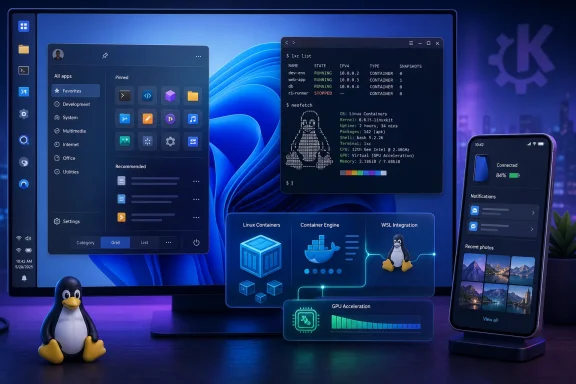 Overview: Windows Is Competing on Workflow, Not Just Familiarity
Windows historically competed with Linux through hardware compatibility, commercial software support, and gaming. Those advantages remain important, particularly for users dependent on Adobe applications, Microsoft 365, specialized engineering tools, anti-cheat-protected games, or proprietary peripherals.But the modern desktop battle is increasingly about workflow continuity. Developers want Linux command-line tooling alongside Windows applications. Laptop users want their phone, files, notifications, and clipboard to work across devices with minimal setup. Desktop enthusiasts want to decide where their taskbar sits and how their app launcher behaves.
The four changes attracting attention address precisely those practical demands:
- WSL containers make Linux container development more native to Windows.
- A more flexible Start menu introduces category, grid, and list views for installed software.
- Taskbar personalization finally allows placement on all screen edges, alongside a compact mode.
- Android phone integration in Start provides at-a-glance device information and fast access to shared content.
WSL Containers Could Be the Most Important Change
The most technically significant improvement is the arrival of WSL containers, a public-preview container environment built around the Windows Subsystem for Linux.WSL has already reshaped the Windows development story. Instead of forcing developers to dual-boot, use a full Linux virtual machine, or accept the limitations of older compatibility layers, WSL 2 runs a genuine Linux kernel in a lightweight virtualized environment. That has made Windows substantially more viable for web development, cloud engineering, automation, data science, and cross-platform work.
Containers take that progress a step further.
From a Linux Distribution to a Container Platform
Containers are central to modern software development. Applications and their dependencies can be packaged into repeatable, isolated environments that behave consistently across a developer workstation, testing infrastructure, and cloud deployment platform.Until now, many Windows users relied on third-party container tooling, Docker Desktop, manually managed WSL distributions, or a mixture of those approaches. Those solutions can work well, but they also add layers of configuration, licensing considerations, resource-management choices, and occasional networking complexity.
WSL containers aim to bring the lifecycle of Linux containers closer to the operating system itself. The new tooling offers commands for creating, running, inspecting, exporting, pruning, and otherwise managing containers. More importantly, it is designed around existing Linux container conventions instead of inventing an entirely Windows-specific development model.
That matters because developers do not want to relearn basic workflows simply because their host machine runs Windows. Familiarity with Linux images, command-line conventions, container registries, and OCI-compatible container practices helps reduce the cognitive tax of working across platforms.
Why the WSL 2 Foundation Matters
WSL containers build on the same broad architecture that made WSL 2 successful. The Linux environment runs through a managed virtual machine that uses Hyper-V virtualization technology, but it is integrated more deeply into the Windows desktop than a traditional virtual machine.This is a sensible approach. A full virtual machine can provide strong separation, but it often feels detached from the host operating system. Users must manage virtual disks, network behavior, shared folders, snapshots, and manual resource settings. WSL reduces much of that overhead while preserving access to real Linux user-space tools and a real Linux kernel.
The resulting model gives Windows developers a useful split personality:
- Windows can remain the primary desktop for commercial applications, enterprise identity, and hardware support.
- Linux distributions can provide native command-line environments and package ecosystems.
- Containers can run as portable application environments without forcing users into a separate Linux workstation.
GPU Support Is a Major Advantage for AI and Compute Workloads
One of the more compelling aspects of the new WSL container approach is GPU support through the Container Device Interface, commonly called CDI.GPU access is no longer a niche requirement. Local AI inference, machine-learning experiments, CUDA development, image generation, video processing, scientific workloads, and GPU-accelerated data pipelines are becoming normal desktop tasks. The ability to use a Windows machine’s graphics driver stack while running Linux workloads is therefore increasingly important.
With CDI-based support, properly configured Linux containers can access GPU capabilities exposed through Windows and WSL. This can allow workloads built around CUDA and similar acceleration stacks to run without requiring a physically separate Linux system.
That is particularly appealing for developers who need Windows applications during the day but want Linux containers for testing or AI experimentation. A single high-performance desktop can now support both roles more naturally.
However, expectations should remain grounded. GPU acceleration in containers depends on compatible hardware, graphics drivers, container images, and software stacks. It is not an automatic guarantee that every Linux graphics or compute workload will behave exactly as it would on a native Linux installation. Developers working with specialized drivers, low-level GPU profiling, unusual kernel modules, or tightly tuned production systems may still prefer bare-metal Linux.
Virtiofs Targets One of WSL’s Persistent Weak Spots
File-system performance has often been one of WSL 2’s less glamorous limitations. The experience can be excellent when projects live inside the Linux file system, but work involving files mounted from Windows has historically exposed latency and performance overhead, especially with workloads that create or inspect large numbers of small files.That distinction is important. Web projects, package managers, source-control operations, dependency trees, build systems, and test suites can perform thousands of metadata operations. Even modest overhead becomes visible when a developer is waiting for a package installation or build process to finish.
The new WSL container work introduces virtiofs as a faster file-sharing approach for containers. By using a VirtIO-based shared-memory model, virtiofs is designed to reduce some of the serialization and protocol overhead associated with older cross-environment file access.
Microsoft has described faster Windows file access for this configuration, with improvements that can be substantial for suitable workloads. The practical benefit is not merely about benchmark charts. It is about reducing the feeling that Linux development on Windows becomes sluggish the moment a repository lives on the wrong side of the host-guest boundary.
There are still limits. File performance varies by workload, storage device, antivirus configuration, project layout, and whether files are stored in the Windows or Linux environment. Developers should continue to make deliberate decisions about where repositories, package caches, databases, and container volumes reside.
The Risks of a Microsoft-Managed Linux Workflow
WSL containers make Windows more accommodating, but they also reinforce Microsoft’s role at the center of the development environment. Linux users who value complete system transparency may view that as a compromise rather than a benefit.There are several concerns worth acknowledging:
- Preview status matters. Public-preview tools can change quickly, contain bugs, and lack features expected in mature container platforms.
- Windows updates remain a variable. A development stack that depends on Windows, WSL, drivers, and virtualization components has more moving parts than a single native Linux installation.
- Resource use can be less predictable than bare metal. WSL has improved memory management significantly, but virtualization still creates an additional layer to monitor.
- Enterprise controls may complicate setup. Hyper-V, virtualization features, driver policies, and security software can affect whether advanced developer features work smoothly.
- Native Linux remains the reference environment. If production runs on Linux and a project relies on kernel-specific behavior, native Linux testing continues to have value.
The Start Menu Is Finally Becoming a Real App Launcher Again
The Windows 11 Start menu has drawn criticism since the operating system’s launch. It was cleaner than the tile-heavy design of Windows 10, but that simplicity came at a cost. Users lost familiar flexibility, faced an overly prominent recommendation area, and had fewer ways to shape the launcher around how they actually worked.Recent changes address some of those frustrations.
Category, Grid, and List Views Add Useful Choice
The All apps area now supports three ways to browse installed software:- Category view, which groups applications into broad types such as productivity, utilities, entertainment, games, and development.
- Grid view, which presents applications in a more visual, app-drawer-like layout.
- List view, which preserves the familiar alphabetical browsing model.
Still, the key improvement is that Windows is no longer treating one launcher layout as universally correct. Choice is the feature.
Category view will appeal to people who think spatially and prefer browsing by purpose instead of memorizing application names. It can make a large app collection feel less intimidating, particularly on touch devices or machines shared by multiple household members.
Grid view may be the stronger option for users who want visual scanning without committing to categories. List view remains indispensable for those who prefer a compact, predictable alphabetical index.
Local Categorization Is Better Than an AI-Driven Guessing Game
One of the most reassuring elements of category view is that it does not need to be an always-online AI exercise. The app sorting mechanism is based on local categorization data rather than an ongoing cloud inference service that profiles user habits to determine where applications belong.That is a welcome design choice. Windows users have become understandably wary when a seemingly simple interface improvement is bundled with cloud dependency, account requirements, advertising logic, or aggressive Copilot integration.
A locally maintained application category map is not perfect, but it is easy to understand. The system can associate known applications with a defined category, while apps that do not fit cleanly can fall into a broader grouping.
There are limitations. Niche tools, portable applications, in-house utilities, older Win32 software, and specialized professional packages may not land where users expect. An application used for writing code may be categorized as a utility, while a business-specific client may wind up in an “Other” bucket.
That imperfection is tolerable if users retain access to grid and list views. The mistake would be treating categories as an authoritative classification rather than one useful perspective on a software library.
More Control Over Recent Content Is Overdue
Windows is also reframing the Recommended area as Recent, a small naming adjustment with larger implications. “Recommended” has suggested that Windows is making judgments about what a user should see. “Recent” is clearer: this section is about newly installed apps and files that have recently been used.The more meaningful change is the expansion of controls. Users can increasingly shape the Start menu at the section level, deciding whether to display pinned content, recent content, and the All apps section. Additional options allow the menu to be resized and can hide account details such as the user’s name and profile picture.
For privacy-conscious users, this matters. Recent files may be useful on a personal workstation but undesirable during presentations, screen sharing, livestreaming, or use on a family computer. A Start menu should not unexpectedly surface sensitive document names in front of an audience.
The ability to separate Start recommendations from File Explorer’s recent files and taskbar jump lists is also a sensible refinement. Users should not have to give up useful system-wide history merely because they want a cleaner Start menu.
A Movable Taskbar Repairs a Self-Inflicted Windows 11 Limitation
The return of taskbar positioning may sound minor, but it represents one of the clearest examples of Windows 11 restoring flexibility that users expected from earlier versions of Windows.Windows 11 originally restricted the taskbar to the bottom edge of the display. For a desktop operating system used across ultrawide monitors, laptops, tablets, vertical displays, and multi-monitor workstations, that limitation was difficult to justify.
Windows is now testing support for placing the taskbar at the top, bottom, left, or right of the screen.
Why Placement Changes Productivity
Desktop layout is deeply personal. A top-aligned taskbar can resemble GNOME’s top-bar-centric approach. A left or right vertical taskbar can resemble a dock-oriented workflow and may be more efficient on wide displays.A vertical taskbar is especially useful for software developers, writers, researchers, and anyone working on modern widescreen panels. Horizontal space is plentiful on a 16:9 or 21:9 display, while vertical space is often scarce. Moving window controls and application switching to the side can free additional height for code, documents, browser content, timelines, and spreadsheets.
Windows also supports position-aware alignment choices. Depending on where the taskbar is placed, icons can be aligned or centered in ways that make sense for that orientation. Combined with label support for ungrouped windows, a vertical taskbar can become a genuinely practical organizational tool rather than a cosmetic novelty.
Compact Taskbar Mode Is Small but Useful
A new compact taskbar option reduces icon size and taskbar height. That may seem like a niche preference, but it is valuable on smaller laptop displays, lower-resolution monitors, handheld devices, and screen setups where every line of content matters.The compact mode also helps correct a recurring Windows 11 theme: interface elements became more spacious, touch-friendly, and visually rounded, but desktop users sometimes lost density in the process.
The best modern operating systems should not force a choice between accessibility and efficiency. Large touch targets are useful for touch-capable hardware, but dense information layouts remain essential for keyboard-and-mouse productivity.
Experimental Features Still Need Polish
The alternate taskbar positions are not yet a finished feature in every respect. In preview testing, some capabilities—such as auto-hide behavior, tablet optimization, touch gestures, search-box presentation, and other visual details—may be incomplete or still under refinement.This is precisely why it is important not to overstate the change. Windows has begun correcting the taskbar’s rigidity, but a real success depends on bringing the whole ecosystem along with it.
A taskbar on the left edge must behave correctly with:
- Start menu placement
- Search and system flyouts
- Multi-monitor configurations
- Full-screen apps
- Touch input
- Auto-hide behavior
- Accessibility tools
- Context menus
- Third-party utilities
- Different display scaling levels
Android Integration in Start Brings Windows Closer to KDE Connect
Phone integration is another area where Linux users have had compelling options. KDE Connect in particular has earned a loyal following by making local-network device integration feel straightforward: clipboard sharing, notification mirroring, file transfers, media controls, remote input, and more.Windows has had Phone Link for years, but the experience has not always felt central to the desktop. Recent Start menu integration changes that by placing a connected Android phone directly within the launcher experience.
A Phone Panel That Is Actually Visible
With a compatible linked device, the Start menu can show a compact mobile panel containing useful at-a-glance information, including:- Battery status
- Connectivity state
- Recent activity
- Messaging and call-related information
- Access to recent phone photos
- Shared content and clipboard-related functionality
The photo access component is particularly useful. Being able to reach recent Android photos from the desktop and move them into a document, chat, editor, or presentation reduces a surprisingly common source of friction. It removes the need to email images to yourself, open a browser-based cloud service, hunt through cable connections, or manually launch a separate sync client.
Not a Complete KDE Connect Replacement
The comparison to KDE Connect is fair, but it should not be overstated. Windows Phone Link and the Start menu mobile panel are part of a Microsoft-managed ecosystem and depend on compatible software, account setup, phone permissions, and supported device features.KDE Connect remains appealing because it is open source, flexible, cross-platform, and often more transparent about its local-network model. It also supports a broader philosophy of device interoperability rather than positioning the phone primarily as an extension of a particular operating system vendor’s services.
Windows phone integration has other limits:
- Feature availability can vary by Android handset and manufacturer.
- Some capabilities may require the Link to Windows app or specific permissions.
- iPhone support has expanded in some areas, but Android generally offers deeper integration.
- Corporate device policies can restrict pairing, message access, file transfer, or notification sync.
- The experience is less useful for users who deliberately avoid Microsoft accounts or connected-device services.
What These Features Do Not Fix
The strongest argument for these changes is not that Windows has become perfect. It is that Microsoft is responding to concrete quality-of-life complaints instead of merely adding more visual effects or AI branding.Yet Linux users considering a switch should not ignore the unresolved issues.
Privacy and Account Concerns Remain
Linux distributions can be configured with minimal telemetry, local accounts, and a high degree of user control. Windows 11 remains more deeply tied to Microsoft services, cloud features, account prompts, and system-level data collection policies than many privacy-focused users prefer.Local categorization in Start is a positive sign, but it does not erase broader concerns around connected experiences, recommendations, cloud synchronization, and the increasing presence of AI-related features across Windows.
Windows Update Trust Has to Be Earned
The article of faith among many Linux converts is not that Linux never breaks—it certainly can—but that they have more agency when something does go wrong. Windows update quality, driver behavior, feature rollouts, and changing defaults remain major concerns for power users.Microsoft’s renewed emphasis on quality is welcome. The real test will be whether these features arrive in stable releases without regressions, awkward policy conflicts, or a requirement to use experimental builds for months at a time.
Linux Still Offers Greater Desktop Freedom
The Start menu and taskbar improvements make Windows more configurable, but they do not match the full flexibility of an open desktop ecosystem. On Linux, users can change their entire desktop shell, window manager, compositor, launcher, panel, icon theme, shortcut model, and workflow philosophy.Windows offers customization within Microsoft’s boundaries. Linux lets users redraw the boundaries.
That distinction will continue to matter for enthusiasts who enjoy shaping the operating system as much as using it.
The Bigger Picture: Windows Is Becoming a Better Host for Hybrid Computing
The most interesting theme across these features is not that Windows is copying Linux. It is that Windows is becoming better at supporting hybrid computing.A user can want a polished commercial desktop, strong game compatibility, professional creative software, Linux command-line tools, containerized development workflows, a personalized launcher, a vertical taskbar, and Android connectivity. In the past, that combination often required compromises or multiple operating systems.
Windows 11 is increasingly trying to consolidate those needs into one machine.
WSL containers make Windows more credible for developers who once viewed native Linux as mandatory. Start menu choices and taskbar placement make the interface less prescriptive. Phone integration makes the PC feel less disconnected from the device that sits beside it all day.
The result is not a reason for every Linux user to switch. Linux remains the better fit for people who prioritize open-source governance, extensive desktop freedom, low-level control, privacy-first defaults, or a completely native Linux development environment.
But for users who left Windows primarily because it felt rigid, unproductive, and unfriendly to modern Linux-based workflows, the latest Windows 11 changes deserve serious attention. Microsoft is finally restoring some of the flexibility it removed while adding development and cross-device features that make staying on Windows less of a compromise.