If your laptop touchpad suddenly stops responding in Windows 11, the immediate workaround—plugging in a USB or Bluetooth mouse—only masks the problem. The real solution is a methodical troubleshooting flow that separates quick fixes from deeper driver, firmware, and hardware interventions so you can restore reliable cursor control without unnecessary risk or costly repairs. This article packs a practical, step‑by‑step troubleshooting guide, explains why touchpads fail, highlights safer vs. higher‑risk fixes, and shows when to escalate to OEM support or repair.
Background: why a touchpad can stop working
Touchpads are a small hardware subsystem that depend on firmware, OS drivers, device‑specific OEM stacks, and user settings. Failures tend to fall into four categories: simple settings toggles, driver or Windows update regressions, firmware/UEFI disables, and true hardware faults like disconnected ribbons or a failed sensor. Each category requires a different response: low‑risk settings checks first, followed by driver reinstalls and firmware checks, with hardware inspection only after software diagnostics fail. This practical diagnostic approach is widely recommended by troubleshooters and vendor guidance.Common, easily fixed causes include:
- The touchpad toggle in Settings is turned off or greyed out.
- An Fn + function key (touchpad icon) was pressed accidentally.
- Windows switched to a generic HID driver that lacks OEM gesture and palm‑rejection features.
- The device was disabled in UEFI/BIOS or blocked at firmware level.
- A recent Windows update or driver update introduced incompatibility or corruption.
Quick triage: 2–5 minute checks
Start here before diving into Device Manager or firmware. These checks solve the majority of everyday touchpad problems.- Confirm the touchpad is enabled: open Settings → Bluetooth & devices → Touchpad and make sure the toggle is On. If the option is missing or greyed out, that usually signals a missing driver or firmware block.
- Try the keyboard shortcut: press Fn + the touchpad function key (often F6/F8/F9 depending on model). Many accidental “disables” get fixed with a quick keypress.
- Plug in an external USB/Bluetooth mouse so you can continue troubleshooting safely if the touchpad becomes unavailable.
- Reboot once—transient driver/firmware states are often cleared by a full restart.
Step‑by‑step: Device Manager and driver fixes (safe, reversible)
Device Manager is the core Windows tool for driver troubleshooting. These steps mirror the simplest, most effective routines recommended by support guides.1) Update drivers (Device Manager: Mice and other pointing devices)
- Press Windows + X → Device Manager.
- Expand Mice and other pointing devices.
- Right‑click each listed device (HID‑compliant mouse, Synaptics, ELAN, etc. and choose Update driver → Search automatically for drivers. Try each relevant entry one at a time; Windows may locate a newer package.
2) Check Human Interface Devices (HID / I2C HID)
- Still in Device Manager, expand Human Interface Devices.
- Look for entries labeled I2C HID, HID‑compliant touchpad, or vendor‑specific touchpad names.
- Right‑click the touchpad device entry and Update driver → Search automatically. If that yields nothing, choose Browse my computer → Let me pick from a list and try a different driver version from the list (useful if Windows installed a generic driver).
3) Reinstall the driver (if updating fails)
- Right‑click the touchpad entry under Human Interface Devices and choose Uninstall device. After uninstall, go to Device Manager’s Action menu and select Scan for hardware changes; Windows will attempt to reinstall a driver automatically. Reboot after the reinstall. Always keep an external mouse ready because uninstalling can remove input until the driver is restored.
4) OEM driver install (recommended when Windows generic drivers don’t restore full functionality)
- Identify your exact laptop model and download the manufacturer’s touchpad driver (Synaptics, ELAN, or Precision Touchpad package) from the OEM support site. Install the package and reboot—OEM drivers usually restore gesture options, palm rejection, and other hardware‑specific features missing from generic Microsoft drivers.
Firmware and BIOS checks (when the device disappears entirely)
If the touchpad is absent from Device Manager or remains nonfunctional across driver reinstalls, the next step is firmware.- Enter BIOS/UEFI during boot (model‑specific key such as F1, F2, F12, Esc, or Del). Look for an Internal Pointing Device or Touchpad option and ensure it’s enabled. Save and exit, then test in Windows. Many laptops provide this option; if absent, use Windows Advanced Startup → UEFI Firmware Settings to access the menu.
Safe Mode and clean‑boot diagnostics (isolating third‑party interference)
If the touchpad works in BIOS but not in a normal Windows session, test in lower‑resource environments.- Boot to Safe Mode. If the touchpad functions there, a third‑party driver, utility, or service is likely interfering. Use a Clean Boot (msconfig → Services/Startup control or Task Manager Startup tab) to selectively disable non‑Microsoft services and apps, then restart normally to find the offender.
Rollback or uninstall problematic Windows updates
If the problem began immediately after a Windows cumulative update or driver update:- In Device Manager → touchpad device → Properties → Driver tab → Roll Back Driver if available.
- Or go to Settings → Windows Update → Update history → Uninstall updates to remove a suspect Windows patch. Restoring a previous driver or update often resolves regressions.
Advanced, high‑risk options (registry, driver cleanup, firmware update)
These steps work but carry real risk; use them only after backups and a restore point.- Registry: some Precision Touchpad status flags live under HKEY_CURRENT_USER\SOFTWARE\Microsoft\Windows\CurrentVersion\PrecisionTouchpad\Status. Editing registry values can toggle device state—but incorrect edits may destabilize the OS. Export the registry branch and create a restore point first.
- Clean driver removal: use pnputil or driver cleanup utilities in Safe Mode to remove old driver packages, then reinstall the OEM driver. Removing the wrong driver package can disable other devices; document existing drivers before starting.
- Firmware/BIOS updates: vendors occasionally release UEFI updates that fix I2C HID initialization issues. Update firmware only using the OEM’s official updater and follow instructions precisely; misflashing the firmware can brick the device.
When the problem is hardware (and how to confirm)
Hardware faults are more likely when the touchpad is dead in pre‑boot environments (BIOS/UEFI) and after booting from external media (live Linux USB/test image).- If the touchpad is nonresponsive in BIOS or on the manufacturer’s diagnostic screen, suspect a physical failure: failed touchpad sensor, disconnected ribbon cable, or palm‑rest assembly damage.
- For thin notebook models, reseating the ribbon cable or replacing the palm‑rest assembly often fixes intermittent failures—but this requires disassembly, anti‑static precautions, and usually voids warranty if not done by an authorized technician. Always check warranty status before opening the chassis.
- Touchpad dead in BIOS/UEFI or on external boot media.
- Hardware damage or liquid exposure.
- Device is under warranty—avoid opening the laptop yourself.
Fine tuning, gestures, and usability: restoring the experience
Once the device is functional, use these recommended follow‑ups to restore usability and avoid regressions:- Open Settings → Bluetooth & devices → Touchpad to restore sensitivity, taps, and gesture mapping. Precision Touchpads expose robust three/four‑finger gestures; OEM drivers may add vendor controls such as PalmCheck and zone mapping.
- Save the working OEM driver installer to local storage so you can reinstall it if Windows Update later pushes a problematic driver.
- If accidental touches while typing remain a problem, reduce sensitivity or increase palm detection in the OEM control panel. These controls vary by vendor and driver version.
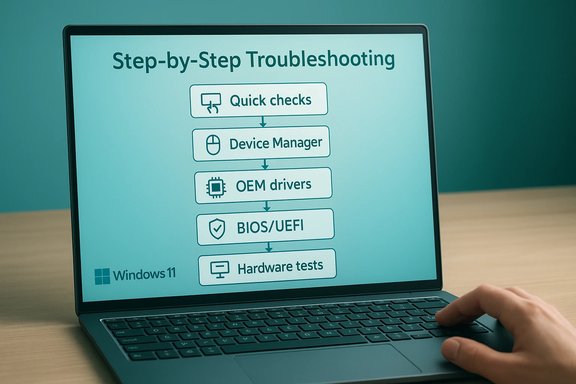
Practical troubleshooting checklist (condensed flow)
- Quick checks: Settings toggle, Fn key, reboot, plug in external mouse.
- Device Manager: Update drivers in Mice and other pointing devices and Human Interface Devices.
- Reinstall: Uninstall touchpad device → Scan for hardware changes; reboot.
- OEM driver: Download and install from manufacturer; reboot.
- Safe Mode / Clean Boot: isolate third‑party conflicts.
- BIOS/UEFI: Ensure Internal Pointing Device is Enabled.
- Hardware check: test in BIOS/UEFI or external boot media; contact OEM if it fails.
Critical analysis: strengths and risks of the recommended routine
What’s effective- The staged approach (Settings → Device Manager → OEM drivers → UEFI → hardware) is low‑risk and efficient; it resolves the majority of touchpad problems while minimizing downtime. Multiple vendor and community guides converge on this flow.
- Using OEM drivers is vital on many laptops because Precision Touchpad support from Microsoft may not expose vendor features such as PalmCheck, zone mapping, or advanced gesture tuning—installing the vendor package often restores full functionality.
- Boot‑time checks (BIOS/UEFI) quickly distinguish software/driver faults from hardware failures, cutting diagnostic time and avoiding unnecessary driver fiddling.
- Uninstalling drivers without an external mouse leaves users without input until drivers are reinstalled; always prepare a fallback.
- Registry edits and improper BIOS changes can destabilize the OS or prevent boot. These options should be last resorts and reserved for experienced users or technicians.
- Downloading drivers from unofficial sites or using generic driver‑updater utilities risks installing incompatible binaries or malware. Always use the laptop manufacturer’s official support site.
- Opening the chassis to reseat cables or parts can void warranty and introduce ESD risk; use authorized service if the device is under warranty.
Frequently asked practical questions (brief answers)
- My touchpad option is missing in Settings—what now?
Check Device Manager (Mice and other pointing devices; Human Interface Devices). If the device is absent, verify UEFI/BIOS that the touchpad isn’t disabled. If the device is visible but not working, try driver reinstall. - Should I install the latest Windows Optional driver updates?
Optional updates sometimes include vetted drivers, but OEM packages are generally preferable for touchpads because they include vendor features. Keep a saved copy of the working OEM installer as a fallback. - Can a Windows reset fix the touchpad?
A reset may resolve deep system corruption but should be a last resort after driver, Safe Mode, firmware, and hardware diagnostics. Back up data before any reset. - Touchpad works in Safe Mode—what does that mean?
If it works in Safe Mode, the problem is likely a third‑party driver, utility, or service. Use a Clean Boot to isolate the conflicting component.
Preventive practices and final recommendations
- Keep a known‑good OEM touchpad driver installer saved offline after successful driver updates. This makes rollbacks simple if a Windows Update breaks functionality.
- Create System Restore points before installing low‑level drivers or firmware updates.
- Test in BIOS/UEFI and external boot media early if reinstalling drivers doesn’t help—this saves time by promptly exposing hardware faults.
- Use gentle cleaning (soft lint‑free cloth and isopropyl alcohol) to remove oils and grime from the touchpad surface; contamination can change capacitive behaviour.
If your touchpad stops responding, start with the low‑risk checks and work up through drivers and firmware before assuming hardware failure. The staged approach described here restores service in most cases while protecting data and warranty status—when hardware is the culprit, the diagnostics will point you to the right next step: OEM support or authorized repair.
Source: PCWorld How to fix a touchpad that’s not working in Windows 11