

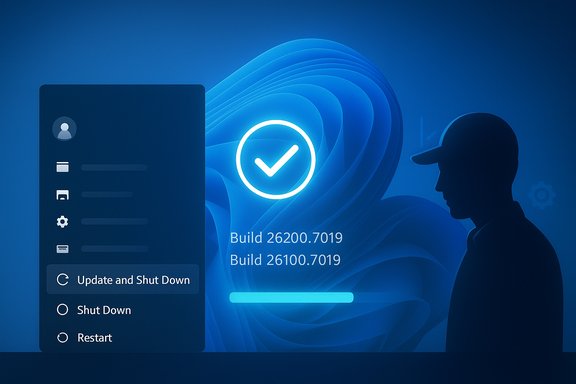
Microsoft has quietly corrected one of Windows’ most persistent little annoyances: the Start‑menu command “Update and shut down” — which in many machines installed updates only to leave the PC powered on — is now behaving as labeled after Microsoft shipped a servicing change in preview (KB5067036) that produces OS builds 26200.7019 (25H2) and 26100.7019 (24H2) and is being staged for broader distribution in the regular Patch Tuesday cycle.
For a surprising number of Windows users the difference between “Update and restart” and “Update and shut down” stopped being merely semantic. The expectation is simple: choose “Update and shut down,” let Windows apply pending updates while the device powers off, and return to a patched, powered‑off machine. For years, however, a non‑trivial and intermittent subset of devices would instead apply the updates and then return to the lock screen or desktop — effectively performing a restart rather than a shutdown. The symptom produced real‑world problems: drained laptop batteries, broken maintenance windows, and lost trust in a single, one‑click convenience.
Microsoft acknowledged and addressed this behavior in Insider release notes and rolled the fix into the October 28, 2025 optional preview cumulative update (KB5067036). The company’s official changelog describes the change in concise terms as an “Addressed underlying issue which can cause ‘Update and shutdown’ to not actually shut down your PC after updating.” That terse phrasing signals an orchestration‑level servicing correction rather than a relabeling of the UI. Why this matters: the mismatch between a labelled control and the actual outcome is more than a UX blemish. Deterministic shutdown semantics are relied on by users, administrators, and automation systems. When they fail intermittently — and in ways that are hardware and environment dependent — the impact is outsized compared with the small, visible surface of the problem.
In short: the small promise is fixed in supported Windows 11 channels, but prudence and measured rollout are still the best ways to convert a preliminary improvement into a durable gain in reliability and user trust.
Source: Diario AS Microsoft admits to a bug in Windows Update and offers the most classic solution possible: “Update and shut down”
 Background / Overview
For a surprising number of Windows users the difference between “Update and restart” and “Update and shut down” stopped being merely semantic. The expectation is simple: choose “Update and shut down,” let Windows apply pending updates while the device powers off, and return to a patched, powered‑off machine. For years, however, a non‑trivial and intermittent subset of devices would instead apply the updates and then return to the lock screen or desktop — effectively performing a restart rather than a shutdown. The symptom produced real‑world problems: drained laptop batteries, broken maintenance windows, and lost trust in a single, one‑click convenience.Microsoft acknowledged and addressed this behavior in Insider release notes and rolled the fix into the October 28, 2025 optional preview cumulative update (KB5067036). The company’s official changelog describes the change in concise terms as an “Addressed underlying issue which can cause ‘Update and shutdown’ to not actually shut down your PC after updating.” That terse phrasing signals an orchestration‑level servicing correction rather than a relabeling of the UI. Why this matters: the mismatch between a labelled control and the actual outcome is more than a UX blemish. Deterministic shutdown semantics are relied on by users, administrators, and automation systems. When they fail intermittently — and in ways that are hardware and environment dependent — the impact is outsized compared with the small, visible surface of the problem.
How “Update and shut down” actually works (and why it broke)
The multi‑phase servicing pipeline
What looks like a two‑word UI action is in reality a coordinated, multi‑stage process that traverses several Windows subsystems:- Windows stages update payloads while the OS is running (background download and staging).
- Offline servicing commits occur during shutdown/boot to replace files locked by the running OS.
- The servicing pipeline may require intermediate reboots or additional offline passes for some components.
- A final commit must preserve the user’s final power intent (restart vs. shutdown) and act on it reliably.
Fast Startup, drivers, and sign‑in flows
Several interacting elements compounded the fragility:- Fast Startup / Hybrid Shutdown: When enabled, Fast Startup preserves part of the kernel state to speed boot. That hybrid path changes shutdown semantics and can alter how offline servicing commits behave.
- Drivers and firmware interactions: OEM drivers or firmware components that need a full restart to load correctly may push the servicing pipeline toward a restart to guarantee integrity.
- Sign‑in/finish‑after‑restart flows: Windows features that automatically sign in to complete setup after a restart can influence whether post‑update tasks run and affect the final decision.
- Third‑party management agents: Enterprise management software or OEM utilities can modify shutdown sequences and interfere with the servicing orchestration.
What Microsoft shipped (KBs, builds, and timeline)
The preview artifact: KB5067036 (October 28, 2025)
Microsoft packaged the orchestration fix into an optional, non‑security preview cumulative update on October 28, 2025 — KB5067036. The update produces OS builds 26200.7019 (Windows 11 25H2) and 26100.7019 (Windows 11 24H2) and includes a combined Servicing Stack Update (SSU) identified as KB5067035. The Microsoft support page for that preview documents the change and explicitly lists a known‑issue (Task Manager may continue running after you close it) associated with the preview. Microsoft validated the fix first in Windows Insider Dev and Beta channel notes (late September preview flights) and then packaged the same correction into the October preview LCU+SSU combination before staging broader distribution via the mainstream Patch Tuesday channel. Public discussion and telemetry‑driven staging indicate Microsoft planned to include the change in the November cumulative update cycle (Patch Tuesday, November 11, 2025), subject to preview telemetry and any regression fixes.Why the SSU + LCU packaging matters
KB5067036 is a combined delivery: the Servicing Stack Update (SSU) improves the update installation framework and is included with the Latest Cumulative Update (LCU) for convenience and reliability. Practical implications:- SSUs are conservative and rarely removed; they must be installed in order to ensure future updates apply correctly.
- The combined package changes the behavior of the servicing stack itself, which is why Microsoft staged the change through Insider and preview channels first.
Independent verification and community testing
Multiple independent outlets and community boards confirmed the same artifacts and behavior:- Tech reporting outlets documented Microsoft’s admission and the preview package details, noting that users should be cautious about installing preview packages immediately because preview code can introduce regressions.
- Community testing sites and regional news aggregators reported the preview’s Task Manager regression and reproduced the corrected shutdown behavior on test hardware.
- Windows‑focused community forums logged real user tests, pilot deployments, and the staged rollout plan (Insider → Release Preview → mainstream CU), providing ongoing validation of Microsoft’s changelog and the build numbers that contain the remediation.
Notable regressions and risks (what to watch for)
Fixes that touch the servicing stack can carry collateral effects. KB5067036’s preview notes list a visible regression: Task Manager might continue running in the background after the app is closed, producing lingering taskmgr.exe processes that waste CPU and memory. Microsoft documents this as a known issue under investigation; multiple community testers reproduced it and reported the accumulation of hidden Task Manager instances on affected installs. That regression is a concrete reason to avoid applying preview packages wholesale to production machines. Other risk factors to consider:- Preview updates can expose new bugs: Optional, non‑security preview releases are intended for testing and telemetry collection; they are not final mainstream releases.
- Windows 10 support status: Windows 10 reached end of standard support on October 14, 2025, meaning Microsoft is not issuing broad, routine fixes to Windows 10 in the same way it is for supported Windows 11 channels. Affected Windows 10 systems may not receive the same corrective servicing under normal update channels (unless covered by Extended Security Updates or specific out‑of‑band releases). This lifecycle fact changes the operational calculus for administrators who still manage mixed Windows 10/11 fleets.
- Device diversity: Because the original problem was environment dependent, it’s possible that some hardware/driver combinations will still show edge‑case failures even after the remediation rolls into the mainstream CU.
Practical guidance — what consumers and administrators should do
The right action depends on risk tolerance, the role of the device (production vs. test), and the desire to get the fix early.Quick checks: identify your current build
- Press Windows key + R, type winver, and press Enter.
- In the About Windows dialog, note the OS version and OS build (for example, 26200.7019).
- Alternatively, open Settings > System > About and check the OS build under Windows specifications.
If you want the fix immediately (test devices only)
- Use a spare or non‑critical device for testing — don’t jump immediately on production machines.
- Open Settings > Windows Update > Check for updates. Look under Optional updates available to find the October 28, 2025 preview (KB5067036) if it’s offered to your device.
- Install the combined SSU+LCU package. Reboot as required.
- Test the Update and shut down flow with representative update payloads and observe Task Manager and overall stability for several days.
- Monitor system health, resource usage, and event logs for unexpected behavior.
If you prefer to wait (recommended for most users and admin fleets)
- Wait for Microsoft to fold the fix into the monthly Patch Tuesday cumulative update (mainstream CU) after preview telemetry confirms stability. Microsoft staged this preview toward the November 11, 2025 CU in public notes.
- When the mainstream CU arrives, deploy to a pilot ring (for organizations) and monitor telemetry before broad rollout.
- For home users, install the mainstream CU via Windows Update when it moves from Optional to Recommended/Required in the normal cycle.
Short‑term workarounds
- Use Update and restart instead of Update and shut down if you need certainty the machine will complete updates and restart into a known state.
- Disable Fast Startup as a temporary mitigation for some machines that show the symptom. To disable Fast Startup:
- Open Control Panel > Power Options > Choose what the power buttons do.
- Click Change settings that are currently unavailable.
- Uncheck Turn on fast startup (recommended) and save changes.
- These workarounds don’t fix the underlying orchestration problem but can reduce the conditions where the misbehavior appears.
Deeper implications: the fragility of user promises
This correction and its staging path highlight two broader truths about modern OS servicing:- Small UI promises rest on complex internals. A two‑word action in the Start menu maps to a fragile choreography among the servicing stack, power state handlers, drivers, and sign‑in flows. Restoring a simple promise requires careful orchestration fixes, not just relabeling.
- Staged rollout matters — and so does coverage. Microsoft followed the expected path (Insider → optional preview → mainstream CU) to validate telemetry and minimize regressions. But preview code can and did expose side effects (Task Manager), demonstrating the trade‑offs between shipping fixes quickly and keeping broad stability guarantees intact.
Final assessment and verdict
Microsoft’s servicing correction for Update and shut down is meaningful: it restores a straightforward, user‑facing promise that in many cases had been broken for years. The official KB (KB5067036) and the associated Insider notes provide clear, verifiable artifacts — build numbers, release packaging, and a documented remediation string — that confirm the fix and the channel through which it is being deployed. That said, the preview also illustrates the practical trade‑offs of modern OS servicing. The known Task Manager regression accompanying KB5067036 is a concrete counterweight to early adoption: applying preview updates can replace one frustration with another. The safest path for most users and organizations is caution: pilot on test hardware, validate the fix against representative workloads, and adopt the mainstream cumulative update only after Microsoft has confirmed stability via the normal Patch Tuesday cadence.In short: the small promise is fixed in supported Windows 11 channels, but prudence and measured rollout are still the best ways to convert a preliminary improvement into a durable gain in reliability and user trust.
Source: Diario AS Microsoft admits to a bug in Windows Update and offers the most classic solution possible: “Update and shut down”
