

Microsoft’s decision to end free support for Windows 10 on October 14, 2025 has forced a practical reckoning for millions of PC owners: upgrade to Windows 11, pay for a short Extended Security Updates (ESU) plan, move to another OS, or run an unsupported system with rising risk. For many users, the immediate barrier is not cost but compatibility—Windows 11’s baseline of TPM 2.0, UEFI Secure Boot, and a supported CPU family has rendered a surprising number of otherwise healthy Windows 10 machines “incompatible.” The good news: a large share of those incompatibilities are resolvable with configuration changes or installer tweaks. The bad news: these workarounds carry real trade‑offs—security, update eligibility, warranty/support implications, and potential instability—that anyone attempting them must understand before they click “Install.” ([support.microsoft.icrosoft.com/en-us/windows/windows-10-support-ends-on-october-14-2025-2ca8b313-1946-43d3-b55c-2b95b107f281)
Microsoft’s official lifecycle calendar made this moment inevitable: Windows 10 mainstream servicing ended on October 14, 2025. That date removed the routine cadence of free security patches and feature updates for most consumer editions of Windows 10; Microsoft recommends moving to Windows 11 or enrolling eligible devices in the consumer ESU program for up to one additional year of security updates. For administrators and home users alike, the EOL notice accelerated migration timelines.
Windows 11’s minimum system requirements are straightforward on paper but stricter in practice:
For hobbyists, refurbishers, and lab environments, Rufus and community tools ease the path to Windows 11 on older hardware—but they should be used with full awareness of the tradeoffs: backup, verify media, prefer official ISOs as a base, and keep a tested rollback path. Community threads and hands‑on reports provide the blueprints; Microsoft’s documentation and warnings provide the legal and security guardrails. Read both, plan carefully, and don’t let the urgency of Windows 10’s EOL force rushed decisions that leave you worse off.
If you want a practical checklist you can follow on a single machine right now, use the step‑by‑step plan above: backup, check firmware and CPU instructions, enable TPM/Secure Boot, try the official installer, and only then evaluate registry or Rufus paths—documenting every change and keeping a full image to revert if needed.
Conclusion
For many Windows 10 users, upgrading to Windows 11 despite an “incompatible” label is not only possible but straightforward—provided you choose the right method for the specific incompatibility and accept the consequences. Firmware toggles and driver updates are the least risky fixes; registry bypasses and third‑party installer tools are practical but carry ongoing maintenance and security risk; and missing CPU instruction support remains an immovable technical limit. The safest path is to first try the official channels, pursue firmware remediation where possible, and treat any bypass as a measured, reversible experiment rather than the default plan for mission‑critical systems. The clock has already struck midnight on Windows 10’s free mainstream servicing; make your move deliberately and with full backups.
Source: avandatimes.com Windows 10 End-of-Life: How to Upgrade Older PCs to Windows 11 Despite Incompatibility Warnings - AvandaTimes
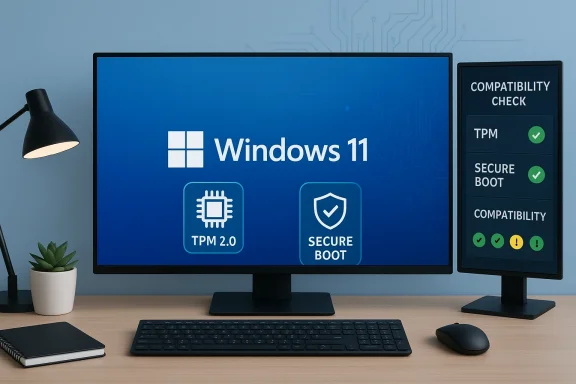 Background / Overview
Microsoft’s official lifecycle calendar made this moment inevitable: Windows 10 mainstream servicing ended on October 14, 2025. That date removed the routine cadence of free security patches and feature updates for most consumer editions of Windows 10; Microsoft recommends moving to Windows 11 or enrolling eligible devices in the consumer ESU program for up to one additional year of security updates. For administrators and home users alike, the EOL notice accelerated migration timelines.Windows 11’s minimum system requirements are straightforward on paper but stricter in practice:
- A compatible 64‑bit processor (1 GHz or faster, 2+ cores) appearing on Microsoft’s supported list
- 4 GB RAM and 64 GB storage minimum
- UEFI firmware with Secure Boot capability
- Trusted Platform Module (TPM) version 2.0
- DirectX 12/WDDM 2.x graphics support
Understanding the compatibility challenges
TPM and Secure Boot: the low‑hanging fruit
Many PCs flagged as “incompatible” actually have the required hardware but with the right options disabled. Modern Intel and AMD platforms expose TPM functionality under different names in firmware—Intel PTT (Platform Trust Technology) or AMD fTPM (firmware TPM)—and those features are often turned off by default. Similarly, Secure Boot may be available but not enabled, or the system might still be set to legacy BIOS/CSM mode rather than UEFI, which prevents Secure Boot from functioning. Enabling these firmware settings typically resolves the PC Health Check errors without hardware changes.Processor support and instruction‑level barriers
Processor incompatibility is a tougher category. Microsoft maintains lists of supported Intel, AMD and Qualcomm processors; machines with CPUs not on these lists are flagged as “unsupported.” Beyond family‑level exclusions, recent Windows 11 releases (notably 24H2 and onward) have introduced instruction‑level checks—POPCNT and SSE4.2 among them—that are required by the OS runtime. A CPU that lacks those instructions cannot be made to implement them in software; that’s a hardware limitation that effectively rules out Windows 11 for those older chips. In short: firmware toggles can fix TPM and Secure Boot issues, but missing CPU instructions are non‑negotiable.What Microsoft permits — and what it warns against
Microsoft documented a registry‑based bypass that allows in‑place upgrades to proceed when the installer would otherwise block on TPM or CPU checks. That key—AllowUpgradesWithUnsupportedTPMOrCPU under HKEY_LOCAL_MACHINE\SYSTEM\Setup\MoSetup—still works for many upgrade paths when used correctly, but the company explicitly warns that systems upgraded using such bypasses “aren’t guaranteed to receive updates” and are not supported. Microsoft’s public messaging has become stricter over time: the guidance is available, but it now comes with a clear warning and caveats. Community tools and third‑party installers (Rufus, modified ISOs, automated scripts) automate or simplify these bypasses—useful for hobbyists and refurbishers but risky for production or sensitive systems.How to check your PC (quick checklist)
Before attempting any upgrade, gather the facts. The small time investment here prevents data loss and wasted effort.- Run PC Health Check to see what the official compatibility checker reports and which specific items fail.
- Open tpm.msc (Run → tpm.msc) to see if TPM is present and whether it’s version 2.0 or 1.2. If the tool reports “Compatible TPM cannot be found,” check your firmware settings.
- Run msinfo32 and check “BIOS Mode” (should read UEFI) and “Secure Boot State.” If BIOS Mode says Legacy, you’ll need to convert to UEFI/GPT for a supported upgrade path.
- Use a CPU info tool (Coreinfo, CPU‑Z) to confirm instruction set support (looking for POPCNT/SSE4.2 flags) and to validate whether your CPU family is on Microsoft’s supported list. If the CPU lacks required instruction support, Windows 11 24H2+ may refuse to boot even when installed.
- Verify you have at least 64 GB free and that your storage device and drivers are healthy. Corrupt or outdated drivers are a common post‑upgrade source of instability.
Practical upgrade paths and the trade‑offs
Below are the methods commonly used to move older Windows 10 PCs to Windows 11 despite compatibility warnings. I list each method, its benefits, and its risks.1) The official paths (recommended where possible)
- Windows Update (automatic rollout) or the Windows 11 Installation Assistant. These preserve update eligibility and support if your device truly meets requirements. Always try the official path first.
- Keeps update entitlement and official support.
- Preserves activation and most drivers.
Risks: - Not available if hardware checks fail.
2) Firmware fixes: enable TPM/PTT/fTPM and Secure Boot
- Reboot into UEFI/BIOS, enable Intel PTT or AMD fTPM, enable Secure Boot, and ensure firmware is in UEFI mode. Many machines will become eligible immediately. This is the safest “fix” and should be attempted before any registry or installer modifications.
- Safest route; preserves update eligibility.
Risks: - Some firmware menus are confusing; misconfiguration can cause boot issues—back up first.
3) Microsoft’s documented registry bypass (in‑place upgrade)
- If you can launch Setup from within Windows 10: create the key HKEY_LOCAL_MACHINE\SYSTEM\Setup\MoSetup\AllowUpgradesWithUnsupportedTPMOrCPU = 1 and then run Setup.exe from a Windows 11 ISO or media. This often lets an in‑place upgrade proceed while keeping user data and installed apps. Microsoft documents the approach but warns it’s unsupported and devices upgraded this way are not guaranteed updates.
- Keeps apps, settings and files intact.
- Quicker than a full clean install.
Risks: - Microsoft may refuse support and may block future updates for such devices; security posture is reduced.
4) Clean install via modified installation media (Rufus, appraiserres.dll swap, LabConfig)
- If in‑place upgrade is blocked or you prefer a clean start, you can create installation media that bypasses checks. Tools like Rufus offer “Extended Windows 11 installation” options to remove TPM, Secure Boot and RAM checks when making the USB. Alternately, advanced users can replace or remove the appraiserres.dll in the Windows 11 ISO’s \sources folder or use the LabConfig registry keys during setup (BypassTPMCheck, BypassSecureBootCheck, BypassRAMCheck) to proceed. These methods are widely documented and automated by community tools.
- Enables clean installs on machines lacking TPM or Secure Boot (or where you prefer a fresh system).
- Rufus automates the process and can skip OOBE annoyances.
Risks: - Clean install erases apps and settings unless you back them up; may not preserve activation or qualify for future updates; third‑party tools and modified ISOs increase supply‑chain and AV‑false‑positive risk.
5) The instruction‑set hard stop: when you cannot upgrade
- If your CPU doesn’t support POPCNT/SSE4.2 (or other required instructions), modern Windows 11 builds may not boot even if you install them. No registry hack or USB trick can create missing CPU instructions. In these cases the options are hardware replacement, running Windows 10 with ESU, or switching OS.
A sensible, safety‑first step‑by‑step plan
If you decide to attempt an upgrade on a machine Microsoft flags as incompatible, follow this sequence to reduce risk:- Back up everything. Create a full system image (disk image) and copy critical files to external storage or cloud services. Don’t skip this.
- Run PC Health Check, tpm.msc, and msinfo32 to note failures. Confirm CPU instruction flags with Coreinfo or CPU‑Z. If you lack POPCNT/SSE4.2, stop and plan alternatives.
- Update firmware (UEFI) and chipset drivers from your OEM. Look for BIOS/UEFI updates that add PTT/fTPM support or UEFI enhancements. This alone often resolves issues.
- Enable TPM/PTT/fTPM and Secure Boot in UEFI. Reboot and re‑check PC Health Check. If this fixes the issue, use the official Installation Assistant or Windows Update.
- If blocked and you want to keep apps and data, consider the Microsoft registry bypass to perform an in‑place upgrade: create AllowUpgradesWithUnsupportedTPMOrCPU = 1 under HKLM\SYSTEM\Setup\MoSetup and run Setup.exe from a mounted ISO. Document everything and keep an image to revert. Understand Microsoft’s warnings about update eligibility before proceeding.
- If in‑place upgrade is not viable or you prefer a clean slate, use Rufus (latest version) to create an “Extended Windows 11 installation” USB or perform the installer LabConfig registry edits during setup (BypassTPMCheck, BypassSecureBootCheck). Again: back up, and be prepared to reinstall apps.
- After installation, install the latest chipset, graphics and storage drivers from the OEM. Check Windows Update—but be prepared for variability in update delivery on unsupported configurations. Monitor the system closely for driver conflicts and performance anomalies.
Risks, limitations and ongoing maintenance
- Update eligibility is uncertain. Microsoft’s explicit admonition is that unsupported installs “aren’t guaranteed to receive updates,” and the company may elect to block feature or security updates for devices it considers non‑compliant. That trade‑off: you may get a working Windows 11 system that will be left vulnerable over time. Plan accordingly.
- Warranty and support may be affected. OEMs and Microsoft can deny support for problems arising from an unsupported OS configuration. If you use the device for critical tasks or under warranty constraints, factor that in.
- Driver and stability issues. Older hardware vendors may not supply driver updates for Windows 11; missing or incompatible drivers can cause regressions, crashes, or degraded performance. Always ensure drivers used post‑upgrade are vendor‑approved where possible.
- Security posture weakens without TPM/Secure Boot. If you deliberately disable or bypass TPM and Secure Boot, you lose important hardware‑rooted protections. For privacy‑ and security‑conscious users, that’s a high price.
- Third‑party tool risk. Tools like Rufus are widely used and reputable, but downloading modified ISOs, community scripts, or automated “bypass” utilities from untrusted sources carries supply‑chain risk. Prefer official ISOs and reputable tooling; verify checksums and run AV scans before use. Community discussions repeatedly emphasize caution here.
When to stop and consider alternatives
If any of the following apply, stop trying hacky installs and evaluate safer options:- Your CPU lacks required instruction support (POPCNT/SSE4.2). This is a true hardware dead‑end for Windows 11 24H2+ builds.
- You need guaranteed security updates and vendor support (enterprise/critical workloads). Use ESU temporarily or replace the device.
- The machine is used for sensitive work and cannot tolerate the chance of reduced security features. Consider replacing or moving those workloads to a supported VM or a different machine.
- Buy a refurbished or new Windows 11 PC (trade‑in programs and discounts soften the cost).
- Run Windows 10 under ESU for a limited period while you plan replacement.
- Migrate to a lightweight Linux distribution or ChromeOS Flex for older hardware—viable for web‑first workflows and supported by many community guides. The UX and application compatibility differences are real, but for many home users they’re acceptable.
Critical read: what the community experiments tell us
Community testing and documentation—posts, long‑form threads and hands‑on guides—show that many older PCs can run Windows 11 acceptably when properly prepared. Enthusiasts have used firmware tweaks, registry bypasses, Rufus‑created media, or cleaned‑up ISOs to get Windows 11 running on machines Microsoft flags as incompatible. Those reports are valuable: they show the technical feasibility and the practical steps to succeed. But they also repeatedly underline the same cautionary themes: update delivery can be inconsistent; some driver problems may surface later; and the liability for security falls more on the user than on any vendor when you choose an unsupported configuration.Final verdict — a pragmatic recommendation
If your PC is only blocked by disabled firmware settings (TPM off, Secure Boot off, BIOS in Legacy mode), fix those first. That’s the lowest‑risk path and will often make your device eligible for the supported upgrade channel. If your PC is blocked by a CPU not on Microsoft’s supported list but otherwise modern and meeting instruction requirements, the Microsoft registry bypass can be a pragmatic short‑term route to preserve apps and settings—if you accept that future updates are not guaranteed and you maintain robust backups and monitoring. If your CPU lacks critical instruction support (POPCNT/SSE4.2) or the machine is critical to work, buy a replacement or enroll in ESU; don’t gamble on unsupported installs.For hobbyists, refurbishers, and lab environments, Rufus and community tools ease the path to Windows 11 on older hardware—but they should be used with full awareness of the tradeoffs: backup, verify media, prefer official ISOs as a base, and keep a tested rollback path. Community threads and hands‑on reports provide the blueprints; Microsoft’s documentation and warnings provide the legal and security guardrails. Read both, plan carefully, and don’t let the urgency of Windows 10’s EOL force rushed decisions that leave you worse off.
If you want a practical checklist you can follow on a single machine right now, use the step‑by‑step plan above: backup, check firmware and CPU instructions, enable TPM/Secure Boot, try the official installer, and only then evaluate registry or Rufus paths—documenting every change and keeping a full image to revert if needed.
Conclusion
For many Windows 10 users, upgrading to Windows 11 despite an “incompatible” label is not only possible but straightforward—provided you choose the right method for the specific incompatibility and accept the consequences. Firmware toggles and driver updates are the least risky fixes; registry bypasses and third‑party installer tools are practical but carry ongoing maintenance and security risk; and missing CPU instruction support remains an immovable technical limit. The safest path is to first try the official channels, pursue firmware remediation where possible, and treat any bypass as a measured, reversible experiment rather than the default plan for mission‑critical systems. The clock has already struck midnight on Windows 10’s free mainstream servicing; make your move deliberately and with full backups.
Source: avandatimes.com Windows 10 End-of-Life: How to Upgrade Older PCs to Windows 11 Despite Incompatibility Warnings - AvandaTimes
