

Windows 11 camera problems are often far less mysterious than they first appear. In many cases, the fix is as simple as restoring camera permissions, selecting the right device, or restarting after a driver change. But Microsoft’s current guidance also makes one thing clear: if a webcam is blocked by hardware, disabled in Device Manager, or restricted by policy, no amount of app-level tinkering will save it. (support.microsoft.com)
A broken webcam can derail a work meeting, a telehealth appointment, or a class session in a matter of seconds. That is why camera troubleshooting in Windows 11 has become one of the most common support tasks for both consumers and IT teams. The good news is that Microsoft now documents a fairly direct path for fixing most camera failures, and that path lines up closely with the practical advice users have long shared in the Windows community. (support.microsoft.com)
The underlying story is simple: a webcam is not just a lens and a sensor anymore. It is a device controlled by permissions, drivers, system settings, app-specific behavior, firmware, and sometimes enterprise policy. When any one of those layers goes wrong, the camera may disappear, show a black screen, or appear “in use” even though no obvious app is active. (support.microsoft.com)
Microsoft’s troubleshooting pages for Windows 11 now emphasize a layered approach that starts with physical checks and ends with driver recovery or hardware replacement. That approach is important because it mirrors how camera faults actually happen in the real world: a shutter is closed, a laptop switch is toggled, a privacy setting is off, or an app is grabbing the camera before the one you want can use it. (support.microsoft.com)
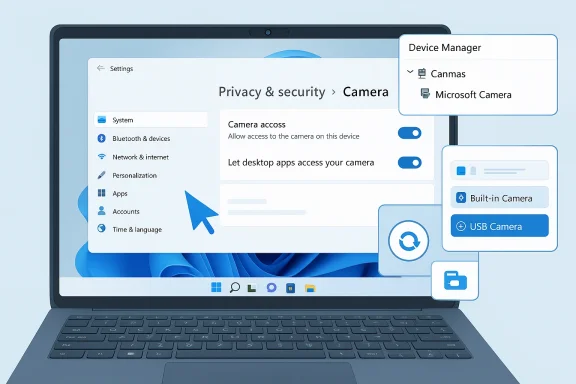
There is also a broader shift in how Windows 11 manages cameras. The Camera settings page in Settings now gives users a central place to enable or disable cameras and tune defaults, while the privacy controls under Privacy & security > Camera determine which apps can actually use them. That separation is useful, but it can also confuse users who assume a camera setting in one place affects everything everywhere. (support.microsoft.com)
Microsoft also recommends checking Device Manager to see whether Windows detects the camera at all. If a camera appears under Cameras or Imaging devices, the device is at least visible to the operating system; if it does not appear, the issue is more likely to be connection, firmware, privacy, or hardware related. That distinction matters because it prevents users from wasting time on app settings when the system never enumerated the device in the first place. (support.microsoft.com)
This is where many users get tripped up. They see the camera listed, they see the app installed, and they still get a black screen. The reason is that Windows 11 treats desktop apps differently from Store apps, and the app may not even appear in the Store-app list. That design is defensible from a security standpoint, but it is not intuitive for non-technical users. (support.microsoft.com)
That separation can actually explain a lot of “it works on my laptop but not on yours” complaints. If one account has a camera configured correctly and another does not, the app may behave differently even though the hardware is identical. For shared devices, that makes camera troubleshooting partly a profile-management exercise rather than a pure hardware problem. (support.microsoft.com)
Microsoft also notes that suspicious activity should be treated seriously if the camera appears to be in use without a clear reason. That is less common than ordinary app conflict, but it is a reminder that webcam troubleshooting is also a privacy issue. An unexpected camera lock can indicate a poorly behaved application or, in the worst case, a security concern that deserves immediate attention. (support.microsoft.com)
There is also a subtle but important distinction between a Microsoft-provided generic driver and a vendor-specific driver. Microsoft notes that the in-box UVC driver may not support all features of a camera, even though it can restore basic functionality. That tradeoff can matter for advanced features such as face recognition, which may depend on proprietary extensions from the manufacturer.
That also makes this a strong example of why the Windows camera stack is layered by design. A working webcam needs the hardware to be visible, the OS to allow it, the driver to interpret it, and the app to request it correctly. Firmware changes sit below all of that, so they can silently negate every software fix above them.
Microsoft’s privacy and support pages also reinforce that administrators can control whether camera access is changeable at the device level. If the toggle is greyed out, the user may need admin intervention to enable it. That is a useful safeguard in the enterprise, but it also means help desks should treat “camera not working” as potentially a permissions governance issue, not a hardware ticket. (support.microsoft.com)
This is why the generic advice to “restart the app” or “update Windows” often helps only sometimes. Those steps can clear stale processes or trigger driver refreshes, but they do not address a closed privacy shutter, a disabled BIOS flag, or an app that lacks desktop-camera permission. The strongest troubleshooting flows are therefore layer-aware rather than one-size-fits-all. (support.microsoft.com)
At the same time, the gap between consumer and enterprise behavior will probably keep growing. Home users want the webcam to “just work,” while organizations want precise controls over access, telemetry, and privacy. That tension is unlikely to disappear, so the best advice remains the same: test the camera systematically, one layer at a time, and assume the bug may be higher or lower in the stack than it first appears. (support.microsoft.com)
Source: TweakTown Camera or webcam not working in Windows 11? Try these fixes
 Overview
A broken webcam can derail a work meeting, a telehealth appointment, or a class session in a matter of seconds. That is why camera troubleshooting in Windows 11 has become one of the most common support tasks for both consumers and IT teams. The good news is that Microsoft now documents a fairly direct path for fixing most camera failures, and that path lines up closely with the practical advice users have long shared in the Windows community. (support.microsoft.com)The underlying story is simple: a webcam is not just a lens and a sensor anymore. It is a device controlled by permissions, drivers, system settings, app-specific behavior, firmware, and sometimes enterprise policy. When any one of those layers goes wrong, the camera may disappear, show a black screen, or appear “in use” even though no obvious app is active. (support.microsoft.com)
Microsoft’s troubleshooting pages for Windows 11 now emphasize a layered approach that starts with physical checks and ends with driver recovery or hardware replacement. That approach is important because it mirrors how camera faults actually happen in the real world: a shutter is closed, a laptop switch is toggled, a privacy setting is off, or an app is grabbing the camera before the one you want can use it. (support.microsoft.com)
There is also a broader shift in how Windows 11 manages cameras. The Camera settings page in Settings now gives users a central place to enable or disable cameras and tune defaults, while the privacy controls under Privacy & security > Camera determine which apps can actually use them. That separation is useful, but it can also confuse users who assume a camera setting in one place affects everything everywhere. (support.microsoft.com)
Why this matters now
The timing matters because camera use is no longer occasional. It is routine. Video calls, hybrid work, online learning, content creation, and login security features all depend on reliable webcam access, so even a minor configuration issue can feel like a major outage. The result is that camera troubleshooting has become a mainstream Windows skill, not an obscure IT task. (support.microsoft.com)- Privacy settings can block apps even when the camera hardware is healthy.
- Desktop apps such as browsers and Teams require a separate toggle.
- Drivers can break after updates or become corrupted.
- Physical shutters and laptop hotkeys can disable the camera instantly.
- Enterprise policy can override local user settings entirely. (support.microsoft.com)
Start with the simplest failure points
The first thing to check is whether the camera is actually blocked, switched off, or disconnected. Microsoft’s support guidance begins with the obvious for a reason: external webcams can be unplugged, internal webcams can be hidden behind a privacy cover, and some laptops include dedicated camera disable keys that users press without noticing. These failures look like software problems but are really physical ones. (support.microsoft.com)Physical checks that save time
A privacy shutter is a classic culprit because it creates a black image that can be mistaken for a software error. Likewise, a loose USB cable on an external webcam can make the device vanish from Windows completely. Before diving into settings, it is worth confirming that the camera has power, a data connection, and an unobstructed lens. (support.microsoft.com)Microsoft also recommends checking Device Manager to see whether Windows detects the camera at all. If a camera appears under Cameras or Imaging devices, the device is at least visible to the operating system; if it does not appear, the issue is more likely to be connection, firmware, privacy, or hardware related. That distinction matters because it prevents users from wasting time on app settings when the system never enumerated the device in the first place. (support.microsoft.com)
- Open the laptop lid fully and make sure no shutter is covering the lens.
- Press any camera hotkey on the keyboard only once and test again.
- Re-seat external webcams in a different USB port.
- Avoid hubs during testing if possible.
- Check whether the built-in camera is disabled in the OEM utility or BIOS. (support.microsoft.com)
Permissions are still the most common Windows 11 trap
If the hardware is fine, the next likely culprit is camera privacy settings. Windows 11 separates device-level access from app-level access, which means a camera can be turned on for the PC while still blocked for the app you are trying to use. Microsoft’s documentation explicitly says camera permissions must be enabled in the privacy settings for the camera to work with apps. (support.microsoft.com)Device access versus app access
The core path is Start > Settings > Privacy & security > Camera. There, Camera access must be on at the device level, and Let apps access your camera must also be enabled for Microsoft Store apps. If the application is a browser, Teams, Zoom, Slack, or another desktop app, the Let desktop apps access your camera toggle matters even more because Microsoft says those apps rely on the desktop-app permission. (support.microsoft.com)This is where many users get tripped up. They see the camera listed, they see the app installed, and they still get a black screen. The reason is that Windows 11 treats desktop apps differently from Store apps, and the app may not even appear in the Store-app list. That design is defensible from a security standpoint, but it is not intuitive for non-technical users. (support.microsoft.com)
Why browsers and Teams deserve special attention
Microsoft specifically notes that browsers such as Microsoft Edge and conferencing apps like Microsoft Teams are desktop apps that need the desktop-camera toggle turned on. In practical terms, that means a user can grant camera access in a web meeting service and still be blocked by Windows if the desktop-app permission is off. That extra layer of control is useful for privacy, but it can also create silent failures that look like app bugs. (support.microsoft.com)- Check Camera access at the device level first.
- Turn on Let apps access your camera.
- Turn on Let desktop apps access your camera for browsers and conferencing apps.
- Remember that Store apps and desktop apps are not governed the same way.
- If the toggle is greyed out, an administrator may need to change it. (support.microsoft.com)
Pick the correct camera in Windows and in the app
Another common issue is not that the camera is broken, but that the wrong camera is selected. Many laptops now have multiple image sources: a built-in front camera, a privacy-camera accessory, an external USB webcam, or even a rear camera on a tablet-class device. If an app defaults to the wrong source, the result can be a black screen or a generic device error.Windows 11 camera selection is more flexible than it used to be
Windows 11’s Camera settings page under Bluetooth & devices > Cameras lets users manage connected cameras, enable disabled cameras, and inspect per-camera defaults. Microsoft says settings are stored for each camera and each user account, which is helpful for personalization but also means a setting change on one device does not follow the user everywhere. (support.microsoft.com)That separation can actually explain a lot of “it works on my laptop but not on yours” complaints. If one account has a camera configured correctly and another does not, the app may behave differently even though the hardware is identical. For shared devices, that makes camera troubleshooting partly a profile-management exercise rather than a pure hardware problem. (support.microsoft.com)
App-level selection still matters
Even if Windows sees the right camera, the app may still be pointed at another one. Most conferencing and recording apps include their own settings menu where the active camera can be changed manually. In real-world troubleshooting, this is often the step that resolves a problem after Windows settings look perfect.- Open the app’s video or device settings.
- Confirm the active camera source.
- Switch between built-in and external cameras if more than one is installed.
- Disable unused cameras only if you understand the side effects.
- Test the Camera app separately from the conferencing app. (support.microsoft.com)
When another app is already using the camera
Windows camera access is often exclusive in practice. If one application already owns the webcam, another app may fail to open it or report that the camera is unavailable. Microsoft’s support guidance recommends checking background apps and closing anything that may be using the camera, including through Task Manager. (support.microsoft.com)Hidden background conflicts
The frustrating part is that the offending app may not be obvious. A browser tab with a video chat, a chat client with a camera preview, or a conferencing tool left running in the tray can hold the device hostage. Sometimes the camera light or activity indicator gives the game away; other times the user only sees the symptom in the app they care about. (support.microsoft.com)Microsoft also notes that suspicious activity should be treated seriously if the camera appears to be in use without a clear reason. That is less common than ordinary app conflict, but it is a reminder that webcam troubleshooting is also a privacy issue. An unexpected camera lock can indicate a poorly behaved application or, in the worst case, a security concern that deserves immediate attention. (support.microsoft.com)
A practical isolation method
The fastest way to isolate this class of problem is to close everything that might touch the camera, then reopen only one app at a time. If the Camera app works but Teams does not, the issue is likely app-specific. If nothing can open the camera until a reboot, the conflict may be deeper, possibly involving a driver or a stuck process. (support.microsoft.com)- Close browsers with active meeting tabs.
- Exit conferencing apps from the tray, not just the window.
- Reboot after closing camera-heavy software.
- Use the Windows Camera app as the baseline test.
- Treat unexplained camera use as a privacy red flag. (support.microsoft.com)
Drivers remain the bridge between hardware and Windows
If permissions and app selection are correct, camera drivers become the next major suspect. Microsoft’s current support material continues to advise updating the webcam driver through Device Manager, and if that fails, uninstalling the device so Windows can reinstall it. That is standard advice, but it remains relevant because driver corruption, generic drivers, and post-update regressions still happen. (support.microsoft.com)Update first, reinstall second
The normal sequence is simple: open Device Manager, find the webcam under Cameras, and select Update driver. If Windows cannot solve the issue automatically, a reinstall may be the better path. Microsoft explains that removing the device and scanning for hardware changes can force Windows to put the webcam back into service with a fresh driver instance. (support.microsoft.com)There is also a subtle but important distinction between a Microsoft-provided generic driver and a vendor-specific driver. Microsoft notes that the in-box UVC driver may not support all features of a camera, even though it can restore basic functionality. That tradeoff can matter for advanced features such as face recognition, which may depend on proprietary extensions from the manufacturer.
The generic driver fallback
For many USB webcams, Microsoft recommends the built-in USB Video Device driver when the vendor driver is misbehaving. This is especially useful because it can restore basic operation even if it disables advanced features. In other words, the generic driver can be a stability-first fallback, not necessarily the final desired configuration.- Update the driver from Device Manager first.
- Reinstall the webcam if updates do not help.
- Try the in-box USB Video Device driver for UVC webcams.
- Expect some manufacturer-specific features to disappear on generic drivers.
- Check the vendor site for external webcams that need proprietary software.
BIOS and UEFI can block the camera before Windows ever starts
Not every camera failure is visible inside Windows. Some systems allow the webcam to be disabled at the firmware level through BIOS/UEFI, which means Windows will never see the device until the setting is reversed. Microsoft’s support guidance and related Q&A material both acknowledge that hardware-level camera controls can exist on certain laptops and tablets, including some Surface-class systems.Why firmware matters more than users expect
Firmware-level camera control is easy to overlook because it lives outside the normal Windows troubleshooting flow. If the camera was disabled there, Settings, Drivers, and even app permissions will not matter. The operating system simply has nothing to work with, which is why users can spend hours chasing the wrong layer of the stack.That also makes this a strong example of why the Windows camera stack is layered by design. A working webcam needs the hardware to be visible, the OS to allow it, the driver to interpret it, and the app to request it correctly. Firmware changes sit below all of that, so they can silently negate every software fix above them.
When to enter setup
If a camera cannot be found anywhere in Windows after reinstalling drivers and verifying permissions, firmware settings deserve a look. That is especially true on enterprise laptops, business-class convertibles, and models with explicit hardware privacy options in setup menus. If the webcam is disabled there, re-enabling it usually restores normal detection after a reboot.- Reboot into BIOS/UEFI if the camera is missing from Windows.
- Look for options labeled Integrated Webcam, Camera, or Devices.
- Save changes before exiting setup.
- Retest both the Camera app and the meeting app.
- Remember that some devices require a restart before changes apply.
Enterprise policy can override everything else
For business PCs, the story is more complicated because IT policy may deliberately restrict camera access. Microsoft’s troubleshooting documentation explicitly mentions policy-restricted camera access, and that means a local user can do everything “right” while the device still refuses to cooperate. In managed environments, this is not a bug so much as an administrative decision. (support.microsoft.com)Managed devices are a different universe
The practical implication is that a camera problem on a corporate machine may not be solvable by the end user at all. If Group Policy, MDM, or security baselines disable camera access, the fix has to come from IT. That distinction matters because it changes both the troubleshooting path and the conversation: the user is not failing, the device is simply obeying a higher-level rule. (support.microsoft.com)Microsoft’s privacy and support pages also reinforce that administrators can control whether camera access is changeable at the device level. If the toggle is greyed out, the user may need admin intervention to enable it. That is a useful safeguard in the enterprise, but it also means help desks should treat “camera not working” as potentially a permissions governance issue, not a hardware ticket. (support.microsoft.com)
Security and compliance implications
This is where camera troubleshooting overlaps with security policy. Many organizations restrict webcams to reduce leakage risk, especially in sensitive environments or on shared devices. The downside is that a blanket restriction can frustrate legitimate use cases like telehealth, hybrid meetings, and remote support sessions. (support.microsoft.com)- Check whether the device is domain-joined or MDM-managed.
- Ask IT whether camera policy is intentionally enforced.
- Look for greyed-out toggles in Settings.
- Verify whether desktop-app access is blocked by policy.
- Confirm whether the issue is device-wide or user-specific. (support.microsoft.com)
The Windows 11 camera stack is improving, but not perfectly
One reason camera troubleshooting is still such a common topic is that Windows 11 has been evolving the camera experience in stages. Microsoft now offers a dedicated Camera settings page that centralizes camera management, and the Camera app itself can switch among multiple cameras on supported systems. That is progress, but it also means there are now more places where a setting can be correct in one context and wrong in another. (support.microsoft.com)More control, more complexity
The upside of this approach is obvious. Users can inspect each camera individually, adjust default settings, and enable a disabled device from one place. The downside is that the system is no longer a single switch that says “camera on” or “camera off.” Instead, it is a matrix of permissions, defaults, and app-specific behavior that can fail in different ways. (support.microsoft.com)This is why the generic advice to “restart the app” or “update Windows” often helps only sometimes. Those steps can clear stale processes or trigger driver refreshes, but they do not address a closed privacy shutter, a disabled BIOS flag, or an app that lacks desktop-camera permission. The strongest troubleshooting flows are therefore layer-aware rather than one-size-fits-all. (support.microsoft.com)
What Microsoft’s guidance implicitly tells us
Microsoft’s support documentation is also revealing in what it prioritizes. It begins with hardware and connection checks, moves to privacy and app access, then to drivers and policy. That order reflects how often each category causes real-world failures, and it is a useful model for users who want to avoid random guesswork. (support.microsoft.com)- Camera problems are usually multi-layered, not single-cause.
- Windows 11 now exposes more camera controls than older releases.
- Permissions and desktop-app access remain frequent failure points.
- Driver swaps can fix basic operation even when features shrink.
- Firmware and policy issues can override all visible settings. (support.microsoft.com)
Strengths and Opportunities
Microsoft’s current troubleshooting model has real strengths because it reflects how modern PCs actually work. It gives users a clear sequence, exposes separate controls for privacy and device management, and makes it easier to diagnose whether the issue is software, policy, or hardware. Just as importantly, it gives IT teams a consistent vocabulary for explaining camera failures to non-technical users. (support.microsoft.com)- Clearer layered troubleshooting from hardware to software.
- Centralized camera management in Windows 11 Settings.
- Per-camera defaults that help users with multiple webcams.
- Driver fallback options for broken vendor packages.
- Better separation between consumer and enterprise causes.
- Useful privacy controls for sensitive environments.
- Faster diagnosis when the right app or camera is selected. (support.microsoft.com)
Risks and Concerns
The biggest risk is confusion. Windows 11 gives users several overlapping places to manage cameras, and that can create a false sense of correctness when only one layer has been fixed. A camera can be enabled in one menu, blocked in another, and silently disabled by firmware or policy, leaving users stuck in a troubleshooting loop. (support.microsoft.com)- Permission fragmentation across device, app, and desktop-app settings.
- Wrong-camera selection in apps with multiple sources.
- Driver regressions after updates or vendor software changes.
- Firmware-level disablement that hides the device entirely.
- Enterprise policy restrictions that users cannot override.
- Generic driver tradeoffs that may remove advanced features.
- Privacy misunderstandings that make a functioning camera appear broken. (support.microsoft.com)
Looking Ahead
The next phase of Windows camera reliability will likely depend less on new “fixes” and more on reducing ambiguity. Users need clearer signals about which permission layer is blocking access, which app is holding the device, and whether the camera is disabled by policy or by the system. Better messaging would eliminate a huge amount of trial-and-error troubleshooting. (support.microsoft.com)At the same time, the gap between consumer and enterprise behavior will probably keep growing. Home users want the webcam to “just work,” while organizations want precise controls over access, telemetry, and privacy. That tension is unlikely to disappear, so the best advice remains the same: test the camera systematically, one layer at a time, and assume the bug may be higher or lower in the stack than it first appears. (support.microsoft.com)
- Expect more camera controls in Windows 11 Settings.
- Watch for app updates that change camera permission behavior.
- Verify whether vendors ship their own camera utilities.
- Test with the built-in Camera app before blaming Zoom or Teams.
- Pay attention to policy-driven changes on managed PCs. (support.microsoft.com)
Source: TweakTown Camera or webcam not working in Windows 11? Try these fixes
