

If Windows 11 stops detecting your wireless keyboard, the problem is almost always fixable — and usually far less mysterious than it feels at first. In this deep-dive guide I walk through a structured, risk-aware troubleshooting path that starts with the simplest checks (battery, pairing, receiver placement) and escalates to driver and system repairs (Device Manager, USB/HID stack, SFC/DISM, BIOS). Along the way I explain why each step matters, highlight common failure modes, and give precise, reversible commands and settings to try so you can restore reliable input without guessing.
Wireless keyboards connect to Windows in one of two common ways: Bluetooth or a proprietary 2.4 GHz USB receiver (often sold as “unifying” or “bolt” dongles). Windows recognizes these devices via the Human Interface Device (HID) subsystem and a stack of drivers and services. When detection fails, the root cause normally sits in one of three buckets:
Source: Guiding Tech Windows 11 Not Detecting Your Wireless Keyboard? Here’s What to Do
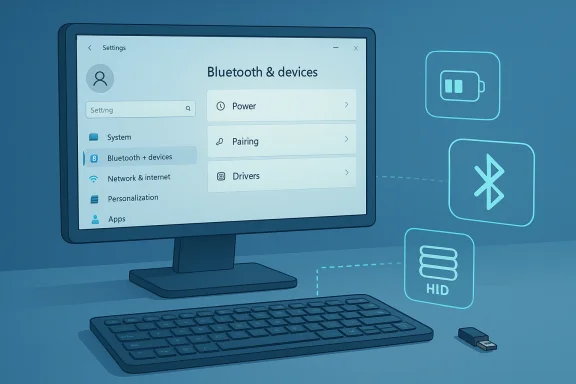 Background / Overview
Wireless keyboards connect to Windows in one of two common ways: Bluetooth or a proprietary 2.4 GHz USB receiver (often sold as “unifying” or “bolt” dongles). Windows recognizes these devices via the Human Interface Device (HID) subsystem and a stack of drivers and services. When detection fails, the root cause normally sits in one of three buckets:- hardware/battery/radio problems (dead battery, damaged dongle, RF interference),
- pairing/OS-level configuration (Bluetooth off, device removed, selective suspend),
- driver/service/registry corruption or conflicts (bad HID drivers, power-management settings, vendor utilities hijacking input).
Quick-first checks (do these in 5 minutes)
These items catch the majority of cases and cost nothing.- Check power — Replace or recharge batteries and inspect charging contacts or cables. Low voltage causes intermittent pairing and wake-up issues. Many keyboards show an LED or offer a battery indicator; others simply behave erratically when power is low.
- Confirm pairing mode / Bluetooth on — For Bluetooth keyboards, open Settings → Bluetooth & devices and confirm Bluetooth is toggled on. Toggle off, wait 20–30 seconds, then toggle on again before attempting to pair. Simple radio resets regularly clear transient stack errors.
- Verify the USB receiver — If you use a 2.4 GHz dongle, make sure it’s fully seated and try another USB port (use rear ports on desktops). Long passive hubs or front-panel ports can cause issues; a short USB extension often stabilizes signal for receivers.
- Try the keyboard on another device — This isolates whether the keyboard is faulty or the PC environment is at fault. If it works on another PC, the issue is almost certainly Windows/driver related.
Step-by-step troubleshooting: a prioritized path
1) Use Windows troubleshooters first
Windows includes automated troubleshooters that are safe and conservative. Run the Keyboard troubleshooter and — for Bluetooth keyboards — the Bluetooth troubleshooter from Settings → System → Troubleshoot → Other troubleshooters. These tools scan common driver, service and configuration problems and often recommend immediate fixes or steps to escalate. Many community cases report success at this stage.2) Check Device Manager and re-install drivers
Drivers are the most common persistent cause.- Open Device Manager (Win + X → Device Manager).
- Expand Keyboards and Bluetooth (if applicable). Right‑click the keyboard entry and choose Uninstall device. If an option appears to delete driver software, skip that for now unless you plan to reinstall from vendor media.
- Restart the PC. Windows will attempt to reinstall a generic HID keyboard driver automatically.
- If Windows does not restore functionality, download the latest driver or firmware from the keyboard vendor and install it manually.
3) Power management: disable USB selective suspend and hub power-off
Windows power-saving features can stop USB dongles or internal radio adapters to conserve energy, which may prevent detection or cause intermittent failures.- In Device Manager, under Universal Serial Bus controllers, open each USB Root Hub → Properties → Power Management and uncheck Allow the computer to turn off this device to save power.
- In your Power Plan advanced settings (Control Panel → Power Options → Change plan settings → Change advanced power settings), expand USB settings → USB selective suspend setting and set it to Disabled.
4) Restart HID and Bluetooth services
Certain Windows services are essential for input routing.- Open services.msc and verify Human Interface Device Service (hidserv) is running and set to Automatic (or Manual where appropriate). For Bluetooth devices, check Bluetooth Support Service as well; set it to Automatic and start it if stopped.
- Restart these services after changing their startup type.
5) Safe Mode and Clean Boot: isolate third-party interference
Booting into Safe Mode removes third-party drivers and startup services. If the keyboard works in Safe Mode, a vendor utility or startup item is likely interfering.- Boot into Safe Mode and test the keyboard.
- If it works, perform a Clean Boot (msconfig → Hide all Microsoft services → Disable all; then disable startup items in Task Manager) and enable items one-by-one to isolate the conflict.
6) Reset the HID/USB stack and re-enumerate devices
When driver reinstallation fails, explicitly forcing Windows to reinitialize the HID and USB enumerations can clear stale or corrupt entries.- In Device Manager, uninstall all entries under Universal Serial Bus controllers named USB Root Hub and Generic USB Hub, then reboot. Windows will reinstall them.
- Optionally run these commands from an elevated Command Prompt:
- sc config hidserv start= auto
- net start hidserv
- pnputil /enum-drivers (inspect for problematic HID drivers)
- pnputil /delete-driver oemXX.inf /uninstall (use with caution — only remove drivers you confirm are corrupt).
7) Registry checks (only after backups)
The registry can contain filter drivers that block device enumeration. Only attempt this after exporting a registry backup or creating a restore point.- Open regedit and navigate to:
HKEY_LOCAL_MACHINE\SYSTEM\CurrentControlSet\Control\Class{4D36E96B-E325-11CE-BFC1-08002BE10318} - If you see UpperFilters or LowerFilters, export the key and then remove those values if you are confident they’re unwanted.
8) System file checks and OS repair (SFC / DISM / In-place upgrade)
If HID issues persist across multiple keyboards or after driver cleanup, system files may be corrupted.- Open an elevated Command Prompt and run:
- sfc /scannow
- dism /online /cleanup-image /restorehealth
- If corruption persists and input devices still fail, consider an in-place upgrade repair (run Windows Setup from installation media and choose “Upgrade this PC now” while keeping files and apps). This repairs Windows without a full reinstall.
Bluetooth-specific checks and tips
- Run the Bluetooth troubleshooter (Settings → System → Troubleshoot → Other troubleshooters). It checks adapter drivers and configuration.
- In Device Manager, open Bluetooth, right-click your adapter and choose Update driver or uninstall and let Windows reinstall the adapter on reboot. For USB Bluetooth dongles, try switching to USB 2.0 ports if the dongle is older.
- Inspect the Bluetooth Support Service and ensure it starts automatically. Some corporate or group policies can hide or disable Bluetooth controls — check with your administrator if the device is domain-joined.
When the keyboard works in BIOS but not in Windows
This symptom strongly indicates a software/driver/OS problem rather than hardware. BIOS/UEFI recognizes the keyboard at a basic USB/HID level, but Windows fails to maintain that recognition. Typical remedies:- Check BIOS settings for USB Legacy Support or similar options and confirm they are enabled.
- Update motherboard BIOS/UEFI and chipset drivers if vendor updates are available.
- Reinstall chipset and platform drivers from the motherboard or OEM vendor rather than relying only on Windows Update.
Vendor software, firmware, and device quirks
Many modern gaming and multi‑function keyboards rely on vendor suites for macros, lighting, and firmware. Those suites can cause detection issues if they’re out-of-date or incompatible.- Remove or update vendor software (Logitech G Hub, Razer Synapse, Corsair iCUE) and check vendor sites for firmware updates for your keyboard.
- For devices using a proprietary receiver (Logitech Unifying/Bolt), test the receiver with a short USB extension and avoid shared ports that might have power conflicts.
- If the keyboard has an internal reset button or pairing button, use it (or remove and reinsert batteries) to force a fresh pairing. Note that you will likely need to re-pair after a reset.
Advanced diagnostics and last-resort actions
- Test with a clean boot and monitor Event Viewer for BTHUSB, BTHPORT, or HID event IDs when attempting to pair. Event IDs provide a diagnostic trail that often points to driver or firmware errors.
- If you suspect malware interfering with input (rare), run reputable offline rescue scanners and full-system antivirus scans before deep hands-on fixes.
- If multiple keyboards fail across devices or the keyboard fails on multiple PCs, warranty service or replacement is the correct next step.
Practical prioritized checklist you can follow right now
- Replace/recharge batteries; unplug and replug the receiver.
- Toggle Bluetooth off/on; run Bluetooth troubleshooter (if applicable).
- Plug receiver into a different, rear, or USB‑2.0 port or use a short USB extension.
- Run Keyboard troubleshooter and restart.
- In Device Manager, uninstall the keyboard (Keyboards section) and reboot.
- Disable USB selective suspend and uncheck “allow computer to turn off this device” on USB Root Hubs.
- Boot to Safe Mode; if the keyboard functions, perform a Clean Boot to find the offending app.
- If the problem persists, run sfc /scannow and DISM /RestoreHealth. Consider an in‑place upgrade repair.
Risks, caveats, and when to escalate
- Registry edits, driver deletions, and firmware flashes are powerful but risky; always create a restore point and export the registry key before changing anything. Improper edits can make devices or even the OS unbootable.
- Deleting driver packages with pnputil should be done only if you can reinstall them from vendor media — removing the wrong driver can make the device unavailable until Windows finds a replacement.
- If the device works in BIOS and other OSes but not Windows, it’s a software issue; avoid replacing hardware prematurely. If multiple keyboards fail on the same PC, escalate to motherboard/chipset driver and BIOS updates before a full Windows reinstall.
Prevention and best practices
- Keep keyboard firmware and vendor utilities updated from the manufacturer’s downloads page rather than relying solely on automatic updates.
- Use rear USB ports on desktops or a powered hub for receivers to reduce transient power issues and RF interference.
- Maintain a simple wired USB keyboard as a diagnostic baseline — it’s the fastest way to confirm whether an input problem is system-level or wireless-specific.
- Create a system restore point before installing driver suites or firmware updates for peripherals.
Conclusion
Wireless keyboards can fail to be detected for a surprising number of low‑risk reasons: drained batteries, a toggled Bluetooth radio, a mis-seated receiver, or a Windows power management setting. Work through the prioritized troubleshooting path — quick physical checks, the built-in troubleshooters, driver reinstallation, power-management adjustments, Safe Mode/Clean Boot, and finally SFC/DISM or an in-place Windows repair — and you’ll resolve the majority of cases without replacing hardware. Keep vendor firmware and chipset drivers current, avoid aggressive third-party driver managers, and always back up before registry surgery or firmware flashes. If detection problems persist across multiple keyboards and other USB devices, pivot to motherboard/chipset support and consider an OS repair path. The steps above are practical, reversible, and used by technicians and community specialists to restore reliable keyboard input on Windows 11 reliably and safely.Source: Guiding Tech Windows 11 Not Detecting Your Wireless Keyboard? Here’s What to Do
