

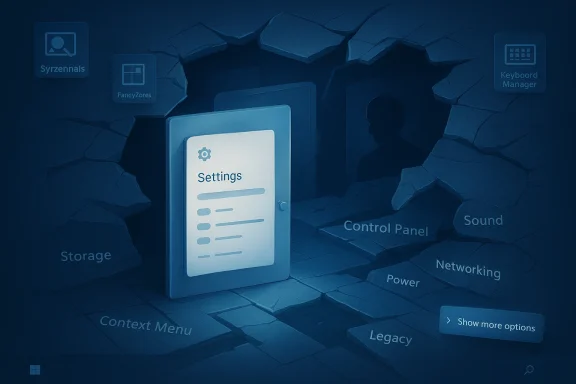
Windows 11 has never lacked power. What it lacks is a coherent way to let people reach that power without already knowing where everything is hidden. The result is an operating system that looks polished on the surface, while some of its most useful tools remain split across modern Settings pages, legacy dialogs, right-click detours, and specialized utilities that many users never discover. Microsoft has improved the UI in places, but the deeper problem is that Windows still behaves like a patchwork of eras instead of a single, confidently designed system.
The criticism aimed at Windows 11 is not really about capability. It is about discoverability, consistency, and workflow friction. Microsoft has spent years refining the look of Windows, but the internal map of the OS still sends users in multiple directions for tasks that should feel obvious. Storage, sound, networking, power, startup behavior, and advanced shell actions all remain distributed across different surfaces that do not always agree with one another.
That split is not unique to Windows 11, of course. It is the legacy burden of an operating system that has evolved for decades, through consumer desktops, enterprise fleets, OEM customizations, and compatibility promises that are harder to unwind than they look. But Windows 11 has made the problem more visible because its modern shell raises expectations that the platform cannot always meet. The clean new design suggests simplicity, while the actual paths to advanced control often feel more obscure than they did in earlier versions.
Microsoft has acknowledged part of this tension by continuing to modernize legacy surfaces. At the same time, some of the best advanced tools on Windows remain separate downloads, tucked away in Microsoft’s own ecosystem but not surfaced as part of the core experience. Sysinternals, PowerToys, and even “God Mode” show that the platform still contains immense depth. The issue is that much of that depth is hidden behind the assumption that power users already know the map.
The irony is that Windows 11 is often at its strongest when it gives users more control, not less. Microsoft’s own documentation confirms that many of the old and new routes still coexist: the classic context menu remains available behind “Show more options,” Disk Management is still the real route for meaningful partitioning tasks, and advanced audio settings still lead into older dialog boxes for deeper configuration.
This matters because interface design is not just about appearance. It is about whether the user can form a mental model of where things live. If power settings are here, optional features are there, device properties are somewhere else, and deeper system controls require a separate legacy dialog, then the system stops feeling like a system and starts feeling like a scavenger hunt.
Microsoft has not ignored this tension. It has publicly continued to modernize legacy areas, and official documentation still shows an effort to route users toward the newer Settings app in many places. But that modernization is incomplete by design, which creates a strange middle state where neither interface fully owns the experience. In practical terms, that makes Windows 11 feel more fragmented than it should in 2026.
The problem is not merely aesthetic. It has workflow consequences for troubleshooting, provisioning, system tuning, and repetitive administrative tasks. A cleaner shell does not help if users still need to memorize which settings page holds which category of control.
That extra click is small in isolation, but it becomes significant when repeated hundreds of times a week. The user is not being helped; they are being interrupted. In a productivity OS, interruptions matter because they reshape behavior. People eventually work around the UI instead of through it.
The taskbar story is similar. Windows 11’s taskbar looks modern, but a lot of its old convenience is reduced or redistributed. Jump Lists still exist, yet their behaviors and entry points are less fluid than many users remember from Windows 10. Microsoft’s support pages make clear that taskbar behavior is now controlled through a more limited set of personalization options than before.
That is why the new menu layers feel worse than they may look in screenshots. They transform the OS from a tool into an obstacle course. For experienced users, that is a meaningful regression.
This is a perfect example of a modern UI that communicates overview better than control. The problem is not that Storage settings are useless. The problem is that they are incomplete as a management surface. They tell you what you are looking at, but not always what to do next.
For many advanced users, that means there are effectively two categories of interaction: the nice visual page for information, and the older administrative tool for actual changes. That split is fine if the user expects it. It is frustrating if the OS presents one surface as the main experience while hiding the real machinery behind search terms or keyboard shortcuts.
This is especially noticeable in enterprise or enthusiast contexts where storage changes are routine. Partition layout, drive-letter assignment, and volume expansion are not edge cases. They are everyday system work, and they deserve a first-class route rather than an afterthought.
That workflow is not inherently bad. Audio hardware is complicated, and advanced control is often device-specific. But the user experience is messy because the OS does not present these transitions as part of one coherent path. It looks modern until it suddenly does not. Then the user lands in a panel that feels like it came from a different decade.
This problem hits enthusiasts, creators, and audiophiles hardest. Those users are the most likely to care about format settings, latency, enhancements, and device-specific quirks. They are also the users most willing to tolerate complexity if the OS respects their time. Windows 11 often fails that second part.
That is encouraging, but also revealing. It shows Microsoft knows this area matters, while also proving that the platform is still in transition. Until those controls are fully unified, sound remains one of the clearest examples of Windows 11’s modern front door, legacy back room structure.
These tools are exceptional. They are also invisible to most users. You do not stumble into Sysinternals the way you stumble into File Explorer or Settings. You have to know it exists, then search for it, then decide to learn it. That is a perfectly rational gate for a specialist tool, but it is also a reminder that Windows keeps some of its best capabilities at arm’s length.
The irony is that Microsoft now makes some of these tools easier to run and install than before. The company documents direct downloads, Sysinternals Live access, and even Microsoft Store distribution for parts of the suite. Yet visibility is still not the same as accessibility. The suite is available, but not embedded in the ordinary user journey.
Sysinternals also reveals something important about Microsoft’s internal culture. The company clearly values power and diagnostic depth, but it often packages that power as a separate destination rather than a natural extension of the OS. That is a design choice, not a technical necessity.
The impressive part is not just that PowerToys exists, but that it often fills gaps Windows still does not address well on its own. FancyZones makes multi-window workflows saner, Keyboard Manager allows remapping that the base OS does not make especially elegant, and the installation options are now straightforward through Microsoft’s own channels. The problem is that none of this ships as a visible, integrated part of the Windows 11 promise.
That separation creates an odd paradox. Windows is marketed as a productivity platform, yet some of its best productivity features require the user to go find a separate productivity layer. That is not a catastrophic flaw, but it does undermine the idea that Windows 11 is designed to guide advanced users rather than merely tolerate them.
That is a strong compliment and a criticism at the same time. It suggests Microsoft knows what power users want, but still prefers to keep those tools at the edge of the system rather than in the core experience.
That appeal is not really about power. It is about consolidation. A single folder that lists a broad range of settings is more humane than remembering whether a control lives in Settings, Control Panel, an MMC snap-in, or a right-click path. In that sense, God Mode is not a gimmick. It is a proof of concept for how much easier Windows could be if Microsoft embraced better organization.
The uncomfortable part is that users are still forced into unofficial-feeling workarounds for something as basic as navigation. If a naming trick can reveal a more complete system map, then the OS has a discoverability problem, not a capability problem. That is exactly the complaint many Windows power users have been making for years.
That matters more in a world where the default shell is increasingly opinionated. When the OS makes assumptions about what you need, a shortcut that lays everything out becomes both practical and emotionally satisfying.
The real issue is that the OS often under-communicates its strengths. It has a richer toolbox than many people realize, but the toolbox is scattered. That makes Windows feel less elegant than it could, even when the underlying implementation is strong. A polished interface should guide users toward capability, not make them go hunting for it.
There is also a strategic tension here. Microsoft wants Windows 11 to feel approachable to casual users, but it also has to keep advanced control available for enthusiasts and enterprise admins. Those goals are not incompatible, but they require a better information architecture than the platform currently provides. Otherwise, the OS risks alienating both groups in different ways.
Microsoft already has the components. It needs to present them as a coherent system, not as a set of partially overlapping portals.
Enterprise customers will also be watching for stability. They want Microsoft to preserve old administrative paths long enough to avoid breaking workflows, but they also want a more rational end state. Consumer users, meanwhile, care about whether the operating system finally becomes easier to navigate without sacrificing the advanced controls that make Windows valuable.
Source: XDA Windows 11 buries its best features for power-users deep behind the worst menus
 Overview
The criticism aimed at Windows 11 is not really about capability. It is about discoverability, consistency, and workflow friction. Microsoft has spent years refining the look of Windows, but the internal map of the OS still sends users in multiple directions for tasks that should feel obvious. Storage, sound, networking, power, startup behavior, and advanced shell actions all remain distributed across different surfaces that do not always agree with one another.That split is not unique to Windows 11, of course. It is the legacy burden of an operating system that has evolved for decades, through consumer desktops, enterprise fleets, OEM customizations, and compatibility promises that are harder to unwind than they look. But Windows 11 has made the problem more visible because its modern shell raises expectations that the platform cannot always meet. The clean new design suggests simplicity, while the actual paths to advanced control often feel more obscure than they did in earlier versions.
Microsoft has acknowledged part of this tension by continuing to modernize legacy surfaces. At the same time, some of the best advanced tools on Windows remain separate downloads, tucked away in Microsoft’s own ecosystem but not surfaced as part of the core experience. Sysinternals, PowerToys, and even “God Mode” show that the platform still contains immense depth. The issue is that much of that depth is hidden behind the assumption that power users already know the map.
The irony is that Windows 11 is often at its strongest when it gives users more control, not less. Microsoft’s own documentation confirms that many of the old and new routes still coexist: the classic context menu remains available behind “Show more options,” Disk Management is still the real route for meaningful partitioning tasks, and advanced audio settings still lead into older dialog boxes for deeper configuration.
The Two-Headed Settings Problem
Windows 11’s biggest interface problem is not any single page. It is the fact that the platform still behaves like two operating systems layered together. The modern Settings app is the public face, but the older Control Panel has not vanished. Instead, it lingers in the background as the place where many advanced or specialized options still live, which means users are constantly asked to guess where the “real” setting is.This matters because interface design is not just about appearance. It is about whether the user can form a mental model of where things live. If power settings are here, optional features are there, device properties are somewhere else, and deeper system controls require a separate legacy dialog, then the system stops feeling like a system and starts feeling like a scavenger hunt.
Microsoft has not ignored this tension. It has publicly continued to modernize legacy areas, and official documentation still shows an effort to route users toward the newer Settings app in many places. But that modernization is incomplete by design, which creates a strange middle state where neither interface fully owns the experience. In practical terms, that makes Windows 11 feel more fragmented than it should in 2026.
Why this hurts power users
Power users are usually the first to feel design inconsistency because they move faster and expect fewer interruptions. When you already know what you want to do, every extra click feels like a tax on competence. Windows 11 often imposes exactly that tax by separating discoverability from control.The problem is not merely aesthetic. It has workflow consequences for troubleshooting, provisioning, system tuning, and repetitive administrative tasks. A cleaner shell does not help if users still need to memorize which settings page holds which category of control.
- Settings is good for basic, everyday adjustments.
- Control Panel still hides real functionality.
- Search often becomes the only reliable map.
- Legacy dialogs still own advanced configuration.
- Discoverability remains the platform’s weak link.
The Taskbar and Context Menu Friction
If Windows 11’s design philosophy had a single emblem, it would probably be the new right-click menu. Microsoft streamlined it, then pushed the useful legacy options behind “Show more options.” On paper, that looks cleaner. In practice, it introduces a second step for actions many users have been performing from muscle memory for years. Microsoft’s own support material confirms that the streamlined context menu exists and that older options remain tucked behind the expanded view.That extra click is small in isolation, but it becomes significant when repeated hundreds of times a week. The user is not being helped; they are being interrupted. In a productivity OS, interruptions matter because they reshape behavior. People eventually work around the UI instead of through it.
The taskbar story is similar. Windows 11’s taskbar looks modern, but a lot of its old convenience is reduced or redistributed. Jump Lists still exist, yet their behaviors and entry points are less fluid than many users remember from Windows 10. Microsoft’s support pages make clear that taskbar behavior is now controlled through a more limited set of personalization options than before.
Muscle memory is not nostalgia
A lot of criticism gets dismissed as resistance to change, but that misses the point. Muscle memory is not nostalgia; it is accumulated efficiency. Once a workflow is encoded in reflex, even a tiny UI detour can cost time and attention.That is why the new menu layers feel worse than they may look in screenshots. They transform the OS from a tool into an obstacle course. For experienced users, that is a meaningful regression.
- The new context menu is visually tidy.
- The old workflow is faster for repeated tasks.
- “Show more options” breaks interaction rhythm.
- Taskbar behavior feels more constrained.
- Productivity costs accumulate quietly over time.
Storage: Pretty Graphs, Real Tools
Windows 11’s Storage page is one of its better-looking surfaces. It offers simplified categories, clean breakdowns, and easy-to-read usage summaries. But when the task becomes truly actionable, users are often sent elsewhere. Microsoft’s own documentation notes that Disk Management is the built-in tool for initializing disks, creating and formatting volumes, changing drive letters, and resizing partitions, and that it can be opened from the Start button, Search, Run, or Computer Management.This is a perfect example of a modern UI that communicates overview better than control. The problem is not that Storage settings are useless. The problem is that they are incomplete as a management surface. They tell you what you are looking at, but not always what to do next.
For many advanced users, that means there are effectively two categories of interaction: the nice visual page for information, and the older administrative tool for actual changes. That split is fine if the user expects it. It is frustrating if the OS presents one surface as the main experience while hiding the real machinery behind search terms or keyboard shortcuts.
A managed system should still feel legible
The best administration tools do not hide complexity, but they do organize it. Windows 11 often presents complexity in a way that feels scattered rather than structured. Disk Management is powerful, but it is also buried in a way that makes the operating system feel less transparent than it should be.This is especially noticeable in enterprise or enthusiast contexts where storage changes are routine. Partition layout, drive-letter assignment, and volume expansion are not edge cases. They are everyday system work, and they deserve a first-class route rather than an afterthought.
- Storage settings provide visibility.
- Disk Management provides control.
- Search is often the fastest doorway.
- Start menu right-click remains a secret handshake.
- Modern visuals do not replace real administration.
Audio Still Lives in the Past
Windows 11’s audio experience is another place where the interface split feels especially dated. Basic output switching is easy enough, but serious tuning still pushes users into older layers. Microsoft’s support guidance for sound configuration still leads people through Settings > System > Sound, and deeper options frequently end in legacy-style property dialogs where sample rates, enhancements, and exclusive-mode behavior can be adjusted.That workflow is not inherently bad. Audio hardware is complicated, and advanced control is often device-specific. But the user experience is messy because the OS does not present these transitions as part of one coherent path. It looks modern until it suddenly does not. Then the user lands in a panel that feels like it came from a different decade.
This problem hits enthusiasts, creators, and audiophiles hardest. Those users are the most likely to care about format settings, latency, enhancements, and device-specific quirks. They are also the users most willing to tolerate complexity if the OS respects their time. Windows 11 often fails that second part.
Enterprise and consumer needs diverge here
For consumers, the goal is usually simple: make the speakers work, make the headset connect, and maybe set the mic correctly. For enterprises, audio configuration can be part of a larger fleet-management problem that includes accessibility, telepresence, hearing devices, and compliance. Microsoft’s own documentation on hearing devices and audio presets shows that newer Windows 11 builds are still expanding audio control in the Settings and Quick Settings surfaces.That is encouraging, but also revealing. It shows Microsoft knows this area matters, while also proving that the platform is still in transition. Until those controls are fully unified, sound remains one of the clearest examples of Windows 11’s modern front door, legacy back room structure.
- Basic audio access is straightforward.
- Deep tuning still depends on older dialogs.
- Device-specific controls remain fragmented.
- Accessibility features are improving.
- The path from novice to expert is still too jagged.
Sysinternals: Microsoft’s Best-Kept Secret
If Windows 11 is hiding power-user features, Sysinternals is the most striking example. Microsoft’s own documentation describes Process Explorer as a tool that offers insight into Windows and applications, with strong capabilities for tracking DLL-version problems and handle leaks. It also describes Autoruns as showing the full list of Registry and file-system locations available for auto-start configuration, and the broader Sysinternals suite as a set of tools for troubleshooting and low-level system analysis.These tools are exceptional. They are also invisible to most users. You do not stumble into Sysinternals the way you stumble into File Explorer or Settings. You have to know it exists, then search for it, then decide to learn it. That is a perfectly rational gate for a specialist tool, but it is also a reminder that Windows keeps some of its best capabilities at arm’s length.
The irony is that Microsoft now makes some of these tools easier to run and install than before. The company documents direct downloads, Sysinternals Live access, and even Microsoft Store distribution for parts of the suite. Yet visibility is still not the same as accessibility. The suite is available, but not embedded in the ordinary user journey.
Why visibility matters more than breadth
A feature no one can find is almost the same as a feature that does not exist. That is not quite literal, but it is close enough for user experience design. Windows 11 suffers when its deepest tools are treated like specialist lore instead of part of the operating system’s identity.Sysinternals also reveals something important about Microsoft’s internal culture. The company clearly values power and diagnostic depth, but it often packages that power as a separate destination rather than a natural extension of the OS. That is a design choice, not a technical necessity.
- Process Explorer goes beyond Task Manager.
- Autoruns exposes startup behavior in detail.
- Process Monitor is invaluable for tracing system behavior.
- Sysinternals is immensely powerful.
- Most users never encounter it.
PowerToys and the Hidden Productivity Layer
If Sysinternals is the diagnostic layer, PowerToys is the productivity layer. Microsoft describes it as a free, open-source set of utilities for power users and developers, and the current suite includes tools like FancyZones, Keyboard Manager, and PowerRename. These tools solve real problems: window management, key remapping, and large-scale file renaming are all tasks that many advanced users do constantly.The impressive part is not just that PowerToys exists, but that it often fills gaps Windows still does not address well on its own. FancyZones makes multi-window workflows saner, Keyboard Manager allows remapping that the base OS does not make especially elegant, and the installation options are now straightforward through Microsoft’s own channels. The problem is that none of this ships as a visible, integrated part of the Windows 11 promise.
That separation creates an odd paradox. Windows is marketed as a productivity platform, yet some of its best productivity features require the user to go find a separate productivity layer. That is not a catastrophic flaw, but it does undermine the idea that Windows 11 is designed to guide advanced users rather than merely tolerate them.
A second toolkit that should be more visible
PowerToys feels like something Windows should teach you about the moment you outgrow the basics. Instead, it behaves like a community secret that happens to be official. The tools are excellent precisely because they make Windows feel more intentional than Windows itself sometimes does.That is a strong compliment and a criticism at the same time. It suggests Microsoft knows what power users want, but still prefers to keep those tools at the edge of the system rather than in the core experience.
- FancyZones improves window layouts.
- Keyboard Manager supports remapping.
- PowerRename streamlines bulk file edits.
- Installation is easy, but discovery is not.
- PowerToys often feels more modern than Windows itself.
“God Mode” and the Appeal of Everything-in-One-Place
The so-called God Mode folder remains popular because it solves a basic Windows problem with almost embarrassing simplicity: it puts a huge range of control-panel tasks in one place. Microsoft does not position it as a flagship feature, and it is best understood as a shortcut rather than a magical hidden tier of access. But its popularity says a lot about the OS. People like it because it makes Windows feel legible.That appeal is not really about power. It is about consolidation. A single folder that lists a broad range of settings is more humane than remembering whether a control lives in Settings, Control Panel, an MMC snap-in, or a right-click path. In that sense, God Mode is not a gimmick. It is a proof of concept for how much easier Windows could be if Microsoft embraced better organization.
The uncomfortable part is that users are still forced into unofficial-feeling workarounds for something as basic as navigation. If a naming trick can reveal a more complete system map, then the OS has a discoverability problem, not a capability problem. That is exactly the complaint many Windows power users have been making for years.
Why it resonates with enthusiasts
Enthusiasts are drawn to God Mode because it confirms something they already suspect: Windows is full of useful controls, but the front end does not respect how people actually use them. The feature works as a kind of index, and indexes are powerful because they remove the burden of recall.That matters more in a world where the default shell is increasingly opinionated. When the OS makes assumptions about what you need, a shortcut that lays everything out becomes both practical and emotionally satisfying.
- God Mode centralizes many settings.
- It reduces guesswork.
- It exposes the depth of Windows.
- It is a workaround, not a redesign.
- Its popularity is a critique of the UI.
What Microsoft Gets Right Beneath the Surface
It is important not to overstate the critique. Windows 11 is not a weak operating system. In many ways it is the most capable and broadly compatible desktop platform on the market. Microsoft continues to refine important parts of the experience, and official support material shows ongoing work in areas like storage, accessibility, audio, and shell modernization.The real issue is that the OS often under-communicates its strengths. It has a richer toolbox than many people realize, but the toolbox is scattered. That makes Windows feel less elegant than it could, even when the underlying implementation is strong. A polished interface should guide users toward capability, not make them go hunting for it.
There is also a strategic tension here. Microsoft wants Windows 11 to feel approachable to casual users, but it also has to keep advanced control available for enthusiasts and enterprise admins. Those goals are not incompatible, but they require a better information architecture than the platform currently provides. Otherwise, the OS risks alienating both groups in different ways.
The better model is layered clarity
The answer is not to expose every setting to everyone at once. That would create chaos. The answer is to make the hierarchy understandable, so basic users stay in the simple lanes while advanced users can move deeper without hitting dead ends.Microsoft already has the components. It needs to present them as a coherent system, not as a set of partially overlapping portals.
- Windows 11 is powerful.
- It is still broadly compatible.
- Microsoft keeps modernizing legacy surfaces.
- The organization remains inconsistent.
- The experience is more fragmented than it should be.
Strengths and Opportunities
Windows 11’s best opportunity is to turn hidden power into guided power. Microsoft does not need to invent new features so much as surface the ones it already has with better navigation, clearer labels, and less menu hopping. If the company gets that right, it can make the OS feel both simpler and more capable at the same time.- Better discoverability would reduce user frustration immediately.
- Unified Settings and Control Panel paths would cut down on confusion.
- Context menu consistency would restore lost muscle memory.
- First-party tools like PowerToys could be promoted more clearly.
- Sysinternals integration could help advanced troubleshooting feel less hidden.
- Improved onboarding could teach users where advanced features live.
- Layered UI design could serve both casual and power users without compromise.
Risks and Concerns
The biggest risk is that Windows 11 keeps looking modern without becoming more coherent. If the shell remains a patchwork of old and new routes, users will continue to feel that the operating system is pretending to be simpler than it really is. That perception is hard to reverse once it becomes part of the brand.- Fragmentation makes the OS harder to learn.
- Legacy dependencies keep the system from feeling finished.
- Hidden functionality reduces trust in the interface.
- Extra clicks add up in professional workflows.
- Power-user tools can remain invisible to the people who need them most.
- Patchwork transitions risk making every improvement feel partial.
- Design inconsistency can erode confidence in Microsoft’s long-term direction.
What to Watch Next
The next phase of Windows 11 will likely be defined less by brand-new features than by how Microsoft finishes the ones already in motion. If the company continues modernizing legacy surfaces, users should watch for whether it improves the actual journey, not just the appearance of the destination. The key question is whether Microsoft can make the system feel integrated rather than merely updated.Enterprise customers will also be watching for stability. They want Microsoft to preserve old administrative paths long enough to avoid breaking workflows, but they also want a more rational end state. Consumer users, meanwhile, care about whether the operating system finally becomes easier to navigate without sacrificing the advanced controls that make Windows valuable.
- Control Panel retirement pace and whether Microsoft accelerates it.
- Taskbar and context menu changes that affect everyday efficiency.
- PowerToys expansion as an official productivity layer.
- Sysinternals visibility in Microsoft’s broader Windows ecosystem.
- Audio and storage modernization in Settings and Quick Settings.
- Whether search becomes a better control center for advanced tasks.
- How Microsoft balances simplicity with expert-level control.
Source: XDA Windows 11 buries its best features for power-users deep behind the worst menus
Last edited:
