

As of January 2026, the single clearest fact about “Windows 12” is this: Microsoft has not publicly announced a product by that name, and everything labeled Windows 12 today sits in the world of leaks, analyst reads, and educated guesses rather than official documentation.
Windows’ product cycle has shifted over the last decade from infrequent big-number releases to a cadence of continuous platform updates. That shift makes it easy to confuse a major feature wave inside Windows 11 with a whole new numbered OS. The more practical milestone that’s driving current speculation is the documented end of support for Windows 10 on October 14, 2025 — a fixed deadline that nudges users and organizations to consider an upgrade path.
Microsoft’s public posture in late 2025 and early 2026 has been to continue investing in Windows 11 feature releases (including Copilot integrations and the 24H2/25H2 servicing cycles) rather than issuing a formal Windows 12 announcement. Community channels and official blogs reiterate that big feature work may land inside Windows 11 releases or as platform enablements for new hardware, not necessarily under a new version number.
Why that matters: integrated AI can reduce the friction of everyday tasks (finding the right settings, extracting action items from messages, automating repetitive operations). The trade-offs are privacy and control: deeper AI often requires indexing personal content, and some capabilities may use cloud processing rather than pure local inference unless the device includes an NPU.
Realistic caveat: Not every PC will get the same AI features. Many of these capabilities are expected to be gated by hardware class (NPU-equipped “AI PCs” or Copilot+ devices), account type (personal vs. managed work account), and regional rules on data processing. Treat claims about “AI everywhere on day one” as aspirational until Microsoft documents specific availability tiers.
Why that matters: search is a daily interaction. Better relevance saves time. The risk: search that relies on broad file indexing may be constrained in managed enterprise devices or by privacy settings.
Why that matters: a new OS only wins users’ trust if it’s stable and unobtrusive. Many rumors emphasize these under-the-hood wins as the real payoff — provided vendors keep drivers and firmware up to date.
Practical actions to take now:
Practical guidance is straightforward and conservative: prepare your device by checking RAM, storage, and TPM status now; apply firmware and driver updates; back up everything; and avoid panic-buying hardware for speculative features. If you value on-device AI, plan for a modern laptop with an NPU and 16 GB of RAM; otherwise, an SSD-backed system with TPM 2.0 and a modern CPU will be the most broadly useful investment.
Flagged uncertainties: leaked system minimums (exact RAM floors, enforced NPU requirements, or subscription pricing changes) remain unverified until Microsoft publishes official requirements, release notes, or a product page. Treat any “download Windows 12 ISO” links or single-source screenshots as high-risk; they are common malware vectors.
Hold the line on facts: watch for Microsoft announcements (official blog posts, Windows IT Pro guidance, product lifecycle pages) as the only provable sources. Until then, upgrade planning should be driven by your needs, device health, and confirmed lifecycle dates — not by rumor-driven feature lists.
Source: Chiang Rai Times Windows 12: New Features And System Upgrade Requirements
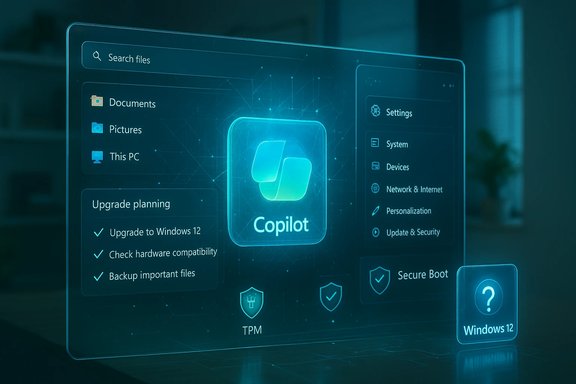 Background
Windows’ product cycle has shifted over the last decade from infrequent big-number releases to a cadence of continuous platform updates. That shift makes it easy to confuse a major feature wave inside Windows 11 with a whole new numbered OS. The more practical milestone that’s driving current speculation is the documented end of support for Windows 10 on October 14, 2025 — a fixed deadline that nudges users and organizations to consider an upgrade path.Microsoft’s public posture in late 2025 and early 2026 has been to continue investing in Windows 11 feature releases (including Copilot integrations and the 24H2/25H2 servicing cycles) rather than issuing a formal Windows 12 announcement. Community channels and official blogs reiterate that big feature work may land inside Windows 11 releases or as platform enablements for new hardware, not necessarily under a new version number.
Overview: confirmed facts versus repeated rumors
- What is confirmed
- Windows 10 support ends October 14, 2025; users should plan migration paths.
- Microsoft continues to ship major feature updates for Windows 11 and to invest in Copilot and AI features delivered inside Windows 11.
- What is rumor, leak, or analyst conjecture
- A consumer product specifically called “Windows 12” with a formal release date. (Unconfirmed.
- A hard jump in system requirements such as mandatory NPU support or a blanket 16 GB RAM floor. (Reported in leaks and discussion threads but not official.
- What’s likely to be true (educated reading)
- A continued trend toward deeper AI integration (Copilot expansion) and a higher security baseline (TPM 2.0, Secure Boot) — some of which Microsoft already enforced with Windows 11.
The most-talked-about feature areas, explained
1. Built-in AI that stretches beyond a chat box
Expectation: AI will move from being a single assistant window (Copilot) to being a contextual layer across File Explorer, Settings, Mail, and productivity apps. Rumors and analysis repeatedly describe features such as summarizing long email threads, converting rough meeting notes into actionable to-dos, and natural-language search inside file systems.Why that matters: integrated AI can reduce the friction of everyday tasks (finding the right settings, extracting action items from messages, automating repetitive operations). The trade-offs are privacy and control: deeper AI often requires indexing personal content, and some capabilities may use cloud processing rather than pure local inference unless the device includes an NPU.
Realistic caveat: Not every PC will get the same AI features. Many of these capabilities are expected to be gated by hardware class (NPU-equipped “AI PCs” or Copilot+ devices), account type (personal vs. managed work account), and regional rules on data processing. Treat claims about “AI everywhere on day one” as aspirational until Microsoft documents specific availability tiers.
2. Smarter search and a cleaner Start menu
Expectation: improved relevance for local files and apps, better “take me to this setting” outcomes, and fewer intrusive web suggestions in core search experiences. Natural language intent queries like “that PDF I downloaded last Tuesday about taxes” are a recurring rumor.Why that matters: search is a daily interaction. Better relevance saves time. The risk: search that relies on broad file indexing may be constrained in managed enterprise devices or by privacy settings.
3. Day-to-day improvements that feel boring but matter
Expectation: battery life improvements, smarter scheduling for hybrid CPU core architectures, smoother Modern Standby experience, and smaller enablement-style updates that reduce reboots. These are the changes users notice most, even if they lack headline-grabbing marketing copy.Why that matters: a new OS only wins users’ trust if it’s stable and unobtrusive. Many rumors emphasize these under-the-hood wins as the real payoff — provided vendors keep drivers and firmware up to date.
Security: the continuing push toward hardware-backed protections
Microsoft’s direction since Windows 11 has been to raise the security floor using hardware-backed elements like TPM 2.0 and Secure Boot. Expect Windows’ next phase to continue that trend: tighter sign-in flows (passkeys, stronger Windows Hello), improved ransomware protections around sensitive folders, and isolation for untrusted apps.Practical actions to take now:
- Turn on device encryption or BitLocker where supported.
- Use Windows Hello (PIN/fingerprint/face) to reduce password exposure.
- Keep UEFI/firmware and device drivers updated through your OEM’s support channels.
System requirements: what the rumor pool says, translated
Multiple leaks and community posts converge on a set of likely baseline expectations, but the numbers vary between sources. Here’s a practical translation of the commonly repeated items and what they mean in everyday terms. The statements below reflect repeated community reporting and rumor assemblies — not Microsoft documentation.- RAM: 8 GB (rumored minimum), 16 GB recommended
- Plain language: 8 GB will be usable for basic tasks, but 16 GB is the practical comfort zone for multitasking, modern browsers, Teams calls, and light content creation.
- CPU: 4-core (rumored baseline)
- Plain language: multi-core CPUs remain important. Newer-generation 4-core CPUs often outperform older 8-core designs when single-thread IPC and efficiency are better. CPU generation and driver support matter more than raw core count.
- Storage: 64 GB minimum often cited; 128–256 GB recommended; SSD strongly preferred
- Plain language: 64 GB is the absolute “it installs,” not “it works comfortably.” SSD/NVMe drives dramatically improve responsiveness and update reliability.
- TPM 2.0 and Secure Boot
- Plain language: expect hardware-backed security to be a gating factor for many features and for the clean upgrade experience.
- Neural Processing Unit (NPU): feature gate, not installer gate
- Plain language: some premium on-device AI functions may require an NPU; absence of an NPU probably won’t prevent installation, but it will limit on-device AI performance.
- Graphics and DirectX
- Plain language: DirectX 12+ compatibility remains relevant for gaming and multimedia UIs, but general productivity use will not be blocked by older GPUs — though performance and feature parity will vary.
How to check your PC now (practical steps)
These are short, verifiable checks you can do in minutes. The guidance below reflects standard device diagnostics and community-recommended preparatory steps.- CPU & RAM — Settings → System → About. Confirm processor model and Installed RAM.
- Storage — Settings → System → Storage. Verify available free space; aim to keep at least 20 GB free for updates.
- TPM 2.0 — Press Windows + R, type tpm.msc, press Enter. Look for Specification Version: 2.0. If TPM is present but not enabled, consult OEM documentation to enable it safely in UEFI; do not follow random YouTube clips.
- NPU/neural processor — Device Manager → look for “Neural processors” or vendor-specific entries; absence only means advanced on-device AI will be limited.
- Firmware & drivers — check your OEM’s support site for BIOS/UEFI and chipset storage/GPU drivers and apply vendor-recommended updates.
Upgrade planning: three common user scenarios
A. You’re on Windows 10
- Reality: Windows 10 support ended October 14, 2025. Staying on an unsupported OS raises security risk long-term.
- Options:
- Upgrade to Windows 11 if your machine meets requirements.
- Replace hardware if Windows 11 is unsupported or if multiple upgrades are needed.
- Consider extended security update programs only if enterprise policy or budget forces delay.
- Practical checklist: back up files, verify compatibility with PC Health Check or OEM tools, update firmware/drivers, and plan for a clean test before wide rollout.
B. You’re on Windows 11 and happy
- Reality: No rush. Windows 11 continues to receive feature updates and security fixes, and Microsoft has signaled ongoing investment there. Waiting is often the sensible path.
- When to act: buy new hardware if you need an NPU for specific AI workflows, or if your device is 4–6 years old and showing signs of battery or performance degradation.
C. You buy a new PC in 2026
- Priorities: 16 GB RAM recommended for longevity; SSD (NVMe) for responsiveness; TPM 2.0 and Secure Boot; CPU that meets your workload. Only consider an NPU if you plan to use on-device AI features — otherwise it’s a marginal premium.
Business and enterprise considerations
IT teams should treat the current state as a continuation of the Windows 11 era with larger AI/hardware stories layered on top. Recommendations for IT:- Pilot major updates in representative device rings, especially machines with niche drivers or vendor software.
- Maintain image-based rollback strategies and system images before feature upgrades; the “Go back” window after feature updates is time-limited.
- Consider update deferral/maintenance policies (WSUS, Windows Update for Business, Intune) rather than force-wide adoption on day one.
- Evaluate whether Copilot/Copilot+ features will require additional licensing, cloud services, or management controls before rolling out at scale.
Strengths of the likely direction — and the risks
Notable strengths
- Integrated AI: When thoughtfully implemented, deeper AI can remove friction across productivity tasks, improving time-to-outcome for knowledge workers.
- Higher security baseline: Hardware-backed protections (TPM, Secure Boot) raise the cost for attackers and reduce classes of common firmware and credential attacks.
- Modular updates and core improvements: Smaller, targeted updates that don’t require full OS reinstalls can reduce downtime and update risk.
Potential risks and downsides
- Hardware gating of features: If valuable capabilities are limited to NPU-equipped devices, users on older hardware may be left with a degraded feature set and a worse upgrade calculus. Verify which features require which hardware before buying.
- Privacy and telemetry concerns: AI features that index local files or send content to cloud models require clear opt-in/out controls and enterprise policy options. Watch for governance and admin controls as these features roll out.
- Fragmentation and upgrade complexity: A modular architecture helps updates but also introduces complexity for vendors and admins who must certify driver stacks for layered components. Test broadly.
- Speculation-driven purchases: Consumers who buy hardware solely because it claims “Windows 12-ready” without clarifying which features will be supported risk overspending for marginal benefit. Prioritize real daily-use wins (battery, keyboard, display) over speculative AI chips unless you’ll use them.
A practical, conservative action plan you can follow today
- Backup: full file backup plus an image backup before any major upgrade.
- Confirm your basic health: check RAM, storage, CPU model, and TPM status.
- Update firmware and key drivers from the OEM.
- If you’re on Windows 10: plan to move to Windows 11 if your hardware supports it; don’t rely on unsupported Windows 10 for security.
- If you’re on Windows 11 and content: stay put, but track Copilot+ hardware announcements and vendor driver advisories.
- If buying new hardware: prioritize 16 GB RAM, SSD, TPM 2.0, and a modern CPU. Consider an NPU only if you know you’ll use on-device AI features.
Conclusion
The headline in one sentence: as of January 2026, “Windows 12” is not an officially announced Microsoft product; the company’s direction is clearer, though: deeper AI inside Windows, a continued emphasis on hardware-backed security, and ongoing feature delivery through Windows 11 channels.Practical guidance is straightforward and conservative: prepare your device by checking RAM, storage, and TPM status now; apply firmware and driver updates; back up everything; and avoid panic-buying hardware for speculative features. If you value on-device AI, plan for a modern laptop with an NPU and 16 GB of RAM; otherwise, an SSD-backed system with TPM 2.0 and a modern CPU will be the most broadly useful investment.
Flagged uncertainties: leaked system minimums (exact RAM floors, enforced NPU requirements, or subscription pricing changes) remain unverified until Microsoft publishes official requirements, release notes, or a product page. Treat any “download Windows 12 ISO” links or single-source screenshots as high-risk; they are common malware vectors.
Hold the line on facts: watch for Microsoft announcements (official blog posts, Windows IT Pro guidance, product lifecycle pages) as the only provable sources. Until then, upgrade planning should be driven by your needs, device health, and confirmed lifecycle dates — not by rumor-driven feature lists.
Source: Chiang Rai Times Windows 12: New Features And System Upgrade Requirements
