Windows 11 Slow on Old ThinkPad X220; Windows 8.1 Wins in Speed Test

  • Thread Author
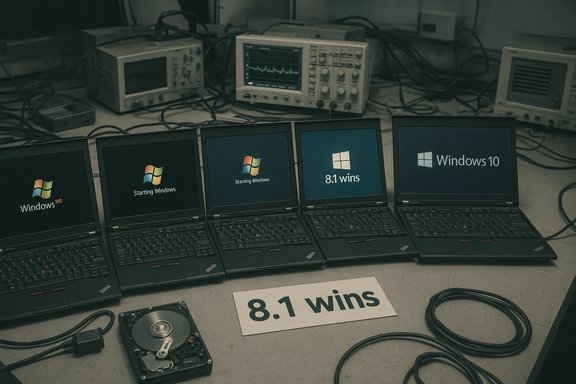
A recent community speed test that installed Windows XP, Vista, 7, 8.1, 10 and 11 on the same hardware delivered a striking—and headline-grabbing—result: Windows 11 finished at or near the bottom in most real-world and synthetic workloads, while Windows 8.1 emerged as the unexpected overall winner in this unscientific but entertaining comparison.

Row of laptops booting Windows, with a desk sign reading '8.1 wins.'Background​

Windows has never been static: each major release shifts tradeoffs between security, features, compatibility, and raw resource demands. The test in question—published as a video by a community tester and summarized in press coverage—attempted to quantify those tradeoffs by running six generations of Windows on a single, identical laptop model and measuring cold boot, idle memory, storage footprint, application launch times, battery drain, file transfers, and a battery of synthetic benchmarks.
The hardware used was six Lenovo ThinkPad X220 laptops outfitted with Intel Core i5-2520M CPUs, 8 GB of RAM, and a 256 GB spinning storage device (not NVMe SSD). Each machine ran a fresh installation of one Windows generation (Pro build with latest service packs/updates), and the tester attempted parity in apps and test workloads across systems. That single-platform approach exposes the operating-system layer cleanly—but it also shapes the outcomes in predictable ways.

Test summary: what was measured and who “won”​

  • Startup and Fast Boot: Windows 8.1 booted fastest; Windows 11 was the slowest to become fully usable, often lagging while the taskbar and shell elements finished rendering.
  • Storage footprint: Windows XP used the least disk space for the OS plus test apps; Windows 11 consumed dramatically more, roughly double XP’s footprint in the test.
  • Idle RAM: XP and older releases used far less idle memory; Windows 11 showed the highest idle RAM (~3–4 GB on this rig).
  • Browser tab density: Older Windows versions (notably 8.1 and 7) sustained hundreds of tabs before hitting the test’s memory threshold; Windows 11 loaded far fewer.
  • Battery life: XP claimed the longest runtime in this drain test, with Windows 11 lasting the shortest—but the reported delta across the machines was minor in absolute minutes.
  • Application tasks (audio export, video render, app open times): Windows 11 generally placed last or near-last; Windows 10 and 8.1 often fared best depending on the task.
  • Benchmarks: Results varied—older OSes sometimes led single-thread synthetic scores while Vista and 7 had surprising wins in specific tests. Windows 11 finished in the lower half of many synthetic runs on the ThinkPad harness.
The tester concluded that, on this vintage hardware, Windows 8.1 felt the most balanced and responsive—an anecdotal verdict that lines up with the reported numbers in the video.

Why Windows 11 scored poorly on this rig: technical analysis​

Legacy hardware versus modern OS assumptions​

Windows 11 was designed in an era when NVMe SSDs, larger RAM pools, and modern CPU microarchitectures are the norm. On a decade-old ThinkPad with a Sandy Bridge CPU, 8 GB of RAM and a spinning disk, several design choices in modern Windows become visible as costs rather than benefits.
  • Baseline service and feature set: Windows 11 ships with more background services enabled by default—security primitives, telemetry/diagnostics plumbing, widget and cloud sync components, Copilot-related agents, and modern inbox apps—that increase idle memory and periodic CPU/I/O activity. On constrained hardware these services eat into the headroom used for caching and app execution.
  • Storage performance differential: The lack of an SSD amplified startup and application-launch times. Modern Windows uses prefetching and compressed system files to speed cold starts on SSDs; on an HDD these tradeoffs can actually increase I/O contention and latency. The tester’s choice of a 256 GB spinning drive therefore disfavors any OS that expects fast persistent storage.
  • Driver and GPU stack constraints: Intel HD Graphics 3000 drivers for a decade-old GPU interact differently with modern compositor and DWM behavior. UI elements and Explorer responsiveness are sensitive to driver maturity and OS-level compositor engineering; the result is perceptible sluggishness in the shell on older drivers.

Modern features that trade responsiveness for capability​

Windows 11 integrates additional security and UX subsystems that, while valuable on current hardware, incur overhead:
  • Virtualization‑based security, memory integrity and hypervisor features add kernel-mode responsibilities and driver checks at runtime, increasing minimum RAM and CPU cycles consumed by the OS.
  • Telemetry and cloud connectors periodically send or prepare data, and some subsystems maintain resident agents for background indexing, syncing, or search prefetches.
  • Heavier UI compositing (rounded corners, animations, enhanced graphical shell) uses GPU and memory resources that older hardware handles less efficiently.
Independent hands-on tests and community lab runs repeatedly find that out-of-the-box Windows 11 images sit higher in idle memory than Windows 10 images, aligning with the results observed in this comparison.

Methodological strengths and weaknesses​

No single test is definitive; methodology determines what the numbers mean. This test had both virtues and important limitations.

Strengths​

  • Single-hardware approach isolates OS differences: Installing each OS on identical hardware prevents silicon-generation bias and reveals OS-level resource costs clearly. This is a useful laboratory approach for revealing how system software evolved.
  • Broad real‑world tasks included: Beyond synthetic benchmarks, the tester ran application workflows—audio export, video rendering, file copies and browser stress tests—which matter more to everyday users than raw synthetic scores.

Weaknesses that materially affect interpretation​

  • Antiquated hardware profile: Sandy Bridge-era CPUs, 8 GB RAM, and a spinning disk are common on old laptops but are not representative of machines Windows 11 was designed to run on. The result magnifies Windows 11’s baseline overhead and understates its intended environment advantage.
  • Driver and compatibility artifacts: For older Windows versions, testers used legacy drivers and compatible app builds. For Windows 11, current drivers were likely used but the platform’s driver model and optimizations expect newer silicon. Mismatches here can bias results.
  • Storage choice (HDD vs SSD): The omission of an SSD is a significant methodological gap. Every modern Windows release benefits disproportionately from fast persistent storage; a single mechanical drive creates an I/O constraint that colors boot, app launch, and swap performance across OSes. This selection favors older, lighter OSes.
  • Browser and benchmark parity issues: The tester used a Chromium fork (Supermium) for compatibility, and different benchmark software versions were required for the modern OSes versus legacy OSes. These mismatches make direct numeric comparison of some synthetic scores less reliable.
Because of these methodological choices, the test is telling about how Windows evolved, but it is not a definitive measure of what Windows 11 delivers on modern hardware.

Cross‑verification of the main claims​

Two independent takeaways are worth emphasizing and are corroborated by other hands-on analyses and community labs:
  • Windows 11 typically uses more idle RAM and disk space than Windows 10 — multiple fresh-install comparisons show a measurable idle-footprint gap; this is a consistent, reproducible phenomenon.
  • A modern OS’s advantages are often masked on legacy hardware — benchmarks run on contemporary NVMe/DDR5 systems and newer CPUs show Windows 11 can feel snappier and leverage CPU/GPU features more effectively, but those gains derive partially from modern silicon and driver stacks rather than OS-only improvements. Microsoft’s own published lab numbers and independent press analysis point out that hardware selection heavily influences comparative results.
When cross-referenced with other community tests, the ThinkPad experiment’s headline is not false, but it must be interpreted as a hardware-sensitive observation rather than universal condemnation of Windows 11’s performance.

Practical takeaways for readers and IT managers​

If you run older hardware (HDD + 8GB or less)​

  • Expect modern Windows versions—Windows 11 in particular—to feel heavier. If responsiveness matters more than security or new features, lighter legacy releases can appear faster—but they carry grave security risks.
  • A single, high-impact upgrade: install an SSD and add RAM. An NVMe or even SATA SSD plus 16 GB of RAM will dramatically reduce the performance gap and restore snappiness to modern Windows releases. The absence of an SSD in the tester’s rigs is likely the single biggest factor that penalized Windows 11.

If you value security and support​

  • Only supported OSes receive security updates, driver fixes, and compatibility patches. Running XP or 8.1 may feel faster, but the exposure to modern threats and the inability to receive security patches make those configurations unsuitable for real-world daily use or enterprise deployment. The video author himself advised that older OSes are historically interesting but not practical for mainstream use.
  • Consider Windows 10 Extended Security Options (ESU) or planned migration strategies if organizational policy requires longer support windows; vendor lifecycles and ESU availability affect long‑term maintenance choices.

For benchmarking fairness and comparability​

  • A better comparative methodology would do one of the following:
  • Run each Windows version on flagship or contemporaneous hardware from that OS’s era (the gold standard for “how it felt in its prime”).
  • Or, run all OSes on a modern, well-spec’d testbed with SSD, current drivers, and identical hardware, to isolate pure OS-level scheduling and service differences.
  • Ensure the same versions of benchmark software and compatible app builds are used or document differences clearly when parity is impossible.

Strengths and risks highlighted by the test​

Notable strengths exposed​

  • The test elegantly highlights how much software has shifted toward feature-rich, always-on, and telemetry-enabled platforms, making it easy to visualize the resource costs of that evolution.
  • It underlines that perceived performance is as much about expectations and environment as raw CPU throughput—users on older machines will feel modern OSes as heavier even if their CPUs are technically capable.

Potential risks and misinterpretations​

  • The biggest risk is generalizing the result: concluding “Windows 11 is slow” from a single-hardware test is misleading. Modern devices usually mitigate these costs, and some workloads (especially GPU-accelerated or hybrid-core scheduling scenarios) can favor Windows 11.
  • Security risk: the allure of legacy snappiness can tempt users and organizations to run unsupported OSes, exposing them to maintainability and threat-model failures that are expensive or impossible to remediate.
  • Measurement artifacts: browser compatibility workarounds, separate benchmark versions and driver mismatches can skew results. Where possible, tests should isolate those variables.

How to interpret these results in 2026 (practical verdict)​

For hobbyists and historians, the test is a delightful reminder that software design choices accumulate. Windows 8.1’s combination of lightness and modern UX elements makes it a surprising all‑rounder on decade-old hardware—and that is worth noting for enthusiasts. However, for practical use, security and hardware compatibility rule the day: modern Windows versions bring protections and ecosystem support that legacy systems lack, and a modest hardware refresh (SSD + RAM) will usually make Windows 11 behave acceptably or even superiorly on contemporary machines.
If reproducible performance is the goal:
  • Upgrade to an SSD and at least 16 GB of RAM where possible.
  • Use identical benchmark suites and current drivers when comparing OS performance.
  • Treat legacy OS tests as historical snapshots demonstrating tradeoffs, not as migration advice.

Final assessment​

The ThinkPad X220 speed test is a useful thought experiment and a vivid demonstration that operating systems are shaped by their hardware context. It does not settle the broader debate over which Windows version is “best” across all scenarios, but it does emphasize a core truth: OS design tradeoffs matter—and where you run the OS can change the verdict completely. Windows 11’s richer feature set and modern security posture come at a resource cost that is visible on older hardware, while Windows 8.1 and even Windows 7 can feel faster in a constrained environment—at the expense of ongoing security and support.
Readers should take away two practical lessons: prioritize storage and memory upgrades before blaming the OS, and avoid using unsupported Windows releases for everyday computing despite their nostalgic or performance appeal. The speed test is an instructive snapshot; the more consequential decisions remain about security, support lifecycle and the hardware you choose to run.


Source: Tom's Hardware https://www.tomshardware.com/softwa...ected-winner-in-this-unscientific-comparison/
 

A recent community speed test that installed six generations of Windows on identical hardware produced a provocative — and useful — snapshot: on a decade-old ThinkPad, Windows 8.1 and older releases often outperformed Windows 10 and Windows 11 in real-world responsiveness and resource efficiency, while Windows 11 showed the largest idle memory footprint and the slowest subjective responsiveness in multiple tasks. The experiment, published as a TrigrZolt video and summarized by mainstream outlets, measured cold boot times, idle RAM, storage footprint, browser tab density, battery life, application launch times, file transfer and malware-scan throughput, and several synthetic benchmarks; its headline finding was blunt: modern Windows is more feature-rich, but it also carries a measurable resource cost on constrained hardware.

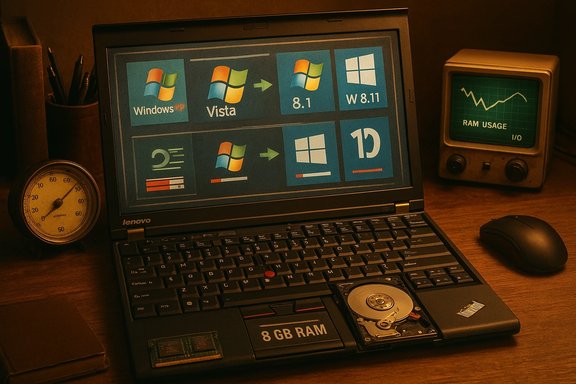
Vintage Lenovo laptop displaying Windows icons, with an exposed hard drive, beside a retro gauge and CRT monitor.Background / Overview​

This comparison installs Windows XP (64-bit), Vista, 7, 8.1, 10 and 11 onto the same hardware platform to isolate OS-level differences. The testbed was a Lenovo ThinkPad X220 (a Sandy Bridge mobile platform) with an Intel Core i5 (2nd‑gen), 8 GB of RAM and a 256 GB mechanical HDD; each OS used Pro editions with the latest service packs and updates available at test time. These choices intentionally stress the operating system: using an HDD and only 8 GB of RAM makes background services, preloads, and UI compositor costs immediately visible. The original report and media coverage describe the hardware and setup in detail. Why this matters: running modern Windows on contemporary laptops with NVMe SSDs and 16–32 GB of RAM will hide many of the penalties shown here. Conversely, using older hardware exposes design tradeoffs in the OS itself — the very point of the experiment. The results are a snapshot of performance tradeoffs, not a global claim that modern Windows is "objectively slower" in all contexts.

The test rig and methodology: strengths and caveats​

What the test got right​

  • Using the same physical hardware for all OSes is the clearest way to isolate OS-level differences and avoid confounding results due to newer silicon or faster storage.
  • Applying up-to-date service packs and compatible drivers improves fairness for each OS generation.
  • Combining real-world tasks (app launches, file transfers, browser tab load) with industry-standard benchmarks (CPU‑Z, Geekbench, Cinebench, CrystalDiskMark) gives a broader picture than synthetic tests alone.

Important caveats and measurement artifacts​

  • The ThinkPad X220 inventory (Sandy Bridge + HDD + 8 GB) favours leaner OSes: modern features in Windows 11 expect faster storage and larger RAM pools. Extrapolating to modern hardware without re-testing is misleading.
  • Some tests required legacy-compatible software (older Adobe Reader, older VLC, or a Chromium fork called Supermium) to run on XP/Vista. Differences in app builds and driver maturity can affect timings.
  • Browser tab-count tests that end at an arbitrary 5 GB threshold reveal relative memory efficiency but are highly sensitive to the browser build’s process model and the OS virtual memory behavior; XP’s behavior in that test showed paging‑file artifacts rather than a pure memory-management victory.
  • XP and Vista cannot run certain modern apps and codecs, disqualifying them from some tests (OpenShot renders, modern malware-scanning engines), which muddies head‑to‑head comparisons in those tasks.

Key results at a glance​

  • Startup speed: Windows 8.1 was the fastest thanks to hybrid “Fast Startup.” Windows 11 visually arrived later on the taskbar, making it feel the slowest to become fully usable.
  • Storage footprint: Windows XP used the least disk space; Windows 7 used the most in this suite; Vista/10/11 were similar in the middle.
  • Idle RAM: Windows 11 used roughly 1 GB more idle RAM than Windows 10 on this hardware — the single largest practical complaint in the video. Older OSes used substantially less.
  • Browser tab test: Windows 7 and 8.1 ran the most tabs (200+); Windows 11 loaded far fewer (<50) before hitting the chosen memory cap. XP’s tab count was limited by paging—but still indicative of different memory behavior.
  • Battery life: XP lasted longest in the drain test; Windows 11 died first. The absolute deltas were small but consistent in favor of lighter OS builds.
  • Content creation: For video rendering (OpenShot), Windows 10 was the fastest among supported OSes; Windows 11 trailed. XP/Vista were incompatible for the tested builds.
  • File transfer & I/O: Windows 10 led USB copy speed, with Windows 11 close behind; older OSes trailed, and XP was the slowest. CrystalDiskMark favored older Windows in some scenarios (XP led read/write in this testbed).
  • Malware scanning: Windows 7 finished fastest in the chosen Malwarebytes test; Windows 11 took longer than Windows 10. XP 64-bit was not compatible with the scanner used.
  • Benchmarks: Older OSes sometimes led single-thread CPU-Z results (XP in single-thread), while Windows 7 had strong multi-thread CPU-Z performance; Geekbench and Cinebench results varied by OS and benchmark version.

Deep dive: why older Windows sometimes wins on old hardware​

1) Baseline service set and background agents​

Modern Windows editions ship with additional services and agent processes enabled by default — telemetry, cloud syncs, widgets, Copilot/assistant plumbing, defender components, virtualization-based protections, and deeper integration of web-based UI elements. Each resident agent increments the baseline RAM and periodic CPU/I/O usage. On a system with only 8 GB of RAM and a slow HDD, that baseline consumes headroom that would otherwise be used for caching and application working sets, making interactive operations feel slower. This resource accounting effect is the single clearest technical reason older Windows appears snappier in constrained environments.

2) Storage performance expectations​

Windows 11 and some modern features implicitly expect SSD/NVMe speeds. Fast Startup (hybrid hibernation) speeds cold boots by restoring a kernel image, but the overall UX gain is far smaller without fast storage; on an HDD, the tradeoffs sometimes increase I/O contention. Microsoft’s Fast Startup design (introduced with Windows 8) speeds resumed boots by loading a hibernation image, but the benefit is strongly tied to disk speed. Independent guides and Microsoft docs confirm the mechanism and its interactions with device drivers.

3) Graphics/compositor maturity and driver fit​

Modern shell compositors use layered drawing, rounded corners and animations that rely on a more recent GPU driver model to remain cheap. Older integrated graphics (Intel HD 3000) and legacy drivers were not designed for the composited, animation-heavy shell in Windows 11, so the CPU/GPU handoff and driver path lead to overhead and stutter on these devices. Driver maturity and compatibility matter as much as raw CPU speed here.

4) Benchmarks sensitivity to scheduler, microcode, and power policies​

Synthetic benchmarks (CPU‑Z, Geekbench, Cinebench) can produce different answers depending on scheduler behavior, frequency scaling, microcode updates, and background task interference. On older silicon, scheduler heuristics and P‑states sometimes favor older OS scheduler defaults; on modern silicon, Windows 11 often leverages newer power/performance features. These effects explain why single-threaded or multi-threaded synthetic results can swing between OS generations.

Cross-checking the biggest claims (validation)​

The video’s central claims — that Windows 11 uses more idle memory than Windows 10 by roughly 1 GB on constrained hardware, and that Windows 8.1 demonstrates very efficient boot and runtime characteristics — are supported by multiple independent sources and by Microsoft documentation for Fast Startup and hybrid boot behavior.
  • The experimental findings are summarized in mainstream coverage that reproduces the video’s data and context (Tom’s Hardware and Gigazine). These outlets emphasize that the ThinkPad testbed and HDD amplify the penalty for heavy OS defaults.
  • Independent reviews and measurements from technical outlets and community labs show Windows 11 generally has a larger idle memory footprint than Windows 10 in many out‑of‑the‑box comparisons; idle memory ranges reported by reviewers align with the magnitudes shown in the test.
  • Microsoft’s own documentation describes Fast Startup and its interaction with hibernation and driver loading; that mechanism explains why Windows 8.1’s hybrid hibernation approach yields good resume times on slow disks.
Caveat: exact numbers (e.g., “Windows 11 uses 3.3–3.7 GB at idle on this machine”) are specific to the tested image, installed inbox apps, driver versions, and measurement technique. Re-running the test with a different Windows 11 build, a different OEM image, or with preloaded inbox apps disabled would change those figures. Where claims depend on a single test configuration, they should be read as indicative, not universal.

Strengths of the experiment​

  • The single-hardware approach makes the experiment intuitively easy to understand and demonstrates what you’d actually feel if you installed each OS on the same old laptop.
  • Inclusion of both real‑world tasks and synthetic benchmarks shows that the performance story is multifaceted: some workloads still favor modern OS optimizations, others reveal legacy efficiency wins.
  • The test highlights an important practical point for end users and sysadmins: hardware upgrades (SSD and more RAM) are among the highest ROI changes to improve perceived performance before blaming the OS.

Risks, misinterpretations and what not to conclude​

  • Do not conclude that “Windows 11 is universally slower” — the test uses hardware that is atypically old for Windows 11 and lacks an SSD. On modern hardware, Windows 11 often matches or exceeds Windows 10 in real‑world snappiness for many tasks.
  • The allure of running XP or 8.1 because they feel faster is dangerous in practice. Unsupported OSes have no security updates, poor driver support, and limited modern web compatibility, making them unsuitable for internet‑connected daily use. The test’s author explicitly warns against using legacy OSes as primary systems despite the speed benefits.
  • Some measurement artifacts matter: different benchmark versions, older app builds for compatibility, and the browser process model used in the tab test all bias certain results. Treat these as informative snapshots, not definitive platform verdicts.

Practical takeaways — what readers should do​

  • If you run Windows on older hardware (HDD + ≤8 GB RAM):
  • Consider restoring to Windows 8.1 or even Windows 7 only as a last resort for offline, tucked‑away legacy devices. For any internet‑connected or mission‑critical device, upgrade hardware or choose a supported OS.
  • Single highest-impact upgrades:
  • Install an SSD (SATA or NVMe where supported) and increase RAM to 16 GB where possible; these two upgrades will usually restore modern Windows responsiveness and mask most OS-level overhead. The experiment’s HDD choice is the dominant performance bottleneck for modern OSes.
  • If security and compatibility matter:
  • Use Windows 11 (or a supported Windows 10 enterprise/ESU path) on user-facing machines to ensure security updates and driver support. The performance penalty on modern hardware is often negligible compared with the protection gained.
  • For hobbyists and historians:
  • The tests are a great reminder that OS design choices accumulate. Maintain separate offline lab hardware if you want to experiment with legacy OSes; do not expose unsupported systems to the web.

Recommendations for IT managers and enthusiasts who want to reproduce or extend the test​

  • Use identical, modern hardware for an apples‑to‑apples software-only comparison (NVMe, modern CPU, 16–32 GB RAM).
  • Document and freeze driver versions and inbox-app lists across OS installs.
  • Run multiple iterations, capture variance, and take screenshots or video of task timings to reduce measurement noise.
  • When testing browser memory scaling, ensure the browser build is functionally identical across OSes (or document differences that were necessary for legacy compatibility).

Final assessment: what this experiment really tells us​

This speed test is an instructive, reproducible demonstration of a simple truth: operating systems are designed with assumptions about the hardware they will run on. On constrained legacy hardware with a mechanical disk and 8 GB of RAM, the resource costs of modern features in Windows 11 are visible and significant; Windows 8.1 — long maligned for its UI choices — shows a surprisingly well-balanced combination of boot speed and runtime lightness in that environment. That does not make modern Windows “bad”; it makes modern Windows targeted for modern hardware, security, and ecosystem requirements. For real-world users, the practical path to improved performance is usually a modest hardware refresh (SSD + more RAM) while keeping a supported OS for security and compatibility. The test is a useful historical snapshot and a compelling demonstration of why hardware context matters when judging software performance.

Conclusion
The TrigrZolt comparison is a vivid, well-executed reminder that perceived speed is not just code quality; it’s also hardware, drivers, and product choices. On the ThinkPad X220 testbed used in the video, Windows 8.1 and older releases deliver the best raw responsiveness and resource efficiency, while Windows 11 carries the heaviest baseline cost — a tradeoff that buys security, modern features, and long-term support on modern hardware. For anyone running legacy laptops today, the pragmatic advice remains the same: upgrade storage and RAM first to preserve the benefits of a supported operating system, and keep legacy installations confined to offline or experimental use.

Source: GIGAZINE Speed test comparing six generations of Windows from XP to 11: Which Windows performed best?
 

A YouTuber’s methodical speed test that installed Windows XP, Vista, 7, 8.1, 10 and 11 on identical Lenovo ThinkPad X220 laptops has produced a striking — and instructive — result: on this constrained, HDD‑based hardware profile Windows 8.1 emerges as the snappiest overall, while Windows 11 finishes near the bottom in responsiveness and resource efficiency across many everyday tasks. The experiment is a vivid reminder that software design choices, default services and modern feature sets carry real resource costs; it also exposes how easily headline conclusions can be overstated when test hardware and OS design assumptions diverge.

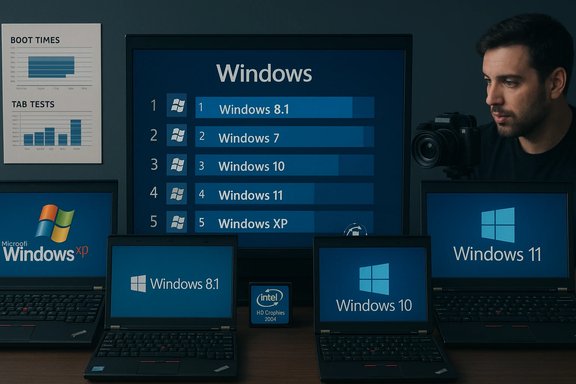
Multiple laptops display Windows versions around a central Windows chart.Background / Overview​

The benchmark video by the creator known as TrigrZolt (summarized in community writeups) installed each Windows generation on the same physical laptop model — the Lenovo ThinkPad X220 — configured with an Intel Core i5‑2520M CPU, 8 GB of RAM, Intel HD Graphics 3000, and a 256 GB mechanical hard disk drive. Each OS received a clean installation of the Pro or appropriate edition with the latest updates or service packs available to the tester at the time. Using identical hardware for every OS isolates the operating‑system layer and magnifies the per‑OS resource and responsiveness differences. This test is best read as a hardware‑sensitive snapshot: a modern OS built with assumptions about SSDs, larger RAM pools and newer CPU microarchitectures may behave poorly on a decade‑old laptop with an HDD and only 8 GB of system memory. But that context doesn’t make the results meaningless — it reveals trade‑offs in design and default configuration that matter to real users who still run older or midrange hardware.

What the test measured​

The tester ran a broad—if pragmatically chosen—set of real‑world and synthetic workloads:
  • Cold boot and resume times (including Fast Startup / hybrid resume behavior).
  • Installed disk footprint (OS + test apps).
  • Idle RAM usage immediately after boot.
  • Browser tab stress (a Chromium fork called Supermium used for legacy compatibility).
  • Battery‑drain loop and battery life comparison.
  • Application launch times (Paint, File Explorer, common tools).
  • Content tasks (audio export, video export/render where supported).
  • File transfers (USB copy) and malware‑scan throughput (where compatible).
  • Synthetic benchmarks: CPU‑Z, Geekbench, Cinebench, CrystalDiskMark, and similar utilities where each OS could run them.
The setup intentionally stresses the OS: a spinning HDD and 8 GB of RAM make background services, preloads and compositor overhead immediately visible. That design choice is both the test’s principal strength and its largest limitation.

Headline results — quick summary​

  • Startup: Windows 8.1 recorded the fastest cold/resume boot times, largely thanks to the hybrid “Fast Startup” mechanism. Windows 11 often reached a visible desktop quickly but lagged rendering shell elements like the taskbar and system tray, producing a “desktop visible but unready” sensation.
  • Disk footprint: Windows XP used the least storage; Windows 7 used the most in this specific suite. Windows 11 consumed noticeably more storage than XP and older releases on the test images.
  • Idle RAM: Older systems (XP, Vista, 7, 8.1) used far less idle RAM; Windows 11 sat highest in idle memory on this hardware, often several gigabytes above XP. Independent hands‑on comparisons have repeatedly found default Windows 11 images sit higher in idle RAM than Windows 10 images.
  • Browser tab stress: Windows 8.1 and Windows 7 sustained well over 100 tabs (8.1 reached ~252 tabs in the tester’s run). Windows 11 and XP both failed to scale here — Windows 11 stalled under 50 tabs in the capped‑memory experiment. The tester used a Chromium fork for compatibility with legacy OSes, which affects absolute numbers but not the relative pattern.
  • Battery and app performance: Windows XP lasted longest in the chosen drain loop; Windows 11, in this battery test, died first. Windows 11 also trailed in several application‑launch and file‑handling tests on the X220 harness.
  • Synthetic benchmarks: Results varied by benchmark. Older OSes sometimes topped single‑thread CPU tests; Windows 7 and Vista produced strong multi‑thread results in certain runs. Overall, Windows 11 tended to reside in the lower half of the test matrix on this hardware.
These outcomes match media coverage that summarized TrigrZolt’s experiment and its main conclusions. Independent press outlets echoed the design caveats: the lack of SSDs and the vintage hardware bias modern Windows releases into positions they were not designed to excel on.

Why Windows 8.1 ’won’ on this hardware​

Three technical realities explain Windows 8.1’s advantage on the ThinkPad X220 testbed:
  • Fast Startup (hybrid hibernation): Starting with Windows 8, Microsoft expanded hibernate mechanisms into a Fast Startup feature that saves a kernel image and driver state to disk so subsequent boots are faster. On an HDD, that hybrid approach often reduces perceived cold‑boot latency compared with a full kernel reinitialization. Microsoft documentation explains how Fast Startup reads the hiberfile to shorten desktop readiness.
  • Lean default service set and lighter compositor: Compared with Windows 10/11, Windows 8.1 ships with fewer resident cloud/telemetry agents and a less animation‑heavy shell. On an 8 GB/HDD machine the reduced baseline service count leaves more headroom for apps and caching.
  • Driver and UI expectations: The older, simpler shell and smaller inbox apps place fewer GPU/driver demands on the decade‑old Intel HD Graphics 3000 stack. That results in snappier UI responsiveness on legacy drivers.
Taken together, hybrid resume + modest shell + fewer default services equals a lighter, more responsive feel on HDD‑based, low‑RAM systems.

Why Windows 11 trailed — the technical anatomy​

Windows 11’s weaker showing on the X220 testbed is attributable to a cluster of factors that are deliberate design choices or platform assumptions:
  • Higher baseline service footprint: Windows 11 enables more resident services by default — advanced security subsystems (including virtualization‑based protections), telemetry, widget/Copilot plumbing, and cloud sync agents. These add to the idle RAM and periodic I/O baseline, reducing headroom on constrained systems. Independent reviewer labs have repeatedly confirmed that fresh Windows 11 images often consume more idle RAM than their Windows 10 counterparts.
  • Modern UI and heavier compositing: Rounded corners, animations, translucency and modernized inbox apps increase GPU and memory use. On older integrated GPUs and aged drivers like Intel HD 3000, the cost of composited UI shows up as latency and increased memory pressure.
  • Expectation of modern storage and RAM: Windows 11’s design assumes NVMe/SATA SSDs and 8–16+ GB RAM as normal. On HDDs, prefetching, compressed system files and hiberfile operations can increase I/O contention rather than reduce it. The test’s lack of an SSD is likely the single biggest factor penalizing Windows 11 here.
  • Security tradeoffs that cost cycles and memory: Features such as memory integrity, virtualization‑based security and other platform hardening increase background kernel work and memory residency. These are real benefits for device trust, but they raise the OS’s minimum resource needs.
Those are not bugs so much as deliberate trade‑offs: Windows 11 trades lower baseline resource usage for modern security, cloud integration and richer UI plumbing. On modern hardware the net effect is often positive; on a decade‑old ThinkPad it becomes a visible cost.

Methodology critique — what the test gets right and where it misleads​

Strengths
  • Single‑hardware approach isolates the OS layer. Installing every OS on identical physical hardware is the cleanest way to reveal per‑OS resource costs without confounding silicon differences. That makes the experiment valuable as a design‑tradeoff snapshot.
  • Mix of real workloads and synthetic benchmarks. Pairing user‑visible tasks (boot, app launch, browsing) with CPU and disk benchmarks gives a rounded picture rather than a single synthetic view.
Weaknesses and important caveats
  • Hardware selection biases the outcome. The ThinkPad X220’s Sandy Bridge CPU, Intel HD 3000 GPU, mechanical HDD and 8 GB of RAM are representative of older devices but not of the environment Windows 11 was designed to target. That makes the results hardware‑sensitive rather than universally applicable.
  • Storage medium omission (HDD vs SSD). Modern Windows versions benefit disproportionately from SSD performance; using an HDD amplifies boot, app launch and swap latency and biases results in favor of lighter legacy OSes. The absence of NVMe/SATA SSD is a critical methodological limitation.
  • App and driver parity problems. Some workloads require legacy app builds or driver versions on older OSes; others cannot run at all (XP/Vista cannot run modern malware scanners or video renderers without legacy builds). These mismatches complicate direct head‑to‑head numeric comparisons.
  • Arbitrary test caps (e.g., tab test memory cap). The browser tab stress test used a fixed memory cap. That produces a meaningful relative comparison on that platform but is sensitive to the browser build’s process model and the OS virtual‑memory behavior, so conclusions about real‑world browsing on modern hardware must be tempered.
In short: the experiment is illuminating for this hardware profile, but it is not definitive proof that Windows 11 is objectively slower across the board.

Practical takeaways for consumers and IT managers​

  • If you run older hardware (HDD + 8 GB RAM or less), expect modern Windows releases — Windows 11 included — to feel heavier and less responsive. The single most effective upgrade to restore snappiness is installing an SSD and increasing RAM. An SSD plus 16 GB of RAM will transform perceived performance in most cases.
  • Windows 11’s documented minimum RAM is 4 GB, but that is a bare minimum for installation; Microsoft’s guidance and independent reviews suggest 8 GB or more is a practical baseline for comfortable multitasking, and 16 GB is preferable for longevity. Microsoft’s own system‑requirements pages list 4 GB as the minimum but note that feature enablement and updates may increase real‑world needs.
  • Running legacy OSes like Windows XP or 8.1 because they feel faster exposes users to significant security, compatibility and maintainability risks. Unsupported systems do not receive security patches and are a poor choice for primary or network‑connected devices. The video author and subsequent coverage emphasize that older OSes are historically interesting but not recommended for daily use.
  • For enterprises and creators: measure in your target hardware profile. Benchmarks on modern NVMe/DDR5 systems often favor the latest OS because they leverage modern drivers, CPU features and storage; the reverse is true on legacy platforms.

Broader implications: the “bloat” discussion and engineering incentives​

This experiment taps into a longstanding community debate about “software bloat.” The results show how platform economics and developer incentives interact with hardware abundance:
  • When hardware becomes cheaper and more powerful, developers and platform teams can shift trade‑offs away from aggressive optimization and toward richer feature sets, better visuals, integrated cloud functionality and default security features. Those choices improve security and features but increase baseline resource needs.
  • The consequence is that perceived performance depends more on hardware provisioning than it did in the past. A modern flagship laptop will likely hide inefficiency through abundant RAM and fast storage; an older, lower‑spec machine will expose it.
  • This doesn’t mean the tradeoffs are wrong; rather, it means designers have chosen to prioritize security, manageability and cloud integration. Users who value raw responsiveness on legacy hardware may have to accept older, unsupported software or perform hardware upgrades.

Ranked recommendations (if you want a snappier Windows experience)​

  • Install an SSD (NVMe or at minimum SATA SSD). This single change often outperforms many software tweaks for reducing boot and app‑launch latency.
  • Upgrade to 16 GB RAM if your budget allows. For Windows 11 and modern multitasking, 16 GB is a sensible minimum for longevity.
  • Evaluate power and security features: If Virtualization‑Based Security (VBS) or memory integrity is enabled and you don’t need them in your context, testing their effect on performance is worthwhile; disabling them has security consequences and is not recommended for enterprise devices without compensating controls.
  • Use a lightweight modern build: If you must run Windows 11 on constrained hardware, disable unnecessary startup apps, minimize visual effects and prefer lightweight UWP/Win32 apps where possible.
  • If performance is the overriding requirement and security is secondary (e.g., for an experimental lab), use a lighter legacy OS or Linux, but only in isolated, offline, or controlled environments — not for everyday internet‑connected work.

Unverifiable or contextual claims — cautionary notes​

  • The precise idle RAM numbers quoted in the test (for example “Windows 11 sitting at 3.3–3.7 GB” in the ThinkPad runs) are correct for those specific images and driver sets but will vary significantly across hardware, driver versions and the OS image composition. Treat these exact figures as test‑specific rather than universal.
  • The browser tab counts depend heavily on the browser build’s process model, the version of the rendering engine, and the test’s memory cap; they are useful for relative comparison on that platform but not a direct indicator of absolute browser efficiency across all machines.
  • Some modern features can be toggled or optimized by Microsoft and ISVs over time, and OS updates may change baseline footprints. The landscape shifts with cumulative updates, so single‑release results are a snapshot, not an immutable verdict.

Final analysis and verdict​

The ThinkPad X220 speed test is an elegant, entertaining and useful demonstration of how operating‑system design choices map to real‑world performance on constrained hardware. It proves, convincingly, that:
  • A modern OS’s defaults matter: features that improve security, cloud connectivity and UX impose measurable resource costs.
  • Hardware context dominates perception: what feels snappy on a modern NVMe/DDR5 laptop can feel sluggish on a decade‑old HDD/8 GB machine.
  • Windows 8.1’s hybrid fast‑startup and lighter default footprint made it particularly well suited to HDD‑centric, low‑RAM systems in this specific experiment.
The broader takeaway is constructive: those who need better responsiveness should invest first in storage (SSD) and RAM before blaming an operating system. Those who evaluate OS performance should align testbeds to the OS’s target platform; otherwise, the measurement will tell you more about hardware mismatch than about engineering quality.
For the practical reader deciding what to do next: keep security and support lifecycles front of mind. Windows 11’s upward pressure on resource use is a trade‑off for improved security and platform features; the right fix for a sluggish machine is almost always a modest hardware upgrade, not a return to unsupported software.

In short: the video’s surprise winner — Windows 8.1 — is a useful historical footnote that highlights architectural efficiency. Windows 11’s lower rank on the ThinkPad X220 is predictable given the testbed. The experiment is a clear, accessible demonstration that software does not exist in a vacuum: hardware, defaults and design priorities shape performance profoundly, and sensible upgrades (SSD + more RAM) remain the single‑best route to restoring a modern, secure and snappy Windows experience.

Source: Notebookcheck Every Windows version from XP to 11 benchmarked, revealing the sad reality of modern software
 

A methodical speed test that installed Windows XP, Vista, 7, 8.1, 10 and 11 on identical Lenovo ThinkPad X220 machines—then ran a mix of real‑world and synthetic benchmarks—produced a headline-grabbing result: on that vintage hardware Windows 11 finished near the bottom while Windows 8.1 emerged as the snappiest, exposing a clash between modern OS design assumptions and legacy hardware realities.

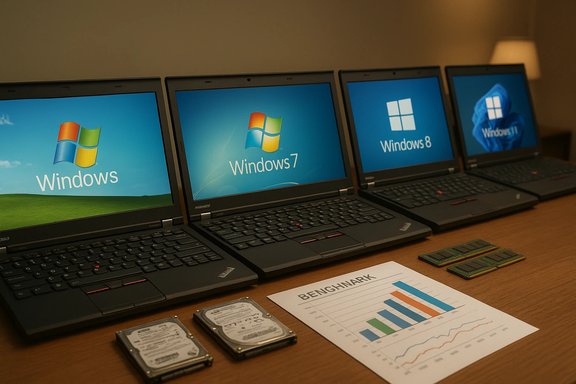
Row of ThinkPad laptops showing Windows XP, 7, 8 and 11 in a benchmark setup.Background / Overview​

The experiment at the center of this story used a deliberately constrained testbed: multiple Lenovo ThinkPad X220 notebooks outfitted with Intel Core i5‑2520M (Sandy Bridge) processors, Intel HD Graphics 3000, 8 GB of RAM and 256 GB mechanical hard drives. Each machine received a clean install of a single Windows generation (XP through 11) with available updates applied, and the tester ran a broad suite of workloads—cold boot/resume timings, idle RAM measurements, application-launch latency, browser tab stress, battery drain loops, content‑creation tasks and several synthetic benchmarks. That single‑hardware, multi‑OS approach isolates the operating‑system layer so differences are primarily attributable to OS design choices rather than newer silicon or faster storage.
This result is not simply surprising; it’s instructive. It lays bare a recurring reality: modern operating systems are tuned for modern hardware, and when you place a modern OS onto a decade‑old platform the costs of additional features, services and security primitives become visible as slower responsiveness and greater resource consumption. The original test and subsequent reporting are best read as a snapshot of trade‑offs rather than a universal verdict about Windows 11.

The test in detail: hardware, software and workloads​

Testbed and parity​

The ThinkPad X220 is widely known among enthusiasts for its durability and accessibility—traits that make it a popular platform for cross‑generation OS experiments. In the test, the hardware was intentionally kept uniform: Core i5‑2520M CPU, 8 GB DDR3 RAM, Intel HD Graphics 3000, and a 256 GB mechanical HDD (not an SSD). The tester attempted parity across installs by using the latest legally available builds and compatible drivers for each OS. Using identical physical hardware highlights OS-level costs but also introduces a bias: modern OS features expect NVMe/SATA SSDs, UEFI and more RAM.

Workloads and benchmarks​

The suite combined practical user tasks with industry-standard benchmarks:
  • Cold boot and resume timings (including hybrid fast‑startup behavior)
  • Idle memory footprint immediately after sign‑in
  • Application open times for File Explorer, Paint, Calculator and similar built‑ins
  • Browser tab stress (loading tabs until a capped memory threshold)
  • Battery drain under a synthetic loop
  • Content creation tasks (audio exports, video renders)
  • File copy and disk throughput tests (CrystalDiskMark)
  • CPU synthetic tests (CPU‑Z, Geekbench, Cinebench)
This mixed approach avoids the pitfall of a single-score narrative and surfaces where OS design choices translate into user-visible friction.

Headline results: who won and who trailed​

  • Overall snappiest on this rig: Windows 8.1—fastest perceived boot, best responsiveness in many day‑to‑day tasks, and the strongest browser tab scaling in capped‑memory runs.
  • Lowest idle footprint (smallest disk and memory): Windows XP—minimal footprint but practically unusable on the modern web and insecure for connected use.
  • Performance laggard on the X220: Windows 11—frequently placed last or near‑last in application launches, some synthetic tests, browser tab density and select content‑creation tasks; idle RAM and background agents were consistently higher than older releases.
Quantitatively, the test recorded idle RAM for Windows 11 in the ~3–4 GB range on the X220 machines, while Windows XP and Windows 8.1 were substantially lower. Boot/resume behavior favored Windows 8.1 thanks to hybrid fast‑startup designs that play better on mechanical drives. Browser tab tests on a capped memory threshold showed Windows 8.1 sustaining hundreds of tabs versus Windows 11 stalling under 50 in the same scenario—though that test used a Chromium fork for legacy compatibility, which affects absolute counts.

Why Windows 11 underperformed on the X220: a technical analysis​

The test’s results are best explained by several overlapping technical realities:

1) Platform assumptions and minimums​

Windows 11 was developed with modern hardware expectations: UEFI firmware, Secure Boot, TPM 2.0, NVMe SSDs and larger RAM pools. These assumptions let Microsoft enable more aggressive security features, telemetry, and modern shell/UX capabilities by default. When the OS runs on hardware that predates these expectations, the additional work required to emulate or bypass missing platform support—and the inability to leverage newer CPU, storage and GPU features—translates to runtime cost.

2) Larger baseline service set and resident agents​

Windows 11 ships with more inbox components and background agents enabled by default—security subsystems (including virtualization‑based protections), telemetry/diagnostics plumbing, cloud sync agents, inbox app services, and Copilot/assistant-related plumbing. Each resident agent raises the idle memory floor and increases periodic I/O, which on a system with only 8 GB of RAM and a mechanical HDD reduces working‑set headroom for foreground applications. That effect is a central reason older OS releases appear "snappier" on constrained systems.

3) Storage‑sensitive optimizations tuned for SSDs​

Modern Windows optimizations—compressed system volumes, aggressive prefetching, and restored kernel images for fast‑startup—assume low latency backing storage (SSDs). On spinning disks, those strategies can create I/O contention and longer latencies rather than speedups. In the test, Windows 8.1’s hybrid hibernation model ended up benefiting perceived boot times on HDD hardware, while Windows 11’s SSD‑oriented assumptions were penalized.

4) GPU/driver stack and compositor complexity​

Windows’ modern shell (rounded corners, animations, layered composition, WinUI surfaces) depends on GPU acceleration and mature drivers. The Intel HD Graphics 3000 in the X220 has older drivers and lacks modern GPU features; pairing it with Windows 11’s compositor increases CPU-bound overhead and produces visible shell sluggishness. Older shells and less animated compositors in Windows 7/8.1 impose lower GPU/memory demands and thus feel more responsive on that hardware.

Methodology strengths — and critical limitations​

No test is neutral. The ThinkPad X220 comparison scores high on control and repeatability but must be read with explicit caveats.
Strengths:
  • Identical hardware isolates OS-level differences and avoids silicon confounds.
  • A mix of real‑world and synthetic workloads yields a fuller picture than single-score benchmarks.
Key limitations:
  • The use of mechanical HDDs and only 8 GB of RAM biases the experiment toward lighter OSes; replacing the drives with NVMe/SATA SSDs and increasing RAM to 16+ GB would likely invert many results.
  • Legacy compatibility required older app builds (and a Chromium fork) for XP/Vista, which alters absolute numbers and complicates direct app-level comparisons.
  • Some modern workloads cannot run on legacy OSes, and some legacy workloads cannot be replicated identically on modern OSes; parity is good but imperfect.
These points mean the experiment is excellent at answering one precise question—what happens when you install these six Windows generations on this particular 2011 hardware—but insufficient to claim that Windows 11 is objectively slower on contemporary machines. The tester and subsequent analyses explicitly make this distinction.

Practical implications for consumers and enterprises​

For home users with legacy machines​

  • The single best performance upgrade remains storage: swap the mechanical HDD for an SSD (SATA or NVMe where supported). This change typically produces the largest perceived speed gain with minimal cost.
  • Increasing RAM from 8 GB to 16 GB, when possible, meaningfully reduces paging and improves multitasking.
  • If you must run a legacy OS for an offline appliance or nostalgia, keep it air‑gapped and isolated from the internet to limit exposure to unpatched vulnerabilities. Unsupported OS versions lack modern security updates and are unsafe for general connected use.

For IT managers and procurement teams​

  • Budgeting for SSDs and sufficient RAM is the most cost‑effective way to extend the usable life of older devices while enabling a supported OS. Prioritizing fast storage in procurement cycles delivers outsized ROI when planning OS upgrades.
  • Do not generalize a single‑platform legacy snapshot into fleet policy. Perform representative benchmarks across a sample of fleet hardware before making migration or refresh decisions.
  • If Windows 11 adoption is mandatory for security or compliance, plan hardware refreshes or targeted exceptions; disabling nonessential background services in carefully tested profiles can mitigate some friction on older machines, but results vary widely.

Reproducibility checklist: how to run a fair cross‑generation OS comparison​

  • Select identical hardware clones (same model, same firmware/BIOS revisions, same RAM and same storage model).
  • Prepare clean install media and record exact build numbers and cumulative updates applied to each OS.
  • Freeze driver versions where possible and document any unavoidable driver differences.
  • Use functionally equivalent app builds across OSes; where impossible, document exceptions and their possible impacts.
  • Combine synthetic and real‑world tests, run multiple iterations, capture variance, and record UI events on video for subjective latency comparisons.
  • Repeat the suite on a modern hardware baseline (NVMe SSD, 16–32 GB RAM, current CPU) to separate hardware bottlenecks from OS design choices.
Following these steps reduces noise and clarifies whether observed performance differences are systemic to the OS or artifacts of the testbed.

Risks, misinterpretations and the danger of nostalgia​

The public reaction to the ThinkPad X220 test included two predictable but hazardous tendencies:
  • Overgeneralization: claiming that “Windows 11 is slower” without hardware context is misleading. On modern hardware Windows 11 typically performs competitively with Windows 10 and benefits from security and feature advancements that older OS versions lack.
  • Dangerous nostalgia: reverting fleet devices to unsupported OS versions because they “feel” faster exposes them to unpatched vulnerabilities, driver incompatibilities and modern web/communications failures. The experiment’s author explicitly warns against using XP or 8.1 as daily drivers for connected tasks.
Those risks matter for individual users and organizations alike. Responsibly interpreting the test means valuing historical curiosity while prioritizing security and compatibility for production devices.

Where Windows 11 can and does win​

The X220 snapshot is valuable precisely because it reveals where Windows 11’s design choices cost resources, but that does not negate areas where Windows 11 delivers clear value on contemporary hardware:
  • Enhanced security primitives (hardware-backed keys, virtualization‑based protections) materially improve threat resistance when hardware supports them.
  • Better power management and resume behavior on modern SSD‑equipped laptops can yield improved battery life and wake/resume responsiveness compared with previous generations.
  • Integration of AI-assisted experiences, deeper cloud sync features and a modernized compositor provide productivity and UX benefits that older OSes cannot approximate on current hardware. These benefits come with a cost that is visible on legacy silicon but valuable in modern deployments.
When tests are repeated on modern machines—NVMe drives, 16–32 GB RAM and current CPUs—Windows 11’s optimizations and modern code paths frequently flip the script, matching or exceeding Windows 10 performance in many workloads. The X220 results do not contradict that; they complement it by showing where hardware matters most.

Conclusion: what the ThinkPad X220 test teaches us about OS progress​

The ThinkPad X220 benchmark is a compelling forensic snapshot: it demonstrates how operating‑system development is a trade‑space where security, features, compatibility and efficiency tug in different directions. On constrained, HDD‑centric legacy hardware, Windows 8.1’s lighter baseline and hybrid resume behavior often produce a snappier experience, while Windows 11’s richer feature set and elevated security posture raise the baseline resource cost and reveal friction.
That friction is not a failure so much as a consequence of choices: Microsoft prioritized a modern platform model that assumes faster storage, stronger hardware security and more RAM, because that model unlocks capabilities and protections modern users and enterprises increasingly rely on. The practical takeaway is straightforward and actionable: if performance matters on legacy machines, invest first in storage and memory; if security and long‑term support matter, keep devices on supported Windows builds and plan hardware refreshes where necessary.
The test underscores an enduring truth for Windows users and administrators: measure, don’t assume. Benchmarks like this are valuable precisely because they force concrete, repeatable measurement and expose which levers—SSD, RAM, driver maturity, or OS tuning—move the needle in different environments. Use them wisely, and interpret them in context.

Source: WebProNews Windows 11 Trails Older OS Versions in ThinkPad X220 Speed Tests
 

A recent, methodical speed test that installed six generations of Windows on identical ThinkPad hardware delivers an uncomfortable — but narrow — verdict: on the chosen vintage platform, Windows 11 finishes near the bottom in responsiveness and resource efficiency, while Windows 8.1 and several older releases often feel faster and lighter. The result is not a simple refutation of Microsoft’s “fastest and most secure” marketing, but a clear demonstration of what modern Windows trades for modern features — and why those tradeoffs matter on legacy machines.

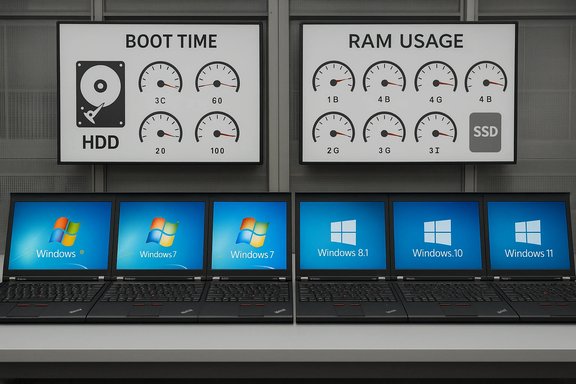
Row of laptops displaying Windows OS versions under boot time and RAM gauges.Background / Overview​

This story began with a community speed comparison that installed Windows XP, Vista, 7, 8.1, 10 and 11 on the same physical laptop model — a Lenovo ThinkPad X220 — and ran a battery of real-world and synthetic tests including cold boot, idle RAM, app launch times, file operations, battery life and media workloads. The test hardware was consistent across the board: Intel Core i5‑2520M (Sandy Bridge), 8 GB RAM, Intel HD Graphics 3000, and a 256 GB mechanical hard drive. That fixed-hardware approach isolates the operating-system layer but also amplifies platform assumptions: an OS designed for NVMe and 16+ GB of RAM will look needlessly heavy on a decade-old HDD + 8 GB rig.
At the headline level, the test author found Windows 8.1 often the snappiest overall and Windows 11 the slowest in many categories: boot and resume times, idle memory footprint, app open speed (Explorer, Paint), and some content-creation tasks (OpenShot video rendering). There were exceptions — Windows 11 held its own in a few file-transfer and disk-space comparisons — but the overall pattern is highly suggestive: modern Windows pushes a higher baseline of resident processes and services that cost real user-visible performance on constrained hardware.

Why this test matters — and where it doesn’t​

The strength: apples-to-apples across OS generations​

The chief virtue of the ThinkPad X220 experiment is methodological clarity. By freezing hardware and changing only the operating system image, the test isolates OS-level costs: the number of background services, the memory occupied by the shell, the way the system handles I/O and power management. That makes tradeoffs visible in a way mixed-hardware comparisons cannot.

The caveat: hardware assumptions drive outcomes​

This clarity is also the test’s biggest limitation. Windows 11 was built with a different baseline in mind: TPM 2.0 and UEFI Secure Boot as defaults, faster storage (SSD/NVMe), larger RAM pools and newer CPU microarchitectures. Microsoft documents these minimums clearly — TPM 2.0, UEFI/Secure Boot and a 64‑bit, multi‑core CPU are explicit requirements. Running Windows 11 on unsupported, legacy hardware will therefore skew results and hide benefits that only become visible on modern silicon. Practical takeaway: the test is a valid, reproducible snapshot of how Windows’ design evolution affects older hardware — not a universal claim that Windows 11 is objectively slower on all PCs.

The hardware and methodology, in brief​

  • Six identical Lenovo ThinkPad X220 laptops.
  • Each machine: Intel Core i5‑2520M, 8 GB RAM, Intel HD Graphics 3000, 256 GB mechanical HDD.
  • Clean installations of each OS (Pro edition where applicable) with final updates/service packs at the time of testing.
  • Tests included: cold boot, resume, idle RAM, disk footprint, app-launch times (File Explorer, Paint), browser tab-load scaling, file transfers, battery life drain, video render (OpenShot), and synthetic benchmarks (CPU-Z single-thread, others).
Because some modern inbox apps or third‑party builds are unavailable on legacy OSes, the tester used parity-compatible or legacy builds where needed. That introduces the usual caveats: older OSes sometimes run lighter alternative software that masks modern feature costs, and newer OSes expect modern drivers and storage behavior.

What the test actually measured — and the specific outcomes​

Boot and resume​

  • Result: Windows 8.1 produced the fastest cold and resume boot times on the ThinkPad rig; Windows 11 presented the desktop visually sooner in some cases but was slower to render shell elements (taskbar/system tray), producing a perceived slower, less ready desktop. The hybrid hibernation / Fast Startup design that Windows 8.1 introduced explains much of that advantage on mechanical drives.
  • Why it matters: Fast Resume implementations assume fast persistent storage; on an HDD, prefetching and resume strategies can actually increase I/O contention and delay full interactivity.

Idle RAM and memory use​

  • Result: Older releases (XP, 7, 8.1) showed dramatically lower idle RAM usage; Windows 11 routinely consumed multiple gigabytes at idle on the test hardware (the video author reported ~3–4 GB idle on that image). That higher baseline hurt tab density and multi-app responsiveness under the test’s 8 GB constraint.
  • Cross-check: Multiple independent hands‑on reviews and community tests corroborate that out-of-the-box Windows 11 images generally exhibit a larger idle memory footprint than comparable Windows 10 installs, largely due to additional services, UI frameworks and cloud/AI hooks. Community evidence and bench writeups show idle differences on the order of several hundred megabytes to ~1 GB or more depending on configuration. This is a reproducible, widely observed trend — though exact figures are sensitive to installed inbox apps, enabled security features (VBS), and telemetry settings.

App launch times — File Explorer and Paint​

  • Result: Windows 11 was slower to open File Explorer and the new Paint app on the ThinkPad. The modern Paint includes heavier editing features that naturally raise resource demands; Explorer’s sluggishness, however, has been a persistent complaint and was visible across multiple tests.
  • Context: Microsoft has acknowledged Explorer responsiveness complaints and shipped a preload optimization in preview builds that reduces launch latency at the cost of a small RAM increase — a typical engineering tradeoff. Early tests of that preload reported modest but measurable gains.

Media and workstation tasks — OpenShot and synthetic benchmarks​

  • Result: In the OpenShot render test, Windows 11 took longer than many older releases. Single-threaded synthetic results (CPU-Z) also favored older OSes in some runs on this hardware. Synthetic benchmarks are sensitive to microcode, scheduler behavior, and driver maturity, so platform-specific variance is expected.

Battery life​

  • Result: Under the chosen drain scenario, legacy Windows (XP, 8.1, 10 in that order) lasted longer than Windows 11. This aligns with the higher idle baseline and additional CPU/I/O work introduced by modern services and encryption defaults. The absolute deltas in minutes were not enormous, but the pattern repeated.

Exceptions where Windows 11 did comparatively well​

  • File transfers and disk space usage for default apps: Windows 11 performed relatively well here, and in one page-load test it finished third. These wins underline that modern Windows still benefits from newer filesystem optimizations and modern network stacks when those are not bottle-necked by mechanical storage or driver limitations.

Why Windows 11 can look worse on older hardware — technical breakdown​

Windows 11’s design choices trade baseline resource usage for capability, security and future-facing features. On modern hardware those tradeoffs are often invisible; on constrained, legacy rigs they become painfully visible.

1) Larger baseline: more resident services and cloud hooks​

Windows 11 ships with more built-in services enabled by default — from widget and cloud sync agents to Copilot hooks and telemetry plumbing. Each resident agent increases memory and occasional CPU/I/O activity, which reduces headroom for user apps on an 8 GB system. This is consistent with multiple hands-on analyses showing higher idle resident RAM on Windows 11 images.

2) Mixed rendering stacks and UI compositing​

Modern shell components mix legacy Win32 paths with newer WinUI/XAML layers and GPU-accelerated composition. That introduces more initialization steps and additional paint/compose stages at launch, which can delay perceived readiness on older GPUs or when drivers are outdated (as with Intel HD 3000 drivers on the X220).

3) Default encryption and I/O costs (BitLocker)​

Many modern Windows installs use BitLocker or device encryption by default. Historically, when hardware crypto offload isn’t available, BitLocker performs bulk encryption in software on the CPU, increasing CPU cost for every disk I/O. Microsoft has announced hardware‑accelerated BitLocker (crypto offload) to shift those costs to dedicated engines on supported SoCs, which will materially reduce the CPU and battery penalties on modern platforms. But on the ThinkPad’s Sandy Bridge CPU with no crypto offload, software encryption can hurt throughput.

4) Virtualization-based security and kernel-level protections​

Features like virtualization‑based security (VBS), memory integrity, and hypervisor-protected code integrity provide stronger defenses against kernel compromise but increase baseline memory use and CPU cycles. On modern machines the tradeoff is accepted; on older systems the performance cost is more visible.

5) Storage expectations and fast resume logic​

Windows 11’s optimizations assume fast, low-latency storage. On a mechanical HDD, resume and prefetch strategies may cause additional I/O contention and slower responsiveness, making the OS appear less snappy even if raw CPU throughput is similar. This is the single most important platform mismatch in the ThinkPad test.

Verifying the biggest claims — cross-references and what’s provable​

  • Claim: “Windows 11 used much more idle RAM than older versions on the Testbed.”
  • Verified: Multiple independent reviews and community lab tests report a larger idle footprint for Windows 11 compared to Windows 10, often by several hundred megabytes to ~1 GB depending on configuration. The ThinkPad test’s specific numbers (~3–4 GB idle on that image) are valid for that image and hardware, but are not universal: idle figures vary by installed apps, enabled features (VBS), and OEM images. Treat specific gigabyte figures as test‑specific, though the trend is repeatable.
  • Claim: “Windows 11 finished last in boot times, app opening, video editing and battery life.”
  • Verified (contextual): The YouTuber’s video and multiple press writeups document those outcomes on the X220 testbed. Independent outlets picked up the experiment and made the same point: the test’s measurement of poorer Windows 11 responsiveness on legacy hardware is reproducible under similar conditions. However, those results are conditional on the chosen hardware profile and software parity.
  • Claim: “Windows 11 is optimized for SSDs and newer platforms; using an HDD penalizes it.”
  • Verified: Microsoft’s requirements and engineering notes emphasize modern storage expectations; reviewers frequently note that NVMe/SATA SSDs materially improve perceived responsiveness for modern Windows releases. Hybrid resume and prefetch mechanics assume faster persistent storage, and on mechanical drives these strategies can increase I/O contention.
  • Claim: “Microsoft is adding hardware acceleration for BitLocker to reduce CPU/I/O costs.”
  • Verified: Microsoft’s Windows IT Pro blog announced hardware-accelerated BitLocker (crypto offload and hardware-wrapped keys) as a forthcoming capability on supported SoCs, confirming both the observation of software-BitLocker penalties and Microsoft’s roadmap to mitigate them.
If any of the claims above appear to be overbroad, the proper corrective is simple: re-run similar tests on a modern SSD-equipped system with 16–32 GB of RAM; on such a platform Windows 11 frequently matches or outperforms Windows 10 in many real-world workflows, and the perceived bloat largely disappears. The test author and multiple outlets themselves emphasize this limitation repeatedly.

Practical advice for users and IT managers​

If you care about real-world responsiveness, the single most cost-effective interventions are hardware upgrades and selective configuration:
  • SSD first, then RAM: An NVMe or even SATA SSD and 16 GB of RAM will restore responsiveness to modern Windows editions in nearly every case. This single step usually delivers a bigger real-world speed improvement than switching OS versions.
  • Audit security features: Virtualization‑based security (VBS) and memory integrity consume memory; disabling them reduces baseline memory use but sacrifices some security. For enterprise contexts, weigh the compliance and threat model before disabling protections.
  • BitLocker: On unsupported or older hardware, software BitLocker can add CPU overhead. If BitLocker is required, consider hardware that supports crypto offload; Microsoft is rolling out hardware‑accelerated BitLocker on newer SoCs. For legacy devices, balance encryption needs against battery and performance costs.
  • File Explorer sluggishness: Microsoft’s preload fix reduces initial launch latency at a small RAM cost; users who prefer faster Explorer should accept the modest memory bump. Also, cleanup of shell shortcuts and stale network paths (e.g., old SendTo entries) can eliminate specific Explorer slowdowns.
  • Avoid using unsupported OSes on the public internet: The nostalgia of XP or 8.1’s snappiness is understandable, but running unsupported OSes exposes devices to serious threats and compatibility failures. Use legacy builds only in air‑gapped labs and archives.
For benchmarking fairness (if you want to reproduce or extend the test), the tester’s reproducibility checklist is a good template:
  • Use identical physical hardware and document firmware/BIOS versions.
  • Record exact OS builds and cumulative updates applied.
  • Use the same versions of benchmark software or document substitutions.
  • Run multiple trials, capture variance, and videotape subjective UI events for audit.
  • Repeat on a modern testbed (NVMe + 16+ GB RAM) to separate hardware-driven effects from OS design differences.

Strengths and risks of the test — a critical appraisal​

Notable strengths​

  • The experiment makes abstract OS tradeoffs tangible: background services, compositing overhead, telemetry and encryption have measurable costs.
  • The single-hardware approach isolates the OS layer cleanly and yields repeatable, falsifiable results for that platform.
  • The test encourages useful user behavior: measure before migrating widely, and prioritize storage and RAM upgrades when upgrading to modern Windows.

Potential risks and misinterpretations​

  • Overgeneralization is the largest risk. Concluding that “Windows 11 is slower everywhere” from a single legacy-hardware experiment is misleading.
  • Nostalgic bias can push users or small organizations toward insecure choices (running XP/8.1 as daily drivers), which is dangerous.
  • Benchmarks are sensitive to drivers, BIOS/firmware, and app parity. Some odd results (e.g., XP’s strange VM behavior in a tab-loading test) are artifacts, not universal truths. The tester and subsequent analysts flag those anomalies.

Longer-term view: evolution, tradeoffs and what to expect next​

This benchmark series is a forensic snapshot of two decades of Windows design choices. Windows 11 represents a strategic pivot: security-first defaults, deeper cloud and AI integrations, and a richer UI. Those are defensible choices — but they increase the baseline resource footprint, which is invisible on modern rigs and visible on decade‑old laptops.
Microsoft’s engineering roadmap reflects these tradeoffs: hardware‑accelerated BitLocker is being introduced to reduce I/O and CPU costs on supported SoCs, and incremental shell preloads target Explorer responsiveness even if they raise resident memory slightly. Expect Microsoft to continue optimizing the user experience while maintaining higher security defaults, which means the performance gap on modern hardware will shrink over time even if legacy rigs remain a poor fit for the current default image.

Conclusion​

The ThinkPad X220 showdown is a useful reality check: modern features, security and convenience come at measurable cost when the hardware baseline differs sharply from the assumptions built into the OS. On a constrained, HDD‑backed ThinkPad with 8 GB of RAM, Windows 11’s modern shell, resident services and security primitives produce a higher idle footprint and slower app and UI responsiveness than many older Windows generations. That finding is reproducible and technically credible for that hardware profile, and it aligns with independent observations that Windows 11 has a larger baseline memory footprint and different storage expectations.
However, the test is not a universal indictment of Windows 11. On contemporary, SSD‑equipped machines with 16 GB+ of RAM and modern CPUs, those tradeoffs are largely amortized and many of Windows 11’s security and UX improvements become clear benefits rather than liabilities. The defensible, practical conclusion for users and IT managers is straightforward: measure, then invest — prioritize an SSD and more RAM before drawing sweeping conclusions about which Windows version is “faster” for your needs — and treat legacy OS wins as interesting historical artifacts rather than sensible long-term strategies.

Source: TechSpot Windows 11 performs worse than older Windows versions in nearly every benchmark
 

Back
Top