

The Windows ADK and WinPE separation still trips up experienced admins and newcomers alike, but getting the pair installed correctly — online or offline — is straightforward once you understand the version, order, and tooling details that Microsoft expects.
The Windows Assessment and Deployment Kit (Windows ADK) is Microsoft’s official toolkit for building, customizing, and deploying Windows images at scale. It bundles a set of command-line and GUI utilities — DISM, Windows System Image Manager (WSIM), Deployment Tools, User State Migration Tool (USMT) and other imaging and assessment utilities — that together let administrators capture reference images, inject drivers and updates, and craft unattended installs. This inventory and typical usage pattern is reflected in community guidance and deployment guides.
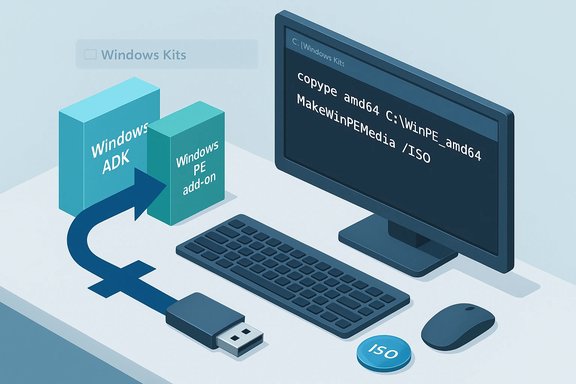
A source of chronic confusion: Windows Preinstallation Environment (WinPE) used to ship inside the ADK, but Microsoft split WinPE into a separate add‑on several ADK releases ago. That means you must typically download (and install) two packages: the ADK and the matching WinPE add-on. Microsoft’s official docs make this explicit and list the ADK and WinPE add‑on for each release. Why this matters: without the WinPE add‑on you cannot generate bootable repair media or ADK‑based boot images (copype, MakeWinPEMedia will not find the source files). Many deployment frameworks (MDT, Configuration Manager) and imaging workflows expect WinPE artifacts on the local build machine; install the ADK alone and your task sequences will fail at boot-image creation time. This behaviour and the common troubleshooting patterns appear repeatedly in field guides and community threads.
For air‑gapped or staging scenarios, use the offline layout option:
These tools are powerful and resilient when set up correctly; they fail predictably when versions or components are missing. Use the Deployment and Imaging Tools Environment, keep a documented offline ADK/WinPE archive for each supported ADK release, and test boot images on representative hardware before rolling out at scale. The combination of careful version control, a dedicated imaging host, and a deterministic test flow will convert most ADK headaches into a routine, repeatable process.
Source: How2shout Installing Windows ADK and WinPE for Windows 10 & 11 (Offline or Online)
 Background / Overview
The Windows Assessment and Deployment Kit (Windows ADK) is Microsoft’s official toolkit for building, customizing, and deploying Windows images at scale. It bundles a set of command-line and GUI utilities — DISM, Windows System Image Manager (WSIM), Deployment Tools, User State Migration Tool (USMT) and other imaging and assessment utilities — that together let administrators capture reference images, inject drivers and updates, and craft unattended installs. This inventory and typical usage pattern is reflected in community guidance and deployment guides.A source of chronic confusion: Windows Preinstallation Environment (WinPE) used to ship inside the ADK, but Microsoft split WinPE into a separate add‑on several ADK releases ago. That means you must typically download (and install) two packages: the ADK and the matching WinPE add-on. Microsoft’s official docs make this explicit and list the ADK and WinPE add‑on for each release. Why this matters: without the WinPE add‑on you cannot generate bootable repair media or ADK‑based boot images (copype, MakeWinPEMedia will not find the source files). Many deployment frameworks (MDT, Configuration Manager) and imaging workflows expect WinPE artifacts on the local build machine; install the ADK alone and your task sequences will fail at boot-image creation time. This behaviour and the common troubleshooting patterns appear repeatedly in field guides and community threads.
What the ADK and WinPE actually provide
Key ADK components (practical view)
- Deployment Tools — includes DISM, OSCDIMG, and the command-line utilities used to capture, mount, and service WIM/FFU images.
- Windows System Image Manager (WSIM) — authoring tool used to create unattend/answer files for unattended setup.
- User State Migration Tool (USMT) — capture and restore user profiles and settings during PC refreshes.
- Windows Imaging and Configuration Designer (ICD) — authoring tool for provisioning packages.
Why WinPE is separate — and why that matters
WinPE is a tiny Windows runtime that boots into memory and exposes the Windows toolset for maintenance tasks: partitioning, applying images, recovery, scripting, and diagnostics. Microsoft separated WinPE from the main ADK to reduce download size for users who only service images (and for licensing/servicing reasons). The practical effect: if you plan to create bootable USBs or ISO boot images, you must install the WinPE add‑on that corresponds to the ADK version you use. Microsoft explicitly documents WinPE as a separate download and ships optional component CAB files in your Windows Kits folder after installation.Which ADK version should you use?
Short answer: align the ADK version with the target Windows version you intend to deploy. Use the ADK release that matches the OS you will capture or service. Microsoft’s ADK page lists current releases and their supported target OS versions (for example, ADK 10.1.26100.2454 and later servicing updates). Recent ADK release notes and republished fixes are tracked on Microsoft’s documentation pages. Practical rules:- If your fleet is mostly Windows 11 25H2 (or later), use the ADK release that Microsoft lists for that Windows release.
- If you maintain multiple Windows versions, choose the ADK that matches the newest OS in the environment — newer Deployment Tools are generally backward-compatible for servicing images, but always test critical task sequences.
- Avoid trying to run multiple ADK versions side-by-side on a single host; Microsoft does not officially support side‑by‑side ADK installs — prefer separate VMs when you need different ADK versions in parallel.
Downloading: online vs offline (and the /layout command)
Microsoft provides small online installers (adksetup.exe and the WinPE add-on installer). Those are tiny stubs that fetch chosen components during installation. That’s why you need a working internet connection for the default GUI install.For air‑gapped or staging scenarios, use the offline layout option:
- On a connected machine, save adksetup.exe and run:
- adksetup /quiet /layout C:\path\to\ADKoffline
- This creates a download cache you can copy to offline systems and run adksetup.exe locally from that folder.
- The same approach works for the WinPE add‑on (adkwinpesetup.exe supports a similar layout switch). Microsoft documents the offline install flow and command-line switches.
Installation order and system requirements
Minimum system requirements (practical)
- A host running Windows 10 or Windows 11 (server installs are supported for imaging servers).
- Disk space: plan for 10+ GB free on the build machine when you intend to install ADK + WinPE and work with WIMs; more if you build large offline layouts or multi‑language WinPE images.
- Administrator privileges for installing and for running Deployment and Imaging Tools Environment.
Installation order (non‑negotiable)
- Install the Windows ADK first (select Deployment Tools and the auxiliary components you want).
- Install the Windows PE add‑on second. The WinPE add‑on installer expects the ADK to be present and will fail otherwise.
- After installation, use the Deployment and Imaging Tools Environment shortcut (Run as Administrator) to access the ADK tools with correct environment variables set.
Quick verification checklist after install
After installing both components, perform these checks:- Open Start → Windows Kits → Deployment and Imaging Tools Environment and run it as administrator.
- Run: dism /? — you should see DISM’s help text from the ADK-supplied binaries (the OS includes an older built-in DISM; use the Deployment and Imaging Tools Environment to ensure you get the ADK version).
- Test copype: copype amd64 C:\WinPE_test — this should create the WinPE working folder structure without errors.
- Validate file layout: check for the WinPE source files at:
C:\Program Files (x86)\Windows Kits\10\Assessment and Deployment Kit\Windows Preinstallation Environment\amd64\Media and WinPE_OCs. If those folders and CABs exist, the WinPE add-on is installed correctly.
- Re-run the WinPE add‑on installer (sometimes the add‑on registers incorrectly).
- Confirm you’re using the Deployment and Imaging Tools Environment (shortcut) and running elevated.
- Temporarily disable real‑time antivirus during install if an endpoint product is blocking component extraction (some AV products have historically interfered with ADK installs).
- If necessary, uninstall both packages and reinstall in the correct order.
Building WinPE media: copype + MakeWinPEMedia (step-by-step)
- Open the Deployment and Imaging Tools Environment as Administrator.
- Create a working folder (example for x64):
- copype amd64 C:\WinPE_amd64
- Optional: mount and customize the boot.wim (add drivers, optional components, or updates) using DISM:
- Dism /Mount‑Image /ImageFile:C:\WinPE_amd64\media\sources\boot.wim /index:1 /MountDir:C:\WinPE_amd64\mount
- Dism /Image:C:\WinPE_amd64\mount /Add‑Package /PackagePath:"C:\Program Files (x86)\Windows Kits\10\Assessment and Deployment Kit\Windows Preinstallation Environment\amd64\WinPE_OCs\WinPE‑NetFx.cab"
- Dism /Unmount‑Image /MountDir:C:\WinPE_amd64\mount /Commit
- Create an ISO or USB:
- ISO: MakeWinPEMedia /ISO C:\WinPE_amd64 C:\WinPE_amd64\WinPE_amd64.iso
- USB (will format the target drive): MakeWinPEMedia /UFD C:\WinPE_amd64 <DriveLetter>.
Common errors and troubleshooting
“WinPE not detected” or “copype is not recognized”
- Symptom: copype or MakeWinPEMedia returns "not recognized" or file-not-found errors.
- Likely cause: WinPE add‑on missing or installed incorrectly.
- Fixes:
- Confirm both "Windows Assessment and Deployment Kit" and "Windows PE Add‑on" appear in Programs & Features.
- Reinstall the WinPE add‑on and run the Deployment and Imaging Tools Environment as administrator.
- If you still see missing folders, check that the WinPE files exist under the Windows Kits path and reinstall.
Installer fails mid‑process
- Check disk space (offline layouts and WinPE extraction require gigabytes).
- Confirm stable network for online installs; retry layout creation from a different network if downloads keep failing.
- Temporarily disable real‑time AV or endpoint protection during install; some enterprise agents block ADK component extraction.
- Pause Windows Update during install if prompted — background updates have been known to conflict in rare cases.
Permissions / Access Denied on WinPE files
- Run Deployment Workbench or the Deployment and Imaging Tools Environment as local Administrator.
- If MDT or Configuration Manager complains about missing x86 folders: newer ADK WinPE distributions no longer include x86 WinPE for Windows 11. Some older tooling expects x86 folder structures; as a workaround teams copy the amd64 folder and rename it to x86 (or create placeholder folders) — this is a compatibility hack and should be used only to keep legacy tooling functioning while you update your flow. Microsoft documents the removal of 32‑bit WinPE for modern Windows ADK releases.
Offline imaging and enterprise workflows — best practices
- For fleet imaging, maintain a dedicated imaging VM or physical build station with the ADK + WinPE installed. Bake your golden image (capture with DISM or MDT) and keep versioned WIM/FFU artifacts.
- Keep a tested offline ADK layout archive per ADK release used for deployment pipelines. Store the matching WinPE add-on download in a secure artifact repository for rebuilds.
- Use autounattend.xml and WSIM to produce repeatable unattended installs instead of relying on fragile UI bypass tricks during OOBE.
- If you must support multiple ADK versions, prefer isolated VMs to avoid cross‑version conflicts. Microsoft does not support side‑by‑side ADK installs on the same host.
Security/operational risks and caveats
- Version mismatch risk: Using an ADK that does not match the target OS introduces subtle errors (for example, wrong optional components, missing CABs, or unsupported answer-file options). Always align ADK version to the deployment target and test on representative hardware.
- Unattended files with plaintext credentials: Embedding admin passwords in autounattend.xml is convenient but insecure. Use ephemeral credentials, secret stores, or provisioning solutions that avoid plaintext secrets in repository artifacts.
- Third‑party downloads: Only download ADK and WinPE installers from Microsoft. Community mirrors or third‑party bundlers may include outdated or tampered packages. Microsoft’s ADK documentation and download links are authoritative.
- Unsupported hacks for OOBE: Community tricks (Shift+F10 OOBE\BYPASSNRO, Rufus extended ISO options) can work for one‑off installs but are fragile and may be patched out by future Windows updates. For production or fleet deployments, rely on supported unattended provisioning or enterprise tools (MDT, Configuration Manager, Intune). Community guides explain these hacks but also warn about update and support tradeoffs.
Quick reference: commands and file paths
- Create WinPE working files (x64):
- copype amd64 C:\WinPE_amd64
- Make ISO:
- MakeWinPEMedia /ISO C:\WinPE_amd64 C:\WinPE_amd64\WinPE_amd64.iso
- Create USB (will erase target):
- MakeWinPEMedia /UFD C:\WinPE_amd64 P:
- ADK offline layout:
- adksetup /quiet /layout C:\ADKoffline
- Common WinPE source path:
- C:\Program Files (x86)\Windows Kits\10\Assessment and Deployment Kit\Windows Preinstallation Environment\amd64\WinPE_OCs
- ADK Deployment Tools DISM binary example:
- C:\Program Files (x86)\Windows Kits\10\Assessment and Deployment Kit\Deployment Tools\amd64\DISM\Dism.exe
Real-world checklist before you image a fleet
- Pick the ADK version that matches your target Windows release and download the corresponding WinPE add‑on.
- On an internet‑connected build host, create an offline layout (adksetup /layout) and copy the layout to your isolated imaging server if needed.
- Install ADK on the imaging host (Deployment Tools at minimum), then install the WinPE add‑on.
- Open the Deployment and Imaging Tools Environment as Administrator and run a copype test.
- Build a test ISO/USB with MakeWinPEMedia and boot a representative machine — verify drivers and NICs work.
- If you customize the WinPE image (PowerShell support, additional drivers), keep the image minimal and only add what is required to reduce boot footprint and speed startup.
Critical analysis: strengths, pain points, and what Microsoft could improve
Strengths- Tooling completeness: ADK + WinPE provide everything a deployment engineer needs — DISM, imaging, USMT, unattended authoring — in a supported bundle. The tools are well‑documented and scriptable, making them ideal for automated imaging pipelines.
- Flexibility: You can build minimal recovery images, add optional components (PowerShell, .NET), and inject drivers and updates before deployment.
- Split distribution increases human error: separating WinPE from the ADK reduces default download sizes, but it introduced a frequent operational error — installing ADK and forgetting WinPE. The error messages when boot image creation fails are often not helpful, which amplifies the problem for admins who don’t yet know to look for the missing add‑on. Community posts and field support logs show this is an ongoing friction point.
- 32‑bit WinPE removal: Microsoft deprecated 32‑bit WinPE for newer ADK releases. This is reasonable given modern Windows is 64‑bit only, but older tooling expecting x86 WinPE can break; teams sometimes use folder workarounds or maintain older ADK versions in VMs to handle legacy cases. Microsoft documents the change, but legacy tooling continues to surface issues.
- Installer fragility in hostile endpoint environments: enterprise AV and patching behavior sometimes interfere with ADK installation and extraction — so plan for maintenance windows and temporary AV exclusions when you build offline layouts for large deployments.
- A single ADK meta‑installer that optionally bundles WinPE by default with a clear “include WinPE” checkbox would reduce admin mistakes while preserving download options.
- Better troubleshooting output when MakeWinPEMedia or copype fails (explicit “WinPE source missing” messaging) would shorten remediation time for many admins.
Case study (short) — Why I recommend a dedicated imaging VM
Deploying to heterogeneous hardware taught a simple lesson: isolate your imaging toolchain. Use a standard imaging VM (or physical imaging host) with:- a snapshotable baseline,
- the exact ADK + WinPE versions you use for production,
- all driver packs pre‑staged,
- automation scripts to build WinPE media, and
- a regression test that boots each OEM model before mass rollout.
FAQs (short answers)
- Can I install the ADK on Windows Server?
Yes — imaging servers commonly run Windows Server. Microsoft documents supported server OSes for ADK installation. - Does the ADK version need to match the workstation OS?
It should match your target deployment OS, not necessarily the host. Newer Deployment Tools generally service older images, but the safe practice is to match the ADK to the OS you’re deploying. - Is ADK free?
Yes — ADK and the WinPE add‑on are free downloads from Microsoft. - Why is my WinPE image large?
The base boot.wim is small; adding optional components (PowerShell, .NET, language packs, drivers) increases size quickly. Only add packages you actually need to keep image size manageable.
Conclusion
The split of Windows ADK and WinPE remains the single biggest operational gotcha for administrators setting up a deployment workstation. The solution is straightforward: download the ADK from Microsoft, create an offline layout if necessary (adksetup /layout), install ADK first, then install the WinPE add‑on, and verify with a copype + MakeWinPEMedia run before you trust the build for production imaging.These tools are powerful and resilient when set up correctly; they fail predictably when versions or components are missing. Use the Deployment and Imaging Tools Environment, keep a documented offline ADK/WinPE archive for each supported ADK release, and test boot images on representative hardware before rolling out at scale. The combination of careful version control, a dedicated imaging host, and a deterministic test flow will convert most ADK headaches into a routine, repeatable process.
Source: How2shout Installing Windows ADK and WinPE for Windows 10 & 11 (Offline or Online)


